


iOS 27 doesn’t redesign your iPhone — it rebuilds Siri from scratch and threads Apple Intelligence into apps you already use every day. It’s now the shipping, stable release, not a beta.
Where things stand as of today (September 15, 2026): iOS 27 released to everyone on September 14, 2026. This is no longer a beta comparison — every row below reflects the final, public version.
Quick Takeaway
| Status | Released September 14, 2026 — stable, public version |
| Compatible devices | iPhone 11 and later, including iPhone SE (2nd gen) — nothing dropped |
| Full Siri AI + Apple Intelligence | iPhone 15 Pro and later |
| Custom Siri voice + fastest on-device dictation | iPhone 17 Pro, iPhone Air, and iPhone Duo |
| Time required | ~5 minutes to check compatibility and back up, ~15–20 minutes to install |
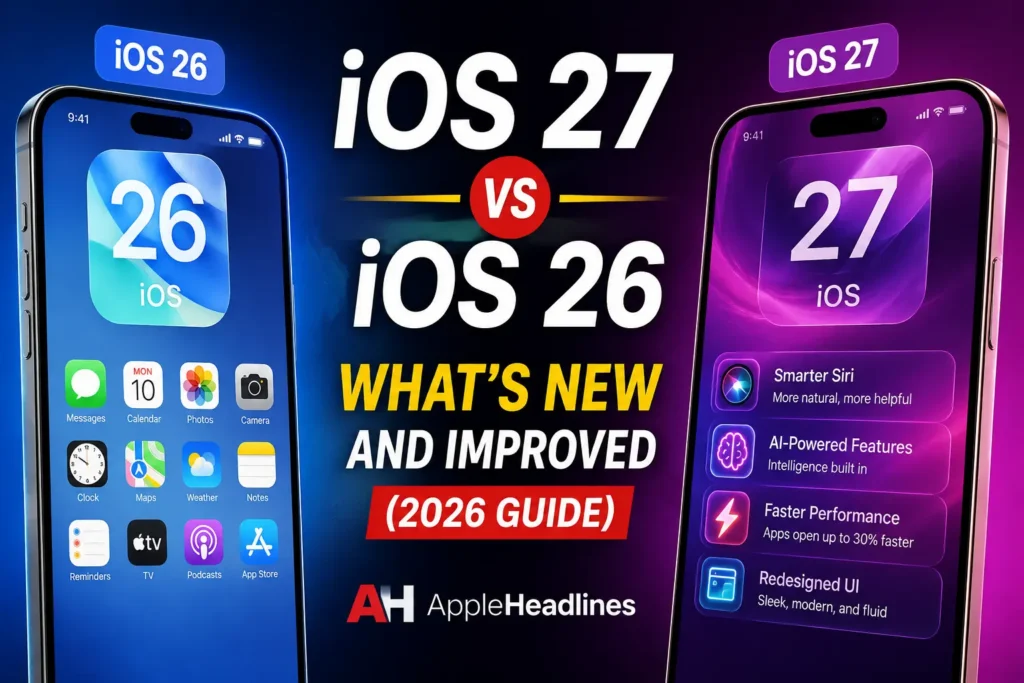
| Biggest change | A standalone Siri AI app, plus Apple Intelligence built into Safari, Photos, Messages, Mail, Calendar, and Screen Time |
Before You Update
- Compatible iPhone: iPhone 11 or newer, including the SE (2nd gen). Check under Settings → General → About.
- For Apple Intelligence and Siri AI: iPhone 15 Pro or later.
- For custom Siri voice and the fastest on-device dictation: iPhone 17 Pro, iPhone Air, or iPhone Duo.
- Storage: at least 5GB free (Settings → General → iPhone Storage).
- A recent backup: iCloud or a computer backup via Finder/iTunes.
- Region note: Siri AI is not available on iPhone or iPad in the EU at launch. Mac, Apple Watch, and Vision Pro are unaffected.
- Language note: Siri AI launched in English only; French, Japanese, Korean, Portuguese, and Spanish arrive in October 2026.
How to Update from iOS 26 to iOS 27
- Confirm compatibility under Settings → General → About.
- Back up your iPhone.
- Free up storage — aim for 5GB free.
- Go to Settings → General → Software Update and tap Download and Install. There’s no beta toggle needed anymore — this is the public release.
- Set up Siri AI afterward via Settings → Apple Intelligence & Siri, on supported hardware.
Pro Tip: It’s normal for your iPhone to run warm and feel briefly slower for the first day or two after any major iOS update, while Spotlight re-indexes and Apple Intelligence models finish setting up.
Method 1: How to Check and Update from iOS 26 to iOS 27
Follow these steps whether you’re installing the current public beta or waiting to jump straight to the stable release in September.
- Confirm compatibility. Open Settings > General > About and check your model. If it’s an iPhone 11 or newer, you’re eligible.
- Back up your iPhone. Go to Settings > [Your Name] > iCloud > iCloud Backup > Back Up Now. If you’d rather use a computer, connect via Finder or iTunes and select Back Up Now.
- Free up storage. In Settings > General > iPhone Storage, delete anything you don’t need. Aim for at least 5GB free — our guide to clearing iPhone system storage covers this in more depth if you’re tight on space.
- Choose beta or stable. If you want iOS 27 now, go to Settings > General > Software Update > Beta Updates and select the iOS 27 Public Beta. If you’d rather wait for the finished version, skip this step — you’ll be prompted automatically in September.
- Install the update. Tap Download and Install under Settings > General > Software Update. Keep your iPhone connected to Wi-Fi and power, then wait 20–40 minutes depending on your connection.
- Set up the new AI features. After the update completes, go to Settings > Apple Intelligence & Siri to enable Siri AI (on supported hardware) and join any feature waitlists Apple has staged for a phased rollout.
Pro Tip: Don’t install a beta build on your primary iPhone. Beta software carries real bugs — Apple’s own release notes for early iOS 27 builds mention battery drain and warmth during the first few days after installing. If you want to try iOS 27 early, do it on a secondary device, not your daily driver.
iOS 27 vs iOS 26: Full Feature Comparison (Final)
| Category | iOS 26 | iOS 27 |
|---|---|---|
| Siri | Apple Intelligence-assisted, mostly single-step | Rebuilt as Siri AI: standalone app, multi-step cross-app tasks, English-only at launch |
| Apple Intelligence reach | Mostly standalone tools | Woven into Safari, Photos, Messages, Mail, Calendar, Home, Shortcuts |
| Photo editing | Basic Clean Up and Enhance | Clean Up, Extend, Spatial Reframing |
| Safari | Liquid Glass tab bar, Highlights | Auto tab grouping by topic, Notify Me for page changes, plain-language browser extension builder |
| Screen Time / Parental Controls | Standard limits | Mandatory child accounts under 13, Ask to Browse, category-based Time Allowances |
| Camera | Standard modes | Siri mode in the mode carousel using Visual Intelligence |
| Lock Screen / Wallpaper | Liquid Glass customization | AI-generated Wallpaper Extension, compact clock layout |
| Accessibility | Existing tools | New Live Recognition section |
| Supported devices | iPhone 11+ | iPhone 11+ — nothing dropped |
| Full AI feature requirement | iPhone 15 Pro+ | Same baseline; custom Siri voice + fastest dictation limited to iPhone 17 Pro, Air, Duo |
| Foldable support | None | Native iPhone Duo support (device ships October 23) |
| EU availability | Full rollout | Siri AI withheld on iPhone/iPad at launch (DMA) |
| New in this cycle, not previously covered | — | iPhone Handoff (shared number across two iPhones), expanded CarPlay features, more granular Find My location-hiding |
Confirmed performance gains: faster app launches, faster Photos library loading, and faster AirDrop transfers, verified against iOS 26.0’s own launch state on an iPhone 17 Pro.
For the full feature rundown, see the iOS 27 Complete Guide.
Troubleshooting Common iOS 27 Upgrade Issues
iOS 27 Isn’t Showing Up in Software Update
Confirm your device is iPhone 11 or newer under Settings → General → About. Apple staggers rollout by region and carrier — if everything checks out, wait a few hours and check again.
Siri AI or Apple Intelligence Features Are Missing
Confirm you have an iPhone 15 Pro or later. If you’re in the EU, Siri AI is withheld there on iPhone and iPad by design, not a bug.
The Update Is Stuck or Won’t Get Past the Apple Logo
Force restart: Volume Up, then Volume Down, then hold Side until the Apple logo appears. If still stuck, connect to a computer and use Finder or iTunes. Our DFU mode and recovery guide covers deeper restores.
iPhone Feels Warm or Battery Drains Faster
Expected for the first 24–72 hours after any major update, as Spotlight re-indexes and Apple Intelligence models finish setup. If drain continues past a few days, check for apps not yet updated for iOS 27.
Frequently Asked Questions
It’s out. iOS 27 released to the public on September 14, 2026 — this is the stable version, not a beta.
If you have an iPhone 15 Pro or later, yes — Siri AI and the expanded Apple Intelligence features are a real functional upgrade. On older, non-Pro iPhones (11 through 15), you’ll get performance and Screen Time improvements but none of the AI headline features.
No devices were dropped, and Apple’s focus this cycle was stability and performance rather than piling on new features.
Downgrading is only possible while Apple is still “signing” the previous version’s firmware — typically a short window after a new release. It requires a computer and erases your device, so back up first.
iOS 27 isn’t a reinvention of the iPhone — it’s Apple finally shipping the AI-driven Siri it first previewed in 2024, wrapped around real performance and parental-control improvements. If your iPhone qualifies for the full Apple Intelligence tier, it’s one of the more substantial updates in years; if it doesn’t, it’s still a solid, low-risk update.
This article reflects Apple’s official iOS 27 public release on September 14, 2026, updated September 15, 2026. Feature availability, requirements, and regional rollout are subject to change. Always back up your iPhone before installing a major software update. AppleHeadlines.com is not affiliated with Apple Inc.
Sources: Apple Newsroom, MacRumors, Macworld, PhoneArena, Wikipedia (iOS 27), BGR

T’kal is the lead strategist and developer behind Apple Headlines. With a background in digital marketing and web development, he specializes in technical Apple troubleshooting, software news, and hardware rumors. T’kal focuses on delivering high-authority tech content that bridges the gap between Apple enthusiasts and the latest industry innovations.