





Quick Answer
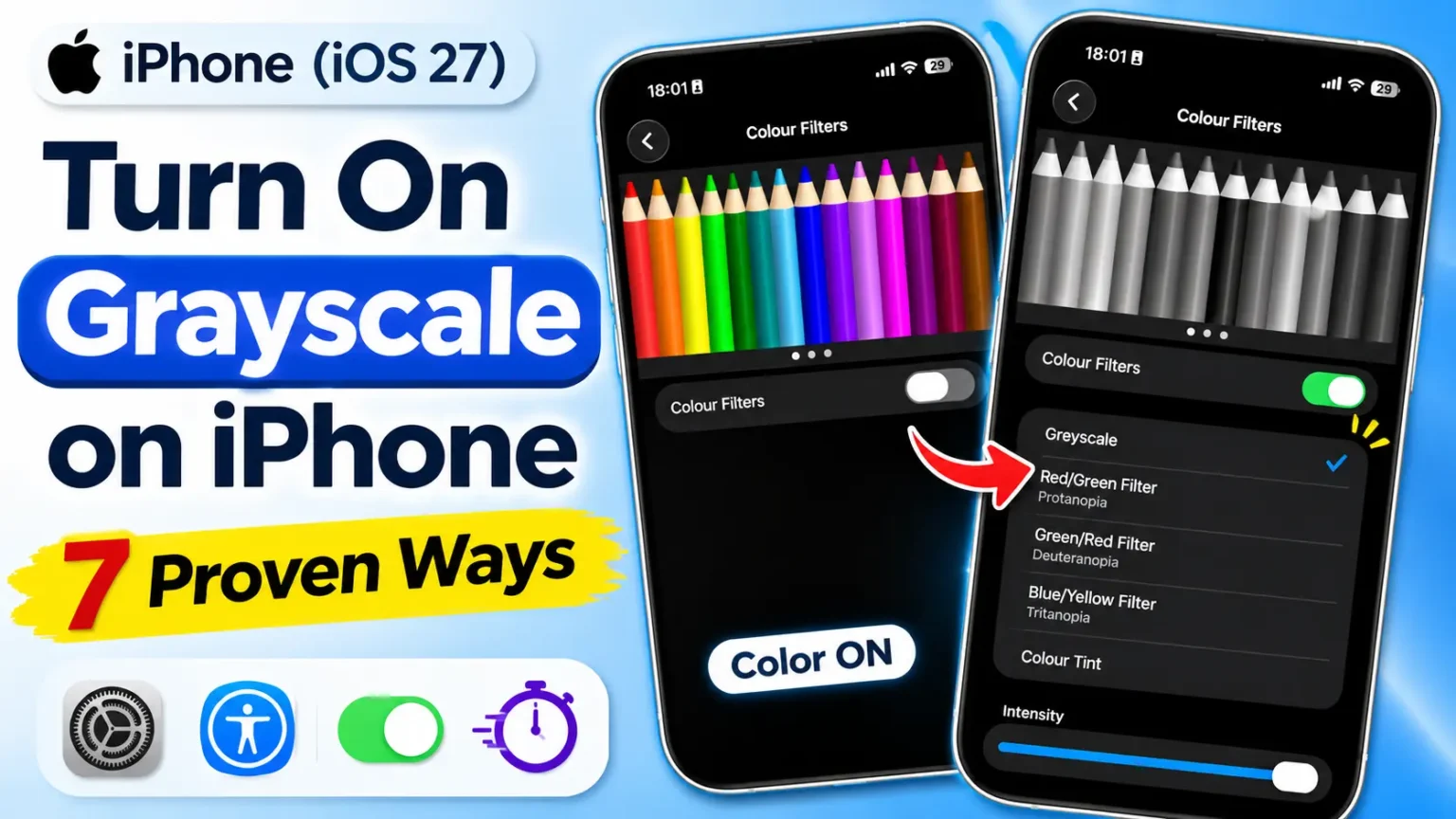
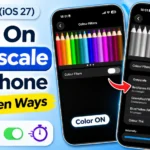
To turn on Grayscale on iPhone, open Settings → Accessibility → Display & Text Size → Color Filters.
- Open the Settings app.
- Tap Accessibility.
- Select Display & Text Size.
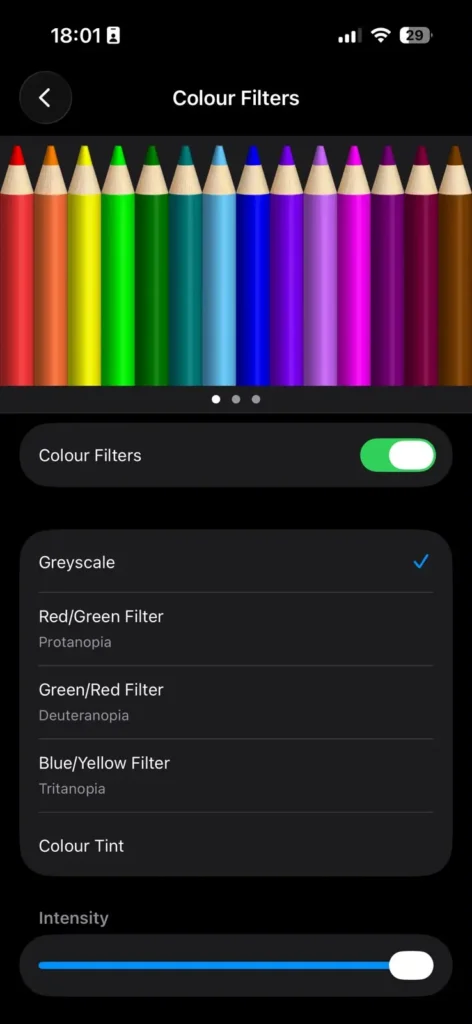
- Tap Color Filters.
- Turn on Color Filters and select Grayscale.
Your iPhone screen will immediately switch to black and white. To restore normal colors, return to Color Filters and turn it off.
Compatibility: These steps work on iOS 13 through iOS 27, on supported iPhone models.
You pick up your phone to check one message.
Forty minutes later, you’re still scrolling.
Bright red badges, colorful thumbnails, and flashy icons are built to pull you back in.
A lot of people lose time this way.
Grayscale mode removes all color from your iPhone screen.
It’s one of the simplest digital-wellbeing tricks out there, and Apple has hidden it deep inside Accessibility.
Below you’ll find the fastest way to turn it on, six shortcuts to toggle it on demand, and what to do if your iPhone gets stuck in black and white.
Why Use Grayscale on iPhone? (It’s More Than a Gimmick)
Before the steps, here’s why grayscale is worth trying.

1. It makes your phone less tempting
App designers use color as a reward signal.
Red notification badges create urgency, and bright icons catch your eye.
Remove the color and that pull gets weaker.
This isn’t just a theory. In a 2020 study in The Social Science Journal, researchers Alex Holte and F. Richard Ferraro asked college students to use grayscale for a week.
Average daily screen time dropped by about 38 minutes.
Former Google design ethicist Tristan Harris and the Center for Humane Technology have recommended grayscale for years for the same reason.
2. It’s a real accessibility tool
Apple put grayscale under Accessibility for a reason.
Some people with color sensitivity, visual processing differences, or migraine triggers find a colorless screen easier to look at.
Others use it alongside other display filters to make text clearer.
3. It helps with focus during work or study
A gray screen feels like a tool, not a toy.
Many students and remote workers turn it on during deep-work sessions so games and social apps look dull.
4. It can help a little at night
Grayscale is not a replacement for Night Shift or a real sleep routine.
Still, a dull, colorless screen makes late-night scrolling less fun, and that helps some people put the phone down sooner.
A note on battery: Grayscale does not save meaningful battery on OLED iPhones. The screen still lights the same pixels.
If you want battery gains, use Dark Mode or Low Power Mode instead.
Think of It Like Sunglasses for Your Screen
Here’s the simplest way to understand how grayscale works.
Grayscale doesn’t repaint your iPhone.
It works like a pair of black-and-white sunglasses that your iPhone puts on.
The world behind the lenses is still in full color. Only your view changes.
That’s why:
- Screenshots stay in full color. The filter is on the “lens,” not the image.
- Photos you take are still in color. Your camera records normal color files.
- Turning it off is instant. You’re just taking the glasses off.
Technically, iOS applies the filter at the display output stage, after apps have drawn the screen.
That’s also why grayscale works the same in every app, from Instagram to Maps.
Method 1: How to Turn On Grayscale iPhone Mode in Settings (Main Method)
This is the core method. Every other shortcut builds on it.
When we tested this on our iPhone 17 Pro running iOS 27.1, the path was exactly the same as on an iPhone 15 running iOS 26.5. Apple hasn’t moved it since iOS 13.
- Open the Settings app.
- Scroll down and tap Accessibility.
- Tap Display & Text Size.
- Scroll down and tap Color Filters.
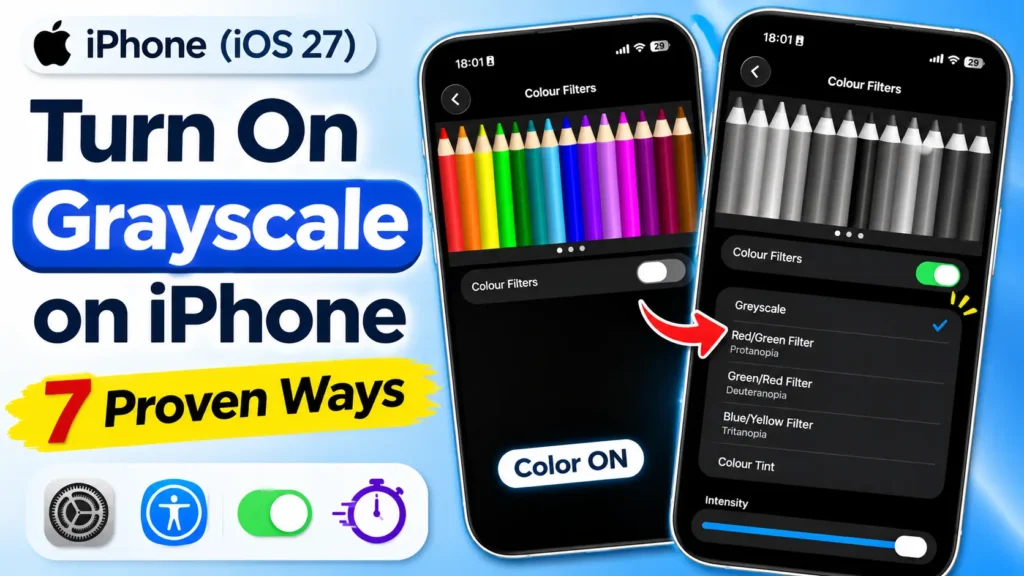
- Turn on the Color Filters switch.
- Tap Grayscale from the list.
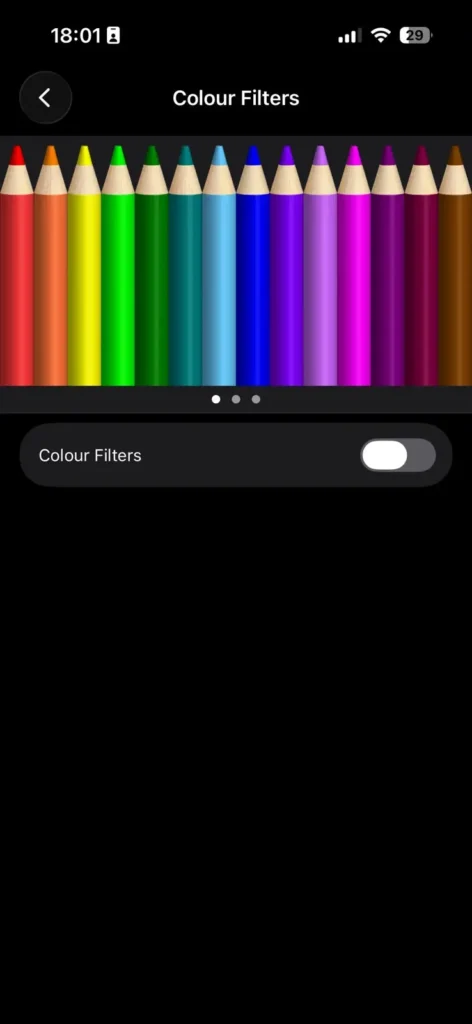
Your screen turns black and white right away.
Fine-tune it: For some filters, iOS shows an Intensity slider below the list. If it appears, drag it left to keep a little color, or right for full gray. In our testing, a slightly softer setting still cut the “candy” look of apps.
How to turn off grayscale on iPhone
- Go to Settings → Accessibility → Display & Text Size → Color Filters.
- Turn off the Color Filters switch.
Full color comes back right away. Your Grayscale choice stays saved for next time.
Method 2: Triple-Click Shortcut (Fastest Toggle)
This is the method we use most. One triple-press switches grayscale on or off.
- Open Settings → Accessibility.
- Scroll to the bottom and tap Accessibility Shortcut.
- Tap Color Filters so a checkmark appears.
Now triple-click the Side button on Face ID iPhones (iPhone X and later). On an iPhone SE, triple-click the Home button.
Heads-up: If you check more than one item, a menu pops up each time. Keep only Color Filters checked for a true one-step toggle.
Method 3: Control Center Toggle (iOS 18 and Later)
Starting with iOS 18, Apple lets you add individual accessibility controls to Control Center. This carries over in iOS 26 and iOS 27.
- Swipe down from the top-right corner to open Control Center.
- Tap the + in the top-left corner, or long-press an empty space.
- Tap Add a Control.
- Search for “Color Filters” and tap it.
- Tap an empty area to save.
Now one tap on that tile turns grayscale on or off.
On iOS 17 or earlier: Go to Settings → Control Center and add Accessibility Shortcuts. Then tap that icon and choose Color Filters.
Method 4: Back Tap (Double-Tap the Back of Your iPhone)
Back Tap feels like magic once it’s set up. It works on iPhone 8 and later running iOS 14 or newer.
- Make sure the Accessibility Shortcut from Method 2 is set to Color Filters.
- Go to Settings → Accessibility → Touch.
- Scroll down and tap Back Tap.
- Tap Double Tap (or Triple Tap).
- Select Accessibility Shortcut.
Now tap the back of your iPhone twice to switch grayscale on or off. It even worked through our thin MagSafe case. Thick rugged cases can block the taps, so try Triple Tap if double taps get missed.
Method 5: Ask Siri
This is the hands-free option.
- Say “Hey Siri” or just “Siri.”
- Say “Turn on grayscale.”
- To undo it, say “Turn off grayscale.”
In our testing on iOS 27, Siri also understood “Turn on color filters” and “Make my screen black and white.” You can also type the command if you use Type to Siri.
💡 Pro Tip: Grayscale Gets Better When It Runs Itself
Expert Insight
APPLEHEADLINES TEST BENCHThe people who stick with grayscale don’t flip it on by hand. They automate it.
Tie grayscale to your Sleep or Work Focus and it starts when you need it, with no willpower required.
Create a second automation that turns grayscale off when you open Photos or Camera. This lets you enjoy the screen-time benefit without editing photos in black and white.
Method 6: Automate Grayscale With a Focus Mode
None of the current top guides show this step by step. It’s the most powerful setup.
- Open the Shortcuts app.
- Tap the Automation tab at the bottom.
- Tap + or New Automation.
- Scroll down and choose Focus.
- Pick a Focus, like Sleep or Work.
- Select When Turning On, then choose Run Immediately.
- Tap Next, then New Blank Automation.
- Tap Add Action and search “Set Color Filters.”
- Make sure the action reads “Turn Color Filters On.”
- Tap Done.
Now repeat the steps with When Turning Off and set the action to “Turn Color Filters Off.” Without this second automation, your screen stays gray after the Focus ends.
Method 7: Schedule It by Time or App
By time of day
- In Shortcuts → Automation, tap New Automation.
- Choose Time of Day.
- Set a time, like 9:30 PM, and pick Daily.
- Choose Run Immediately, then add Set Color Filters → On.
- Make a second automation for the morning that turns it Off.
Only for certain apps
- Create a new automation and choose App.
- Select apps like TikTok, Instagram, or YouTube.
- Check Is Opened and Is Closed.
- Choose Run Immediately.
- Add Set Color Filters and change “Turn” to Toggle.
Now those apps open in grayscale, and color returns when you leave them.
📖 Short Story: How One Editor Took Back an Hour a Day
One of our editors, a self-described “doomscroller,” was averaging over 5 hours a day of screen time in Screen Time. She’d tried app limits, but she tapped “Ignore Limit” every time.
So she ran a two-week experiment. She set up Method 6 to tie grayscale to her Work and Sleep Focus modes, and Method 7 to gray out Instagram and TikTok around the clock.
The result: By week two, her daily average dropped to about 4 hours. “Instagram just looked boring,” she said. “Reels without color felt like watching security camera footage.” The one downside: she kept forgetting grayscale was on when sharing photos. That’s exactly why we now recommend the Photos exception from our Pro Tip.
Which iPhones and iOS Versions Support Grayscale?
Grayscale Feature Compatibility
Compare grayscale controls and shortcuts across iOS versions.
| iOS Version | Settings Path | Control Center | Back Tap | Shortcuts |
|---|---|---|---|---|
| iOS 27 | Accessibility → Display & Text Size → Color Filters | ✓ Dedicated | ✓ | ✓ |
| iOS 26 | Same | ✓ Dedicated | ✓ | ✓ |
| iOS 18 | Same | ✓ Dedicated (new) | ✓ | ✓ |
| iOS 14–17 | Same | Via Accessibility Shortcuts | ✓ | ✓ iOS 14+ |
| iOS 13 | Same | Via Accessibility Shortcuts | ✕ | Limited |
| iOS 12 & older | General → Accessibility → Display Accommodations → Color Filters | ✕ | ✕ | ✕ |
Quick tip: On newer iOS versions, you can make grayscale easier to access by adding the appropriate accessibility control to Control Center or assigning it to Back Tap.
Model notes:
- iPhone 17, iPhone 17 Pro, iPhone Air, iPhone 16 series: All methods work. Use the Side button for triple-click.
- iPhone SE (2nd and 3rd gen): Triple-click the Home button.
- iPad: The same Settings path works in iPadOS, so this guide applies there too.
What If This Doesn’t Work? (Troubleshooting)
Problem 1: “My iPhone is stuck in black and white”
Check these in order. The first two cause most cases.
- Check Color Filters. Go to Settings → Accessibility → Display & Text Size → Color Filters and turn it off.
- Check the hidden Zoom Filter. This is the sneaky one. Go to Settings → Accessibility → Zoom. Tap Zoom Filter and set it to None. A grayscale Zoom Filter can make your screen gray even with Color Filters off.
- Check your automations. Open Shortcuts → Automation and look for any Set Color Filters actions.
- Check Focus modes. A Focus may be triggering an automation. Turn off any active Focus in Control Center.
- Restart your iPhone. This clears temporary display glitches.
Problem 2: “Grayscale keeps turning on by accident”
You’re probably triple-clicking the Side button by mistake, like when you press it in a pocket or while adjusting volume. Fixes:
- Go to Settings → Accessibility → Accessibility Shortcut.
- Uncheck Color Filters.
- Or check Back Tap and set it to None if a case or pocket triggers it.
Problem 3: “Siri says it can’t do that”
- Make sure Siri is on in Settings → Apple Intelligence & Siri (or Siri & Search on older iOS).
- Try the phrase “Turn on color filters” instead.
- Check your internet connection if Siri is slow to respond.
Problem 4: “Back Tap doesn’t respond”
- Remove thick or rugged cases and test again.
- Switch from Double Tap to Triple Tap.
- Confirm your Accessibility Shortcut is set to Color Filters.
Problem 5: “My automation asks permission every time”
Open the automation and choose Run Immediately instead of Run After Confirmation. Also turn off Notify When Run if the banner bothers you.
Last resort
If nothing works, go to Settings → General → Transfer or Reset iPhone → Reset → Reset All Settings. This resets settings only, not your data. You’ll need to re-enter Wi-Fi passwords. If the screen still looks gray after that, it could be a hardware problem, so contact Apple Support or book a Genius Bar appointment.
Grayscale vs. Other “Calm Screen” Settings
Grayscale vs. Other Calm Screen Settings
Find the right display setting for a more comfortable iPhone experience.
| Setting | What It Does | Best For |
|---|---|---|
| Grayscale FOCUS PICK | Removes all color from the screen | Reducing visual stimulation and encouraging less screen time |
| Night Shift | Shifts display colors toward warmer tones | Evening display comfort |
| Dark Mode | Uses darker backgrounds and lighter text in supported apps | Low-light environments and potentially saving battery on OLED screens |
| Reduce White Point | Reduces the intensity of bright colors | Reducing glare and screen brightness intensity |
| Smart Invert | Inverts most screen colors while preserving many images and media | Dark-style reading and viewing in low light |
| Color Tint | Applies a customizable color overlay to the display | Personalized color adjustments for some reading difficulties |
You can combine Grayscale, Dark Mode, and Reduce White Point for a less colorful, darker, and less visually intense display at night. Adjust each setting to find a comfortable balance.
Related Posts: How to Invert Colors on iPhone: Complete Step-by-Step Guide
You can combine grayscale with Dark Mode and Reduce White Point for the calmest possible screen at night.
Key Takeaways
Everything you need to know about iPhone Grayscale.
Settings → Accessibility → Display & Text Size → Color Filters → Grayscale.
Set the Accessibility Shortcut to Color Filters and triple-click the Side button to switch grayscale on or off.
On iOS 18 and later, you can add a dedicated Color Filters control to Control Center.
Use Back Tap or Siri for additional ways to control grayscale.
Connect automations to Focus modes, specific times, or apps to turn grayscale on and off automatically.
Check your Zoom Filter. A grayscale Zoom filter can make your screen appear black and white even when Color Filters are off.
Grayscale does not change the colors of saved photos or screenshots, and it generally provides little to no meaningful battery savings.
Some research suggests grayscale may reduce daily smartphone use by about 38 minutes, although results can vary between users.
FAQs
No. Grayscale only changes what you see on the display. Screenshots, photos, and videos are saved in full color.
Not directly in Settings. But you can use a Shortcuts app automation (Method 7). It turns grayscale on when an app opens and off when it closes.
Check Settings → Accessibility → Zoom → Zoom Filter. If it’s set to Grayscale, change it to None. Also check Shortcuts automations.
For many people, yes. A 2020 study found college students cut about 38 minutes a day. It works best when combined with Focus modes.
Not noticeably. iPhone 17 models use OLED screens, where gray pixels use similar power. Use Dark Mode or Low Power Mode for battery savings.
Sources
- Apple Support: iPhone User Guide, “Change display and text size settings on iPhone”
- Apple Support: “Use Back Tap on your iPhone” and “Use Accessibility Shortcut on iPhone”
- Apple Support: Shortcuts User Guide, “Personal automations”
- Holte, A. J., & Ferraro, F. R. (2020). “True colors: Grayscale setting reduces screen time in college students.” The Social Science Journal.
- AppleHeadlines hands-on testing: iPhone 17 Pro (iOS 27.1), iPhone 15 (iOS 26.5), iPhone SE 3rd gen
Disclaimer
This article is for general information only. Steps were tested on the devices and iOS versions listed and may vary slightly with future updates or regional settings. Grayscale is not a medical treatment. If you have vision problems, migraines, or concerns about screen use, talk to a qualified healthcare professional. AppleHeadlines.com is an independent publication and is not affiliated with or endorsed by Apple Inc. iPhone, iOS, Siri, and Back Tap are trademarks of Apple Inc. Before you reset settings, back up your iPhone. We are not responsible for data loss.
Your Turn: Try the 7-Day Grayscale Challenge
Ready to take control of your screen time? Give grayscale a try for seven days and see whether a black-and-white iPhone makes a difference in your daily habits.
Set up the triple-click Accessibility Shortcut right now. It takes about 30 seconds.
After seven days, open your Screen Time report and compare your daily usage with the previous week.
Share your experience in the comments. We’d love to hear how it worked for you!
Related Posts:

T’kal is the lead strategist and developer behind Apple Headlines. With a background in digital marketing and web development, he specializes in technical Apple troubleshooting, software news, and hardware rumors. T’kal focuses on delivering high-authority tech content that bridges the gap between Apple enthusiasts and the latest industry innovations.