





Last updated: November 3, 2026
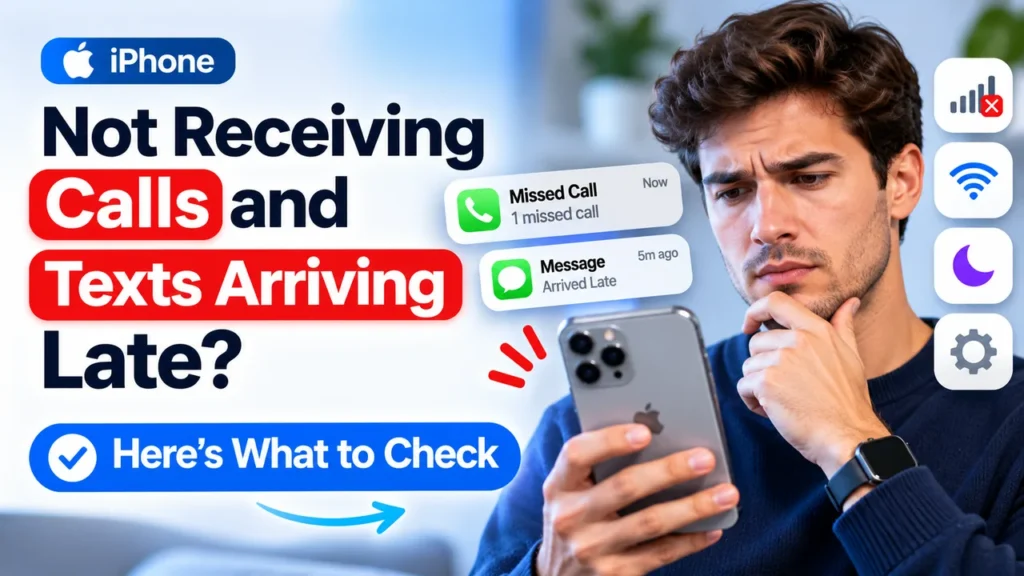
Your phone was in your hand all day, yet you have three missed calls you never heard ring.
Texts sent this morning are showing up six hours late.
And when someone tries to leave a message, they hear that your voicemail isn’t set up, even though it was working yesterday.
If your iPhone texts are delayed and calls aren’t coming through, you’re not alone.
US iPhone users have reported exactly this combination of problems recently, including texts arriving 6–10 hours late, missed calls and “voicemail not set up” errors, sometimes on the same day as wider sign-in and app-loading problems.
The good news is that this is almost always caused by one of three things:
- A carrier problem (an outage or network issue on Verizon, AT&T, T-Mobile or another provider)
- A setting on your iPhone that’s silencing or rerouting calls and texts
- A software glitch after an iOS update
This guide helps you figure out which one it is in about two minutes, then walks you through every fix, from quickest to most thorough.

iPhone Calls Not Ringing?
Follow these six troubleshooting steps in order. Check off each fix as you try it.
Check for a Carrier Outage
START HERECheck whether other people nearby are experiencing network problems. If there’s a local outage, your iPhone may be fine.
Wait for the carrier to restore service, then restart your iPhone.
Refresh Your Network Connection
Turn Wi-Fi Calling off and back on. Then follow these steps:
- Open Control Center.
- Turn on Airplane Mode.
- Wait 30 seconds.
- Turn Airplane Mode off.
This forces your iPhone to reconnect to the cellular network.
Check Focus and Silence Unknown Callers
These settings can prevent incoming calls from ringing normally.
- Go to Settings → Focus and check Do Not Disturb.
- Check whether another Focus mode is active.
- Go to Settings → Apps → Phone.
- Review Silence Unknown Callers.
Update Carrier Settings
Open Settings → General → About and wait a few seconds.
If a carrier settings update appears, follow the on-screen instructions to install it.
Fix Your Voicemail Setup
If voicemail says it isn’t set up, try configuring it again in the Phone app.
If setup fails, contact your carrier. The issue may be related to voicemail provisioning on your line.
Reset Network Settings
LAST RESORTGo to:
Settings → General → Transfer or Reset iPhone → Reset → Reset Network Settings.
This removes saved Wi-Fi networks and passwords, along with other network settings. It does not erase your photos or apps.
If calls still don’t work, contact your carrier and ask them to refresh your line or check your SIM/eSIM.
If calls still aren’t ringing, contact your carrier for further support.
If calls go straight to voicemail without ringing, check Focus, Silence Unknown Callers, and your carrier connection before resetting your iPhone.
Is it your carrier or your iPhone? The 2-minute test
Before you change any settings, figure out where the problem is. Ask yourself these questions:
Is It Your iPhone or Carrier?
Answer these six questions to narrow down why your iPhone calls or messages aren’t working.
| Check This | ✓ YES | ✕ NO |
|---|---|---|
| Are friends on the same carrier having problems too? | Carrier issue Likely a network outage. | Phone or account Investigate your device or line. |
| Do outage-tracking sites show a spike in reports for your carrier? | Carrier issue Wait for service to return. | Keep checking Move to the next test. |
| Do iMessages (blue bubbles) arrive on time, but SMS (green bubbles) are late? | SMS network issue Carrier SMS service may be affected. | Keep checking Continue troubleshooting. |
| Do calls work on Wi-Fi but not on cellular, or vice versa? | Network settings Check your connection settings. | Keep checking Try the next question. |
| Does the problem happen with only one person? | Contact-specific issue Check blocked contacts or their phone. | Keep checking Look for a broader issue. |
| Did it start right after an iOS update? | Software glitch Restart and check for updates. | Keep checking Investigate carrier and device settings. |
Why the clues matter
Delayed texts plus missed calls plus voicemail errors all at once usually points to the carrier.
Calls, SMS and voicemail all run through your carrier’s network. Your iPhone just receives them.
When the network that connects your phone to the carrier has a problem, calls don’t reach you.
Texts sit in a queue and arrive hours later, all at once.
And the voicemail system can’t confirm your mailbox exists, so callers hear “not set up.”
On the other hand, if only calls are affected (texts are fine), it’s usually a setting like Focus or Silence Unknown Callers.
Step 1: Check for a carrier outage
Before you change anything, check whether your carrier is having problems:
- Your carrier’s official status or outage page, or its app (My Verizon, myAT&T, T-Mobile)
- Outage-tracking sites like Downdetector or StatusGator, which show spikes in user reports
- Social media. Search your carrier’s name plus “outage” on X or Reddit.
If there’s an outage: there’s nothing to fix on your iPhone. Once service is restored:
- Restart your iPhone, so it reconnects to the network properly.
- Wait. Delayed texts usually arrive in a burst once the network catches up.
- Check your voicemail. Messages left during the outage may appear late, or not at all.
Tip: during an outage, Wi-Fi Calling may still let you make and receive calls and texts if you’re on Wi-Fi. iMessage and FaceTime work over the internet too, so they keep working when the cellular network doesn’t.
Step 2: Quick fixes that solve most problems
Try these in order. Most people are fixed by step 4.
1. Toggle Airplane Mode
Open Control Center and turn Airplane Mode on for 30 seconds, then off. This forces your iPhone to reconnect to the nearest cell tower.
2. Restart your iPhone
Press and hold the side button and either volume button, slide to power off, wait 30 seconds and turn it back on. A restart clears network glitches that can hold back incoming texts.
3. Check your signal
Look at the signal bars. If you see “SOS,” “SOS only” or “No Service,” your iPhone can’t reach your carrier at all. Move near a window or outdoors and try again. Buildings with thick walls, basements and rural areas can cause dropped calls and late texts even on a working network.
4. Turn Wi-Fi Calling off, then on
Wi-Fi Calling is great, but if your Wi-Fi is slow or unreliable, your iPhone may route calls and texts through it and get stuck. Users have long reported calls going straight to voicemail and SMS being queued while Wi-Fi Calling was on with a weak connection.
- Go to Settings > Cellular > Wi-Fi Calling and turn it off.
- Test a call and a text.
- If everything works now, the problem is your Wi-Fi network. Turn Wi-Fi Calling back on only when you’re on a reliable connection.
5. Turn off your VPN
A VPN can interfere with Wi-Fi Calling, iMessage and how texts are routed. Turn it off in Settings > VPN (or in the VPN app), wait a minute and test again.
6. Update carrier settings
Carriers push small updates that fix network problems. Go to Settings > General > About and wait about 15 seconds. If an update is available, you’ll see a pop-up. Tap Update.
7. Update iOS
Go to Settings > General > Software Update and install any available update. Apple often fixes messaging and calling bugs in point releases like iOS 27.2.
Step 3: Settings that silently block calls and texts
If your phone shows missed calls that never rang, or calls go straight to voicemail, one of these settings is usually responsible.
Focus and Do Not Disturb
Focus modes (Do Not Disturb, Sleep, Work, Driving) silence calls and notifications. Many people turn one on by accident, or have one on a schedule.
- Open Control Center and make sure no Focus is on (the moon or bed icon).
- Go to Settings > Focus and check each Focus for schedules or automations, especially Sleep and Driving.
- In each Focus, under People, check whether calls are only allowed from Favorites.
See our full guide on how to turn off Do Not Disturb on iPhone.
Silence Unknown Callers
This sends any number not in your contacts straight to voicemail, without ringing. That includes doctors’ offices, delivery drivers and new contacts.
- Go to Settings > Apps > Phone > Silence Unknown Callers (on older iOS versions: Settings > Phone).
- Turn it off, or check the “Silenced” calls in your Recents list.
More: Silence Unknown Callers on iPhone.
Call screening and spam filters
Newer versions of iOS can screen unknown calls or filter likely spam.
Your carrier’s spam blocking (such as Verizon Call Filter, AT&T ActiveArmor or T-Mobile Scam Shield) can also send calls to voicemail without ringing.
- Check Settings > Apps > Phone for call screening and Call Blocking & Identification apps.
- Open your carrier’s app and check its spam block level. “Block all high-risk calls” can catch real calls too.
Getting too many spam calls? Use blocking carefully, so real calls still get through.
Blocked contacts
If calls and texts are missing from one specific person, check whether you blocked them by accident:
- Settings > Apps > Phone > Blocked Contacts (see how to view blocked numbers)
- Unblock them if needed: how to unblock a number
- Messages from blocked numbers don’t arrive, but voicemails do appear in a separate list: see blocked voicemails.
Worried it’s the other way around? Here’s how to tell if someone blocked you.
Call Forwarding
If forwarding is on, your calls ring somewhere else.
- Go to Settings > Apps > Phone > Call Forwarding and make sure it’s off.
- Some carriers handle forwarding at the network level. On AT&T and T-Mobile, dialing ##004# and pressing Call resets conditional call forwarding. Verizon uses different codes, so check with Verizon support.
Auto-Answer Calls
If calls connect without you touching anything, or seem to disappear, check Settings > Accessibility > Touch > Call Audio Routing > Auto-Answer Calls, and make sure it’s off.
Filter Unknown Senders (for texts)
Texts from people who aren’t in your contacts may be going to a separate list.
- In Messages, tap Filters (top left) and check Unknown Senders and Spam.
- Change this in Settings > Apps > Messages > Unknown & Spam.
Dual SIM / eSIM line settings
If you use two lines (for example, a work eSIM and a personal SIM), calls may be going to the other line, or one line may be turned off.
- Go to Settings > Cellular and make sure both lines are on.
- Check Default Voice Line and Cellular Data settings, and turn on Allow Cellular Data Switching if you want it.
Step 4: Fix texts arriving hours late
If calls work but texts are delayed, focus on Messages.
Know your bubble colors
- Blue = iMessage, sent over the internet
- Green = SMS/MMS or RCS, sent through your carrier
If blue messages arrive on time but green ones are hours late, the problem is with your carrier’s messaging network. Contact your carrier.
Check Messages settings
- Go to Settings > Apps > Messages.
- Turn iMessage off, wait 30 seconds and turn it back on. If it gets stuck, see iMessage waiting for activation.
- Make sure Send as Text Message (SMS fallback) is on.
- Check RCS Messaging (if available for your carrier). Turning it off and on can fix stuck RCS chats with Android users.
Make sure cellular data is on
MMS (photos, group texts) and RCS need cellular data. If cellular data isn’t working, group texts and picture messages can arrive late or not at all. Check Settings > Cellular > Cellular Data. If photos aren’t sending, read our separate guide.
Free up storage
If your iPhone is almost out of space, Messages may struggle to download new messages. Check Settings > General > iPhone Storage and free up at least a few GB. See: iPhone storage full but nothing on it?
Texts delayed only from Android users?
This is usually an RCS or SMS routing problem. Toggle RCS off and on. If that doesn’t help, ask your carrier to reprovision your line for messaging.
Step 5: Fix “voicemail not set up” and voicemail problems
If callers hear “the person you’re calling has not set up their voicemail,” even though you did, the problem is usually on your carrier’s voicemail server, not your iPhone. Voicemail is stored by your carrier.
Fixes to try
- Open Phone > Voicemail. If you see Set Up Now, tap it and create a password and greeting again.
- Make sure cellular data is on. Visual Voicemail needs it to download messages.
- Call your voicemail directly: press and hold 1 on the keypad. If your carrier’s system says your mailbox isn’t set up, follow its prompts.
- Reset your voicemail password. In Settings > Apps > Phone > Change Voicemail Password, or through your carrier’s app or website.
- Update carrier settings (Settings > General > About).
- Check your signal and storage. Voicemail can arrive late with weak signal or very little free storage.
- Contact your carrier. If the voicemail system was down during an outage, it may need to be reset or reprovisioned on their side.
Want to get rid of voicemail entirely? See how to switch off voicemail on iPhone.
Step 6: Bigger fixes if nothing else works
Reset Network Settings
This clears saved Wi-Fi networks, VPN settings and cellular settings, which often fixes stubborn call and text problems.
- Settings > General > Transfer or Reset iPhone > Reset > Reset Network Settings
- You’ll need to re-enter Wi-Fi passwords afterwards.
- Full guide: how to reset network settings on iPhone
Remove and reinsert your SIM, or check your eSIM
- Physical SIM: power off, eject the SIM tray, check the SIM for damage, reinsert it and power on.
- eSIM: go to Settings > Cellular and make sure the line shows as active. Don’t delete your eSIM unless your carrier tells you to. You’ll need them to reissue it.
Reset All Settings
If the problem continues, try Reset All Settings. It resets every setting to default without erasing your data. Use this before considering a full erase.
Contact your carrier
Call your carrier from another phone (or use their chat) and ask them to:
- Check for outages or tower work in your area
- Refresh or reprovision your line (sometimes called “sending a network refresh”)
- Reset your voicemail box
- Check your account for blocks, porting problems or a recent SIM change
- Replace your SIM or reissue your eSIM
Tip: if you recently switched carriers or ported your number, delayed texts are common for a day or two while the transfer finishes. iMessage may also still be linked to your old setup.
Contact Apple
If calls and texts fail even with a working carrier, a new SIM and a reset, there may be a hardware problem with the cellular modem or antenna. Book a support appointment with Apple, especially if you’ve dropped the phone or it’s had water exposure.
Why texts and calls get delayed: the causes explained
Common Causes of iPhone Calling & Messaging Problems
Identify the possible cause by comparing the symptoms with the recommended fix.
| Possible Cause | Common Symptoms | Recommended Fix |
|---|---|---|
Carrier outage or network congestion | Late texts, missed calls, and voicemail errors, often affecting multiple locations. | Wait for service to recover, then restart your iPhone. |
Weak cellular signal | Dropped calls and delayed texts in certain rooms or areas. | Move to an area with better reception or use Wi-Fi Calling. |
Bad Wi-Fi or Wi-Fi Calling | Calls go straight to voicemail or fail while you’re at home. | Turn off Wi-Fi Calling temporarily or troubleshoot your Wi-Fi connection. |
Focus or Do Not Disturb | Incoming calls are missed without the iPhone ringing. | Turn off or adjust Focus and Do Not Disturb settings. |
Silence Unknown Callers or spam filters | Calls from new or unsaved numbers go straight to voicemail. | Review Silence Unknown Callers and third-party call filtering settings. |
Outdated carrier settings or iOS | Calling or messaging problems begin after a software update. | Check for the latest iOS and carrier settings updates. |
Messages or RCS glitch | Green SMS/RCS messages arrive late while blue iMessages work normally. | Check iMessage and RCS settings, then contact your carrier if SMS remains delayed. |
SIM, eSIM, or account problem | No Service, SOS status, or problems after switching carriers. | Ask your carrier to check your account and reissue or reactivate your SIM/eSIM if needed. |
Hardware damage | Problems persist after software and network troubleshooting. | Contact Apple Support or visit an Apple Authorized Service Provider for diagnosis. |
Important: These symptoms can overlap. Start with carrier and network checks before assuming your iPhone has a hardware problem.
If your carrier keeps failing you: is it time to switch?
If outages and delayed texts keep happening, it might be time to look at other options. That’s especially true if you rely on your phone for work.
For personal use
Compare the best cell phone plans in the USA based on coverage where you actually live and work, not just the national map.
Check coverage maps for your home and workplace address.
Ask neighbors which carrier works best, and consider whether a plan includes Wi-Fi Calling and reliable 5G in your area.
Many prepaid carriers run on the same networks as Verizon, AT&T and T-Mobile for less money.
Thanks to eSIM, you can often test a second carrier on the same iPhone before fully switching.
For businesses that can’t miss calls
If a missed call means a lost customer, don’t depend on a single cell connection. Many business phone service providers offer VoIP phone systems for small businesses that run over the internet.
Calls can ring on several devices at once (your iPhone, a desk phone and a computer), fall back to another number when one line fails, and turn voicemail into email.
When choosing one, compare call quality, iPhone app support, number porting, pricing per user, and how they handle outages.
How to avoid missing calls and texts in the future
- Keep iOS and carrier settings updated.
- Review your Focus schedules every few months.
- Use Wi-Fi Calling only on a reliable Wi-Fi network.
- Keep at least 5–10 GB of free storage.
- Turn on iMessage, so texts with other Apple users still get through during carrier problems.
- Ask important contacts to use iMessage, FaceTime or WhatsApp as a backup during outages.
- Wondering what happens to texts when your phone is off? See: do messages deliver when the phone is dead?
Frequently asked questions
Why are my iPhone texts arriving hours late?
Usually because of a carrier network problem, weak signal, or a glitch with Wi-Fi Calling, iMessage or RCS. If only green-bubble texts are late, it’s most likely the carrier. Restart your iPhone, update carrier settings and contact your carrier if it continues.
Why is my iPhone not receiving calls but I can make them?
The most common causes are Focus/Do Not Disturb, Silence Unknown Callers, call forwarding, a spam filter, or Wi-Fi Calling on a bad connection. Check those settings first.
Why does my iPhone show missed calls that never rang?
A Focus mode or Silence Unknown Callers is almost always responsible. Weak signal can also cause calls to go to voicemail before your phone rings.
Why does my voicemail say it’s not set up?
Voicemail lives on your carrier’s server. If it suddenly says “not set up,” set it up again in Phone > Voicemail. If that doesn’t work, ask your carrier to reset your mailbox, especially after an outage, a SIM change or a carrier switch.
Is it my iPhone or my carrier?
If people on the same carrier have the same problem, or outage sites show a spike, it’s the carrier. If it’s only you, and only for some calls or contacts, it’s likely a setting on your iPhone.
Will resetting network settings delete my data?
No. It only clears Wi-Fi passwords, VPN settings and cellular settings. Your photos, messages and apps stay.
Do delayed texts eventually arrive?
Usually, yes. Most queued SMS messages are delivered once the network recovers. But during long outages, some carriers may drop messages after a set time. Ask the sender to resend anything important.
Can an iOS update cause calls and texts to stop working?
Yes, occasionally. After major updates, some users report Messages and calling problems. Install the latest point update and update carrier settings, because these often fix the problem.
Final thoughts
When your iPhone texts are delayed and calls aren’t coming through, start with the carrier.
Most sudden, widespread problems like late texts, missed calls and “voicemail not set up” all at once come from the network, not your phone.
If your carrier is fine, check Focus, Silence Unknown Callers, Wi-Fi Calling and call forwarding, update your carrier settings, and Reset Network Settings if needed.
And if it keeps happening, it may be time to compare carriers, or, for a business, move to a VoIP system that doesn’t depend on a single connection.
Sources
- Apple Support: If you can’t make or receive calls on your iPhone
- Apple Support: If you can’t send or receive messages on your iPhone
- Apple Support: Update carrier settings on your iPhone
- T-Mobile: Voicemail troubleshooting
- Apple Community: iPhone calls going straight to voicemail
- Apple Community: Voicemails delayed on iPhone
- macReports: Voicemails are delayed? How to fix
Disclaimer: Apple Headlines is not affiliated with Apple Inc. or any wireless carrier. Settings names can vary slightly by iOS version and carrier.

T’kal is the lead strategist and developer behind Apple Headlines. With a background in digital marketing and web development, he specializes in technical Apple troubleshooting, software news, and hardware rumors. T’kal focuses on delivering high-authority tech content that bridges the gap between Apple enthusiasts and the latest industry innovations.