


Last updated: November 4, 2026 · Checked against Apple’s current support guides · Covers iPhone, iPad, Mac and Apple Watch on iOS 26 and iOS 27
Quick Answer
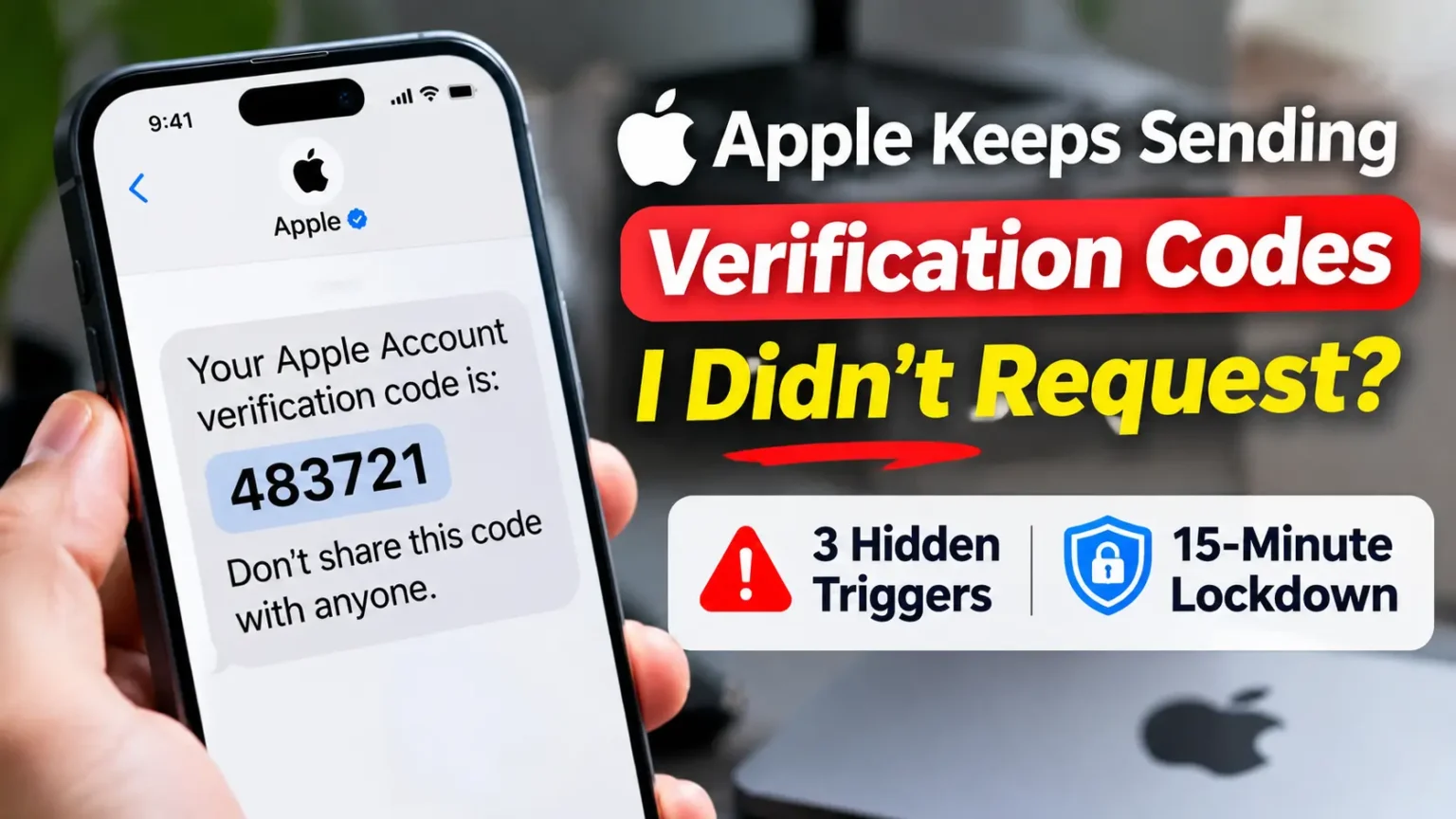
If Apple keeps sending verification codes you didn’t request, someone has entered your Apple Account email or phone number on a sign-in or password-reset screen.
A verification code alone cannot open your account. But repeated requests may mean someone is trying to access it.
Do not give it to anyone, even someone claiming to be from Apple Support.
What should you do?
Tap Don’t Allow if an unexpected sign-in approval notification appears.
Change your Apple Account password using a trusted device.
Review your devices at account.apple.com and remove any you don’t recognize.
Contact your carrier and Apple Support if the codes keep arriving or you notice suspicious activity.
Stay protected: Never approve an unfamiliar sign-in request or share a verification code with anyone.
You typed “Apple keeps sending verification codes I didn’t request” into Google because your phone won’t stop buzzing.
One code was odd.
Three codes in a day feels like a threat.
Your worry is fair, because Apple itself lists an unrequested code as a possible sign of trouble.
The good news is that a code by itself is not a break-in.
This guide shows what triggers these codes, how to read them, and how to lock everything down.
Why Unrequested Apple Codes Deserve Your Attention
Your Apple Account is the master key to your digital life.
It unlocks iCloud Photos, Messages, Find My, saved passwords and Apple Pay.
That is why a stray code is worth ten minutes of your time.
Here is how we built this guide.
We read Apple’s current support pages on compromised accounts, scams and two-factor authentication.
Those pages were published between December 2025 and August 2026.
We then compared them with what real people report on Apple’s own forums, plus the security reporting on password-reset floods.
We also read the top-ranking pages for this search.
Most of them solve a different problem: the “Apple Account Verification” password pop-up. That pop-up is usually a sync glitch.
A text message with a six-digit code is a different animal, and it needs a different response.
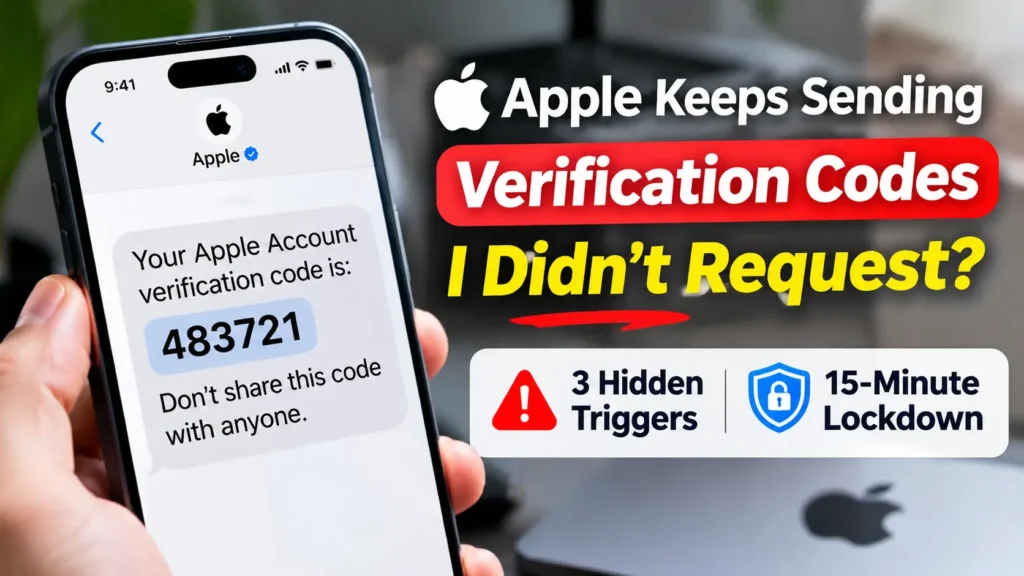
Apple Keeps Sending Verification Codes, Prompt or Pop-Up? Know What You’re Looking At
People use “verification code” to describe five very different things. Sort yours first, because the risk level changes.
What Do These Apple Verification Alerts Mean?
Identify the warning signs and understand how urgently you should respond.
| What You See | What It Usually Means | Risk Level |
|---|---|---|
| 💬 A text saying your Apple Account code is six digits | Someone started a sign-in or password reset using your email address or phone number. | ● Medium Act today |
| 📱 A six-digit code shown on your iPhone, iPad, or Mac | Someone may be trying to sign in, triggering a verification request to your trusted devices. | ● High Never share it |
| ⚠️ A repeated “Reset Password” box with Allow and Don’t Allow | A password-reset request flood. It may be followed by a fraudulent call pretending to be from Apple. | ● High Tap Don’t Allow |
| 🔄 An “Apple Account Verification” box asking for your password | Could be a legitimate account reauthentication prompt after an update or password change. Verify the prompt before entering credentials. | ● Low* Verify first |
| 🚫 A text from an unfamiliar number containing a link | Likely a phishing attempt designed to steal your Apple Account login details or verification code. | ● High Ignore and report |
Important: An unexpected verification code does not automatically mean your account has been hacked. Never share the code or approve an unfamiliar sign-in request.
*Low risk applies only when the verification prompt is genuine and expected. An unexpected password request deserves further investigation.
Apple says two-factor authentication works with your password plus a six-digit code.
The code appears on your trusted devices or goes to your trusted phone number.
So when a code lands, someone has started the sign-in process.
The Doorbell Test: How to Think About These Codes
Picture your account as a locked house.
A verification code is a doorbell ring.
Apple is the doorman who texts you every time a stranger rings it.
You didn’t invite the visitor.
But the doorman is doing his job, and the door is still locked.
Your password and your trusted device are the lock.
The ring still matters.
Someone is standing on your porch.
You want to know who they are, whether they hold a key, and how to make the lock stronger.
3 Hidden Triggers Behind Apple Verification Codes You Didn’t Request
Searches like “someone trying to access my Apple Account” usually come down to one of three causes.
1. Someone is typing your email or phone number into Apple’s sign-in page
Your Apple Account email is not a secret.
It sits in old emails, data leaks and contact lists.
A stranger only needs it to start the sign-in or “Forgot password” process.
Apple then sends a code to your trusted number.
One top-rated reply on Apple’s forum says that unrequested codes may mean the person also has your password.
That is possible, so treat it seriously.
But reporting on the reset-flood attack found something different.
Those attackers appeared to use Apple’s forgot-password page, which does not need your password.
So you can’t tell from the code alone.
That is why we change the password anyway.
2. A password-reset flood, often followed by a fake “Apple” call
This one is nasty.
Your devices start showing a system alert that says to use this device to reset your Apple Account password.
It offers Allow and Don’t Allow.
Then the alert comes again.
And again. Reports describe prompts on iPhones, Apple Watches and Macs at once.
The goal is to wear you down.
If you tap Allow by mistake, the attacker can move toward changing your password.
Reports also describe a call from a spoofed “Apple Support” number soon after. The caller sounds helpful and asks for the code you just received.
Apple’s scam guide is blunt. Apple will never ask you to tap Accept in a two-factor dialog.
It will never ask for your password, device passcode or verification code.
It will also never ask you to turn off a security feature.
3. It’s you, a family member, or a lookalike scam
Sometimes the cause is closer to home.
An old iPad tries to sign in.
A kid’s device asks for approval.
You or a relative mistype an email address while signing in somewhere.
One forum reply even suggests that a mistyped address can send a code to the wrong person.
Apple hasn’t confirmed that, so treat it as a possibility, not a fact.
Scam texts are the other lookalike.
A real Apple text is a short code with a warning not to share it.
A fake one pushes a link, a phone number or a story about a “locked account.” Don’t tap it.
Your 15-Minute Lockdown: Step by Step
Your 15-Minute Lockdown
11 steps to secure your Apple Account
Before you begin: Use a trusted device on a network you trust, like your home Wi-Fi. Work through these steps in order to protect your account.
Apple will never ask you to tell someone your verification code or approve a sign-in you didn’t initiate.
Keep Your Verification Code Private
Don’t share the code with anyone, including callers who claim they’re from Apple. Keep it completely private.
Never share your codeReject Unexpected Sign-In Requests
If an approval prompt appears, tap Don’t Allow. Never tap Allow unless you personally started the sign-in.
Tap Don’t AllowOpen Apple Account Security Settings
Open Settings on your iPhone, tap your name at the top, and select Sign-In & Security.
Change Your Apple Account Password
Tap Change Password. Choose a long, unique password that you’ve never used on another website or service.
Use a unique passwordSign In Through Apple’s Official Website
On a trusted computer, open Apple’s official account website and sign in to review your security settings.
account.apple.com ↗Remove Unknown Devices
Open the Devices section and check every device linked to your Apple Account. Remove anything you don’t recognize.
Review connected devicesCheck Trusted Phone Numbers and Emails
Review your trusted phone numbers and email addresses. Remove any number or address that you don’t control.
Verify your contact detailsContact Your Mobile Carrier
Call your mobile carrier and ask whether SMS forwarding, unauthorized SIM replacement, or a recent SIM change is active on your number.
Check SIM securityConfirm Two-Factor Authentication
Go to Sign-In & Security and check that two-factor authentication is enabled for your Apple Account.
Enable 2FACheck Every Apple Device
Check which Apple Account is signed in on each of your iPhone, iPad, Mac, and Apple Watch. Make sure you recognize every account and device.
Check all your devicesTurn On Stolen Device Protection
Enable Stolen Device Protection on your iPhone if you haven’t already. It adds extra security for sensitive account and device changes.
Your Security Check Is Complete
You’ve worked through all 11 recommended security checks. If suspicious sign-in attempts continue, contact Apple Support for further assistance.
On older iOS versions, the menu may say Password & Security instead. The steps are otherwise the same.
If you can’t sign in because someone changed your password, go to iforgot.apple.com. Apple will start account recovery. You may face a waiting period before access returns.
Treat Your Phone Number Like a Second Password
Most guides stop at “change your password.” But Apple’s own account-compromise guidance includes another important step that’s easy to overlook: secure your mobile number.
Ask your mobile carrier to confirm that SMS forwarding hasn’t been set up on your number without your permission. If someone can intercept your text messages, they may receive verification codes intended for you.
While you’re speaking with your carrier, ask them to add an account PIN, security passcode, or extra account lock to help prevent unauthorized SIM changes or number transfers.
Remember: Carrier security options vary. Ask which protections are available for your specific mobile account instead of assuming they’re already enabled.
Real-World Case: Two Codes a Day Became Six
A public thread on Apple’s support forum shows how this plays out.
In January 2024, a user with an iPhone 12 on iOS 17 described getting Apple code texts they never requested.
At first it was about two a day, at random hours. Within days it grew to four or even six.
They did the “right” things.
They changed their password on day two.
They changed their Apple Account email on day three.
The codes kept arriving, even hours after the password change.
The thread drew 167 “me too” votes, so they were far from alone.
Two months later, the original poster reported the “terror” ended after they changed their primary Apple Account email to a brand-new address.
That is one person’s result, not an Apple-confirmed fix.
But it fits the pattern.
If the attacker keeps using the old email to start the process, a fresh email leaves them nothing to ring.
The lesson is simple.
A password change is step one, not the finish line.
If the codes continue, the identifier they’re targeting may need to change too.
What to Do on Each Device and iOS Version
Your iPhone model doesn’t cause unrequested codes. They come from Apple’s servers when someone starts a sign-in. Your device only decides where the buttons live.
Where to Find Sign-In & Security Settings
Follow the correct path for your Apple device and software version.
| Device | Where to Go |
|---|---|
| 📱 iPhone 18 Pro, iPhone 17 Pro, iPhone Duo iOS 26 or iOS 27 |
Settings › Your Name ›
Sign-In & Security |
| 📱 iPhone 15, iPhone 16, iPhone 12 iOS 18 or iOS 17 |
Settings › Your Name ›
Password & Security
Older settings label |
| 📲 iPad |
Same as iPhone |
| 💻 Mac |
System Settings › Your Name
› Sign-In & Security |
| ⌚ Apple Watch | ⚠️ Alerts may appear here Manage account security from your iPhone. |
| 🌐 No trusted device available Any device | account.apple.com ↗ Type the address yourself in your browser. |
Quick Tip: If you can’t find the exact menu mentioned in a guide, check your iOS version. Apple has changed the security menu label across software versions.
Always type the web address yourself. Never use a link from a text or email.
“Apple Account Verification” Pop-Ups Are a Different Problem
Many people land here after seeing a box that keeps asking for their Apple Account password.
That is not an unrequested code.
Reports of this pop-up spiked after the iOS 26 upgrade, and forum threads describe it looping on iPhones and iPads.
Common causes include a password changed on another device, an expired payment method, a stuck app download or a half-finished update.
Techbout’s guide, updated in September 2026, lists these causes and offers simple fixes.
Those include signing out and back in, installing updates, checking payment info and force restarting.
Here is the catch. If you also get codes you didn’t request, don’t write the pop-ups off as a glitch. Run the lockdown above first. Then try the glitch fixes.
If you use iCloud on Windows and hit a similar loop, see our guide to iCloud for Windows can’t sign in.
What If This Doesn’t Work?
Maybe you changed your password and the codes still come. Here is what to try next.
- Keep tapping Don’t Allow. Reports from the reset-flood attack say prompts can continue for days. Patience helps, and never tapping Allow is what protects you.
- Change your Apple Account email address. It worked for the forum user above. It may not work for everyone.
- Think about a Recovery Key. Apple support reportedly suggested one to a flood victim. It’s a 28-character code needed to reset your password. Store it safely, because losing it can lock you out.
- Add a Security Key. Apple recommends security keys for extra protection against targeted attacks like phishing.
- Contact Apple Support. Use the official Apple Support app or apple.com/support. Don’t use a number from a text or a caller.
- Late texts? If the real codes arrive hours late, read our guide on iPhone not receiving calls and texts arriving late.
If you already shared a code or typed your password on a fake page, change your password now. Check your devices list. Watch your bank and Apple purchase history too.
How to Stop Apple Verification Codes From Coming
Here is the honest answer. We didn’t find a setting that stops a stranger from requesting codes. You can’t block Apple’s own text. What you can do is make those requests useless.
- Use a unique password that exists nowhere else.
- Keep two-factor authentication on. Apple notes that this protection can’t be removed on accounts created with it.
- Keep your trusted phone number and emails current.
- Review your devices list every few months. Our guide on removing AirPods from your Apple Account shows how device lists work.
- Add Security Keys if you are a likely target.
- Report scam texts. Screenshot the message and email it to reportphishing@apple.com.
Secure Your Apple Account After a Suspicious Login
Think of the final check as a house inspection. Walk through each room.
Open Settings on every device and confirm your name and email.
Check FaceTime, Messages, Media & Purchases, Mail and Calendar.
Look at any Apple TV, HomePod or Windows PC where you use iCloud. If a stranger can sign in to your account, it isn’t secure. Apple says so directly.
Want a second pair of eyes? Browse more fixes in our iOS category.
Key Takeaways
- An unrequested code means someone started a sign-in or reset. It does not mean they got in.
- Never share a code, and never tap Allow on a prompt you didn’t start.
- Apple will never ask for your code, password or passcode. It will never ask you to tap Accept.
- Change your password, remove unknown devices and check your carrier for SMS forwarding.
- If codes persist, a new Apple Account email, a Recovery Key or Security Keys may help.
- Password pop-ups are usually glitches. Unrequested codes are a security signal.
- Contact Apple through official channels only. Hang up on unexpected “Apple” calls.
FAQ
Not by itself. Apple lists it as a possible sign of compromise, but the code means someone started a sign-in or reset. Your account stays locked unless they also get your password and your code. Change the password and review your devices to be safe.
Don’t share it and don’t enter it anywhere. But don’t just ignore the pattern. One stray code may be a typo by a stranger. A steady stream is a reason to follow the lockdown steps today.
The attacker may only need your email or phone number to ring the doorbell. A reset page doesn’t ask for your password. That is why codes can continue after a password change. Changing the email address on the account helped one forum user.
No. Codes are part of two-factor authentication, and Apple notes that this protection can’t be removed on accounts created with it. Turning it off would also weaken your security, which is the opposite of what you want.
No. Hang up. Scammers spoof Apple’s number and create urgency. Contact Apple yourself through the Apple Support app or apple.com/support. In the US, you can report scam calls at reportfraud.ftc.gov.
Sources
- Apple Support: If you think your Apple Account has been compromised (published December 16, 2025)
- Apple Support: Recognize and avoid social engineering schemes, phishing messages and phony support calls (published June 22, 2026)
- Apple Support: Two-factor authentication for Apple Account (published August 13, 2026)
- Apple Community: I keep getting Apple ID verification code OTP text messages even though I’m not requesting it
- Apple Community: Continuous Apple Account verification pop-ups after iOS 26 upgrade
- Techbout: Fix: Repeated “Apple Account Verification” Pop-ups (updated September 20, 2026)
- TechRadar: Watch out, iPhone owners: this dangerous phishing attack could lock you out of your Apple devices
- 9to5Mac: Apple users targeted by sophisticated phishing attack to reset their ID password
- ZDNet: New password reset attack targets Apple device users
- Business Insider (via businessinsider.nl): A new scam targeting iPhone owners with a barrage of notifications
Disclaimer
This article is for general information. It is not legal, financial or cybersecurity advice. Apple changes menus, policies and security features often, so steps may differ on your device or iOS version. Apple Headlines is an independent publication and isn’t affiliated with Apple Inc. If you lost money, shared sensitive data or suspect identity theft, contact your bank, Apple Support and local authorities. In the US, you can also file a report at reportfraud.ftc.gov.
Don’t wait for the next buzz. Change your password, clean up your devices list and call your carrier today.
Then explore more guides on Apple Headlines and share this with a friend who just got a strange Apple code.
More Reading:

T’kal is the lead strategist and developer behind Apple Headlines. With a background in digital marketing and web development, he specializes in technical Apple troubleshooting, software news, and hardware rumors. T’kal focuses on delivering high-authority tech content that bridges the gap between Apple enthusiasts and the latest industry innovations.