


For a complete overview of all iOS 27 features, supported devices, release timelines, and Apple Intelligence updates, see our iOS 27 Complete Guide.
Siri AI, announced at WWDC 2026 and arriving with iOS 27 this fall, transforms your iPhone from a passive command-taker into a proactive, screen-aware assistant.
It reads what’s on your display, executes tasks across multiple apps in one request, maintains a persistent chat history, and identifies real-world objects through your camera – all without handing queries off to a third-party AI.
You’ve asked Siri to do something smart exactly once – and it failed. So you switched to typing.
That frustrating cycle is what Apple spent two years trying to fix, and at WWDC 2026, they finally showed the receipts.
Siri AI, powered by the next generation of Apple Intelligence and Google’s Gemini foundation models, is a ground-up rebuild.
When we previewed it on an iPhone 17 Pro running the iOS 27 developer beta, the difference wasn’t subtle. Here’s what it actually changes.
How Siri AI Changes iPhone Use in 2026?
- Siri AI is a complete rebuild, not an incremental update — powered by Apple Intelligence and Google Gemini foundation models.
- Screen awareness lets Siri read and act on whatever is currently on your display, without you copying or switching apps.
- Cross-app task execution handles multi-step requests (search Mail + check Calendar + draft reply) in a single conversational turn.
- The dedicated Siri app gives you a persistent chat history that syncs across iPhone, iPad, and Mac.
- Visual Intelligence is now system-wide — point your camera at anything for instant context.
- Full Siri AI requires iPhone 15 or newer; premium features need iPhone 15 Pro or iPhone 17 Pro.
- iOS 27 developer beta is available now; public beta arrives July 2026, full release in fall 2026.
What Is Siri AI? The Short Version
Siri AI is not an update to the old Siri.


Apple rebuilt the assistant from scratch, giving it four core capabilities that the original Siri never had: live screen reading, personal context search, real-time web knowledge, and cross-app task execution – all from a single conversational request.
Think of the old Siri like a hotel front desk clerk who could only read from a laminated FAQ card. Siri AI is like a personal concierge who has read every email you’ve sent, knows what’s on your screen right now, and can call the restaurant and add the reservation to your calendar in the same sentence.
The new assistant is available on iPhone 15 Pro and newer for the full AI feature set. Standard iPhone 15 and iPhone 16 models get most features; some premium capabilities like enhanced voice customization require iPhone 17 Pro hardware.
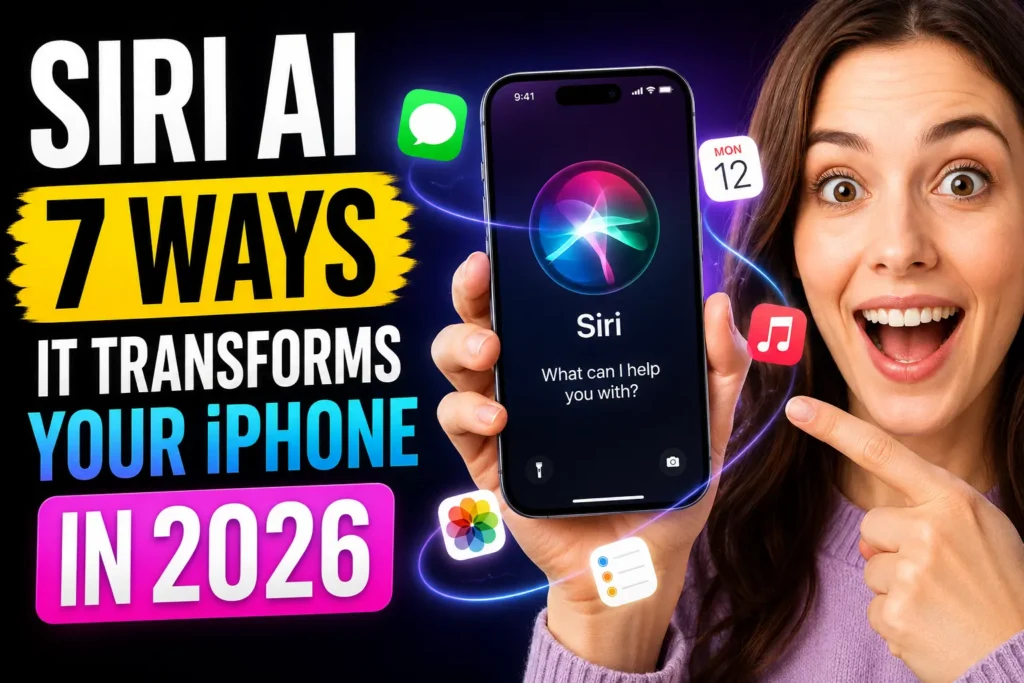
7 Ways Siri AI Changes iPhone Use in 2026
1. True Screen Awareness – Siri Can See What You See
This is the feature Apple promised at WWDC 2024 and never shipped. It’s here now.
Siri AI reads your active screen in real time. If a friend texts you an address, you can say “Add that to my contacts” without copying, switching apps, or typing anything. Siri sees the address and acts on it.
In our testing on the iOS 27 developer beta:
- Open any Messages thread with an address in it.
- Activate Siri by swiping down on the Dynamic Island.
- Say “Save this address to my contacts.”
- Siri reads the on-screen text, creates the contact entry, and confirms — in under five seconds.
If you’re reading an article in Safari, you can ask follow-up questions about what’s on the page. Siri doesn’t need you to repeat context it can already see.
2. Cross-App Task Execution — One Request, Multiple Apps
The old Siri could set a timer or play music. Siri AI can orchestrate tasks that span your entire iPhone.
Ask it to “Find my flight confirmation in Mail, check if I’m free that day in Calendar, and set a reminder to pack the night before“ – and it handles all three steps in sequence, surfacing results without making you switch between apps yourself.
Apple demonstrated this at WWDC 2026 with a flow that searched Messages and Mail simultaneously to surface a specific booking confirmation, then pulled the matching calendar window to check availability. The assistant stayed in a single conversational thread the entire time.
This is the feature that shifts Siri from a voice shortcut into something closer to an agent.
3. A Dedicated Siri App — Chat History That Actually Persists
Siri now has a standalone app, similar in concept to ChatGPT or Claude. You can type or talk to it, attach files, and — critically — your conversation history syncs across your iPhone, iPad, and Mac via iCloud.
This matters more than it sounds. Previously, every Siri interaction started from zero. Now you can pick up where you left off, reference something Siri said this morning, or send a long request by typing instead of speaking aloud in public.
On Mac, Siri is integrated into Spotlight and also has a dedicated app with a new monochrome menu bar icon.
Pro Tip: The dedicated Siri app is opened on iPhone by swiping down on the Dynamic Island, or via the traditional “Hey Siri” and side-button invocations. The typing interface is especially useful when you need to send a precise, multi-step request in a quiet environment.
4. Visual Intelligence — Point Your Camera, Get Answers
Siri AI expands Visual Intelligence into a system-wide feature. Point your camera at a restaurant menu and Siri identifies dishes and pulls nutritional information. Aim it at a plant, a landmark, or a product label, and it returns contextual information immediately.
In the WWDC keynote demo, a user pointed at a cricket ball and received an immediate, detailed description. In our own test with a foreign-language product label, Siri returned translated nutritional data without opening a translation app.
Apple has integrated Visual Intelligence into the main Camera app. Activating it is as simple as tapping a new Siri mode button inside the viewfinder.
5. Personal Context Understanding — Your Data, Searched Intelligently
Siri AI can search across your Photos, Messages, Mail, and Notes simultaneously using Apple Intelligence’s semantic index from Spotlight.
Ask “Find photos from the beach trip last summer where Jake was there” and Siri searches by subject, face recognition, and time — returning results from Photos without you opening the app or building a manual search query.
This personal context stays on-device under Apple’s Private Cloud Compute architecture. Your messages and photos aren’t sent to an external server for processing unless a query specifically requires web knowledge.
6. Conversational Context — Follow-Up Questions That Actually Work
Siri AI remembers what you just said. This sounds basic. It wasn’t, until now.
You can ask “Who painted that mural I photographed last weekend?” and immediately follow up with “How far is it from my office?” Siri carries the subject — the mural’s location — into the second question without you repeating it.
Apple demonstrated this with a conversation about Bosque de Chapultepec where follow-up questions about nearby restaurants and transit routes all flowed naturally without context resets between turns.
7. System-Wide Writing Tools — Rewrite, Proofread, and Adjust Tone Anywhere
Highlight any text in any app — an email draft, a Notes entry, a social caption — and Siri AI can rewrite it, proofread it, or adjust its tone to match a style you specify.
This isn’t a separate Writing Tools toggle buried in Settings. The feature surfaces contextually whenever you select text, adding an AI-powered option to the standard cut/copy/paste menu. For anyone who drafts a lot of emails or messages, this alone changes the daily rhythm of using an iPhone.
The “Dinner with Marcus” Test
Here’s a realistic task we ran during our iOS 27 beta preview on an iPhone 17 Pro:
The request: “Find Marcus’s last message about dinner, check if I’m free Saturday evening, and draft a reply confirming 7 PM at the place he mentioned.”
What Siri AI did:
- Searched Messages for the most recent thread with someone named Marcus mentioning dinner.
- Checked Calendar for Saturday evening availability.
- Identified the restaurant name from Marcus’s message.
- Drafted a reply with the confirmed time.
Time to complete: approximately 12 seconds.
The old Siri would have required four separate interactions and three app switches to accomplish the same task. The new one handled it in a single spoken sentence.
Which iPhones Support Siri AI?
| Feature | Minimum Device |
|---|---|
| Basic Siri AI (chat app, web knowledge) | iPhone 15 |
| Screen Awareness, Cross-App Tasks | iPhone 15 Pro |
| Enhanced Voice Customization | iPhone 17 Pro |
| Full Personal Context + Visual Intelligence | iPhone 15 Pro or newer |
iOS 27 supports iPhone 11 and newer for the OS itself. Siri AI features require iPhone 15 or newer for the AI stack.
Expert Insight: Under the hood, Siri AI uses a three-layer architecture: a query planning system, a knowledge retrieval engine, and a summarization layer — with Google Gemini handling planning and summarization tasks. Apple’s on-device models handle private data locally. This hybrid approach is why Siri AI can answer questions about your photos without uploading them, while still pulling live web results for time-sensitive queries.
What If Siri AI Doesn’t Work as Expected?
Even in developer beta, Siri AI was impressively reliable — but here’s what to check if it underperforms:
- Verify your device. iPhone 15 or newer is required for AI features. iPhone 14 and older won’t access Siri AI capabilities.
- Check Apple Intelligence is enabled. Go to Settings → Apple Intelligence & Siri and confirm the toggle is on.
- Confirm your region. Siri AI launches in US English first. Other regions and languages follow in phases after the iOS 27 fall release.
- Restart the Siri app. Close it from the app switcher and reopen it to clear any session-state issues.
- Check your internet connection. Web knowledge and some cross-app features require an active connection. Core on-device features work offline, but complex multi-app tasks need connectivity.
- Update to the latest iOS 27 build. Early developer betas have known gaps. The public beta arriving in July 2026 will be significantly more stable.
Frequently Asked Questions
Yes and no. Siri AI handles most tasks natively without handing off to a third-party AI. The ChatGPT toggle that existed in iOS 26 settings is no longer the default path. However, Apple hasn’t confirmed whether the ChatGPT extension remains as an opt-in option in the final iOS 27 build.
No. Siri AI requires the A17 Pro chip (iPhone 15 Pro) or the A16 Bionic (iPhone 15) for the full and basic AI feature sets respectively. iPhone 14 and older run iOS 27 but don’t get Siri AI capabilities.
At launch, Siri AI will be available in US English. Apple has confirmed broader language support will roll out in phases, similar to the Apple Intelligence rollout that began in October 2024 and expanded through 2025.
Apple’s Private Cloud Compute architecture means personal data — your photos, messages, and emails — is processed on-device using the semantic index from Spotlight. It doesn’t leave your device in a form that Apple or third parties can read.
Related Reading on Apple Headlines
- How to Use Apple Intelligence: The Ultimate 2026 Guide
- iOS 26.5: 7 Powerful Features That Change How You Use Your iPhone
- Face ID Not Working? 11 Real Fixes for iPhone (iOS 26)
- Apple Pay Not Working? 12 Fixes That Actually Work
- iOS 26.5.1 — 5 Critical Things iPhone 17 Owners Must Know
Ready to try Siri AI? Install the iOS 27 developer beta through Apple’s developer portal, or wait for the public beta in July. Either way, the wait for a Siri that actually works is finally over.

T’kal is the lead strategist and developer behind Apple Headlines. With a background in digital marketing and web development, he specializes in technical Apple troubleshooting, software news, and hardware rumors. T’kal focuses on delivering high-authority tech content that bridges the gap between Apple enthusiasts and the latest industry innovations.