


Your iPhone was at 80% an hour ago.
Now it’s at 34% — and you haven’t done anything. Sound familiar?
iPhone battery draining fast is one of the top complaints from users in 2026, especially after the iOS 26 update rolled out in September 2025.
Whether you own an iPhone 13 Pro Max, iPhone 16 Pro, or the latest iPhone 17, this guide gives you real, working fixes – not the same recycled advice you’ve already seen.
Let’s stop the drain.
Quick Story on Battery Draining
Why iPhone Battery Drain Is Such a Big Deal?
Battery anxiety is real. Nearly 65% of iPhone users report that battery life is the single biggest frustration with their device, according to a 2025 consumer survey by Consumer Intelligence Research Partners.
And with iOS 26 introducing a new Liquid Glass visual design and advanced background processing, power consumption has increased for millions of users overnight.
This isn’t just inconvenient — it affects your productivity, your safety, and your peace of mind.


If you’re someone who relies on your iPhone for navigation, work calls, or emergencies, a dying battery isn’t a small problem.
What makes this topic especially tricky is that iPhone battery draining fast but battery health is good is entirely possible.
A perfectly healthy battery can still drain rapidly due to software bugs, runaway apps, or hidden system processes.
This guide covers all of it.
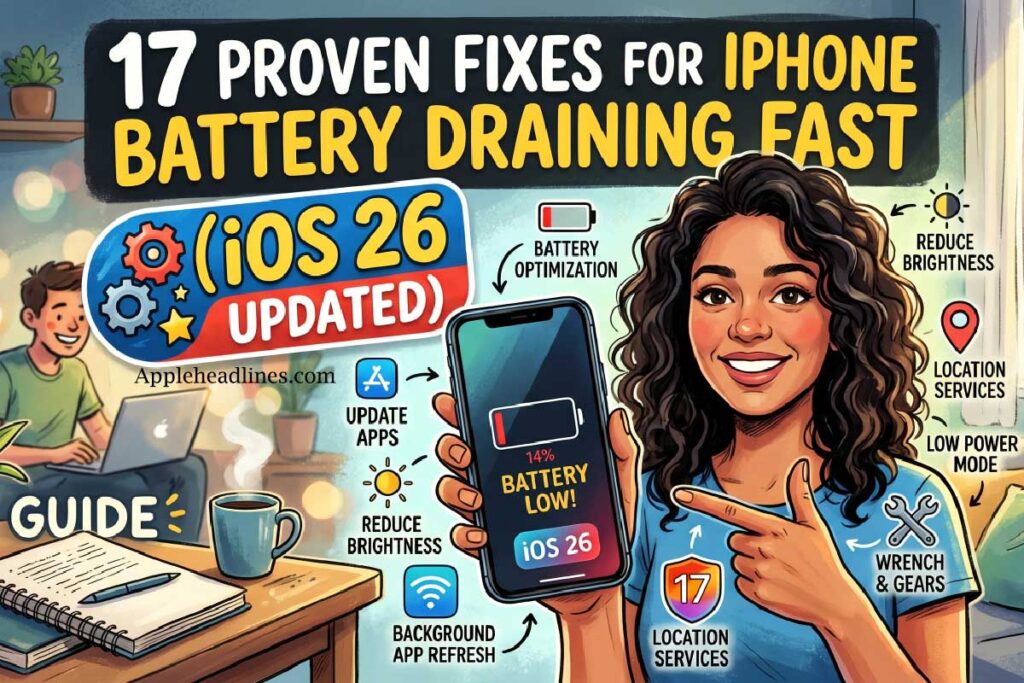
What Actually Causes iPhone Battery to Drain So Fast?
Before you can fix the problem, you need to understand it. Think of your iPhone’s battery like a bucket of water with holes in it. Some holes are big (screen brightness, streaming video), some are small (push notifications, background refresh). iOS 26 quietly punched a few new holes in that bucket.
Here are the most common culprits in 2026:
How to Check Your iPhone Battery Health First
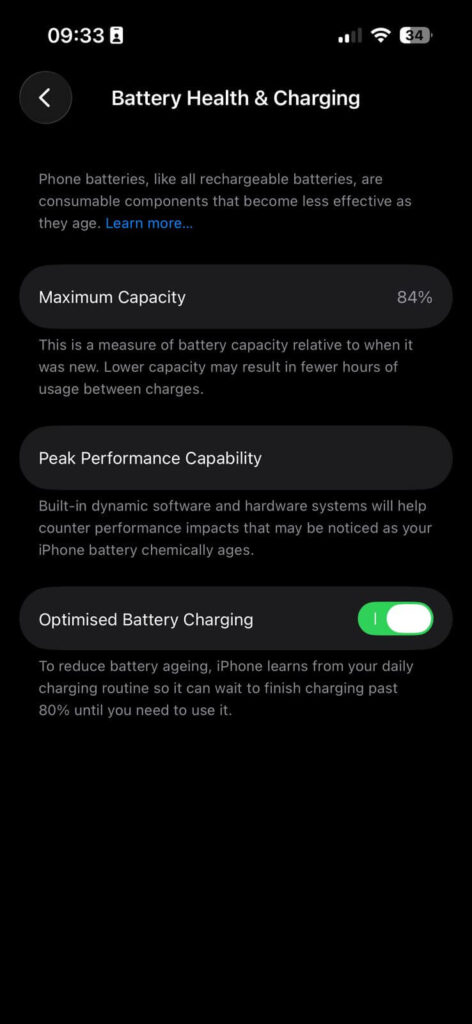
Before applying any fix, run this 60-second diagnostic.
What the numbers mean:
Pro Tip: If you have an iPhone 15 Pro Max, iPhone 16 series, or iPhone 17 series running iOS 26, check for the new Adaptive Power feature in Settings > Battery. When active, it automatically adjusts performance on days when your usage is unusually high — a game-changer for power users.
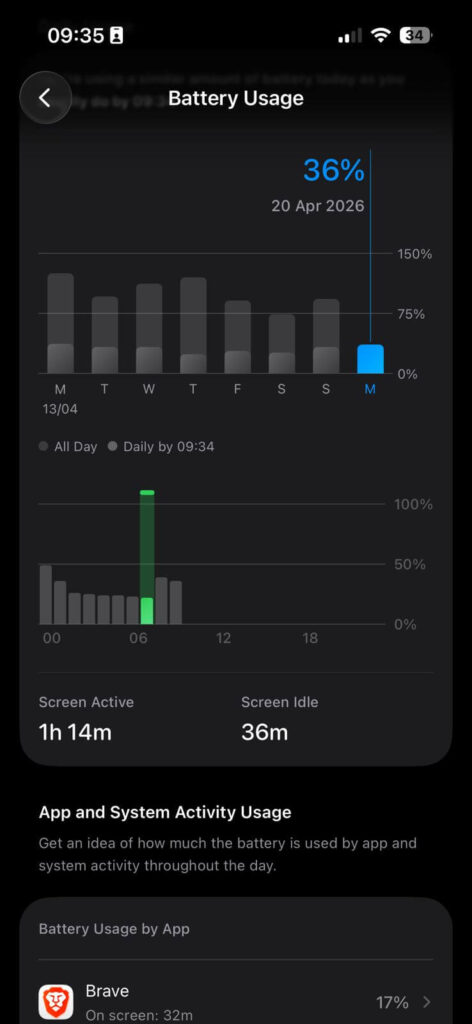
Also check the Daily Usage chart (available in iOS 26) directly under Settings > Battery. It compares today’s drain to your 7-day average and flags the top three battery-hungry apps automatically.
This feature alone can identify your problem in seconds.
17 Fixes for iPhone Battery Draining Fast
Fix #1: Wait 24–72 Hours After an iOS Update
Why is my phone battery dying so fast all of a sudden? If you just updated, this is almost certainly why.
After installing a major update like iOS 26 or iOS 26.4, your iPhone runs intensive background tasks. These include:
📱 Expert Insight — Real Case Study
Marcus, a software developer in Austin, TX, upgraded his iPhone 16 Pro to iOS 26 on launch day.
Within 24 hours, his battery was dying by 2 PM — down from lasting all day. He was ready to book an Apple Store appointment.
Instead, he waited 48 hours, checked the Ongoing iOS Update insight in Settings > Battery, and let his phone fully settle.
On day three, battery life returned to normal. His iPhone 16 Pro now easily lasts until 9 PM with moderate use. The fix cost him nothing.
Fix #2: Identify Battery-Draining Apps Immediately
This is the most overlooked step — and the most powerful.
If an app is burning battery in the background without you using it, that is a bug — not normal behavior. Here’s what to do:
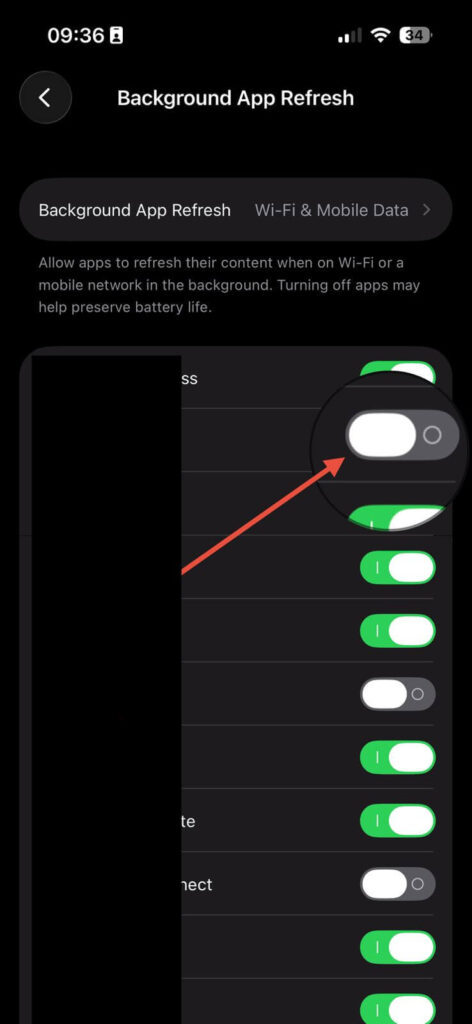
Fix #3: Turn Off Background App Refresh
Background App Refresh lets apps silently update content while you’re not using them. Social media apps, news apps, and email clients are the worst offenders.
Most apps don’t need to refresh in the background to work well. When you open them, they update instantly anyway.
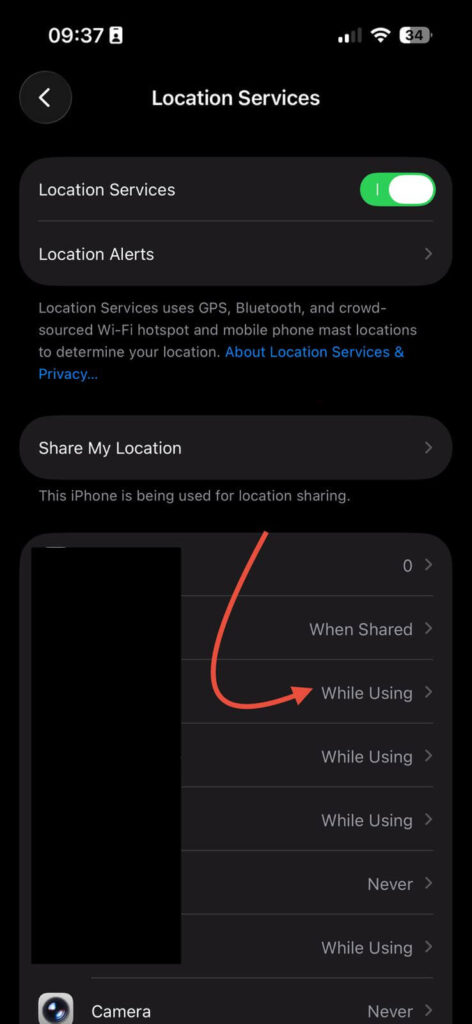
Fix #4: Manage Location Services Aggressively
GPS tracking is one of the biggest silent battery drains on any iPhone. Many apps request “Always” location access when they only need it occasionally.
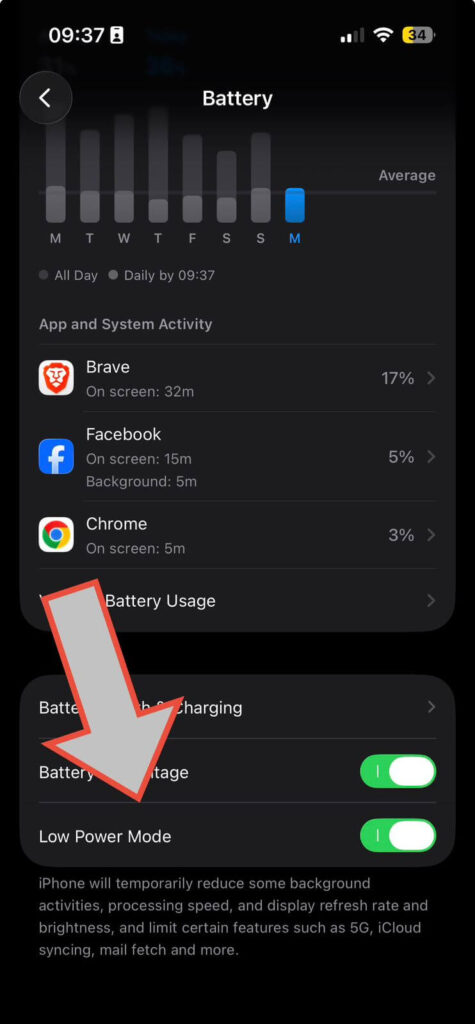
Fix #5: Enable Low Power Mode
Low Power Mode is the single fastest way to stop iPhone battery draining fast right now.
- Go to Settings > Battery > Power Mode.
- Toggle Low Power Mode on.
Or use Control Center: swipe down from the top-right corner and tap the battery icon.
Low Power Mode limits background activity, reduces display brightness, slows processor speed slightly, and pauses Hey Siri. It turns off automatically when your battery hits 80% while charging.
Fix #6: Fix “iPhone Battery Draining Fast After Update” with a Force Restart
A force restart clears temporary system caches and can stop runaway background processes cold.
For iPhone 8 and later (including iPhone 16 Pro and iPhone 17):
This takes about 10 seconds and loses no data. Do this immediately after noticing sudden heavy drain.
Fix #7: Reduce Screen Brightness and Enable Auto-Brightness
The display is the single largest battery consumer on your iPhone.
Auto-Brightness uses the ambient light sensor to adjust the screen intelligently. You barely notice the difference — your battery definitely does.
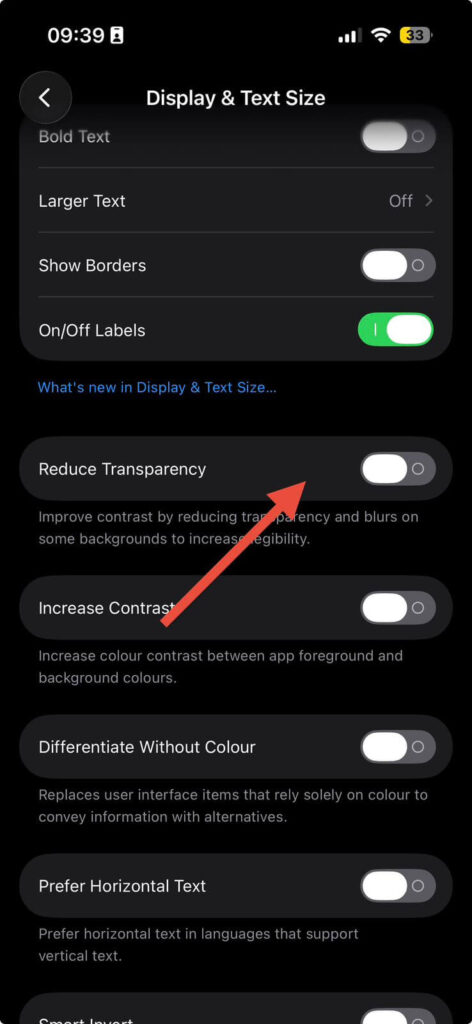
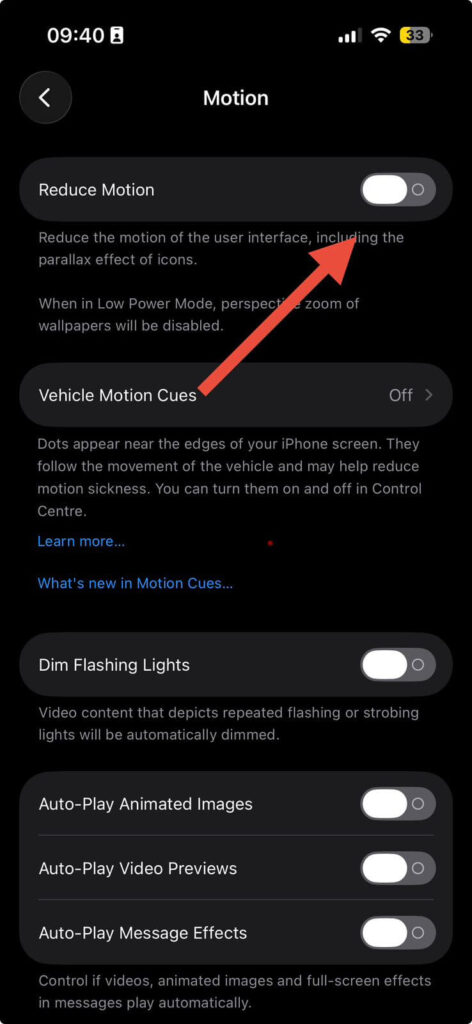
Fix #8: Disable iOS 26’s Liquid Glass Visual Effects
iOS 26’s beautiful Liquid Glass interface uses extra GPU power for real-time blurring and transparency effects. On older devices like the iPhone 13 Pro Max, this can be a significant drain.
These two changes can noticeably extend battery life, especially on iPhone 13, iPhone 14, and iPhone 15 models.
Fix #9: Update All Your Apps
iPhone battery draining fast after an update is often caused by third-party apps that haven’t been optimized for the new iOS version yet.
Do this immediately after any iOS update. App developers typically push compatibility fixes within 1–2 weeks of a major iOS release. extend battery life, especially on iPhone 13, iPhone 14, and iPhone 15 models.
Fix #10: Turn Off Push Email and Fetch Less Often
If you have multiple email accounts set to Push, your iPhone is constantly maintaining an active connection to mail servers.
For most people, checking email every 30 minutes is perfectly fine — and the battery savings are real.
Fix #11: Use Wi-Fi Instead of Cellular Whenever Possible
Wi-Fi uses less battery power than cellular networks. This is especially true with 5G, which — despite its speed — can be surprisingly power-hungry when your phone is constantly switching between 5G and LTE.
Select 5G Auto to let your iPhone drop to LTE when 5G speed isn’t needed.
Go to Settings > Wi-Fi.
Connect to a trusted Wi-Fi network whenever available.
If you’re on an iPhone 12 or later, go to Settings > Cellular > Cellular Data Options > Voice & Data.
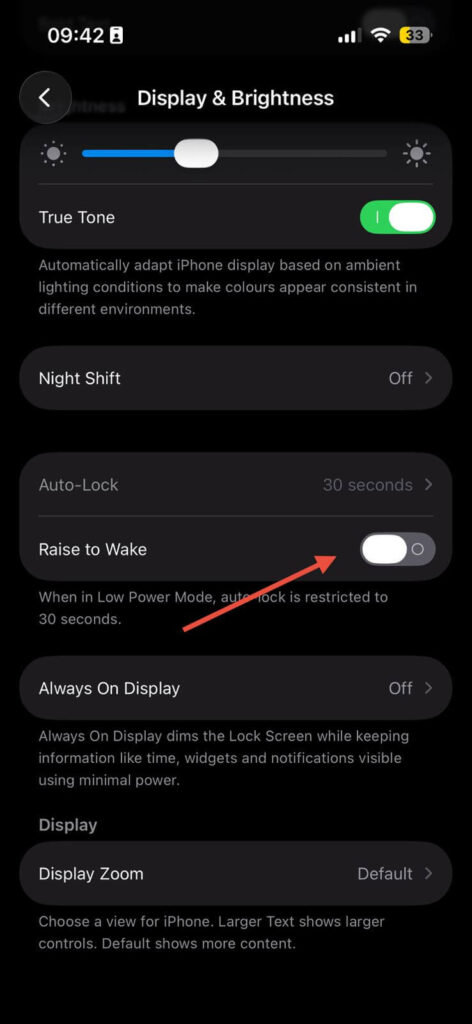
Fix #12: Disable Raise to Wake
Every time you pick up your phone, Raise to Wake lights up the display. In a busy day, this adds up fast.
- Go to Settings > Display & Brightness.
- Toggle Raise to Wake off.
You’ll still see notifications on your lock screen — just press the Side button to wake the display intentionally.
Fix #13: Turn Off Widgets That Refresh Constantly
Home Screen and Lock Screen widgets can trigger continuous background data fetches — especially weather, stocks, and news widgets.
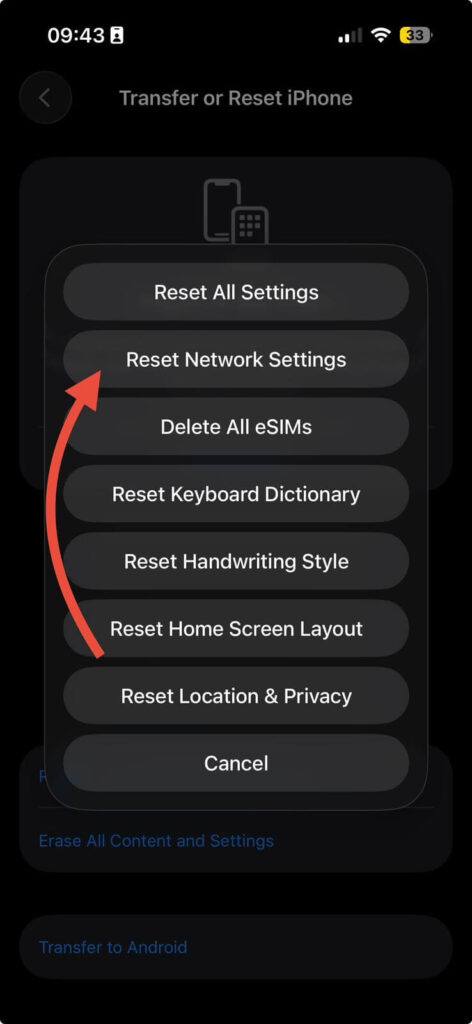
Fix #14: Reset Network Settings
If your iPhone is constantly struggling to find a good cellular or Wi-Fi signal — even in areas where you normally have coverage — a network settings reset can help.
Note: This erases saved Wi-Fi passwords. Have them handy before proceeding.
Fix #15: Check if Charger Problem
Sometimes, what looks like battery drain is actually a charging problem. Your iPhone shows 100% but wasn’t fully charged.
Fix #16: Turn Off Unnecessary Notifications
Every notification wakes your screen and triggers a brief burst of processing.
Fix #17: Consider a Battery Replacement
If your battery’s maximum capacity is below 80%, no software fix will solve your problem permanently. Apple offers battery service at:
A genuine Apple battery replacement restores your iPhone to like-new battery performance. It’s often cheaper than you think — and far cheaper than a new phone.
What If None of These Fixes Work?
If you’ve worked through every fix above and iPhone battery draining fast but battery health is good is still happening, try these escalation steps.
Option A: Restore Your iPhone in Recovery Mode
A corrupted iOS installation can cause permanent abnormal drain. Restoring via a Mac or PC with Finder (or iTunes on Windows) performs a clean install.
Warning: Back up your iPhone to iCloud or your computer first. A restore erases all data.
Option B: Contact Apple Support
Visit support.apple.com or the Apple Support app. Apple’s diagnostics can detect hardware faults — like a failing battery cell that doesn’t show up in Battery Health — that you can’t identify from Settings alone.
Option C: Check for a Known iOS Bug
Apple regularly releases point updates (like iOS 26.1, 26.2, 26.3) that patch battery drain bugs. Visit apple.com/ios and update to the latest available version.
A Note on “Can I Find My iPhone If the Battery Is Dead?”
One of the most common questions after battery drain anxiety kicks in: can I find my iPhone if the battery is dead?
Yes — with limitations.
iPhones running iOS 15 and later support Find My Network, which allows your device to transmit a short-range Bluetooth signal even when powered off or at 0% battery. This signal is picked up by nearby Apple devices and relayed to your Find My app anonymously.
However, once the reserve power for this feature is exhausted (typically several hours after reaching 0%), the phone goes completely dark. The lesson: don’t let your battery hit 0% if you can avoid it.
Frequently Asked Questions
A: Standby drain is usually caused by background app refresh, push email, or location services running continuously. Check Settings > Battery to identify which app or system service is consuming power while your screen is off. Weak cellular signal is another major culprit — your iPhone burns extra power searching for a better signal.
A: Good battery health rules out hardware degradation, which means the cause is almost certainly software. Start with a force restart, update all apps, and disable Background App Refresh. If the problem started after an iOS update, wait 48–72 hours for background indexing to finish.
A: iOS 26’s Liquid Glass interface and newer visual effects are more demanding on older hardware. Enable Reduce Transparency and Reduce Motion in Settings > Accessibility. Also check that your battery health hasn’t dropped below 80% — iPhone 13 models are now 3–4 years old and many are approaching replacement territory.
A: Yes, temporarily. After installing a new iOS version, your iPhone undergoes several background processes to optimize the system, including file indexing, app reconfiguration, and system recalibration. While these processes are essential for smooth operation, they can temporarily increase battery usage. Most users see battery life normalize within 48–72 hours
A: Apple offers free battery replacement if your iPhone is under warranty or covered by AppleCare+ and your battery health is below 80%. Out-of-warranty replacements are paid services. Check your coverage at checkcoverage.apple.com.
The Bottom Line
iPhone battery draining fast is a solvable problem — 90% of the time, it’s a software issue you can fix yourself in under 10 minutes.
Start with the free diagnostics in Settings > Battery, kill any rogue apps, turn off Background App Refresh, and give your phone 48 hours to settle after any iOS update.
If you’ve done all of that and the drain continues, your battery health is the next thing to check.
A battery replacement from Apple is the cleanest, most permanent solution — and in 2026, it’s the most underrated iPhone upgrade you can make.
Found this guide helpful? Bookmark it and share it with someone whose iPhone battery never seems to last the day.
Disclaimer: The fixes in this article are based on publicly available Apple documentation, user-reported experiences, and iOS 26 software behavior as of April 2026. Battery performance varies by device model, usage patterns, and iOS version. Pricing for Apple services mentioned is approximate and subject to change — verify current pricing at apple.com/support before scheduling a repair. AppleHeadlines.com is not affiliated with Apple Inc.

Ruth writes in-depth guides about Apple products, focusing on practical solutions for everyday users. Her articles cover device setup, hidden features, troubleshooting, and the latest updates for iOS, watchOS, and other Apple platforms.
He regularly researches Apple updates and tests features on devices like the iPhone and Apple Watch to ensure readers receive accurate and helpful information.