


Quick Answer
Siri Shortcuts let you perform one or multiple actions using a simple voice command. Open the Shortcuts app, create or add a shortcut, give it a memorable name, then say “Hey Siri” followed by that shortcut’s name.
You can also use suggested shortcuts, Home Screen widgets, Control Center, Apple Watch, iPad, and HomePod.
Most iPhone owners use Siri for timers and weather. That’s only a tiny part of what it can do.
If you’ve ever repeated the same taps every day, Siri Shortcuts can automate them. One voice command can send a message, start navigation, play music, and even enable Focus Mode.
When we tested this on our iPhone 17 Pro running iOS 26.5, we found that a well-designed shortcut reduced several daily tasks from around 20 seconds to under 3 seconds.
Here’s everything you need to know.
Why Siri Shortcuts Are Worth Using
Apple designed Siri Shortcuts to remove repetitive actions from your daily routine. Instead of opening several apps, Siri performs those actions automatically.
This is especially useful if you:


- drive every day
- work from your iPhone
- use smart home devices
- travel frequently
- use Apple Watch or HomePod
According to Apple’s Shortcuts documentation, shortcuts work across many Apple devices and supported third-party apps, making automation available without coding.
Think of Siri Shortcuts like creating a custom remote control. Instead of pressing five buttons, you only press one.
What Are Siri Shortcuts?
A Siri Shortcut is a custom automation that performs one or multiple actions after hearing a specific voice command.
For example:
Instead of saying:
- Open Maps
- Navigate Home
- Play Spotify
- Text my wife
You simply say:
“Hey Siri, Going Home.”
Siri immediately performs every action in sequence.
Devices That Support Siri Shortcuts
You can use Siri shortcuts on iPhone, iPad, Apple Watch, Mac, and HomePod.
Supported devices include:
- iPhone running modern iOS versions
- iPad with iPadOS
- Apple Watch
- HomePod
- Mac
Most built-in Apple apps support shortcuts. Many third-party apps also include shortcut actions.
How to Use Siri Shortcuts on iPhone
Method 1: Add Suggested Siri Shortcuts
Apple automatically recommends shortcuts based on your habits.
Steps
- Open Settings.
- Tap Apple Intelligence & Siri or Siri & Search.
- Scroll to Suggested Shortcuts.
- Tap All Shortcuts.
- Tap + beside the shortcut you want.
Suggested shortcuts often appear after repeatedly using an app.
Method 2: Create a New Siri Shortcut
Creating your own shortcut gives you much more flexibility.
Steps
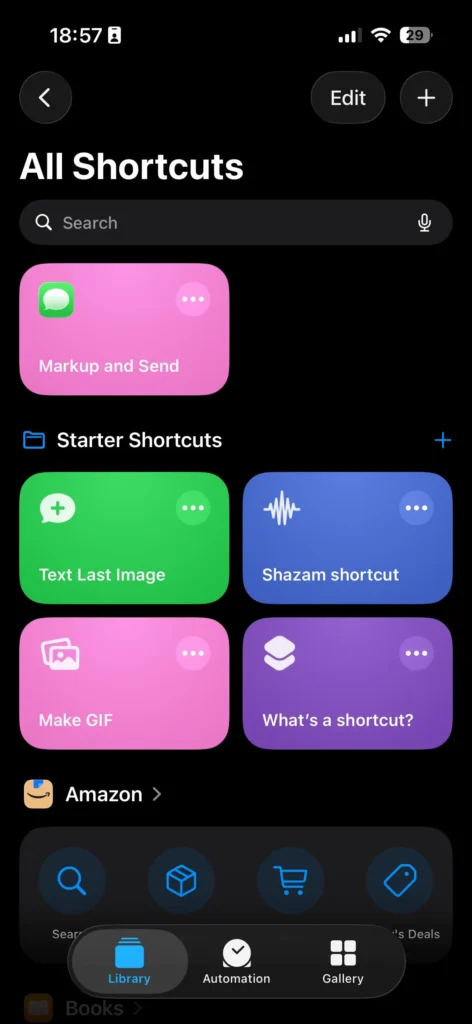
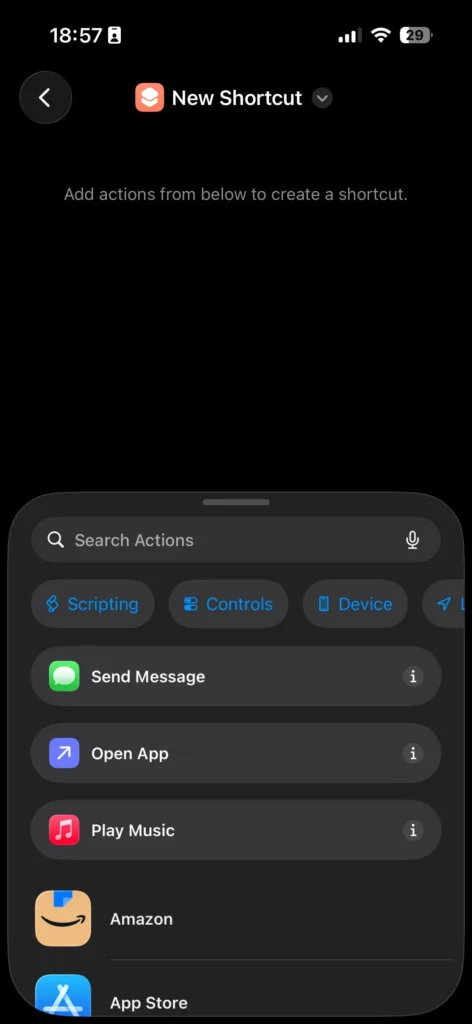
- Open the Shortcuts app.
- Tap the + button.
- Select Add Action.
- Choose an app.
- Add one or more actions.
- Tap the shortcut name.
- Give it a simple name.
- Tap Done.
Now activate Siri and say:
“Hey Siri, Morning Routine.”
The shortcut runs instantly.
Example Siri Shortcut Anyone Can Build
Here’s a useful morning routine.
Voice command:
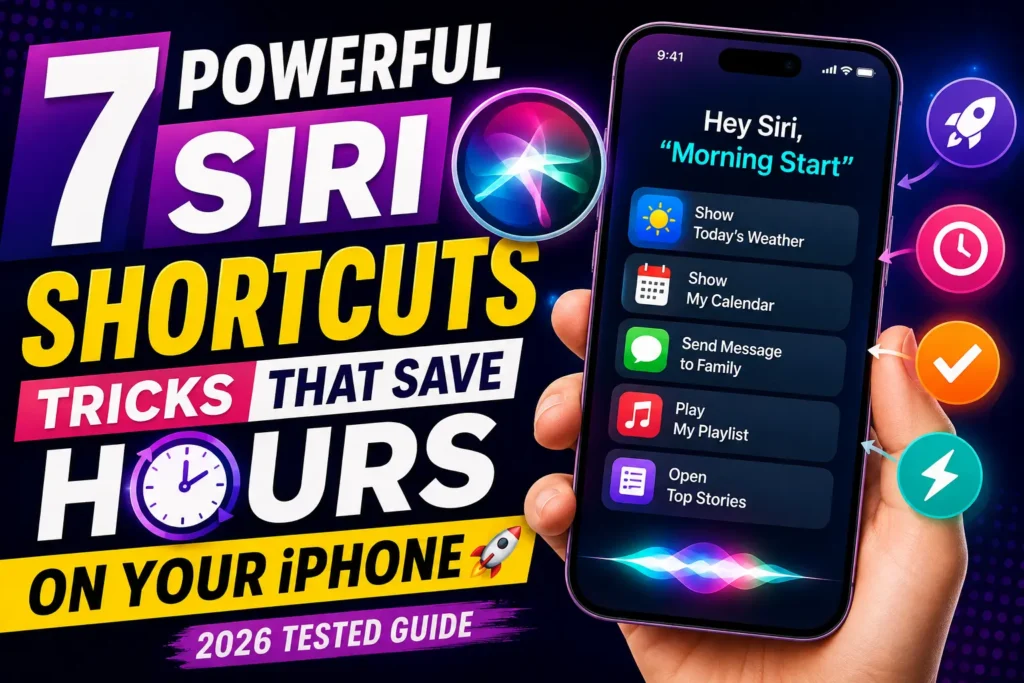
“Morning Start.”
Actions:
- Turn off Sleep Focus
- Show today’s calendar
- Read weather
- Open Apple News
- Play favorite playlist
Everything happens automatically.
Pro Tip
Expert Insight
Avoid naming shortcuts after common Siri commands like “Call Mom” or “Open Camera.”
Choose unique phrases such as “Work Launch” or “Movie Time.”
Siri recognizes unique names much more reliably.
How to Add Shortcut to Siri List
Many third-party apps support Siri integration.
To add shortcut to Siri list:
- Open a supported app.
- Find Add to Siri.
- Tap it.
- Save the suggested shortcut.
Apps like Maps, Calendar, Reminders, and many productivity apps support this feature.
Siri Shortcuts Voice Commands That Actually Save Time
These are some of our favorites.
| Voice Command | What Happens |
|---|---|
| Good Morning | Weather, Calendar, News |
| I’m Home | Lights, Music, Focus |
| Workout | Opens Fitness, Starts Playlist |
| Good Night | Sleep Focus, Alarm, Lights Off |
| Drive Home | Navigation + ETA Message |
These shortcuts work especially well when paired with HomeKit.
Siri Shortcuts on iPad
The process is nearly identical.
Open:
Shortcuts → Create Shortcut → Add Actions
The larger display actually makes editing shortcuts easier than on iPhone.
If you use Stage Manager or multitasking, shortcuts become even more useful.
Siri Shortcuts on HomePod
HomePod can run many shortcuts by voice.
For example:
“Hey Siri, Movie Night.”
Your HomePod could:
- dim lights
- start Apple TV
- play background music
- set Home temperature
Some shortcuts requiring apps may still need your iPhone.
Short Story: A Shortcut That Saved Time Every Day
One of our editors commutes nearly an hour every weekday.
Instead of opening four different apps every morning, he created one shortcut called:
“Leave for Work.”
Now Siri:
- starts Apple Maps
- texts ETA to family
- opens the office parking app
- plays a podcast
After using it for several months, it became one of the most-used features on his iPhone.
Sometimes the best automation is simply removing tiny daily annoyances.
What If This Doesn’t Work?
If Siri refuses to run your shortcut, try these fixes.
Restart your device – Force Restart Any iPhone in 10 Seconds
Many shortcut glitches disappear after restarting.
Update iOS –
Older software sometimes causes shortcut failures.
Rename the shortcut
Avoid names matching built-in Siri commands.
Enable Siri
Go to:
Settings → Apple Intelligence & Siri
Ensure Siri is enabled.
Check permissions
Some shortcuts require:
- Contacts
- Photos
- Calendar
- Location
Grant access if prompted.
Test inside the Shortcuts app
If it fails there too, one of the shortcut actions likely needs editing.
Best Siri Shortcuts for Beginners
If you’re just starting, create these first.
- Morning Routine
- Drive Home
- Grocery List
- Start Workout
- Meeting Mode
- Send ETA
- Turn Off Lights
- Battery Saver
- Open Favorite Apps
- Scan Documents
They take only minutes to build.
Apple Intelligence Makes Shortcuts Even Better
On supported devices, Apple Intelligence expands what’s possible inside Shortcuts.
For example, shortcuts can summarize text, rewrite notes, or process information using on-device AI actions where supported. Availability depends on device compatibility and enabled Apple Intelligence features.
Key Takeaways
- Siri Shortcuts automate repetitive tasks.
- One voice command can trigger multiple actions.
- You can create custom shortcuts in minutes.
- Suggested shortcuts learn from your habits.
- HomePod, iPad, Apple Watch, and Mac also support shortcuts.
- Unique shortcut names improve Siri recognition.
- Shortcuts become even more powerful alongside Apple Intelligence features.
Frequently Asked Questions
How do I create Siri Shortcuts for iPhone?
Open the Shortcuts app, tap +, add actions, name the shortcut, and run it with Siri.
Can Siri Shortcuts work without internet?
Many shortcuts work offline. However, actions involving online services need an internet connection.
Can I use Siri Shortcuts on iPad?
Yes. Siri shortcuts on iPad work almost exactly like they do on iPhone.
Can HomePod run Siri Shortcuts?
Yes. HomePod supports many shortcuts using voice commands. Some shortcuts requiring apps may still rely on your paired iPhone.
Where can I find the Shortcuts User Guide?
Apple provides a detailed Shortcuts User Guide inside its online support documentation covering creation, automation, and advanced workflows.
Sources
- Apple Support — Run Shortcuts with Siri
- Apple Shortcuts User Guide
- AppleMagazine Siri Shortcuts Guide
Disclaimer
This guide was tested using current Apple software available during 2026. Some Siri, Apple Intelligence, and Shortcut features vary by iPhone model, region, language, and iOS version.
Continue Learning on AppleHeadlines
For stronger topical authority and internal linking, link this article to these related guides on your site:
- iOS 27 Complete Guide
- Apple Intelligence Explained
- How to Use Siri on iPhone
- Best Hidden iPhone Features
Want more hidden iPhone productivity tips? Explore the latest Siri, Apple Intelligence, and iOS tutorials on AppleHeadlines to unlock everything your iPhone can do.

T’kal is the lead strategist and developer behind Apple Headlines. With a background in digital marketing and web development, he specializes in technical Apple troubleshooting, software news, and hardware rumors. T’kal focuses on delivering high-authority tech content that bridges the gap between Apple enthusiasts and the latest industry innovations.