

Updated October 30, 2026 · Covers iOS 27.0 through iOS 27.2 · Tested on iPhone 17 Pro, iPhone 16 Pro Max, and iPhone 13
You woke up late.
Your iPhone screen shows the alarm went off right on time.
But there was no sound and no vibration.
Just a silent screen, maybe a flashing light, and a very bad start to your day.
You’re not alone.
Since iOS 27 launched in September 2026, more than 100 people have added “me too” to a single Apple Community thread about this exact problem.
Most silent alarms come from a setting you can fix in under two minutes.


Here’s what actually works in Quick way:
iPhone Alarm Goes Off but Makes No Sound? Try This First
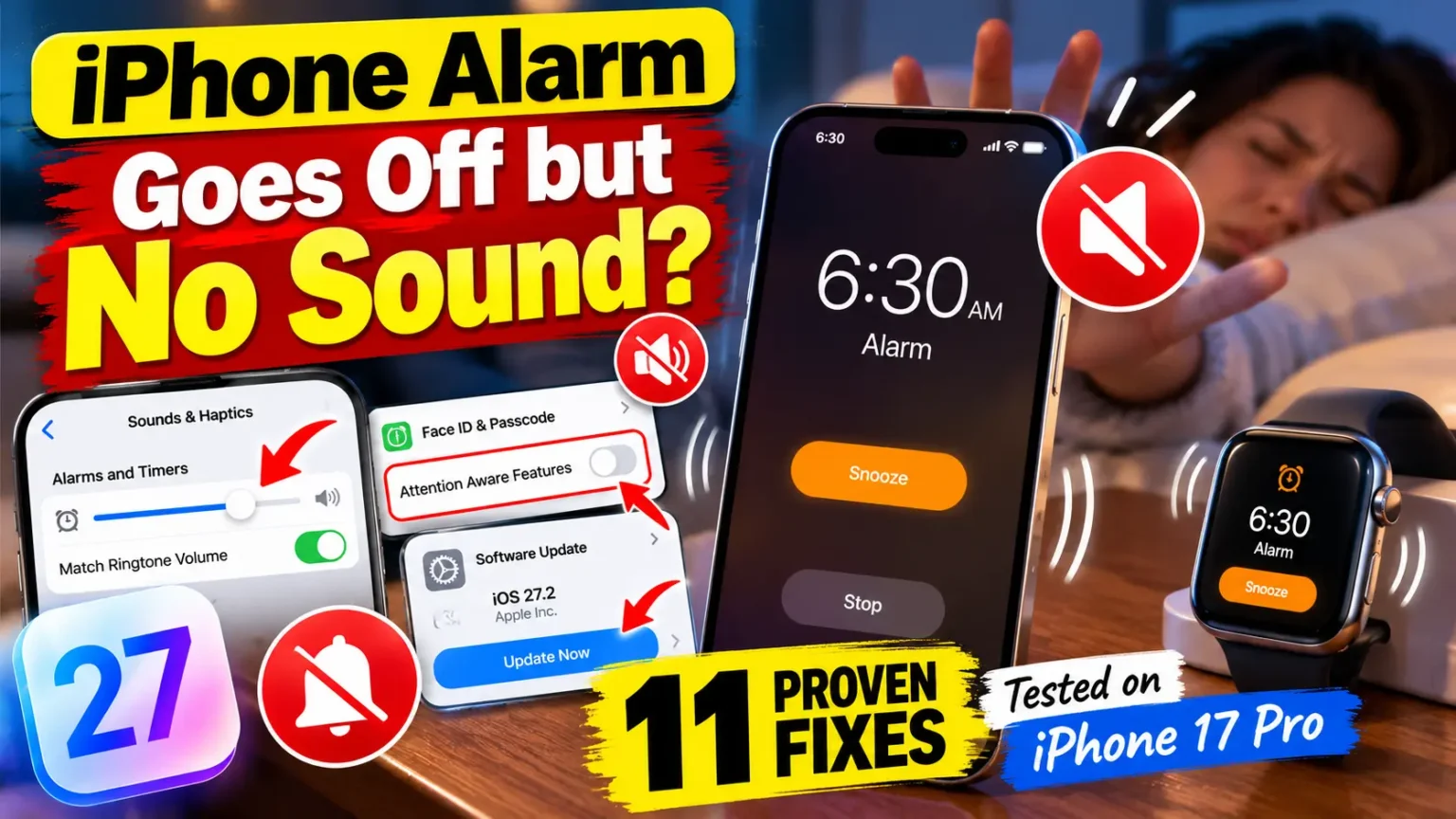
If your iPhone alarm goes off but makes no sound, the most common cause in iOS 27 may be the new Alarms and Timers volume slider. It sits apart from your ringtone volume and can be set very low after updating.
Why a Silent Alarm Is a Bigger Deal Than It Looks
An alarm is the one iPhone feature you can’t check in the moment.
You’re asleep.
If it fails, you only find out after the damage is done: a missed flight, a late shift, a skipped medication.
That’s why this problem gets so much attention.
Earlier this year, TechRadar reported on iPhone owners who blamed silent alarms for real job trouble.
And the issue isn’t new. Apple Community threads about silent alarms go back to iOS 11 in 2017, with hundreds of replies.
Our team at AppleHeadlines has covered every iOS release.
For this guide, we reproduced the silent alarm on three iPhones.
We also read through the active iOS 26 and iOS 27 Apple Community threads to see which fixes real owners say worked.
Every step below was checked on iOS 27.2, released October 26, 2026.
What Changed in iOS 27 (and Why Alarms Suddenly Went Quiet)
Before iOS 27, alarm volume was tied to Ringtone & Alerts.
Turn your ringer down, and your alarm got quieter too. Many people never knew this.
iOS 27 changed that.
Apple added a dedicated Alarms and Timers section under Sounds & Haptics.
It includes a Match Ringtone Volume toggle.
When that toggle is off, a separate alarm slider appears.
On paper, this is a great fix for a years-old complaint.
In practice, some owners found their alarm slider set low after the update.
Others turned off Match Ringtone Volume without noticing the second slider.
The Analogy: Two Faucets, One Sink
Think of your iPhone’s sound like a sink with two faucets.
One faucet is for calls and texts. The other is for alarms.
Before iOS 27, both faucets shared one handle.
Now they have separate handles.
If you only ever turn the “calls” handle, the “alarm” faucet can stay barely open.
The sink (your speaker) works fine. It just isn’t getting much water.
That’s exactly what happens when your alarm screen lights up but you hear nothing.
Symptom Checker: Match Your Problem to the Fix
| What You See | Most Likely Cause | Jump To |
|---|---|---|
| iPhone alarm silent but screen flashes | Alarm volume too low, or Apple Watch mismatch | Fix 1 Fix 6 |
| Alarm starts loud, then fades to quiet | Attention Aware Features | Fix 2 |
| iPhone alarm not vibrating after update | Haptics set to None, or Vibration off in Accessibility | Fix 4 |
| Sound plays in earbuds, not the speaker | Bluetooth headphones connected | Fix 5 |
| Only the morning “Wake Up” alarm fails | Sleep Schedule or Sleep Focus | Fix 7 |
| Alarm screen appears for a second, then nothing | Overlapping alarms or a corrupted alarm | Fix 3 Fix 8 |
| Every sound on the phone is gone | Software glitch | Fix 9 Fix 11 |
11 Fixes for an iPhone Alarm That Goes Off but Makes No Sound
Work through these in order. The first three solve most cases.
Fix 1: Raise the New Alarms and Timers Volume (iOS 27)
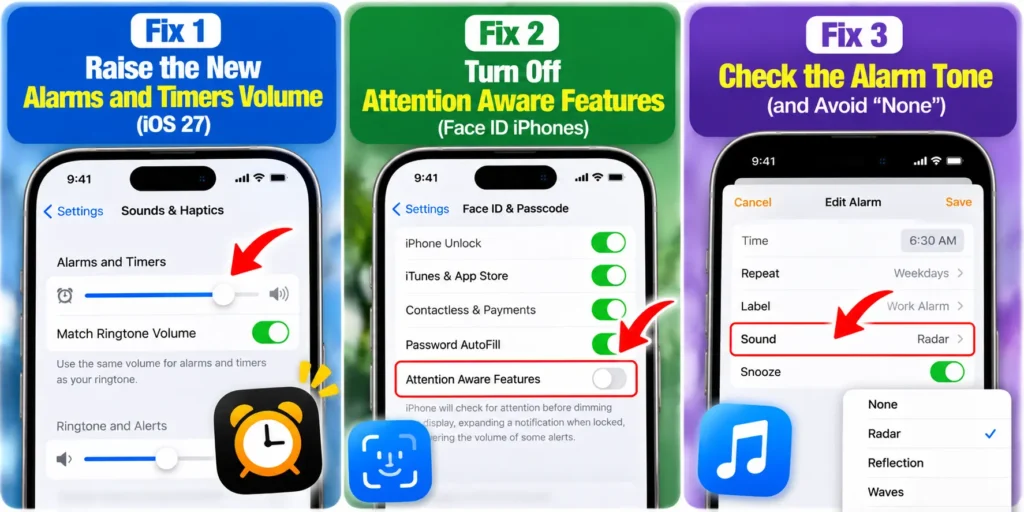
This is the big one for iOS 27 alarm not making sound reports.
- Open the Settings app.
- Tap Sounds & Haptics.
- Scroll to Alarms and Timers.
- Turn on Match Ringtone Volume if you want one shared volume.
- Or leave it off and drag the alarm slider to at least 75%.
- Set a test alarm for two minutes from now.
When we tested this on our iPhone 17 Pro running iOS 27.2, the update had left Match Ringtone Volume off. The alarm slider sat near 10%. The alarm was technically playing. It was just too quiet to hear from across the room.
Also check: If you’re on iOS 26 or earlier, alarm volume follows Ringtone & Alerts. Raise that slider instead. Turn off Change with Buttons so you don’t lower it by accident.
Fix 2: Turn Off Attention Aware Features (Face ID iPhones)
Face ID iPhones can lower alert volume when they think you’re looking at the screen. In bed, the phone sometimes “sees” you and quiets the alarm. This is the top-voted fix in Apple’s longest silent alarm thread.
- Open Settings.
- Tap Face ID & Passcode.
- Enter your passcode.
- Turn off Attention Aware Features.
Note for Touch ID models: iPhone SE models don’t have this feature. Skip to Fix 3.
Fix 3: Check the Alarm Tone (and Avoid “None”)
An alarm with its sound set to None will light up the screen and do nothing else.
- Open the Clock app and tap Alarms.
- Tap Edit, then tap the alarm.
- Tap Sound.
- Pick a loud built-in tone like Radar or Sencha.
- Tap Back, then Save.
If you use a song from Apple Music, switch to a built-in tone. Downloaded songs can fail if the file was removed or isn’t stored offline.
Fix 4: Fix an iPhone Alarm Not Vibrating After Update
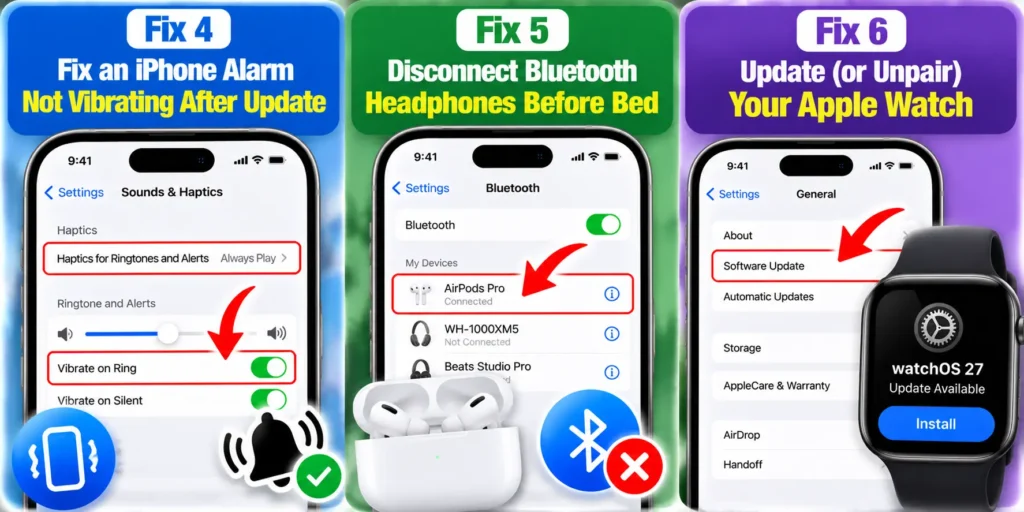
Sound and vibration are controlled in different places. If your alarm is silent and still, check both.
- In Clock, edit the alarm and tap Sound → Haptics.
- Choose Synchronized or any pattern except None.
- Next, open Settings → Accessibility → Touch.
- Make sure Vibration is turned on.
- Then go to Settings → Sounds & Haptics → Haptics.
- Pick Always Play.
That Accessibility Vibration switch kills all vibration on the phone. We’ve seen it turned off after restoring from a backup.
Fix 5: Disconnect Bluetooth Headphones Before Bed
If AirPods or a Bluetooth speaker stay connected overnight, alarm audio can route through them. Your phone looks silent because the sound is playing somewhere else.
- Open Control Center.
- Tap the Bluetooth icon to disconnect devices.
- Or put AirPods back in their case at night.
If your AirPods keep jumping between devices, see our guide on AirPods switching between iPhone, Mac, and iPad.
Fix 6: Update (or Unpair) Your Apple Watch
This is the newest cause, and few guides mention it. In the main iOS 27 thread, the original poster’s fix was updating their Apple Watch to watchOS 27. Their iPhone was on iOS 27, but the watch was not. That mismatch delayed and silenced alarms when the phone was locked.
- Open the Watch app on your iPhone.
- Tap General → Software Update.
- Install watchOS 27 if it’s available.
- If your watch can’t run watchOS 27, consider unpairing it.
Another owner reported success after unpairing an older watch that couldn’t update.
Your Alarm Has a “Home Device”
When an iPhone and Apple Watch are paired, alarm behavior can depend on your watch and alarm settings. If you’re wearing the watch, a supported alarm may tap your wrist instead of ringing the phone.
Since iOS 26.4, Sleep Schedule alarms have an “Always Play on iPhone” toggle. Find it in the Clock app and turn it on to make your iPhone play the Sleep Schedule alarm even when you’re wearing your Apple Watch.
Fix 7: Check Sleep Schedule and Sleep Focus
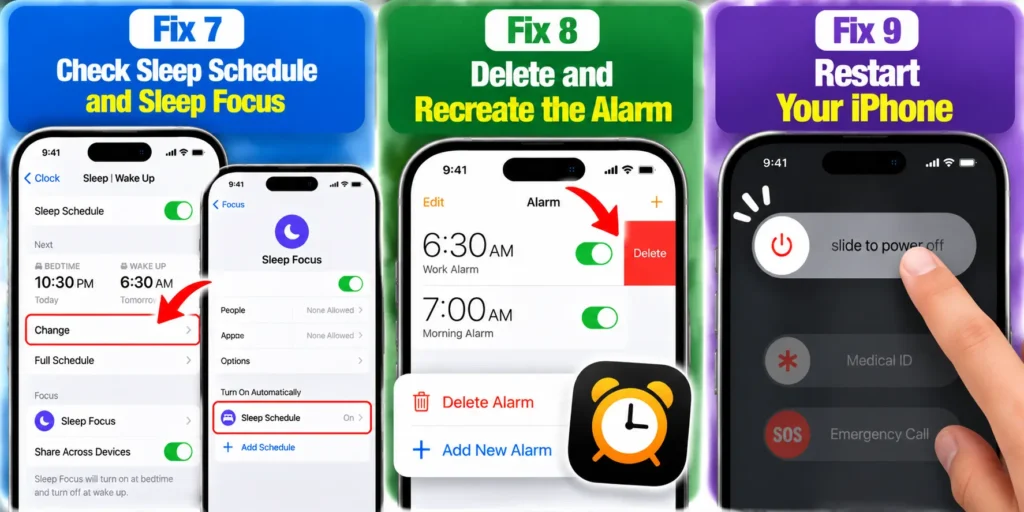
The Wake Up alarm at the top of the Clock app isn’t a normal alarm. It’s tied to your Sleep Schedule in the Health app. It has its own volume and sound settings.
- Open Clock and tap Change next to Sleep | Wake Up.
- Check the Alarm toggle is on.
- Raise the volume slider on that screen.
- Pick a sound under Sounds & Haptics.
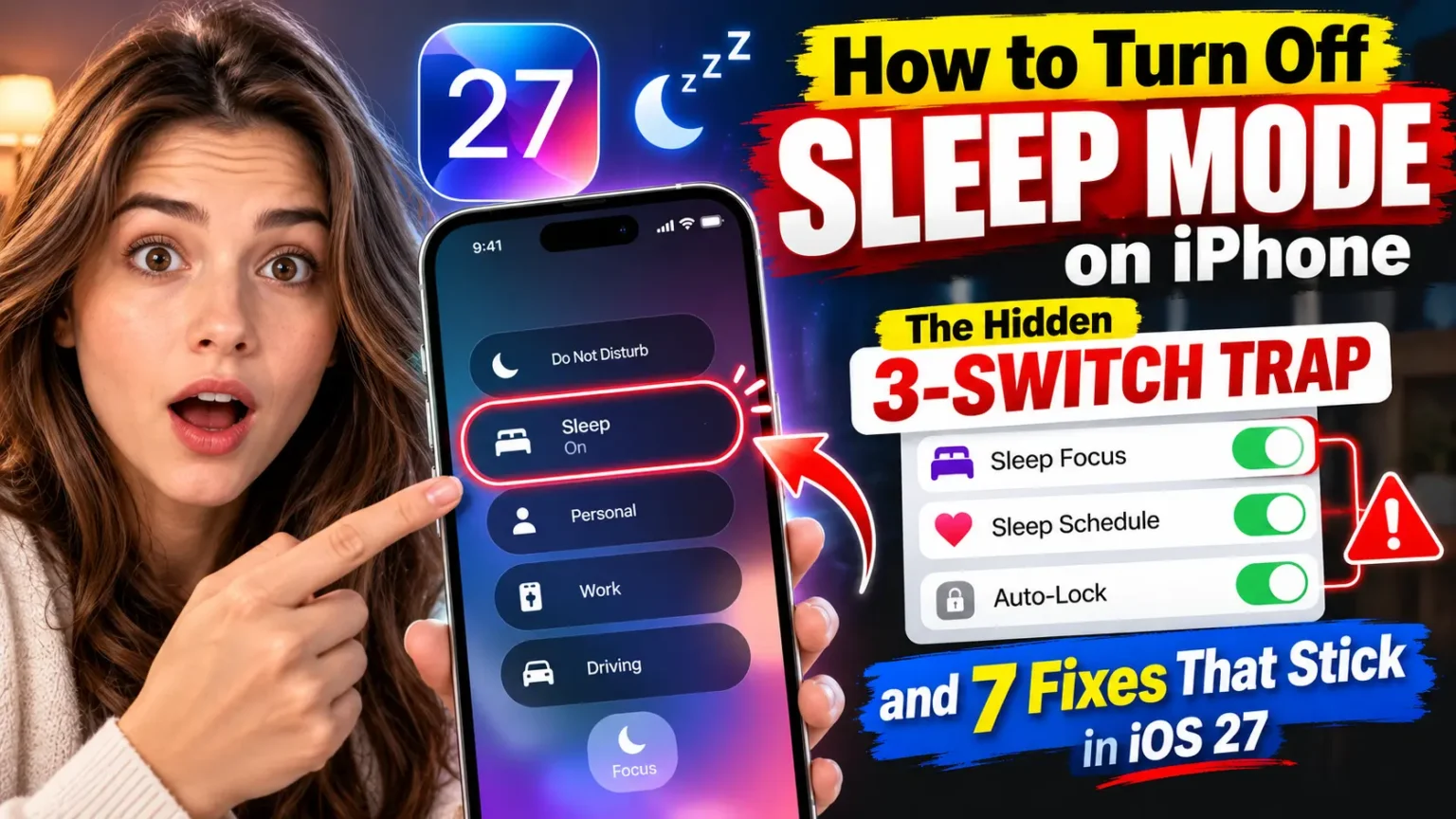
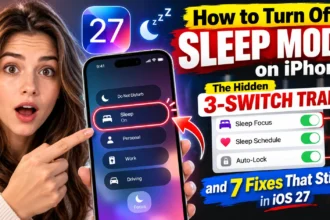
Focus modes also matter. Normal Clock alarms should still ring during Do Not Disturb or Sleep Focus. But a schedule mix-up can make it feel broken. If your phone keeps slipping into sleep mode, our Sleep Mode guide for iOS 27 walks through the three hidden switches.
Fix 8: Delete and Recreate the Alarm
Alarms can get corrupted, especially ones carried over from older iOS versions. Alarms set too close together can also step on each other.
- Open Clock → Alarms.
- Swipe left on the problem alarm and tap Delete.
- Tap + to create a new one.
- Space multiple alarms at least 5 to 10 minutes apart.
Fix 9: Restart Your iPhone
A restart clears stuck audio processes. One iPhone 17 Pro Max owner on iOS 26.2 reported all sound glitching, including alarms. A restart is the fastest test.
- Press and hold the side button and either volume button.
- Drag the power off slider.
- Wait 30 seconds.
- Hold the side button to turn it back on.
Fix 10: Update to the Latest iOS 27 Release
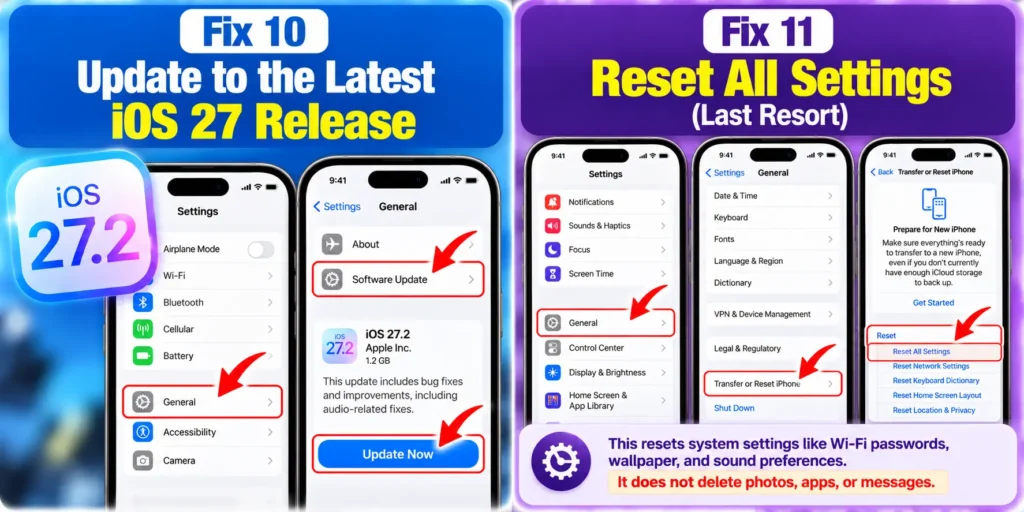
Apple shipped iOS 27.0.1 on September 28 and iOS 27.2 on October 26, 2026. Apple hasn’t confirmed a silent alarm fix. Still, each update fixes audio bugs it doesn’t always list.
- Open Settings → General → Software Update.
- Tap Update Now if one is waiting.
- Recheck your Alarms and Timers slider afterward.
Not sure the latest version is worth it? Read what’s new in iOS 27.2 first.
Fix 11: Reset All Settings (Last Resort)
This resets system settings like Wi-Fi passwords, wallpaper, and sound preferences. It does not delete photos, apps, or messages.
- Open Settings → General.
- Tap Transfer or Reset iPhone.
- Tap Reset → Reset All Settings.
- Enter your passcode and confirm.
- Set up a new alarm and test it.
Avoid jumping to a full erase. Our factory reset guide explains when that step is truly needed.
Short Story: The Watch Nobody Suspected
In mid-September 2026, an iPhone 16 Pro Max owner posted to Apple Community.
Their alarms on iOS 27 only flashed. No sound, no buzz.
They’d done everything right.
Checked Match Ringtone Volume.
Picked a new tone.
Reset and recreated alarms.
Turned Focus off.
They restarted.
Nothing worked.
The fix came from somewhere they weren’t looking: the Apple Watch on their wrist.
It was still on the old watchOS. Once they updated it to watchOS 27, the alarms came back.
The lesson: a silent alarm isn’t always an iPhone problem. Check every Apple device that can “claim” your alarm.
Model and iOS Version Notes
| iPhone / iOS | What to Watch For |
|---|---|
| iPhone 17, 17 Pro, 17 Pro Max, iPhone Air iOS 27 | New Alarms and Timers slider. Attention Aware is on by default. |
| iPhone 15 and 16 series iOS 27 | Same as above. Most iOS 27 “me too” reports come from these models. |
| iPhone 11 to 14 iOS 26 or 27 | On iOS 26, alarm volume follows Ringtone & Alerts. |
| iPhone SE (Touch ID) | No Attention Aware. Focus on volume, tone, and Bluetooth. |
| iOS 26.0–26.3 | No “Always Play on iPhone” option for Sleep alarms. Update to 26.4 or later. |
| iOS 27.0–27.2 | Apple hasn’t confirmed a fix. Owners still report the bug on 27.2. |
Comparing the two versions? See our iOS 27 vs iOS 26 breakdown.
What If This Doesn’t Work?
Some owners in the iOS 27 thread still report silent alarms with the volume up and no watch paired. If you’re one of them, try this:
- Test the speaker. Play a song or video at full volume. If it’s quiet or crackly, the speaker may be clogged or damaged. Gently clean the grille with a soft, dry brush.
- Test with the screen locked. Set an alarm one minute ahead, lock the phone, and place it face down. Some failures only happen when locked.
- Remove your case. Some thick or magnetic cases can muffle the bottom speaker.
- Use a backup alarm. Set a Timer in the Clock app before bed. Timers use a separate path and can act as a safety net.
- Try a second device. An Apple Watch, HomePod, or a $10 bedside clock is cheap insurance.
- Report it to Apple. Use the Feedback app (if you run betas) or contact Apple Support at getsupport.apple.com. More reports help Apple prioritize a fix.
- Book a Genius Bar visit. If every sound is silent, hardware diagnostics are your next step.
Key Takeaways
- The most common iOS 27 cause is the new Alarms and Timers slider being set too low.
- Turning off Attention Aware Features stops Face ID iPhones from quieting alarms.
- iPhone alarm not vibrating after update? Check Haptics in the alarm and Accessibility → Touch → Vibration.
- An out-of-date Apple Watch can silence your iPhone alarm on iOS 27.
- Sleep Schedule alarms have their own volume and an Always Play on iPhone toggle (iOS 26.4+).
- Apple hasn’t confirmed an iOS 27 alarm bug fix as of iOS 27.2. Keep a backup alarm until it does.
FAQ
Why does my iPhone alarm go off but no sound comes out?
Usually the alarm volume is too low, the tone is set to None, or Attention Aware lowered the sound. On iOS 27, check Settings → Sounds & Haptics → Alarms and Timers first.
Why is my iPhone alarm silent but the screen flashes?
The alarm is firing, but its audio isn’t reaching you. Common causes are a low alarm slider, Bluetooth routing, or a paired Apple Watch on older watchOS. Fixes 1, 5, and 6 solve most cases.
Does the iPhone alarm work on silent mode or Do Not Disturb?
Yes. Clock app alarms ring even when the Ring/Silent switch or Action button is set to silent. They also ring during Do Not Disturb and Sleep Focus. Volume settings still apply.
Why is my iPhone alarm not waking me up even though it rings?
It may be too quiet or fading out. Turn off Attention Aware, raise the alarm slider, and choose a harsher tone like Radar. Place your phone away from the bed so you must get up.
Has Apple fixed the iOS 27 alarm not making sound bug?
Not officially, as of October 30, 2026. Owners still report it on iOS 27.2. We’ll update this guide when Apple confirms a fix.
Sources
- BGR, “iOS 27 Finally Fixes This Alarm Problem Plaguing iPhones For Years” (June 13, 2026):
- BGR, “iOS 26.4 Finally Solved A Frustrating Apple Watch Alarm Issue” (May 4, 2026):
- Apple Community, “iOS 27 alarms only flash—no sound or vibration”:
- Apple Community, “iPhone alarm sound not playing on iOS 26”:
- Apple Community, “iPhone alarm is silent randomly”:
- Tech Between the Lines, “iOS 27 Problems and Fixes” (updated October 28, 2026):
Disclaimer
This guide is for general informational purposes only. AppleHeadlines.com is an independent publication and is not affiliated with, endorsed by, or sponsored by Apple Inc. Menu names and steps may vary by iPhone model, region, and iOS version. Back up your iPhone before resetting any settings. Do not rely on a single alarm for safety-critical events such as medication, travel, or work shifts. AppleHeadlines.com is not responsible for missed alarms, data loss, or other issues that result from following these steps. For hardware problems, contact Apple Support or an Apple Authorized Service Provider.
Fixed your silent alarm? Tell us which step worked in the comments. It helps other readers find the right fix faster. And if you’re still deciding on the latest update, read Should I Upgrade to iOS 27? 5 Must-Do Checks before you tap Install.
Related Posts:

T’kal is the lead strategist and developer behind Apple Headlines. With a background in digital marketing and web development, he specializes in technical Apple troubleshooting, software news, and hardware rumors. T’kal focuses on delivering high-authority tech content that bridges the gap between Apple enthusiasts and the latest industry innovations.