



Quick Answer:
Fix Siri Suggestions
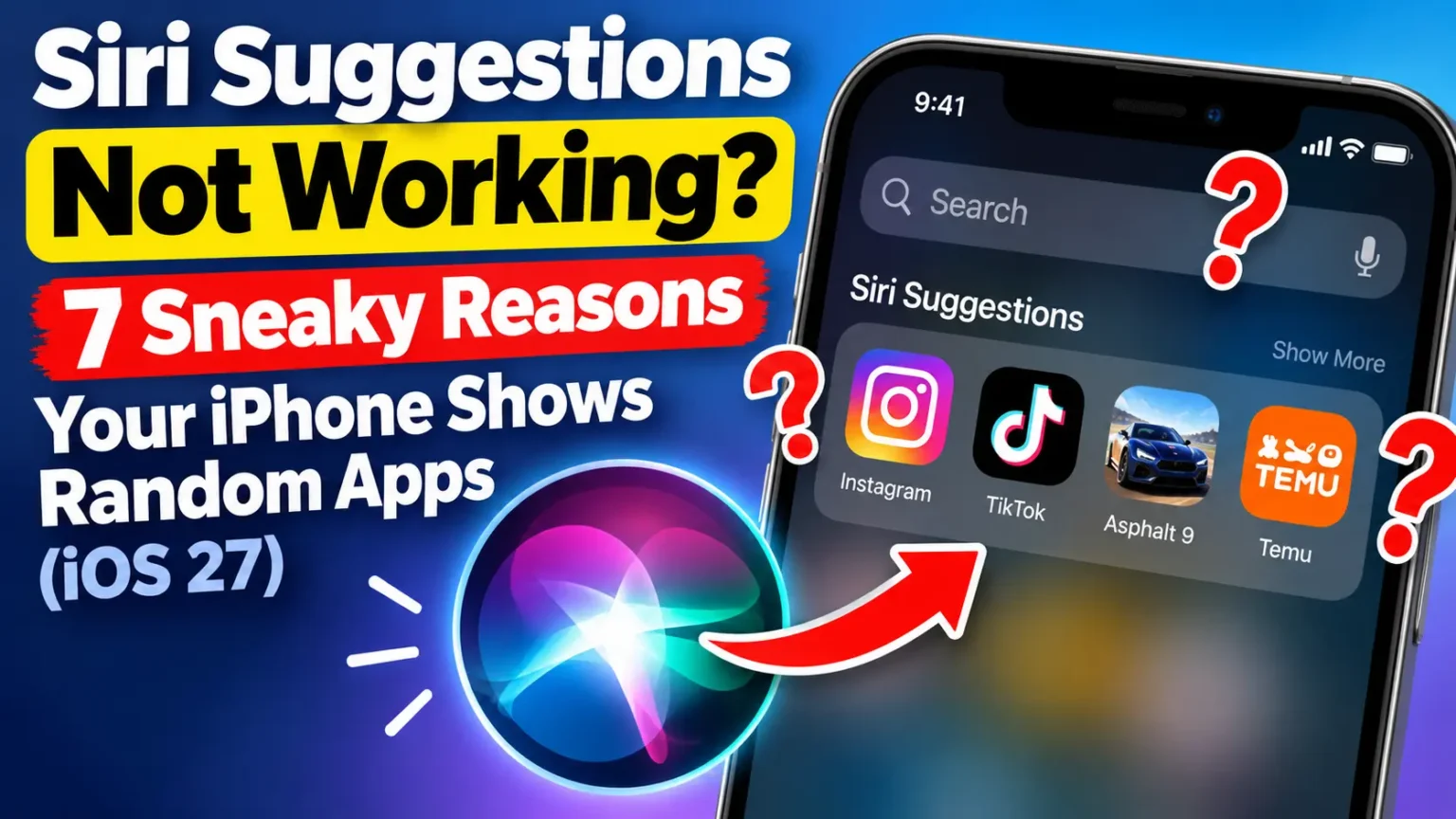
Siri Suggestions not working? It usually comes down to three things: a suggestion switch is off, one app’s learning is disabled, or Siri has learned a habit you no longer have.
Go to Settings > Siri (or Apple Intelligence & Siri). Turn the Suggestions toggles off, wait ten seconds, then turn them back on.
Still not fixed? Restart your iPhone. If the wrong app keeps appearing, press and hold it in Spotlight and tap Don’t Suggest.
You swipe down for Spotlight.
The app you open every morning is missing.
In its place sits a random game you tapped once.
Or the suggestions vanished entirely.
It feels like Siri forgot you.
It didn’t. Siri Suggestions learn from your habits, so a few odd taps can throw them off.
This guide explains why it happens on iPhone and iPad.


You’ll get nine clear fixes, a model-by-model guide, and the iOS 27.2 changes Apple is expected to ship around October 26, 2026.
Why Siri Suggestions Matter (and Why They Break)
Siri Suggestions are the quiet helpers behind Spotlight, the App Library, the Share Sheet, and Smart Stack widgets.
Apple says they learn your routines to offer the right thing at the right time.
When they work, you save taps all day.
When they break, you stop trusting them.
We built this guide from Apple’s own documentation instead of guesswork.
Apple’s Siri support page was last published on September 14, 2026. OS X Daily posted a fresh Siri Suggestions tip on October 20, 2026.
We also read early iOS 27.2 Release Candidate reports from MacRumors forum users.
Where Apple has not explained a behavior, we say so.
One more thing before you start. “Siri not working” can mean three different problems. Pick yours below.
Which Siri Problem Do You Have?
| What You See | What It Likely Means | Where to Go |
|---|---|---|
| Wrong or random apps in Spotlight | Suggestions work, but they learned the wrong habits. | 7 reasons → |
| No suggestions at all | A switch is off, or Spotlight is stuck. | 9 steps → |
| Siri ignores your voice | Voice setup or internet trouble. | Related Siri problems → |
| You can’t hear Siri | Spoken responses are off. | Can’t hear Siri → |
| Siri is missing from Settings | A VPN profile or an old iOS version may be responsible. | Siri not showing up → |
| The new Siri AI acts up | A beta assistant problem, not Suggestions. | Siri AI problems guide → |
Siri Suggestions in Plain English
Think of Siri Suggestions as a barista who learns your order.
Order a latte every morning and she starts the milk before you speak.
Then you buy a birthday coffee for a coworker.
Now she guesses wrong for a week.
The barista isn’t broken.
She is learning from the wrong day.
Siri works the same way.
Apple says suggestions depend on your routines and how you use apps.
OS X Daily lists how often you open an app, when you open it, and how recently as key factors.
So one odd afternoon can leave a mark.
Apple also says Siri learns across your devices.
A habit on your iPad or Mac can show up on your iPhone.
Suggestions can surface Siri Shortcuts too, so a shortcut you ran once may reappear.
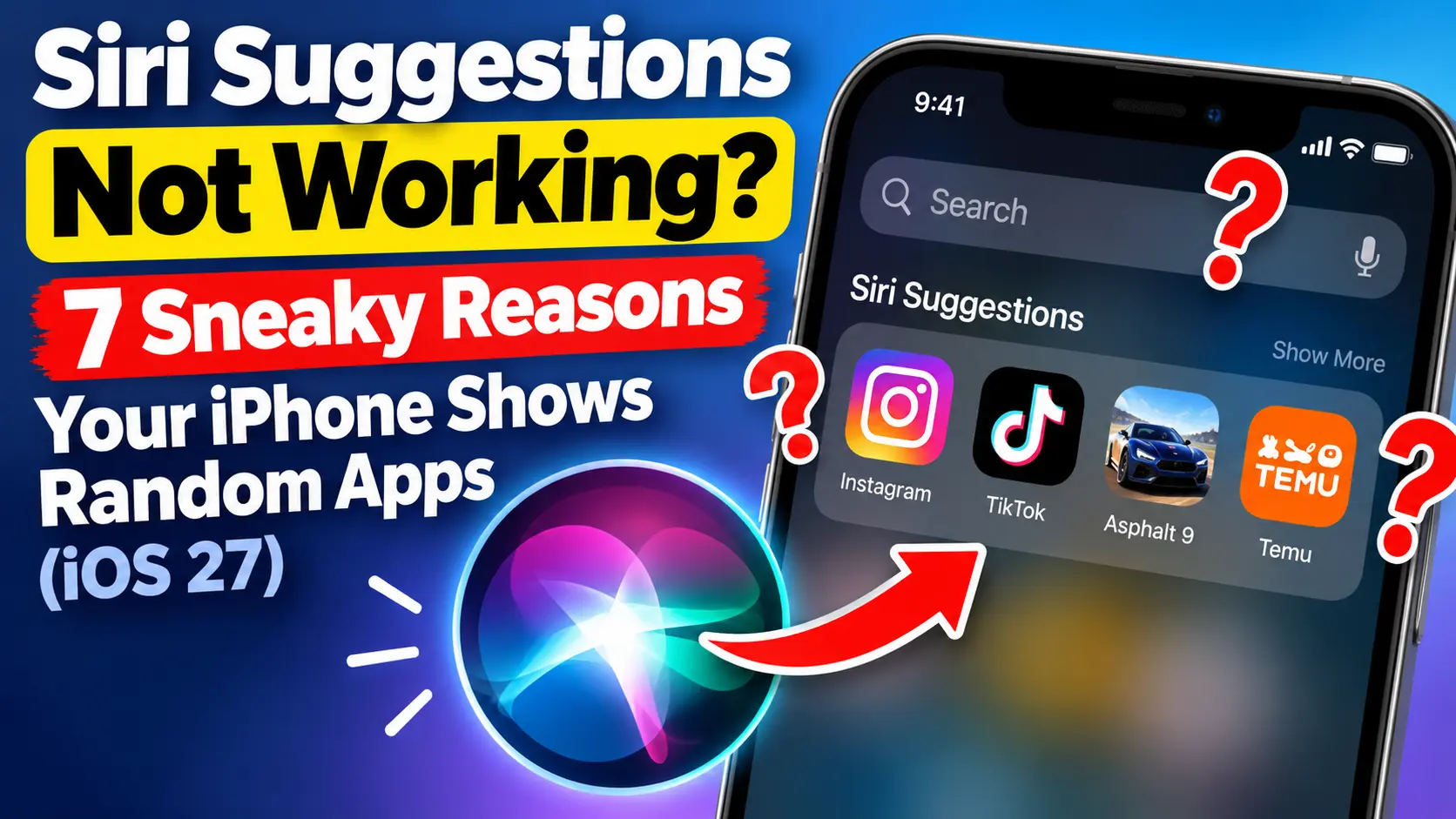
7 Reasons Siri Suggestions Show Random Apps
1. You Tried Something New
A new app, a one-time game, or a trip can change your pattern. Recency counts. An app you opened a lot this week can crowd out an old favorite.
2. Your Routine Changed
A new job, schedule, or commute breaks the old pattern. Siri still expects your old time of day. It needs fresh habits before it catches up.
3. Another Device or Person Is Teaching Siri
Your iPad, Mac, or Apple Watch may feed Siri the same habits. Apple’s iPhone guide says you can stop that syncing by turning off Siri in your iCloud settings. A family member who games on your phone adds their habits too.
4. An App You Don’t Care About Can Still Teach Siri
Apple says Siri Suggestions are on by default for your apps. Each app can contribute. That is how a rarely used app ends up in your top row.
5. A Fresh Update Is Still Settling
After a big update, iOS rebuilds search data in the background. Apple Scoop reports search-indexing bugs in iOS 27 that make Siri miss items. Plug in, join Wi-Fi, and give the phone time. Our Siri AI problems guide suggests an hour.
6. A Widget Is Doing Its Own Thing
The Siri Suggestions widget can sit inside a Smart Stack. Turning off suggestions in Settings does not remove it, according to iGeeksBlog. You have to remove the widget yourself.
7. A Plain Glitch
Software hiccups happen. A restart clears most of them.
9 Steps to Fix Siri Suggestions Not Working
Work through these in order. Stop when your suggestions look right. Menu names vary by version. On iOS 26 and iOS 27 you may see Siri or Apple Intelligence & Siri. Older versions say Siri & Search.
Work through these in order. Stop when your suggestions look right. Menu names vary by version. On iOS 26 and iOS 27, you may see Siri or Apple Intelligence & Siri. Older versions say Siri & Search.
- Restart your iPhone Hold the side button and either volume button. Slide to power off. Wait 30 seconds, then turn it on.
- Update iOS Open Settings > General > Software Update. Install iOS 27.0.1 if it is waiting.
- Toggle suggestions off, then on Open Settings > Siri. Under Suggestions, switch each toggle off. Wait ten seconds, then switch them back on. Look for Suggest Apps Before Searching, Show in App Library, Show When Sharing, and Show Listening Suggestions.
- Check one app at a time Go to Settings > Siri > Apps. Tap the odd app. Turn off Learn from this App and switch off its Suggestions toggles too.
- Use “Don’t Suggest” in Spotlight Swipe down on the Home Screen. Press and hold the wrong app. Tap Don’t Suggest, then confirm the app’s name if prompted.
- Reset the Smart Stack widget Press and hold the widget stack. Tap Edit Stack. Remove the Siri Suggestions widget, then add it back later.
- Check VPN and restrictions Some VPN profiles might not allow Siri. If appropriate, remove the VPN profile and restart. Then open Settings > Screen Time > Content & Privacy Restrictions > Siri.
- Let Siri relearn Open the apps you want each day. Judge the results after a few days of normal use.
- Reset All Settings as a last resort Go to Settings > General > Transfer or Reset iPhone > Reset > Reset All Settings. Read Apple’s warning first. Your photos and apps stay, but settings such as network and privacy preferences may be reset.
Handy detail: step four is the sharpest tool. It targets one app without touching the rest.
Case Study: A Night Shift and a Nephew’s Game
Illustrative scenario, based on how Siri Suggestions behave.
Picture a reader who switched from day shifts to nights. At 2 a.m., Spotlight kept suggesting a morning-commute app. A kids’ puzzle game sat in the top row too, because her nephew played it on her phone one weekend.
She flipped the main suggestions switch off and on. Nothing changed. That is the common trap. The big switch is a blunt tool.
The fix that fits this scenario is smaller. She presses and holds the game, taps Don’t Suggest, and turns off Learn from this App for it. Then she opens her night-shift apps for a few days. Per-app control does the real work.
Which iPhones and iOS Versions Does This Cover?
Siri Suggestions run on every iPhone that runs a recent iOS. The new Siri AI is the part that depends on your model.
| Device | Software | What to Know |
|---|---|---|
| iPhone 11 through iPhone 15 and 15 Plus, plus iPhone SE (2nd and 3rd gen) | iOS 27 | Suggestions and classic Siri work. Siri AI does not appear, by design. |
| iPhone 15 Pro, 15 Pro Max, iPhone Air, iPhone 16, 17 and 18 series | iOS 27 | Siri AI (beta) arrives after you join a waitlist. See how to get Siri AI → |
| iPhone Duo | iOS 27.1 | Ships with iOS 27.1, a build reported to be exclusive to the Duo. |
| iPad | iPadOS 27 | Same Settings path. Apple’s Siri support page covers iPhone and iPad. |
Don’t hunt for iOS 27.1 on a regular iPhone. Cult of Mac reports Apple is reserving it for the iPhone Duo. Other iPhones should look for iOS 27.2 instead. Not sure you’re ready for it? Read our guide on whether to upgrade to iOS 27.
Related Siri Problems (Quick Fixes)
Your search may be wider than Suggestions. Here are fast fixes for the other Siri problems readers search for.
Siri Not Working on iPhone or Not Showing Up
- Check your internet. Apple says offline Siri usually replies with a connection error.
- Make sure Siri is enabled. Open Settings > Siri. Tap Turn On Siri if you see it.
- Toggle voice activation. Tap Requests (or Talk & Type to Siri). Turn “Siri” or “Hey Siri” off, then on.
- Redo voice setup. Tap Continue, say each prompt aloud, then tap Done.
- Check VPN profiles. If Siri is missing after a restart, a VPN profile may be blocking it.
- Test another way. Press the side button to activate Siri or use Type to Siri.
Can’t Hear Siri
- Open Siri settings. Go to Settings > Siri (or Apple Intelligence & Siri).
- Open Responses. Tap Responses to access Siri’s spoken-response settings.
- Prefer spoken responses. Choose Prefer Spoken Responses.
- Raise the volume. Press the side volume buttons while Siri is speaking.
Siri Not Playing Music or Media
- Name the app. Say, “Play my workout mix on Spotify.”
- Sign in. Make sure your music app is signed in.
- Check your connection. Siri needs an internet connection for most requests.
- Unlock your iPhone. Some Siri AI requests may require an unlocked iPhone, depending on the feature.
A. Siri Problems on iPhone 11
An iPhone 11 can run iOS 27. But it cannot run Siri AI. You keep classic Siri and Siri Suggestions. If a guide tells you to join the Siri AI waitlist, skip it. That option isn’t for your phone.
B. Siri Not Working on iPad
Use the same Settings path as on iPhone. Apple’s Siri support page covers both devices. Check your internet, then reset the “Siri” or “Hey Siri” switch under Requests.
C. How to Stop Siri on iPhone
“Stop Siri” can mean two things. To stop suggestions, use the nine steps above. To stop Siri from listening, open Settings > Siri > Requests.
Turn off “Siri” or “Hey Siri.” You can also turn off pressing the side button for Siri. Want to switch off the AI features too? See how to turn off Apple Intelligence.
What If This Doesn’t Work?
- Update when iOS 27.2 lands. Cult of Mac points to Monday, October 26, though Apple has not confirmed it. Install it and retest.
- Skip Reset Network Settings. Many guides suggest it. Suggestions run mostly on your device, so a network reset is a long shot.
- Test the Excluded Apps list. On iOS 27.2, a wrongly excluded app can vanish from suggestions. Details are below.
- Back up, then reset. Use Reset All Settings only after you back up your iPhone.
- Report it to Apple. Use Apple’s iPhone feedback page and choose Bug Report.
- Get hands-on help. Book a Genius Bar appointment if Siri vanished completely.
What Changes in iOS 27.2
Apple Scoop says iOS 27.2 renames the app-access section to Excluded Apps. It also lets you add several apps at once. That should make it easier to see what you blocked.
Early Release Candidate testers on MacRumors Forums report a catch. Excluding an app can also remove its suggestions from the Share Sheet. Some testers say the old Show Content in Search switch is missing. Treat these as early reports. Apple may change the final release.
Key Takeaways
- Siri Suggestions learn from how often, when, and how recently you open apps.
- One odd week can fill Spotlight with random apps.
- The main switch is blunt. Use Learn from this App and Don’t Suggest for precision.
- A Smart Stack widget can keep showing suggestions after you turn them off.
- iPhone 11 through iPhone 15 can run iOS 27 but not Siri AI.
- iOS 27.1 is for the iPhone Duo. Other iPhones should expect iOS 27.2.
- Reset All Settings is a last resort, not a first move.
Frequently Asked Questions
Siri may be learning from a short burst of activity, another device, or another person. Use Don’t Suggest on each wrong app. Then turn off Learn from this App for apps you don’t want Siri to study.
Newer versions of iOS label it Siri or Apple Intelligence & Siri. Apple’s support page notes that Siri preferences may sit under either name, depending on your iOS version.
No. Suggestions and the voice assistant are separate settings. You can hide suggestions and still use “Hey Siri.”
No. It resets settings, not your photos or apps. You may need to set up Wi-Fi passwords and preferences again.
Probably not. Reports say iOS 27.1 is for the iPhone Duo. Other iPhones should see iOS 27.2, which Cult of Mac expects around October 26, 2026.
Sources
- Apple Support, If Siri isn’t working on your iPhone or iPad (published September 14, 2026)
- Apple iPhone User Guide, About Siri Suggestions on iPhone (archived iOS 14 edition)
- OS X Daily, How to Remove App from Siri Suggestions on iPhone & iPad (October 20, 2026)
- Apple Scoop, Siri AI Not Working? The 5 Biggest Problems and Fixes (September 25, 2026)
- MacRumors Forums, iOS 27.2 RC thread (October 20, 2026)
- Cult of Mac, Here’s when Apple will launch iOS 27.2 (October 20, 2026)
Disclaimer
This article is for general information. Menu names, features, and release dates may change, and Siri AI is still labeled a beta. Steps reflect iOS 27.0.1 and early iOS 27.2 reports, and they may differ on other versions. Back up your iPhone before using any reset option. AppleHeadlines.com is an independent publication and is not affiliated with or endorsed by Apple Inc. For account or device emergencies, contact Apple Support.
Which app keeps sneaking into your suggestions? Tell us in the comments. Then bookmark our iOS 27 complete guide for fixes as Apple ships updates.
Updated October 21, 2026 · Checked against Apple’s iOS 27.0.1 guidance and iOS 27.2 Release Candidate reports
More Related:

T’kal is the lead strategist and developer behind Apple Headlines. With a background in digital marketing and web development, he specializes in technical Apple troubleshooting, software news, and hardware rumors. T’kal focuses on delivering high-authority tech content that bridges the gap between Apple enthusiasts and the latest industry innovations.