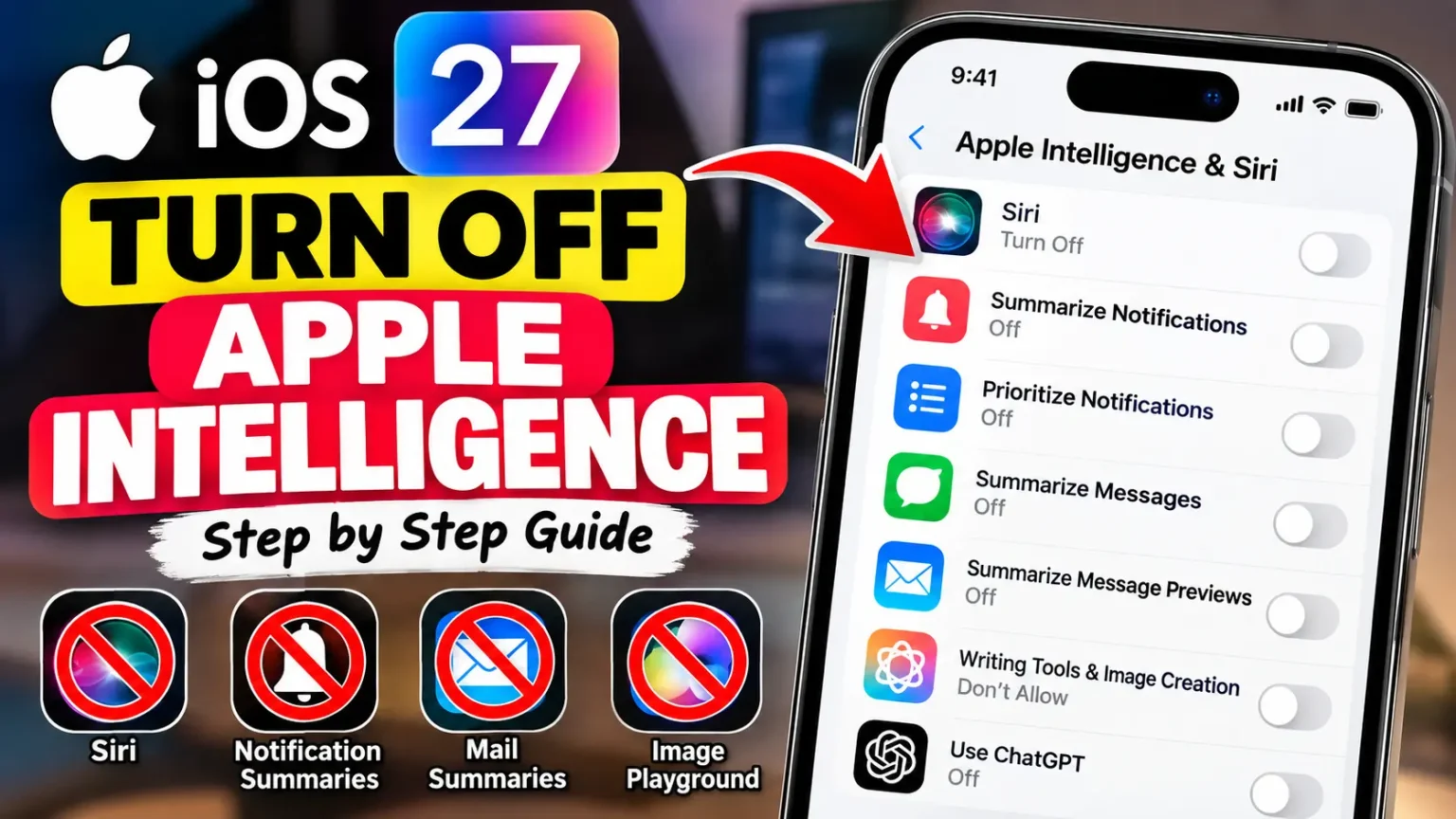

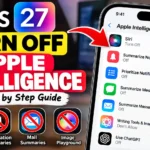

Quick Answer: On iOS 26 or earlier, open Settings > Apple Intelligence & Siri and switch off Apple Intelligence.
On iOS 27, that master switch is gone.
You now turn features off one at a time.
Doing so does not delete the on-device AI models, so it frees little or no storage.
You updated to iOS 27 and went looking for the Apple Intelligence off switch.
It’s gone. Meanwhile, your storage bar is nearly full and AI summaries keep popping up.
You’re not imagining things. Apple removed the master toggle this year.
You can still silence almost every AI feature you notice.
The bad news: the storage part is trickier than most guides admit.
Here’s what worked when we tested it, and what didn’t.
Why This Guide Is Different (and Why It Matters)
We ran every step on an iPhone 17 Pro running iOS 27.
Then we checked the older iOS 26.5 menus for comparison.


Our biggest finding: many popular guides still show the old toggle.
They were written for iOS 26 or earlier. That sends iOS 27 owners hunting for a switch that no longer exists.
That gap matters.
Apple Intelligence now touches Siri, Mail, Messages, Notifications, and Phone.
Apple says it runs on the iPhone 15 Pro, iPhone 15 Pro Max, and iPhone 16 or later. Apple’s own iOS 27 support page lists controls feature by feature, not one master switch.
If you care about privacy, distractions, or wrong summaries, you need the current map.
If you care about storage, you need the honest answer further down.
For the bigger picture, see our iOS 27 complete guide and iOS 27 vs iOS 26 breakdown.
The Plumbing Analogy: Faucets vs. Pipes
Picture the plumbing in your house.
On iOS 26, Apple gave you one main shutoff valve. Turn it, and the water stops everywhere.
On iOS 27, Apple took the valve out.
You can still close every faucet: Mail, Messages, Notifications, and Siri. But the pipes stay inside the walls.
Those pipes are the on-device AI models, and they take up space whether the water runs or not.
iOS 26 vs. iOS 27: What Changed
| iOS 26 and earlier | iOS 27 | |
|---|---|---|
| Master toggle | Yes, in Apple Intelligence & Siri | No |
| Turning features off | All at once | One by one |
| Storage effect | Reported savings of up to about 7GB | AI models stay installed |
How to Turn Off Apple Intelligence on iPhone Running iOS 27
When we tested this on our iPhone 17 Pro running iOS 27, Settings had no master switch. Each step below worked on its own.
Do all nine, or pick the ones that annoy you most.
- Turn off Siri AI. Open Settings and tap Siri. Scroll down and tap Turn Off Siri. Confirm. Want to keep Siri? Tap Turn on Siri, then choose Siri Classic.
- Stop notification summaries. Go to Settings > Notifications > Summarize Notifications. Switch the toggle off.
- Stop priority notifications. Go to Settings > Notifications > Prioritize Notifications. Switch it off.
- Stop Messages summaries. Go to Settings > Apps > Messages. Turn off Summarize Messages.
- Stop Mail summaries. Go to Settings > Apps > Mail. Turn off Summarize Message Previews. Also check Personalize Smart Replies.
- Block AI writing and image tools. Go to Settings > Screen Time > Content & Privacy Restrictions. Turn it on, then tap Intelligence & Siri. Set Writing Tools, Image Creation, and Intelligence Extensions to Don’t Allow.
- Cut off ChatGPT. Go to Settings > Apple Intelligence & Siri > ChatGPT. Turn off Use ChatGPT.
- Delete Image Playground. Press and hold its icon. Tap Remove App, then Delete App. It’s a standalone app in iOS 27.
- Quiet the phone and journal extras. In Settings > Apps > Phone, turn off Suggestions in Voicemail. Tap Apple Intelligence & Siri there to stop Call Context cards. In Settings > Apps > Journal, turn off Get Writing Prompts.
Pro Tip: Recheck after every update. Beebom reports some users found Apple Intelligence switched back on after major iOS updates. Take a screenshot of your settings today. Your next audit will take two minutes instead of twenty.
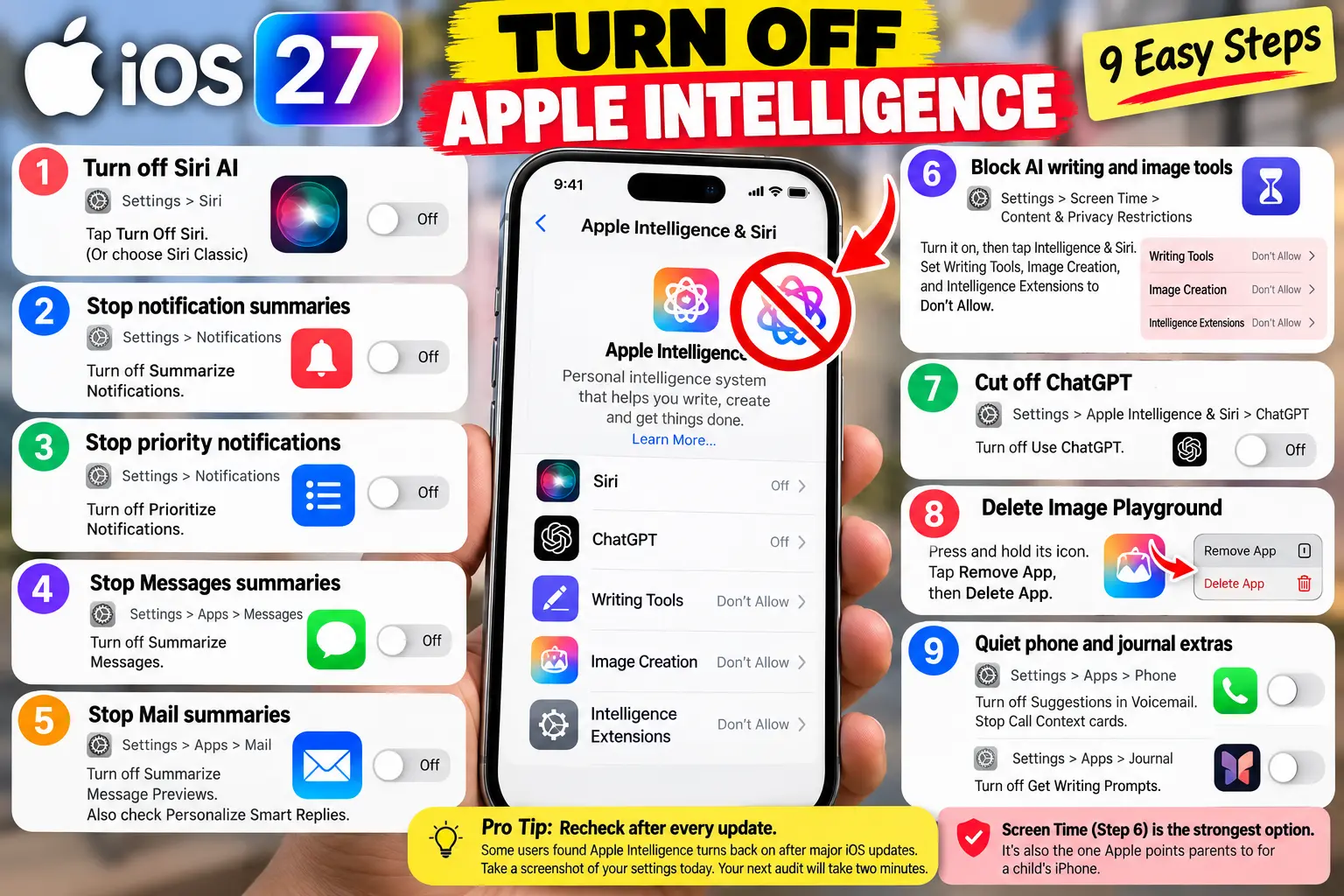
Screen Time (step 6) is the strongest option. It’s also the one Apple points parents to for a child’s iPhone.
Disable Apple Intelligence on iPhone Running iOS 26 or Earlier
Haven’t updated yet? The old master switch still exists on iOS 26.
- Open Settings.
- Tap Apple Intelligence & Siri.
- Switch off Apple Intelligence.
- Tap Turn Off Apple Intelligence to confirm.
Beebom says this can free up to about 7GB on iOS 26. Results vary, though.
More on that in the case study below.
Should you skip iOS 27 just to keep the toggle?
We wouldn’t. You’d also skip security fixes.
Apple Community regulars also note that downgrading is not supported once you update.
Disable Apple Intelligence on iPad
Supported iPads use the same menu names as the iPhone. In iPadOS 27, work through the nine steps above.
Proton lists the iPad mini (A17 Pro) and M1-or-later iPads as supported. On iPadOS 26, the master toggle still sits in Settings > Apple Intelligence & Siri.
Turn Off Apple Intelligence on a MacBook
On macOS 26 Tahoe and earlier, open System Settings > Apple Intelligence & Siri. Then switch off Apple Intelligence.
macOS 27 is messier. MacRumors reports that Apple removed the toggle. It also says the AI model downloads automatically after you update.
Other outlets still describe a switch.
Sources disagree, so check System Settings on your own build. Screen Time > Content & Privacy > Intelligence & Siri is your fallback for blocking Writing Tools and image tools.
Turn Off Apple Intelligence on Windows 10?
You can’t, because it doesn’t exist there.
Apple Intelligence is built into Apple’s own systems: iOS, iPadOS, macOS, and visionOS. If a Windows 10 PC shows AI prompts, they come from Windows or an app, not Apple.
Can You Delete or Uninstall Apple Intelligence?
No. The models are part of the system, and the storage they use is reserved by iOS.
Apple’s iOS 27 guide only offers ways to turn features off or restrict them.
You can delete Image Playground, and that’s the only piece you can remove.
Storage Reality Check: What Apple Intelligence Really Uses
Here are Apple’s figures, as reported by MacRumors on September 23, 2026:
| iPhone model | Apple Intelligence storage |
|---|---|
| iPhone 18 Pro, 18 Pro Max, iPhone Duo | Up to 14GB |
| iPhone 17 Pro, 17 Pro Max, iPhone Air | Up to 14GB |
| iPhone 15 Pro, 15 Pro Max, all iPhone 16 models, iPhone 17, iPhone 17e | Up to 8GB |
| iPhone 15, iPhone 14 and earlier | Not supported |
MacRumors noted it hadn’t seen the ballooning numbers on iPhones that some Macs show. Still, an “up to 14GB” reservation is big on a 256GB phone.
Real-World Case: The 9.7GB Surprise
On June 30, 2026, a user in the Apple Support Community asked how to remove Apple Intelligence.
Their iPhone ran iOS 26.5.
They said it used almost 10GB, even though they’d never turned it on for over a year. Community leaders replied that it can only be switched off, not removed.
Then came the twist.
The poster reported that turning it off didn’t free space.
The number even grew from 9.36GB to 9.7GB. That’s one user’s report, not a lab test.
But it matches what Apple’s iOS 27 guide implies: switches control features, not stored models.
Get Space Back Another Way
Since the models stay put, attack the other clutter:
- Delete Image Playground. It’s the one AI piece you can remove.
- Offload unused apps. Go to Settings > General > iPhone Storage. Tap an app, then tap Offload App.
- Trim your photos. Turn on Optimize iPhone Storage. Our iCloud storage fixes walk you through it.
- Shrink System Data. Follow our guide to clearing system storage on iPhone.
Should I Disable Apple Intelligence?
It depends on what bugs you.
Turn features off if summaries feel wrong, data leaving the phone bothers you, or prompts distract you.
Keep them if you use Siri AI or Writing Tools daily.
A middle path works well for most people. Switch off notification, Messages, and Mail summaries.
Cut off ChatGPT. Keep Siri Classic. Just don’t do it hoping to reclaim space on iOS 27. Our Apple Intelligence guide covers what you’d be giving up.
What If This Doesn’t Work?
- You can’t find the settings. Your iPhone probably isn’t supported. Apple Intelligence needs an iPhone 15 Pro or newer, plus a supported language.
- Siri AI options look different. Apple says Siri AI isn’t initially available in the EU. It’s also English-only to start.
- Screen Time options are missing. Turn on Content & Privacy Restrictions first. Then Intelligence & Siri appears.
- Summaries still show up. Restart your iPhone. Proton notes Screen Time changes may take a while to apply.
- A setting flipped back. Recheck after each update. Then repeat the step.
- Storage didn’t change. That’s expected on iOS 27. Use the “Get Space Back Another Way” list above.
Key Takeaways
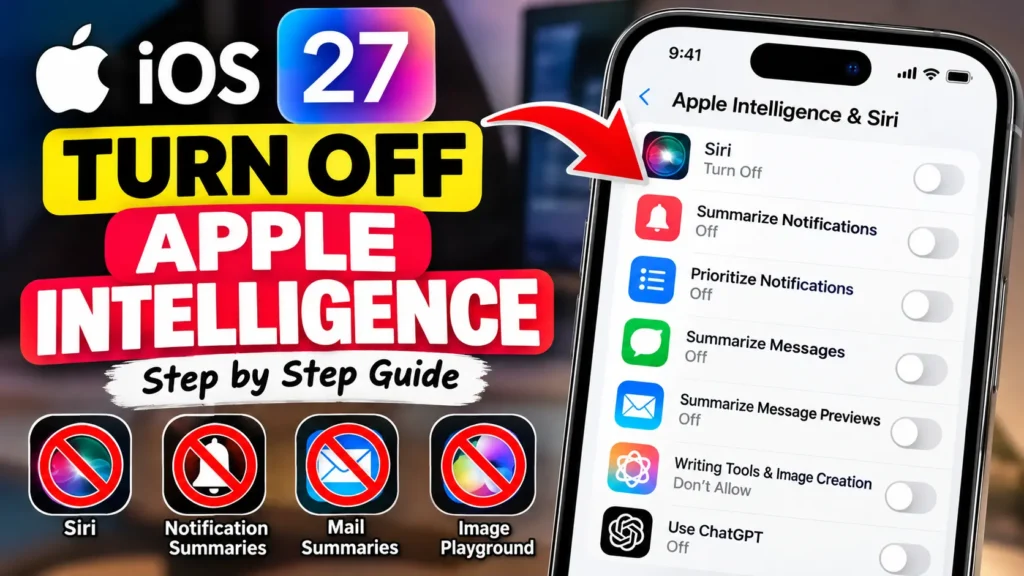
- iOS 27 has no master switch. You turn Apple Intelligence off feature by feature.
- Screen Time is the strongest block for Writing Tools, Image Creation, and extensions.
- You can’t uninstall Apple Intelligence. Only Image Playground can be deleted.
- Turning features off won’t reliably free storage. Apple’s figures run up to 14GB on newer iPhones.
- iOS 26 still has the toggle, but results on storage vary by user.
- Windows 10 has no Apple Intelligence to turn off.
Readers Questions:
1. Can you disable Apple Intelligence on iOS 27?
Not with one switch. You can turn off Siri AI, summaries, ChatGPT, and AI writing and image tools separately.
2. Can I delete or uninstall Apple Intelligence?
No. The models are baked into the system. You can only delete the Image Playground app.
3. Should I disable Apple Intelligence?
Do it for privacy or fewer distractions. Don’t do it only for storage, because iOS 27 keeps the models installed.
4. Will turning it off free up storage?
On iOS 26, some users report up to 7GB back, while others report nothing. On iOS 27, don’t count on it.
5. How do I turn off Apple Intelligence on iPad or MacBook?
iPad follows the iPhone steps. MacBook users on macOS 26 use the toggle. On macOS 27, check System Settings and use Screen Time.
Sources
- Apple Support: Turn off and restrict access to Apple Intelligence features on iPhone
- iThinkDifferent: How to Turn Off Apple Intelligence Features on iOS 27 (Sept. 14, 2026)
- MacRumors: Apple Intelligence Taking Up 30GB+ on Some Macs Running macOS 27 (Sept. 23, 2026)
- Beebom: How to Turn Off Apple Intelligence on iPhone (Apr. 2, 2026)
- Apple Support Community: Remove Apple Intelligence permanently and completely (June 30, 2026)
- Proton: How to turn off Apple Intelligence on iPhone, iPad, and Mac (July 20, 2026)
Disclaimer
AppleHeadlines.com is an independent publication and is not affiliated with Apple Inc. Menu names, storage figures, and device support can change with software updates. Back up your iPhone before changing settings. This article is for general information and isn’t professional technical or legal advice.
Did we miss a setting on your iPhone? Check our iOS 27 complete guide for more fixes, and share this guide with anyone whose storage bar is full.
Related Posts:

T’kal is the lead strategist and developer behind Apple Headlines. With a background in digital marketing and web development, he specializes in technical Apple troubleshooting, software news, and hardware rumors. T’kal focuses on delivering high-authority tech content that bridges the gap between Apple enthusiasts and the latest industry innovations.