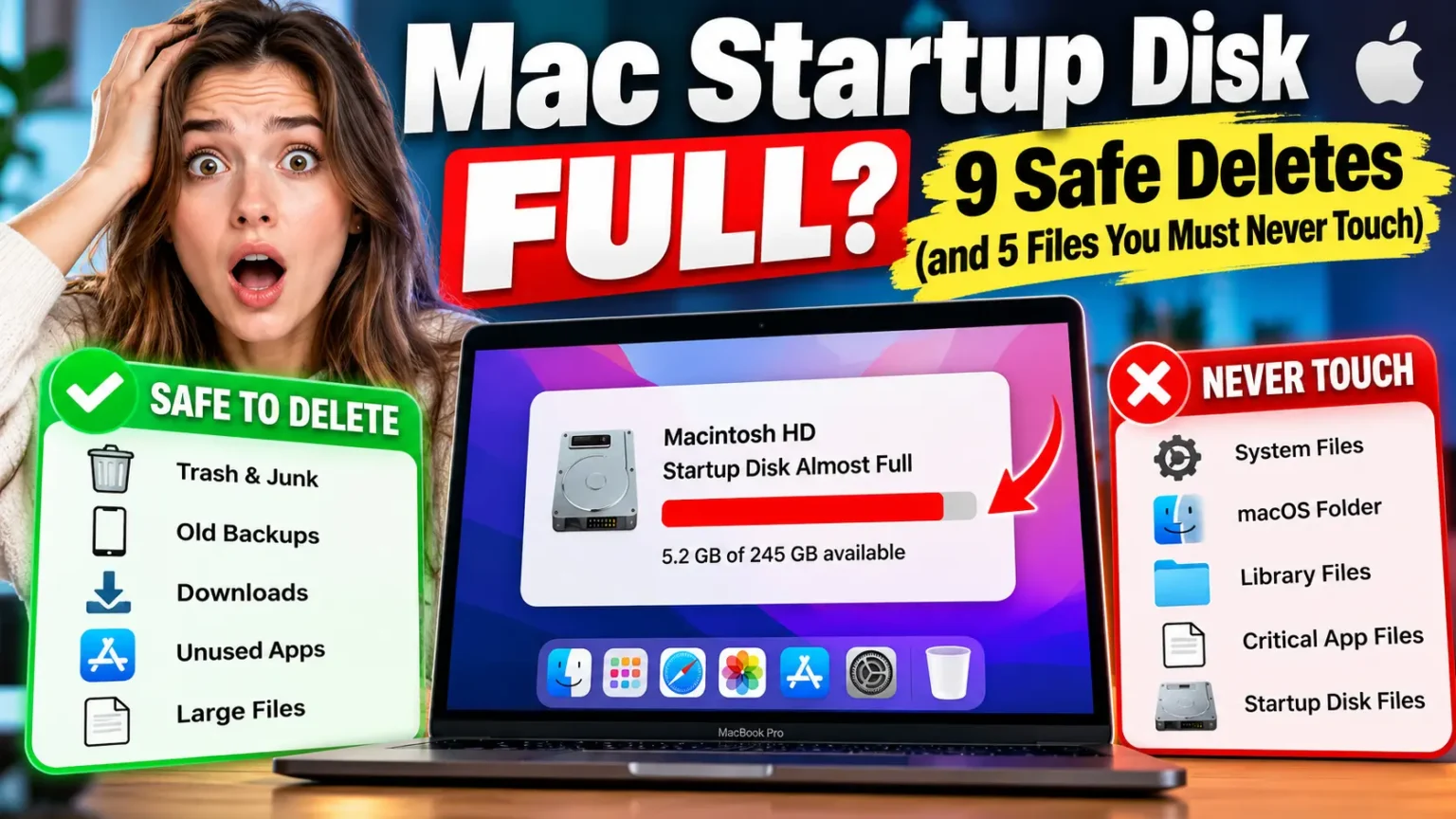



Quick Answer: A full Mac startup disk usually clears up fast if you delete things in the right order.
Start with the Trash, old iPhone backups, big Downloads, unused apps, and leftover macOS installers. Then check System Settings → General → Storage for Apple Intelligence, which can hold 14GB to 30GB on macOS 27.
Never delete anything inside the System folder, your Photos library, or app support folders.
Many Mac specialists suggest keeping 10–15% of the drive free.
You open your Mac and see “Your startup disk is almost full.”
Now files won’t save, apps stall, and macOS updates refuse to install.
It feels like something broke.
Nothing did. Your Mac just ran out of room to work.
The scary part is knowing what is safe to delete, because one wrong click in the Library folder can cause real trouble.
This guide shows what to delete first, what to leave alone, and what changed in macOS 27 this fall.
Why a Full Startup Disk Is a Bigger Deal Than It Sounds
Your startup disk is the drive macOS boots from. Most Macs call it Macintosh HD. It holds the system, your apps, and your files.
More Read



Here is an easy way to picture it.
Think of your startup disk as a workbench.
Your files are the tools stored in the drawers underneath. macOS needs clear bench space to unpack updates, swap memory, and save temporary files.
When the bench is buried in boxes, nothing is broken. But every job gets slower, and some jobs stop.
That is why a full disk causes beach balls, failed saves, and updates that quit halfway.
If your Mac also has little memory, the squeeze gets worse.
Our guide on how much RAM a MacBook Air has explains why those two limits work together.
How much free space is enough? Apple’s own storage guide does not give a magic number.
Many Mac specialists suggest keeping 10–15% free. On a 256GB Mac, that is roughly 25GB to 40GB.
We built this guide from Apple’s storage support page, last published July 6, 2026.
Then we checked it against the top-ranking guides and the latest macOS 27 Golden Gate reports.
Several popular guides still lean on Intel-era steps.
This one is written for Apple silicon, which macOS 27 requires.
Find Out What Is Actually Eating Your Space
Don’t start deleting at random. Look first. When we walked through this on a MacBook Air running macOS 27, the biggest surprise was not the Downloads folder.
It was a single row in the Storage panel.
- Click the Apple menu, then choose System Settings.
- Click General in the sidebar, then click Storage.
- Wait until every category finishes counting.
- Click the info (i) button beside big categories like Applications, Messages, and macOS.
- Write down your three biggest categories before you delete anything.
Pro Tip (Expert Insight): Let the Storage bar finish counting before you trust it.
Apple’s older storage documentation warns that categories calculate one at a time, so an early reading can mislead you.
Then open Downloads in Finder, switch to List view, and sort by Size.
Your top five files usually hold more space than the other five hundred combined.
What You Can Safely Delete (Quick Scan)
Mac Storage Cleanup: What Can You Delete?
| What | Safe to Delete? | Space It Can Free | Where to Find It |
|---|---|---|---|
| Trash and app trash | Yes | Small to large | Dock, Photos, Mail |
| Old iPhone/iPad backups | If backed up | Large | System Settings → General → Storage |
| Downloads (installers, ZIPs) | Review first | Medium to large | Finder → Downloads |
| Unused apps | Usually | Medium to large | Storage → Applications |
| Leftover macOS installers | Check first | Large | Finder → Applications |
| Mail downloads and junk | Review first | Small to medium | Mail → Mailbox menu |
| Big videos and old files | Review or move | Large | Finder → Search by file size |
| Specific app caches | With care | Small to medium | ~/Library/Caches |
| Old user accounts | After backup | Medium to large | System Settings → Users & Groups |
Tip: On smaller screens, swipe horizontally to view all columns. Always review files and verify backups before deleting data.
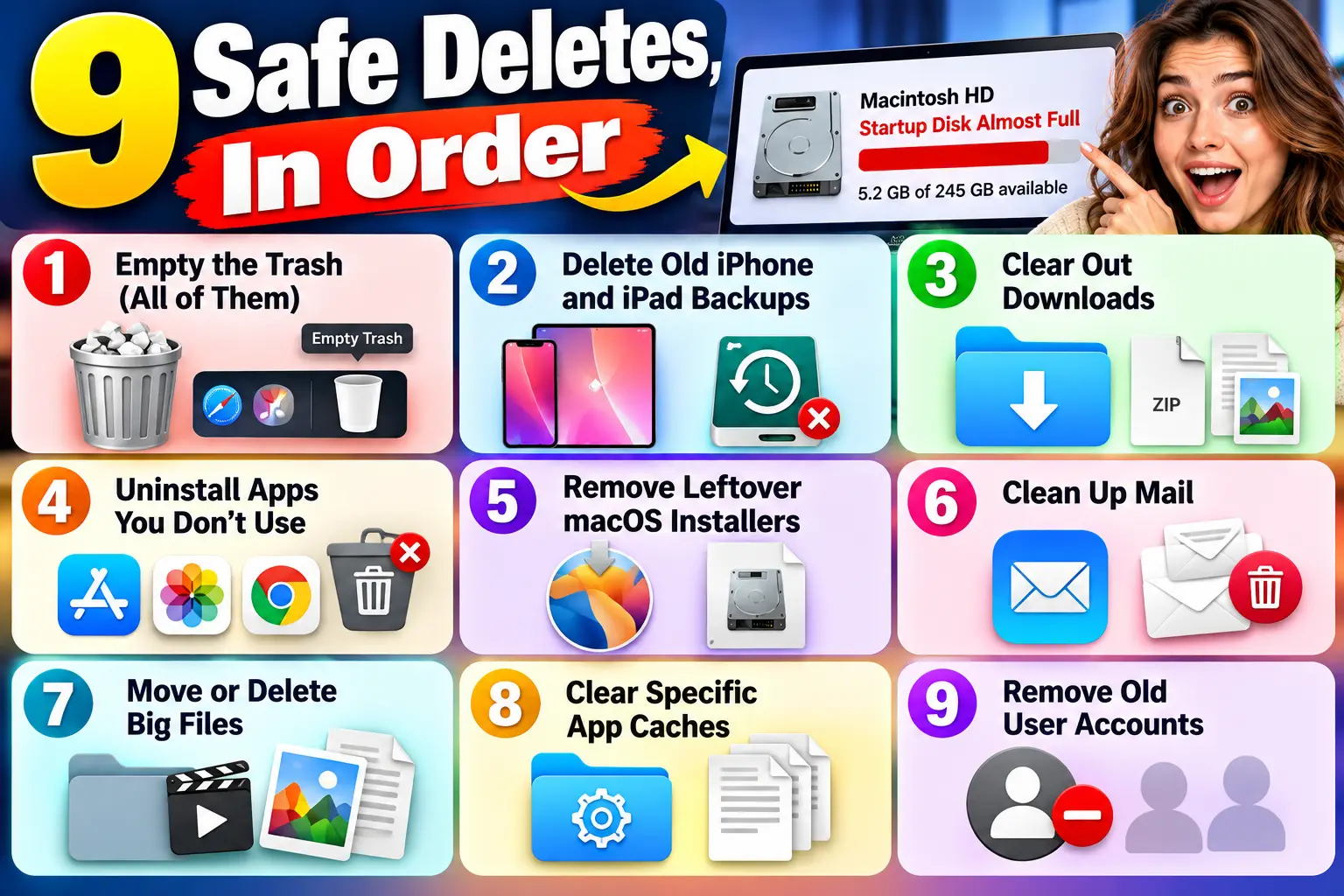
The 9 Safe Deletes, In Order
1. Empty the Trash (All of Them)
Apple says a file’s space doesn’t come back until you empty the Trash. Control-click the Trash in the Dock and choose Empty Trash. Then check app trash too. Photos has Recently Deleted. Mail has Deleted Items.
2. Delete Old iPhone and iPad Backups
If you ever backed up a phone to your Mac, old copies may sit there for years. A single backup can be huge.
- Open System Settings → General → Storage.
- Click the info button next to iOS Files.
- Select an old backup, then click Delete.
- Keep the newest backup for each device.
3. Clear Out Downloads
Downloads fills with installers, ZIP files, and PDFs you opened once. Sort by size, then delete what you don’t need. Disk images (DMG files) are the usual winners. You already installed those apps.
4. Uninstall Apps You Don’t Use
- Open Storage and click the info button beside Applications.
- Sort the list by size.
- Select an app you haven’t opened in a year.
- Click Delete, then empty the Trash.
5. Remove Leftover macOS Installers
If you downloaded a full macOS installer by hand, it may still sit in your Applications folder. These files are often over 10GB. After you upgrade, they are just dead weight.
Apple says macOS clears some staged updates on its own when space runs low. A manual installer won’t clear itself.
6. Clean Up Mail
Open Mail. In the menu bar, choose Mailbox → Erase Junk Mail. Then choose Mailbox → Erase Deleted Items. Apple lists both steps in its storage guide. Use the Mail app for this, not the hidden Mail folder in Library.
7. Move or Delete Big Files
Make a Finder Smart Folder for files larger than 1GB. Old screen recordings and exported videos are common space hogs. Move what you want to keep to an external drive. Apple also suggests compressing files you rarely open.
8. Clear Specific App Caches
Caches speed up apps, but old ones pile up. Quit the app first. Then open Finder, choose Go → Go to Folder, and type ~/Library/Caches. Delete the contents of big folders from apps you know, like a browser or a video editor.
Skip any folder starting with com.apple. Many guides tell you to wipe this whole folder. We don’t. Targeted deletes get you most of the space with far less risk.
9. Remove Old User Accounts
If a family member or former coworker no longer uses your Mac, delete their account. Back up anything they need first. Apple recommends this in its storage guide. Also check the Users folder for leftover data from deleted accounts.
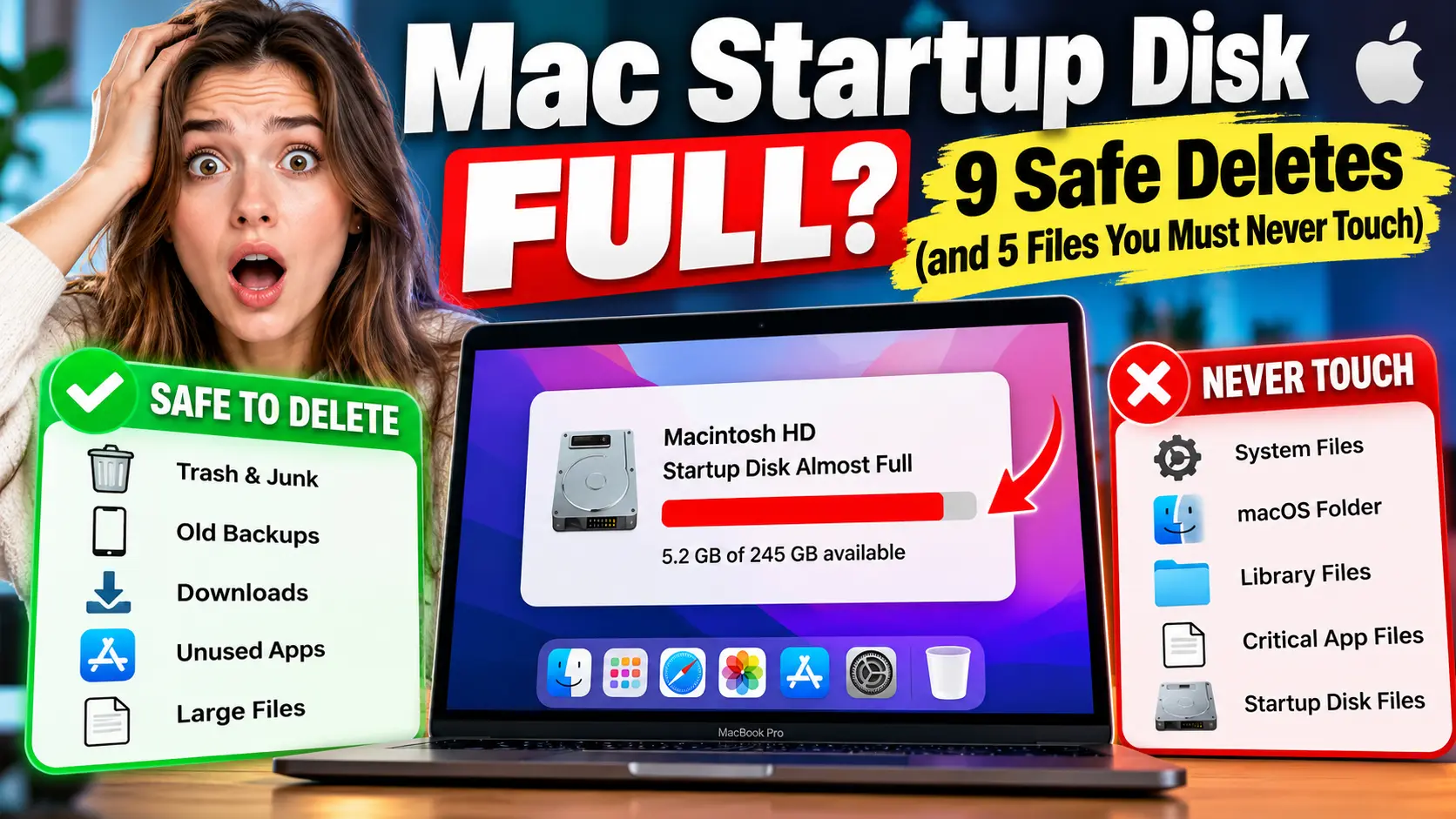
The 5 Files and Folders You Must Never Touch
Some advice online is risky. These are the spots where we’d stop.
- The System folder and /private/var. Modern macOS seals the system volume, so you can’t safely delete there. Some guides still tell you to remove screen savers from it. Skip that.
- Inside your Photos or Music library. Don’t right-click and choose Show Package Contents. Delete photos from the Photos app instead.
- ~/Library/Application Support. This holds settings, saved games, and project data. Deleting the wrong folder can wipe an app’s data.
- App language files inside app packages. Popular guides suggest deleting .lproj files. Editing an app’s package can break its signature. Updates may also put the files back.
- Apple’s own caches and containers (com.apple). These run live system services. Leave them alone.
One more warning. Never paste a Terminal delete command you found in a forum thread. If you don’t know what it removes, don’t run it.
New in macOS 27: Apple Intelligence Is Taking Real Storage
This is the part older guides miss. macOS 27 Golden Gate arrived on September 14, 2026, and it only runs on Apple silicon Macs. It also brought a storage surprise.
Apple says its latest Apple Intelligence features need up to 14GB on Macs with an M3 chip or later and at least 12GB of memory. Other supported Macs need up to 8GB. Real readings run higher, according to MacRumors:
- A Mac mini with M4 Pro showed 20.67GB.
- Ars Technica saw 22.42GB on an M3 MacBook Air.
- Ars also saw about 14GB on an M1 MacBook Air and a MacBook Neo.
- One Reddit user posted a release-candidate screenshot showing 30.16GB.
On a 256GB Mac, 20GB is nearly 8% of the drive. That can be the difference between a warning and a calm Mac.
How to check yours: open System Settings → General → Storage. Click the info button beside macOS. Look for the Apple Intelligence line.
Here is the hard part. MacRumors reports that Apple removed the toggle that used to turn Apple Intelligence off and delete its files. So you can’t simply switch it off to get the space back. Our guide on how to turn off Apple Intelligence covers the settings that still exist.
A third-party command-line tool called RemoveMacAI has drawn attention. MacRumors reported on October 5 that some users reclaimed 12GB or more with it. It removes the downloaded models, and it also turns off AI features like Writing Tools and the newer Siri abilities. It isn’t from Apple. It isn’t a guaranteed 30GB win. Treat it as a last resort, and back up first.
Mac Storage Full but Files Missing? Here’s Where the Space Hides
You deleted stuff, yet the bar barely moved. Or the numbers don’t match what you see in Finder. These are the usual reasons.
- System Data is a catch-all. Apple says it counts files that don’t fit another category. That includes caches, logs, and app extensions.
- Purgeable space. Apple’s documentation explains that “available” space includes free space plus purgeable caches. Your Mac may count some space as both used and available.
- Local Time Machine snapshots. Your Mac keeps short-term snapshots between backups. macOS is built to clear them when space gets tight, but it doesn’t always happen fast. To peek, open Terminal and run
tmutil listlocalsnapshots /. That command only lists them. It deletes nothing. - Hidden app data. Apps tuck big files inside your Library folder. To find the biggest folders, run
du -sh ~/Library/* 2>/dev/null | sort -rh | head -10. It is read-only, so it won’t change anything. - Messages attachments. Years of photos and videos add up. Check the Messages category in Storage.
If the space vanishes with no explanation, scan for adware. Our walkthrough on how to check for malware on Mac shows how.
When Your Mac Is So Full You Can’t Delete Anything
This happens. A full disk can block even the Trash. Older guides tell you to hold the Shift key at startup or use Target Disk Mode with the T key. Those steps are for Intel Macs. Here is the Apple silicon version.
- Shut down your Mac completely.
- Press and hold the power button until startup options appear.
- Select your startup disk.
- Hold the Shift key, then click Continue in Safe Mode.
- Log in and empty the Trash.
Apple says Safe Mode clears certain system caches. That may free just enough room to work. Then try this trick. Select a big file and press Option-Command-Delete. That skips the Trash and deletes the file right away. There is no undo, so choose carefully.
When you finish, restart normally. If you still need more room, connect an external drive and move big folders there.
Case Study: The 256GB MacBook Air That Kept Running Out
Reader scenario, a composite with details changed.
A reader with a 256GB MacBook Air told us the same warning kept coming back. She had emptied the Trash twice. Her Documents folder was small. She was ready to blame a virus.
We had her open Storage and wait for the bar to finish. Three rows stood out. Old iPhone backups held about 40GB. A forgotten Downloads folder held about 18GB of installers. And after her macOS 27 update, the Apple Intelligence line showed roughly 20GB.
She deleted the old backups and the installers, which freed about 58GB. She left the AI files alone. The warning stopped, and she didn’t touch a single Library folder. The lesson is simple. Check the Storage panel before you dig through hidden folders.
What If This Doesn’t Work?
Try these in order.
- Restart, then recheck. Storage can take a few minutes to catch up after big deletes.
- Use a visual disk tool. OmniDiskSweeper (free) and DaisyDisk (paid) show exactly which folders are huge. Download only from the developer’s own site.
- Run First Aid. Open Disk Utility, select your startup disk, and click First Aid. It checks for disk errors that can block deleting.
- Check if it’s even a storage problem. If your Mac is still slow with 30% free, the cause may be memory or a runaway app. Our guide on how to force quit on Mac can help with the second one.
- Back up, then reinstall. As a last resort, back up with Time Machine, then erase and reinstall macOS from Recovery.
- Book a Genius Bar visit. If First Aid reports errors it can’t fix, follow our tips for a Genius Bar appointment. On most Macs the SSD is soldered to the logic board, so you can’t swap in a bigger one later.
Be careful with “one-click cleaner” apps. Some are useful. Many promise more than they deliver. Never let one delete things you can’t see and understand.
How to Keep It From Happening Again
- Check Storage once a month.
- Clear Downloads every Friday.
- Turn on Empty Trash Automatically in the Storage recommendations.
- Keep photo libraries tidy. Our tips on organizing photos on Mac help.
- If you use iCloud to offload files, watch your plan. Our guide on iCloud storage full explains how to stay ahead of it.
Key Takeaways
- A full startup disk is a space problem, not a broken Mac.
- Look at Storage first, and let it finish counting.
- Delete in order: Trash, old backups, Downloads, unused apps, old installers.
- Never touch the System folder, library packages, Application Support, app package files, or com.apple items.
- macOS 27 can set aside 14GB to 30GB for Apple Intelligence, and you can’t switch it off.
- If you can’t delete anything, use Safe Mode and Option-Command-Delete.
- Keep roughly 10–15% of your drive free.
FAQ
Apple doesn’t publish a fixed number in its storage guide. Many Mac specialists recommend 10–15% of your drive. That is about 25GB to 40GB on a 256GB Mac.
You can’t delete System Data as one block, and you shouldn’t try. It mixes caches, logs, extensions, and snapshots. Clear the safe parts instead: the Trash, old backups, and specific app caches.
App caches rebuild on their own, so deleting them is usually safe with the app closed. Avoid Apple’s own com.apple folders. Don’t delete whole Library folders in one go.
Not with a normal setting. MacRumors reports Apple removed the off switch. A third-party tool exists, but it isn’t from Apple and it removes AI features. Back up before you try it.
Usually the Trash wasn’t emptied, or storage is still recounting. Purgeable space and local Time Machine snapshots can also confuse the numbers. Restart, wait a few minutes, and check Storage again.
Sources
- Free up storage space on Mac, Apple Support (published July 6, 2026)
- Optimize storage space on your Mac, Apple Support
- See used and available storage space, Apple Support
- macOS 27 will arrive on September 14, Apple World Today
- How to fix the “Startup Disk Full” error on Mac, CleanMyMac (updated May 28, 2026)
Disclaimer
This article is for general information. Deleting files can’t always be undone. Back up your Mac with Time Machine before you remove anything important. Storage figures vary by Mac model, macOS version, and apps installed. Third-party tools aren’t made or supported by Apple, and Apple Headlines isn’t responsible for data loss. If you’re unsure, ask Apple Support or an Apple Authorized Service Provider. Apple Headlines isn’t affiliated with Apple Inc.
Ready to reclaim your space? Open System Settings → General → Storage right now and start with Step 1. Then explore more Mac guides on Apple Headlines, and tell us in the comments how many gigabytes you got back.
Related Posts:

T’kal is the lead strategist and developer behind Apple Headlines. With a background in digital marketing and web development, he specializes in technical Apple troubleshooting, software news, and hardware rumors. T’kal focuses on delivering high-authority tech content that bridges the gap between Apple enthusiasts and the latest industry innovations.