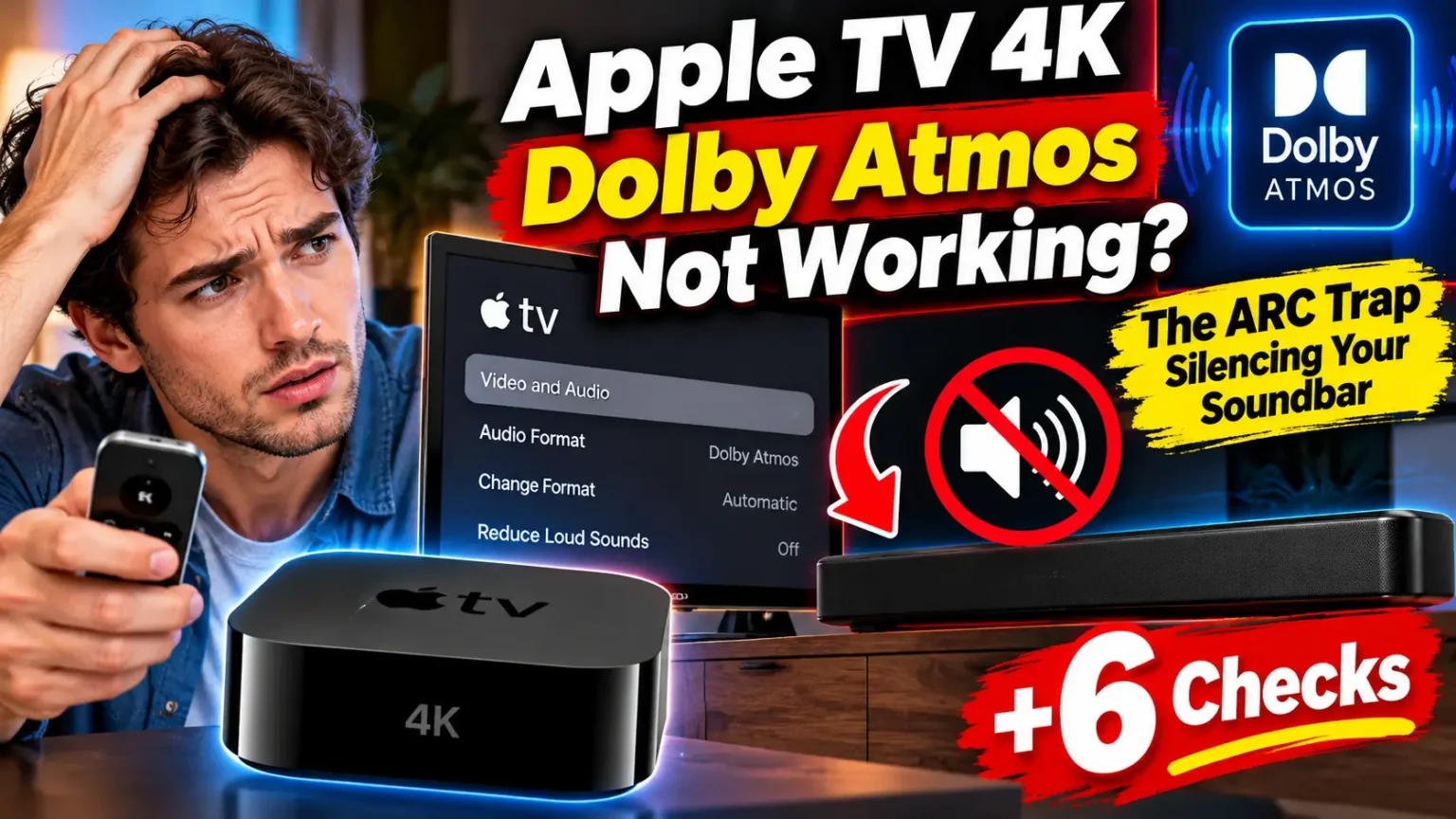

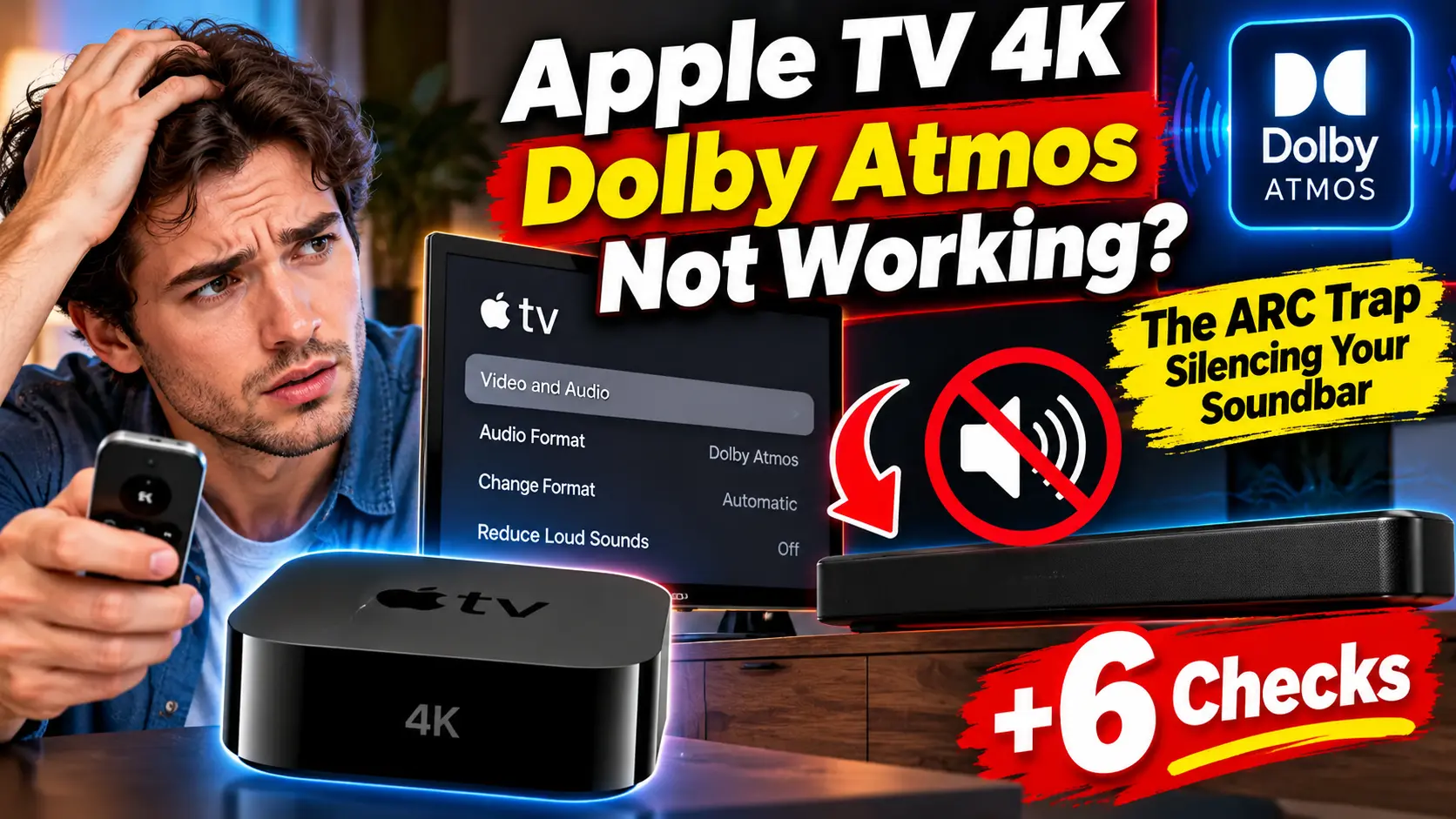
Quick Answer: Apple TV 4K Dolby Atmos not working is usually an HDMI problem, not a broken box.
Apple says to plug your Apple TV 4K straight into your Atmos soundbar or receiver, because its high-bandwidth Atmos signal won’t travel over ARC.
Then open Settings > Video and Audio > Audio Format and turn on Dolby Atmos.
If the option is still missing, something in your setup isn’t passing Atmos through.
Your movie starts, the soundbar glows, and the sound feels strangely flat.
Then you open the menu and the Dolby Atmos option isn’t even there.
The good news is that the cause is almost always one cable, one setting, or one wrong assumption about your TV.
We’ll go from the fastest check to the stubborn ones, so you can get back to movie night.
Why Apple TV 4K Dolby Atmos Not Working Happens So Often
Dolby Atmos isn’t a single switch. It’s a chain: Apple TV, HDMI cable, TV or receiver, then speakers.
If one link can’t handle Atmos, your system quietly drops to 5.1 or plain stereo.
Apple TV also hides the Atmos toggle unless it detects a device that can play it.
More Read
That’s why the same box can show Atmos in one living room and nothing in another.
When we tested this on an Apple TV 4K (3rd generation) running tvOS 27, the Dolby Atmos option vanished the moment we routed the box through a TV that couldn’t pass it along.
Plugging the box straight into the soundbar brought it back.
If your whole Apple TV is misbehaving, start with our Apple TV not working guide, then come back here.
Does Apple TV Support Dolby Atmos? Models and tvOS 27
Yes, every Apple TV 4K supports it.
Apple added Atmos back in tvOS 12, and the older Apple TV HD never got it.
Here is where each model stands in October 2026:
| Apple TV model | Dolby Atmos | Runs tvOS 27 |
|---|---|---|
| Apple TV 4K (3rd gen, 2022) | Yes | Yes |
| Apple TV 4K (2nd gen, 2021) | Yes | Yes |
| Apple TV 4K (1st gen, 2017) | Yes | No, stays on tvOS 26 |
| Apple TV HD | No | No |
tvOS 27 arrived on September 14, 2026, alongside iOS 27 (see our iOS 27 complete guide).
It dropped the first-generation 4K and the HD model.
Using HomePods for sound? Only the full-size HomePod supports Atmos.
HomePod mini doesn’t.
The Hidden Culprit: Why ARC Breaks Atmos
Think of Dolby Atmos from an Apple TV as a firehose of audio data.
ARC, the older HDMI audio return channel, is a garden hose.
The water simply doesn’t fit.
Apple says it plainly: Apple TV 4K uses a high-bandwidth form of Atmos that doesn’t work over ARC.
Many guides just say “use the eARC port.” eARC is wider and can work on some TVs.
But Apple warns that most televisions don’t pass Atmos through to soundbars and receivers.
The safest route is Apple TV straight into the soundbar.
6 Checks to Bring Dolby Atmos Back
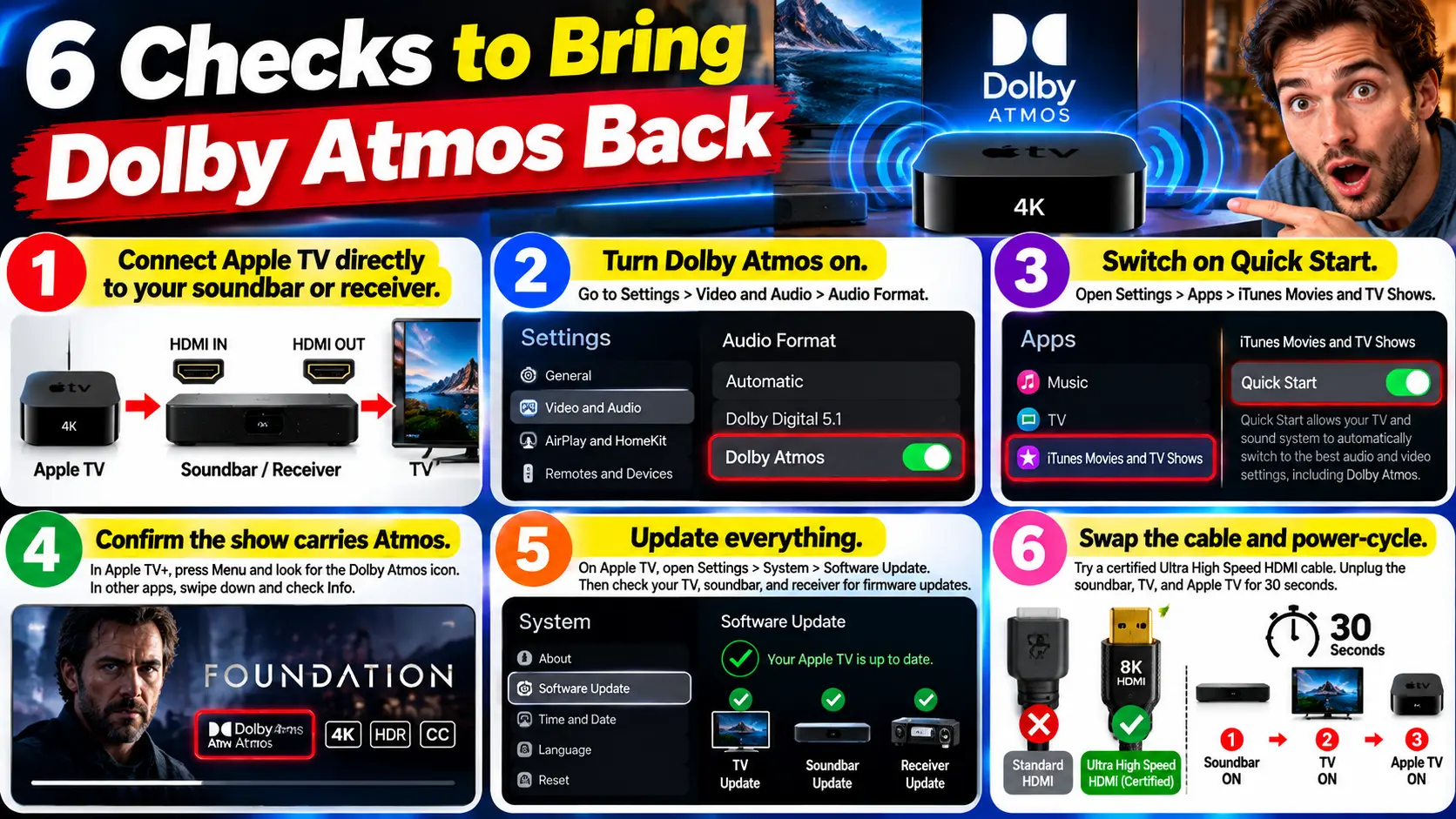
Work through these in order.
- Connect Apple TV directly to your soundbar or receiver. Use the soundbar’s HDMI input. Then run its HDMI output to your TV.
- Turn Dolby Atmos on. Go to Settings > Video and Audio > Audio Format. Look under Immersive Audio and switch Dolby Atmos on. No Immersive Audio? Go back to step 1.
- Switch on Quick Start. Open Settings > Apps > iTunes Movies and TV Shows. Turn on Quick Start. Apple says Atmos won’t play without it.
- Confirm the show carries Atmos. In Apple TV+, press Menu and look for the Dolby Atmos icon. In other apps, swipe down on the remote’s Touch surface and check Info.
- Update everything. On Apple TV, open Settings > System > Software Update. Then check your TV, soundbar, and receiver for firmware updates. Those often fix HDMI handshake bugs.
- Swap the cable and power-cycle. Try a certified Ultra High Speed HDMI cable. Unplug the soundbar, TV, and Apple TV for 30 seconds. Power on the soundbar first, then the TV, then the Apple TV.
Pro Tip (Expert Insight): Test with an Apple TV+ title labeled Dolby Atmos before blaming your gear. If Atmos works there but not in Netflix or Disney+, the problem is the app, the title, or your plan, because some apps can reserve Atmos for pricier tiers. If Atmos fails everywhere, your HDMI chain is the suspect.
The Atmos vs. Dolby Vision Trade-Off Nobody Mentions
Some soundbars and receivers play Atmos but can’t pass HDR10 or Dolby Vision video.
Apple’s guidance is blunt: plug the Apple TV into the soundbar for Atmos, or into the TV for Dolby Vision, but not always both.
To get both, you need gear that supports Atmos and high-quality video together.
Before you buy, check the spec sheet for Dolby Vision passthrough on the same HDMI input that carries Atmos.
Real-World Case Study: The “Perfect” Setup That Wasn’t
This is an illustrative scenario based on the most common pattern we see from readers. Maya owns a 2022 Apple TV 4K plugged into her TV’s HDMI 2 port.
Her Atmos soundbar sits on the TV’s eARC port. The soundbar’s display says “Dolby Digital,” and the Immersive Audio menu is missing.
She moved the Apple TV to the soundbar’s HDMI input and ran the soundbar’s output to the TV. The Atmos toggle appeared right away.
Then Dolby Vision disappeared, because her soundbar couldn’t pass it through.
A firmware update restored it.
The lesson: fix the audio path first. Then chase video quality.
What If This Doesn’t Work?
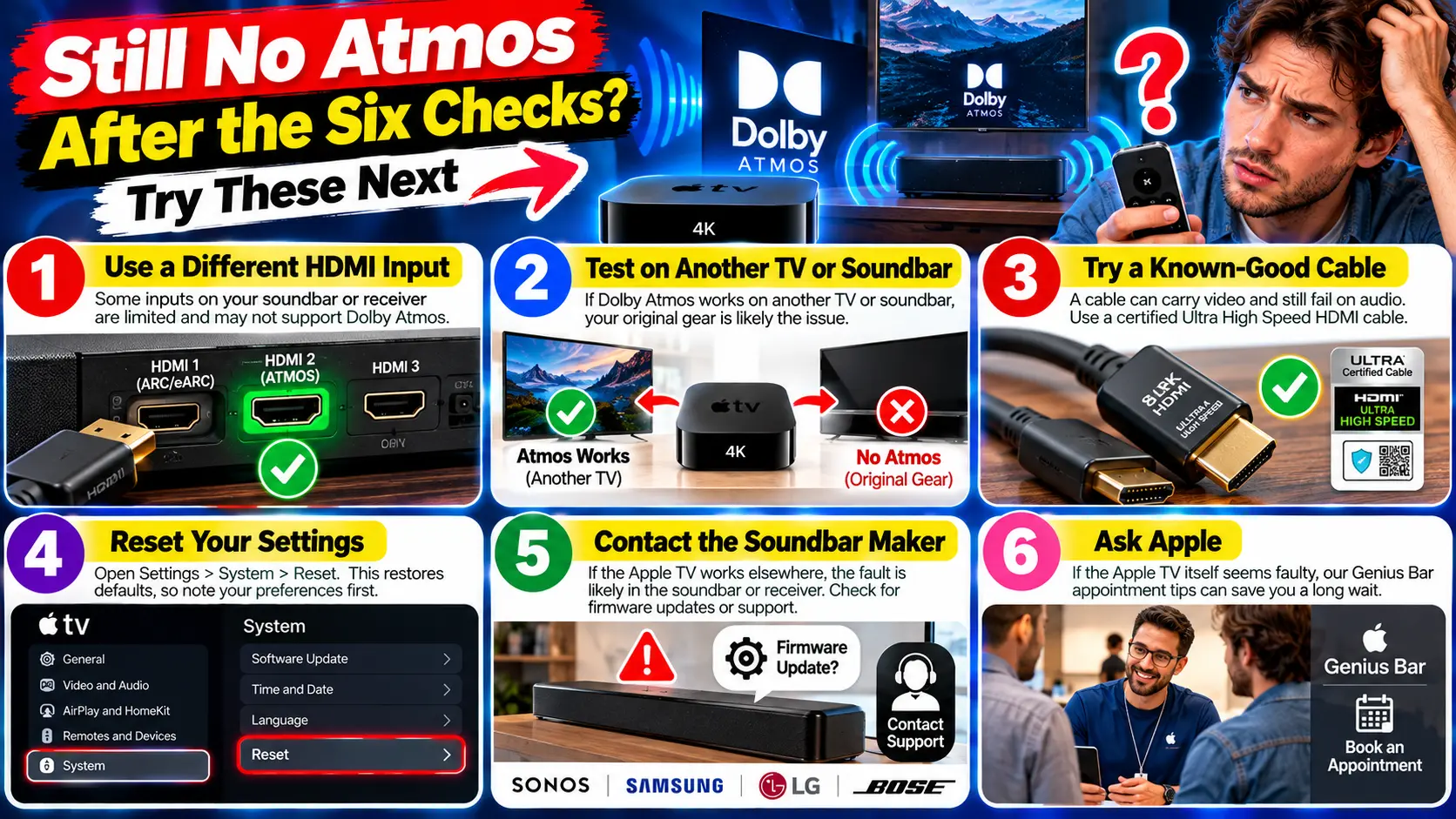
Still no Atmos after the six checks? Try these next:
- Use a different HDMI input on the soundbar or receiver. Some inputs are limited.
- Test the Apple TV on another TV or soundbar. If Atmos appears, your original gear is the weak link.
- Borrow a known-good cable. A cable can carry video and still fail on audio.
- Reset your settings. Open Settings > System > Reset. This restores defaults, so note your preferences first.
- Contact the soundbar maker. If the box works elsewhere, the fault is likely in the soundbar or receiver.
- Ask Apple. If the Apple TV itself seems faulty, our Genius Bar appointment tips can save you a long wait.
Key Takeaways
- Apple TV 4K Dolby Atmos not working usually traces back to the HDMI path, not the Apple TV.
- Apple says to connect the Apple TV directly to your soundbar or receiver.
- The Atmos toggle only appears when Apple TV detects a device that can play it.
- Some soundbars force a choice between Atmos and Dolby Vision.
- Test with an Apple TV+ Atmos title first to separate app problems from wiring problems.
FAQ
Yes. Every Apple TV 4K model supports Dolby Atmos. The older Apple TV HD does not. You also need a TV, soundbar, or receiver that can play it.
Apple TV shows it only when it detects an Atmos-capable device. Check your HDMI path first.
Does Apple TV 4K Atmos work over ARC or eARC?
Apple says its high-bandwidth Atmos doesn’t work over ARC. eARC can work on some TVs, but a direct connection to the soundbar or receiver is Apple’s recommended setup.
It keeps one steady Dolby MAT connection open so audio formats switch smoothly. Older receivers may show an Atmos signal even for other audio.
Yes, if your TV, receiver, or soundbar supports both. Some Atmos soundbars can’t pass Dolby Vision, which forces a trade-off.
Sources
- Apple Support: Set up Dolby Atmos or surround sound on Apple TV with a sound bar or AV receiver (published March 18, 2025)
- Apple Support: Play audio in Dolby Atmos or surround sound on your Apple TV 4K
- MacRumors Forums: Apple Releases tvOS 27
- Tech-ish: Only two Apple TVs can run tvOS 27 (September 16, 2026)
- What Hi-Fi?: Apple TV 4K to get Dolby Atmos support
Disclaimer
This guide is for general information. Menu names can vary by tvOS version, Apple TV model, and TV or audio brand, so follow your device maker’s instructions.
Resetting your Apple TV changes saved settings. Apple Headlines isn’t affiliated with Apple Inc. or Dolby Laboratories. Dolby Atmos is a trademark of Dolby Laboratories.
Still no Atmos?
Tell us your TV, soundbar, and Apple TV model in the comments, and we’ll help you find the weak link.
Bookmark this page, because we update it whenever tvOS changes the audio menus.
Related Posts
- Apple Watch Series 12 Keeps Restarting? The Hidden Neural Engine Bug Behind It (Plus 5 Steps to Stop It)
- Apple TV 4K Dolby Atmos Not Working: The ARC Trap Silencing Your Soundbar (+6 Checks)
- Apple Watch Won’t Update or Connect to iPhone? The Hidden watchOS 27 Trap (Plus 7 Proven Fixes)
- Apple Health Data Not Syncing? Why Your iPhone, iPad and Watch Disagree (7 Hidden Culprits)
- AirPods 5 Hurt Ears? The Hidden Fit Trap – and 6 Ways Out

T’kal is the lead strategist and developer behind Apple Headlines. With a background in digital marketing and web development, he specializes in technical Apple troubleshooting, software news, and hardware rumors. T’kal focuses on delivering high-authority tech content that bridges the gap between Apple enthusiasts and the latest industry innovations.