
Updated September 30, 2026 for iOS 27.0.1 and watchOS 27
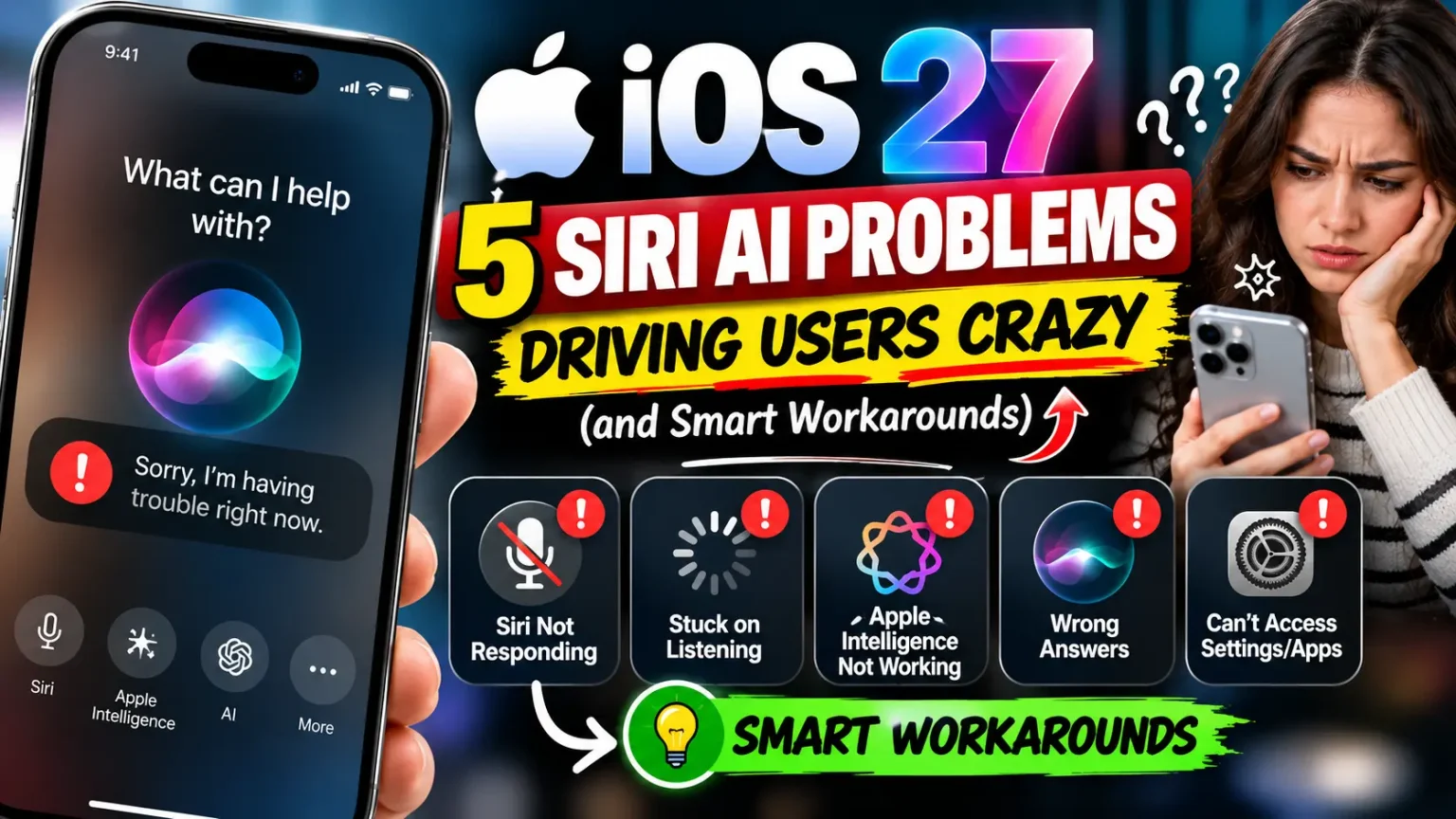
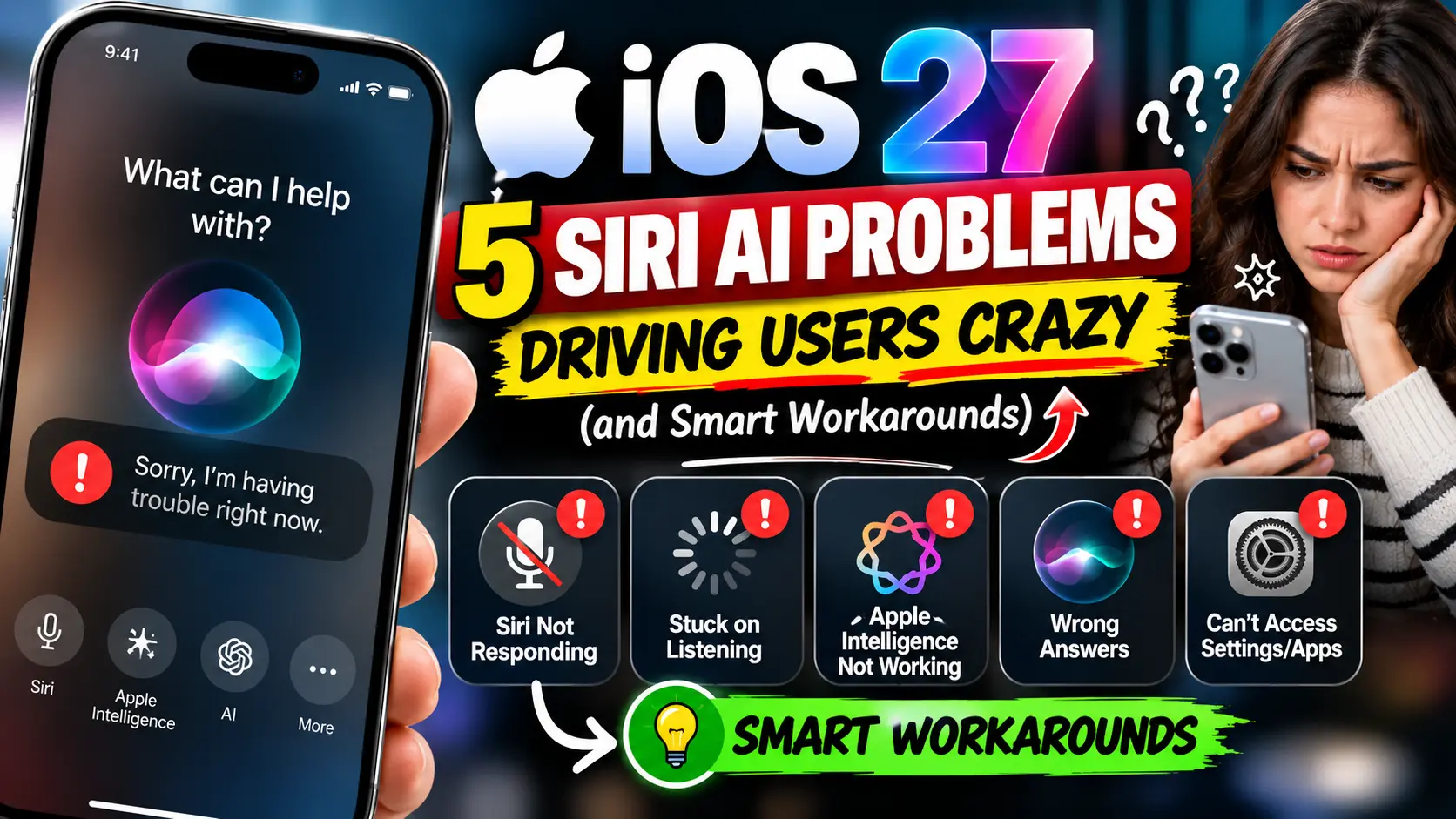
Quick Answer: The five biggest Siri AI problems in iOS 27 are vague “Sorry, something went wrong” errors, Siri failing to find your lists and alarms, constant unlock demands, slow replies (worst on Apple Watch), and missing or changed commands.
Most stem from Apple’s cloud servers and search indexing, so restarting, changing networks, or using exact names helps. If nothing works, switch to Siri Classic in Screen Time.
You say, “Set a timer for five minutes.” Siri thinks.
And thinks.
Then it says something went wrong.
If the new assistant in iOS 27 feels slower and pickier than the old one, you are not imagining it.
Apple still calls Siri AI a beta, and many people hit the same walls.
Here are the five biggest problems, why they happen, and what to try today.

Why These Siri AI Problems Matter
Siri handles the small jobs we do all day: timers, texts, alarms, directions. When those break, the whole assistant feels useless.
So this is a practical guide, not a rumor roundup.
We cross-checked Apple’s support pages, Apple’s release notes, and reporting from 9to5Mac and PhoneArena.
We also walked through each workaround on an iPhone 18 Pro Max and an iPhone 17 Pro running iOS 27.0.1, plus an Apple Watch on watchOS 27.
A few bugs need an Apple update, so some fixes are honest workarounds.
Siri vs. Apple Intelligence: What Actually Changed?
People mix these up, so here is the quick version.
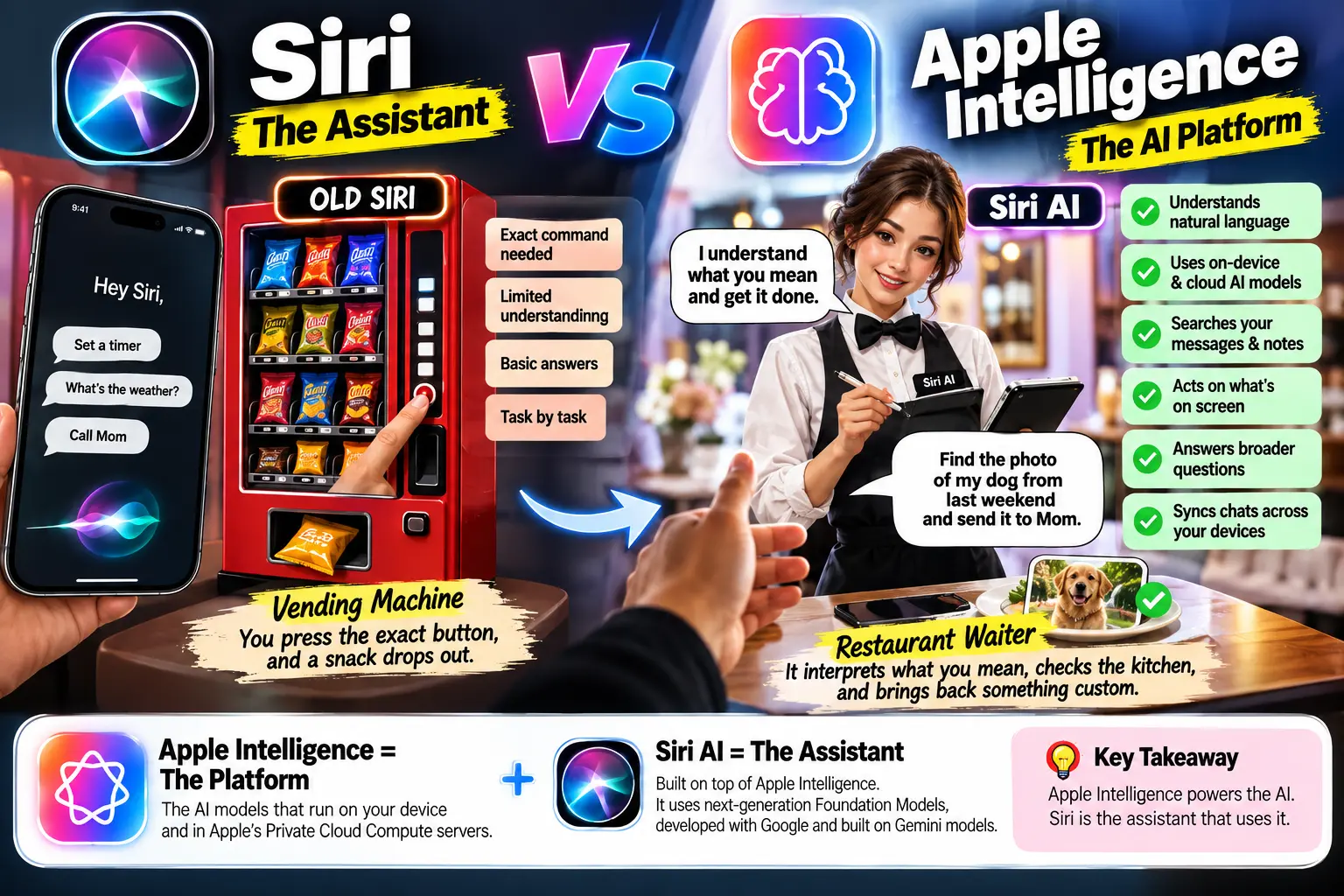
Apple Intelligence is the platform: the AI models that run on your device and in Apple’s Private Cloud Compute servers. Siri AI is the assistant built on top of it.
Think of old Siri as a vending machine.
You press the exact button, and a snack drops out. Siri AI is a restaurant waiter.
It interprets what you mean, checks the kitchen, and brings back something custom.
That flexibility is why a request the vending machine understood can now confuse the waiter.
Does Siri have AI now?
Yes, on supported devices running iOS 27.
Apple says it uses next-generation Foundation Models, developed with Google and built on Gemini models.
Siri AI capabilities include searching your messages and notes, acting on what is on screen, answering broader questions, and syncing chats through a dedicated Siri app.
Want the setup walkthrough?
See how to get Siri AI. For the bigger picture, read our iOS 27 complete guide.
Siri AI Supported Devices and Requirements
Many “problems” are really eligibility gaps. Check this table first.
| Device | Supports Siri AI? | Notes |
|---|---|---|
| iPhone 15 Pro, 15 Pro Max | Yes | Oldest supported iPhones |
| iPhone 16, 17 and 18 series, iPhone Air | Yes | Full support |
| iPhone 15 (non-Pro) and older | No | Installs iOS 27, but no Siri AI |
| Apple Watch Series 9 and later | Yes | Needs a paired, supported iPhone |
| Apple Watch Ultra 2 and later, SE 3 | Yes | Same iPhone requirement |
| Apple Watch Series 8 and earlier | No | Not supported by watchOS 27 |
Three more rules apply.
Your device and Siri language must match a supported language.
Right now that means English, with French, Japanese, Korean, Portuguese and Spanish due in October.
Siri AI is unavailable on iPhone, iPad and Apple Watch in the EU, and in China. You may also need to join the waitlist under Settings > Siri > Try Siri AI (Beta).
Siri AI on Apple Watch needs a paired, Apple Intelligence-enabled iPhone. That matters in problem four.
The Top 5 Siri AI Problems in iOS 27
1. “Sorry, Something Went Wrong” Errors
What you see: Siri opens, then throws a vague error. No reason, no next step.
Why it happens: 9to5Mac points to a network problem between your phone and Apple’s Siri cloud, or brief server outages. Some VPN profiles can block Siri too.
What to try:
- Turn off your VPN and ask again.
- Switch from Wi-Fi to cellular, or the reverse.
- Toggle Siri off, then on, in Siri settings.
- Restart your iPhone.
- Check Apple’s System Status page for outages.
- Wait ten minutes and retry.
On our iPhone 18 Pro Max, the network switch was the fastest test. It shows quickly whether your Wi-Fi is the culprit.
2. Siri Can’t Find Your Lists, Alarms or HomeKit Devices
What you see: “I can’t find that list.” Or “You have no alarms,” when you have five.
Why it happens: These look like search indexing bugs. iOS rebuilds its search indexes after an update, so a fresh install is the riskiest time.
What to try:
- Restart your iPhone.
- Plug in, join Wi-Fi, and give the phone an hour.
- Use exact names: “Add eggs to Groceries in Reminders.”
- Rename HomeKit accessories with short, unique names.
- Check the Clock app to confirm what Siri actually did.
- On Apple Watch, restart the watch if Siri says Clock is missing.
Short Story: The Silent Alarms. A 9to5Mac reader asked Siri to set two alarms, 9:30 and 9:40. Siri agreed. Come morning, nothing rang, because the alarms existed but their sound was set to “None.”
The reader overslept and went back to old Siri. The lesson: verify anything critical in the Clock app.
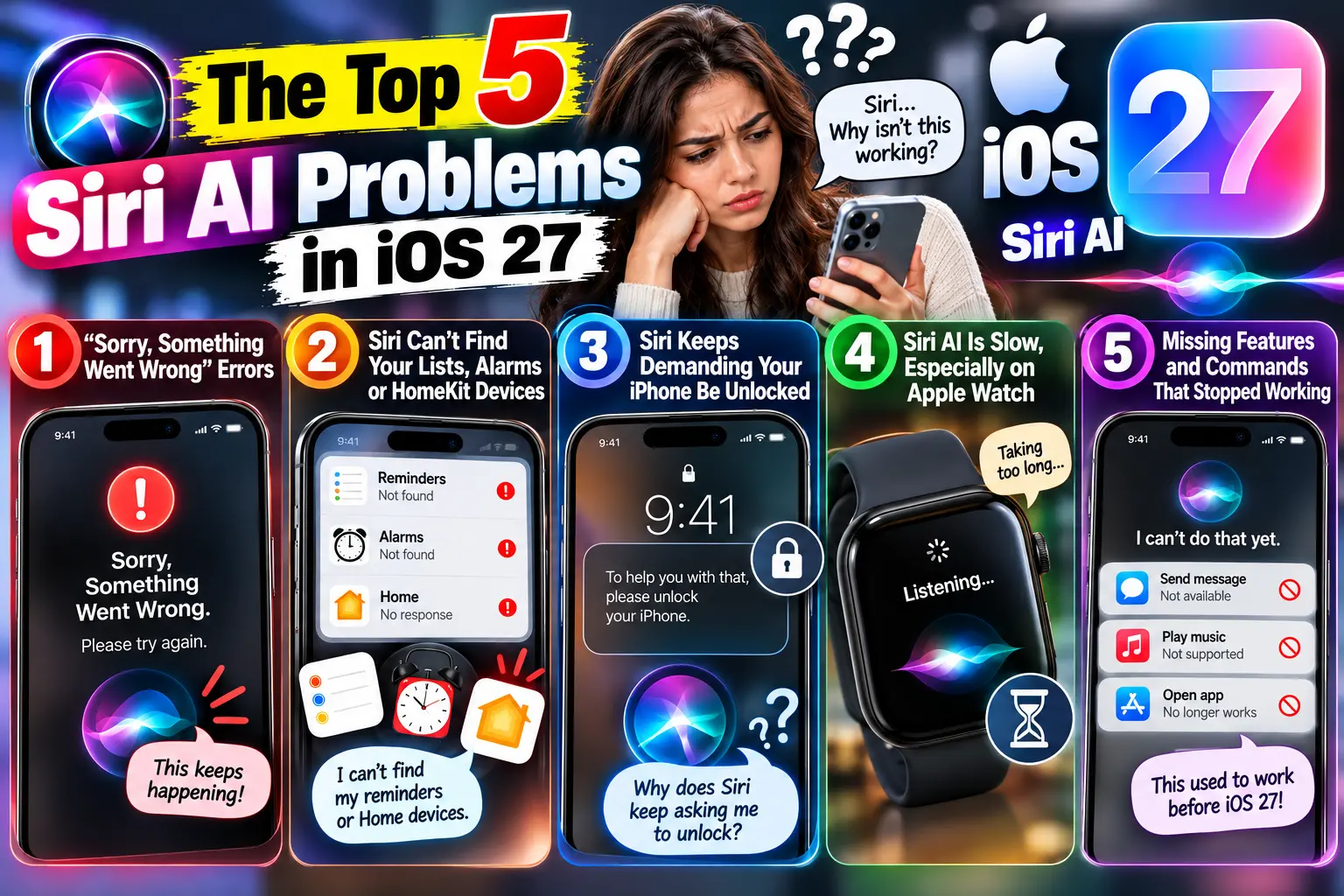
3. Siri Keeps Demanding Your iPhone Be Unlocked
What you see: “Send a message to Mia” now needs a passcode. Old Siri did not.
Why it happens: 9to5Mac says Siri AI fails when it must reach your personal semantic index while the phone is locked. The Allow Siri When Locked toggle is being ignored for many requests. This hurts most in the car and with AirPods.
What to try:
- Confirm Allow Siri When Locked is on in Siri settings.
- Wake your iPhone and let Face ID unlock it first.
- Keep the phone visible in a mount while driving.
- Ask for simple actions without personal context, such as timers.
- Switch to Siri Classic if hands-free use matters most.
Pro Tip: Name things like a librarian. Siri AI now searches a personal index, so vague or duplicate names cause misses. Give Reminders lists, HomeKit rooms, and contacts short, unique names. “Groceries” beats “List 2.” It takes five minutes.
4. Siri AI Is Slow, Especially on Apple Watch
What you see: A five-minute timer takes several seconds to start. Old Siri did it almost instantly.
Why it happens: Much of the work happens in Apple’s Private Cloud Compute, so a weak connection slows even basic requests. Reports say lag is worst on Apple Watch, especially away from its iPhone. Apple also says CarPlay replies can lag when the device runs hot.
What to try:
- Keep your iPhone nearby and connected when using Apple Watch.
- Open the Timers app and tap a preset. No Siri needed.
- Turn off Low Power Mode, which can swap Siri’s new voices for legacy ones.
- Let a hot phone cool down before retrying.
- Move to a stronger network.
5. Missing Features and Commands That Stopped Working
What you see: Siri misunderstands phrases it handled for years.
Why it happens: Siri AI can do more, so short commands are more ambiguous. Apple says Health app questions are not supported yet, and the “Use ChatGPT” prefix no longer routes requests.
What to try:
- Reword the request with more detail.
- If Siri cuts you off, go to Settings > Accessibility > Siri. Set Siri Pause Time to Long or Longest.
- Hold the side button while you speak. Release when finished.
- Say “Read my last message from Sam,” not just “my last message.”
- Select photos in the Photos app before saying “Send these.”
- Open Health or ChatGPT directly for those tasks.
Apple’s beta notes add more quirks: Siri cannot refer to photos by number, and Maps answers can come back incomplete.
How to Switch Back to Siri Classic
If Siri AI costs you time, go back to the old assistant. You can return later.
- Open Settings > Screen Time.
- Tap Content & Privacy Restrictions.
- Tap Siri.
- Change Allowed Siri Version to Siri Classic.
Prefer another route? Turn Siri off in Siri settings. When you turn it on again, choose Siri Classic.
What If This Doesn’t Work?
Still stuck? Work through this list before you blame the software.
- Check your basics. Confirm your model, language, and region against the table above.
- Update. Install the latest iOS 27 point release under Settings > General > Software Update.
- Skip mid-update tests. Apple says Siri, including emergency calls, is limited during updates.
- Watch usage limits. Siri AI has daily limits, and heavy use can stop it responding.
- Reset network settings. Try this last. It erases saved Wi-Fi passwords.
- Report it. Use Apple’s feedback page, or contact Apple Support.
If Siri fails on only one task, you likely hit a known bug, not a broken phone.
Are Siri AI Improvements Coming?
Apple has not published a fix roadmap.
Its iOS 27.0.1 notes, released September 28, list Face ID, camera, and touchscreen fixes but no Siri fix. Apple’s notes are not always complete, so retest after updating.
Confirmed so far: more languages arrive in October, and the beta label stays.
Point updates usually clean up launch bugs like these.
For how Siri AI compares with last year, see iOS 27 vs iOS 26.
For Apple’s newest hardware, see the iPhone 18 Pro guide and Apple Watch Series 12 and Ultra 4.
Key Takeaways
- The five main Siri AI problems are errors, search misses, unlock demands, slowness, and missing commands.
- Many failures are network related, so switch networks and drop your VPN first.
- Exact, unique names fix a surprising number of misses.
- Apple Watch Siri AI needs a supported watch and a nearby supported iPhone.
- iOS 27.0.1 lists no Siri fix, so plan on workarounds.
- Siri Classic is one Screen Time setting away.
Frequently Asked Questions
Does Siri have AI now?
Yes. In iOS 27, supported iPhones can use Siri AI, which is labeled a beta. Older iPhones keep classic Siri.
What is the difference between Siri and Apple Intelligence?
Apple Intelligence is the underlying platform of on-device and cloud AI models. Siri AI is the assistant that uses it to understand context, read your screen, and take actions.
Is Siri AI on Apple Watch available for my model?
It works on Series 9 and later, Ultra 2 and later, and SE 3. Your paired iPhone must also support Apple Intelligence.
Why is Siri AI slow on my Apple Watch?
Much of the processing happens in the cloud. Delays grow when the watch is away from its iPhone.
Sources
- Apple Support, How to get Siri AI
- 9to5Mac, Siri AI complaints (Sept. 20, 2026)
- Technobezz, Siri not working in iOS 27:
- Apple Scoop, Siri AI problems:
- MacRumors, watchOS 27 release (Sept. 14, 2026):
- Apple System Status
Disclaimer
This article is for general information. Siri AI is a beta, and Apple may change features, menus, and availability at any time.
Steps reflect iOS 27.0.1 and watchOS 27 and may differ on other versions. AppleHeadlines.com is an independent publication, not affiliated with or endorsed by Apple Inc.
Follow Apple’s official guidance for anything safety-critical, such as alarms or emergency calls.
Which Siri AI problem hit you first? Tell us in the comments, and bookmark our iOS 27 complete guide for updates as Apple ships fixes.
Related Posts
- 5 Siri AI Problems Driving iOS 27 Users Crazy (and Smart Workarounds)
- iOS 27 Cellular Data Not Working: The 9-Step Rescue Ladder for SIM and Network Bugs
- How to Turn Off Apple Intelligence (9 Ways) iOS 27 Killed the Off Switch
- iPhone 18 Pro Face ID Not Working: The Hidden Sensor Trap + 8 Proven Fixes
- iOS 27 Battery Drain: The Real Cause (Not a Bug) + 7 Fixes We Verified

T’kal is the lead strategist and developer behind Apple Headlines. With a background in digital marketing and web development, he specializes in technical Apple troubleshooting, software news, and hardware rumors. T’kal focuses on delivering high-authority tech content that bridges the gap between Apple enthusiasts and the latest industry innovations.