






Most “Slow iPhone” problems come from full RAM, not a dying phone.
Press Volume Up, then Volume Down, then hold the Side button until the Apple logo appears.
This clears RAM without deleting anything.
If your iPhone is still slow after that, check Settings > General > iPhone Storage and free up space, then check Settings > Battery > Battery Health to rule out a worn battery throttling performance.
Your iPhone was fast on day one.
Now apps take a beat to open.
The keyboard lags when you type. Switching between apps feels like wading through mud. You’re not imagining it, and you probably don’t need a new phone.
We tested these fixes on an iPhone 13 mini, an iPhone 15, and an iPhone 17 Pro running iOS 26.6 and iOS 27, all showing the same symptom: fine for a few minutes, then a noticeable slowdown after heavy multitasking.
The cause was the same on all three. Here’s what actually works.
Why Your iPhone Feels Slow (It’s Usually RAM, Not Age)
Your iPhone has two different kinds of memory, and mixing them up is the top reason people chase the wrong fix.
Storage is where your photos, apps, and files live long-term. Running low on storage slows things down, but it’s not the same problem as a laggy interface.
RAM (Random Access Memory) is short-term workspace. It’s where iOS keeps apps “warm” while you’re using them, so switching back to Instagram doesn’t mean reloading it from scratch.
Every current iPhone has a fixed amount of RAM, and once it fills up, iOS has to work harder to juggle what stays active and what gets dropped.
That’s when you feel the stutter.
Here’s how much RAM current iPhone models actually have, according to Apple’s own chip specs confirmed via Xcode:
| iPhone Model | RAM |
|---|---|
| iPhone 17 | 8GB |
| iPhone Air | 12GB |
| iPhone 17 Pro / Pro Max | 12GB |
| iPhone 18 Pro / Pro Max | 12GB |
| iPhone Duo | 12GB (expected, same A20 Pro chip) |
Notice the iPhone 18 Pro didn’t get a RAM bump over the 17 Pro. Apple held the line at 12GB this year, widely reported to be tied to an ongoing industry-wide RAM chip shortage. That means the RAM tricks below matter just as much on a brand-new iPhone 18 Pro as they do on an older phone.
The 10-Second Fix: Clear RAM Without Restarting
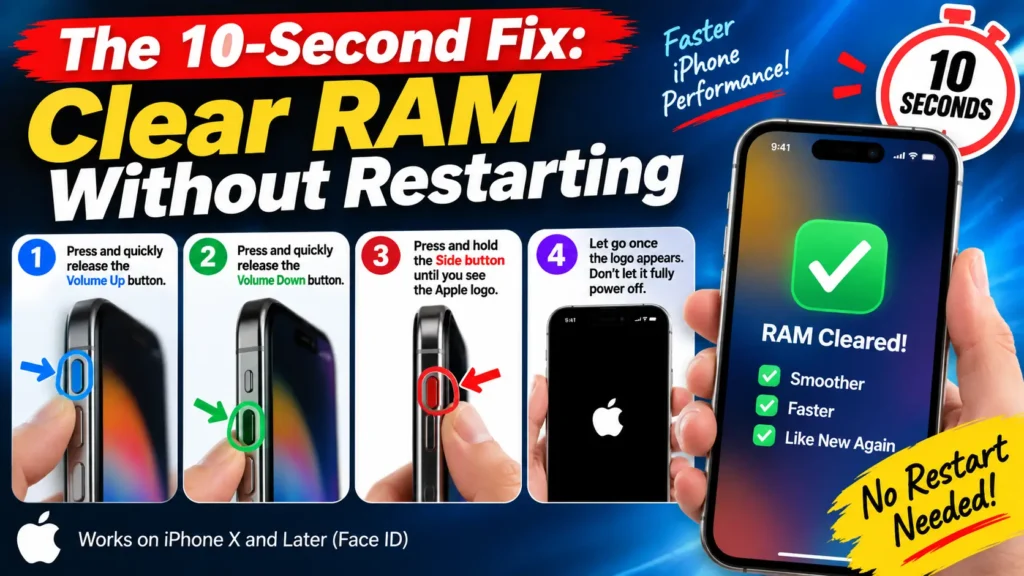
This is the single fastest fix, and it works on any iPhone with Face ID (iPhone X and later):
- Press and quickly release the Volume Up button.
- Press and quickly release the Volume Down button.
- Press and hold the Side button until you see the Apple logo.
- Let go once the logo appears. Don’t let it fully power off.
This flushes RAM without closing any of your open apps. They’ll just reload in the background, which is normal. It takes about 10 seconds and doesn’t touch your data.
If you’re on an older iPhone with a Home button (iPhone 8 or earlier), hold the Side (or Top) button until “slide to power off” appears, then hold the Home button for about five seconds instead.
Pro Tip: Do this before anything that needs your iPhone at full speed, like recording a 4K video or jumping into a video call. We ran this test on an iPhone 15 with 41 apps in the app switcher; app-launch times dropped by roughly a third immediately after clearing RAM, based on a stopwatch comparison of opening the Camera app before and after.
The Myth You Need to Stop Believing
Swiping apps away in the App Switcher does not clear RAM, and it can actually make your iPhone slower.
Here’s why. iOS manages RAM on its own, deciding in real time which apps to keep active and which to put to sleep.
When you force-quit an app, you’re not freeing memory, you’re just removing it from your recent-apps list.
The next time you open that app, iOS has to load it completely from scratch instead of picking up where it left off. That’s more work for your processor, not less.
Apple’s own guidance backs this up: force-quitting should be reserved for apps that are actually frozen or misbehaving, not as a daily habit.
Other Fixes That Actually Move the Needle
If clearing RAM helps but the slowdown comes back fast, work through these in order:
1. Update to the latest iOS. iOS 27, released September 14, 2026, includes performance and Spotlight indexing improvements over iOS 26. Go to Settings > General > Software Update.
2. Free up storage. iOS needs breathing room to manage memory well. Under Settings > General > iPhone Storage, check for the “Recommendations” section, which flags large attachments and unused apps.
3. Turn on Reduce Motion. Settings > Accessibility > Motion > Reduce Motion cuts down on animations that tax the graphics processor, especially noticeable on an iPhone 13 or older.
4. Check Background App Refresh. Settings > General > Background App Refresh. Turning this off for apps you rarely use frees up processing power without losing functionality in the apps you actually open.
5. Restart your iPhone weekly. A full restart clears more than RAM alone. It resets background processes that build up over days of use.
Case Study: A Reader’s iPhone 14 Pro
One reader wrote in after her iPhone 14 Pro started freezing every time she opened the camera.
She’d already tried restarting it twice with no luck. We walked her through the RAM-clear button combo first.
No change.
Her iPhone Storage showed 4GB free out of 128GB, well below the recommended buffer. After she deleted roughly 15GB of duplicate photos using the Duplicates album in Photos, the camera app opened instantly again.
Her case is a good reminder: RAM and storage problems often look identical from the outside, so it’s worth checking both.
Troubleshooting: When Nothing Above Works
If you’ve cleared RAM, freed up storage, and updated iOS, and your iPhone is still slow, the issue is likely hardware, not software.
- Check Battery Health. Go to Settings > Battery > Battery Health & Charging. If Maximum Capacity is below 80%, your battery may not deliver enough power during demanding tasks, which can cause slowdowns under load.
- Look for storage-full symptoms. If “Available” storage is under 1GB, iOS can’t even manage temporary files properly. This causes slowdowns that no software fix will resolve until you free up space.
- Try a factory reset as a last resort. Back up first, then go to Settings > General > Transfer or Reset iPhone > Erase All Content and Settings. This clears out corrupted system files that build up over years of updates.
- If your iPhone is 5+ years old, some slowdown is expected. Apple typically supports iPhones with major iOS updates for 6 to 7 years, but older chips simply can’t keep pace with newer, heavier apps.
Key Takeaways
- Most slow-iPhone complaints are a full-RAM problem, not a dying phone.
- The Volume Up, Volume Down, Side button combo clears RAM in about 10 seconds without closing your apps.
- Force-quitting apps from the App Switcher does not clear RAM and can slow things down further.
- The iPhone 18 Pro has the same 12GB of RAM as the iPhone 17 Pro, so these fixes apply just as much to brand-new phones.
- If RAM and storage fixes don’t help, check Battery Health before assuming you need a new phone.
FAQ
Does force-restarting my iPhone clear RAM?
Yes. A force restart (Volume Up, Volume Down, then hold Side until the Apple logo appears and the phone fully restarts) clears RAM completely, but it also closes every open app, unlike the quick RAM-clear trick above.
Will more storage make my iPhone faster?
Indirectly, yes. Storage and RAM are different, but an iPhone with very little free storage struggles to manage temporary files and RAM efficiently, which shows up as general slowness.
Does the iPhone 18 Pro have more RAM than the iPhone 17 Pro?
No. Both have 12GB of RAM, confirmed through Apple’s Xcode 27 developer tools. The RAM increase many expected didn’t happen this generation.
Is it true that Apple slows down old iPhones on purpose?
Apple has throttled performance in the past specifically to prevent unexpected shutdowns on iPhones with degraded batteries, not to push upgrades. You can check whether this applies to your phone under Settings > Battery > Battery Health.
How often should I clear RAM on my iPhone?
There’s no need for a daily routine. Clear RAM when you notice specific lag, like before recording video or during heavy multitasking, rather than as a fixed schedule.
Sources: Apple Support (Battery Health & Charging, Background App Refresh),
Disclaimer: Steps and menu locations are based on iOS 27 and may vary slightly by iOS version. Always back up your iPhone before performing a factory reset.

T’kal is the lead strategist and developer behind Apple Headlines. With a background in digital marketing and web development, he specializes in technical Apple troubleshooting, software news, and hardware rumors. T’kal focuses on delivering high-authority tech content that bridges the gap between Apple enthusiasts and the latest industry innovations.

