





By the AppleHeadlines team | Updated November 7, 2026
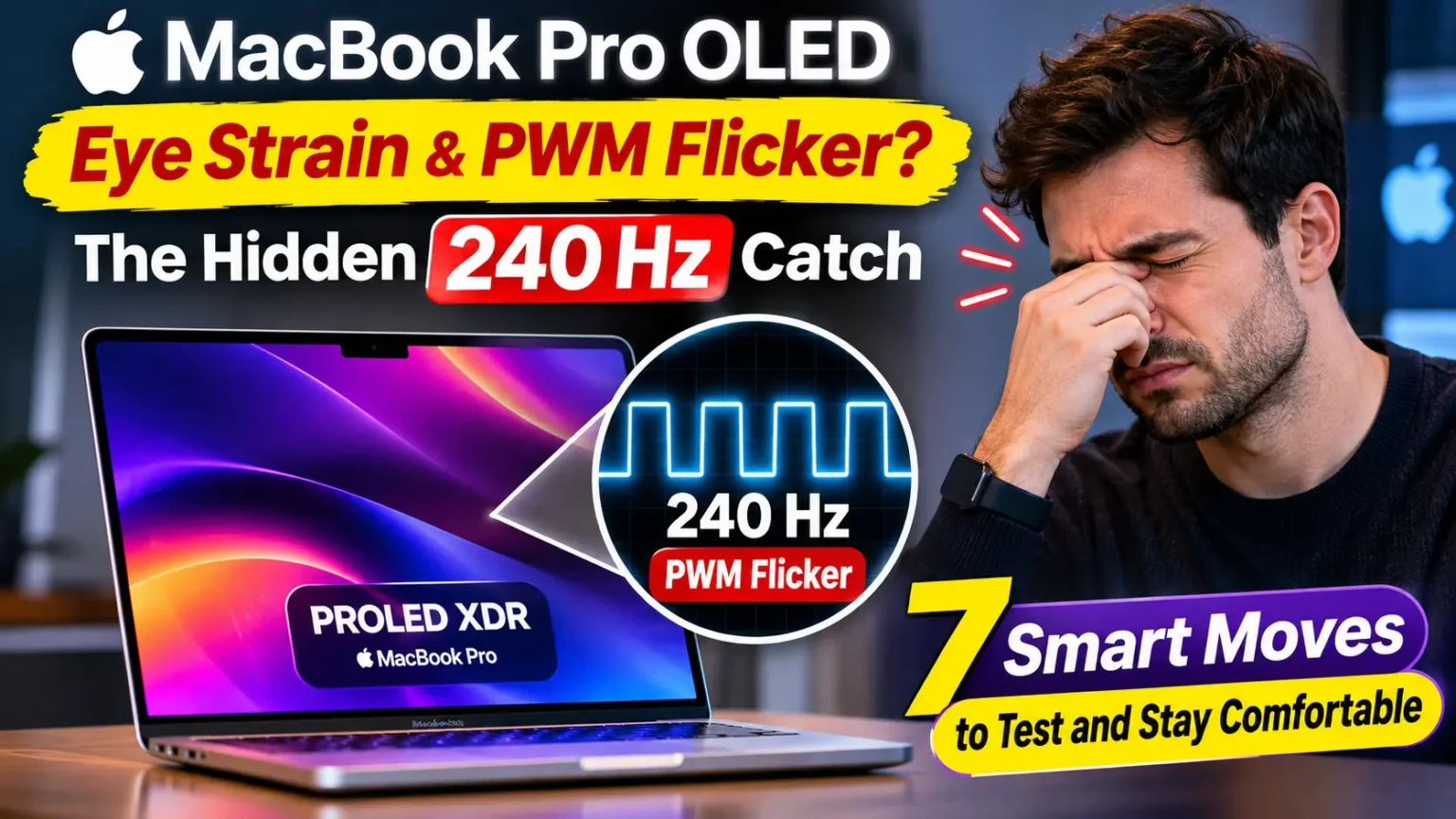
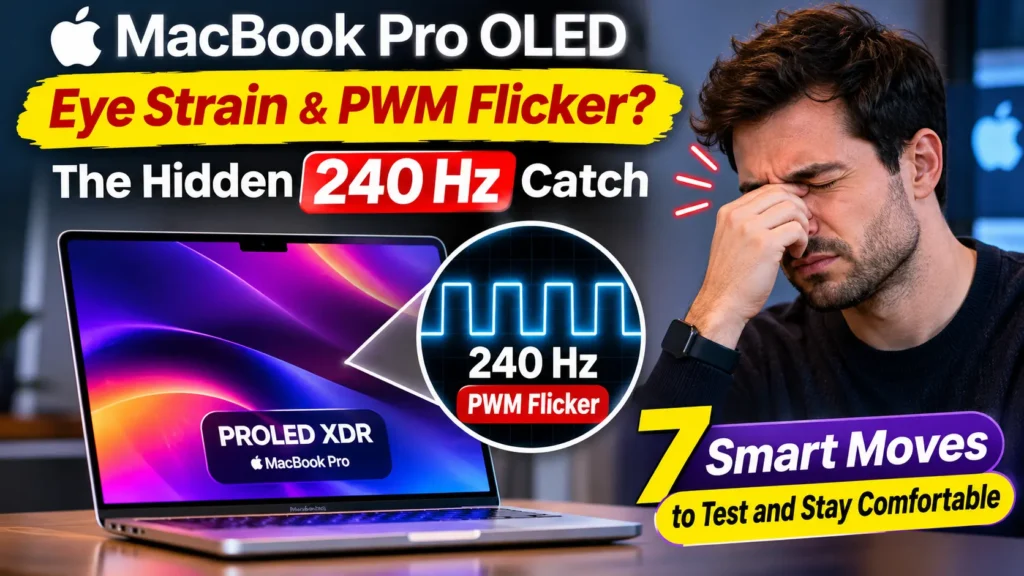
The new 14-inch MacBook Pro with PROLED XDR dims using 240 Hz PWM flickering whenever brightness is set to 99% or lower, according to Notebookcheck’s lab test. The flicker depth is approximately 56%.
Because 240 Hz is a relatively low flicker frequency, PWM-sensitive users may experience eye strain, headaches, or nausea. However, many owners won’t notice any symptoms.
We found no PWM-disable switch in macOS 27. Your best options are to test the display at full brightness, improve room lighting, try software-based dimming, take regular breaks, and use your return window if the display causes discomfort.
Your new MacBook Pro looks gorgeous.
Then your eyes start burning, and a headache creeps in by lunch.
You are not imagining it, and you are not alone.
As the laptops hit stores, Notebookcheck published a 240 Hz PWM measurement, and owner threads lit up fast.
Here is what that number means, what is still unproven, and what to try during your first 14 days.
We will keep it practical.
Why This Matters More Than the Spec Sheet
Apple’s first OLED Mac went on sale November 6, 2026.


The MacBook Pro with PROLED XDR Display costs $400 more than the matching mini-LED model.
Apple’s page brags about 2,000 nits of peak brightness and deep blacks. It says nothing about flicker.
That gap matters because you stare at this panel six to ten hours a day.
A screen can look perfect and still leave you with pressure behind your eyes by 2 p.m.
Here is how we built this guide.
We did not use lab gear.
Instead, we pulled the measurements, camera tests, and owner reports published in the first days of launch, and we name who measured what.
When a number comes from one review unit, we say so.
That is the honest way to cover a launch this fresh.
PWM: The Faucet Test
Picture a kitchen faucet.
To pour less water, you can turn the handle down a little.
That is DC dimming.
The flow stays smooth and steady.
Now picture flipping the tap fully on and off 240 times every second.
Your cup fills at the same average rate.
But the pipes shudder.
That is PWM, short for pulse-width modulation.
Your eyes catch the pulses even when your brain cannot “see” them.
Three terms help here:
- Frequency: how many pulses happen each second. Higher is generally gentler.
- Flicker depth (amplitude): how far the light dips between pulses. Deeper dips are harsher.
- Duty cycle: how long each pulse stays on. Dimmer settings usually mean shorter “on” bursts.
Here is the odd part.
Notebookcheck saw DC dimming at every brightness level on this panel.
Yet the 240 Hz flicker still showed up.
So the smooth dimming does not cancel the pulses.
How Apple’s Displays Compare (Lab Measurements)
MacBook Pro PWM vs. Other Apple Displays
Measured display flickering across popular Apple devices.
| Display | PWM Measurement | Assessment |
|---|---|---|
| 14-inch MacBook Pro PROLED XDR M5 Pro | 240 Hz 56% depth · At 99% brightness and below | Low frequency |
| iPhone 16 Pro OLED | 239 Hz 15% depth | Low frequency |
| 14-inch MacBook Pro M4 Pro · 2024 mini-LED | 14,880 Hz High-frequency flickering | High frequency |
| MacBook Air M4 LCD | No PWM detected No flickering detected in testing | No PWM detected |
| MacBook Air M1 LCD | About 118,000 Hz Below roughly 49% brightness | Very high frequency |
Important: PWM frequency alone does not determine whether a display causes eye strain. Flicker depth, brightness, individual sensitivity, and usage conditions also matter. Measurements are attributed to Notebookcheck.
Each figure comes from one review unit.
Units and test methods vary, so use the table as a guide, not a guarantee.
The Data Fight: A Lab Meter vs. a 1/8000 Camera Test
When Notebookcheck tested the 14-inch PROLED XDR, it measured 240 Hz PWM with 56% amplitude at settings of 99% and below.
Its verdict: sensitive users will likely notice the flicker and may feel eye strain.
For comparison, the same lab clocked the iPhone 16 Pro at 239 Hz with just 15% depth.
So the speed matches Apple’s phones. The dips are much deeper.
Then a conflicting test appeared.
Video reviewer Hugh Hou shot the screen with a camera at a 1/8000 shutter speed.
He saw no PWM from full brightness down to about the seventh brightness step.
Flicker only showed up below that.
His advice was to keep brightness above halfway.
Why the mismatch?
A phone camera is a clue, not a flicker meter.
Lab sensors can catch shallow pulses that a camera misses.
We cannot say which test is closer to your eyes.
Three more facts keep the picture honest:
- In a November 7 roundup of 18 reviews, AppleMagazín found that only Notebookcheck had measured PWM so far. It tested only the 14-inch model.
- That roundup also found no Apple response and no mention of PWM in Apple’s technical documents.
- A MacRumors how-to on the glowing Apple logo ended with a wish for a PWM control. That tells you no such switch exists today.
Apple did add one on the iPhone.
The iPhone 17 Pro got an option to turn PWM off, and iOS 27 lists Display Pulse Smoothing (PWM) under Accessibility on supported models.
On the Mac, we found nothing like it.
Real-World Case: A Headache by Lunch
A MacRumors forum member bought a 16-inch PROLED model.
They said they do not usually react to PWM. Even so, they had a headache all day and mild nausea.
When they went back to their 16-inch mini-LED laptop, they felt relief almost right away.
Another poster felt sick after about 15 seconds at a store demo.
On the other side, a Reddit owner reported no flicker after a full first day with the 14-inch model.
The lesson is simple.
Reactions vary wildly.
A swap test, using your old laptop as the control, gives you the cleanest evidence.
Do not judge this screen in a bright store for just five minutes. Some people react to PWM flickering within seconds, while others may need an hour or two before noticing symptoms.
One PWM-sensitive writer reported experiencing symptoms only after one to two hours at a desk. That’s why a quick in-store test may not reveal the problem.
- Screen brightness percentage
- Room lighting conditions
- Hours spent using the display
- How your eyes feel throughout the day
PWM or Plain Digital Eye Strain? A Quick Triage
Not every sore eye is flicker. Use this table to sort what you feel.
Are Your Symptoms Related to PWM?
Compare what you experience with possible causes of display discomfort.
| What You Feel | More Likely Cause |
|---|---|
| Headache or eye pressure Within 1–2 hours, even with breaks | PWM sensitivity worth testing |
| Discomfort when dimming the screen Symptoms grow as brightness decreases | PWM possible |
| Dry, gritty eyes No headache accompanying the discomfort | Low blink rate, dry air, or glare |
| Blurry text late in the day Vision becomes less comfortable after prolonged use | Focus fatigue or old prescription |
| Nausea within seconds Discomfort starts almost immediately in a store | Possible strong flicker sensitivity |
Remember: These patterns are clues, not a diagnosis. Symptoms can have multiple causes, and timing alone cannot confirm PWM sensitivity. Persistent or severe symptoms deserve an eye-care professional’s assessment.
Run the Camera Clue Test at Home
This does not replace a lab meter. It does give you a quick clue.
- Open a camera app on your iPhone that allows manual shutter control.
- Set the shutter near 1/8000 second. Raise ISO until the image is visible.
- Point the camera at a plain white window on your Mac.
- Set Mac brightness to 100%, then repeat at 75%, 50%, and 25%.
- Look for dark bands rolling across the screen at each level.
- Treat bands as a clue, not proof.
One MacRumors forum user used this method and counted one dark bar on the PROLED MacBook Pro at 240 Hz. They counted four bars on an OLED laptop that runs at 960 Hz.
7 MacBook OLED Display Settings and Habits to Test (macOS 27)
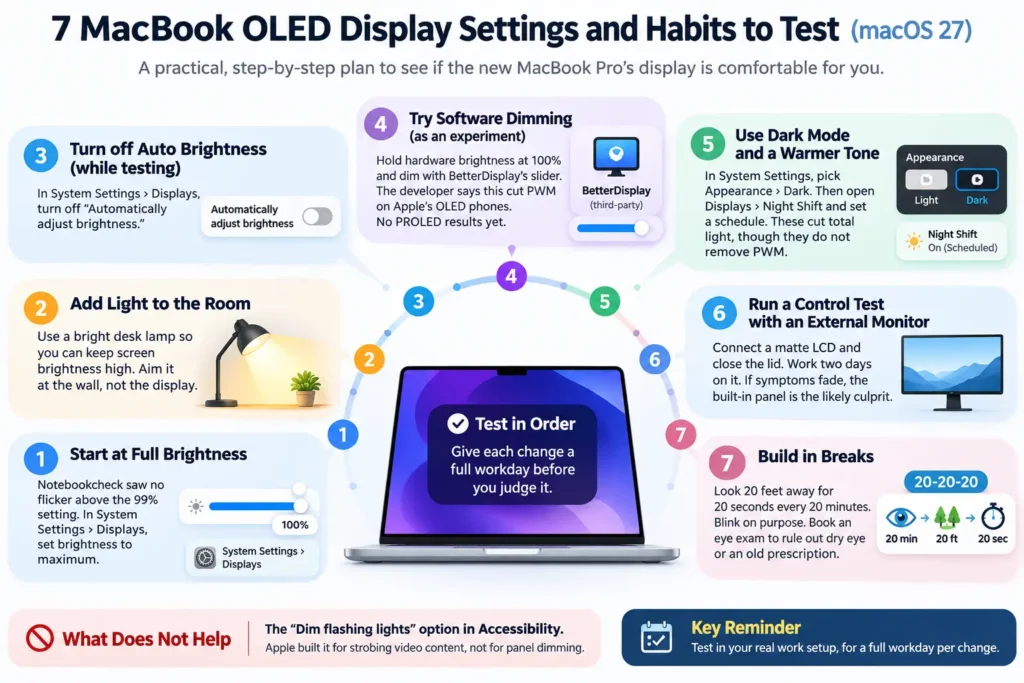
Work through these in order. Give each change a full workday before you judge it.
- Start at full brightness. Notebookcheck saw no flicker above the 99% setting. Open System Settings, click Displays, and drag brightness to the maximum.
- Add light to the room, not less light to the screen. A bright desk lamp lets you keep brightness high. Aim it at the wall, not at the display.
- Turn off “Automatically adjust brightness” while you test. You will find it in System Settings under Displays. Auto changes keep shifting the dimming level under you. Turn it back on later if you like.
- Try software dimming as an experiment. BetterDisplay’s developer says this trick cut PWM on Apple’s OLED phones. Hold hardware brightness at 100% and dim with the app’s slider. No one has published PROLED results yet. It is a third-party tool, so download it only from the developer.
- Switch to Dark Mode and a warmer tone at night. Pick Appearance, then Dark, in System Settings. Open Displays, click Night Shift, and set a schedule. These cut total light, though they do not remove PWM.
- Run a control test with an external monitor. Connect a matte LCD and close the lid. Work two days on it. If symptoms fade, the built-in panel is the likely culprit.
- Build in breaks. Look 20 feet away for 20 seconds every 20 minutes. Blink on purpose. Book an eye exam to rule out dry eye or an old prescription.
What does not help: the “Dim flashing lights” option in Accessibility. Apple built it for strobing video content, not for panel dimming.
One more note on step 6. A writer with a mini-LED MacBook Pro kept his symptoms even on an external monitor.
So the panel may not be the only cause.
Some sensitive users also suspect temporal dithering, a separate trick that blends colors.
BetterDisplay’s developer says GPU-side dithering does not affect PWM.
Which MacBook Pro Is Riskier for Sensitive Eyes?
MacBook Pro OLED vs. Mini-LED vs. LCD: PWM Comparison
What published testing currently tells us about flickering across MacBook models.
| MacBook Model | Panel | Published PWM Data | Our Assessment |
|---|---|---|---|
| 14-inch PROLED XDR M5 Pro or M5 Max | Tandem OLED | 240 Hz 56% depth at 99% brightness and below | Highest concern Test first |
| 16-inch PROLED XDR Tandem OLED | Tandem OLED | Not yet measured No lab figure found | Unknown One forum owner reported a headache |
| 14-inch & 16-inch Liquid Retina XDR M6, M5 Pro, M5 Max | Mini-LED | No new measurements found Earlier 14-inch model measured 14,880 Hz | Likely lower risk Verify yourself |
| MacBook Air M4 LCD display | LCD | No PWM detected In Notebookcheck’s test | Safer pick Based on one test |
Important: No published measurement does not mean no PWM is present. Measurements from older models should not be treated as confirmed results for newer units. Individual sensitivity also varies, and no display can be guaranteed comfortable for everyone.
What If This Doesn’t Work?
If you have tried the seven moves and still feel off, do not tough it out. You have real options.
- Use your return window. Apple’s standard U.S. return window is 14 days. Holiday purchases often get longer terms, so check Apple’s return page today.
- Swap to a mini-LED model. Apple still sells the Liquid Retina XDR MacBook Pro. The 14-inch starts at $1,999 and the 16-inch at $2,999. Our OLED vs. M6 MacBook Pro buying guide breaks down the trade-offs. Keep in mind that mini-LED is no guarantee. One writer still had symptoms on one.
- Consider a MacBook Air. Notebookcheck found no PWM on its MacBook Air M4 unit. We found no tests of the newest Air yet.
- Book a Genius Bar visit. Ask for a swap or a second unit. Schedule an Apple Genius Bar appointment and bring your symptom log.
- Send Apple feedback. Use apple.com/feedback to ask for a PWM control. Apple added one on iPhone, so the ask is fair.
- See an eye doctor. Rule out dry eye, focus problems, and migraines before you blame the screen.
Key Takeaways
- The 14-inch PROLED XDR uses 240 Hz PWM at 99% brightness and below, with 56% flicker depth, per Notebookcheck.
- Hugh Hou’s camera test saw no PWM until brightness dropped below about halfway. The two tests disagree.
- Only one lab has published PWM data so far, and only for the 14-inch model.
- We found no PWM switch in macOS 27. The iPhone has one.
- Test across a full workday, not five minutes in a store.
- Raise brightness, add room light, and compare against an external LCD.
- Mini-LED and Air models are fallback options, but none is guaranteed flicker-proof for you.
FAQ
Yes, according to Notebookcheck’s lab test of the 14-inch PROLED XDR. It found 240 Hz PWM at brightness settings of 99% and below, along with DC dimming at every level. It has not published figures for the 16-inch model.
It depends on you. Notebookcheck calls 240 Hz relatively low and says sensitive users will likely notice it. Many people feel nothing. Persistent headaches or eye pain deserve a visit to an eye doctor.
Not that we could find. As of November 7, 2026, macOS 27 has no PWM switch, and Apple has not commented. The iPhone 17 Pro has an option for it. You can try software dimming, but no PROLED results exist yet.
Probably for most people. Notebookcheck measured 14,880 Hz on an earlier 14-inch mini-LED model, far faster than 240 Hz. Still, sensitivity is personal, and one writer reported symptoms on a mini-LED MacBook Pro.
Sources
- Notebookcheck: Apple MacBook Pro 14 PROLED XDR review
- MacRumors Forums: PROLED and PWM-sensitive eyes thread
- AppleMagazín: PROLED XDR review roundup (Nov 7, 2026)
- MacRumors: Control the glowing Apple logo on your new MacBook Pro
- Apple Support: Change Display settings for accessibility on Mac
- Apple Support: iPhone Display Pulse Smoothing guide
- Macworld: MacBook Pro with PROLED XDR Display pricing
- American Academy of Ophthalmology: Digital eye strain
Disclaimer
This article is for general information only. It is not medical advice, and it does not diagnose or treat any condition. If you have ongoing headaches, eye pain, or vision changes, see a licensed eye care professional. Display measurements come from single review units and may differ on yours. Prices, return terms, and software features change often, so confirm details with Apple before you buy. Third-party apps are used at your own risk. AppleHeadlines.com is not affiliated with Apple Inc. or the sources named above.
Your Next Step
Bought a PROLED MacBook Pro? Tell us in the comments what you see at 50% and 100% brightness. We update this guide as new measurements arrive, so bookmark it. Still deciding between models? Read our OLED vs. M6 MacBook Pro guide, then browse more Mac guides on AppleHeadlines.com.
Related Reads:

T’kal is the lead strategist and developer behind Apple Headlines. With a background in digital marketing and web development, he specializes in technical Apple troubleshooting, software news, and hardware rumors. T’kal focuses on delivering high-authority tech content that bridges the gap between Apple enthusiasts and the latest industry innovations.