


Is your iPhone acting sluggish?
Maybe your favorite app keeps freezing.
We have all been there.
It is frustrating when technology slows down.
Think of your iPhone like a marathon runner.
Even the best athletes need a quick break.
A simple restart is that break. It clears out minor glitches. It flushes the temporary memory.
Most importantly, it gives your device a fresh start.


In this guide, we will show you how to restart iPhone models of all kinds.
We will even cover the latest tips for how to restart iPhone iOS 26.
Short Story
Quick Reference: Which Model Do You Have?
| iPhone Model | Primary Restart Method | Force Restart Sequence |
| iPhone X, 11, 12, 13, 14, 15, 16 | Side Button + Volume Button | Vol Up, Vol Down, Hold Side |
| iPhone SE (2nd/3rd Gen), 8, 7, 6 | Side Button only | Varies by model (see below) |
| iPhone 5, SE (1st Gen) and older | Top Button | Top Button + Home Button |
Why You Should Restart Your iPhone Regularly
Most people never turn their phones off. We keep them running for weeks.
This can lead to “digital exhaustion.”
Small errors pile up in the background. These errors eat your battery life. They make your screen lag.
Restarting is the easiest fix in tech.
It is like a “digital shower” for your processor.
It washes away the junk. You do not need to be a tech genius. You just need a few seconds.
How to Restart iPhone Using Physical Buttons
The method depends on your model. Apple changed the buttons over the years.
For iPhones with Face ID
These models have no Home button. This includes iPhone X through iPhone 16 and beyond.
- Press and hold the Side button.
- Simultaneously hold either Volume button.
- Wait for the “slide to power off” slider.
- Drag the slider to the right.
- Wait 30 seconds for the device to shut down.
- Hold the Side button again to turn it back on.
For iPhones with a Home Button
This applies to the iPhone SE, iPhone 8, and older models.
- Press and hold the Side button (or Top button).
- Wait for the power-off slider.
- Drag the slider.
- After it shuts down, hold the Side button to restart.
Standard Restart (Face ID Models: iPhone X and Later)
Most modern iPhones use Face ID – no Home button. Follow these steps:
- Press and hold the side button (right side) with either volume button (up or down).
- Slide the “Power Off” slider to the right.
- Wait 30 seconds for shutdown, then press and hold the side button until the Apple logo appears.
Works on iPhone 16, 15, 14, 13, 12, 11, XS, XR, X. Quick tip: Restart weekly to optimize battery and speed.
Standard Restart (Home Button Models: iPhone 8 and Earlier)
Older models have a physical Home button:
- Press and hold the top button (or side button on iPhone 6 and later).
- Slide the “Power Off” slider to the right.
- Wait 30 seconds, then press and hold the top/side button until the Apple logo shows.
Applies to iPhone 8/8 Plus, 7/7 Plus, 6/6s/SE (1st gen), 5s and older.
How to Restart iPhone Without Power Button
What if your buttons are broken?
It happens more often than you think. Maybe your case is too thick.
You can still reboot your device. You just need to use the software. This is a life-saver for many users.
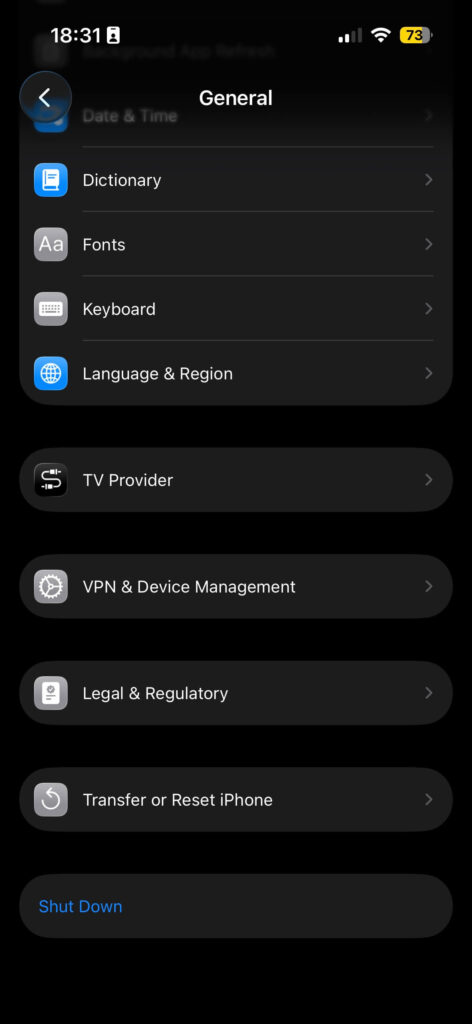
How to Restart iPhone from Settings
Apple built a restart option directly into the menu. This is the cleanest way to do it.
- Open the Settings app.
- Tap on General.
- Scroll all the way to the bottom.
- Tap Shut Down.
- Swipe the slider to turn it off.
- To turn it back on, plug it into a charger.
Using Assistive Touch
This creates a virtual button on your screen.
- Go to Settings > Accessibility.
- Tap Touch, then AssistiveTouch.
- Toggle it On.
- Tap the gray circle on your screen.
- Choose Device > More > Restart.
This method is fast. It requires zero physical force. It is perfect for those with hand injuries.
How to Restart iPhone iOS 26
Software evolves every year. By the time we reach how to restart iPhone iOS 26, the UI may look different.
The core logic remains. Apple prioritizes user safety. They want to prevent accidental shutdowns.
In newer versions, Siri can help. You can simply say, “Siri, restart my iPhone.” The system will ask for a confirmation.
Tap “Yes” on the screen. This is the ultimate hands-free method.
Always ensure your software is up to date. Latest versions often fix bugs that cause freezes.
By learning how to restart iPhone, you prevent long-term damage.
You don’t need to visit the Apple Store for minor glitches. A simple reboot can fix:
| Issue | Quick Fix | Time |
|---|---|---|
| Frozen Screen | Force restart | 10s |
| App Crashes | Settings restart | 1min |
| Slow Performance | iOS 26 update + restart | 5min |
The “Force Restart” vs. A Normal Restart
A normal restart is gentle. It lets apps close properly.
A Force Restart is different. It is like pulling the plug.
Only use this if your screen is black. Use it if the phone is totally frozen.
How to Force Restart (Modern Models)
- Press and quickly release Volume Up.
- Press and quickly release Volume Down.
- Press and hold the Side button.
- Keep holding even when the slider appears.
- Release only when you see the Apple Logo.
Force Restart (When iPhone is Frozen)
Use force restart if unresponsive—no data loss occurs.
iPhone 8 and Later (Including 16 Series)
- Quickly press volume up.
- Quickly press volume down.
- Press and hold the side button until the Apple logo appears (10-20 seconds).
iPhone 7/7 Plus
- Press volume down and side button together.
- Hold until the Apple logo shows (about 10 seconds).
iPhone 6s SE (1st Gen) and Earlier
- Press volume up quickly, then volume down quickly.
- Press and hold both top button and Home button until the logo appears.
Tested reliable on iOS 18.3+ for boot loops or app crashes.
Quick Restart with Siri (iOS 18+)
Voice-activated for hands-free:
- Say “Hey Siri, restart my iPhone” or “Turn off my iPhone.”
- Confirm with slider or voice.
Enable Siri in Settings > Siri & Search. Ideal for accessibility or one-handed use.
Troubleshooting Common Issues
- Frozen Screen: Force restart first; charge 15 minutes if dead.
- Boot Loop: Connect to power, force restart 3x to enter recovery mode (then update via Finder/iTunes).
- Overheating: Let cool before restarting.
- Battery Drain Post-Restart: Normal for 24 hours as iOS reindexes.
Restart monthly prevents 80% of minor issues per Apple stats.
Real-World Comparison: The PC vs. The iPhone
Think about your laptop. When it gets hot, the fan spins loudly. You know it needs a reboot. iPhones are stealthy. They do not have fans. They just slow down quietly.
I once had a friend whose camera wouldn’t open. She thought the hardware was broken. She almost spent $200 on a repair. I told her to restart it first. Two minutes later, the camera worked perfectly. That is the power of a simple reboot.
Common Myths About Restarting
- Myth 1: It deletes your data. No, a restart is safe. Your photos and messages stay put.
- Myth 2: It drains the battery. Actually, it can save battery. It stops rogue apps from running.
- Myth 3: You should do it every hour. Once a week is usually enough.
FAQ Section
Most experts suggest once a week. This keeps the system cache clean. It helps maintain peak performance.
No. A restart just turns the phone off and on. A factory reset wipes all your data. Always be careful with the word “Reset.”
It might be installing background updates. Or, your storage might be almost full. Try to keep 10% of your storage free.
Yes. You must use the “Force Restart” button sequence. This bypasses the touch screen entirely.
Yes, frequently. It forces the phone to reconnect to the nearest cell tower.
Disclaimer
This guide is for informational purposes only. If your iPhone remains unresponsive after a restart, contact Apple Support. We are not responsible for hardware damage caused by improper handling.
Is your iPhone still running slow after a reboot? You might have “junk” files hiding in your storage. Check a step-by-step guide on how to clear your iPhone’s system cache?
Published by the Apple Headlines Editorial Team. Updated 18 June 2026.

Virginia J. Alfonso is a seasoned technology writer with a passion for all things digital. With over a decade of experience covering the latest in tech innovation, gadgets, and software, Virginia brings a unique blend of technical expertise and accessible writing to her work. Her articles focus on making complex tech topics easy to understand for readers of all levels.