




By the AppleHeadlines Team · Updated November 7, 2026 · Tested on iPhone 17 Pro, iPhone 16, and iPhone 13 mini
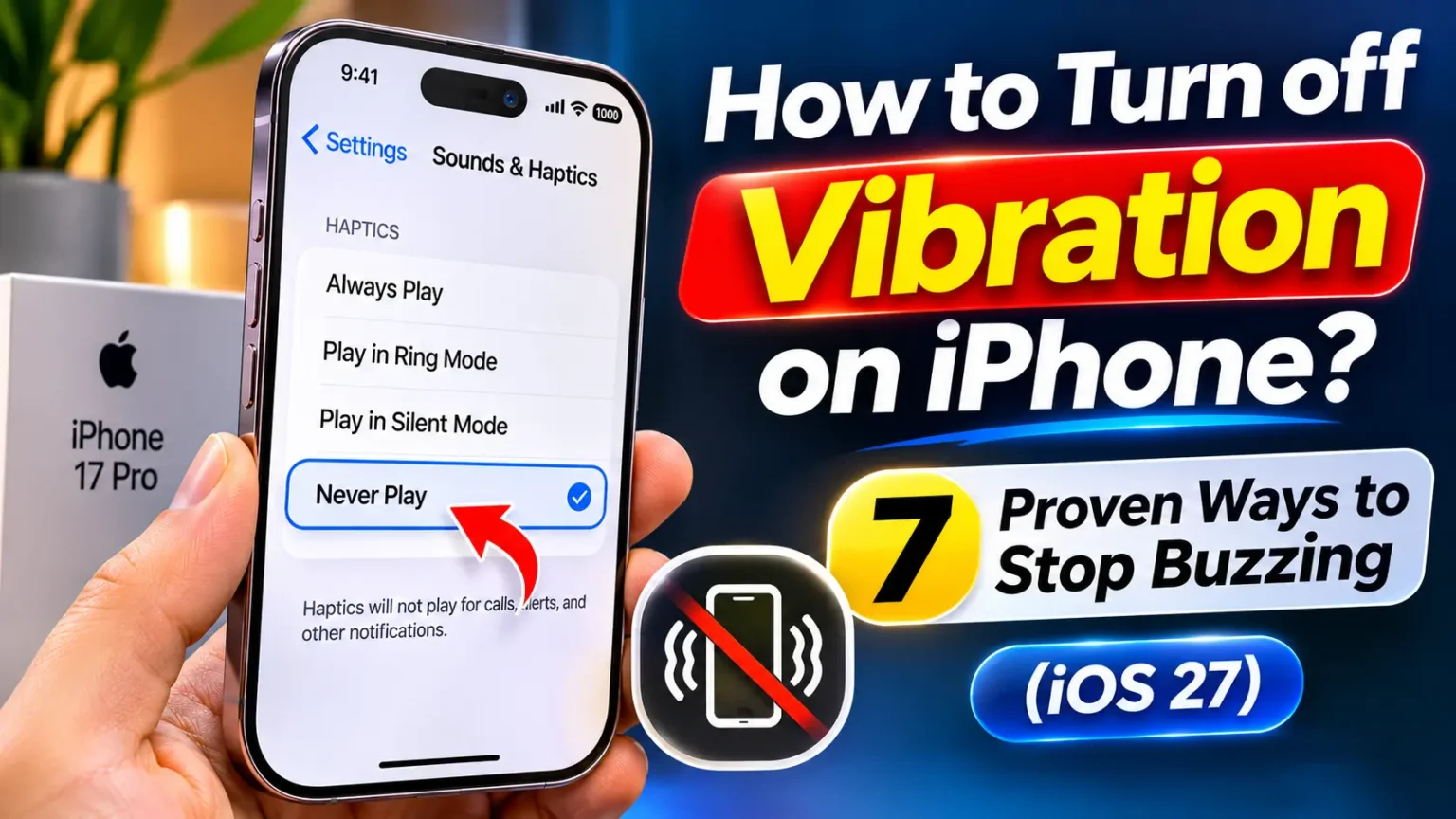
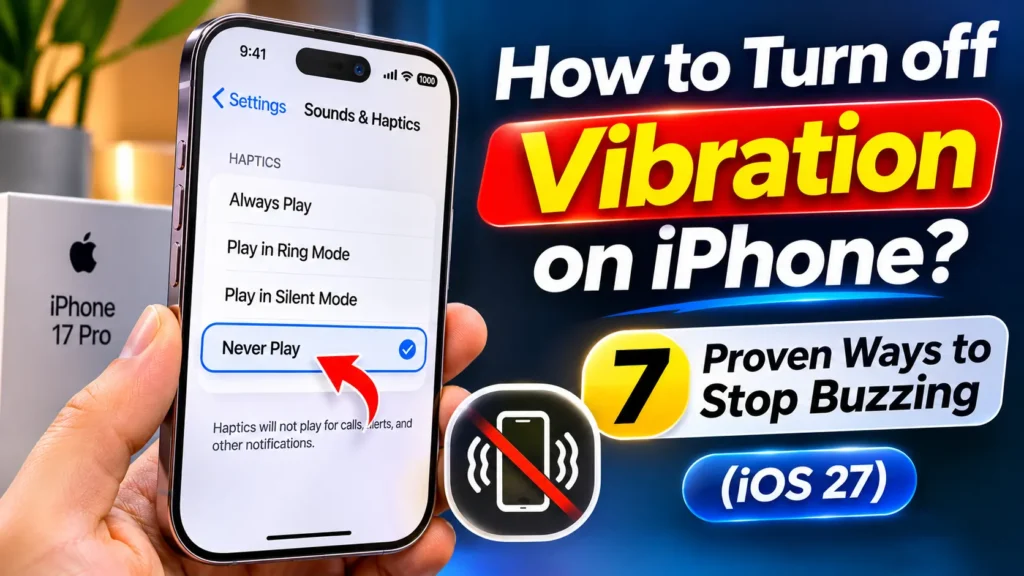
To turn off vibration on your iPhone for calls and alerts, open Settings → Sounds & Haptics → Haptics and select Never Play.
Which option should you choose? Choose Never Play to stop haptics for calls and alerts. Use Accessibility → Touch → Vibration if you want to disable vibration system-wide.
That buzz in your pocket during a meeting.
The rattle on a wooden nightstand at 2 a.m.
The phantom tap on your thigh that sends you checking your phone for nothing.
If your iPhone vibrates more than you want, you’re not alone, and the fix is quicker than you think.
The catch is that Apple spreads vibration controls across four different menus.
Turn off one, and your phone keeps buzzing from another.
Below, we cover every switch, for every iOS version, so you can stop the buzz for good.


Why Vibration Settings Matter More Than You Think
Vibration is not just an annoyance setting. It touches battery life, sleep, privacy, and even safety.
Your iPhone uses a part called the Taptic Engine.
It’s a tiny motor that moves a weight back and forth very fast.
Every buzz, every keyboard tap, and every “click” when you toggle a switch comes from that motor. Each one uses a little power.
Here’s why getting it right matters:
- Silent should mean silent. In a meeting, a library, or a courtroom, a buzz on a hard table is as loud as a ringtone.
- Better sleep. A vibrating phone on a nightstand can wake you just as easily as sound.
- Battery savings. Apple itself notes that keyboard haptics can affect battery life. It’s small, but it adds up over a full day. (More ideas in our iPhone battery saving tips.)
- Sensory comfort. Many people with sensory sensitivities, ADHD, or certain hand conditions find constant buzzing distracting or uncomfortable.
- Safety trade-offs. Some settings also silence emergency alert vibrations. You should know which ones before you flip them.
Our team has covered iPhone settings since the early iOS days.
For this guide, we tested every method on iOS 27 and cross-checked the older menus on devices running iOS 16 and iOS 15, because Apple renamed these options more than once.
Which Method Do You Need? (Quick Comparison)
Not sure where to start? Match your goal to the right setting.
7 Ways to Control Vibration on iPhone
Choose the right setting based on what you want to silence.
| Your Goal | Method | Where It Lives | Emergency Alerts |
|---|---|---|---|
| Stop calls and texts from buzzing | Method 1 | Sounds & Haptics → Haptics → Never Play | No effect |
| Stop buzzing only in Silent Mode | Method 2 | Sounds & Haptics → Haptics → Don’t Play in Silent Mode | No effect |
| Stop every vibration | Method 3 | Accessibility → Touch → Vibration | May disable |
| Stop keyboard taps | Method 4 | Sounds & Haptics → Keyboard Feedback → Haptic | No effect |
| Stop system “clicks” | Method 4 | Sounds & Haptics → System Haptics | No effect |
| Silence one app | Method 5 | Notifications → Select App → Sounds | No effect |
| Make vibration less annoying | Method 6 | Sounds & Haptics → Ringtone → Haptics | No effect |
| Quiet everything for a few hours | Method 7 | Control Center → Focus | Allowed calls may buzz |
Turning off Vibration under Accessibility → Touch can disable vibration for incoming emergency alerts. Emergency alert behavior can also depend on your country, carrier, and alert settings. Do not rely on vibration alone for emergency notifications.
Think of It Like Your Home’s Light Switches
Your iPhone’s vibration controls work like the lights in a house.
Method 3 is the main breaker in the basement.
Flip it, and every light goes dark, including the porch light you might need in an emergency.
Methods 1, 2, and 4 are the switches in each room.
Method 5 is unplugging a single lamp. Most people only need to turn off a room or two, not cut power to the whole house.
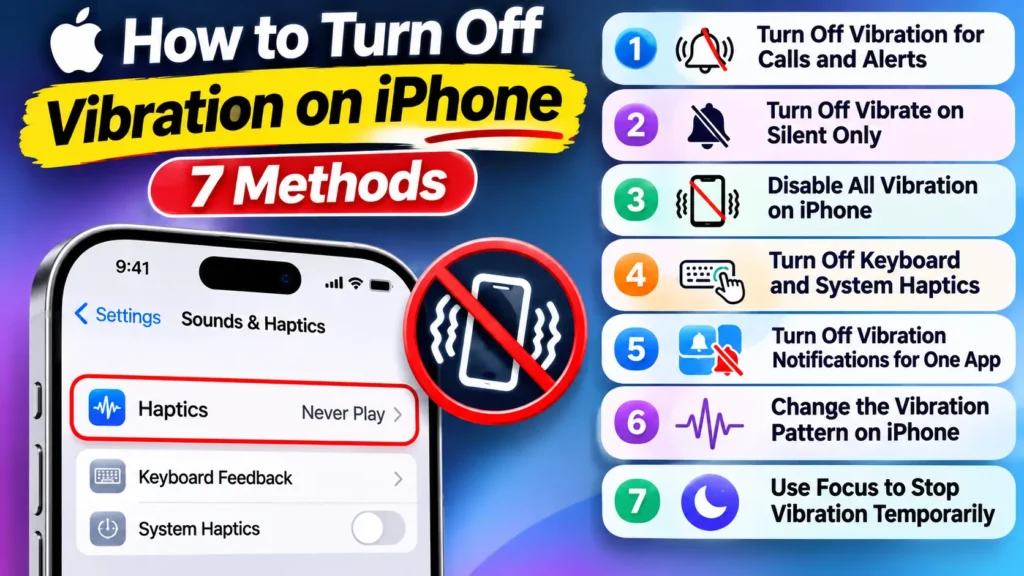
Method 1: Turn Off Vibration for Calls and Alerts
This is the answer most people want. It stops your iPhone from vibrating for calls, texts, and most notifications.
When we tested this on our iPhone 17 Pro Max running iOS 27, calls and iMessages arrived with zero buzz, whether the phone was in ring or silent mode.
- Open the Settings app.
- Tap Sounds & Haptics.
- Under Ringtone and Alerts, tap Haptics.
- Choose Never Play.
- Exit Settings. The change saves on its own.
The four Haptics options explained:
- Always Play – Vibrates in ring mode and silent mode.
- Play in Silent Mode – Vibrates only when the phone is silenced.
- Don’t Play in Silent Mode – Vibrates only when the ringer is on.
- Never Play – No vibration for calls and alerts at all.
Running iOS 16? You’ll see two toggles instead: Play Haptics in Ring Mode and Play Haptics in Silent Mode. Turn both off. On iOS 15 and older, they’re called Vibrate on Ring and Vibrate on Silent.
Method 2: Turn Off Vibrate on Silent Only
Maybe you like the buzz when your ringer is on, but silent should mean truly silent. This is the setting people miss most often.
- Go to Settings → Sounds & Haptics → Haptics.
- Select Don’t Play in Silent Mode.
- Put your iPhone in silent mode to test it.
How to put your iPhone in silent mode depends on the model:
- iPhone 15 Pro, iPhone 16 lineup, iPhone 16e, and iPhone 17 lineup: Press and hold the Action button until you see the silent icon.
- iPhone 15, iPhone 14, and older: Flip the Ring/Silent switch toward the back of the phone. You’ll see orange.
- Any model on iOS 18 or later: Open Control Center and tap the Silent Mode bell (add it from the Controls gallery if it’s missing).
How to Take iPhone Off Vibrate Mode
Here’s a common mix-up. iPhones don’t have a separate “vibrate mode” like many Android phones. When people say “vibrate mode,” they usually mean silent mode with haptics on.
To take your iPhone off vibrate mode, either switch off silent mode (Action button, Ring/Silent switch, or Control Center), or set Haptics to Don’t Play in Silent Mode so silent mode stays fully quiet.
💡 Pro Tip: The “Silent but Not Blind” Setup
Our favorite setup for busy days is Don’t Play in Silent Mode plus an Apple Watch on your wrist. Your phone stays still on the desk, while your watch gives a quiet tap only you can feel. If you don’t wear a watch, try LED Flash for Alerts instead: go to Settings → Accessibility → Audio & Visual → LED Flash for Alerts, and turn on Flash on Silent. Place the phone face-down and the camera flash blinks for calls. It’s silent, still, and you won’t miss anything important.
Method 3: Disable All Vibration on iPhone (The Master Switch)
This is the “main breaker.” It kills every vibration on your iPhone, from calls to keyboard taps to Haptic Touch.
- Open Settings.
- Tap Accessibility.
- Under Physical and Motor, tap Touch.
- Scroll down and turn off Vibration.
When we flipped this on our iPhone 17 Pro, even long-pressing an app icon felt “dead.”
The menu still opened, but with no tap feedback. Some people love that. Others find it oddly unsettling.
⚠️ Important: Apple warns that turning this off also disables vibrations for earthquake, tsunami, and other emergency alerts. If you live in an area with severe weather or quake risk, think twice. (Want to manage those alerts separately? See how to turn off AMBER alerts.) Methods 1, 2, and 4 are safer choices for most people.
Method 4: Turn Off Keyboard and System Haptics
Do you feel a tiny tap with every letter you type? That’s keyboard haptics, and it’s turned on by default on many new iPhones.
To turn off keyboard vibration:
- Go to Settings → Sounds & Haptics.
- Tap Keyboard Feedback.
- Turn off Haptic.
- Turn off Sound too if you want silent typing.
To turn off system haptics:
- Go to Settings → Sounds & Haptics.
- Scroll to the bottom.
- Turn off System Haptics.
System Haptics are the soft taps you feel when you flip a toggle, scroll a time picker, or hit the edge of a list.
In our testing, turning off both keyboard and system haptics made typing feel noticeably “lighter.” It also stretched battery life a little during a heavy texting day, though not dramatically.
Bonus check (iOS 18 and later): If your iPhone vibrates while music plays, look at Settings → Accessibility → Music Haptics. It syncs vibrations to songs. Turn it off if you didn’t mean to enable it.
Method 5: Turn Off Vibration Notifications for One App
You don’t have to silence your whole phone. You can quiet one noisy app.
For Messages, Mail, Calendar, and other Apple apps:
- Go to Settings → Sounds & Haptics.
- Tap the alert type, like Text Tone or Calendar Alerts.
- Tap Haptics at the top.
- Choose None.
For third-party apps (Instagram, Slack, WhatsApp, and others):
- Open Settings → Notifications.
- Tap the app’s name.
- Turn off Sounds.
Most third-party apps tie vibration to their sound setting. Turning off Sounds usually kills the buzz too. Some apps, like WhatsApp and Slack, also have their own vibration toggle inside the app’s settings. Check there if the buzz continues.
Real-World Example: The Group Chat That Wouldn’t Quit
One of our editors had a family group chat that buzzed over 200 times on a holiday weekend. Turning off all vibration felt like overkill, since they still needed to feel work calls. So they set Text Tone → Haptics → None, then muted just that thread by swiping left on it and tapping the bell icon. Work calls still buzzed. The family chat went quiet. It took less than 30 seconds and saved a whole weekend of pocket buzzing.
Method 6: Change the Vibration Pattern on iPhone
Sometimes the problem isn’t vibration itself. It’s the kind of vibration. A long, harsh buzz feels very different from a soft double tap. Here’s how to change iPhone vibrate patterns.
- Go to Settings → Sounds & Haptics.
- Tap Ringtone (or Text Tone, New Mail, and so on).
- Tap Haptics at the top.
- Pick a pattern from Standard, like Quick or Heartbeat.
- Or tap Create New Vibration under Custom.
- Tap the screen in your own rhythm, then tap Stop.
- Tap Save and give your pattern a name.
Pro move: You can also set a unique vibration for one person. Open Contacts, pick a contact, and tap Edit. Tap Ringtone → Haptics, then choose a pattern. Now you can tell who’s calling without looking.
In our test, we gave our “boss” contact a three-pulse custom pattern. We could feel the difference through a jacket pocket every time.
Method 7: Use Focus or Do Not Disturb to Stop Vibration Temporarily
Need quiet for an hour, a movie, or the night? Focus is the fastest temporary fix.
- Swipe down from the top-right corner to open Control Center.
- Tap Focus.
- Tap Do Not Disturb, Sleep, or another Focus.
- Tap the three dots (…) to set a time, like “For 1 hour.”
When a Focus is on, silenced notifications don’t ring or vibrate. Calls from people on your allowed list still come through and can buzz. To lock it down, go to Settings → Focus → Do Not Disturb → People and review who’s allowed. Spam calls slipping through? Try silencing unknown callers. When you’re done, here’s how to turn off Do Not Disturb, and whether your alarm will go off in DND.
Older iPhones with a Home button: Swipe up from the bottom edge to open Control Center.
Settings by iOS Version and iPhone Model
Apple has renamed vibration settings several times. If your screen doesn’t match our steps, this table will help.
iPhone Vibration Settings by iOS Version
Find the correct vibration controls for your iPhone software version.
| iOS Version | Calls & Alerts Setting | Master Switch | Keyboard Haptics |
|---|---|---|---|
| iOS 27 / 26 Current versions | Sounds & Haptics → Haptics (4 options) | Accessibility → Touch → Vibration | Keyboard Feedback → Haptic |
| iOS 18 / 17 | Sounds & Haptics → Haptics (4 options) | Accessibility → Touch → Vibration | Keyboard Feedback → Haptic |
| iOS 16 | Play Haptics in Ring Mode / Silent Mode | Accessibility → Touch → Vibration | Keyboard Feedback → Haptic (New in iOS 16) |
| iOS 15 and older | Vibrate on Ring / Vibrate on Silent | Accessibility → Touch → Vibration | Not available |
Quick tip: The wording and available options can vary slightly by iOS version and device. If you cannot find a setting, use the Settings search bar and search for “Haptics” or “Vibration.”
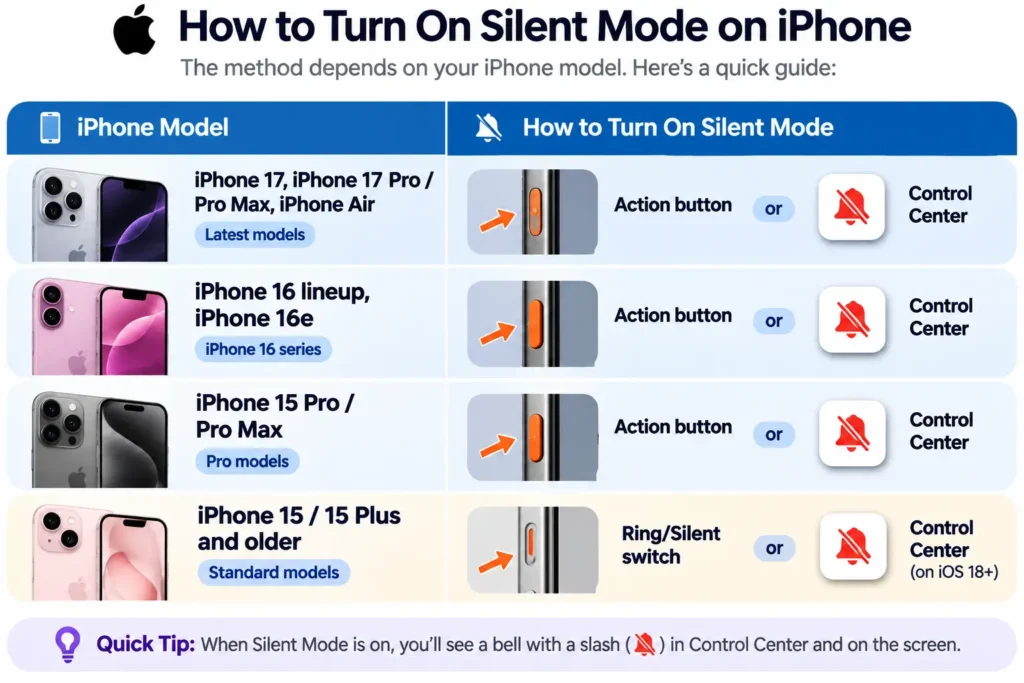
Silent mode controls by model:
How to Turn On Silent Mode on Different iPhone Models
The steps depend on whether your iPhone has an Action button or the traditional Ring/Silent switch.
| iPhone Model | How to Turn On Silent Mode |
|---|---|
| iPhone 17, iPhone 17 Pro / Pro Max, iPhone Air | Action button or Control Center |
| iPhone 16 lineup, iPhone 16e | Action button or Control Center |
| iPhone 15 Pro / Pro Max | Action button or Control Center |
| iPhone 15 / 15 Plus and older | Ring/Silent switch (or Control Center on iOS 18+) |
To check your iOS version, go to Settings → General → About and look at iOS Version.
What If This Doesn’t Work? (iPhone Still Vibrating)
Turned everything off and your iPhone still buzzes? Work through this list in order. It covers almost every case we’ve seen.
1. Check the per-alert Haptics. The main Haptics setting doesn’t always override individual tones. Go to Sounds & Haptics and tap each item: Text Tone, New Voicemail, Calendar Alerts, Reminder Alerts. Set Haptics → None on each.
2. Check your alarms and timers. Alarms have their own vibration. Open Clock → Alarms → Edit, tap an alarm, then Sound → Haptics → None.
3. Look inside the app itself. WhatsApp, Slack, Teams, and many games have their own vibration setting. These can ignore your iPhone’s settings.
4. Check Music Haptics and Camera feedback. On iOS 18 and later, Music Haptics can make your phone buzz with songs. Turn it off in Accessibility → Music Haptics.
5. Make sure it’s not your Apple Watch. This sounds silly, but it happens. Taps on your wrist can feel like your phone buzzing in a pocket. Check Watch app → Sounds & Haptics on your iPhone.
6. Restart your iPhone. A quick restart clears stuck settings. Press and hold the side button and either volume button, then slide to power off. Wait 30 seconds and turn it back on. Frozen phone? Use a force restart instead.
7. Update iOS. Go to Settings → General → Software Update. Some early iOS releases had bugs where haptic settings didn’t stick. Unsure about the jump? Read should I upgrade to iOS 27.
8. Reset All Settings (last resort). Go to Settings → General → Transfer or Reset iPhone → Reset → Reset All Settings. This keeps your photos and apps. But it resets Wi-Fi passwords, wallpaper, and other preferences, so use it only if nothing else works. Our Reset All Settings guide explains exactly what you lose.
9. Suspect hardware. If your iPhone buzzes randomly with no notification, or makes a grinding sound, the Taptic Engine may be damaged. This is more common after a drop. Contact Apple Support or book a Genius Bar visit.
Key Takeaways
- Fastest fix: Settings → Sounds & Haptics → Haptics → Never Play stops vibration for calls and alerts.
- Silent-only fix: Choose Don’t Play in Silent Mode to keep silent mode truly silent.
- Master switch: Accessibility → Touch → Vibration off kills everything, including emergency alert vibrations.
- Typing taps live in Keyboard Feedback, and UI taps live in System Haptics.
- One noisy app? Turn off its Sounds in Notifications, or set its tone’s Haptics to None.
- Don’t want to lose vibration? Change the pattern or set a custom vibration per contact instead.
- Menu names changed in iOS 16 and iOS 17, so match your steps to your iOS version.
Frequently Asked Questions
Go to Settings → Accessibility → Touch and turn off Vibration. This stops every vibration on your iPhone, including calls, keyboard taps, and emergency alerts. Turn it back on anytime the same way.
Your Haptics setting is likely set to Always Play or Play in Silent Mode. Go to Settings → Sounds & Haptics → Haptics and choose Don’t Play in Silent Mode or Never Play. Then check individual tones and app settings.
Yes. Go to Settings → Sounds & Haptics → Text Tone → Haptics and choose None. Leave Ringtone → Haptics on your favorite pattern. Calls will buzz, and texts won’t.
A little, yes. The Taptic Engine uses power each time it moves. Turning off keyboard and system haptics gives the most noticeable gain, since those fire hundreds of times a day.
Only the master switch does. Turning off Accessibility → Touch → Vibration disables vibration for emergency alerts. Methods using Sounds & Haptics leave emergency alert vibration alone.
Sources
- Apple Support – Turn off vibration on iPhone (iPhone User Guide):
- Apple Support – Change sounds and vibrations on iPhone
- Apple Support – Use and customize the Action button on iPhone (iPhone User Guide)
- Apple Support – Set up a Focus on iPhone (iPhone User Guide)
- AppleHeadlines hands-on testing on iPhone 17 Pro (iOS 27), iPhone 16 (iOS 27), and iPhone 13 mini (iOS 16), November 2026
Disclaimer
This guide is for general informational purposes only. Menu names and steps can change with iOS updates and may differ by region, carrier, or device model. Turning off vibration, especially through Accessibility settings, may disable vibration for emergency and public safety alerts. Use these settings at your own discretion. AppleHeadlines is an independent publication and is not affiliated with, endorsed by, or sponsored by Apple Inc. iPhone, iOS, and Apple Watch are trademarks of Apple Inc.
🔔 Got Your Buzz Under Control?
Now that your iPhone is calm, make it smarter too.
Check out our iOS 27 features guide for hidden settings most people never find.
Found a vibration setting we missed? Tell us in the comments, and subscribe to AppleHeadlines for weekly iPhone tips that actually work.
Related Reads

T’kal is the lead strategist and developer behind Apple Headlines. With a background in digital marketing and web development, he specializes in technical Apple troubleshooting, software news, and hardware rumors. T’kal focuses on delivering high-authority tech content that bridges the gap between Apple enthusiasts and the latest industry innovations.