



Let’s be real for a second – there’s nothing more frustrating than watching your iPhone battery percentage drop faster than you’d like.
You’re not alone.
Battery degradation is one of the most common concerns iPhone users face, and Apple knows it.
That’s exactly why they built the Battery Health feature right into iOS.
Whether you’re rocking an iPhone 15 Pro, holding onto a trusty iPhone 12, or just got your hands on the latest model, understanding your battery health is essential.
In this guide, I’ll walk you through everything you need to know — from checking your battery health to making it last longer and knowing exactly when it’s time for a replacement.
What Is iPhone Battery Health, Really?
Here’s the deal: all rechargeable batteries are consumables.
They have a limited lifespan.



Over time, every charge cycle you put your iPhone through gradually reduces its maximum capacity and peak performance.
Apple introduced the Battery Health feature so you could actually see how your battery is holding up compared to when it was brand new.
Think of it like this: when your battery health is at 100%, your iPhone can hold and deliver the exact amount of charge it was designed to. At 85%, it can only hold about 85% of its original capacity – meaning you’re getting roughly 15% less usage between charges.
The Battery Health screen shows you a few critical pieces of information:
- Maximum Capacity — A percentage showing how much charge your battery can hold compared to when it was new
- Peak Performance Capability — Whether your iPhone can still deliver normal peak performance or if performance management has been applied to prevent unexpected shutdowns
- Service Recommendations — If your battery needs attention, you’ll see a message right there
How to Check Your iPhone Battery Health (Step-by-Step)
The good news?
Checking your battery health takes about 15 seconds.
Here’s exactly how to do it, depending on which iPhone model you have.
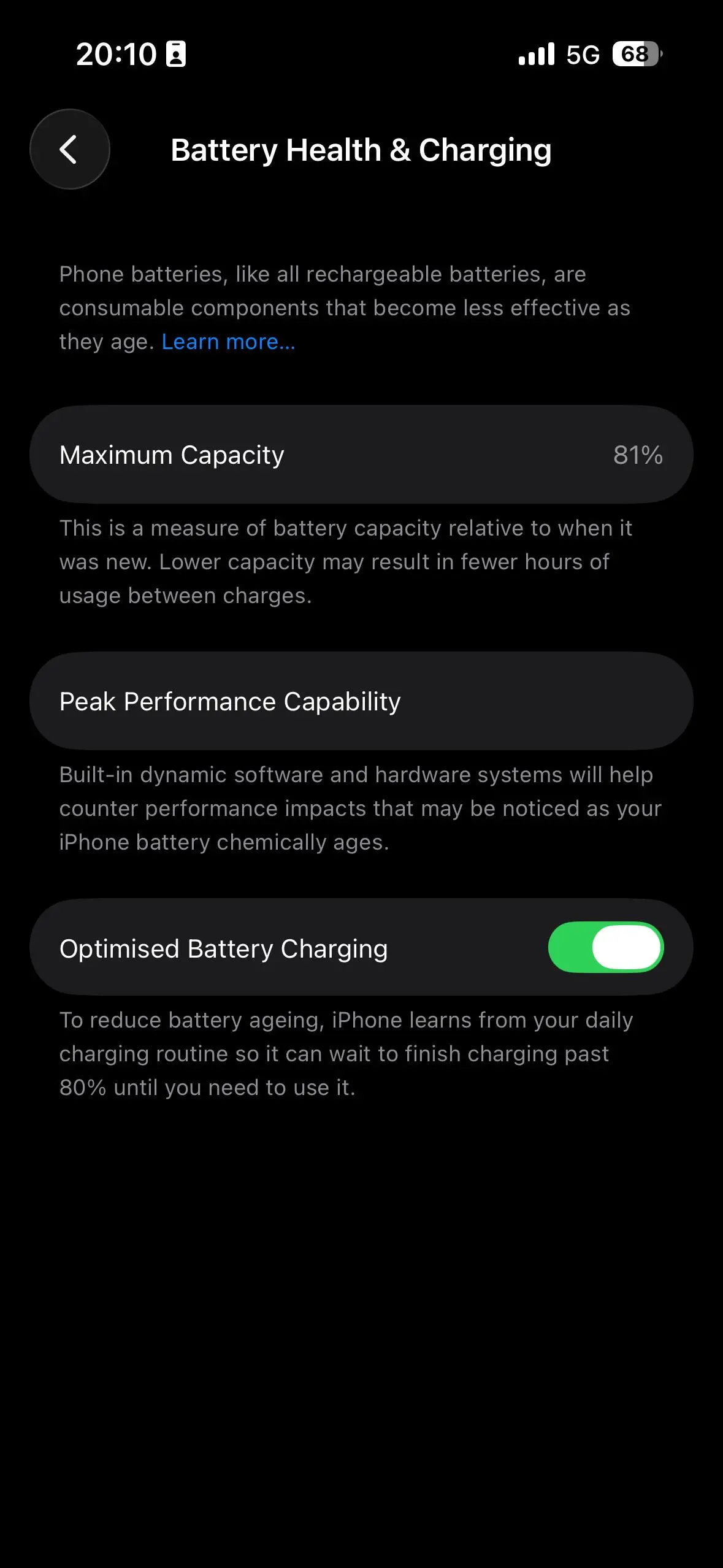
For iPhone 15 and Newer Models
Apple made some nice upgrades to the Battery Health screen on the iPhone 15 and later.
You’ll get even more detailed information, including cycle count, production date, and first-use date.
For iPhone 14 and Older Models
If you’re on an iPhone 14 or earlier, the process is almost identical — just with slightly different labeling:
- Open Settings
- Tap Battery
- Tap Battery Health & Charging
For iPhones Running iOS 11.3 or Later
If your iPhone is running iOS 11.3 or newer (which includes iPhone 6 and all later models), you’ll have access to the Battery Health feature:
- Open Settings > Battery > Battery Health & Charging
- You’ll see your Maximum Capacity percentage and Peak Performance Capability status
What About Older iPhones?
If you’re using an iPhone older than the iPhone 6 or running an iOS version before 11.3, the Battery Health feature won’t appear in Settings. Your best options are:
- Update your iOS — Go to Settings > General > Software Update to see if you can get the latest version
- Use third-party tools — Apps like CoconutBattery (for Mac) or iMazing (for Mac and Windows) can show you battery cycles, capacity, and health when you connect your iPhone to a computer
Understanding What Your Battery Health Numbers Actually Mean
Okay, so you’ve checked your battery health. Now what? Here’s how to interpret what you’re seeing.
Maximum Capacity: The Big Number
This is the percentage you’ll see front and center. Here’s what different ranges mean:
| Maximum Capacity | What It Means |
|---|---|
| 95–100% | Your battery is in excellent shape. You’re getting close to full original capacity. |
| 85–94% | Normal wear and tear. You might notice slightly shorter battery life, but nothing dramatic. |
| 80–84% | Your battery is showing its age. You’re likely noticing shorter battery life and possibly slower performance. |
| Below 80% | Time to consider replacement. Apple recommends replacing your battery when maximum capacity drops below 80%. |
Peak Performance Capability
This section tells you whether your iPhone can still deliver peak performance.
If your battery is healthy, you’ll see a message saying your battery is currently supporting normal peak performance.
If your battery has degraded significantly, you might see:
- A message that performance management has been applied (this means your iPhone is slowing down slightly to prevent unexpected shutdowns)
- An option to disable performance management (though this isn’t recommended if you’re experiencing shutdowns)
The 80% Rule: When to Replace
Apple designs iPhone batteries to retain up to 80% of their original capacity at 500 complete charge cycles.
Once your battery health drops below 80%, you’re officially in replacement territory.
But here’s the thing — it’s not just about the number. If your battery is at 82% but you’re constantly searching for outlets and your phone feels sluggish, it might be time to replace it anyway. The 80% threshold is a guideline, not a hard rule.
Cost considerations: If you have AppleCare+ and your battery health is under 80%, replacement is free.
Without coverage, expect to pay between $69 and $99, depending on your iPhone model.
How to Improve and Maintain Your iPhone Battery Health
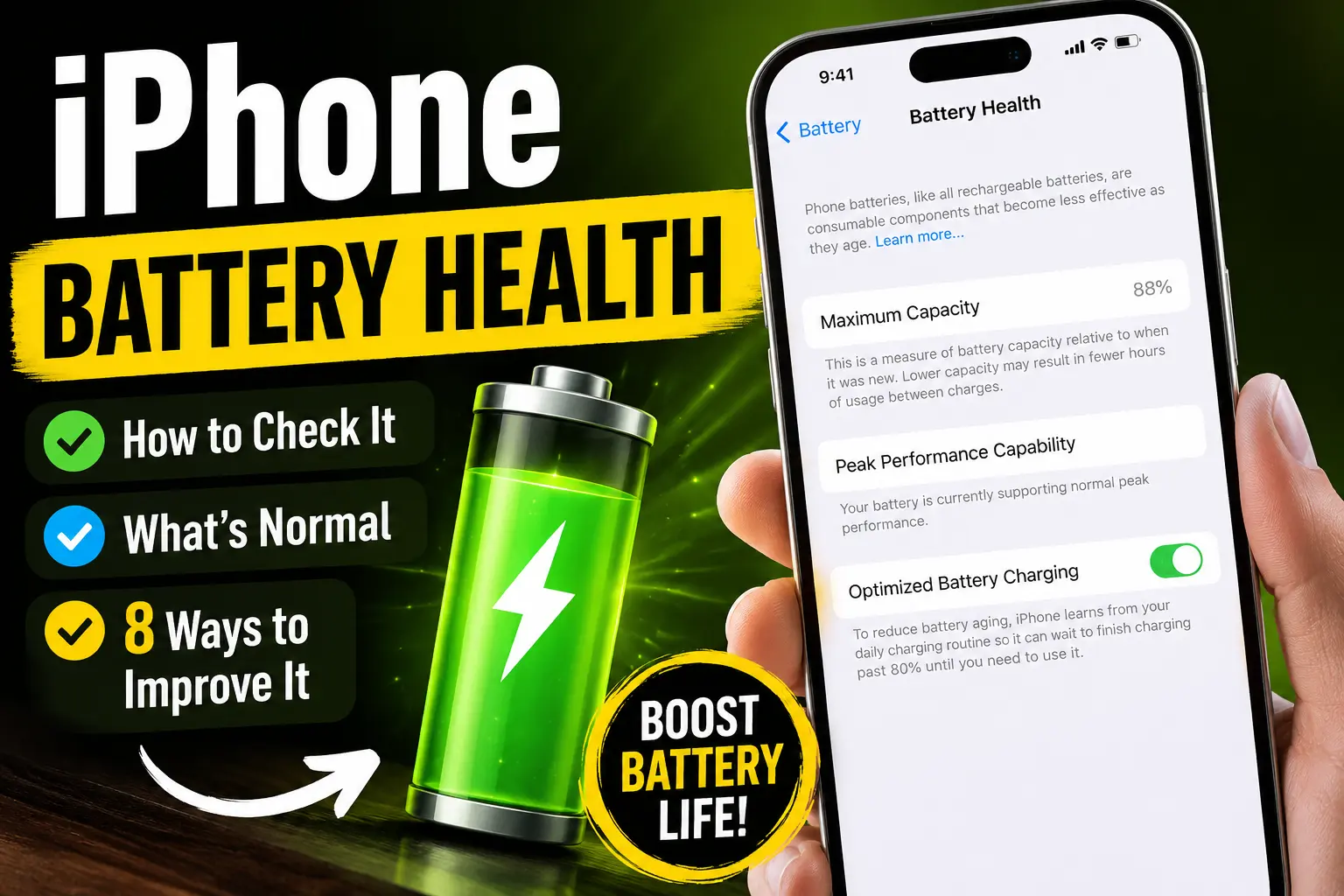
Now for the part everyone actually cares about — how to make your battery last longer and stay healthier for years.
Here are the most effective strategies, backed by Apple’s own recommendations.
1. Turn On Optimized Battery Charging
This is arguably the single most important setting for battery longevity.
Optimized Battery Charging reduces the time your iPhone spends fully charged by learning your daily charging routine and holding charge at 80% until just before you need it.
How to enable it:
- Settings > Battery > Battery Health & Charging
- Toggle on Optimized Battery Charging
This feature is a game-changer. Lithium-ion batteries degrade faster when kept at 100% charge for extended periods.
By waiting to finish charging until you actually need it, your battery experiences less stress.
2. Set a Charge Limit (iPhone 15 and Later)
If you have an iPhone 15 or newer, you can set a hard charge limit to stop charging at 80%. This is perfect if you’re someone who charges overnight and doesn’t need every last drop of battery.
3. Avoid Extreme Temperatures
This one is non-negotiable. Heat is the #1 enemy of battery health. Apple explicitly warns against using or charging your iPhone in ambient temperatures higher than 95°F (35°C), as this can permanently reduce battery lifespan.
Quick tips:
- Don’t leave your iPhone in direct sunlight, especially in a car on a hot day
- Remove your phone case while charging if you notice it getting warm
- Avoid charging in hot environments
4. Don’t Let Your Battery Drain to 0%
Letting your battery hit 0% regularly is hard on lithium-ion cells. Aim to keep your charge between 20% and 80% for daily use. If you can, plug in before it drops below 20%.
5. Don’t Keep It at 100% All the Time
Similarly, keeping your iPhone plugged in at 100% for hours on end (like leaving it on a charger overnight without Optimized Battery Charging) accelerates degradation. Use Optimized Battery Charging or set a charge limit to avoid this.
6. Update Your iOS
Apple frequently includes battery optimizations and performance improvements in iOS updates. Keeping your iPhone updated ensures you’re getting the latest battery management features.
7. Manage Battery-Draining Settings
While this won’t improve your battery’s health per se, it will extend your battery life between charges — which means fewer charge cycles and slower degradation over time:
- Reduce screen brightness or enable Auto-Brightness (Settings > Display & Brightness)
- Turn on Low Power Mode when you’re running low
- Disable Background App Refresh for apps that don’t need it
- Turn off unnecessary location services
8. Check Battery Usage by App
If you’re noticing fast battery drain, check which apps are the culprits. Go to Settings > Battery and review usage for the last 24 hours or 10 days. If an app is consuming way more battery than it should, consider deleting it or adjusting its settings.
Questions by Readers
Why isn’t my iPhone showing Battery Health?
If you don’t see the Battery Health option in Settings > Battery, you’re likely on an iPhone older than the iPhone 6 or running iOS 10 or earlier. Update your iOS if possible.
If you’re on a newer device and still don’t see it, give it some time — the system sometimes needs a moment to scan the battery component.
Does fast charging damage my battery?
Fast charging itself doesn’t inherently damage your battery — but the heat generated during fast charging can. If your iPhone gets noticeably warm while fast charging, consider removing the case and charging in a cooler environment.
Can I replace my iPhone battery myself?
You can, but Apple strongly recommends having your battery replaced by Apple or an Apple Authorized Service Provider. Third-party batteries can be hit-or-miss, and you risk damaging your iPhone if you’re not careful. Plus, if you have AppleCare+, replacement is free when your battery health drops below 80%.
How often should I check my battery health?
Once a month is a good habit. It helps you track degradation over time and spot any sudden drops that might indicate a problem.
Is 85% battery health bad?
Not at all. 85% is normal for a battery that’s been through a couple hundred charge cycles. You might notice slightly shorter battery life, but your iPhone should still perform well.
Final Thoughts
Your iPhone battery is going to degrade over time — that’s just physics. But with the right habits, you can slow that process down significantly and get the most out of every charge.
Check your battery health regularly, keep your iPhone out of the heat, enable Optimized Battery Charging, and don’t obsess over keeping it at 100%. And when that Maximum Capacity number eventually drops below 80%, don’t panic — it’s just a sign that your battery has served you well and it’s time for a replacement.
Your iPhone is a significant investment. Taking care of its battery is one of the easiest ways to protect that investment and keep your device running smoothly for years to come.

T’kal is the lead strategist and developer behind Apple Headlines. With a background in digital marketing and web development, he specializes in technical Apple troubleshooting, software news, and hardware rumors. T’kal focuses on delivering high-authority tech content that bridges the gap between Apple enthusiasts and the latest industry innovations.