



Quick Answer: Most Apple Watch charging problems come down to three things: a dirty charging surface, a cable that isn’t seated properly, or a battery so drained it needs up to 30 minutes before anything shows on screen.
Start there before assuming your watch is broken. If you’ve tried a clean cable, a full wall outlet, and 30 minutes of patience and still see nothing, a force restart usually clears it.
If that fails too, it’s time to contact Apple Support.
What Your Apple Watch Screen Is Actually Telling You
Before you troubleshoot anything, it helps to know what you’re looking at.
Apple Watch uses a few simple icons to communicate battery state, and misreading them is the single biggest reason people think their watch is broken when it isn’t.
- Green lightning bolt: The watch is charging normally. Leave it alone.
- Red lightning bolt: The battery is too low to turn on. This is not an error — it just needs power.
- Red lightning bolt inside a ring: The watch is on the charger and receiving power, but hasn’t built up enough charge to fully turn on yet.
- Blank, black screen: Usually a fully drained battery. The watch needs a few minutes on the charger before anything appears at all.
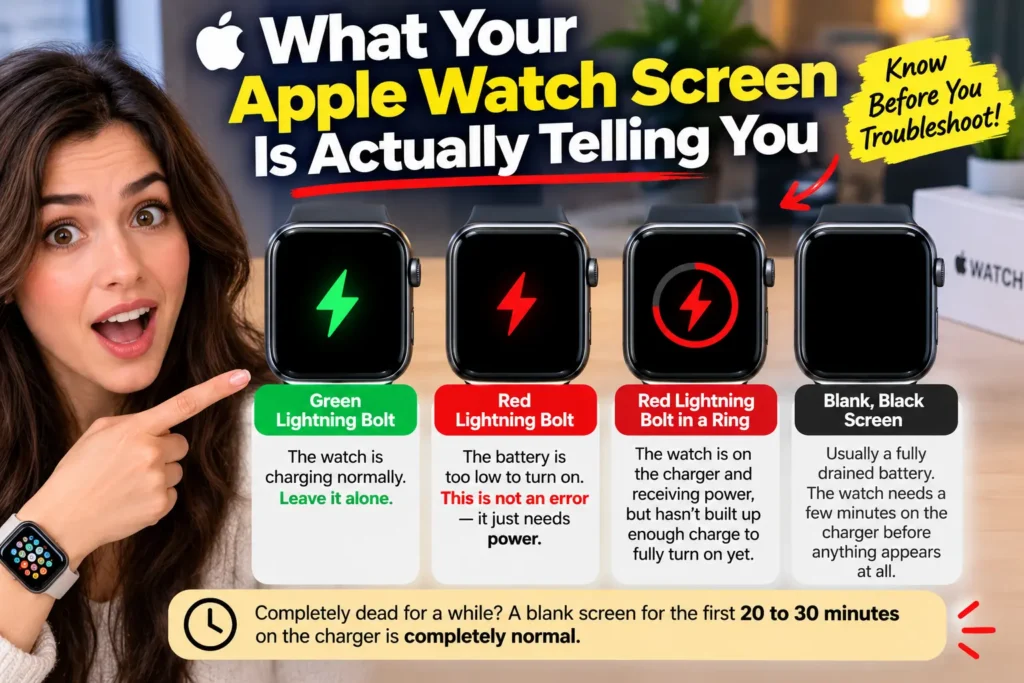
If your watch has been completely dead for a while – sitting in a drawer for months, for example – a blank screen for the first 20 to 30 minutes on the charger is completely normal.
This one detail alone resolves a large share of “my watch won’t charge” reports.
Pro Tip: Don’t judge a “dead” Apple Watch by the first five minutes. Plug it in, walk away, and check back in 30 minutes. Interrupting a charge to check on it repeatedly can actually slow down that initial power buildup.
Step-by-Step: How to Fix an Apple Watch That Won’t Charge
Work through these in order. Most charging issues resolve in the first three steps.
1. Check the cable and charger for damage or debris
Inspect the magnetic charging cable for cracks, frayed wiring, or bent connectors. Remove any plastic film left over from packaging – it’s easy to miss a strip still covering the charging coil.
2. Clean both surfaces
Use a soft, dry, lint-free cloth. Wipe the back of the watch and the charging puck itself. Sweat, lotion, dust, and pocket lint build up on both surfaces and block the magnetic charging connection more often than people expect.
3. Check the alignment
The charging cable is magnetic, but it still needs to sit flush against the back of the watch. Place the watch face-up and center it on the charging puck.
You should feel a light magnetic snap. Cases, bands, or watch stands can sometimes block a clean connection. Try charging with the watch fully removed from any dock or stand.
4. Swap the power source
Plug the charging cable into a wall outlet instead of a laptop or a USB hub. Low-power USB ports don’t always supply enough current to start a charge. This is common with computers, monitors, and older hubs.
5. Try a different cable if you have one
If you have access to a second Apple Watch charging cable, swap it in. This quickly tells you whether the problem is the cable or the watch itself.
6. Give it real time
Leave the watch connected for a full 30 minutes without touching it. A completely drained battery can take that long to show any sign of life.
7. Force restart the watch
If the watch still won’t respond after 30 minutes on the charger, force restart it. Press and hold the side button and the Digital Crown together for about 10 seconds, until the Apple logo appears.
This does not erase any data. It’s the same fix Apple support reps use as the first step for a frozen or unresponsive watch.
8. Check for water or liquid exposure
If the watch was recently swimming, showering, or caught in the rain, moisture in the charging port area can block a proper connection.
Apple Watch models from Series 2 onward carry water resistance ratings, but a charging failure right after water exposure is still worth ruling out. Dry the watch fully and let it sit for a few hours before trying again.
When to Suspect a Hardware Problem
Not every charging issue is user-fixable, and it helps to know when to stop troubleshooting and get the watch looked at.
A situation we hear from readers often: Someone in our community had an Apple Watch that would show the green charging bolt, then drop to a blank screen a few minutes later, over and over.
They’d already cleaned the charger and tried a wall outlet.
That pattern – repeatedly starting a charge and losing it – usually points to a battery that’s aged past the point a software fix can help, rather than a dirty connector or a bad cable.
We recommended a Genius Bar battery check rather than more at-home troubleshooting, and that turned out to be the right call: the watch’s battery had dropped well below its original capacity.
Signs it’s likely a hardware issue rather than something you can fix at home:
- The watch charges intermittently, gaining and then losing the connection repeatedly
- The back of the watch feels unusually warm even when not charging
- The screen shows a red exclamation mark, which Apple reserves for watches that need service
- The watch is several years old and has always had shorter battery life than expected
- You’ve completed every step above and nothing changes after multiple attempts
In any of these cases, the fastest path forward is checking your warranty or AppleCare+ status, then booking a Genius Bar appointment or starting a mail-in repair through Apple Support.
Common Charging Concerns
How long should it take for a completely dead Apple Watch to show a charging icon?
Give it up to 30 minutes. If you still see nothing after that, move on to the cable, power source, and force restart steps above.
Can a cracked screen cause charging problems?
Not directly, but a cracked screen can hide the charging icon or make touch input unreliable, which makes a normal charge look broken when it isn’t. If your screen is damaged, get it assessed regardless of the charging issue.
Does Low Power Mode affect charging?
No. Low Power Mode slows how fast the battery drains during use, but it doesn’t change how the watch charges. It won’t cause or fix a charging problem either way.
Will a third-party charging cable work?
Some do, but Apple Watch charging is proprietary, and cheaper third-party cables are a common source of unreliable charging.
If you’re having trouble, testing with Apple’s own cable is the most reliable way to rule out a cable issue.
Is it normal for my new Apple Watch Series 12 or Ultra 4 to charge slower than my old one?
No – newer Apple Watch models generally charge faster, not slower. If a brand-new watch is charging unusually slowly, treat it the same as any other charging problem: check the cable, the power source, and the alignment before assuming anything is wrong with the hardware.
Key Takeaways
- A red lightning bolt means low battery, not a broken watch – let it charge.
- Cleaning the charging cable and the back of the watch fixes more issues than people expect.
- Always try a wall outlet instead of a computer USB port if charging seems slow or absent.
- A force restart (side button + Digital Crown, 10 seconds) is safe and often solves a frozen watch.
- Repeated charging drops, unusual warmth, or a red exclamation mark point to a hardware issue worth having checked professionally.
FAQs
The red lightning bolt means the battery is too low to turn on. It should switch to a charging icon within a few minutes once it’s connected properly to power.
Press and hold the side button and the Digital Crown at the same time for about 10 seconds, until you see the Apple logo. Release both buttons at that point.
A fully drained battery can show a blank screen for up to 30 minutes before any icon appears. This is normal and not a sign of damage.
Yes. Sweat, lotion, and dust on the back of the watch or the charging puck are one of the most common causes of a failed or unreliable charging connection.
Once you’ve cleaned the connectors, tried a different cable and power source, given it a full 30 minutes, and force restarted it without success – that’s the point to book a Genius Bar visit or start a support case.
Sources
- Apple Support: “If your Apple Watch won’t turn on or won’t charge“
- Apple Support: “Restart your Apple Watch“
Disclaimer
This guide covers general troubleshooting steps for Apple Watch charging issues.
If your watch shows signs of physical damage, water damage beyond its rated resistance, or a red exclamation mark, stop troubleshooting at home and contact Apple Support directly, since continued use could worsen the underlying issue.
More Read


T’kal is the lead strategist and developer behind Apple Headlines. With a background in digital marketing and web development, he specializes in technical Apple troubleshooting, software news, and hardware rumors. T’kal focuses on delivering high-authority tech content that bridges the gap between Apple enthusiasts and the latest industry innovations.