



Updated October 25, 2026. Checked against Apple’s current iOS 27 support pages.
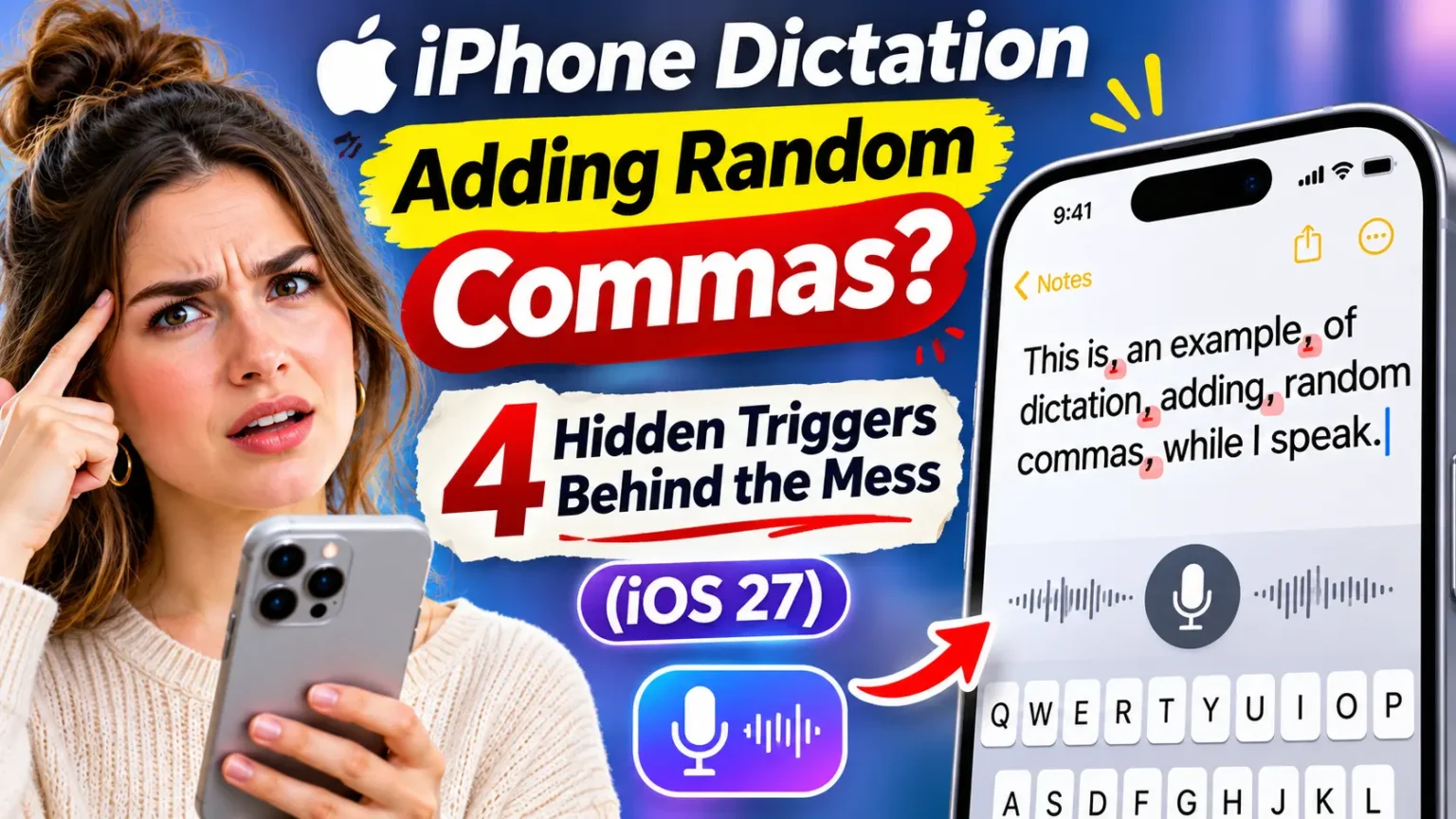
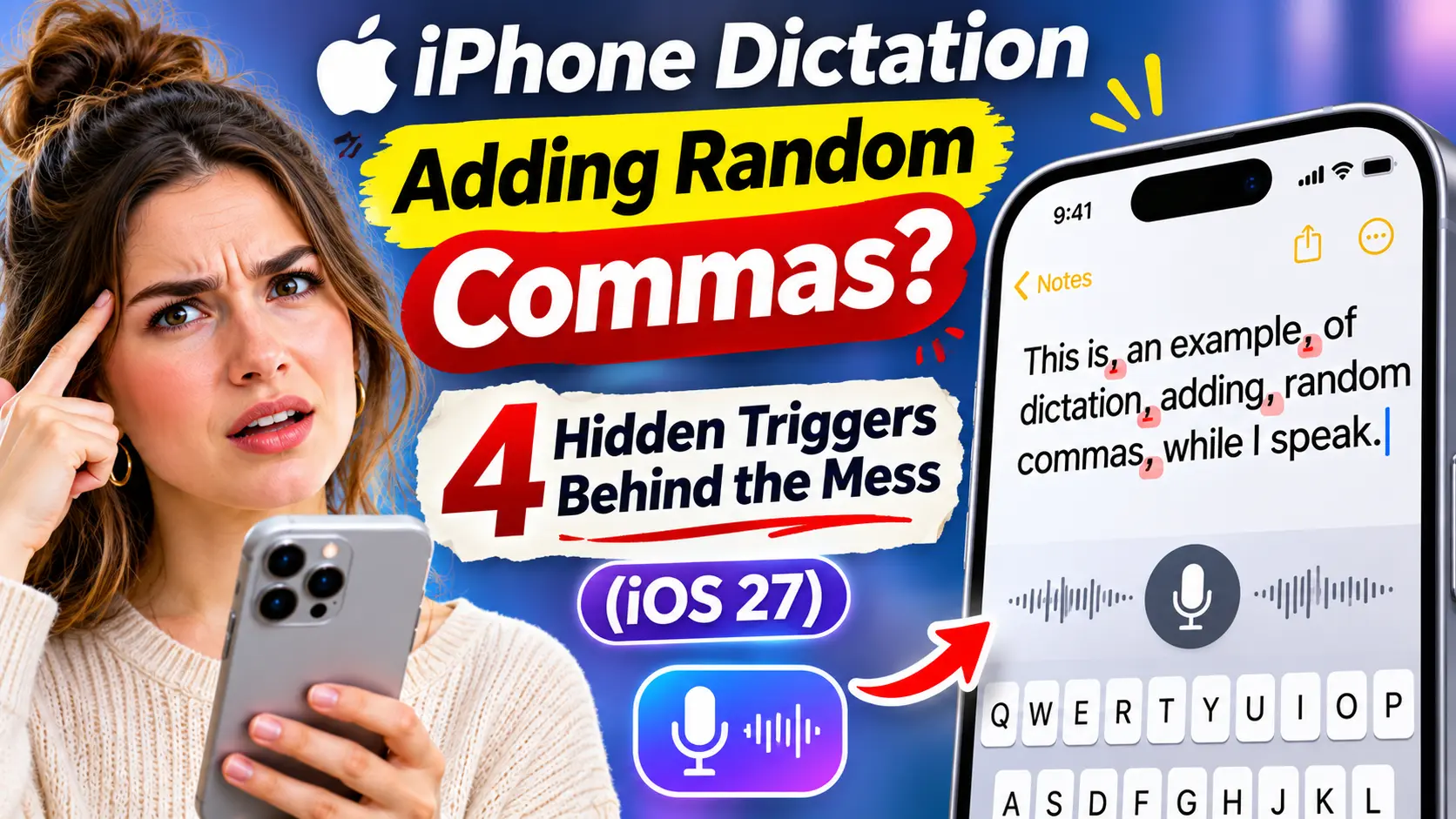
iPhone dictation adding random commas is almost always caused by Auto-Punctuation, a built-in feature that guesses punctuation while you speak.
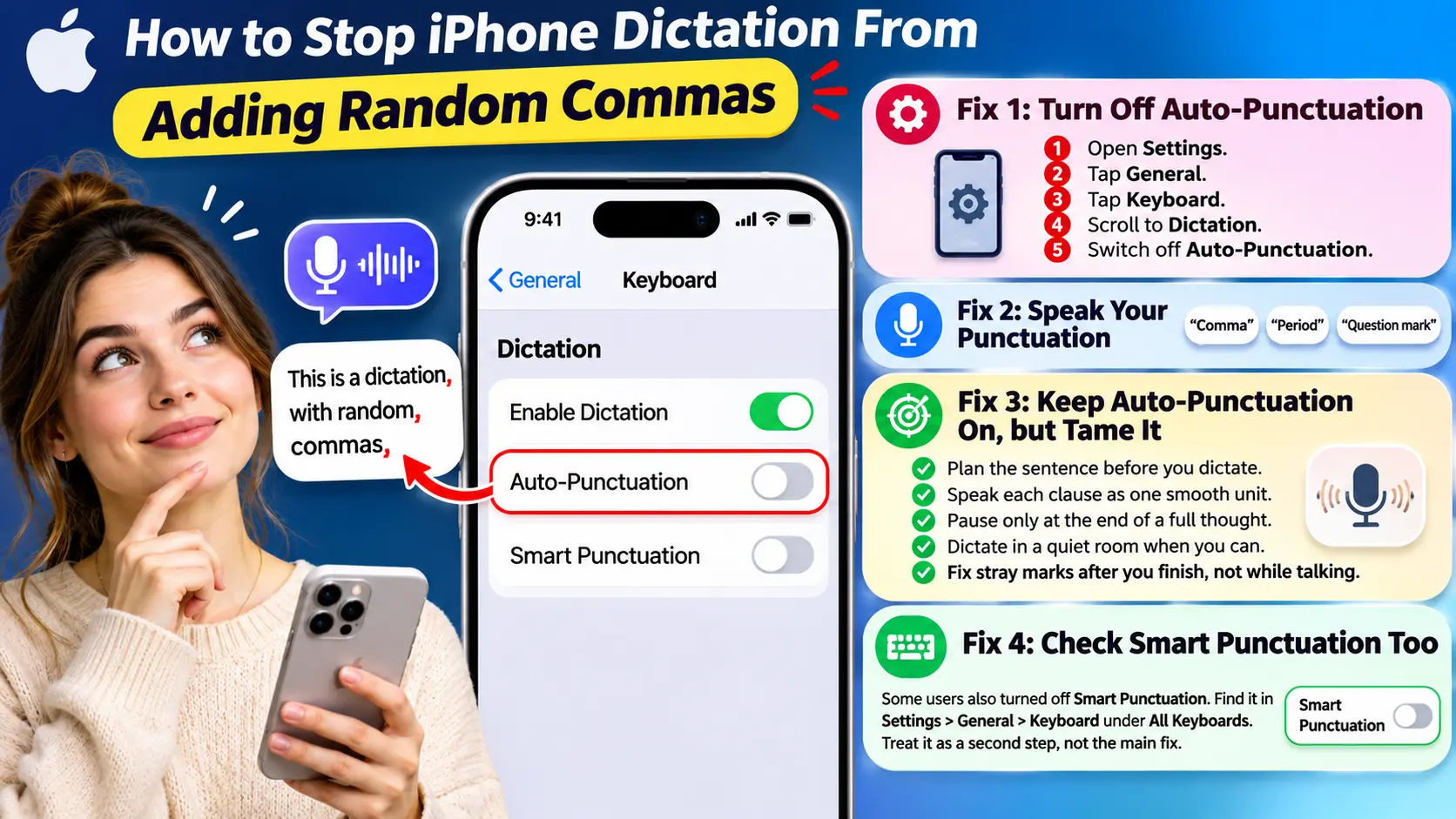
How to fix it: Go to Settings > General > Keyboard, scroll to Dictation, and switch off Auto-Punctuation.
Still seeing odd marks or wrong words? Update iOS, test your microphone, and check your keyboard language. If you own an iPhone 17 Pro, iPhone Air, or iPhone 18 Pro, also check whether iOS 27’s on-device dictation features are affecting your results.
You say one clean sentence.
Your iPhone types, “I think, we should leave, around six.”
Now you are editing instead of sending.
It is maddening, and you are far from alone.
Apple’s support community has a thread on this exact problem with more than 170 replies.
The good news is simple.
The cause is usually a setting, not a broken phone.

Below, you will find the real triggers, the fix, and what to do about wrong words.
Why Your iPhone Adds Commas You Never Said
Here is the part most guides skip.
This is not a typical glitch.
Apple’s own support page says dictation automatically inserts commas, periods, and question marks in supported languages.
The same page says you can turn that off with one switch.
So why does it feel random?
Because the feature is guessing.
Apple does not publish exactly how the guess works.
Many Apple-focused sites say pauses in your speech play a big role.
That matches what people report.
The commas show up where you breathe, think, or hesitate.
The complaints are not new.
The Apple Community thread started in December 2022, right after iOS 16 added automatic punctuation.
The top-ranked reply in that thread is still the same: turn off Auto-Punctuation.
Nearly four years later, that advice still holds on iOS 27.
Why trust this guide?
We built it from Apple’s current support pages, the live Apple Community thread, and the four pages ranking highest for this problem.
We also checked iOS 27 reporting from June 2026 for anything new.
Where Apple has not confirmed something, we say so.
The 4 Hidden Triggers
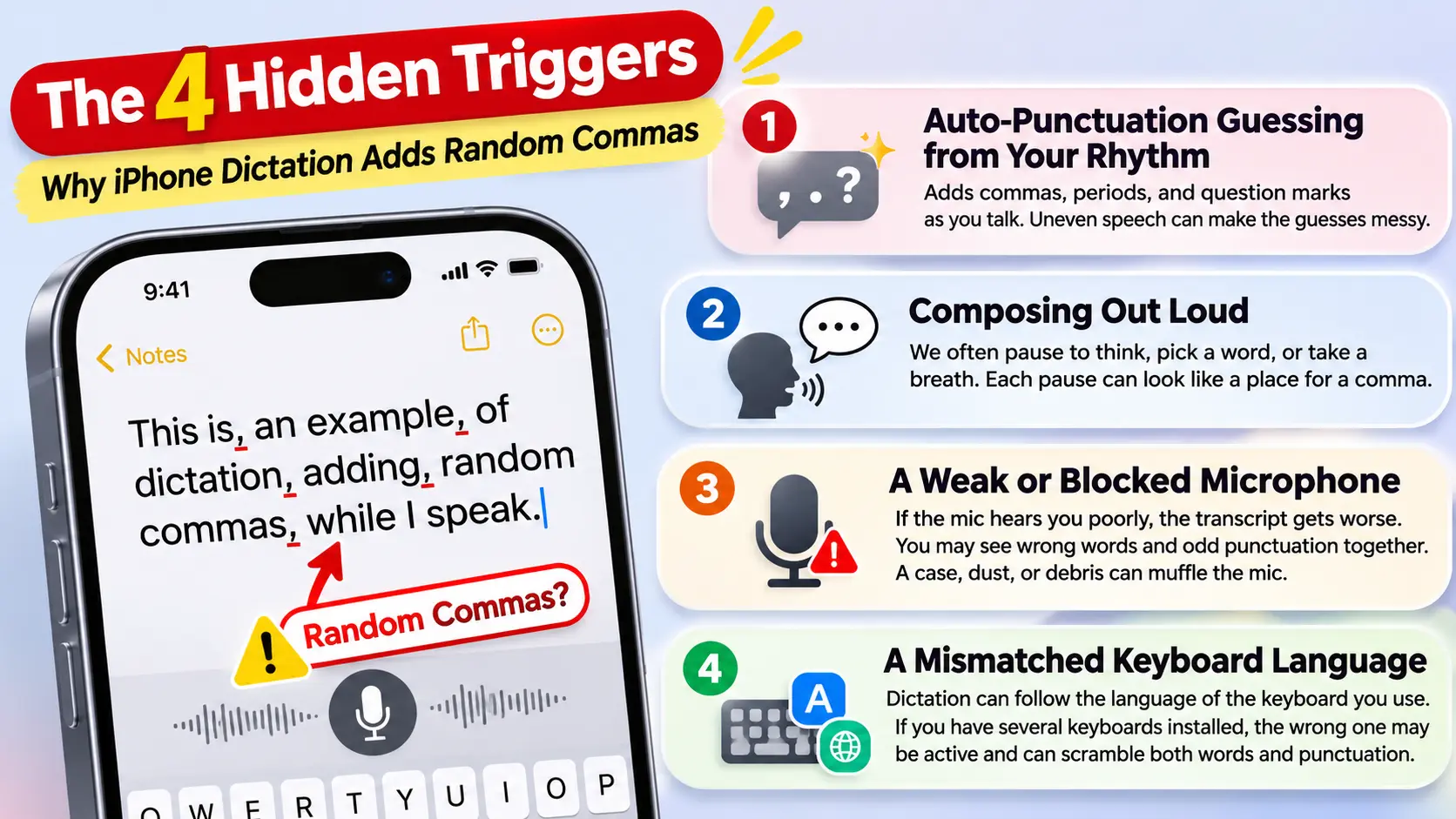
1. Auto-Punctuation guessing from your rhythm. This is the main culprit. The feature adds commas, periods, and question marks as you talk. If your speech rhythm is uneven, the guesses get messy.
2. Composing out loud. Most of us do not speak in finished sentences. We pause to think, pick a word, or take a breath. Each pause can look like a place for a comma.
3. A weak or blocked microphone. If the mic hears you poorly, the whole transcript gets worse. You may see wrong words and odd punctuation together. A case, dust, or debris can muffle the mic.
4. A mismatched keyboard language. Apple says dictation can follow the language of the keyboard you use. If you have several keyboards installed, the wrong one may be active. That can scramble both words and punctuation.
A Simple Way to Picture It
Think of Auto-Punctuation as a very eager typist sitting behind you.
Every time you inhale, the typist hears a pause.
Then the typist taps a comma, just in case. Sometimes the typist is right.
Often, you were only catching your breath.
Turning the feature off fires the eager typist. Now the typist only writes what you say out loud. That is why “comma” and “period” suddenly matter.
How to Stop iPhone Dictation From Adding Random Commas
These steps match Apple’s current support pages.
On an iPhone running iOS 27, the Dictation section sits near the bottom of the Keyboard screen. You may need to scroll.
Fix 1: Turn Off Auto-Punctuation
- Open the Settings app.
- Tap General.
- Tap Keyboard.
- Scroll down to the Dictation section.
- Switch off Auto-Punctuation.
- Open Messages and tap the microphone key.
- Dictate one sentence with a natural pause in it.
If the stray commas are gone, you are done. Remember one trade-off. Auto-Punctuation controls periods and question marks too. After you switch it off, you add all punctuation by voice.
Fix 2: Speak Your Punctuation
Once the feature is off, say the mark you want. Apple lists these commands on its dictation commands page.
| Say This | You Get |
|---|---|
| “Comma” | , |
| “Period” | . |
| “Question mark” | ? |
| “Exclamation point” | ! |
| “Colon” | : |
| “Semicolon” | ; |
| “New line” | Starts a new line |
| “Open parenthesis” / “Close parenthesis” | ( ) |
| “Quote” / “End quote” | “ ” |
Try this out loud: “Dear Sam comma the report is ready period.” It feels odd for a day. After that, it becomes automatic.
Fix 3: Keep Auto-Punctuation On, but Tame It
Maybe you like the automatic periods. Then try these habits instead.
- Plan the sentence before you tap the microphone.
- Speak each clause as one smooth unit.
- Pause only at the end of a full thought.
- Dictate in a quiet room when you can.
- Fix stray marks after you finish, not while talking.
Fix 4: Check Smart Punctuation Too
Some readers in the Apple Community thread turned off Smart Punctuation along with Auto-Punctuation.
You will find it in the same Settings > General > Keyboard screen, under All Keyboards.
Treat it as a second step, not the main fix. It is a separate setting, and our sources do not agree on how much it helps.
💡 Pro Tip: Fix Commas Without Stopping
Apple says the keyboard stays open while you dictate. You can tap the screen and delete a stray comma without ending dictation. Keep talking after the edit.
This is faster than stopping, fixing the text, and restarting dictation. It also helps you avoid creating new pauses that may trigger additional commas.
Case Study: The Landlord Who Stopped Proofreading Texts
This is an illustrative scenario based on common reader reports. It is not a lab test.
Dana manages four rental units. She dictates most of her tenant texts because she is usually driving or carrying tools.
After updating her iPhone, her messages began to look strange. “The plumber, is coming, on Tuesday, morning.” Tenants thought she was upset.
Dana tried restarting. She tried updating.
Nothing changed, because nothing was broken. The cause was Auto-Punctuation, doing its job badly.
She switched it off and began saying “period” at the end of each text.
For her short messages, that took two extra seconds. Her proofreading time dropped to almost zero.
For longer emails, she kept the feature off and fixed the rare mistake by tapping.
The lesson is practical. For short, clear messages, manual punctuation is fast. For long, thoughtful writing, you may want a smarter tool. We cover that below.
Fix Wrong Words in iPhone Voice to Text
Random commas and wrong words often travel together. If your iPhone voice to text is not working correctly, work through this list in order.
- Open Settings > General > Software Update and install any update.
- Go to Settings > General > Keyboard and switch off Enable Dictation.
- Restart your iPhone.
- Return to the same screen and switch Enable Dictation back on.
- Open Voice Memos and record a short clip.
- Play it back and listen for muffled or crackly audio.
- Remove your case or screen protector if the clip sounds muffled.
- Gently clear dust from the microphone openings.
- Open Settings > General > Keyboard > Keyboards and check which languages are installed.
- Remove keyboards you never use.
These steps come straight from Apple’s guidance and from troubleshooting pages at macReports and GeeksChalk. They are boring, and they work often enough to try first.
Using AirPods or a car system? Your voice goes through that mic instead of the iPhone’s. If words go wrong only on headphones, read our AirPods mic not working guide.
Habits That Cut Wrong Words
- Speak at a steady pace. Rushing causes more mistakes than slowing down.
- Say numbers and names clearly, then double-check them.
- Move away from fans, traffic, and loud rooms.
- Keep the phone close to your mouth, not at arm’s length.
The Last Resort: Reset All Settings
If nothing helps, go to Settings > General > Transfer or Reset iPhone > Reset > Reset All Settings.
This returns settings to default. It does not delete your photos or apps.
Read our guide to what iPhone Reset All Settings wipes before you tap it. You will need to set up Wi-Fi and a few preferences again.
The iOS 27 Twist: A Smarter Dictation Model (On Some iPhones)
Here is the new part for 2026. Apple’s support page says iOS 27 dictation can use an on-device model with Apple Intelligence.
It aims to improve spelling, punctuation, and capitalization. It is available in English on iPhone 17 Pro, iPhone 17 Pro Max, iPhone Air, or later.
That “or later” includes the iPhone 18 Pro lineup. The reason for the limit is memory. Reporting from MacRumors says the most advanced on-device model needs 12GB of memory. That rules out the standard iPhone 17.
| Your iPhone | What You Get on iOS 27 |
|---|---|
| iPhone 17 Pro, 17 Pro Max, iPhone Air, iPhone 18 Pro or later | Enhanced dictation Improved on-device dictation (English) |
| iPhone 17, iPhone 16 series, iPhone 15 Pro | Apple Intelligence, but regular dictation |
| iPhone 11 through iPhone 15 | Regular dictation |
Note: Dictation features may vary by device, language, and software version. Verify device compatibility and feature availability against Apple’s latest documentation before publishing.
What about the on/off switch?
In the first iOS 27 developer beta in June, 9to5Mac reported a toggle called Advanced Dictation Preview.
It lived under Settings > General > Keyboard and was off by default. Apple’s current support page does not describe that toggle.
So check your own Keyboard screen.
If you see it on a supported iPhone, try switching it on.
Does it end the comma problem?
Not guaranteed.
Early reviewers saw gains but not perfection.
One blogger said it helped but was not perfect.
A Tom’s Guide beta test found missing paragraph breaks and a few misheard words.
The Mac Observer also notes that better automatic punctuation does not replace voice commands. Keep Auto-Punctuation in mind as your fallback switch.
For more on Apple’s new AI features and who gets them, see our iOS 27 complete guide. If Siri is also acting up, read 5 Siri AI problems in iOS 27.
Not sure you want these features at all?
We explain how to turn off Apple Intelligence.
What If This Doesn’t Work?
Still stuck? Check these less obvious causes.
- Test another app. Dictate in Notes, then Messages. If only one app misbehaves, the app is the problem.
- Check your keyboard. Third-party keyboards often have their own voice typing. Switch to Apple’s keyboard and test again.
- Force restart your iPhone. Apple’s steps vary by model, so check Apple Support for yours.
- Confirm the language. Automatic punctuation only works in supported languages. Another language may behave differently.
- Look for iOS bugs. Dictation trouble sometimes follows an update. Install the newest point release when it arrives.
- Try Reset All Settings. Use the steps above, and back up first.
- Book a hardware check. A bad microphone will not improve with settings. Use our Genius Bar appointment tips to skip the wait.
Voice problems sometimes overlap with other Siri-related quirks. If your iPhone also shows odd app suggestions, our Siri Suggestions guide may help.
Best Dictation App for iPhone: Is Apple’s Built-In Tool Enough?
For quick texts, yes. Apple’s dictation is free and works in any text field. Apple also says it runs on the iPhone in many languages, with no internet needed. That is a real privacy win.
But some people want more.
A newer group of AI dictation apps cleans up filler words and formats text by context.
TechCrunch named Wispr Flow, Willow, and Monologue as popular examples.
Voice Keyboard Pro is another keyboard that says it places punctuation by sentence meaning instead of pauses.
We have not ranked these tools, and prices change often.
Here is how to decide.
| If You… | Then Try… |
|---|---|
| Send short texts and want zero setup | Apple’s built-in dictation, with Auto-Punctuation off |
| Write long emails or notes by voice | A third-party AI dictation app |
| Care most about on-device privacy | Apple’s dictation, and read any app’s privacy policy |
| Own an iPhone 17 Pro, Air, or 18 Pro | Try First Apple’s improved iOS 27 dictation |
One caution: TechCrunch reported that Apple began requiring extra steps for some voice keyboards starting with iOS 26.4.
Expect a slightly clunkier setup. Always read what an app does with your audio before you speak into it.
Key Takeaways
- Auto-Punctuation is the main cause of random commas. It is a feature, not a typical bug.
- The fix is Settings > General > Keyboard > Auto-Punctuation > Off.
- With it off, you say “comma” and “period” yourself.
- Pauses, noise, and a muffled mic can make the mess worse.
- Wrong words often come from the microphone, the keyboard language, or background noise.
- iOS 27 adds a better on-device dictation model, but only on certain iPhones.
- Third-party dictation apps can help with long writing, but they add setup and privacy questions.
Frequently Asked Questions
Your iPhone is using Auto-Punctuation. It inserts commas, periods, and question marks as you speak. When your rhythm is uneven, it can guess wrong. Switch it off in Settings > General > Keyboard.
Yes. The setting covers commas, periods, and question marks. After you turn it off, say the punctuation you want. For example, say “period” at the end of a sentence.
Apple documents automatic punctuation as a feature. Reports spiked after iOS 16 added it. We found no Apple statement calling it a bug. If a new iOS update changes behavior, install the next update and test again.
It may help on supported iPhones. Apple says its on-device model improves punctuation and capitalization in English. It is limited to iPhone 17 Pro, 17 Pro Max, iPhone Air, or later. Other iPhones keep regular dictation.
Common causes include a muffled microphone, background noise, and the wrong keyboard language. Test your mic in Voice Memos first. Then check your installed keyboards. Updating iOS and restarting dictation also helps.
It depends on your needs. Apple’s built-in tool is free and private for many users. AI dictation apps may suit long writing better. Compare privacy policies before you choose.
Sources
- Apple Support, “Dictate text on iPhone” (iOS 27 edition):
- Apple Support, “Commands for dictating text on iPhone”:
- Apple Support Community, “iPhone dictation adding random commas after update” (thread 254440812, started December 5, 2022):
- macReports, “iPhone Dictation Adds Unwanted Commas Randomly, Fix” (January 14, 2023):
- GeeksChalk, “How to Fix iPhone Dictation Adds Unwanted Commas Randomly” (May 30, 2025): https://geekschalk.com/how-to-fix-iphone-dictation-adds-unwanted-commas-randomly/
Disclaimer
This article is for general information. Apple Headlines is not affiliated with Apple Inc. Menu names, features, and availability can change with each iOS update, region, language, and iPhone model. Third-party apps mentioned are examples, not endorsements, and their features, pricing, and privacy practices can change. Always read an app’s privacy policy before sharing your voice. Back up your iPhone before you reset any settings. If dictation is essential for accessibility or work, contact Apple Support for help that fits your device.
Your Next Step
Open Settings > General > Keyboard right now and test Auto-Punctuation off. Dictate one text and see how it feels. Then explore our other iPhone troubleshooting guides and subscribe to Apple Headlines on YouTube for weekly iOS 27 tips.
Related Posts:

T’kal is the lead strategist and developer behind Apple Headlines. With a background in digital marketing and web development, he specializes in technical Apple troubleshooting, software news, and hardware rumors. T’kal focuses on delivering high-authority tech content that bridges the gap between Apple enthusiasts and the latest industry innovations.