

Quick Answer
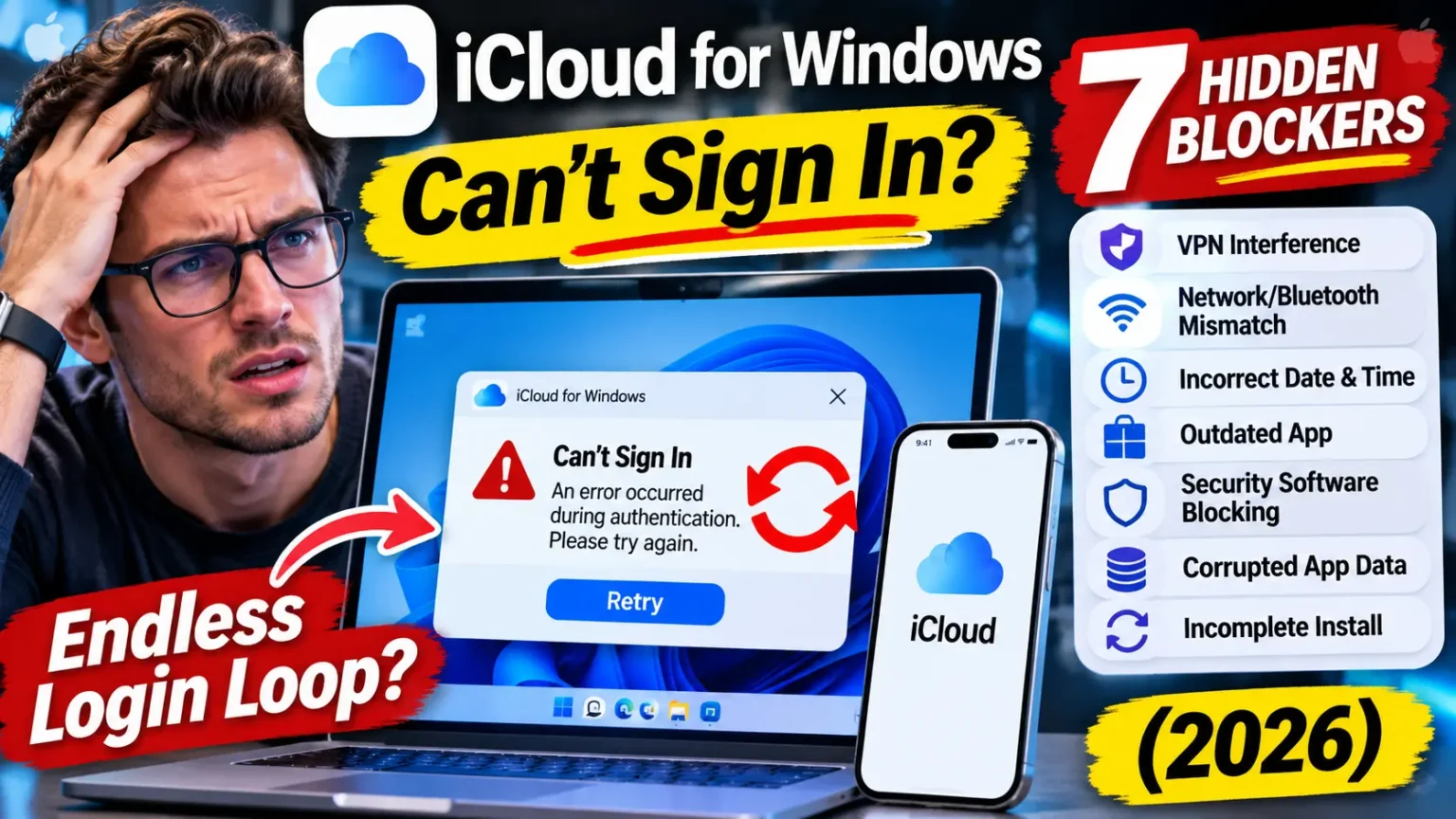
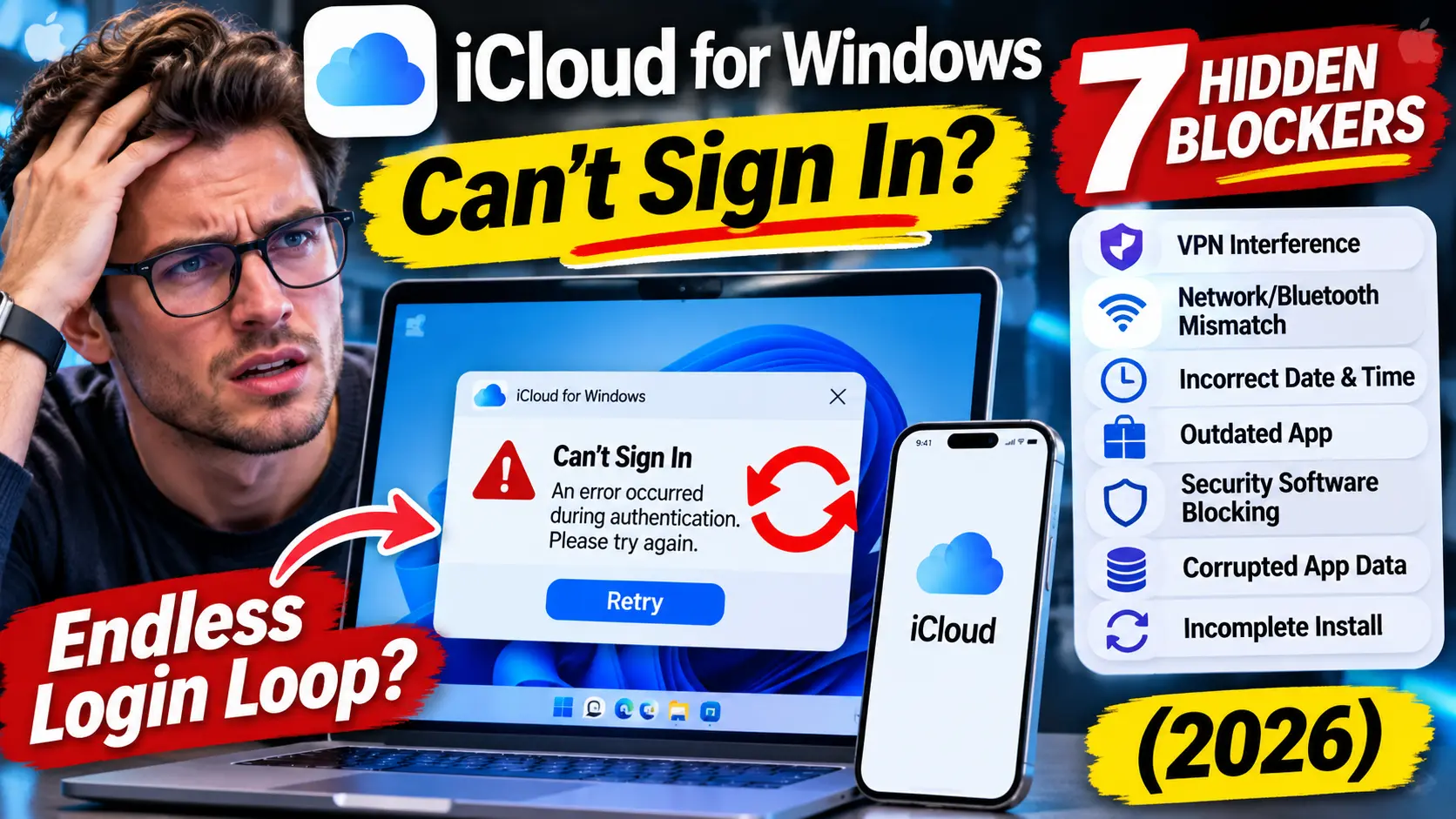
Most iCloud for Windows sign-in failures are caused by a VPN, network or Bluetooth issues, an incorrect system clock, security software, or a corrupted app.
Try these fixes in order:
- Turn off your VPN on your PC and iPhone.
- Check your PC’s date, time, and time zone.
- Update iCloud for Windows through the Microsoft Store.
- Temporarily check whether security software is blocking the connection.
- Reset iCloud for Windows, then reinstall it if sign-in still fails.
You type your Apple Account password.
Your iPhone buzzes.
You enter the six-digit code.
Then iCloud for Windows says “Verification Failed”, or the window simply vanishes and asks you to start over.
It’s maddening, especially when iCloud.com works fine in your browser.
Here’s the good news: this loop almost always has a findable cause.
Below, you’ll match your exact error to its fix, using steps Apple documents and fixes Windows users confirmed in 2026.
Match Your Error Message to the Likely Cause
Start here. Find the message you see, then jump to the fix that fits.

iCloud Sign-In Error Troubleshooter
Find your error message and jump to the right fix.
| What You See | Most Likely Cause | Go To |
|---|---|---|
| Verification Failed “An unknown error occurred” | Security software or VPN | Fix 1 Fix 4 |
| “An error occurred during authentication. Please try again.” | Security software, incorrect clock, or outdated app | Fix 3 Fix 4 |
| “Authentication failed. Retry will be attempted.” | Network issue or VPN interference | Fix 1 Fix 2 |
| Sign-In Loop The window closes, then returns | Corrupted app data or a stuck session | Fix 6 Fix 7 |
| Verification Failed End-to-end encrypted data warning | Advanced Data Protection requirements | Fix 2 ADP Guide |
| Repeated Verification “Re-verify your email address” | VPN interference or a stuck session | Fix 1 Fix 5 |
| Initialization Error “iCloud for Windows has not fully initialized” | Incomplete or damaged installation | Fix 7 |
Quick tip: Start with the fix linked to your exact error. If sign-in keeps looping, try resetting the app before reinstalling it.
Don’t see your exact wording?
Don’t worry.
The first four fixes cover most cases anyway.
Why This Keeps Happening (and Why It Matters)
Signing in to iCloud for Windows is not one step.
It’s a handshake between your PC, Apple’s servers, and a trusted Apple device.
Break any link and the whole thing fails.
Think of it like a nightclub with a strict door policy.
The bouncer checks your ID first (your password).
Next, he phones the host to confirm you’re really invited (the code on your iPhone).
If you’ve turned on Advanced Data Protection, he also checks that you and your friend arrived together (same Wi-Fi or Bluetooth range).
A VPN is like showing up in a disguise. The bouncer can’t match you to the guest list, so he turns you away.
Why does this matter?
Because iCloud for Windows carries your photos, files, passwords, and calendars.
A stuck sign-in can quietly stop photo backups or leave your passwords out of reach on a work PC.
Apple’s own Community forum shows how common this is. One Windows 11 “endless login loop” thread passed 880 “me too” votes, and the problem has returned in newer threads since.
Check These Basics First (2 Minutes)
Apple’s support documents list a short pre-flight check. Run through it before you touch any settings.
- Use Windows 11. Apple’s download page says the latest iCloud for Windows needs Windows 11 or later and Outlook 2021 or later.
- Use a personal Apple Account. iCloud for Windows doesn’t support Managed Apple Accounts from work or school.
- Sign in to Windows as an administrator. A guest account can block the setup.
- Set up Windows Hello. Apple lists this as a recommended check.
- Keep only one security app. Two antivirus tools can fight each other.
Also confirm the same Apple Account is signed in on your iPhone.
If your phone uses a different account, no code will ever arrive.
7 Fixes, in the Order We’d Try Them
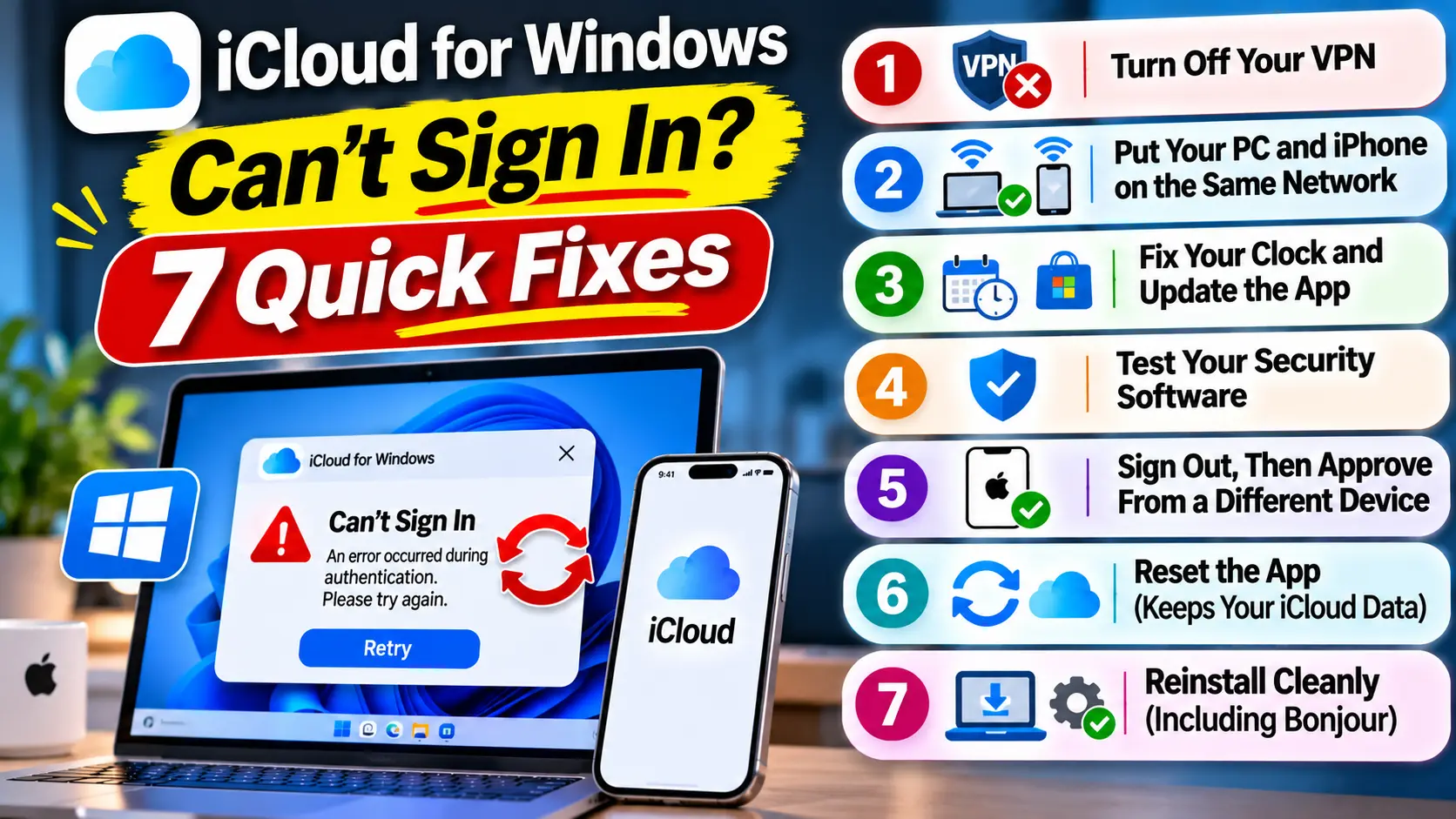
Work top to bottom. Test the sign-in after every fix.
Fix 1: Turn Off Your VPN
This one fixes more cases than anything else. And most people only check one device.
- Disconnect any VPN app on your Windows PC.
- Open Settings on your iPhone.
- Tap VPN, or go to General, then VPN & Device Management.
- Switch the VPN off.
- Try signing in to iCloud for Windows again.
Apple’s setup guide says to turn off a VPN temporarily when Advanced Data Protection is on.
A Microsoft Q&A thread from March 2026 shows why the iPhone matters.
A user tried everything, then found the VPN on his iPhone was still running.
After he switched it off, iCloud accepted the code.
Pro Tip: Check the phone first. Your PC’s VPN is easy to spot, but iPhone VPNs can keep running quietly in the background, long after you forgot you turned one on. Switch it off, then restart both devices before you retry.
Fix 2: Put Your PC and iPhone on the Same Network
Apple’s guide says that with Advanced Data Protection on, sign-in can require extra proximity.
With iCloud for Windows 14.2 or later, your trusted Apple device must be within Bluetooth range.
Or both devices must share the same Wi-Fi router.
- Connect your PC and iPhone to the same Wi-Fi network.
- Turn Bluetooth on for both devices.
- Move the iPhone close to the PC.
- Skip guest Wi-Fi networks, which often isolate devices.
- Sign in again.
A Microsoft support advisor also suggested a quick test. Turn on your iPhone’s hotspot, join it from the PC, and try signing in.
Fix 3: Fix Your Clock and Update the App
A wrong date or time can break secure connections to Apple. Apple lists this as a first check.
- On Windows 11, open Settings, then Time & language.
- Open Date & time.
- Turn on “Set time automatically” and your time zone.
- Click Sync now.
- Open the Microsoft Store and select Library.
- Click Get updates and let iCloud finish updating.
- Run Windows Update, then restart your PC.
Fix 4: Test Your Security Software
Apple has a full support article on this.
Third-party antivirus, firewalls, and web filters can block iCloud for Windows from reaching Apple’s servers.
The clues include “Verification Failed: An unknown error occurred” and “An error occurred during authentication.”
- Pause your antivirus and firewall for a few minutes.
- Try signing in to iCloud for Windows.
- If it works, add iCloud as an allowed app in your security tool.
- Ask your security provider to allow the ports Apple lists.
- Turn your protection back on right away.
Apple notes that some security apps don’t fully uninstall. If a test is needed, use the vendor’s cleanup tool.
Fix 5: Sign Out, Then Approve From a Different Device
A half-finished session can keep prompting you. A clean sign-out resets it.
- Open iCloud for Windows.
- Click your account details, then Sign out.
- Restart the app.
- Sign in again and wait for a fresh code.
- If you own an iPad or Mac, approve the request there instead.
That last tip came from an Apple Community reply in March 2026. It’s a community tip, not an Apple promise. Still, it costs nothing to try.
Fix 6: Reset the App (Keeps Your iCloud Data)
If the window keeps vanishing, the app’s local data may be damaged. Resetting clears it without removing your iCloud account.
- Open Windows Settings, then Apps.
- Choose Installed apps and find iCloud.
- Click the three dots, then Advanced options.
- Select Reset.
- Reopen iCloud for Windows and sign in.
One Apple Community user with Advanced Data Protection reported this fixed a “Verification Failed” error.
They had to pick a new iCloud folder location afterward. Your files remain safe in iCloud.
Fix 7: Reinstall Cleanly (Including Bonjour)
This is the last resort. It’s also the fix people reported after months of looping.
- Sign out of iCloud for Windows first.
- Uninstall iCloud from Settings, then Apps.
- Also uninstall Bonjour if it appears in the list.
- Restart your PC.
- Install iCloud for Windows again from the Microsoft Store.
- Sign in and wait. The first launch can be slow.
In the 880-vote Apple Community thread, the top-ranked reply credits removing Bonjour.
The original poster later said the Store install seemed to hang, then worked.
Apple hasn’t confirmed Bonjour as a cause, so treat this as community-reported.
Bonjour may also be used by other Apple software on your PC.
A Quick Case Study: The VPN Nobody Remembered
Here’s a real pattern from Microsoft’s public Q&A forum. In March 2026, a Windows 11 user could install iCloud and see all his screens.
But the verification step kept failing after he typed the code. He reinstalled the app, restarted both devices, and tried an iPhone hotspot. Nothing worked.
Then he noticed something small. His iPhone had a VPN switched on. He turned it off, tried again, and iCloud accepted the code.
The lesson is simple. Don’t only fix what you can see. The blocker was on the device he wasn’t looking at.
Advanced Data Protection: The Rules Most Guides Skip
Advanced Data Protection (ADP) adds end-to-end encryption to more of your iCloud data. It also adds sign-in rules on Windows. Apple’s setup guide lists them:
- You need iCloud for Windows 14.1 or later to sign in at all.
- With 14.2 or later, your trusted Apple device must be in Bluetooth range, or both must use the same Wi-Fi router.
- You must turn off any VPN temporarily.
- If you added security keys to your Apple Account, you need iCloud for Windows 15 or later.
Check ADP on your iPhone: open Settings, tap your name, then iCloud, then Advanced Data Protection.
Several Apple Community posters said sign-in worked again after they switched ADP off. That works for some people. But it lowers your encryption protection, so we’d treat it as a last resort. Try the VPN, network, and reset fixes first. If you do switch it off to test, turn it back on afterward.
How to Update iCloud for Windows
Old versions are a common culprit, so update first. Apple distributes iCloud for Windows through the Microsoft Store.
- Open the Microsoft Store on your PC.
- Select Library in the left menu.
- Click Get updates.
- Wait for iCloud to finish installing.
- Restart your PC and sign in again.
As of Apple’s September 30, 2026 system requirements page, the recommended setup is Windows 11 with iCloud for Windows 15. If your PC still runs Windows 10, the Store may not offer the newest version. Upgrading Windows is the cleaner long-term fix.
What If This Doesn’t Work?
Don’t give up yet. Try these next steps.
- Test iCloud.com. Sign in at iCloud.com in your browser. If that works, your Apple Account is fine and the problem sits on the PC.
- Check Apple’s System Status page. An outage on Apple’s side can cause sign-in errors for everyone.
- Try a new Windows user profile. If sign-in works there, your original profile has a damaged setting.
- Try a different network. A router with strict filtering, or a school or office network, can block the login.
- Reset network settings on your iPhone. Our guide to what iPhone Reset All Settings actually wipes shows what you’ll lose first.
- Book a human. Our Apple Genius Bar appointment guide shows how to skip the wait, or contact Apple Support directly.
In the meantime, use iCloud.com for photos and files. It’s not elegant, but it keeps you working.
If your iPhone is also acting up after the latest update, check our iOS 27 complete guide. And if your health or other data looks out of step across devices, see why Apple Health data stops syncing.
Key Takeaways
- Check VPNs on both devices. The iPhone is the one people forget.
- Match your network. With Advanced Data Protection, your PC and iPhone should share Wi-Fi or Bluetooth range.
- Use Windows 11. Apple’s current download page requires it for the latest iCloud for Windows.
- Sync your clock. A wrong date or time blocks secure connections.
- Test security software. Pause it briefly, then allow iCloud through.
- Reset before you reinstall. The reset keeps your iCloud data safe.
- Use iCloud.com as a backup plan. It works while you troubleshoot.
FAQ
Why does iCloud for Windows keep asking me to sign in again?
Usually the session can’t finish verification. Common reasons are a VPN, a network mismatch, security software, or damaged app data. Work through Fixes 1 to 6 in order.
Do I have to turn off Advanced Data Protection to sign in?
Not necessarily. Apple says ADP works with iCloud for Windows 14.1 or later, with extra rules for proximity and VPNs. Some users report that switching it off helped. Try the VPN and network fixes first.
Does iCloud for Windows work on Windows 10?
Apple’s download page says to use Windows 11 or later for the latest version. Older Windows 10 setups may get stuck on outdated builds, which can cause sign-in errors.
Can I sign in with my work or school Apple Account?
No. Apple says iCloud for Windows doesn’t support Managed Apple Accounts. Use a personal Apple Account instead.
Will I lose my photos if I uninstall iCloud for Windows?
Your files stay in iCloud. But copy anything stored only on your PC before you uninstall, to be safe. Resetting the app first is the gentler option.
Sources
- Apple Support, “Resolve issues between iCloud for Windows or iTunes and third-party security software” (published November 19, 2025)
- Apple Support, iCloud for Windows User Guide, “Set up iCloud for Windows on your PC”
- Apple Support, “Download iCloud for Windows” (published July 24, 2026):
- Apple Support, “System requirements for iCloud” (published September 30, 2026):
- Microsoft Q&A, “windows 11 will not let me verify my apple account in iCloud for windows” (March–April 2026)
- Apple Community, “Endless iCloud login loop on Windows 11”:
- Apple Community, “iCloud Advanced Data Protection Bug Prevents Log In to iCloud via Windows App”:
- Apple Community (Korea), “윈도우 아이클라우드 로그인 오류” (March 2026):
Disclaimer
This article is for general information and isn’t official Apple or Microsoft support. Steps and menu names can vary by iOS, Windows, and iCloud for Windows version. Third-party and community fixes aren’t guaranteed and aren’t endorsed by Apple. Pausing security software or turning off Advanced Data Protection can reduce your protection, so re-enable them as soon as you finish testing. Back up important files before you uninstall or reset any app. Apple Headlines isn’t affiliated with Apple Inc. or Microsoft.
Still stuck? Tell us your exact error message in the comments, and bookmark this guide. We’ll update it as Apple ships fixes. For more Apple troubleshooting, browse the How to Fix section.
Related Posts:

T’kal is the lead strategist and developer behind Apple Headlines. With a background in digital marketing and web development, he specializes in technical Apple troubleshooting, software news, and hardware rumors. T’kal focuses on delivering high-authority tech content that bridges the gap between Apple enthusiasts and the latest industry innovations.