



Updated October 23, 2026. Checked against Apple’s September 2026 support guidance for iOS 27.
Quick Answer
Remove AirPods from an Apple Account
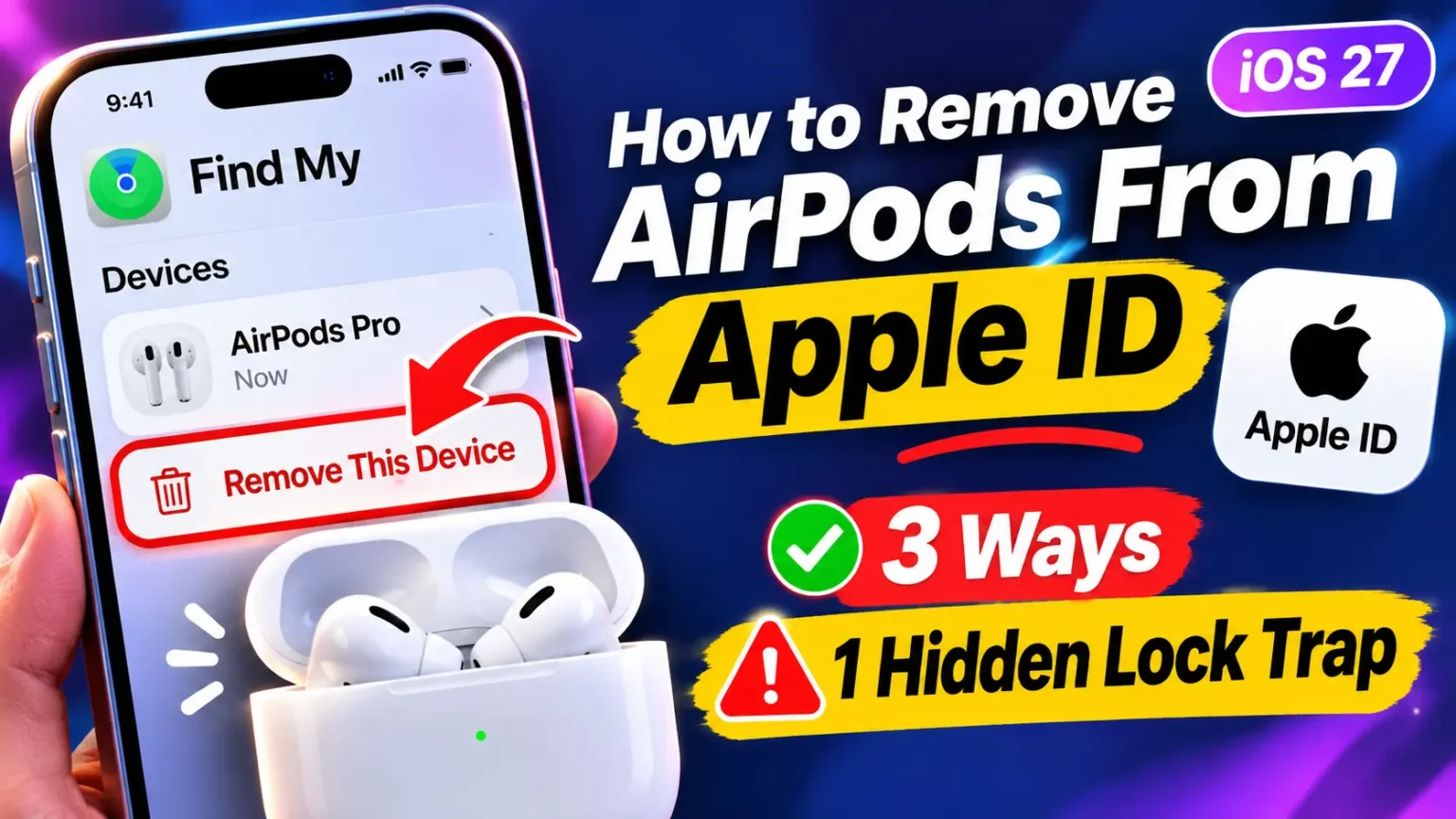
Open Find My → Devices → AirPods → Remove This Device, then confirm. On a Mac, open Find My, select your AirPods, click More Info, and choose Remove. No Apple device nearby? Try iCloud Find Devices.
Important: A factory reset alone will not remove AirPods from the previous owner’s Apple Account.
Account locked? Only the person whose Apple Account is linked to the AirPods can remove that association.
You try to pair a used pair of AirPods, and iOS says they’re linked to another Apple Account. Or you’re selling yours and don’t want a stranger tracking them.
Either way, the Bluetooth menu won’t fix it, and a quick reset leaves the lock in place.
This guide shows the three real ways to remove AirPods from your Apple ID, which one fits you, and what to do when nothing works.
Which Situation Are You In?
Most people searching for how to remove AirPods from Apple ID fall into one of four buckets. Find yours first, because the fix is different for each.
| Your Situation | What to Do | Who Has to Act |
|---|---|---|
| Selling, gifting, or trading in your AirPods | Remove them in Find My, then reset them. | You |
| Bought used and setup says “linked to another Apple Account” | Ask the seller to remove the AirPods from their account. | Previous owner |
| Can’t reach the previous owner | Request a return or dispute the sale. Resetting may stop some location sharing, but it won’t remove the account lock. | You — no unlock |
| Just want them off one iPhone | Go to Settings → Bluetooth → tap the info button next to your AirPods → Forget This Device. | You |
Why Removing AirPods From Your Apple ID Matters
Modern AirPods are not just headphones. They live in Apple’s Find My network, which means each pair gets tied to one Apple Account.
Apple calls that tie Find My Lock. Older guides call it Pairing Lock, and you will still see that name around the web.
According to Apple’s support page, the lock has to come off before the AirPods can pair with a different account. Apple also states plainly that it can’t remove the lock for you.

That matters for two reasons.
For sellers: if you skip this step, the buyer is stuck with a lock they can’t clear. You’ll get angry messages, a refund request, or worse.
For buyers: a lock can also mean the old owner may still see where your AirPods travel. That is a privacy problem, not just an annoyance.
A Simple Analogy: The Bike Lock
Think of Find My Lock as a bike lock chained to a rack.
The previous owner holds the only key, and that key is their Apple Account.
Resetting your AirPods is like repainting the bike.
It looks brand new, but the chain is still on.
Removing the AirPods in Find My is handing over the key and taking the chain off.
That is why a reset alone never works.
Forget vs. Remove vs. Reset: Three Different Things
This is where most guides get muddy. Three similar-sounding actions do three very different jobs.
| Action | Where You Do It | What It Actually Does | Removes Find My Lock? |
|---|---|---|---|
| Forget This Device | Settings → Bluetooth | Removes the pairing from that iPhone, iPad, or Mac. | ✕ No |
| Reset | Case setup button or model-specific reset steps | Resets the AirPods’ pairing state and settings. | ✕ No |
| Remove This Device | Find My → Devices | Removes the AirPods from the associated Apple Account when performed by the account holder. | ✓ Yes* |
Note: *The account holder must remove the AirPods from the Apple Account linked to Find My. Forgetting or resetting AirPods does not remove that account association.
Apple’s own reset guide asks you to use Forget This Device first.
It never claims a reset clears the lock.
Apple’s Find My page adds that if you can’t remove a device, a reset still won’t let you pair it with your own account.
It only stops the AirPods from sharing their location with the previous owner.
How to Remove AirPods From Apple ID (3 Methods)
Apple’s current iOS 27 screenshots show the path below on an iPhone 17 Pro. The wording on your screen may differ slightly by model and version. Pick the method that matches the device in your hand.
Method 1: iPhone or iPad (Fastest)
Apple notes the process can go faster when the AirPods are connected over Bluetooth and close to your device. So open the lid and keep them near.
- Put both AirPods in the case and open the lid near your iPhone.
- Open the Find My app.
- Tap Devices at the bottom. AirPods live here, not under Items.
- Tap your AirPods in the list.
- Tap the Details button, the circle with three dots.
- Tap Remove This Device. Some screens say only Remove.
- Tap Remove again to confirm.
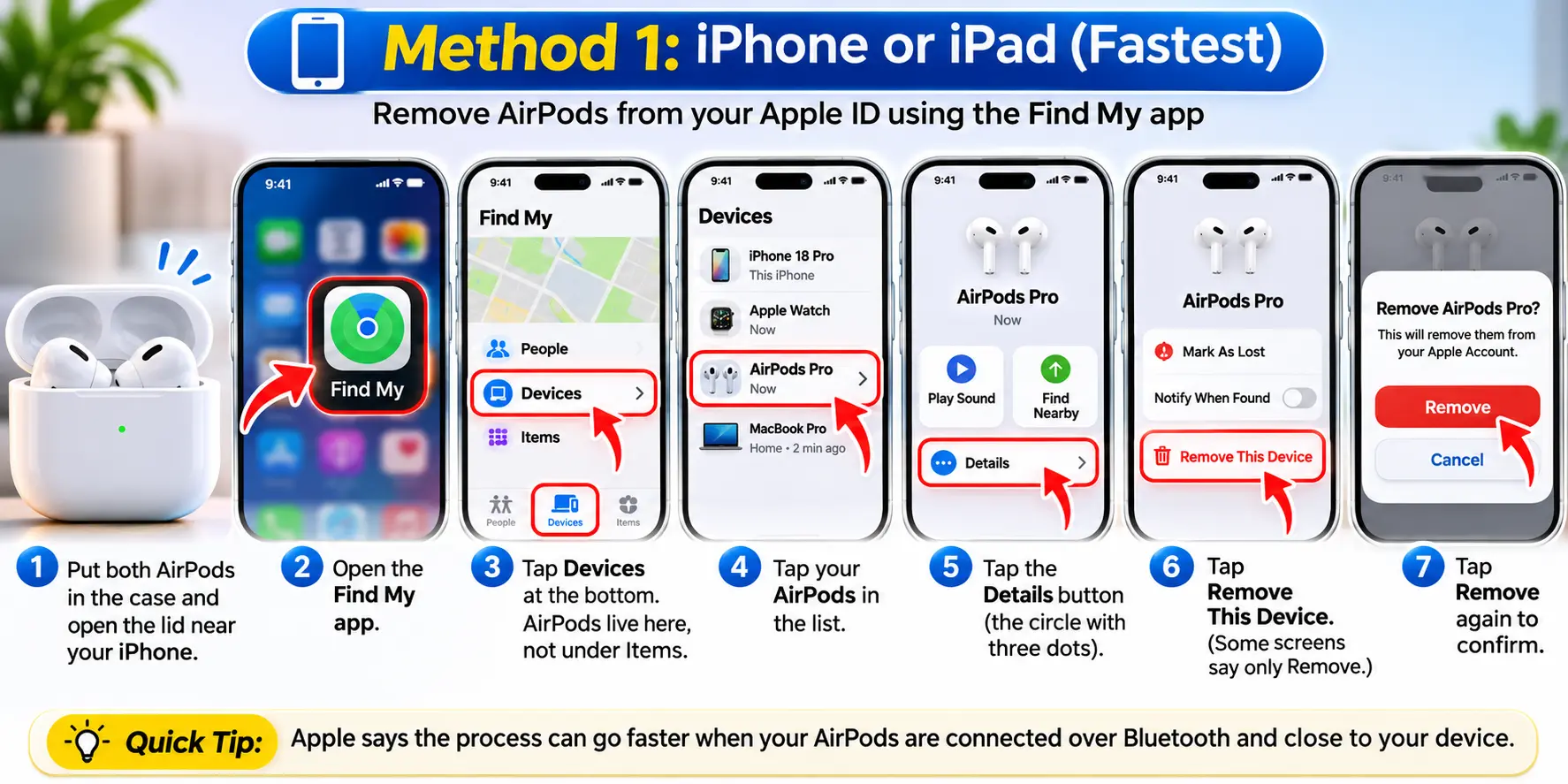
When it works, your AirPods vanish from the Find My list. They also disappear from your Bluetooth device list.
Method 2: Mac
- Open the Find My app on your Mac.
- Click Devices in the sidebar.
- Select your AirPods from the list.
- Click the More button, then click More Info on the map.
- Click Remove or Remove This Device, then confirm.
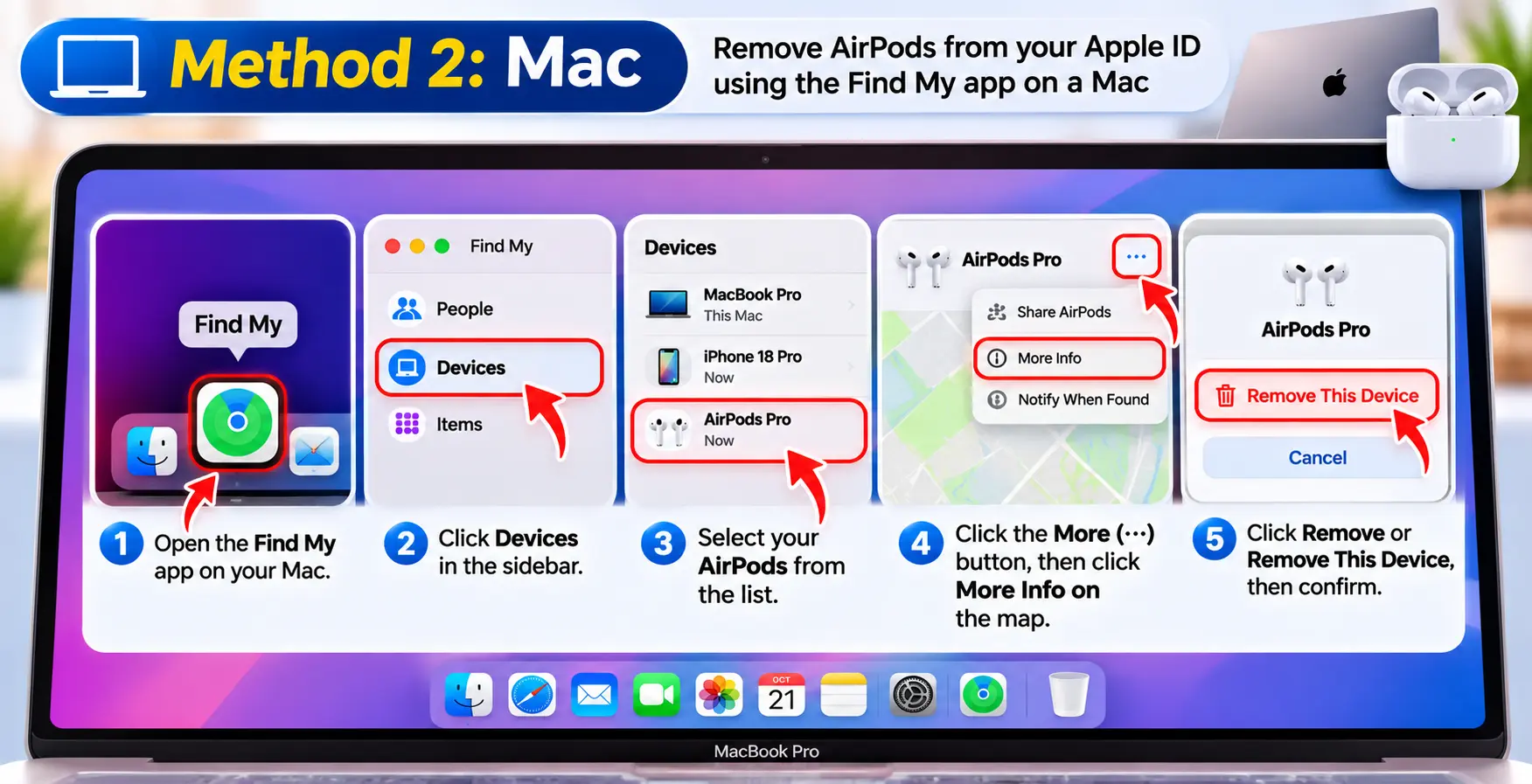
One catch: Apple says you can’t remove items like AirTags from a Mac. AirPods are fine.
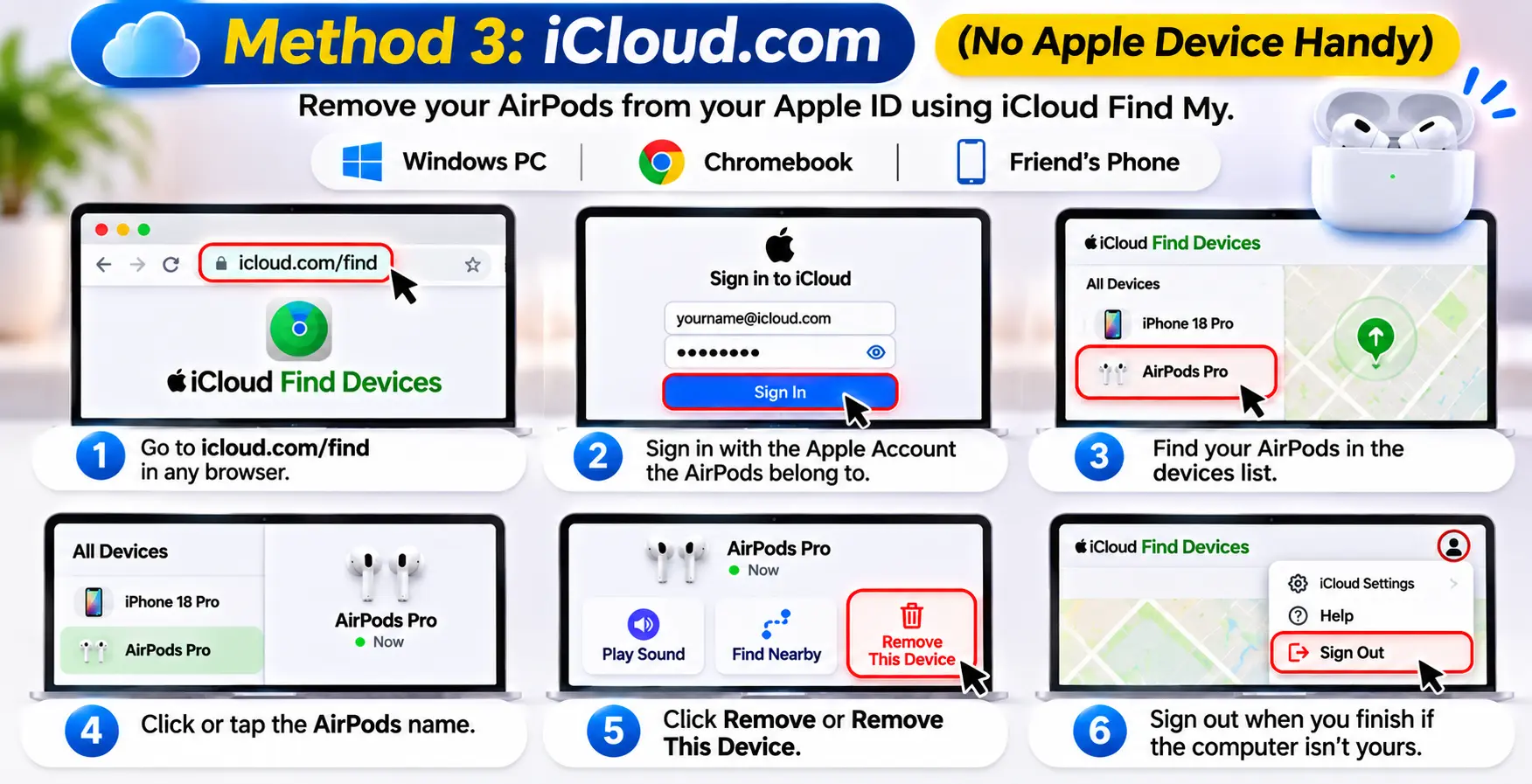
Method 3: iCloud.com (No Apple Device Handy)
This works from a Windows PC, a Chromebook, or a friend’s phone.
- Go to icloud.com/find in any browser.
- Sign in with the Apple Account the AirPods belong to.
- Find your AirPods in the devices list.
- Click or tap the AirPods name.
- Click Remove or Remove This Device.
- Sign out when you finish if the computer isn’t yours.
Real-World Case: The “Limbo” AirPods Max
Here is a story that shows why a successful pairing doesn’t always mean a clean ownership.
Writer Glenn Fleishman answered a reader question in Six Colors in September 2025.
The reader had bought used AirPods Max years earlier.
They paired fine with his iPhone and showed up in his account.
But iOS kept warning him that the original owner could see his location.
His AirPods sat in limbo, neither fully his nor the old owner’s.
The fix was simple.
He opened Find My, tapped Devices, selected the AirPods, and tapped Remove.
Then he paired them again the normal way.
Afterward, the warning was gone and the AirPods showed up properly in his Find My list.
Fleishman explained that several models can pair with more than one account.
Only the person who turned on the Find My network sees them in the app.
The lesson: if you ever bought used AirPods, run the removal steps once, even if they seem to work.
How to Unpair AirPods From the Previous Owner
You can’t do this for them.
Apple’s page says the previous owner must remove the device from their own Apple Account.
Here is the quickest way to get it done.
Send the seller this message:
“Hi! The AirPods still show as linked to your Apple Account. Could you open Find My > Devices > your AirPods > Remove This Device?
Keep them near your iPhone while you do it. Thanks!”
Then follow these steps once they confirm:
- Ask the seller for a screenshot of their Find My Devices list without the AirPods.
- Put the AirPods in the case, close the lid, and wait 30 seconds.
- Reset the AirPods using the table below.
- Open the lid near your iPhone and follow the setup prompts.
Reset Steps by Model
Apple’s reset guide, dated October 13, 2026, names both AirPods 5 models.
| AirPods Model | Reset Method |
|---|---|
| AirPods 1, 2, 3; AirPods Pro 1 and 2 | Place the AirPods in the case, close the lid for 30 seconds, then open it. Press and hold the setup button on the back for about 15 seconds, until the light flashes amber and then white. |
| AirPods 4 and AirPods 4 with Active Noise Cancellation | Place the AirPods in the case and open the lid. Double-tap the front of the case three times, following the status light sequence until it flashes amber and then white. |
| AirPods Max | Press and hold the Digital Crown and noise control button together for about 15 seconds, until the LED flashes amber and then white. |
For the AirPods 4, 5, and Pro 3 method, Apple’s steps are specific.
1> Double-tap while the status light is on.
2 > Double-tap again when it flashes white.
3 > Double-tap a third time when it flashes faster.
Wait for amber, then white.
Can You Remove AirPods From Apple ID Without the Previous Owner?
Short answer: not officially. And this is where the internet gets risky.
Some guides say Apple Support can lift the lock if you show a receipt.
Others push “unlock tools” that promise to bypass the lock.
Apple’s own page says the opposite: it can’t remove Find My Lock for you, and the steps rely on the previous owner.
We found no Apple-backed workaround for removing AirPods from Apple ID without the previous owner.
Here is what you can do.
- Contact the seller again. Many people simply forget. A friendly nudge works more often than you’d think.
- Return the AirPods. Use the store, marketplace, or payment-protection dispute process.
- Reset them anyway. It won’t unlock them, but Apple says it stops location sharing with the old owner.
- Skip bypass software. These tools often charge money, can’t promise success, and may put your own data at risk.
Buying used? Before you pay, ask the seller to remove the AirPods in front of you. Then pair them on your own iPhone.
What If This Doesn’t Work?
Don’t panic. Most failures come down to one of the problems below.
The AirPods don’t appear in Find My. >> You may be signed into the wrong Apple Account. Check at icloud.com/find with the account the owner used. If the AirPods belong to the previous owner, only their account will show them.
“Remove This Device” is missing. >> Tap the Details button first, or swipe the AirPods card up. Still nothing? Update your iPhone to the latest iOS 27 release, then try icloud.com/find.
The seller says they removed them, but setup still complains. >> They may have used Forget This Device in Bluetooth, which doesn’t remove the lock. Ask for a Find My screenshot.
The removal screen won’t load. >> Check your Wi-Fi or cellular connection. Find My needs the internet to talk to Apple’s servers.
Your AirPods don’t want to connect after removal. >> This one trips people up. Try these steps in order:
- Charge the case for at least 15 minutes.
- Put the AirPods in the case and close the lid for 30 seconds.
- Go to Settings > Bluetooth and tap Forget This Device if they appear.
- Reset the AirPods using the model table above.
- Restart your iPhone and turn Bluetooth off and on.
- Reopen the lid next to your iPhone and follow the prompts.
Apple adds that if the status light doesn’t flash white, close the lid for 20 seconds and repeat the reset.
Still stuck?
Many connection problems are fit or firmware issues instead of locks.
See our guides on why AirPods keep disconnecting and fixing one AirPod that won’t work.
If a hardware fault is likely, book a Genius Bar appointment.
Remember that Apple Store staff can’t clear someone else’s Find My Lock either.
Selling Your AirPods? Use This 6-Step Checklist
A clean handoff takes about five minutes and saves you a headache.
- Remove the AirPods in Find My using Method 1, 2, or 3 above.
- Reset them with the right method for your model.
- Rename them if the name includes your own, since old names can follow the AirPods.
- Clean the case and the earbuds with a dry, soft cloth.
- Open Find My on another device and confirm they’re gone.
- Let the buyer pair them in front of you before money changes hands.
If you also want to double-check what you’re selling, our guide on finding AirPods by serial number helps confirm the model and authenticity.
For a deeper look at resets, read how to reset AirPods for every model.
And if you’re keeping them, learn how to add AirPods to Find My the right way.
Key Takeaways
- Remove This Device in Find My is the only step that clears the lock. A reset and Forget This Device do not.
- AirPods appear under the Devices tab in Find My, not Items.
- You can remove them on iPhone, iPad, Mac, or at icloud.com/find.
- Only the previous owner can unlock AirPods tied to their account. Apple says it can’t do it for them.
- Buying used? Insist the seller removes them first, and verify before you pay.
- If you’re stuck, return the AirPods and reset them to stop location sharing. Avoid bypass tools.
- Apple’s reset steps differ for AirPods 4, AirPods 5, and Pro 3 versus older models.
Frequently Asked Questions
No. A reset clears the AirPods’ memory of paired devices, but it doesn’t remove Find My Lock. Apple’s guidance is that you must use Remove This Device in Find My, or have the previous owner do it.
According to Apple’s support page, it can’t remove Find My Lock for you. The previous owner has to remove the AirPods from their own account. If that isn’t possible, return the AirPods to the seller.
Possibly, until the lock is removed. Apple says resetting prevents the AirPods from sharing location with the previous owner. The cleanest fix is for them to remove the AirPods in Find My and for you to pair them fresh.
Yes. Go to icloud.com/find in a browser, sign in, choose your AirPods, and select Remove or Remove This Device.
Audio devices like AirPods show up in the Find My app’s Devices tab, not the device list in your Apple Account settings. That’s why guides telling you to look there lead people astray.
Sources
- Apple Support, “If an item or device is connected to another Apple Account” (published September 14, 2026):
- Apple Support, “How to reset your AirPods and AirPods Pro” (published October 13, 2026):
- Six Colors, “Don’t despair, de-pair! Free your AirPods from tracking,” Glenn Fleishman (September 1, 2025):
- 9to5Mac, “How to reset AirPods and AirPods Pro and remove AirPods Apple ID” (February 13, 2024):
- Apple Support Community, “Removing reset Airpods from old Apple ID” (January 2023):
- The Mac Observer, “How to Disconnect AirPods From All Devices”:
Disclaimer
This article is for informational purposes only. Steps and menu names can change between iOS, iPadOS, macOS, and AirPods firmware versions, so always check Apple’s current support pages. Only remove or reset AirPods that you own or have permission to manage. Don’t attempt to bypass Find My Lock on devices that aren’t yours, as that may violate laws or the terms of sale. AppleHeadlines.com is not affiliated with Apple Inc. and can’t guarantee results for any specific device.
Still stuck with locked AirPods? Drop your model and what the screen says in the comments, and we’ll help you troubleshoot. Want more Apple fixes like this? Subscribe to Apple Headlines on YouTube and check our AirPods category for the latest guides.
Related Reads:

T’kal is the lead strategist and developer behind Apple Headlines. With a background in digital marketing and web development, he specializes in technical Apple troubleshooting, software news, and hardware rumors. T’kal focuses on delivering high-authority tech content that bridges the gap between Apple enthusiasts and the latest industry innovations.