







The fastest fix:
open Settings > Bluetooth, tap the “i” next to your AirPods, and check the Microphone setting under “Microphone.”
If it’s stuck on one AirPod, switch it to Automatic.
If that doesn’t help, put both AirPods back in the case, close the lid for 10 seconds, then take them out and reconnect.
Most mic problems clear up at one of these two steps.
You’re mid-call, talking normally, and the other person keeps asking
“hello?
can you hear me?”
Your AirPods play audio fine.

They just won’t send your voice anywhere.
It’s one of the more frustrating AirPods problems because everything looks like it’s working.
We tested these fixes across AirPods Pro 3, AirPods 4, and AirPods Max 2, plus an older pair of AirPods Pro 2, on iOS 27.
The same handful of causes show up again and again, and most of them take under a minute to check.
Why This Happens
AirPods use one of two microphones per earbud (or per Max ear cup) depending on which one is active, and iOS decides which mic to use based on a setting most people have never opened.
When that setting gets stuck, or when a connection glitch confuses which AirPod is “in charge” of the mic, your voice stops transmitting even though playback keeps working normally.
Dirt, moisture, and a low battery can also physically block or weaken a mic, but that’s less common than the software-side causes below.
Work through these roughly in order, easiest first.
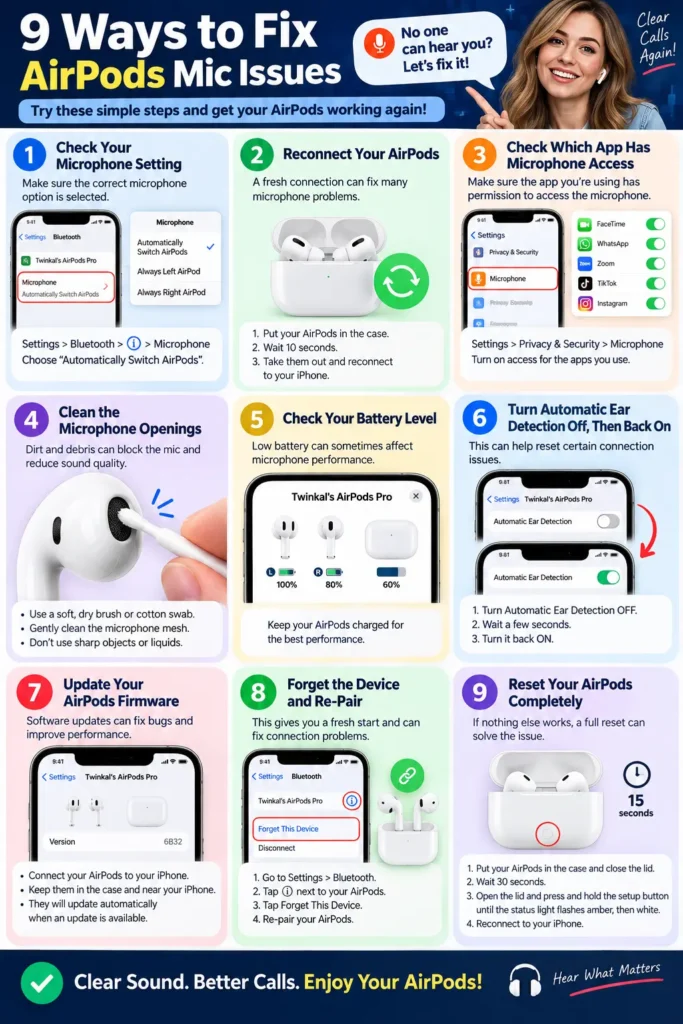
1. Check Your Microphone Setting
This single setting solves the problem more often than anything else on this list.
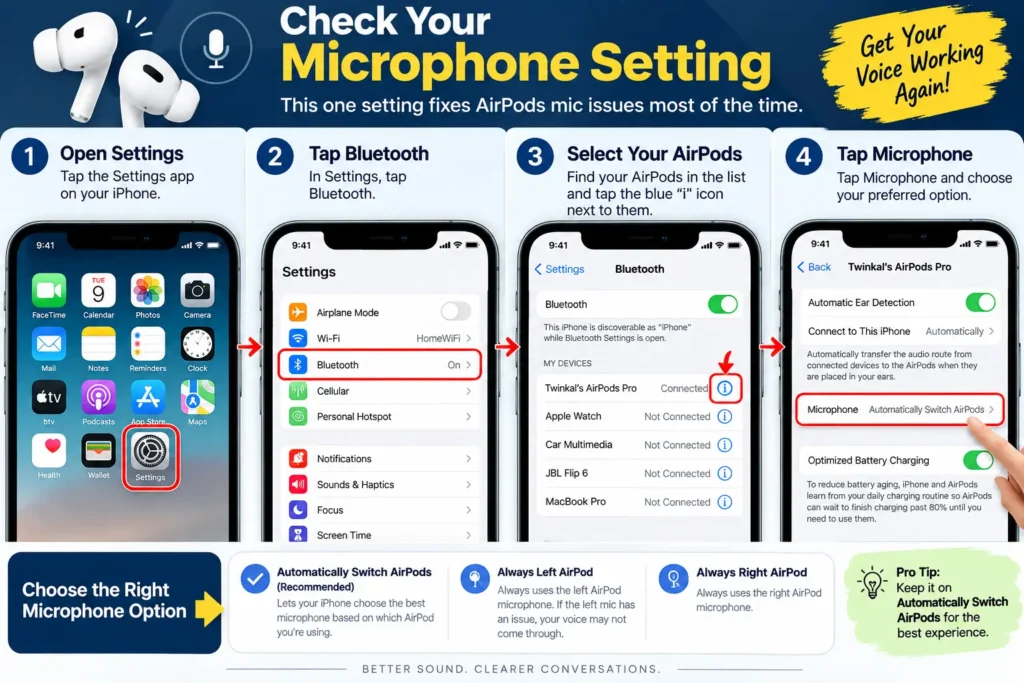
- Open Settings and tap Bluetooth.
- Find your AirPods in the list and tap the blue “i” icon next to them.
- Tap Microphone.
- You’ll see three options: Automatically Switch AirPods, Always Left AirPod, and Always Right AirPod.
If it’s set to “Always Left” and your left AirPod’s mic is having an issue, your voice won’t come through at all.
Switch it to Automatically Switch AirPods, then test with a call or a Voice Memo recording.
Pro Tip: Even if the setting already shows “Automatically Switch AirPods,” toggle it to one of the fixed options and back again. This forces iOS to re-establish the mic connection, and it clears up stuck-mic issues that a simple reconnect doesn’t fix.
2. Reconnect Your AirPods
Put both AirPods back in the charging case. Close the lid completely and wait 10 seconds. Open the lid, take them out, and put them back in your ears.
This resets the Bluetooth audio session between your AirPods and your iPhone, which clears up the majority of one-sided audio problems, including a mic that stopped transmitting mid-call.
3. Check Which App Has Microphone Access
If the mic works fine on a phone call but not in a specific app, like Zoom or a voice memo app, the issue usually isn’t your AirPods at all.
Go to Settings > Privacy & Security > Microphone and confirm the app you’re using has the toggle switched on.
Apps that lose microphone permission after an update are a common, overlooked cause of “my AirPods mic isn’t working,” when really it’s one app blocked from using any microphone, AirPods included.
4. Clean the Microphone Openings
Each AirPod has small microphone openings on the underside of the stem (or, on AirPods Max, near the bottom of each ear cup).
Over months of use, these can collect earwax, lint, or dust, which muffles or blocks the mic entirely.
Use a dry, soft-bristled brush, like a clean, unused toothbrush, to gently sweep away debris. Avoid sticking anything into the opening itself, since that can damage the mesh covering the microphone.
If you need more than a dry brush, lightly dampen a cotton swab, not soaking wet, and wipe the exterior only.
5. Check Your Battery Level
A very low charge can affect microphone performance before it affects playback, since transmitting audio takes more power than receiving it.
Check your AirPods’ battery in Control Center or by opening the case near your iPhone.
If either AirPod is under 20%, charge fully before testing again.
6. Turn Automatic Ear Detection Off, Then Back On
Go to Settings > Bluetooth, tap the “i” next to your AirPods, and find Automatic Ear Detection. Toggle it off, wait a few seconds, then turn it back on.
This feature decides when your AirPods think they’re in your ears, which affects when the mic activates.
A stuck detection state can leave the mic effectively “asleep” even though audio still plays.
7. Update Your AirPods Firmware
AirPods firmware updates happen automatically in the background, but a stalled update can leave a bug in place longer than it should.
To check your current version, go to Settings > General > About, tap your AirPods, and note the firmware version. Compare it against Apple’s current release notes.
To force an update, keep your AirPods connected, charged, and near your iPhone (with Wi-Fi and Bluetooth on) for a few hours.
There’s no manual “check for update” button, so patience is the only trick here.
8. Forget the Device and Re-Pair
If nothing above works, a full disconnect clears out any corrupted pairing data:
- Go to Settings > Bluetooth.
- Tap the “i” next to your AirPods.
- Tap Forget This Device, then confirm.
- Open the case near your iPhone with the lid open to trigger the pairing prompt, or hold the button on the back of the case until the light flashes white.
9. Reset Your AirPods Completely
This is the last software step before considering a hardware issue.
With your AirPods in the case and the lid open, press and hold the button on the back for about 15 seconds, until the status light flashes amber, then white.
This erases all pairing history and settings. Re-pair them with your iPhone from scratch afterward.
Case Study: A Muffled Mic That Wasn’t the Mic at All
A reader using AirPods Pro 2 reported that people on calls said her voice sounded muffled, but only in one specific work video-conferencing app, not on regular phone calls.
She’d already cleaned the AirPods and reset them twice with no change.
The actual cause turned out to be a setting inside the conferencing app itself, which had defaulted to a “noise suppression” mode that was cutting off part of her voice input.
Switching that app’s internal audio settings back to default fixed it instantly.
It’s a useful reminder that when a problem is app-specific rather than happening everywhere, the app is usually a better place to look than the AirPods themselves.
Troubleshooting: When It’s Likely a Hardware Problem
If you’ve worked through every step above and the mic still doesn’t work, especially on only one AirPod consistently, it may be a hardware failure rather than a software glitch.
- Test with the other AirPod alone. Use just the left, then just the right, in a phone call to isolate which one is actually failing.
- Check your AppleCare+ or warranty status. Go to Settings > General > About > Coverage, or check appleid.apple.com, to see if a replacement is covered.
- Visit an Apple Store or authorized repair provider if the mic issue is isolated to one specific AirPod and survives a full reset. A physically damaged microphone component isn’t something you can fix with settings.
Key Takeaways
- The Microphone setting under Settings > Bluetooth > (i) icon fixes this issue more often than any other step.
- A simple case-close-and-reopen reconnect resolves most one-off mic failures.
- If the mic only fails in one specific app, check that app’s own microphone permission and settings before blaming your AirPods.
- Cleaning the mic openings with a dry brush addresses physical blockage, but it’s a less common cause than a stuck software setting.
- A mic issue that survives a full reset and only affects one AirPod consistently points to a hardware problem worth an Apple Store visit.
FAQ
Siri uses a separate voice-detection pathway. Try saying “Hey Siri” directly rather than using the stem-press gesture, and check that Listen for “Hey Siri” is enabled under Settings > Siri & Search.
It’s rare but possible. If the mic worked fine before a recent iOS or firmware update and stopped afterward, try the Forget This Device and re-pair steps above before assuming hardware damage.
Voice Isolation is designed to reduce background noise on calls, not disable your voice. If people report you sound distant or quiet with it on, try switching to Standard or Wide Spectrum mode under Control Center’s Mic Mode control during a call.
No personal data is stored on AirPods themselves. A reset only clears pairing history and settings, so you’ll need to re-pair them with your devices afterward, but nothing else is lost.
Yes. Only one AirPod’s microphone is active at a time by design, based on your Microphone setting. This is normal and not a sign of a problem on its own.
Sources: Apple Support (AirPods microphone and Bluetooth settings), Apple Support Communities (AirPods microphone troubleshooting threads)
Disclaimer: Menu paths reflect iOS 27. Steps may vary slightly by AirPods model and iOS version.
Related Posts

T’kal is the lead strategist and developer behind Apple Headlines. With a background in digital marketing and web development, he specializes in technical Apple troubleshooting, software news, and hardware rumors. T’kal focuses on delivering high-authority tech content that bridges the gap between Apple enthusiasts and the latest industry innovations.

