





Estimated reading time: 13 minutes
Change Your iPhone Language
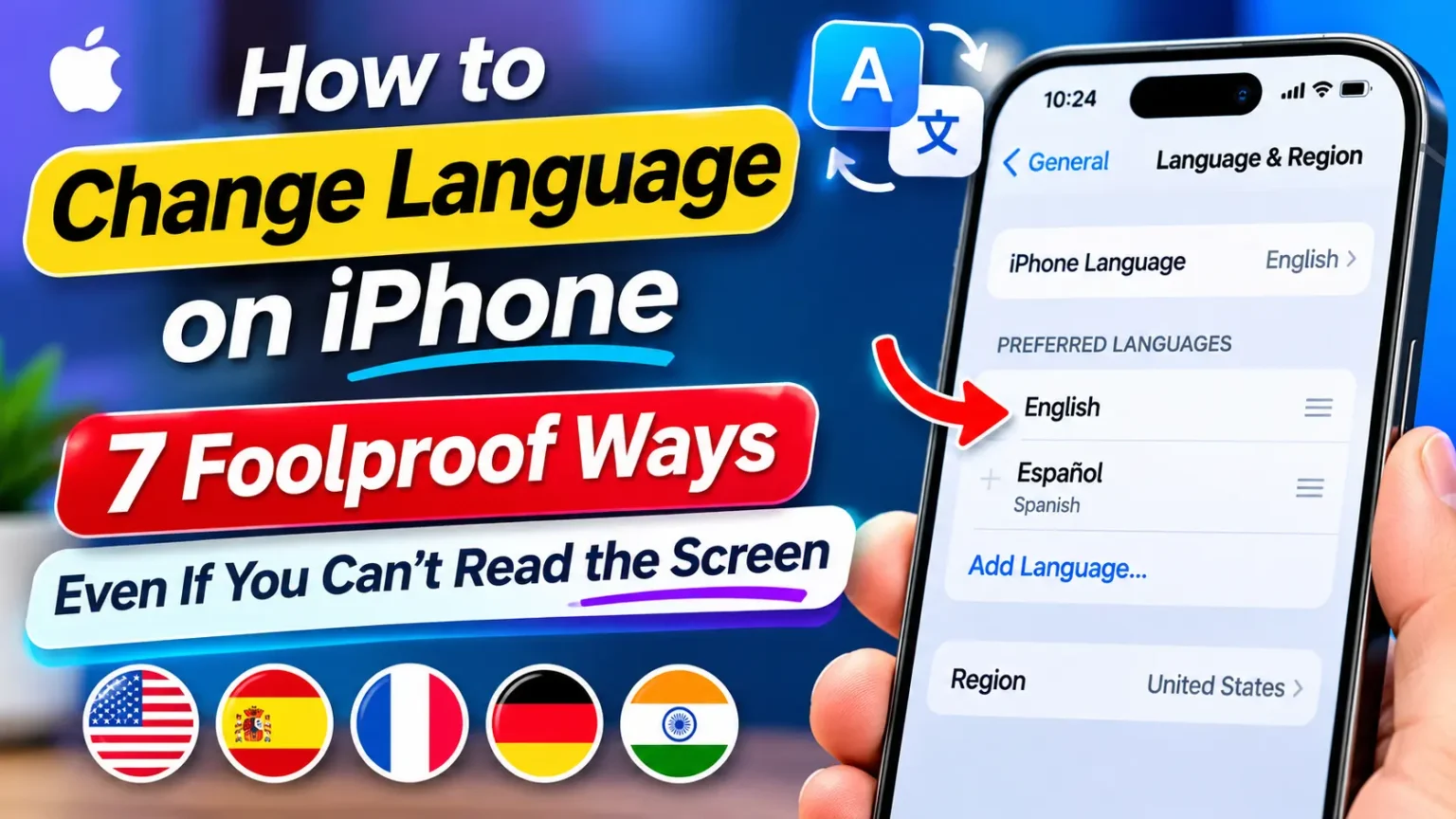
To change the language on your iPhone, open Settings, go to General, and select Language & Region. Tap Add Language, choose your preferred language, and confirm it as your primary language in the pop-up.
Tap Add Language and choose your preferred option.
Confirm your selection in the language pop-up.
Your iPhone applies the new language setting.
Can’t read your iPhone screen? Jump to the rescue steps in Way 7 for help changing the language.
Your iPhone is suddenly speaking a language you can’t read.
Maybe a friend pulled a prank.
You bought a phone abroad.
Maybe you just want Spanish menus.
Whatever the reason, Settings now looks like a maze of strange words.
Take a breath.
Learning how to change language on iPhone is a quick job, even when you can’t read a single label.



This guide covers the system language, keyboard, Siri, region, and single apps.
It also includes a rescue route for unreadable screens, updated for iOS 27.
What Do You Want to Change? (There Are Five Language Settings)
Here is the part most guides skip. “Language” on iPhone is not one setting. It is five. People often change one, then wonder why the others didn’t follow.
What iPhone Language Setting Do You Need?
Find the right setting and jump straight to the instructions.
| What You Want | Setting to Change | Jump To |
|---|---|---|
Menus, buttons, and Settings text | System language | Way 1 or 2 → |
The letters you type | Keyboard language | Way 3 → |
The voice you talk to | Siri language | Way 4 → |
Dates, currency, and units | Region | Way 5 → |
One stubborn app | Per-app language | Way 6 → |
A screen you can’t read | Rescue steps | Way 7 → |
The Streaming App Analogy
Think of a streaming app like Netflix.
It has separate options for menu language, audio language, and subtitles.
Changing the menus to Spanish doesn’t switch the audio.
Your iPhone works the same way. The system language is the menu. Siri is the audio.
The keyboard is what you type. They can all match, but they don’t have to.
That is why your iPhone can show English menus while Siri answers in French.
It is also why one change rarely fixes everything.
Why Getting Your iPhone Language Right Matters
Language is more than comfort. Wrong settings cause real trouble.
- Safety: You need to read alerts, emergency messages, and privacy prompts.
- Apple Intelligence: Apple says your device language and Siri language must match the same supported language. If they don’t, Apple Intelligence features can disappear.
- The web: Safari tells websites which languages you prefer, in order.
- Daily life: Dates, currency, and units follow your region, not your language.
Here is what is new in 2026.
Apple’s Language & Region support page was published June 16, 2026.
It is short, with only the basic steps.
Apple also published a fresh Apple Intelligence requirements page on November 5, 2026. And according to 9to5Mac, iOS 27.2 added five more languages to Siri AI: French, Japanese, Korean, Portuguese, and Spanish.
Our iOS 27.2 features breakdown covers the rest of that update.
How we built this guide: We started with Apple’s own support pages.
Then we added what they skip: keyboard, Siri, region, per-app language, and a rescue route for unreadable screens.
We also checked what Apple says about language and Apple Intelligence.
Every step is written to be followed on a screen you may not understand.
Change Language on iPhone 16, 17, and Older Models
Good news: the path is the same on almost every iPhone. It is Settings > General > Language & Region. Menu names shift a little by iOS version, so here is the quick map.
iPhone Language Settings by iOS Version
See how language settings and app preferences have changed across iOS releases.
| iOS Version | What Changes | Important Notes |
|---|---|---|
| iOS 27 Current: 27.2.1 | Same path. Siri AI adds more languages. | Siri language lives in Apple Intelligence & Siri on supported models. |
| iOS 26 | Same path. | Per-app language sits under Settings > Apps. |
| iOS 18 | Settings gets an Apps section. | Per-app language moves there. |
| iOS 13–17 | Per-app language arrives in iOS 13. | The app’s language option sits right inside Settings. |
And here is how it breaks down by model.
iPhone Language Settings by Model
Check the language settings path and Apple Intelligence availability notes.
| iPhone Model | Language Steps | Extra Note |
|---|---|---|
| ✨ iPhone 17 and iPhone Air | Same path |
APPLE INTELLIGENCE Apple Intelligence is available, so language matching matters. |
| ✨ iPhone 16 series | Same path |
APPLE INTELLIGENCE Apple Intelligence is available, so language matching matters. |
| 📱 iPhone 15 Pro and Pro Max | Same path |
APPLE INTELLIGENCE Apple Intelligence supported. |
| 📱 iPhone 15 and older | Same path |
STANDARD FEATURES No Apple Intelligence, so language matching matters less. |
When we ran through these steps on an iPhone 17 Pro running iOS 27.2.1, Language & Region sat inside General.
That matches Apple’s page.
On an iPhone 16, the route matches.
The differences are tiny, and they are mostly about what happens after you switch.
How to Change Language on iPhone: 7 Easy Ways
Start with Way 1. Then work through the others only if you need them.
Way 1: Change the System Language (Switch Languages on iPhone)
This changes the menus, buttons, and text across your iPhone.
- Open Settings and tap General.
- Tap Language & Region.
- Tap Add Language.
- Search for your language and tap it.
- A pop-up asks which language to use as your primary one.
- Tap the button that names your new language.
- Wait while your iPhone shows Updating Languages….
Your screen goes black for a few seconds. Then you land back in Settings, now in the new language. Your photos, apps, and messages stay put. Nothing is erased.
Way 2: Change Language on iPhone to English (Switch Back)
Changed it by mistake? You can change iPhone language to English the same way. Or you can reorder the list.
- Open Settings > General > Language & Region.
- Find the Preferred Languages list.
- Tap Edit if you see it.
- Touch and hold the handle beside English. Drag it to the top.
- Confirm the change in the pop-up if you see one.
If English isn’t listed, tap Add Language, then choose English. Pick the version for your country, like English (US). The top language in the list is your primary one. The rest act as backups.
Way 3: Change Keyboard Language on iPhone
Your system language and your keyboard are separate. Adding a language often adds its keyboard too. But don’t count on it. Check it yourself. If you also use dictation, our fix for dictation adding random commas explains why keyboard language matters there.
- Open Settings > General > Keyboard.
- Tap Keyboards.
- Tap Add New Keyboard.
- Pick your language from the list.
- Open any text field and tap the globe icon to switch.
That globe key is the fastest way to switch languages on iPhone while you type. Touch and hold it to see every keyboard at once. Want more keyboard options? See our roundup of the best keyboards for iPhone. If typing feels laggy afterward, try our keyboard lag fix.
Your Language List Is a Fallback Chain
Don’t just swap languages. Stack them in your preferred order. For example, keep English at the top and add Spanish second. Apps and websites can then use your preferred language first, with another listed language as a fallback when supported.
Way 4: Change Siri’s Language
Siri has its own language setting. Changing your system language doesn’t always change it.
- Open Settings.
- Tap Apple Intelligence & Siri. On some phones it reads Siri & Search.
- Tap Language.
- Pick the language you want Siri to hear.
- Wait for any voice files to download.
Here is the catch.
Apple says Apple Intelligence needs your device language and Siri language to be the same supported language.
If you change only Siri, Apple Intelligence may become unavailable until the new language finishes downloading and matches your device.
Change both, and give it a few minutes.
Siri AI is expanding too. 9to5Mac reports that Chinese (Traditional), Norwegian, Turkish, and Vietnamese are due by the end of 2026.
For more, read our guides on how to get Siri AI and common Siri AI problems.
Way 5: Change Region Settings on iPhone
Region is not language.
It controls how your iPhone shows dates, numbers, and units.
Moving to the US?
Your phone might still show kilometers and 24-hour time.
- Open Settings > General > Language & Region.
- Tap Region.
- Search for your country and tap it.
Apple lists several formats that follow your region.
They include the calendar, temperature unit, measurement system, first day of the week, date format, number format, and Live Text.
You can tweak some of them one by one on the same screen.
Changing region doesn’t change your menu language.
Way 6: Change the Language of One App
Want one app in Spanish while everything else stays English? iOS 13 and later can do that. The app must support more than one language.
- Open Settings > Apps.
- Scroll to the app and tap it.
- Tap Language.
- Pick the language you want.
- Close the app fully, then reopen it.
On older iOS versions, look for the app directly in the main Settings list.
Apps apply the new language only at launch, so a relaunch matters.
One quirk: an Apple Community thread says the Phone app’s language setting doesn’t control call screening or voicemail.
That was on an iPhone 16 Pro.
Those follow the system language.
Way 7: Fix an iPhone Language You Can’t Read (Rescue Steps)
This is the one people search for in a panic.
Think of it as an iPhone language reset to English that wipes nothing.
You can do it without reading a word.
You only need to recognize a few icons.
Every language in the list appears in its own writing, so English is easy to spot.
- Open Settings. It’s the gray gear icon.
- Find the row with another gray gear icon. That is General.
- Scroll to the group that holds the date, keyboard, and fonts.
- Tap the row with the globe icon. That is Language & Region.
- Tap the top row. It shows your current language.
- Look for English in the list and tap it.
- Tap Done, then confirm the pop-up button that names English.
Menu layouts shift a little between iOS versions, so use the icons as clues rather than exact positions.
Still lost?
The Apple Translate app has a camera mode that reads text aloud from your screen.
Point a second phone at the first.
You can also ask a friend to follow along on their own iPhone, since the icons look identical.
Change iPhone Language to Chinese (Simplified vs. Traditional)
Chinese comes in two written forms, so you need to pick the right one.
In Add Language, you will see Chinese, Simplified and Chinese, Traditional.
Simplified is common in mainland China and Singapore. Traditional is common in Taiwan and Hong Kong.
- Open Settings > General > Language & Region.
- Tap Add Language.
- Choose Chinese, Simplified or Chinese, Traditional.
- Confirm it as your primary language in the pop-up.
- Add a matching keyboard under Settings > General > Keyboard > Keyboards.
Typing Chinese needs the right keyboard. Pinyin is popular with Simplified Chinese.
Zhuyin is popular with Traditional Chinese. Apple also offers handwriting keyboards.
One caution for Apple Intelligence users. Apple’s support page lists both Chinese forms for Apple Intelligence overall.
But Apple says its features don’t currently work in mainland China.
For Siri AI, 9to5Mac reports that only Chinese (Traditional) is confirmed to arrive by year-end. So if you switch to Chinese, expect some AI features to behave differently.
What If This Doesn’t Work?
Language changes can get stubborn. Work through these in order.
- Restart your iPhone. Our guide on how to restart an iPhone covers every model.
- Force restart if “Updating Languages…” hangs. Use our force restart guide.
- Update iOS. Open Settings > General > Software Update. iOS 27.2.1 is current as of November 2026.
- Check Siri. If Siri still answers in the old language, repeat Way 4.
- Check the match. Apple Intelligence needs the device and Siri languages to match.
- Relaunch the app. Apps only pick up a new language at launch.
- Add the keyboard by hand. Go to Settings > General > Keyboard > Keyboards.
- Remove and re-add the language. In Language & Region, swipe left on the language and tap Delete. Then add it again.
- Try Reset All Settings. This clears many preferences but keeps your photos and apps. Read our Reset All Settings breakdown first.
Some apps just don’t support your language. That isn’t a bug. If an app has its own language picker inside, use that instead.
Key Takeaways
- The path is the same: Settings > General > Language & Region.
- Language is five settings: system, keyboard, Siri, region, and per-app.
- Nothing gets erased when you change the language.
- Stack languages in Preferred Languages. The top one is primary.
- Match Siri and device language if you want Apple Intelligence to work.
- Lost in another language? Follow the icons: gear, General, globe.
- Apps need a relaunch before they show a new language.
FAQ
No. Your screen goes black for a few seconds and shows Updating Languages…. Then your iPhone returns to Settings in the new language. Your apps, photos, and messages stay where they are.
Open Settings > General > Language & Region. Tap English in the language list, or drag it to the top of Preferred Languages. Confirm the pop-up. If you can’t read the menus, follow the icon-based rescue steps in Way 7.
Not always. The keyboard often updates with the new language, but Siri has its own setting. Check Apple Intelligence & Siri and Settings > General > Keyboard after any change.
Yes. Add as many as you like in Language & Region. Keep your best language on top. Apps and websites use the first language they support.
It depends. Apple says your device language and Siri language must match the same supported language. Change both, and wait for Siri’s language files to download. Some features aren’t available in every country or language.
Keep Reading
- How to Use Apple Intelligence: The 2026 Guide
- iOS 27 Complete Guide: Features, Release Date, and Supported iPhones
- How to Change iPhone Name
- Siri Suggestions Not Working? 7 Sneaky Reasons
- More How to Fix guides
Sources
- Apple Support, Change the language on your iPhone or iPad (published June 16, 2026)
- Apple Support, Change the language and region on iPhone (iPhone User Guide)
- Apple Support, Get started with the next generation of Apple Intelligence (published November 5, 2026)
- 9to5Mac, Apple announces Siri AI will expand to these new languages soon (October 26, 2026)
- iPhone Life, How to Change the Primary Language on Your iPhone (updated August 5, 2021)
- Beebom, How to Change Language on iPhone (updated October 15, 2025)
- iGeeksBlog, How to change language of specific apps on iPhone and iPad (third-party guide)
- Apple Support Community, Why the languages of iOS system and call screening/voicemail have to be the same? (user-generated)
Disclaimer
This guide is for general information. Menu names, icons, and positions can change by iOS version, model, and region, so check Apple’s support pages if something looks different. Apple Intelligence and Siri AI language availability varies by country and changes over time. Forum and third-party reports reflect individual experiences and may not apply to you. Changing language settings won’t erase your data, but resetting settings will change other preferences, so back up first. AppleHeadlines is an independent publication and is not affiliated with Apple Inc. Apple, iPhone, iOS, iPad, Siri, and Apple Intelligence are trademarks of Apple Inc.
Ready to switch? Pick the way that fits, and try it on your iPhone now. Tell us in the comments which language you set up. Then share this guide with the friend whose phone is stuck in the wrong one. For more plain-English iPhone help, browse our How to Fix guides and iOS coverage.

T’kal is the lead strategist and developer behind Apple Headlines. With a background in digital marketing and web development, he specializes in technical Apple troubleshooting, software news, and hardware rumors. T’kal focuses on delivering high-authority tech content that bridges the gap between Apple enthusiasts and the latest industry innovations.