


By the AppleHeadlines Team · Updated November 12, 2026 · 11 min read
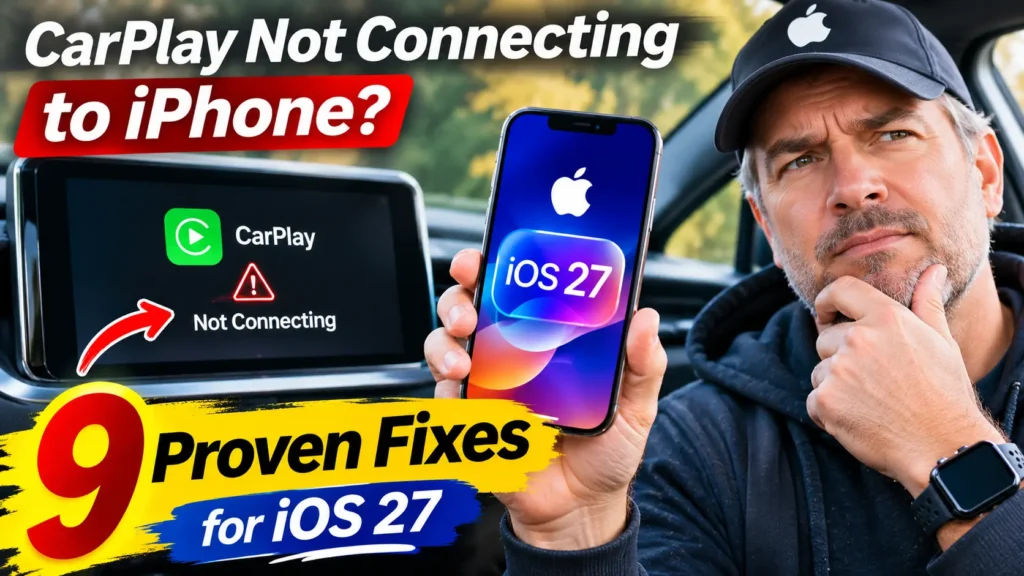
CarPlay Not Connecting to iPhone?
Check these three things first. They fix some of the most common reasons Apple CarPlay won’t connect to your iPhone.
Make Sure CarPlay Is Allowed
Open Settings → Screen Time → Content & Privacy Restrictions → Allowed Apps and make sure CarPlay is turned on.
Check Your USB Cable
If you’re using wired CarPlay, connect your iPhone with a data-capable USB cable and use the USB port specifically designed for CarPlay in your car.
Reconnect Your Car
Go to Settings → General → CarPlay, select your car, tap Forget This Car, and set up CarPlay again.
Still not working? These three checks address common connection problems. Continue with the nine troubleshooting fixes below, updated for iOS 27.2.1.
You get in the car, plug in (or wait for the wireless handshake), and the dash stays blank.
No maps.
No podcasts.
Just the plain old radio.
If you are stuck with CarPlay not connecting to iPhone since the iOS 27 update, you have plenty of company.
Apple’s own support forum has threads with hundreds of “me too” votes.
The good news is that the cause is usually small: a blocked setting, a tired cable, or a stale pairing.
Here is the fix, in the order that saves you the most time.
Why CarPlay Fails (and Why It’s Worth Fixing Properly)
CarPlay is no longer a nice extra.
It handles your maps, calls, and texts by voice, so your eyes stay on the road.
Many states now require hands-free phone use behind the wheel.
When CarPlay fails, grabbing the phone feels tempting.
That is the real reason to fix it properly instead of living with it.
Here is what is happening in 2026. Apple shipped iOS 27 in September.
Within days, Apple’s support forum filled with posts like iOS 27 CarPlay not working after update on 2 different iPhones.
That thread, started September 17, has roughly 400 “me too” votes. A second thread from an iPhone 18 Pro owner, started September 20, has roughly 75.
Apple’s iOS 27.2.1 update arrived November 9. Coverage from 9to5Mac and Macworld describes it as bug fixes and security updates, with no mention of CarPlay.
Our rundown of what’s new in iOS 27.2 shows what else changed.
How we built this guide: We checked Apple’s own CarPlay support page against what real drivers report in Apple’s forums.
We also read coverage from MacRumors, 9to5Mac, and iThinkDiff. Then we sorted every fix by cost.
Free and fast comes first. Anything that wipes settings comes last.
The Relay Race Analogy
Think of wireless CarPlay as a relay race.
Bluetooth runs the first leg.
It finds the car and says hello.
Then it hands the baton to Wi-Fi, which carries the actual screen.
If either runner trips, or the handoff is fumbled, the race is over.
Wired CarPlay is simpler.
It is a garden hose. A kink anywhere, in the cable, the port, or an adapter, and the flow stops.
A charge-only cable is a hose that passes power but no data.
Keep this picture in mind. Every fix below either unkinks the hose or repairs the handoff.
What’s Your Symptom? Find Your Fix Fast
What’s Happening With Your CarPlay?
Find your problem below and jump directly to the recommended fix.
No CarPlay icon on the dash
CarPlay blocked in Screen Time, or disabled for your car.
iPhone only charges when plugged in
Charge-only cable, incorrect USB port, or debris in the iPhone port.
Works once, then the car forgets your phone
An outdated or corrupted Bluetooth and CarPlay pairing.
Wireless connects, then drops mid-drive
Wi-Fi handoff problems, VPN interference, or Connectivity Assist.
Very slow to connect, or freezes
Network glitches or outdated car infotainment software.
Which iPhones and iOS Versions Are Affected?
No single model owns this problem. But the reports cluster in a few places. Our iOS 27 vs iOS 26 breakdown covers what changed under the hood.
CarPlay Problems by iPhone Model
Some CarPlay connection problems appear more often in reports from particular iPhone generations. Find your model and start with the recommended troubleshooting steps.
iPhone 18 Pro
iOS 27Some forum users describe connection delays lasting several minutes, freezes, and unexpected disconnections with both wired and wireless CarPlay. One report says an iPhone 15 Pro running the same iOS version works normally in the same car.
iPhone 17 Series & iPhone Air
iOS 26 and 27Early user reports described Wi-Fi connectivity glitches involving Apple’s N1 chip. Some third-party wireless CarPlay adapters also experienced unstable connections on the iPhone 17 and 17 Pro.
iPhone 15 and 16 Series
USB-C modelsUSB-C cable and adapter combinations can cause connection problems. Some iPhone 15 Pro Max owners have also reported failed CarPlay connections after updating to iOS 27.
Check cable compatibility and use your car’s dedicated CarPlay USB port.
iPhone 11 to iPhone 14
Lightning modelsLint or debris in the Lightning port and outdated Bluetooth pairings can interfere with connections. Some iPhone 13 Pro Max owners have also described problems after updating to iOS 27.
Important: These are user-reported experiences, not confirmed hardware defects or proof that every iPhone in these generations has a CarPlay problem. Results can vary by vehicle, infotainment software, cable, and iOS version.
Use this table as a map, not a verdict. Most of these reports come from owners, not Apple.
9 Proven Fixes for CarPlay Not Connecting to iPhone
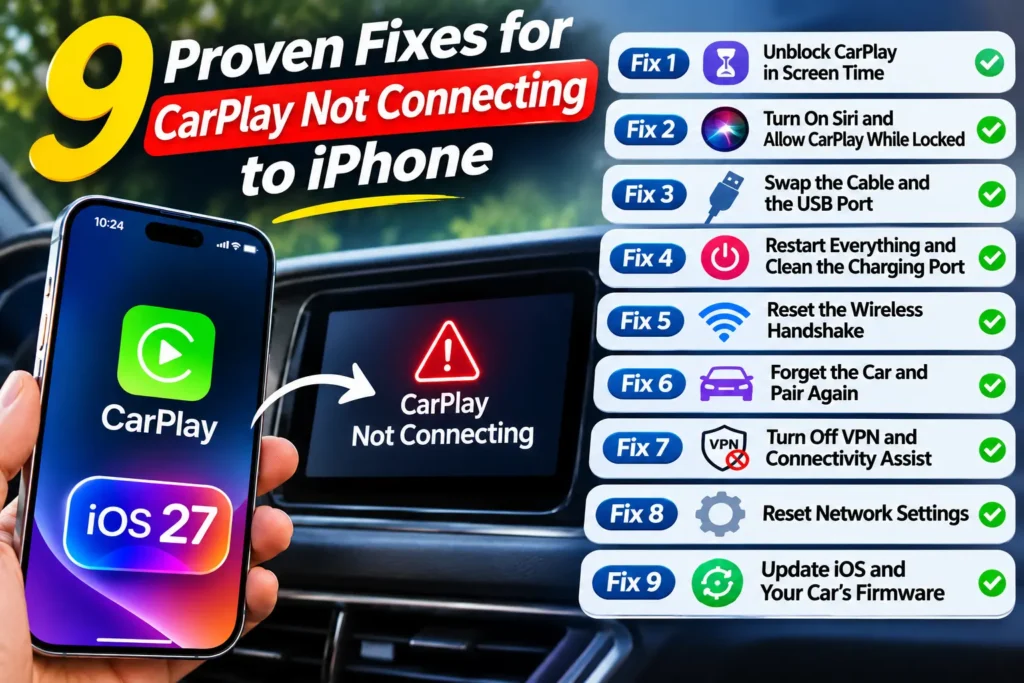
Work top to bottom. Each fix takes about two minutes, except the last two. Reconnect to your car after every step.
Fix 1: Unblock CarPlay in Screen Time
Several owners in Apple’s forum say the iOS 27 update left CarPlay blocked under Screen Time. Switching it back fixed their connection. It takes 30 seconds, so start here.
- Open Settings and tap Screen Time.
- Tap Content & Privacy Restrictions.
- Tap Allowed Apps. Some versions say Allowed Apps & Features.
- Make sure CarPlay is switched on.
- Reconnect to your car.
If Content & Privacy Restrictions is off, this is not your problem. Move on.
Fix 2: Turn On Siri and Allow CarPlay While Locked
CarPlay leans on Siri for voice control, and Apple lists it in its own checklist. If Siri itself is acting up, our guide to Siri AI problems on iOS 27 can help.
- Open Settings and tap Siri. On newer iPhones it may read Apple Intelligence & Siri.
- Turn on at least one way to call Siri.
- Go to Settings > General > CarPlay.
- Tap your car.
- Switch on Allow CarPlay While Locked if you see it.
When we walked through this on an iPhone 17 Pro running iOS 27.2.1, every saved car had its own page under CarPlay. Make sure you are editing the right one.
Fix 3: Swap the Cable and the USB Port
Wired CarPlay is the garden hose. Start with the cheapest suspect.
- Unplug the cable from both the iPhone and the car.
- Use a cable that carries data, not just power.
- Pick an Apple cable or a certified one. Our guide to the Apple-certified USB cable for CarPlay explains what to buy.
- Plug into the car’s CarPlay port. It often has a phone or CarPlay icon.
- If that fails, try every other USB port.
- Skip hubs, splitters, and extra-long cables.
Cheap gas-station cables are the usual villain. Across the forum reports we read, cables and stale pairings came up more often than failed hardware.
Fix 4: Restart Everything and Clean the Charging Port
A restart clears small glitches in both the phone and the car.
- Restart your iPhone.
- Turn the car fully off. Wait one minute.
- Start the car and let the infotainment screen load.
- Shine a flashlight into the iPhone’s charging port.
- Gently scrape out lint with a wooden toothpick or soft brush.
- Never use metal.
Lint packs in tighter than you would expect. A cable that does not seat fully can charge but fail to carry data. Need the full routine? See how to clean your iPhone charging port safely.
Fix 5: Reset the Wireless Handshake
Wireless CarPlay needs both Bluetooth and Wi-Fi switched on. The car does not need internet. It just needs the radios. Not sure what the icons mean? Our iPhone status bar icons guide decodes them.
- Open Settings and make sure Bluetooth is on.
- Tap Wi-Fi and make sure it is on.
- If your car’s CarPlay network appears, tap it.
- Turn on Auto-Join for that network.
- Open Control Center and switch on Airplane Mode.
- Wait 30 seconds, then switch it off.
- Start the car and reconnect.
💡 Pro Tip: Run the Three-Way Isolation Test
Before you burn an hour on settings, find out who is guilty: the iPhone, the car, or the cable. Try your iPhone in a second car. Try a friend’s iPhone in your car. Then swap in a different cable. If the problem follows your iPhone, focus on Fixes 6 through 8. If it stays with your car, the head unit is the suspect, so skip to Fix 9. Two minutes of testing can save an afternoon.
Fix 6: Forget the Car and Pair Again
A stale pairing can hide behind almost any symptom, so this is the big one. You need to clear both sides: the iPhone and the car.
- Open Settings > General > CarPlay.
- Tap your car, then tap Forget This Car.
- Open Settings > Bluetooth.
- Tap the info (i) button next to the car.
- Tap Forget This Device.
- On the car’s screen, delete your iPhone from its phone list.
- Rename your iPhone under Settings > General > About > Name.
- Restart the iPhone.
- Pair again. Use a cable first, or Bluetooth for wireless.
A unique name can help the car tell your phone apart from every other “iPhone” it has met. Forum helpers recommend it. Need the full setup? Follow our complete CarPlay setup walkthrough.
Fix 7: Turn Off VPN and Connectivity Assist
A VPN can interfere with the wireless handshake. Forum helpers also suggest switching off Connectivity Assist, the feature that lets your iPhone lean on cellular when Wi-Fi is weak.
- Open Settings and switch off any VPN.
- Close VPN apps that run in the background.
- Pull up the search bar at the top of Settings.
- Type Connectivity Assist.
- Turn it off.
- Reconnect CarPlay.
Turn Connectivity Assist back on once things work, if you like it.
Fix 8: Reset Network Settings
This one wipes things, so save it for later. One forum poster said it restored both wired and wireless CarPlay after iOS 27. Our guide to iOS 27 network and cellular bugs shows when else this reset helps.
- Write down your Wi-Fi passwords.
- Open Settings > General > Transfer or Reset iPhone.
- Tap Reset, then tap Reset Network Settings.
- Enter your passcode and confirm.
- Let the iPhone restart.
- Repeat Fix 6 to set up CarPlay from scratch.
This erases saved Wi-Fi networks and passwords, Bluetooth pairings, and VPN settings. Your photos and apps stay put.
Fix 9: Update iOS and Your Car’s Firmware
Both sides need current software.
- Open Settings > General > Software Update.
- Install the newest iOS 27 update. As of November 12, 2026, that is iOS 27.2.1.
- Ask your dealer about head unit firmware. Some brands also push updates over the air.
- Using a wireless adapter? Update its firmware too.
Forum owners disagree about firmware. One said a dealer update revived wireless CarPlay. Others said it changed nothing. According to 9to5Mac, iOS 27.3 is already in beta, so more fixes may be coming. We would not run a beta on your daily driver. Not updated yet? Read our checklist on whether to upgrade to iOS 27 first.
CarPlay Disconnects After iOS Update: What Is Going On?
If CarPlay disconnects after an iOS update, you are not imagining a pattern.
Several forum posters say the update flipped CarPlay to “blocked” in Screen Time.
Others say it worked once, then refused to recognize the phone on the next plug-in.
That looks like a pairing problem, not a broken iPhone.
That is why Fixes 1 and 6 matter most after an update.
Apple’s support page does not name iOS 27 at all. It simply gives the standard checklist.
So treat these steps as workarounds, not official cures.
A few odd long-shots showed up too.
One poster said setting the display view from Bigger Text back to Default revived wired CarPlay. It sounds strange, but it costs nothing to try.
Look under Settings > Display & Brightness > Display Zoom.
Wireless CarPlay Not Working? Why It Keeps Disconnecting While You Drive
When Apple CarPlay keeps disconnecting, wireless is the usual suspect. Here is why it breaks, and what to test.
- The Wi-Fi leg stumbles. At launch, MacRumors reported that some iPhone 17, 17 Pro, and iPhone Air owners saw brief Wi-Fi dropouts. They often happened right after unlocking the phone. Many of those owners wore an Apple Watch, but it is unclear if that matters. MacRumors could not reproduce the issue.
- Third-party adapters struggle. German site mobiFlip reported in October 2025 that two popular wireless dongles ran unstable on the iPhone 17 and 17 Pro. Those were the Carlinkit 5.0 and the 2air. Carlinkit said firmware updates, a dongle reset, or re-pairing helped in some cases.
- New iPhone, slow handshake. One iPhone 18 Pro owner says connecting now takes minutes instead of seconds. Nobody in that thread reported a fix.
If CarPlay connection drops while driving, run one test. Use a cable for a week. If wired stays rock solid, your wireless radios are the problem. Focus on Fixes 5, 7, and 8. If wired drops too, look at the cable, the port, or the head unit instead.
iPhone USB-C CarPlay Not Working? Check These Three Things
If iPhone USB-C CarPlay is not working on your iPhone 15 or newer, the cable is the first place to look.
- Use a true data cable. Many cheap USB-C cables only charge.
- Skip adapter chains. Apple says some mixes of adapters, cables, and car systems can disrupt wired CarPlay. Its suggested fix is a direct USB-A to USB-C cable.
- Check the car’s port. Many cars have USB-A only. Plug straight into the car, not a hub.
Apple notes that its USB-C to Lightning Adapter works with wired CarPlay in most vehicles. But “most” is not “all.” If you use one, test a direct cable before blaming the iPhone.
Case Study: The Commuter Whose CarPlay Worked Exactly Once
Meet Dana. She is a composite built from several reports in Apple’s forums. She drives a 2019 crossover with wired CarPlay.
After updating to iOS 27, CarPlay worked on Monday. On Tuesday, the car acted like her iPhone did not exist. Plugging in only charged it.
She swapped cables twice. Nothing changed.
The fix turned out to be boring.
She turned off Connectivity Assist and forgot the car on her iPhone.
Then she deleted her phone from the car’s memory and plugged in her old cable. CarPlay came back and stayed.
The lesson: when CarPlay works once and then stops, suspect the saved pairing before you buy new hardware.
What If This Doesn’t Work?
Don’t panic. You still have options. Try these in order.
- Repeat the Three-Way Isolation Test with a cable from a different brand.
- Test your iPhone in a second car, or a friend’s iPhone in yours.
- Ask your dealer to check the infotainment firmware.
- Try the odd long-shots from the iOS update section above.
- Back up your iPhone, then try Erase All Content and Settings. One forum poster said restoring from backup fixed wired CarPlay.
- Contact Apple Support, and send a report through Apple’s feedback page.
- Use Bluetooth audio as a stopgap while you wait for a fix.
Charging trouble too? Our iPhone charging not working guide covers the port side.
Key Takeaways
- Start with Screen Time. When CarPlay is not connecting to iPhone after iOS 27, a blocked setting is a common culprit.
- Cables matter. Use a data-capable cable in the car’s CarPlay port.
- Wireless needs two runners. Bluetooth and Wi-Fi must both work.
- Re-pair on both sides. Forget the car on the iPhone and delete the iPhone from the car.
- Isolate the culprit. Test a second car, second iPhone, and second cable.
- Save the reset for last. Reset Network Settings erases Wi-Fi passwords and pairings.
- Update everything. iOS 27.2.1 is current, and head unit firmware matters too.
FAQ
Why does Apple CarPlay keep disconnecting?
The usual causes are a weak cable connection, a stale pairing, a VPN, or a Wi-Fi handoff that fails. Wireless users see it most. Try Fix 6 first, then Fix 7. If wired works fine for a week, the wireless radios are the problem.
Does wireless CarPlay need Wi-Fi turned on?
Yes. Apple says to make sure both Bluetooth and Wi-Fi are on. Bluetooth finds the car, and Wi-Fi carries the display. The car’s network does not need internet.
Will iOS 27.2.1 fix my CarPlay problem?
Maybe, but don’t count on it. Coverage of iOS 27.2.1 mentions bug fixes and security updates, with no CarPlay line. Install it anyway. It is the current build as of November 12, 2026.
Do I need an Apple cable for CarPlay?
No, but you need a cable that carries data and fits well. Apple-certified cables remove the guesswork. If a USB-C to Lightning adapter causes trouble, Apple suggests a direct cable instead.
How do I know if it’s my iPhone or my car?
Run the Three-Way Isolation Test. Try your iPhone in another car, another iPhone in your car, and a different cable. Whichever piece repeats the failure is your culprit.
Keep Reading
- How to Use Apple CarPlay: Complete Step-by-Step Guide
- Why Use an Apple Certified USB Cable for CarPlay?
- iOS 27 Complete Guide: Features, Release Date, and Supported iPhones
- More How to Fix guides
Sources
- Apple Support, If you can’t connect your iPhone to CarPlay (published October 19, 2026)
- Apple Support, About the USB-C to Lightning Adapter
- 9to5Mac, Apple releases iOS 27.2.1 for iPhone, here’s what’s new (November 9, 2026)
- Macworld, Apple releases security updates: iOS 27.2.1, 26.7.3, and 18.7.12 (November 9, 2026)
- Apple Support Community, iOS 27 CarPlay not working after update on 2 different iPhones (started September 17, 2026)
- Apple Support Community, iPhone 18 Pro drops out or freezes when using CarPlay using the latest iOS27 (started September 20, 2026)
- iThinkDiff, How to Fix iOS 27 CarPlay Not Working or Disconnecting (October 1, 2026; updated October 16, 2026)
- MacRumors, Some iPhone 17, iPhone 17 Pro, and iPhone Air Users Experiencing Intermittent Wi-Fi Issue (September 22, 2025)
- mobiFlip, iPhone 17-Serie hat Probleme mit einigen CarPlay-Adaptern (October 21, 2025, in German)
Disclaimer
This guide is for general information. Menu names and steps can vary by iPhone model, iOS version, and car maker, so check your owner’s manual and Apple’s official support pages. Reports from forums and third-party sites reflect individual experiences and may not apply to you. Resetting network settings or erasing your iPhone deletes data, so back up first. Never adjust your iPhone or car screen while driving, and follow your local hands-free laws. AppleHeadlines is an independent publication and is not affiliated with Apple Inc. or any car or accessory maker. Apple, iPhone, iOS, CarPlay, and Siri are trademarks of Apple Inc.
Still stuck? Tell us your iPhone model, iOS version, and car make in the comments. Then share this guide with the friend whose dash is always blank. For more plain-English fixes, browse our How to Fix guides and iOS coverage.

T’kal is the lead strategist and developer behind Apple Headlines. With a background in digital marketing and web development, he specializes in technical Apple troubleshooting, software news, and hardware rumors. T’kal focuses on delivering high-authority tech content that bridges the gap between Apple enthusiasts and the latest industry innovations.