



You are in the middle of typing an urgent text message, an email, or a quick note on your iPhone, and suddenly, the keyboard stops keeping up.
You tap several letters, but nothing appears on the screen for a second or two.
Then, suddenly, all the characters burst onto the screen at once – often with typos and missing spaces.
In other cases, key-press sounds drop out, the cursor freezes when you try to highlight text, or haptic feedback feels sluggish and out of sync.
If your iPhone keyboard is lagging, freezing, or stuttering while typing, you are far from alone. – Fix an Unresponsive iPhone
Keyboard responsiveness issues are among the most persistent performance glitches reported across Reddit tech threads and Apple support forums following recent iOS updates.
Fortunately, this is almost always a software-level indexing or cache issue rather than a hardware failure.
Below is a complete, step-by-step troubleshooting guide to restore instant, smooth typing on your iPhone.


Quick Answer: The fastest way to fix iPhone keyboard lag is to reset your keyboard dictionary (Settings > General > Transfer or Reset iPhone > Reset > Reset Keyboard Dictionary) or temporarily disable Predictive Text and Slide to Type.
Read Related: 60 Mac Keyboard Shortcuts
Why Is Your iPhone Keyboard Lagging?
Every time you type a word on iOS, your iPhone is performing dozens of background calculations in real time:
- Autocorrect & Predictive Text Processing: Predicting your next word based on your personal writing habits.
- Dictionary Cache Indexing: Checking entries in your custom learned dictionary.
- Haptic Engine & Sound Feedback: Triggering micro-vibrations and audio feedback for every keypress.
- Background App Refresh & Memory Pressure: Competing with background background processes for CPU resources.
When iOS updates introduce minor system bugs, or when your keyboard dictionary cache becomes bloated over months of heavy typing, these background calculations stall -resulting in that infuriating 1–2 second typing delay.
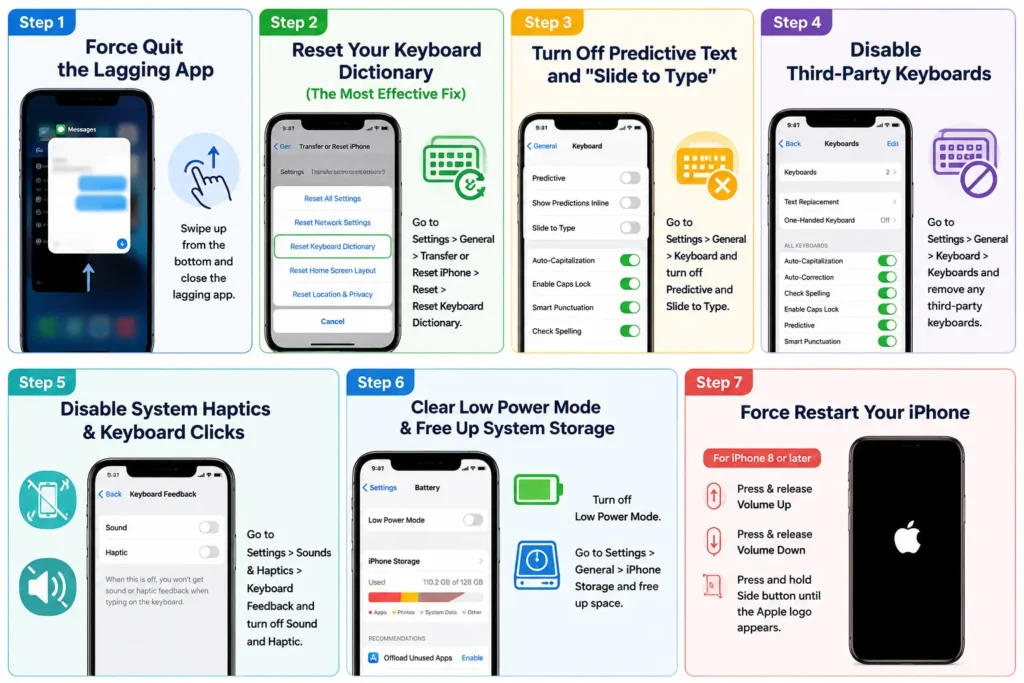
Step 1: Force Quit the Lagging App
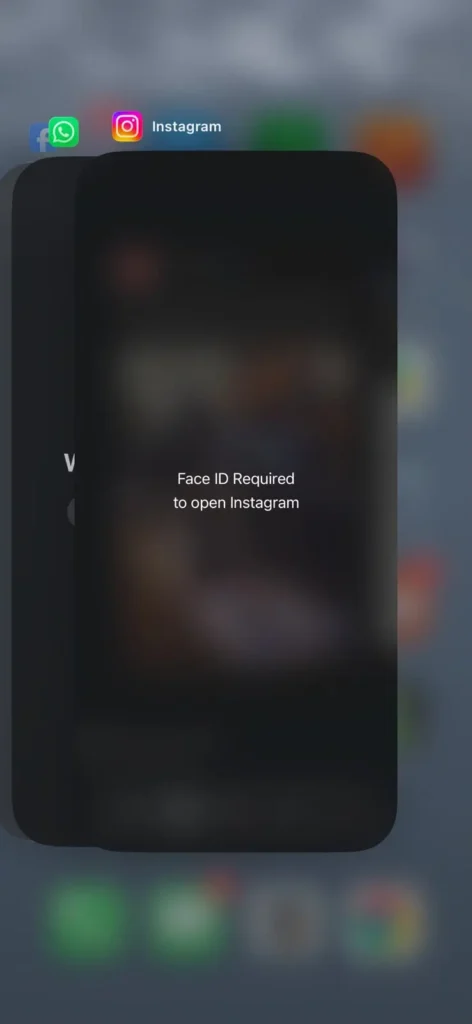
If keyboard lag only occurs inside a specific app; such as Messages, WhatsApp, Notes, or Mail; the app itself may be suffering from a temporary memory leak rather than a system-wide keyboard bug.
- Swipe up from the bottom of your home screen and hold to open the App Switcher (or double-click the Home button on older iPhone models).
- Swipe UP on the lagging app to force close it completely.
- Relaunch the app and test your typing speed.
App Switcher ➔ Swipe Up to Close ➔ Relaunch App
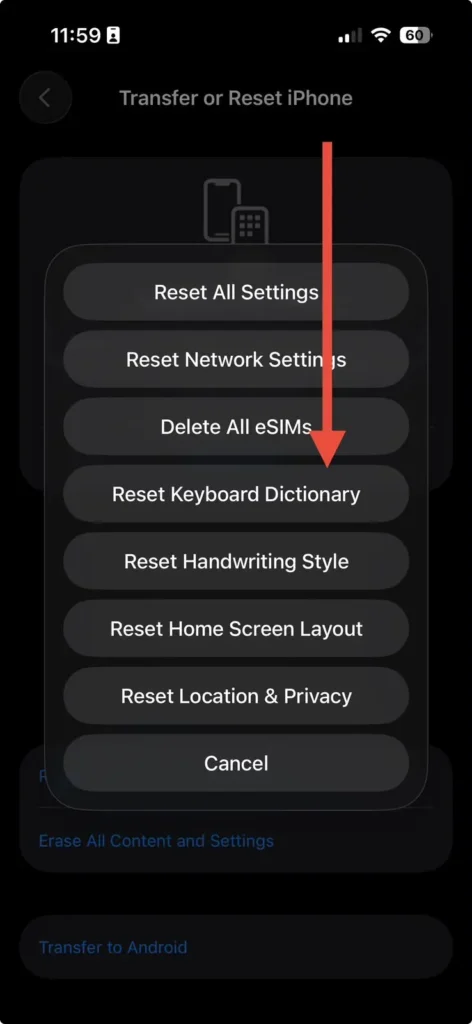
Step 2: Reset Your Keyboard Dictionary (The Most Effective Fix)
Over time, your iPhone learns custom words, slang, email addresses, and typing habits, saving them to a temporary dictionary file.
If this cache becomes corrupted or oversized, the keyboard stalls every time it attempts to cross-reference a letter you type against its database.
Resetting the keyboard dictionary wipes out corrupt cached data without deleting your photos, contacts, apps, or saved passwords.
Steps to Reset Keyboard Dictionary:
- Open the Settings app on your iPhone.
- Go to General and scroll down to tap Transfer or Reset iPhone.
- Tap Reset at the bottom of the screen.
- Select Reset Keyboard Dictionary.
- Enter your iPhone passcode when prompted, then tap Reset Dictionary to confirm.
Settings ➔ General ➔ Transfer or Reset iPhone ➔ Reset ➔ Reset Keyboard Dictionary
Note: This process resets autocorrect back to factory defaults. Your iPhone will re-learn your personal dictionary words naturally over the next few days.
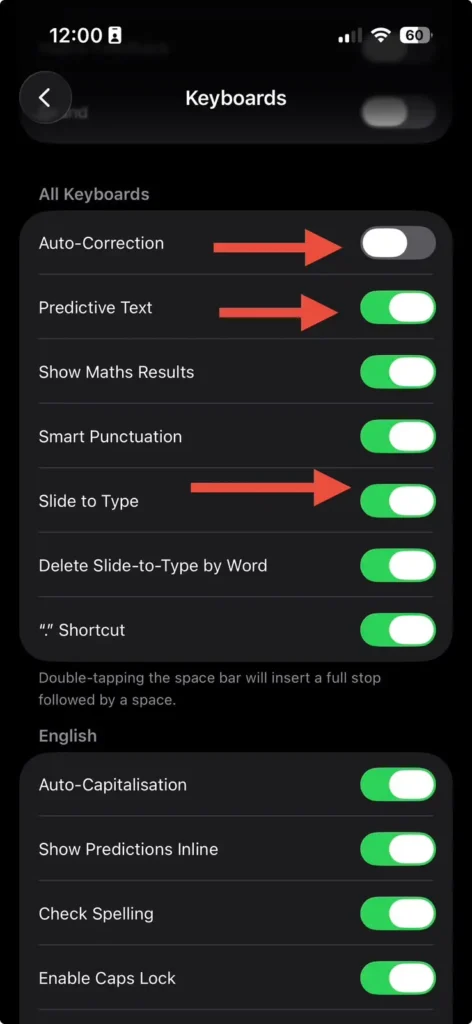
Step 3: Turn Off Predictive Text and “Slide to Type”
Features like Predictive Text and Slide to Type (QuickPath) run continuous algorithms while you type. Temporarily disabling them relieves immediate CPU load from the keyboard engine.
- Open Settings and tap General.
- Select Keyboard.
- Toggle OFF the following features:
- Predictive Text
- Slide to Type
- Auto-Correction (Optional, for testing)
- Return to your messaging app and test typing. If speed returns instantly, you can toggle them back on one by one to isolate which feature was overloading system resources.
Step 4: Disable Third-Party Keyboards
If you have installed custom keyboards like Gboard, Grammarly, or SwiftKey, iOS must allocate extra RAM to run their background processes alongside the default Apple keyboard.
Third-party keyboards are notorious for memory leaks that cause severe system-wide typing lag.
How to Remove or Disable Custom Keyboards:
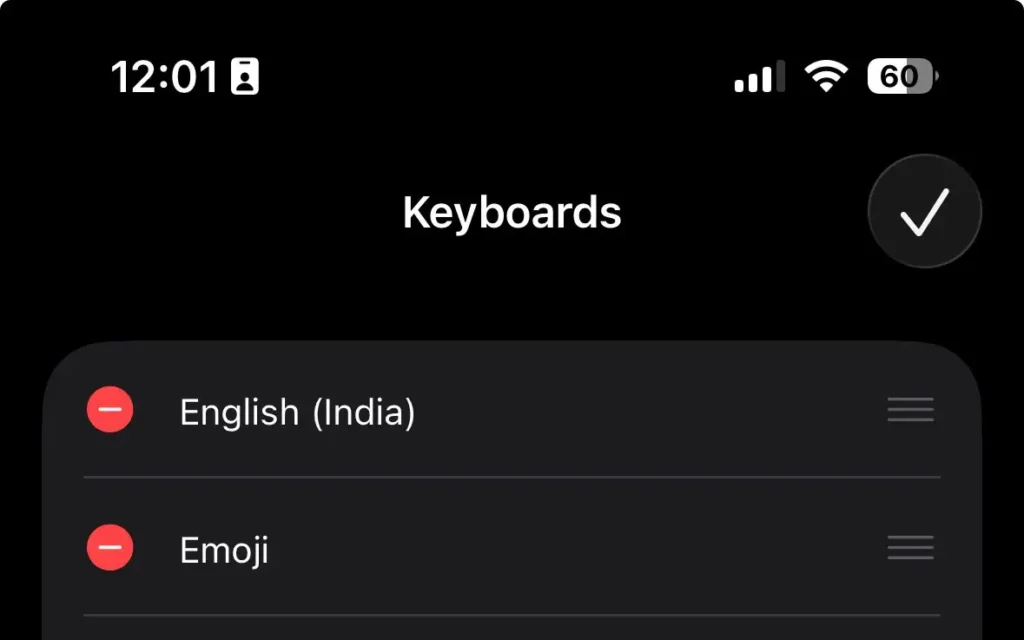
- Go to Settings > General > Keyboard.
- Tap Keyboards at the top.
- Swipe left on any third-party keyboard and tap Delete, or tap Edit in the top right corner to remove them.
Step 5: Disable System Haptics & Keyboard Clicks
If keypress sounds lag or drop out while typing, the audio and haptic subsystems may be experiencing thread delays. Turning off haptic vibration and key click sounds helps streamline processing speed.
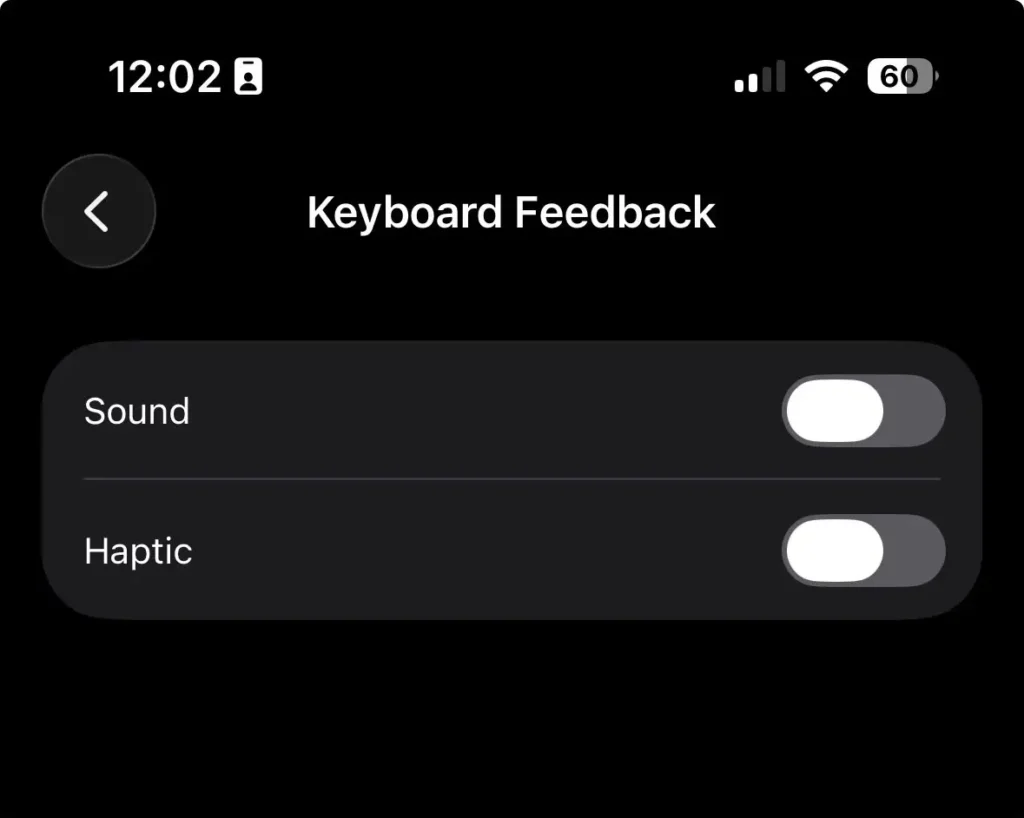
- Open Settings and tap Sounds & Haptics.
- Scroll down and tap Keyboard Feedback.
- Toggle OFF both Sound and Haptic.
Settings ➔ Sounds & Haptics ➔ Keyboard Feedback ➔ Toggle OFF Sound & Haptic
Step 6: Clear Low Power Mode & Free Up System Storage
When your iPhone storage falls below 10% of total capacity (or under 5GB free), iOS automatically throttles background memory management.
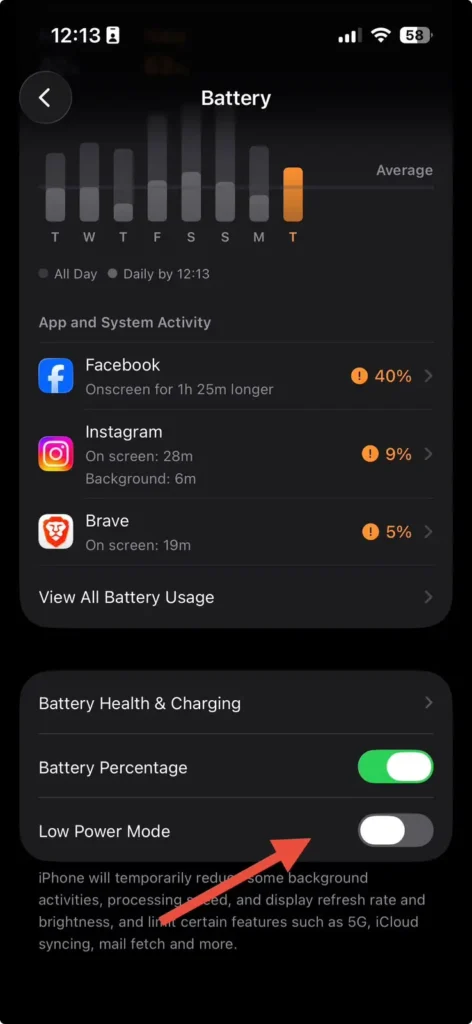
This manifests immediately as UI stuttering and keyboard lag. Similarly, Low Power Mode throttles CPU performance to conserve battery life.
- Check Storage: Go to Settings > General > iPhone Storage. Ensure you have at least 5GB to 10GB of free space.
- Turn Off Low Power Mode: Go to Settings > Battery and toggle off Low Power Mode.
Step 7: Force Restart Your iPhone
If system memory is cluttered with background tasks, a standard soft restart might not fully flush the hardware RAM cache. Performing a hard force restart forces a clean reboot.
Read full Guide: Force Restart Any iPhone in 10 Seconds
How to Force Restart iPhone 8, iPhone SE (2nd/3rd gen), and Newer:
- Press and quickly release the Volume Up button.
- Press and quickly release the Volume Down button.
- Press and hold the Side (Power) Button until the Apple logo appears, then release.

Summary Troubleshooting Checklist
| Step / Fix | What It Does | Success Rate |
| Reset Keyboard Dictionary | Clears corrupt predictive text & autocorrect cache | Very High (85%) |
| Disable Predictive Text | Removes real-time word analysis load | High |
| Delete 3rd-Party Keyboards | Stops RAM leaks caused by Gboard/SwiftKey | High |
| Disable Keyboard Haptics | Eliminates audio/vibration processing delays | Medium |
| Force Restart iPhone | Flushes system RAM and background tasks | High |
Final Thoughts
Keyboard lag on iOS is almost always an indexing bottleneck caused by predictive cache bloat or temporary system memory load. In 9 out of 10 cases, performing a Keyboard Dictionary Reset combined with a quick Force Restart restores smooth, real-time typing performance instantly.
If typing delays persist across every app after trying these steps, check Settings > General > Software Update to ensure your iPhone is running the latest iOS patch, as Apple frequently releases minor point updates to address system UI performance issues.

T’kal is the lead strategist and developer behind Apple Headlines. With a background in digital marketing and web development, he specializes in technical Apple troubleshooting, software news, and hardware rumors. T’kal focuses on delivering high-authority tech content that bridges the gap between Apple enthusiasts and the latest industry innovations.