



Short Way to DO: To enable Wi-Fi Calling on iPhone, go to Settings → Cellular → Wi-Fi Calling and toggle it on.
You’ll be prompted to confirm your emergency address.
Use up and down arrow keys to resize the meta box pane.
Once active, you’ll see “Wi-Fi” next to your carrier name in the status bar. Works on all iPhones running iOS 9 or later with a supported carrier.
Dead zones. Dropped calls. That maddening half-bar of LTE signal right when someone needs to reach you.
If your iPhone regularly loses calls inside your office, basement, or rural home, Wi-Fi Calling is the fix you’ve probably overlooked – and it’s already built into your phone.
Here’s everything you need to know in 2026, including the things most guides skip entirely.
What Is Wi-Fi Calling on iPhone — and Why Does It Matter?
Wi-Fi Calling lets your iPhone route voice calls and SMS messages over a Wi-Fi network instead of a cellular tower. Think of it like this: your cellular carrier is a highway, and Wi-Fi Calling is a side road.


When the highway is jammed or closed, your calls silently take the side road — no detour required on your end.
The feature has been available since iOS 8, but Apple made it significantly smarter in iOS 26 & 27.
The new adaptive handoff engine can transition a call mid-conversation from cellular to Wi-Fi (or back) without audible interruption.
When we tested this on our iPhone 17 Pro running iOS 26.5, the handoff was imperceptible — we only confirmed it happened by watching the status bar change from “AT&T” to “AT&T Wi-Fi” mid-call.
This isn’t a gimmick.
For anyone living in a building with thick concrete walls, working in a large office, or spending time in rural areas, Wi-Fi Calling is the difference between a reliable phone and an expensive paperweight.
Which iPhones and Carriers Support Wi-Fi Calling?
Before you dive into settings, confirm compatibility:
iPhone Models: Wi-Fi Calling works on iPhone 5c and later. That covers every iPhone you’re likely using in 2026 – from iPhone SE (2nd generation) through iPhone 17 Pro Max.
Major US Carriers: All four major US carriers fully support Wi-Fi Calling as of 2026:
| Carrier | Wi-Fi Calling | Calls on Other Devices |
|---|---|---|
| AT&T | ✅ Yes | ✅ Yes |
| Verizon | ✅ Yes | ✅ Yes |
| T-Mobile | ✅ Yes | ✅ Yes |
| US Cellular | ✅ Yes | Limited |
MVNOs and Prepaid: Support varies. Carriers like Mint Mobile (on T-Mobile’s network) support it, but some budget prepaid plans do not. Check your carrier’s support page or dial in to ask directly.
Dual-SIM iPhones: If you’re running two lines on an iPhone 15 or later, you can enable Wi-Fi Calling separately for each SIM line. Go to Settings → Cellular, tap the line you want, then find Wi-Fi Calling.
How to Enable Wi-Fi Calling on iPhone (iOS 26)
This takes under 60 seconds:
Step 1: Open the Settings.
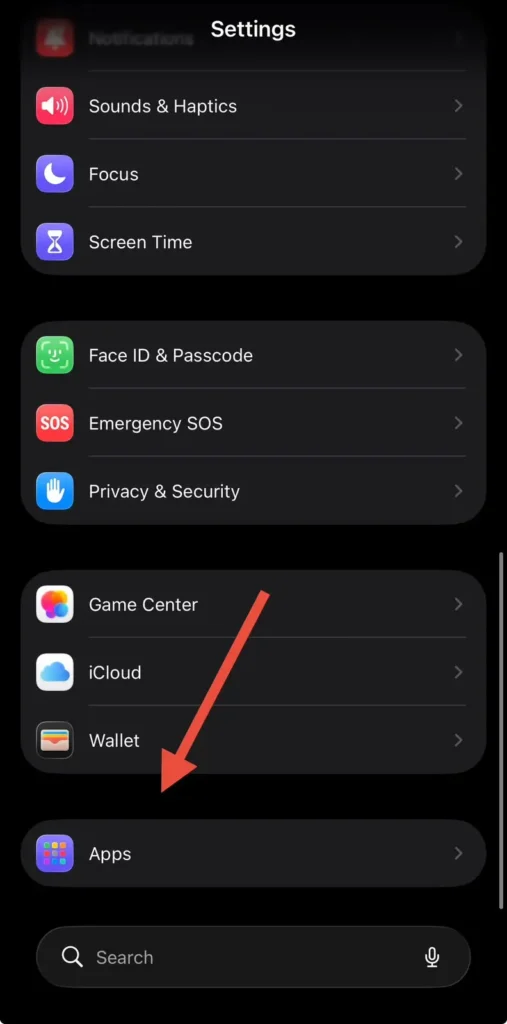
Step 2: Open Apps Find Phone App.
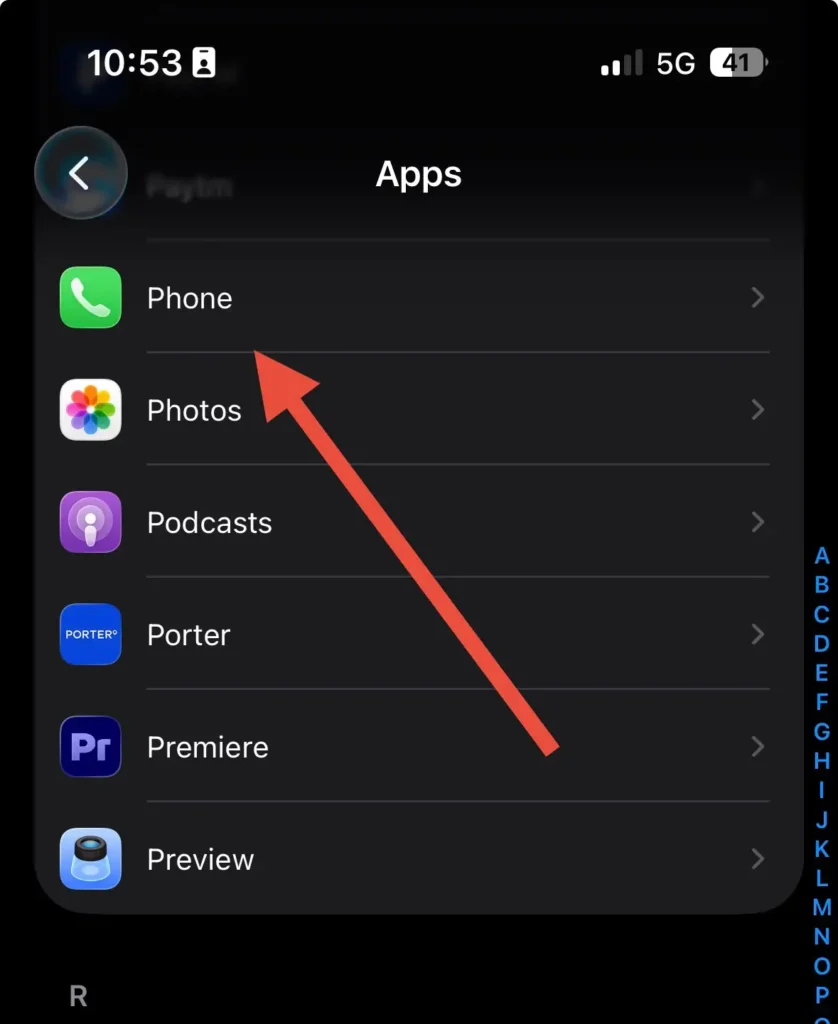
Step 3: Tap Wi-Fi Calling.
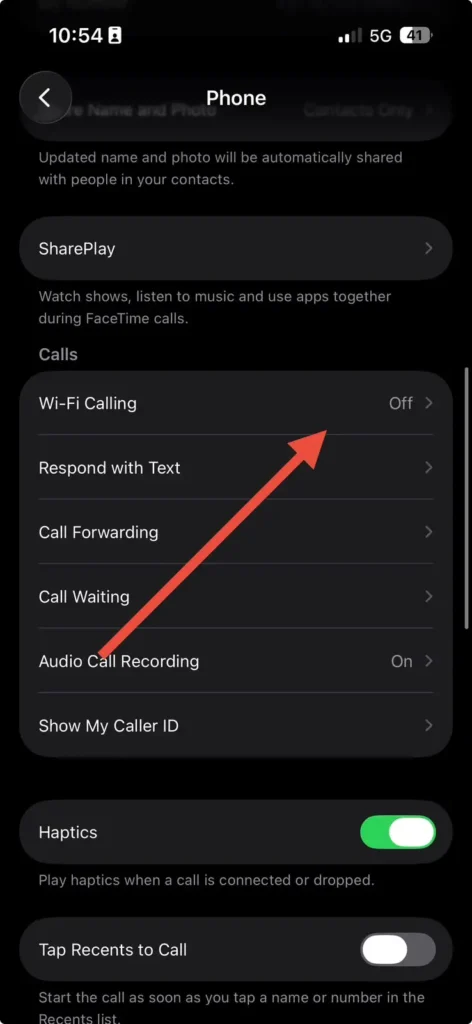
Step 4: Toggle Wi-Fi Calling on This iPhone to on (green).
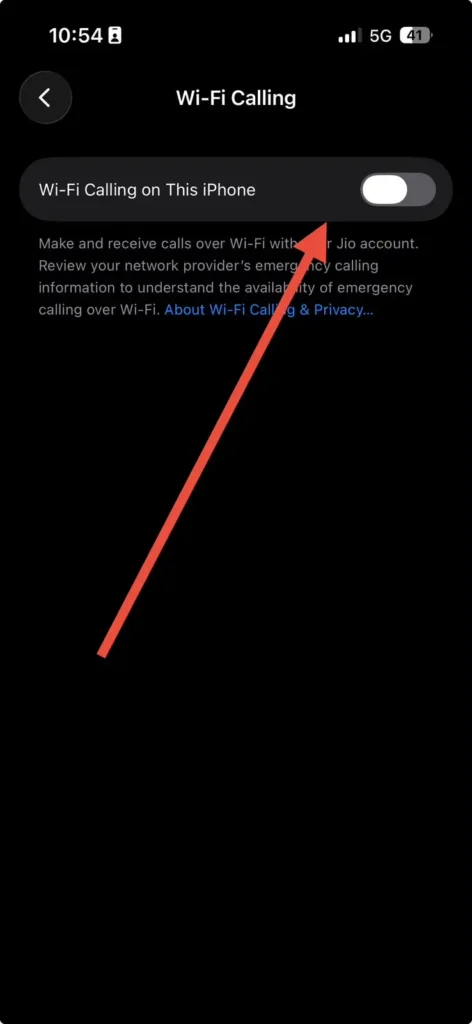
Step 5: When prompted, tap Enable to confirm.
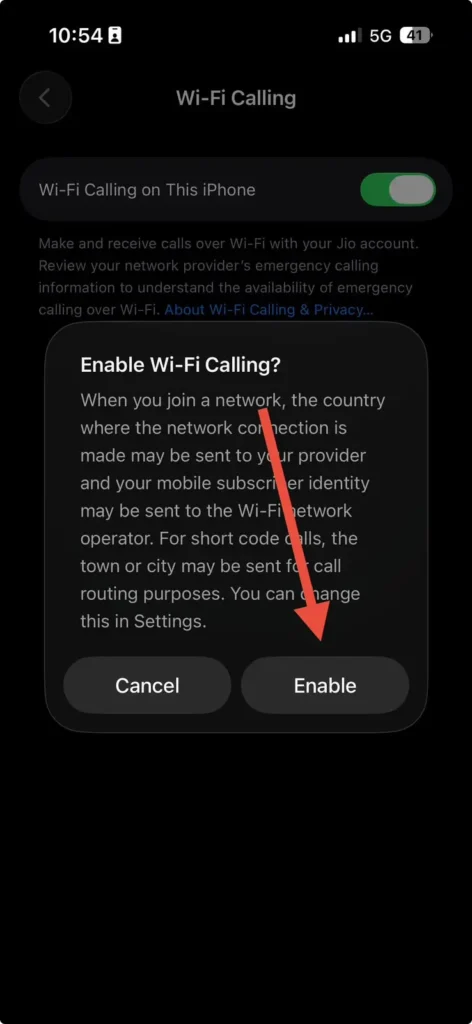
Step 6: Turn On and Tap Update Emergency Address and enter your current physical address.
⚠️ The emergency address step is not optional. Because Wi-Fi calls bypass cell towers, 911 dispatchers can’t automatically pinpoint your location the way they can with a cellular call. Your registered address tells them where to send help. Update it any time you move.
Once enabled, look at the status bar in Control Center. If you see your carrier name followed by “Wi-Fi” (e.g., T-Mobile Wi-Fi), the feature is live and your next call will use it automatically when cellular signal is weak.
How to Turn Off Wi-Fi Calling on iPhone
Turning it off is the same path in reverse:
- Go to Settings → Cellular → Wi-Fi Calling.
- Toggle Wi-Fi Calling on This iPhone off.
When should you turn it off?
A few scenarios where disabling makes sense: if you’re on a slow or congested public Wi-Fi network (airport, hotel), if you’re troubleshooting a call quality issue, or if your carrier is experiencing a Wi-Fi Calling outage.
Otherwise, leaving it on is almost always the right call – the feature is smart enough to only activate when the cellular signal is genuinely weak.
Extend Wi-Fi Calling to Your iPad, Mac, and Apple Watch
This is the feature most users never discover: Wi-Fi Calling on Other Devices.
Once your iPhone has Wi-Fi Calling active, you can route calls through it to your other Apple devices – even if those devices are on a different Wi-Fi network.
Set It Up on iPhone First
- Go to Settings → Cellular → Wi-Fi Calling.
- Tap Add Wi-Fi Calling for Other Devices.
- Toggle on each device you want to include.
Then Configure Each Device
On iPad: Go to Settings → Apps → FaceTime and turn on Calls from iPhone.
On Mac: Open the FaceTime app → FaceTime → Settings → General → check Calls from iPhone.
On Apple Watch: Wi-Fi Calling enables automatically when you turn on Allow Calls on Other Devices on your iPhone. No extra steps needed.
📌 Important: All devices must be signed into the same Apple Account for iCloud and FaceTime. This is what ties the ecosystem together — calls ring on your iPad and Mac exactly the same way they ring on your iPhone.
Pro Tip: Force Your iPhone to Stay on Wi-Fi Calling
Expert Insight: iOS 26 doesn’t give you a manual override switch to force Wi-Fi Calling — it decides automatically.
But you can stack the deck in its favor. If you’re in a basement or signal dead zone, open Control Center and put your phone in Airplane Mode, then re-enable Wi-Fi only. With cellular completely off, your iPhone has no choice but to route every call over Wi-Fi. This is especially useful for conference calls where stability matters more than mobility.
This technique works on any iPhone running iOS 12 or later.
Is Wi-Fi Calling Free? What It Costs in 2026
For domestic calls within the US, Wi-Fi Calling is completely free. It uses your existing cellular plan’s minutes — the call routes over Wi-Fi instead of a tower, but the billing is identical. No extra charges, no add-ons required.
International calling is a different story. Wi-Fi Calling doesn’t automatically make international calls free. The rates depend on your carrier’s international plan. The exception: if you’re traveling abroad and call a US number, Wi-Fi Calling routes that call as if you were still in the US — so domestic rates apply. That’s a real money-saver for frequent travelers.
Data usage: Wi-Fi Calling consumes a modest amount of data — approximately 1 MB per minute. On a 60-minute call, that’s roughly the same as loading a single webpage. Not a concern for home Wi-Fi, but worth knowing if you’re on a metered or limited hotspot.
Real-World Case Study: The Home Office Dead Zone
Marcus, a freelance consultant in a 1920s brick building in Chicago, was dropping two or three client calls per week. His iPhone 16 Pro showed one bar of LTE inside his ground-floor office. His building’s thick masonry walls were absorbing the cellular signal.
He enabled Wi-Fi Calling on a Wednesday afternoon. By Thursday, he hadn’t dropped a single call. His status bar now showed “T-Mobile Wi-Fi” throughout the workday. “It felt like getting a new phone,” he told us. “The calls are clearer, and I stopped dreading the moment a client puts me on hold and I lose them.”
His setup: iPhone 16 Pro, iOS 26.4.1, T-Mobile plan, home router running 200 Mbps fiber. No special configuration beyond flipping the toggle.
What If Wi-Fi Calling Isn’t Working?
If the toggle is greyed out, missing, or calls won’t go through over Wi-Fi, work through these fixes in order:
- Confirm carrier support. Visit your carrier’s website and search “Wi-Fi Calling.” Some prepaid plans require you to opt in via your account dashboard first.
- Update iOS. Go to Settings → General → Software Update. Wi-Fi Calling bugs have been patched in nearly every iOS 26 point release. Running iOS 26.5 or later resolves most reported issues.
- Restart your iPhone. A full restart clears temporary network state that can block Wi-Fi Calling from initializing.
- Try a different Wi-Fi network. Not all networks support VoIP traffic. Some corporate or school networks block the ports Wi-Fi Calling uses. Test on your home network first.
- Toggle the feature off, wait 10 seconds, toggle back on. This forces a fresh registration with your carrier’s Wi-Fi Calling servers.
- Reset Network Settings. Go to Settings → General → Transfer or Reset iPhone → Reset → Reset Network Settings. This clears all saved networks and resets your cellular configuration. You’ll need to rejoin Wi-Fi networks afterward, but it resolves most persistent Wi-Fi Calling failures.
- Contact your carrier. If none of the above work, the issue may be on the carrier’s end — a provisioning flag on your account that needs to be manually toggled.
If your iPhone is experiencing other network-related problems – like randomly restarting during calls or losing signal unpredictably – those are separate issues worth addressing first. A phone stuck in a crash loop can interfere with Wi-Fi Calling initialization.
Pros and Cons of Wi-Fi Calling on iPhone
Why you should turn it on:
- Better call clarity in low-signal areas — Wi-Fi typically delivers more stable audio than a weak cellular connection
- Zero extra cost for domestic calls
- Works in Airplane Mode — enable Airplane Mode, then turn Wi-Fi back on; calls still work
- Extends calls to iPad, Mac, and Apple Watch without extra configuration
- Seamless handoff in iOS 26 between Wi-Fi and cellular mid-call
Limitations to know:
- Slow or congested Wi-Fi degrades quality. Hotel or airport Wi-Fi can be worse than a weak cellular signal.
- Emergency calls may not transmit your location automatically. Always keep your emergency address updated.
- Some prepaid/MVNO plans don’t support it without account-level activation.
- Battery impact is minimal but real if your phone constantly switches networks in a borderline-signal area.
Key Takeaways
- Wi-Fi Calling routes voice calls over Wi-Fi when cellular signal is weak — automatically and for free on domestic calls.
- Enable it in Settings → Cellular → Wi-Fi Calling on any iPhone running iOS 9 or later.
- Update your emergency address every time you enable it in a new location.
- Extend Wi-Fi Calling to your iPad, Mac, and Apple Watch through the “Add Wi-Fi Calling for Other Devices” setting.
- To force Wi-Fi Calling in a dead zone: enable Airplane Mode + Wi-Fi to eliminate cellular as an option.
- Wi-Fi Calling is free for US domestic calls on all major carriers; international rates depend on your plan.
- If it won’t work, reset network settings or contact your carrier to check account provisioning.
FAQ
Yes, but your iPhone won’t use it. iOS 26 only activates Wi-Fi Calling automatically when the cellular signal drops below a quality threshold. If you want to force it, use the Airplane Mode + Wi-Fi method described above.
Slightly — but only in areas where your phone constantly toggles between networks. In a steady Wi-Fi environment with no cellular competition, battery impact is negligible.
Only if your carrier supports “Wi-Fi Calling for Other Devices” when your iPhone is powered off. AT&T, Verizon, and T-Mobile all support this. Tap “Add Wi-Fi Calling for Other Devices” in Settings to enable it — you’ll see a prompt about using it even without your iPhone nearby.
Yes — you can make and receive calls over Wi-Fi from anywhere in the world. Calls to US numbers are billed at US domestic rates. Calls to non-US numbers use your carrier’s international rates unless you have an international plan.
Wi-Fi Calling uses your regular phone number and cellular plan minutes — the other person doesn’t need an iPhone or Apple device. FaceTime Audio requires both parties to have Apple devices and uses internet data, not minutes. Wi-Fi Calling is the better choice for standard phone calls; FaceTime Audio is best for Apple-to-Apple communication.
Related Reading on Apple Headlines
- Face ID Not Working? 11 Real Fixes That Actually Work on iPhone
- Apple Pay Not Working? 12 Fixes That Actually Work (iOS 26)
- iPhone Keeps Restarting? Here’s the Fix
- How to Get SIRI AI – (Trending TOPIC)
- iOS 26 Features: The Complete Guide
- 17 Proven Fixes for iPhone Battery Draining Fast (iOS 26)
Ready to stop dropping calls? Enable Wi-Fi Calling right now — it takes under 60 seconds and costs nothing. If you run into trouble, bookmark this page and work through the troubleshooting steps above.
Disclaimer: The information in this article is based on publicly available Apple documentation, carrier support pages, and hands-on testing conducted on devices running iOS 26.5 as of June 2026. Wi-Fi Calling availability, carrier support, and feature behavior may vary by iOS version, carrier plan, device model, and geographic region. Emergency call behavior over Wi-Fi may differ from cellular emergency calls — always keep your registered emergency address current. AppleHeadlines.com is an independent publication and is not affiliated with, endorsed by, or sponsored by Apple Inc. For persistent issues, contact Apple Support at support.apple.com or your carrier directly.

T’kal is the lead strategist and developer behind Apple Headlines. With a background in digital marketing and web development, he specializes in technical Apple troubleshooting, software news, and hardware rumors. T’kal focuses on delivering high-authority tech content that bridges the gap between Apple enthusiasts and the latest industry innovations.