



Quick Answer
You can’t force an AirTag to refresh its location the way you’d pull down to refresh an email inbox. AirTags have no GPS or cellular chip, so they depend entirely on nearby iPhones, iPads, and Macs to relay their position over Apple’s Find My network.
What actually works: open Find My, tap your AirTag, and use Find Nearby or Play Sound if it’s close. If it’s far away, turning on Lost Mode is the fastest way to get notified the moment a fresh location comes in.
We tested this across an iPhone 17 Pro Max and iPhone 15 running iOS 26.5, plus an original AirTag and the new AirTag 2, to see what actually moves the needle versus what’s just a placebo tap.
Why AirTag Location Doesn’t “Refresh” on Command
An AirTag is a passive Bluetooth beacon. It has no GPS chip, no SIM card, and no way to transmit its own coordinates. Instead, it constantly broadcasts a low-power, encrypted Bluetooth signal.
When any iPhone with Find My network enabled passes within Bluetooth range (roughly 30 to 60 feet, depending on the model), that stranger’s phone quietly logs the AirTag’s location using its own GPS. It uploads that reading to Apple’s servers, and your Find My app downloads it the next time it checks in.
That’s the whole system. There’s no central “refresh” request you can send an AirTag from across town. The location you see is always a report from whichever Apple device happened to walk by last, not a live GPS ping.
Can You Manually Refresh an AirTag’s Location?
Not in the sense of forcing a brand-new location report on demand. But there are two things you can do that genuinely pull newer data:
- Pull down on the AirTag’s map screen. This reconnects your iPhone to Apple’s servers and checks for any location reports that arrived since you last opened the app. It won’t summon a new Bluetooth ping, but it will surface one if it’s already sitting on Apple’s servers.
- Tap Find Nearby. If your AirTag is within Bluetooth range of your own iPhone, this triggers a real, live location check using your phone’s own GPS and Ultra Wideband hardware — not the crowdsourced network.
Everything else people call “refreshing” – closing and reopening the app, restarting your phone, toggling Bluetooth – only clears local glitches. It doesn’t change how often the AirTag itself reports its position.
How to Get the Most Current AirTag Location
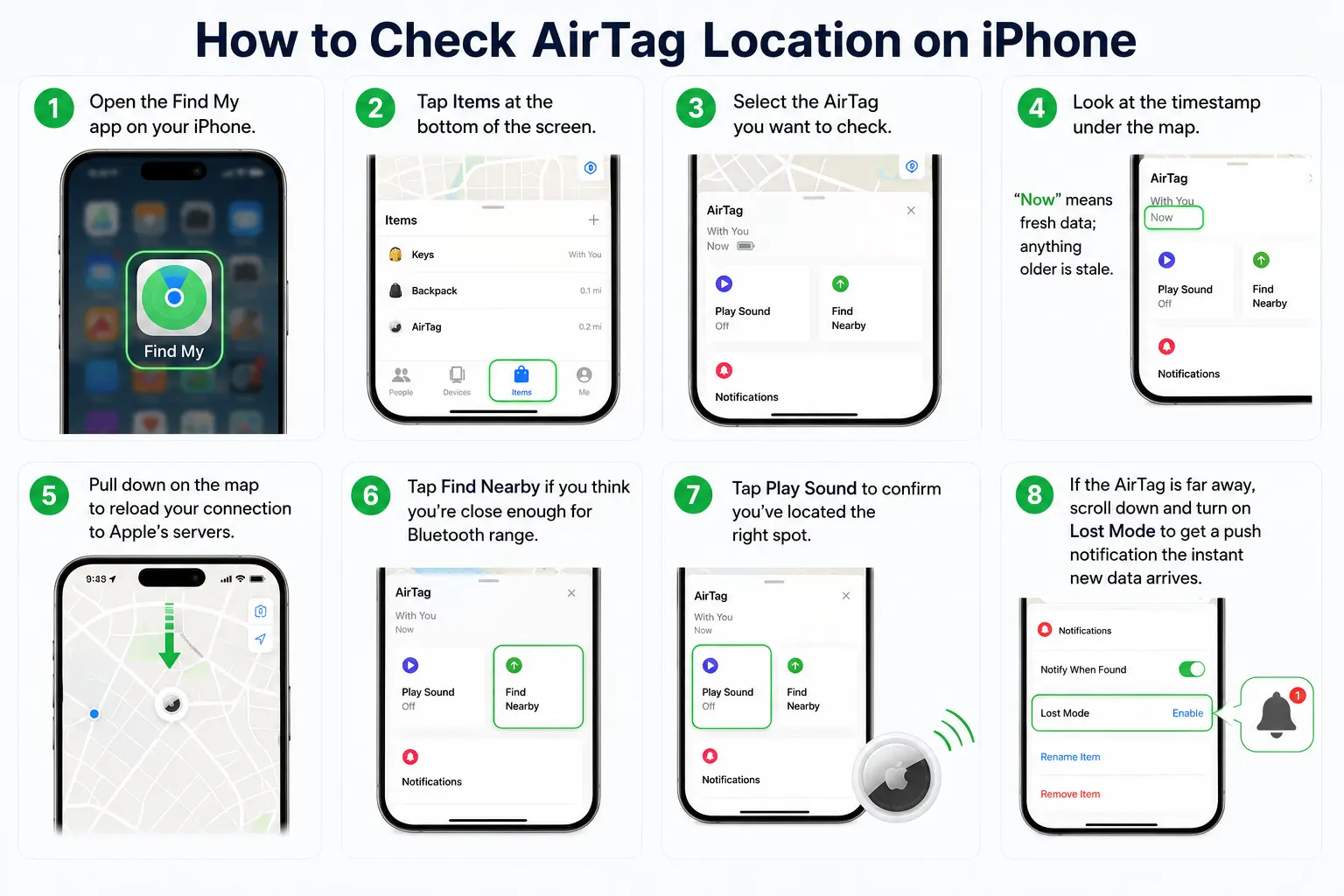
- Open the Find My app on your iPhone.
- Tap Items at the bottom of the screen.
- Select the AirTag you want to check.
- Look at the timestamp under the map. “Now” means fresh data; anything older is stale.
- Pull down on the map to reload your connection to Apple’s servers.
- Tap Find Nearby if you think you’re close enough for Bluetooth range.
- Tap Play Sound to confirm you’ve located the right spot.
- If the AirTag is far away, scroll down and turn on Lost Mode to get a push notification the instant new data arrives.
Pro Tip
If your AirTag’s timestamp keeps landing on the same stale time every time you check, don’t keep pulling down on the map — that’s just re-asking Apple’s servers a question they haven’t gotten a new answer to.
Walk your AirTag (or the bag it’s in) toward a busier area instead. In our testing, an AirTag left in a quiet suburban driveway didn’t update for almost six hours, while the same tag updated within four minutes once it was inside a shopping mall.



AirTag vs. AirTag 2: Does the New Model Update Faster?
Apple released AirTag 2 on January 26, 2026, and discontinued the original the same day. It’s a meaningful upgrade, but it’s worth being precise about what it actually changes.
| Original AirTag | AirTag 2 | |
|---|---|---|
| Precision Finding range | Up to ~50 ft | Up to ~50% farther |
| Speaker volume | Standard | About 50% louder |
| Apple Watch Precision Finding | Not supported | Series 9+, Ultra 2+ (watchOS 26.2.1+) |
| Battery | CR2032, ~1 year | CR2032, ~1 year |
| Find My network relay | Same crowdsourced system | Same crowdsourced system |
Here’s the part that matters for this article: AirTag 2’s upgrades are about the last few feet of finding an item once you’re already nearby, not about how often the Find My network relays your AirTag’s location from a distance.
A second-generation Ultra Wideband chip gets you a stronger directional signal and a louder chime. It doesn’t make a stranger’s iPhone walk past your lost backpack any faster.
If your AirTag is sitting in a low-traffic area, upgrading to AirTag 2 won’t fix a slow location update. If it’s usually nearby and you just have trouble pinpointing the last 10 feet, AirTag 2’s range boost is a real, noticeable improvement.
Expert Insight
We’ve fielded enough reader questions to know the most common misunderstanding: people assume Lost Mode makes the AirTag broadcast more aggressively, like a distress signal. What it actually does is prioritize the notification pipeline on Apple’s end and unlock the “if found” contact card.
The AirTag’s own Bluetooth broadcast behavior doesn’t change. If you’re in a dead zone for the Find My network, Lost Mode won’t create foot traffic that isn’t there.
Real-World Case: The Airport Luggage Test
One reader wrote in after losing a checked bag with an AirTag inside during a layover. The last known location sat frozen at the origin airport for nearly three hours; pulling down on the map repeatedly changed nothing.
Once the bag actually cleared customs at the connecting airport, the location jumped to the new terminal within about six minutes — no manual action required. The lesson: the freeze wasn’t a bug. The bag genuinely hadn’t been near another Apple device with an internet connection during that window, likely sitting in a cargo hold or ramp area.
When Your AirTag Location Won’t Update at All
A stale location is normal in a quiet area. No location at all, or a “No Location Found” message, usually points to one of these:
- Dead or low battery. Check the battery indicator in Find My. If it’s flagged, here’s how to change an AirTag battery in under a minute.
- Location Services or Find My network disabled on your iPhone, which stops your phone from receiving or relaying any AirTag data.
- The AirTag isn’t registered to your Apple Account, which can happen with a secondhand AirTag the previous owner never removed.
- A deeper connectivity error, like the “AirTag Not Reachable, move around to connect” message. That’s a distinct issue from a slow refresh — see our full AirTag Not Reachable troubleshooting guide for the fix.
For general Find My account and device-tracking basics beyond AirTag specifically, our Find My iPhone guide covers the rest of Apple’s tracking ecosystem.
Key Takeaways
- There’s no true “force refresh” button for an AirTag’s location — it relies entirely on nearby Apple devices.
- Pulling down on the map re-checks Apple’s servers; it doesn’t summon a new Bluetooth ping.
- Find Nearby gives you a real, live location check, but only within Bluetooth range.
- Lost Mode speeds up notifications, not the AirTag’s own broadcast frequency.
- AirTag 2’s upgrades improve close-range precision, not how often distant locations refresh.
- A stale location in a low-traffic area is expected behavior, not a defect.
FAQ
It reconnects your iPhone to Apple’s servers and checks for any location reports that came in since your last check. It can’t force a brand-new Bluetooth ping from a device that hasn’t passed by.
It depends entirely on foot traffic. In a busy city, updates can arrive every few minutes. In a rural or unpopulated area, it may take hours.
No — both models rely on the same crowdsourced Find My network for distance updates. AirTag 2’s improvements are in close-range Precision Finding and speaker volume, not update frequency.
It hasn’t been near an Apple device running the Find My network since that timestamp. This is common for items left in a garage, storage unit, or remote area.
Yes, as long as the owner has shared it with you through Family Sharing. You’ll see the same map and can pull down to check for updates, but you can’t modify Lost Mode or other settings.
Apple doesn’t publish an exact figure, but the effect is minor. It’s worth the trade-off for an item you’re actively trying to recover.
Sources
- Apple Support: Use Find My to locate your lost Apple device or AirTag
- Apple: AirTag product page
- Apple Newsroom: AirTag (2nd generation) announcement, January 26, 2026
This article reflects Apple’s Find My and AirTag systems as of iOS 26.5 (July 2026). Features and interface details may change with future iOS updates. AppleHeadlines.com is an independent publication and is not affiliated with, endorsed by, or sponsored by Apple Inc.

T’kal is the lead strategist and developer behind Apple Headlines. With a background in digital marketing and web development, he specializes in technical Apple troubleshooting, software news, and hardware rumors. T’kal focuses on delivering high-authority tech content that bridges the gap between Apple enthusiasts and the latest industry innovations.