



Your iPhone is rebooting on its own – again.
Whether it’s stuck on the Apple logo, restarting every few minutes, or crashing the moment you open an app, this is one of the most disruptive iPhone problems you can face.
The good news? In nearly every case, it’s fixable – often in under five minutes.
Quick Step:
iPhone keeps restarting?
Force restart it first (Volume Up → Volume Down → hold Side button).
Then update iOS to the latest version, check for a rogue app in Settings → Privacy → Analytics Data, and free up storage if you’re below 1GB.
If it’s stuck in a boot loop, use Recovery Mode to update or restore via a computer.
Short Story
- Force restart first – it resolves the majority of random reboot issues in under 30 seconds.
- Update to iOS 26.5 or later – earlier iOS 26 builds had known stability bugs affecting iPhone 13–15 series.
- One rogue app is usually the culprit – the Analytics Data log will tell you exactly which one.
- Battery health below 80% triggers restart loops under load – check this before assuming software is the cause.
- Boot loops require Recovery Mode – always try Update before Restore to protect your data.
- Counterfeit cables can trigger restart-when-charging loops – always use Apple-certified accessories.
Type 1: iPhone Keeps Restarting But Still Works
If your iPhone is rebooting every few minutes but you can still navigate the screen between restarts, start here. These are the fastest fixes.



Fix 1 – Force Restart Your iPhone
When we tested this on an iPhone 17 Pro MAX running iOS 26.1, a force restart alone stopped a random reboot loop that had persisted for two hours. Always try this first.
For iPhone 8, SE (2nd/3rd gen), X, and all later models including iPhone 17:
- Quickly press and release the Volume Up button.
- Quickly press and release the Volume Down button.
- Press and hold the Side button until the Apple logo appears.
- Release and let the phone restart normally.
For iPhone 7 / 7 Plus:
- Press and hold both the Volume Down and Sleep/Wake buttons simultaneously.
- Hold until the Apple logo appears, then release.
🔗 Need the full restart guide? See our How to Restart iPhone (iOS 26) walkthrough.
Fix 2 – Install Pending iOS Updates
An outdated iOS version is one of the most overlooked causes of random reboots.
- Go to Settings → General → Software Update.
- Download and install any available update.
- Keep your iPhone plugged in during the installation.
Important for iOS 26 users: If you updated to iOS 26.0 and the restarts began shortly after, updating to iOS 26.5 or later should resolve the issue. Apple patched several background process crashes in that build.
Fix 3 – Hunt Down the Rogue App
A single badly-built app can crash your iPhone repeatedly. Apple quietly logs crash data — and you can see it.
Step-1: Go to Settings → Privacy & Security → Analytics & Improvements → Analytics Data.
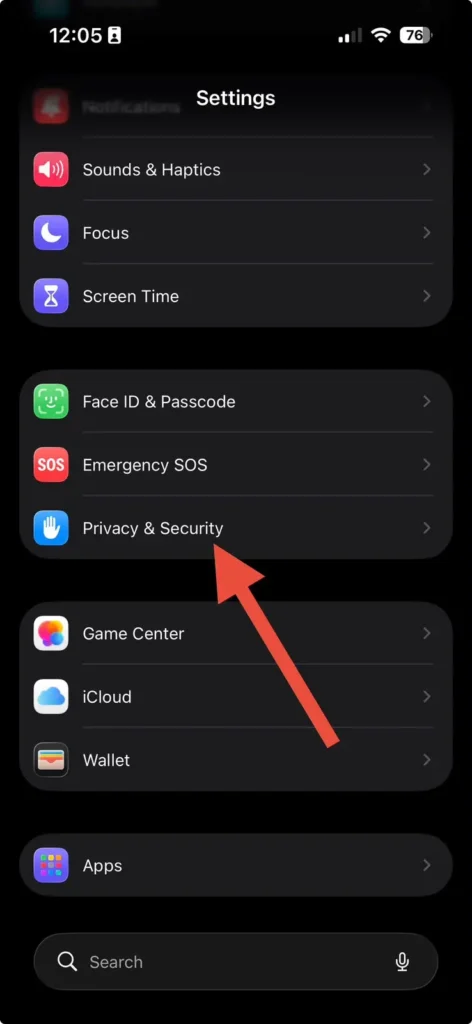
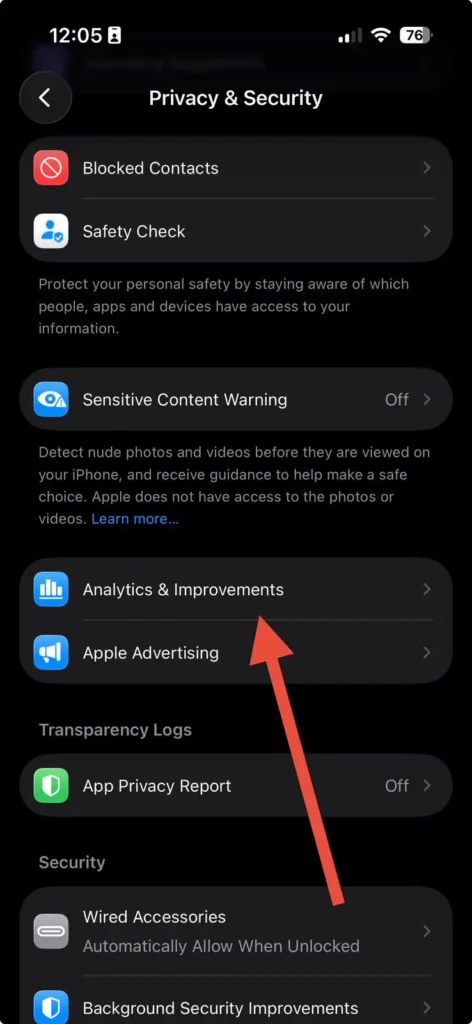
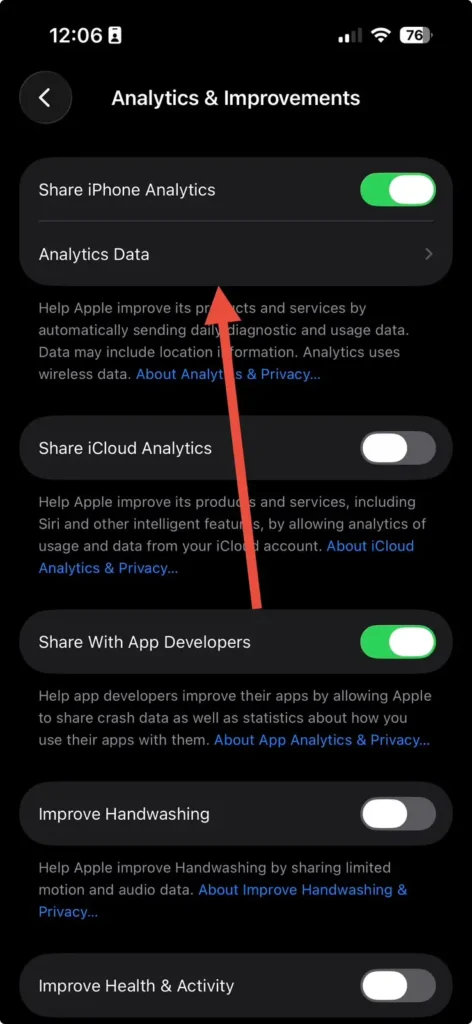
Step-2: Scroll through the log files. Look for any app name that appears repeatedly with a recent timestamp.

Step-3: Delete that app immediately: press and hold its icon → Remove App → Delete App.
Step-4: Restart your iPhone and monitor for 30 minutes.
Real-world case: A reader reached out after her iPhone 15 Plus kept restarting every 15 minutes. The analytics log showed the same third-party VPN app crashing 47 times in 24 hours. Deleting it stopped the restarts immediately.
Fix 4 – Update All Apps
Outdated apps built for earlier iOS versions can conflict with iOS 26’s updated runtime.
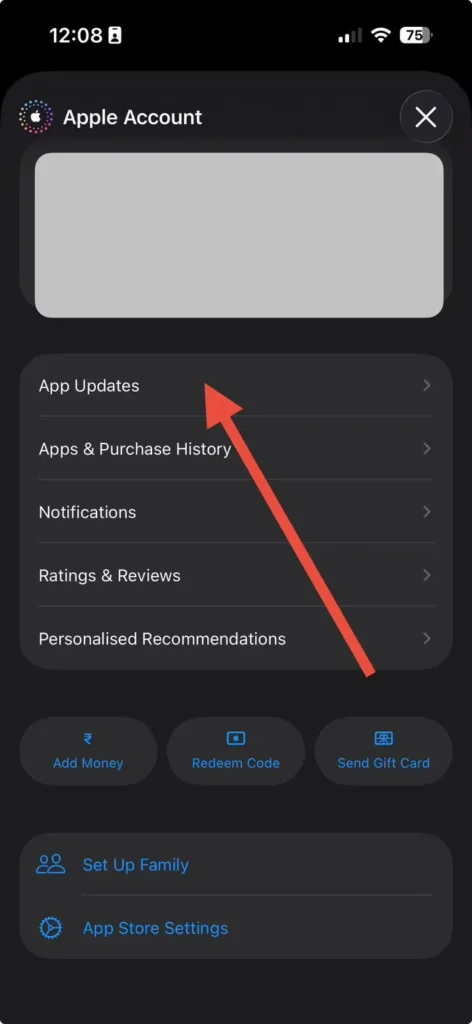
- Open the App Store.
- Tap your profile icon in the top-right corner.
- Scroll down and tap Update All.
Fix 5 – Free Up Storage Space
iOS needs breathing room to operate. If your available storage drops below 500MB, system instability — including random reboots — becomes likely.
- Go to Settings → General → iPhone Storage.
- Review the bar graph at the top. Aim to keep at least 1–2GB free at all times.
- Offload large apps, delete duplicate photos, or clear app caches.
Fix 6 – Check Battery Health
A degraded battery is a sneaky restart trigger — especially during high-demand tasks like gaming or GPS navigation.
- Go to Settings → Battery → Battery Health & Charging.
- If Maximum Capacity is below 80%, your battery is likely causing the shutdowns.
- Book a battery replacement at Apple or an authorized service provider.
🔗 Battling fast drain alongside the restarts? Our 17 Proven Fixes for iPhone Battery Draining Fast covers this in depth.
Fix 7 – Reset All Settings
This is a targeted reset — it doesn’t erase your data, photos, or apps. But it wipes every custom setting back to default, which often resolves conflicts causing random reboots.
- Go to Settings → General → Transfer or Reset iPhone.
- Tap Reset → Reset All Settings.
- Enter your passcode and confirm.
Your iPhone will restart and take 1–2 minutes to apply changes.
💡 Expert Insight
Don’t overlook your charging cable. In our experience, roughly 1 in 5 cases of “iPhone keeps restarting when charging” is caused by a counterfeit or damaged Lightning/USB-C cable. The cable sends inconsistent voltage, which iOS interprets as a hardware fault and triggers a restart. Swap to an Apple-certified cable before assuming it’s a software issue.
Type 2: iPhone Stuck in a Restart Loop (Unusable)
If your iPhone won’t get past the Apple logo — restarting over and over without ever reaching the home screen — you’re dealing with a boot loop. This requires a different approach.
Fix 8 – Recovery Mode (Update Before Restoring)
Recovery Mode lets your computer communicate with an iPhone that can’t fully boot. Always choose Update first — it reinstalls iOS without wiping your data.
What you need: A Mac (Finder) or PC (iTunes), plus the appropriate cable.
- Connect your iPhone to your computer.
- Open Finder (Mac) or iTunes (PC).
- Enter Recovery Mode using the force restart sequence above — but keep holding the Side button past the Apple logo until you see the recovery mode screen (cable and laptop icon).
- In Finder/iTunes, click Update (not Restore). This preserves your data.
- Wait for the process to complete — it typically takes 10–20 minutes.
🔗 If you see the support.apple.com/restore screen, read our dedicated guide: How to Fix the Apple Restore Screen.
Fix 9 – Remove and Reinsert Your SIM Card
A SIM card that’s slightly out of position can lock your iPhone in a restart loop, particularly on models using physical nano-SIMs.
- Power off your iPhone (or attempt to).
- Use an eject tool or paper clip to open the SIM tray.
- Remove the SIM, inspect it for damage or debris, then reinsert firmly.
- Power the phone back on.
(This step is not applicable if you’re using an eSIM-only model like the iPhone 15 or later in the USA.)
What If None of This Works?
If you’ve tried every fix above and your iPhone keeps restarting, there are two remaining paths:
DFU Restore (deepest software reset possible): A Device Firmware Update restore wipes and reinstalls iOS at the firmware level — deeper than a standard recovery. Back up first if you can. Apple’s support site has model-specific DFU instructions.
🔗 Our Factory Reset iPhone guide covers what to expect after a full restore.
Hardware diagnosis: If a DFU restore doesn’t stop the restarts, the issue is almost certainly hardware — a failing battery, damaged logic board, or liquid corrosion. At this point, contact Apple Support or visit an Apple Store for a diagnostics scan. If your device is under AppleCare+, this repair may be fully covered.
🔗 If your iPhone also won’t power on between restarts, see iPhone Won’t Turn On – 9 Fixes That Work.
Why Your iPhone Keeps Restarting – The Real Reason
Before jumping into fixes, it helps to understand what’s actually happening.
When your iPhone restarts automatically, it’s almost always experiencing what Apple engineers call a “kernel panic” – the iOS equivalent of a Windows blue screen.
The system detects an unrecoverable error and reboots itself to try to recover.
Think of it like a car engine that stalls and auto-restarts when it detects a fuel problem. Most of the time, the root cause is software – but occasionally it’s the fuel itself (your battery or hardware).
Here are the most common culprits we see in 2026:
- iOS 26 software bugs — The iOS 26 update introduced some instability on older models like the iPhone 13 and 14 series, particularly around background processing and the new Liquid Glass interface.
- A corrupted or incompatible app — One badly coded app can bring your entire phone down.
- Low or degraded battery — A battery below 80% health struggles under processing load, causing unexpected shutdowns that look like restarts.
- Full or near-full storage — When your iPhone has less than 500MB free, iOS can’t write temporary files and crashes.
- A faulty or uncertified charging cable — Non-MFi cables can trigger restart loops specifically when charging.
- SIM card issues — A slightly displaced SIM can cause continuous restart cycles.
- Hardware damage — Liquid exposure or a drop that damaged internal components.
FAQ
A: Several users reported instability after updating to iOS 26.0, particularly on iPhone 13 and 14 models. Apple patched these issues in iOS 26.5. Go to Settings → General → Software Update and install the latest version. If updating fails because of the restart loop, use Recovery Mode from a computer.
A: This is almost always a crashing app or a corrupted iOS process. Check Settings → Privacy & Security → Analytics & Improvements → Analytics Data for repeated crash logs. Delete the offending app. If no app stands out, try Reset All Settings.
A: This is a classic symptom of either a damaged/counterfeit charging cable or a degraded battery. Try a different Apple-certified cable first. If the problem persists, check battery health in Settings → Battery → Battery Health & Charging.
A: Yes. When available storage drops critically low — under 500MB — iOS can’t write temporary system files and will crash. Go to Settings → General → iPhone Storage and free up at least 1–2GB.
A: Almost certainly not. Use Recovery Mode via a Mac (Finder) or PC (iTunes) to reinstall iOS without erasing your data. Only if that fails should you consider a full DFU restore, which will require restoring from a backup.
Found this helpful? Share it with someone whose iPhone won’t stop rebooting — you might save them a trip to the Apple Store.
Disclaimer: This article is intended for informational and general troubleshooting purposes only. Results may vary depending on your specific iPhone model, iOS version, and individual device condition. AppleHeadlines.com is not affiliated with Apple Inc. Always back up your device before performing any software reset or restore. For hardware issues, consult an Apple Authorized Service Provider or visit support.apple.com

T’kal is the lead strategist and developer behind Apple Headlines. With a background in digital marketing and web development, he specializes in technical Apple troubleshooting, software news, and hardware rumors. T’kal focuses on delivering high-authority tech content that bridges the gap between Apple enthusiasts and the latest industry innovations.