


Your iPhone rings.
Unknown number.
You answer – dead air, then a robotic voice hawking a car warranty.
Sound familiar?
You’re not alone. Americans received over 58 billion robocalls in 2024 alone.
The good news: your iPhone has a built-in setting that silences this noise instantly – and most people have no idea it exists, or how to use it properly.
This guide covers everything:
how to silence unknown callers on iPhone, what the feature actually does, its limits, smarter alternatives, and exactly what to do when it doesn’t work.
Key Takeaways
What “Silence Unknown Callers” Actually Does (And What It Doesn’t)
Before you flip the switch, you need to understand what this iPhone silence unknown caller setting really does — because most articles skip this part, and it’s the reason people accidentally miss important calls.
When you enable Silence Unknown Callers, your iPhone uses three data sources to decide who rings through:
Every other number? Silenced and sent directly to voicemail. The call still appears in your Recents list — it just never makes your phone ring.
Think of it like a VIP nightclub bouncer. Only people on the list get in. Everyone else waits outside — quietly.
How to Silence Unknown Callers on iPhone: Step-by-Step (iOS 18 & iOS 17)
This process takes under 60 seconds.
Here’s exactly how to do it on the latest iOS versions.
For iOS 26
Important Notes (Very Important for Users)
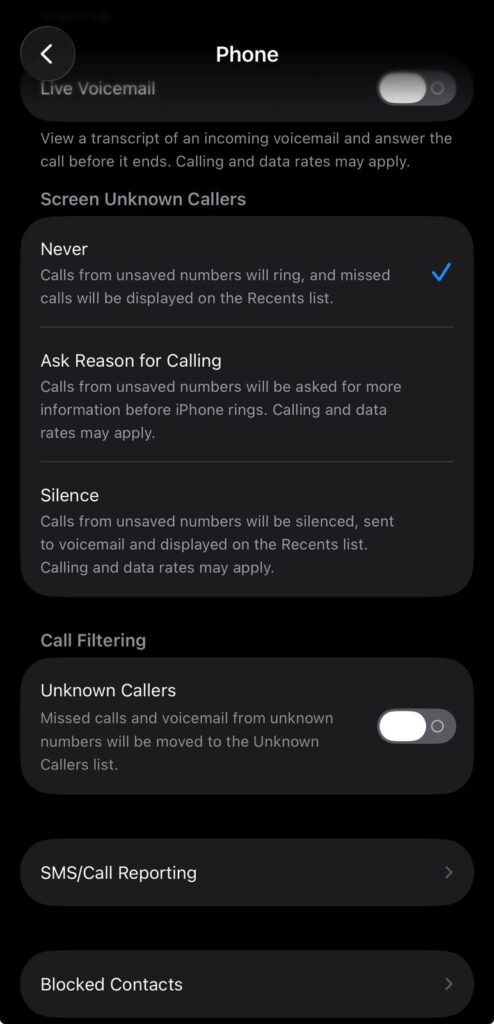
For iOS 18 (iPhone 16 Series, iPhone 15 Series, and Compatible Models)
Apple reorganized the Settings menu in iOS 18, so the path changed slightly.
Note: In iOS 18, Apple expanded this to three options: Never, Ask Reason for Calling, and Silence. You’ll see all three here.
For iOS 17 (iPhone 14 Series and Earlier Running iOS 17)
That’s it. Unknown callers are now silenced on iPhone. The change takes effect immediately — no restart needed.
For iOS 16 and Earlier
The path is the same as iOS 17 on older versions.
The iOS 18 Upgrade: Three Modes Explained
iOS 18 gave this feature a major upgrade. Instead of a simple on/off toggle, you now have three distinct screening modes under Screen Unknown Callers. Here’s what each one does:
Never
Your phone rings for all incoming calls, known or unknown. This is the factory default. If you’ve never touched this setting, this is where you are right now.
Ask Reason for Calling (New in iOS 17, refined in iOS 18)
This is the smartest option. When an unknown number calls, Apple’s system answers first and asks the caller to state their reason for calling.
You see a live transcript on your screen in real time. You can then choose to pick up, decline, or let it go to voicemail — without ever answering yourself.
This is powered by Live Voicemail, which requires iOS 17 or later and Live Voicemail to be enabled. It works like having a personal screener handle your calls.
Silence
All unknown calls go straight to voicemail. No ring, no notification. They appear silently in your Recents list.
💡 Pro Tip: Use “Ask Reason for Calling” Instead of Full Silence
Most people jump straight to Silence and then miss calls from their doctor, a job recruiter, or a delivery driver.
The Ask Reason for Calling option is the sweet spot for 2026.
You get spam protection and the ability to pick up legitimate unknown calls — all without answering first.
To use it, make sure Live Voicemail is turned on: go to Settings > Apps > Phone > Live Voicemail and toggle it ON.
How to Also Silence Spam Calls on iPhone (Separate Feature)
Here’s something most guides miss: Silence Unknown Callers and Spam filtering are two separate settings on your iPhone. Your carrier can flag numbers as spam independently of Apple’s feature.
To enable carrier spam filtering:
When this is active, calls your carrier identifies as spam or fraud are silenced, sent to voicemail, and sorted into a Spam list — separate from your regular Recents. This is how to block spam calls on iPhone at the carrier level, adding a second layer of protection.
To view your spam list
Real-World Case Study: Why One Setting Isn’t Always Enough
Sarah, a freelance graphic designer in Austin, TX, enabled Silence Unknown Callers after getting flooded with robocalls during tax season 2025. Three days later, she missed a callback from a major client using a business line she hadn’t saved. She almost lost the contract.
Her fix: She switched to Ask Reason for Calling, added a voicemail greeting that said “please state your name and reason for calling,” and saved any number she was expecting a call from — even temporarily.
The lesson: Silence Unknown Callers is a powerful filter, but it works best when combined with good contact hygiene. Before enabling it, spend five minutes making sure your doctor’s office, pharmacy, school, and any expected callers are saved in your Contacts.
How to Block Unknown Callers on iPhone vs. Silencing Them: What’s the Difference?
People often confuse silencing and blocking. They are not the same thing.
| Feature | Silencing Unknown Callers | Blocking a Specific Number |
|---|---|---|
| Scope | All unknown numbers | One specific number |
| What caller hears | Rings, then voicemail | One ring or nothing |
| Voicemail left? | Yes, silently | Yes, but stored separately |
| You see the call? | Yes, in Recents | Yes, in Blocked Contacts |
| Setting location | Settings > Apps > Phone | Phone app > Recents > Block |
Silencing is a broad net — great for unknown numbers. Blocking is a targeted action for specific repeat offenders.
To block a specific number on iPhone:
How to Unblock Silenced Calls on iPhone (Turn the Feature Off)
Need to turn this off temporarily — say, you’re expecting a call from a new doctor, interviewer, or delivery service?
How to Turn Off Silenced Calls on iPhone
- Go to Settings > Apps > Phone (iOS 18) or Settings > Phone (iOS 17 and earlier).
- Tap Screen Unknown Callers.
- Select Never to allow all calls through again.
That’s all it takes. There’s no grace period — it’s instant.
Temporary tip: Instead of turning it off entirely, you can add the number you’re expecting to your Contacts temporarily. Once the call comes through, you can delete it. This keeps your spam filter active.
Using Focus Mode as a Smarter Alternative
Focus Mode is an underused power tool for call filtering. It gives you more granular control than Silence Unknown Callers alone.
Here’s how to set up a Focus filter that allows only your Contacts to call through:
Focus Mode is ideal for work hours, meetings, or sleep — giving you silence unknown calls on iPhone behavior with the flexibility to schedule it automatically or turn it on with one tap.
What About FaceTime Unknown Callers?
The Silence Unknown Callers setting in Phone doesn’t automatically apply to FaceTime. You need to set it separately.
To silence unknown FaceTime callers:
- Go to Settings > Apps > FaceTime.
- Under Calls, find Silence Unknown Callers.
- Toggle it ON.
This silences FaceTime audio and video calls from Apple IDs not in your contacts.
Troubleshooting: What If Silence Unknown Callers Isn’t Working?
If you’ve turned on the iPhone silence unknown caller setting and calls are still ringing through, work through this checklist:
✅ Check 1: Is the Setting Actually On?
Go to Settings > Apps > Phone > Screen Unknown Callers and confirm it says Silence (not Never).
✅ Check 2: Is the Number in Your Siri Suggestions?
If a number appears in an email, iMessage thread, or recent app activity, Siri may have learned it — and that qualifies it to ring through. This is by design, not a bug.
✅ Check 3: Did You Call That Number Recently?
Any number you’ve called in the past (even accidentally) will be allowed to call back. Check your Recents list.
✅ Check 4: Is Live Voicemail Turned On?
If you chose Ask Reason for Calling and nothing is happening, check Settings > Apps > Phone > Live Voicemail — it must be ON.
✅ Check 5: Are You Roaming?
Apple’s documentation confirms: call screening is disabled when you’re roaming internationally. All calls ring normally when abroad, regardless of your settings.
✅ Check 6: Did You Recently Call 911?
If you contacted emergency services, Apple automatically disables call screening for 24 hours to ensure you receive emergency callbacks. This is a safety feature and cannot be overridden.
✅ Check 7: Carrier Compatibility
Some carrier plans or older MVNOs may not fully support Live Voicemail or spam filtering. Contact your carrier if issues persist.
How to Handle the “Missing Important Calls” Problem
This is the number one complaint from people who enable this feature. Here’s a practical system to prevent missed important calls:
Before enabling Silence Unknown Callers, save these numbers in your Contacts:
Ongoing habit: When you’re expecting a call from a new number — a job interview, a contractor quote, a medical specialist — add the number to your contacts the moment you schedule it. Most appointment confirmation texts include the callback number.
FAQs
It will stop spam calls from numbers not in your contacts, Siri Suggestions, or recent call history. For additional protection, also enable Spam filtering under Settings > Apps > Phone > Call Filtering. This uses your carrier’s fraud detection database as a second layer.
Silenced calls still appear in your Recents tab in the Phone app. If a voicemail was left, you’ll see a voicemail badge. With Live Voicemail enabled on iOS 17 or later, you can read a real-time transcript of voicemails being left — even from unknown callers — without picking up.
Yes. The easiest method is to add the number you’re expecting to your Contacts temporarily. Once the interaction is complete, delete the contact. Your Silence Unknown Callers setting stays active the entire time.
Not automatically. FaceTime has its own separate Silence Unknown Callers toggle under Settings > Apps > FaceTime. You need to enable it there independently.
They appear silently in your Recents list under the Phone app. If the caller leaves a voicemail, you’ll receive a notification. No call is permanently lost — they’re just redirected, not blocked.
Disclaimer: This article is for informational purposes only. iOS features, settings paths, and carrier compatibility are subject to change with software updates. Always refer to Apple’s official support documentation at support.apple.com for the most current instructions. Call filtering behavior may vary by carrier and region. Standard calling and data rates may apply when using call screening features. Emergency services behavior (24-hour screening disable) is a safety function mandated by Apple and cannot be modified by users.
Last updated: April 2026 | Compatible with: iOS 26, iOS 18, iOS 17, iOS 16, | Devices: iPhone 17 series, iPhone 16 series, iPhone 15 series, iPhone 14 series, iPhone 13 series, and all models supporting iOS 16 or later
Best For Your Interest




Virginia J. Alfonso is a seasoned technology writer with a passion for all things digital. With over a decade of experience covering the latest in tech innovation, gadgets, and software, Virginia brings a unique blend of technical expertise and accessible writing to her work. Her articles focus on making complex tech topics easy to understand for readers of all levels.