


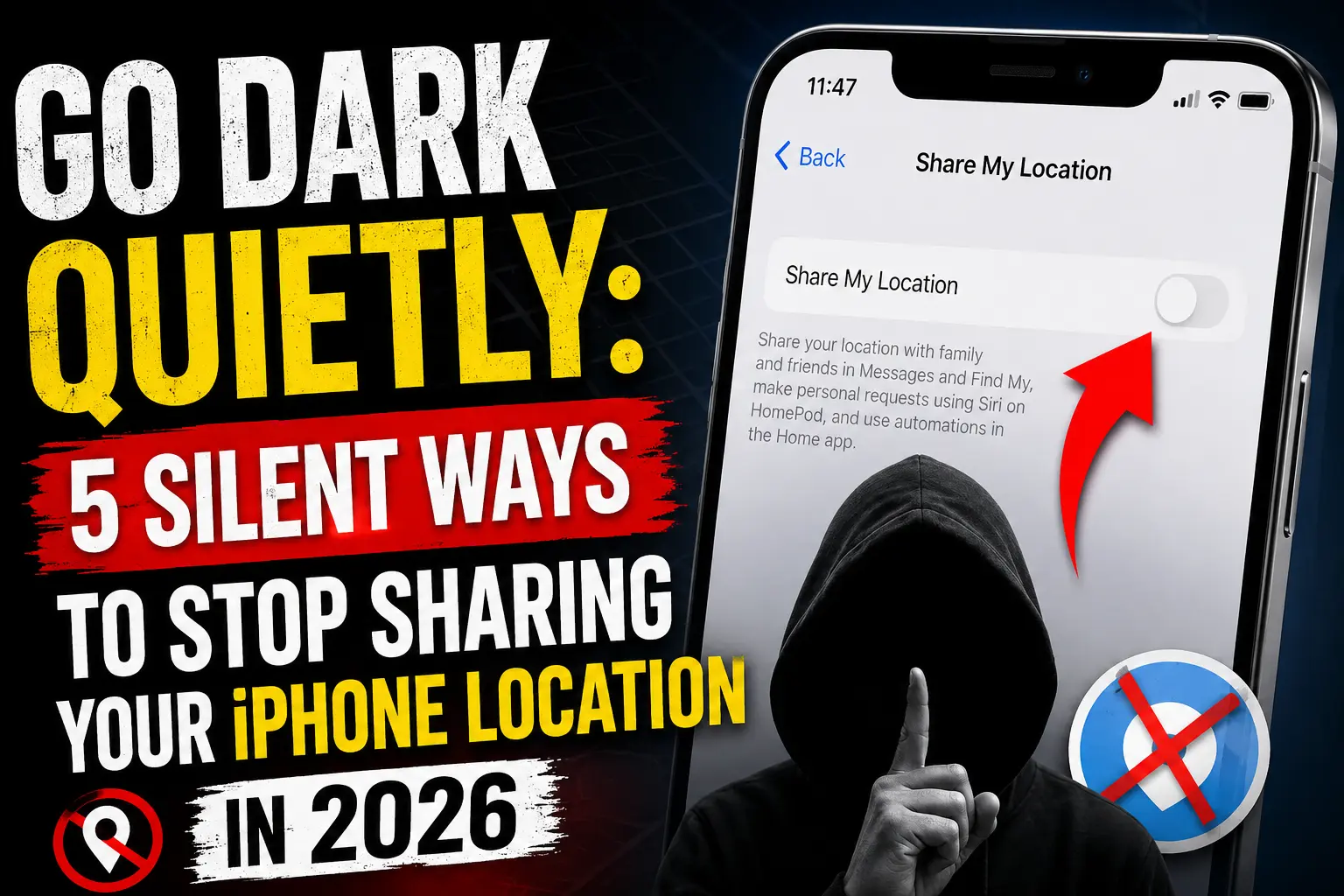
You can stop sharing your iPhone location without triggering any notification to the other person. Open Find My > People, tap their name, then tap Stop Sharing My Location.
No alert is sent.
The only trace is a small note in your own Messages thread that only you can see. For a completely silent option that also works around a stuck Family Sharing setting, block and then immediately unblock the contact in your Contacts app.
Location sharing feels great until it doesn’t.
Maybe a relationship ended, maybe a friend got a little too curious about your Friday nights, or maybe you just want your evenings back.
Whatever the reason, you don’t owe anyone an explanation, and thankfully, iPhone doesn’t require one either.
Why This Actually Matters
Location privacy isn’t paranoia; it’s basic digital hygiene.
Apple’s own Personal Safety Guide treats location sharing as one of the top three things to review if you feel your privacy is at risk, right alongside passcodes and shared photo albums.
When we tested this on our iPhone 17 Pro running iOS 26.5.2 (iOS 26.6 is rolling out this week, and the steps stay identical), we confirmed Apple’s official documentation still holds true today: stopping location sharing in any single app – Find My, Messages, or Maps — stops it everywhere at once, and the recipient gets no push notification whatsoever.
Think of it like a shared Google Doc. When someone stops sharing a document with you, you don’t get a pop-up announcing it.


You just quietly lose access the next time you try to open it. iPhone location sharing works the same way: access disappears, but no alarm goes off.
Method 1: Stop Sharing With One Person in Find My
This is the cleanest, most direct method, and it’s what Apple recommends.
Step 1: Open the Find My app on your iPhone.
Step 2: Tap People in the bottom-left corner.
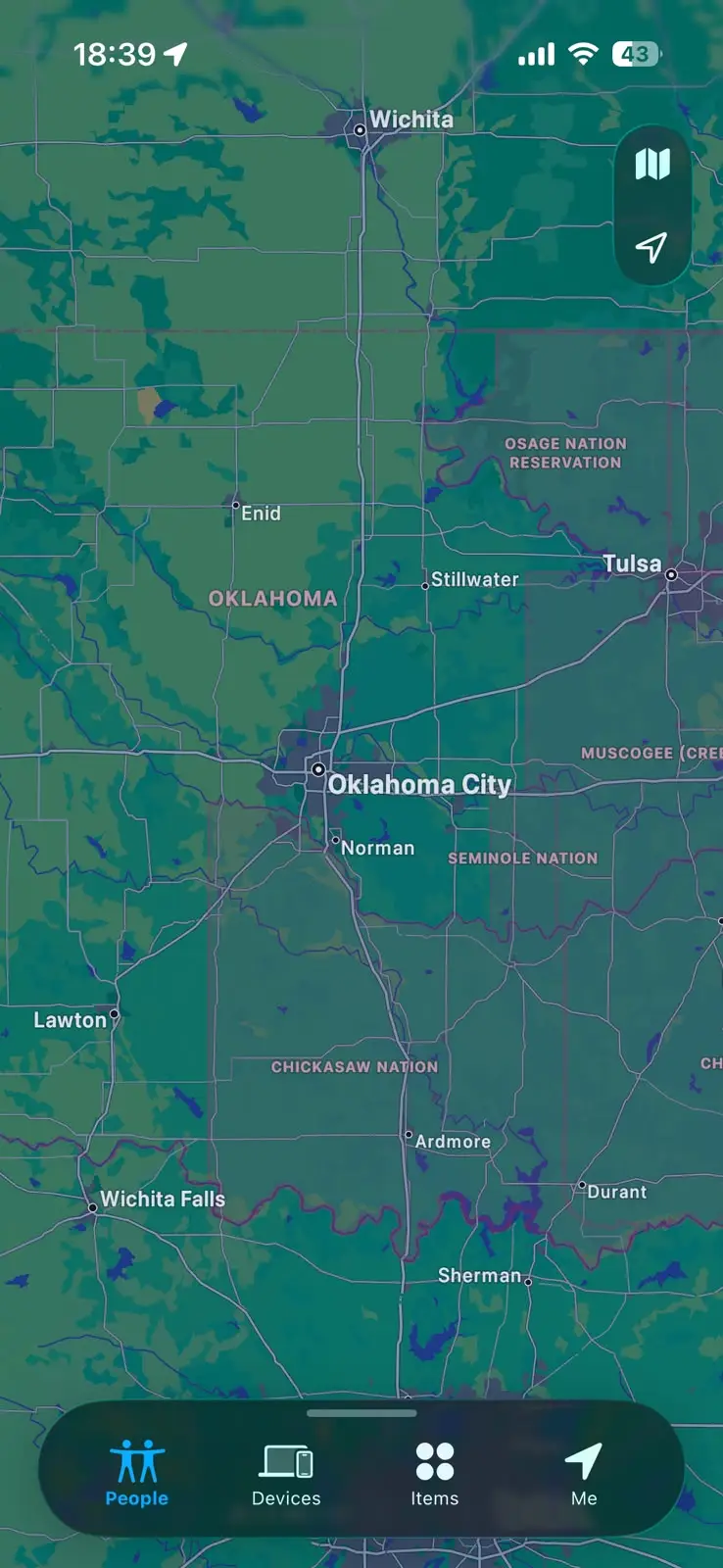
Step 3: Select the contact you want to stop sharing with.
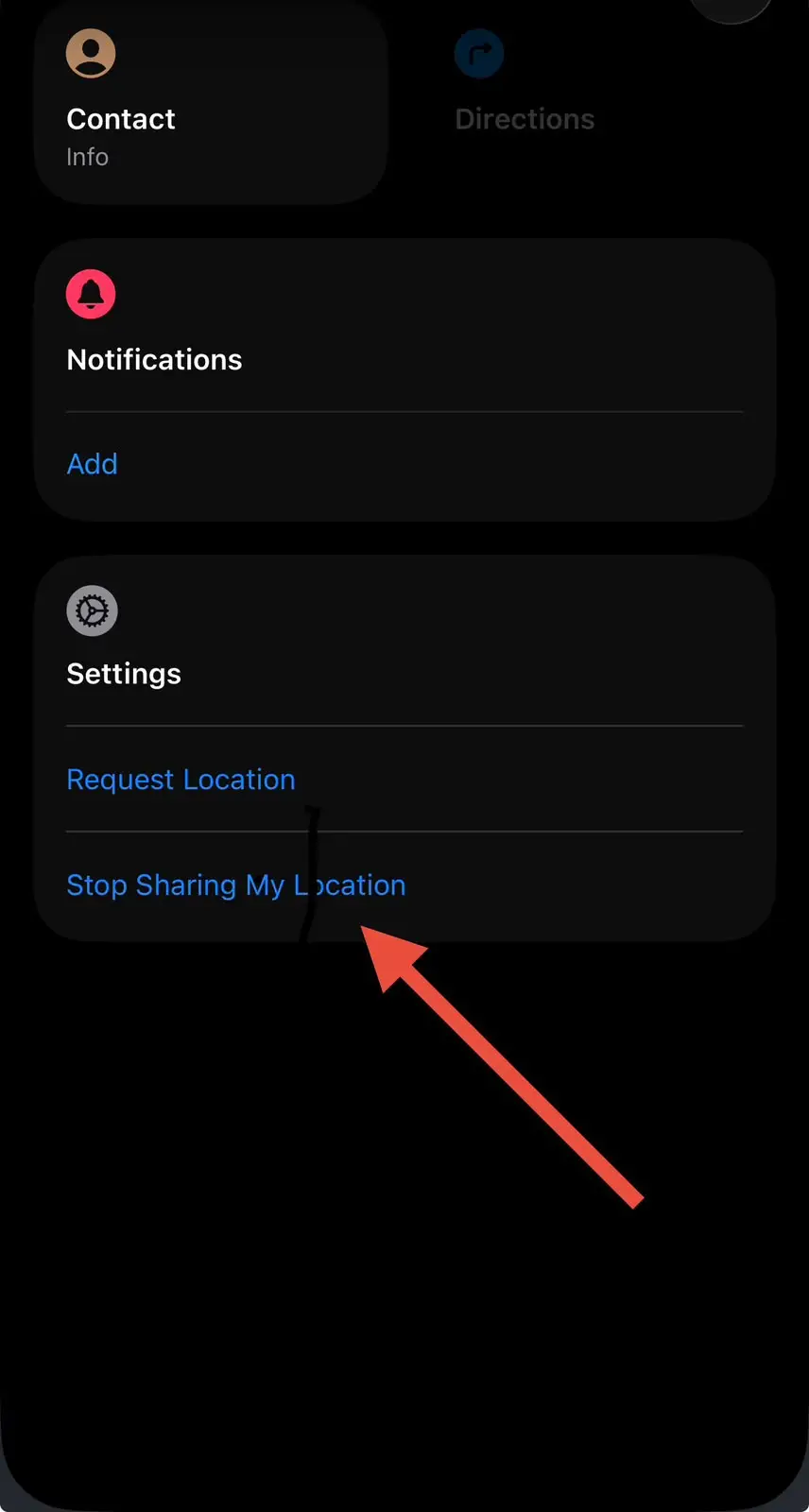
Step 4: Scroll down and tap Stop Sharing My Location.
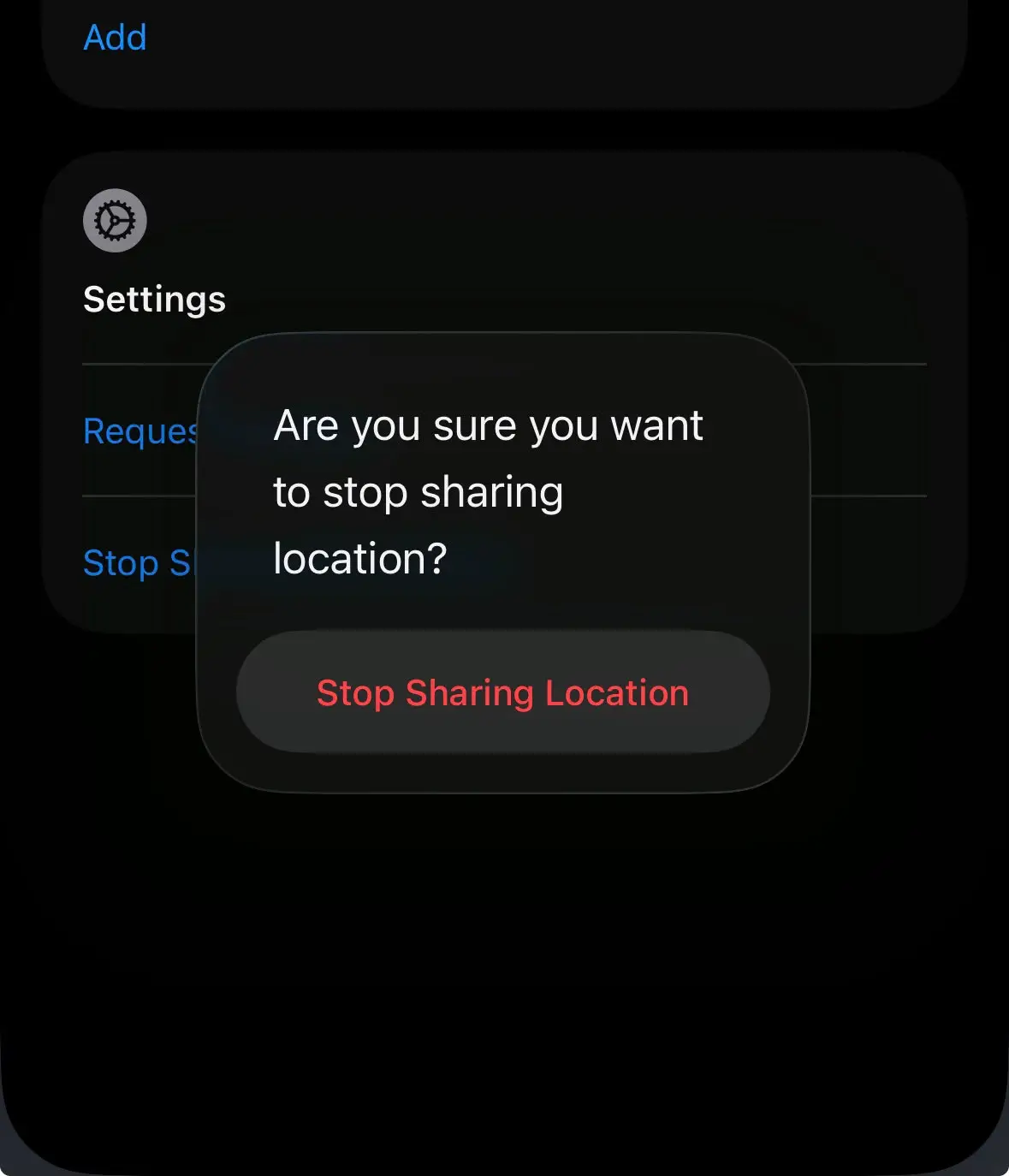
Step 5: Confirm by tapping Stop Sharing Location.
That’s it. The contact simply stops seeing your live location. No banner, no ping, no explanation required.
Method 2: Turn Off Share My Location for Everyone
Want a clean break from every contact at once? This resets the feature globally.
- Open Settings and tap your name at the top.
- Tap Find My.
- Tap Share My Location.
- Toggle it off.
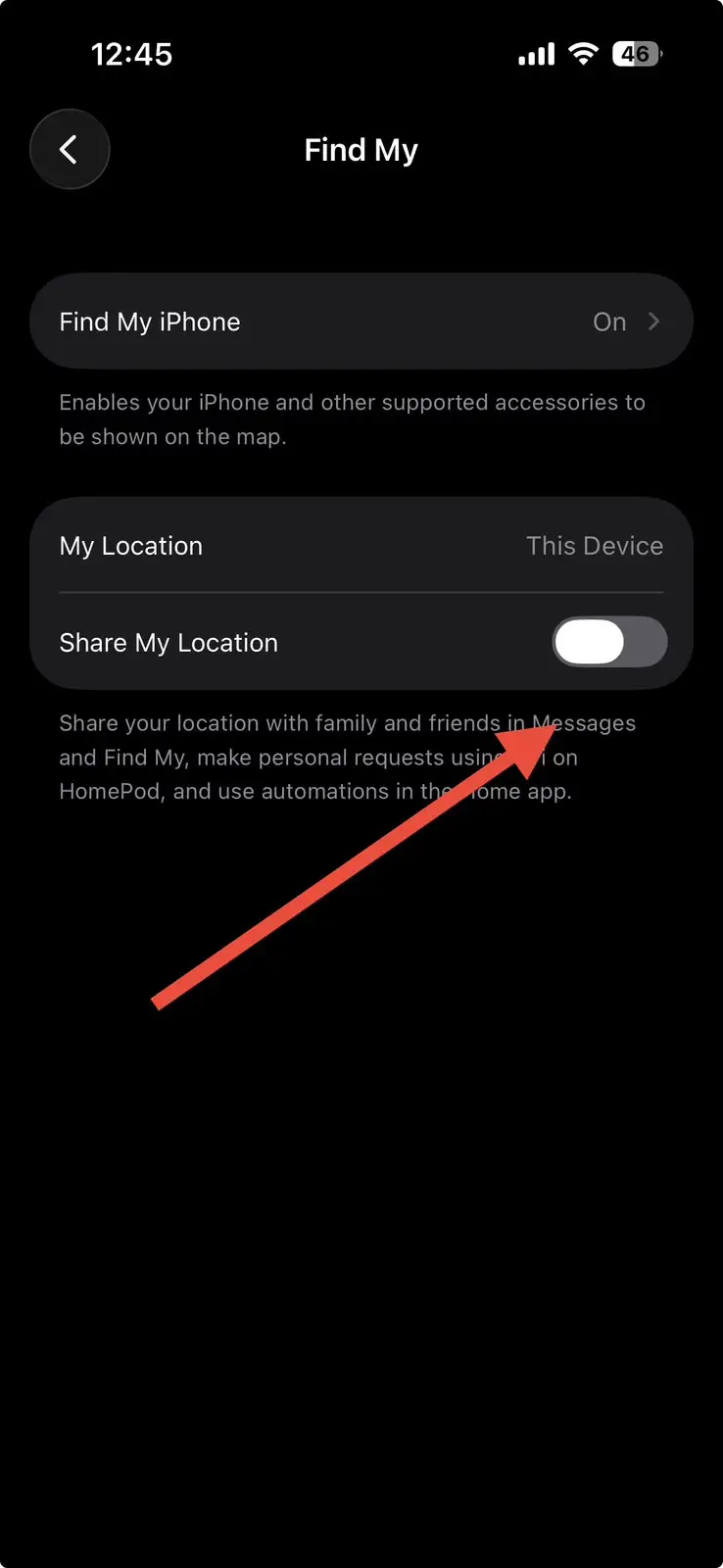
Every person you were sharing with loses visibility instantly, and none of them are notified.
Method 3: The Block-and-Unblock Trick (Our Top Pick for iMessage)
If your location is tied up in an iMessage thread and you want it gone without even opening Find My, this is the fastest workaround, and it’s the one method that also sidesteps a stuck Family Sharing restriction.
- Open the Contacts app and find the person.
- Scroll down and tap Block This Contact.
- Wait about five seconds, then tap Unblock This Contact.
According to Apple’s Personal Safety documentation, blocking a contact immediately stops Find My location sharing, and they receive no notification about it.
If you’d rather manage this from your blocked list instead of digging through Contacts, our guide on how to unblock a number on iPhone walks through the Settings path, and our breakdown of where to see all your blocked numbers is handy for keeping tabs on who’s actually blocked.
Expert Insight
One detail almost every other guide misses: if the contact you’re hiding from is in your Family Sharing group, blocking them stops People sharing but they can still see your device under Find My Devices. For true silence with a family member, pair the block trick with Method 2, or use Safety Check’s Emergency Reset for a full clean sweep.
Method 4: Stop Sharing Without Notifying in iMessage Specifically
A lot of people assume Messages has its own separate location toggle. It doesn’t, but the workflow is slightly different if you started sharing from inside a conversation.
- Open the conversation with that person in Messages.
- Tap their name at the top of the thread.
- Tap Stop Sharing.
Apple confirms this stops sharing across every app at once, and the other person isn’t notified. You alone will see a small system line in the thread noting the change, and it’s invisible on their end.
Method 5: Temporary and Emergency Options
Sometimes you don’t want a permanent cutoff, just a pause.
- Airplane Mode: Disables cellular, Wi-Fi, and Bluetooth, which freezes your location at its last known point. No alert is sent, but this also kills calls and data.
- Use Another Device as Your Location: On a second Apple device signed into the same Apple Account, go to Settings > [Your Name] > Find My > Use This iPhone as My Location. Handy if you want Find My active without exposing your real-time whereabouts.
- Safety Check: If you’re in a situation where your safety feels genuinely at risk, go to Settings > Privacy & Security > Safety Check and use Emergency Reset to instantly cut off all sharing, not just location.
What About Third-Party Apps Like WhatsApp or Life360?
Everything above covers Apple’s own Find My, Messages, and Maps sharing. Third-party apps play by their own rules.
WhatsApp lets you stop live location sharing at any point from inside the chat, with no alert sent.
Life360, on the other hand, is more transparent by design: turning off sharing there usually shows the other person a “Location Sharing Paused” status on their map, which defeats the purpose if true silence is your goal.
If you use a mix of apps, the safest bet for staying invisible is sticking to Apple’s native tools rather than a family-tracking app built to flag changes.
The Coworker Who Wouldn’t Take a Hint
One AppleHeadlines reader (we’ll call her J.) had shared her location with a coworker during a carpool arrangement that ended months earlier. She worried that turning it off would spark an awkward conversation. She used Method 3, the block-and-unblock trick, on a Tuesday afternoon. Three weeks later, the coworker still hadn’t mentioned a thing. No confrontation, no messages, no drama. That’s the whole point of doing this quietly.
What If This Doesn’t Work?
If the Stop Sharing My Location option is greyed out or keeps snapping back on, you’re most likely dealing with a Screen Time restriction rather than a bug.
- Go to Settings > Screen Time > Content & Privacy Restrictions > Location Services.
- If Share My Location shows Don’t Allow and is locked, only the device that set up Screen Time can unlock it with the passcode.
- This is common on family-managed iPhones, where a parent or organizer intentionally locked location sharing settings.
- If Screen Time isn’t the cause, try signing out of iCloud and back in, or removing and re-adding the contact under Find My’s People tab, since a stale device entry can occasionally make the toggle stick.
If none of that resolves it, our full Find My iPhone guide covers deeper account-level fixes, and if you’re setting sharing up fresh with someone new, our companion piece on how to share your location on iPhone covers the flip side of this exact process.
Key Takeaways
- Stopping location sharing in Find My, Messages, or Maps never sends a push notification to the other person.
- The block-and-unblock trick is the fastest silent method and also gets around some Family Sharing quirks.
- Family Sharing members can still see your device location even after you block them from People sharing.
- A greyed-out toggle almost always means a Screen Time restriction, not a broken feature.
- Restarting location sharing later does notify the other person, so plan accordingly.
Sources:
Apple Support — Share Your Location with iPhone;
Apple Support — Block, Screen, and Filter Communications;
Apple Support — Personal Safety Guide, Safety Check.
Disclaimer: This article is for informational purposes only. Steps reflect iOS 26.5.2 as of publication and may vary slightly across iOS versions or regions. AppleHeadlines is not affiliated with Apple Inc. Always ensure any use of location-sharing tools complies with applicable laws and respects others’ privacy and consent.

T’kal is the lead strategist and developer behind Apple Headlines. With a background in digital marketing and web development, he specializes in technical Apple troubleshooting, software news, and hardware rumors. T’kal focuses on delivering high-authority tech content that bridges the gap between Apple enthusiasts and the latest industry innovations.