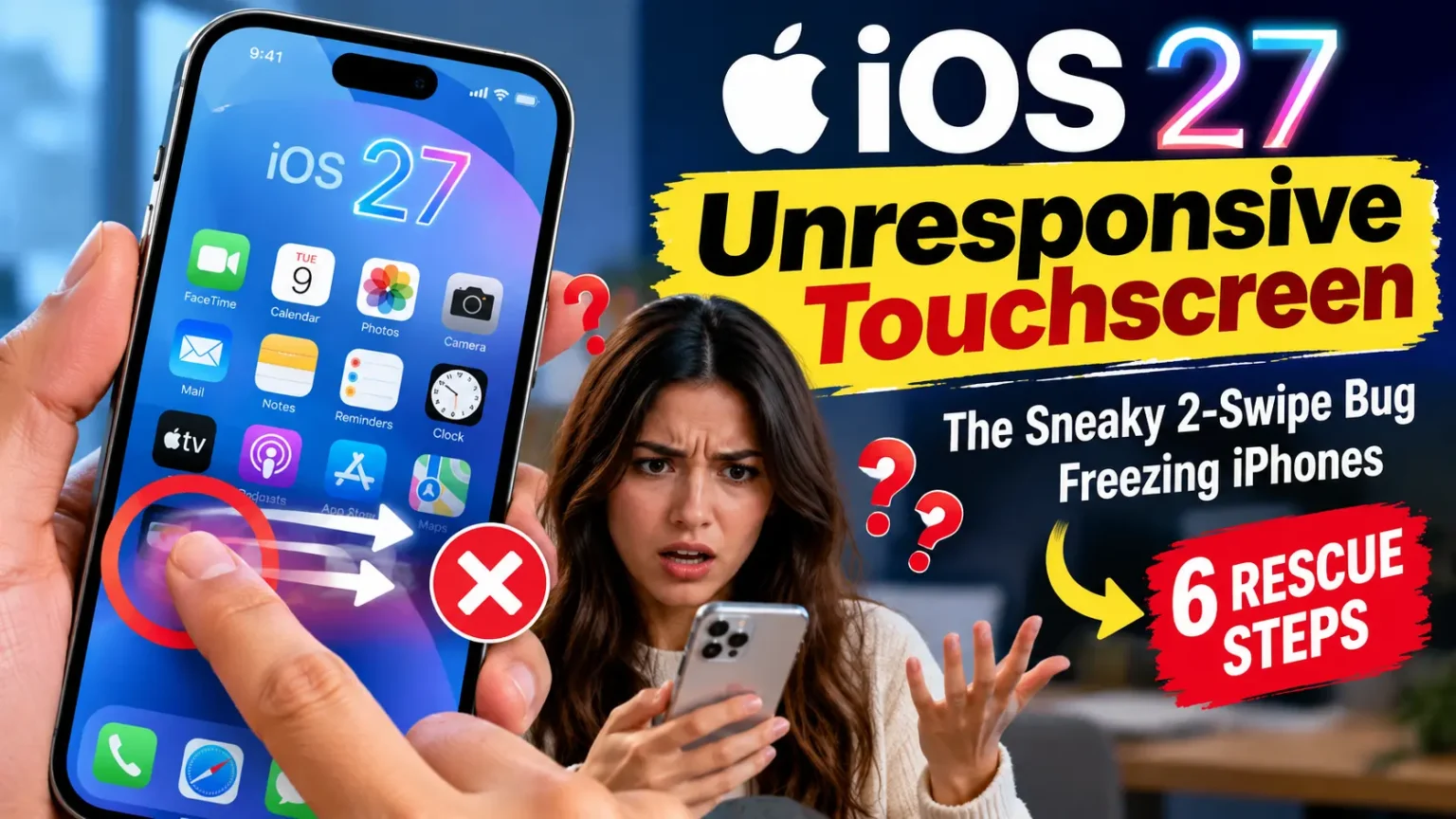




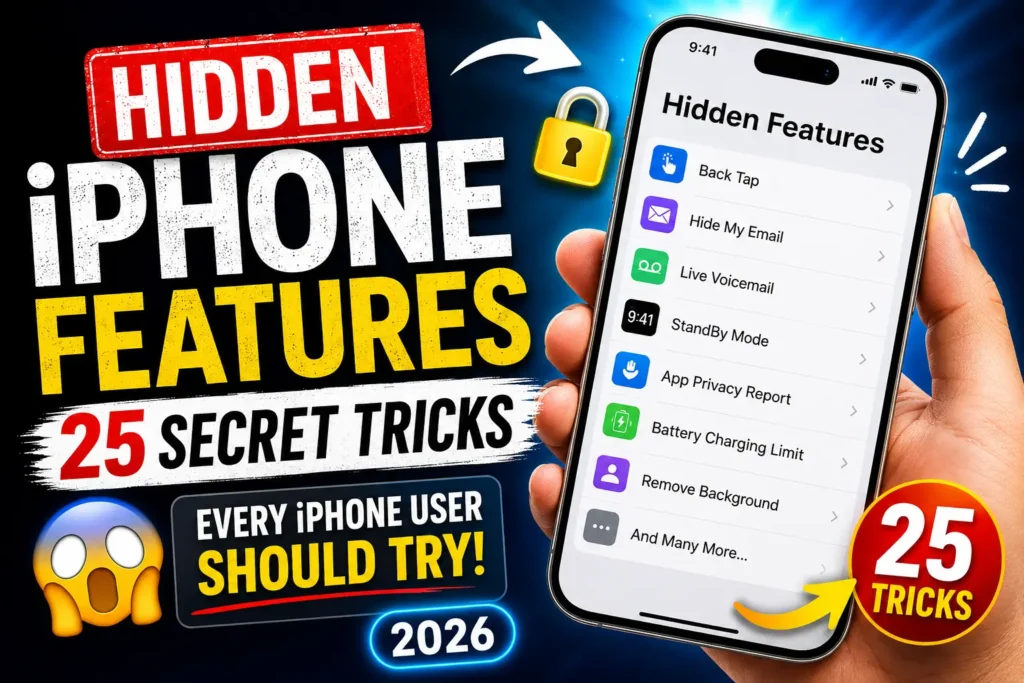
Most people use only a fraction of what their iPhone can do.
Apple adds dozens of useful features with every iOS update, but many stay hidden deep inside Settings or are quietly introduced without much attention.
These tools can save time, improve battery life, boost privacy, and make everyday tasks easier.
Whether you’ve just bought your first iPhone or have been using one for years, there’s a good chance you’ll discover something new in this guide.
In this article, you’ll learn 25 hidden iPhone features that actually make a difference—not gimmicks you’ll use once and forget.
Tip: Most features below work on iPhones running the latest version of iOS. Some require newer models, so we’ve noted compatibility where it matters.

Hidden iPhone Features at a Glance
If you’re short on time, here’s a quick overview of every hidden iPhone feature covered in this guide.
Most features are available on modern iPhones running recent versions of iOS, while a few require newer hardware or specific software versions.
| Hidden Feature | Best For | Supported iOS | Difficulty |
|---|---|---|---|
| Back Tap | Quick shortcuts | iOS 14+ | ⭐ Easy |
| Live Text | Copy text from photos | iOS 15+ | ⭐ Easy |
| Visual Look Up | Identify objects and landmarks | iOS 15+ | ⭐ Easy |
| Hide My Email | Email privacy | iOS 15+ (iCloud+) | ⭐⭐ Easy |
| Background Sounds | Focus and relaxation | iOS 15+ | ⭐ Easy |
| Live Voicemail | Screen unknown callers | iOS 17+ | ⭐ Easy |
| Voice Isolation | Better call quality | iOS 16.4+ | ⭐ Easy |
| StandBy Mode | Smart bedside display | iOS 17+ | ⭐ Easy |
| Lock Hidden Photos | Protect private images | iOS 16+ | ⭐ Easy |
| Safari Profiles | Separate work and personal browsing | iOS 17+ | ⭐⭐ Easy |
| NameDrop | Share contact information | iOS 17+ | ⭐ Easy |
| Offline Maps | Navigation without internet | iOS 17+ | ⭐⭐ Easy |
| App Privacy Report | Monitor app permissions | iOS 15.2+ | ⭐⭐ Easy |
| Screen Distance | Reduce eye strain | iOS 17+ (Face ID models) | ⭐ Easy |
| Battery Charging Limit | Improve battery longevity | Select newer iPhone models with recent iOS | ⭐⭐ Easy |
| Passwords App | Secure password management | Recent iOS versions | ⭐ Easy |
| Document Scanner | Scan documents into PDFs | iOS 13+ | ⭐ Easy |
| Focus Filters | Productivity | iOS 16+ | ⭐⭐⭐ Medium |
| Haptic Keyboard | Better typing experience | iOS 16+ | ⭐ Easy |
| Wi-Fi Password Sharing | Instantly share Wi-Fi | iOS 11+ | ⭐ Easy |
| Safety Check | Privacy and personal safety | iOS 16+ | ⭐⭐ Easy |
| Remove Background from Photos | Quick photo editing | iOS 16+ | ⭐⭐ Easy |
| Assistive Access | Simplified iPhone interface | iOS 17+ | ⭐⭐ Easy |
| Shared Password Groups | Share passwords securely | Recent iOS versions | ⭐⭐ Easy |
| App Tracking Controls | Improve privacy | iOS 14.5+ | ⭐ Easy |
What’s New in iOS 27
Apple continues to refine many of the hidden iPhone features introduced in previous iOS releases. In iOS 27, several tools are faster, smarter, and more deeply integrated across the system.

Depending on your iPhone model, you may notice improvements such as:
- Faster Live Text recognition for printed and handwritten text.
- More accurate Visual Look Up results for plants, landmarks, and everyday objects.
- Expanded StandBy Mode widget customization.
- Improved Voice Isolation for clearer phone and FaceTime calls.
- Better Offline Maps performance with smoother navigation.
- Enhanced Passwords experience with improved passkey support.
- More detailed privacy controls throughout Privacy & Security settings.
Apple occasionally updates feature availability by region, language, and iPhone model, so some capabilities may vary.
1. Back Tap
Best for: Quick shortcuts without opening apps.

One of Apple’s most useful accessibility features lets you perform actions simply by tapping the back of your iPhone two or three times.
You can use Back Tap to:
- Take a screenshot
- Open the Camera
- Turn on the flashlight
- Launch Shortcuts
- Open the Control Center
- Lock screen orientation
- Mute your phone
How to enable Back Tap
- Open Settings.
- Tap Accessibility.
- Select Touch.
- Scroll to Back Tap.
- Choose Double Tap or Triple Tap.
- Pick the action you want.
Why it’s useful
Instead of searching through menus, you can trigger your favorite action with a simple tap. It’s especially handy when you’re using your iPhone with one hand.
Pro Tip: Assign Double Tap to Screenshot and Triple Tap to Flashlight for two shortcuts you’ll probably use every day.
2. Live Text
Best for: Copying text from photos instantly.

Imagine receiving a picture of a Wi-Fi password, a phone number, or an address. Instead of typing it manually, your iPhone can recognize and copy the text directly from the image.
That’s exactly what Live Text does.
It works in:
- Photos
- Camera
- Safari
- Quick Look
- Screenshots
How to use Live Text
- Open any photo containing text.
- Tap and hold the words.
- Choose:
- Copy
- Look Up
- Translate
- Share
- Call
Everyday examples
- Copy tracking numbers
- Save recipes from cookbooks
- Scan business cards
- Translate signs while traveling
- Copy serial numbers
Pro Tip
Instead of taking a picture first, open the Camera app and point it at printed text. Tap the Live Text icon to copy information immediately.
3. Visual Look Up
Best for: Identifying objects with AI.
Visual Look Up turns your iPhone into a smart visual assistant.
It can recognize:
- Plants
- Flowers
- Dogs
- Cats
- Birds
- Landmarks
- Artwork
- Food
- Symbols
How to use it
- Open the Photos app.
- Tap a photo.
- If available, swipe up or tap the information button.
- Select Look Up.
Your iPhone searches Apple’s knowledge database and shows possible matches.
Why it’s useful
Suppose you’re hiking and find an unfamiliar flower. Snap a picture, and your iPhone can often tell you what it is without downloading another app.
4. Hide My Email
Best for: Protecting your real email address.

Every time you sign up for a website, your email address can end up on marketing lists.
Hide My Email lets you create random email addresses that forward messages to your real inbox.
The website never sees your actual email.
Benefits
- Reduces spam
- Protects your privacy
- Makes it easy to stop unwanted emails
- Helps identify which sites share your address
How to create one
- Open Settings.
- Tap your Apple ID.
- Select iCloud.
- Choose Hide My Email.
- Create a new forwarding address.
Note: This feature requires iCloud+.
5. Background Sounds
Best for: Improving focus and reducing distractions.

Many people install meditation apps just to play relaxing sounds.
Your iPhone already includes them.
Available sounds include:
- Rain
- Ocean
- Stream
- Bright Noise
- Balanced Noise
- Dark Noise
Turn it on
- Open Settings.
- Tap Accessibility.
- Choose Audio & Visual.
- Tap Background Sounds.
- Select your preferred sound.
You can even continue listening while playing music or podcasts.
Why you’ll love it
Background Sounds can make it easier to concentrate while studying, working, or relaxing.
6. Live Voicemail
Best for: Deciding whether to answer unknown calls.

Instead of waiting until someone finishes leaving a voicemail, your iPhone displays a live transcription while they’re speaking.
You can see what the caller is saying in real time and choose whether to answer before the message ends.
Enable Live Voicemail
- Open Settings.
- Tap Apps > Phone.
- Select Live Voicemail.
- Turn it on.
Great for
- Unknown callers
- Delivery drivers
- Work calls
- Family emergencies
Good to know
Transcriptions are processed on your device whenever possible, helping protect your privacy.
7. Voice Isolation
Best for: Clearer phone and FaceTime calls.
If you’ve ever taken a call in a noisy café, airport, or busy street, you’ll appreciate Voice Isolation.
This feature uses machine learning to reduce background noise while keeping your voice clear.
Use Voice Isolation
- Start a phone or FaceTime call.
- Open the Control Center.
- Tap Mic Mode.
- Select Voice Isolation.
When to use it
- Coffee shops
- Airports
- Busy offices
- Outdoor walks
- Public transportation
Pro Tip
Ask the person you’re talking to if your voice sounds clearer after enabling it. The difference is often noticeable, especially in noisy environments.
8. StandBy Mode
Best for: Turning your iPhone into a smart bedside display.
When your iPhone is charging and placed horizontally, StandBy Mode transforms it into a smart display. It can show a clock, calendar, weather, widgets, photos, Live Activities, and more.
Many users never discover this feature because it only appears under specific conditions.
What can StandBy Mode display?
- Digital or analog clock
- Calendar events
- Weather forecast
- Battery status
- Photos
- Music controls
- Live Activities
- Widgets
How to enable StandBy Mode
- Open Settings.
- Tap StandBy.
- Turn on StandBy.
- Connect your iPhone to a charger.
- Place it in landscape orientation using a MagSafe or regular stand.
Compatible iPhones
StandBy works on iPhones running iOS 17 or later. An Always-On display is available only on supported Pro models.
Why you’ll love it
Instead of buying a separate bedside clock, your iPhone becomes a smart display that shows useful information at a glance.
Pro Tip
Create a widget stack that includes your Calendar, Weather, and Reminders. This gives you a personalized dashboard every morning.
9. Lock Hidden Photos with Face ID
Best for: Keeping private photos secure.

Most people know they can hide photos in the Photos app, but fewer realize that the Hidden album itself can be protected with Face ID.
That means even if someone unlocks your iPhone, they still can’t access your hidden photos without authentication.
How to hide a photo
- Open the Photos app.
- Select the image or video.
- Tap the Share button.
- Choose Hide.
- Confirm your choice.
Enable Face ID protection
- Open Settings.
- Tap Apps > Photos.
- Turn on Use Face ID (or Touch ID on supported devices).
Why it’s useful
Whether you’re storing personal documents, travel information, or family photos, this extra layer of protection gives you more privacy.
Pro Tip
Don’t forget that deleted photos remain in the Recently Deleted album for 30 days. That album is also protected when Face ID is enabled.
10. Safari Profiles
Best for: Separating work and personal browsing.

If you use the same iPhone for work and personal life, Safari Profiles help keep everything organized.
Each profile has its own:
- Tabs
- Favorites
- History
- Cookies
- Tab Groups
- Extensions
Create a Safari Profile
- Open Settings.
- Tap Apps > Safari.
- Select Profiles.
- Tap New Profile.
- Give it a name and choose an icon and color.
Example
You could create:
Work
- Company websites
- Business bookmarks
- Research tabs
Personal
- Shopping
- Entertainment
- Social media
- Travel planning
Why it’s helpful
Instead of mixing dozens of tabs together, you can switch between separate browsing environments with a single tap.
Pro Tip
Use different profile icons and colors so you always know which profile you’re browsing in.
11. NameDrop
Best for: Quickly sharing contact information.
NameDrop lets you exchange contact details by simply bringing two compatible iPhones close together.
There’s no need to type phone numbers or email addresses manually.
How to use NameDrop
- Make sure both iPhones have Bluetooth and Wi-Fi enabled.
- Hold the tops of the two iPhones close together.
- Wait for the NameDrop animation.
- Choose whether to:
- Share your contact card.
- Receive the other person’s card only.
Great for
- Networking events
- Business meetings
- School
- Family gatherings
- Meeting new friends
Privacy note
You remain in control of what information is shared. Nothing is transferred until you confirm the action.
Pro Tip
Before using NameDrop, update your contact card with your latest phone number, email address, and profile photo so the information you share is accurate.
12. Offline Maps
Best for: Traveling without an internet connection.

One of the most useful hidden features in Apple Maps is the ability to download maps for offline use.
This is especially helpful when:
- Traveling internationally
- Hiking
- Visiting remote areas
- Saving mobile data
- Driving through areas with poor cellular coverage
Download an offline map
- Open the Maps app.
- Search for a city or region.
- Tap the place name.
- Select Download.
- Adjust the map area if needed.
- Tap Download again.
What works offline?
Downloaded maps let you:
- Get turn-by-turn driving directions.
- Search for many places.
- View estimated travel times.
- Access saved locations.
- Navigate without a mobile data connection.
Keep in mind that some live information, such as real-time traffic or business hours, may not be available until you’re back online.
Why it’s useful
Imagine landing in another country and not having mobile data yet. With offline maps already downloaded, you can still find your hotel, navigate to attractions, or locate nearby roads without relying on an internet connection.
Pro Tip
Download offline maps before road trips or vacations. It’s a simple step that can save you time, data, and frustration if your signal becomes unreliable.
13. App Privacy Report
Best for: Seeing how apps use your data and permissions.

Have you ever wondered how often an app accesses your location, camera, microphone, or contacts?
The App Privacy Report gives you a behind-the-scenes look at how apps use sensitive permissions and connect to websites. It’s one of the best privacy features Apple has introduced, yet many users don’t even know it exists.
What does App Privacy Report show?
- How often apps access your location
- Camera and microphone activity
- Contacts and Photos access
- Network activity
- Third-party domains contacted by apps
How to enable App Privacy Report
- Open Settings.
- Tap Privacy & Security.
- Scroll down and select App Privacy Report.
- Tap Turn On App Privacy Report.
After a few days of normal use, your iPhone will begin collecting data that you can review.
Why it’s useful
Imagine downloading a simple flashlight app. If you notice it repeatedly accessing your location or microphone, that’s a clear sign something isn’t right.
The report helps you decide which apps deserve your trust—and which ones should be deleted.
Pro Tip
Review your App Privacy Report once a month. If an app is requesting permissions it doesn’t genuinely need, consider revoking those permissions or uninstalling the app altogether.
14. Screen Distance
Best for: Reducing eye strain.

Many people hold their phones too close to their faces without realizing it.
Screen Distance uses the TrueDepth camera to detect when your iPhone is being held closer than about 12 inches (30 cm) for an extended period. If it is, your iPhone reminds you to move it farther away.
This feature is especially helpful for children but can benefit adults as well.
How to turn on Screen Distance
- Open Settings.
- Tap Screen Time.
- Select Screen Distance.
- Turn it on.
Why it’s helpful
Holding your phone too close for long periods may contribute to eye strain and discomfort. Gentle reminders encourage healthier viewing habits.
Compatibility
Screen Distance requires an iPhone with Face ID because it relies on the TrueDepth camera system.
Pro Tip
Combine Screen Distance with Night Shift and True Tone for a more comfortable viewing experience, especially in the evening.
15. Battery Charging Limit
Best for: Extending long-term battery health.

Keeping your iPhone battery at 100% all the time isn’t always the healthiest option.
On supported iPhone models, you can set a charging limit so your battery stops charging at a chosen percentage, such as 80%. This helps reduce battery wear over time.
How to set a charging limit
- Open Settings.
- Tap Battery.
- Select Charging or Battery Health & Charging (depending on your iPhone model and iOS version).
- Choose your preferred charging limit if available.
Why use a charging limit?
Lithium-ion batteries naturally age over time. Spending less time at a full charge can help slow that aging process.
If you usually keep your iPhone plugged in overnight or use it at a desk throughout the day, a charging limit can be a smart choice.
When should you charge to 100%?
If you’re traveling, attending an event, or know you’ll be away from a charger for a long time, charging to 100% is perfectly reasonable. The charging limit is meant for everyday use, not every situation.
Pro Tip
You don’t need to obsess over battery percentage. Consistent charging habits matter more than occasionally reaching 100%.
16. Passwords App
Best for: Managing passwords securely without third-party apps.

Your iPhone includes a powerful password manager that many people overlook.
The Passwords app (or the Passwords section in Settings on earlier iOS versions) securely stores:
- Website passwords
- App logins
- Wi-Fi passwords
- Verification codes
- Passkeys
Everything syncs across your Apple devices through iCloud Keychain.
How to access your saved passwords
- Open the Passwords app (or go to Settings > Passwords on earlier versions).
- Authenticate with Face ID or Touch ID.
- Browse your saved accounts.
Security features
The Passwords app can also:
- Detect weak passwords
- Identify reused passwords
- Alert you to compromised passwords
- Suggest stronger replacements
Why it’s better than writing passwords down
Your login information is encrypted and protected by your device’s security features. That means it’s both convenient and much safer than keeping passwords in notes or on paper.
Pro Tip
Enable AutoFill so your iPhone can automatically enter usernames, passwords, and passkeys when you sign in to apps and websites.
17. Document Scanner
Best for: Creating high-quality PDF scans without downloading another app.

Many people install separate scanning apps, but your iPhone already includes a built-in document scanner.
You can use it to scan:
- Receipts
- Contracts
- School assignments
- IDs
- Business cards
- Printed notes
How to scan a document
- Open the Notes app.
- Create a new note or open an existing one.
- Tap the Attachment button.
- Choose Scan Documents.
- Point your camera at the document.
- Your iPhone will automatically detect the edges and capture the scan.
- Save it as part of your note.
Why it’s useful
The scanner automatically:
- Straightens the page
- Crops the edges
- Improves readability
- Combines multiple pages into one document
You can then share the scanned document as a PDF directly from the Notes app.
Pro Tip
Place your document on a dark, flat surface with good lighting for the cleanest scan.
Quick Recap
You’ve now unlocked another five hidden iPhone features:
- App Privacy Report – Monitor how apps use your personal data and permissions.
- Screen Distance – Encourage healthier viewing habits by reminding you when your phone is too close.
- Battery Charging Limit – Help preserve battery health with smarter charging.
- Passwords App – Store passwords, passkeys, and verification codes securely.
- Document Scanner – Scan receipts, forms, and documents into high-quality PDFs without installing extra apps.
Together, these features make your iPhone more secure, healthier to use, and more productive in everyday life.
You’ve reached the final part of this guide. These last hidden iPhone features focus on productivity, accessibility, privacy, and convenience. Many users never discover them, even though they’re built into iOS.
18. Focus Filters
Best for: Separating work and personal life.

Focus Filters take Apple’s Focus modes to the next level by letting apps display only the information that’s relevant to your current activity.
For example, your Work Focus can show only your work calendar and work email, while your Personal Focus hides them.
How to set up Focus Filters
- Open Settings.
- Tap Focus.
- Choose an existing Focus or create a new one.
- Scroll to Focus Filters.
- Tap Add Filter.
- Choose supported apps such as Calendar, Mail, Safari, or Messages.
Why you’ll love it
Instead of receiving distractions throughout the day, your iPhone automatically adapts to what you’re doing.
Pro Tip: Create separate Focus modes for Work, Personal, Sleep, Fitness, and Travel.
19. Haptic Keyboard
Best for: Better typing feedback.

The iPhone keyboard can vibrate slightly every time you press a key, making typing feel faster and more natural.
Many Android users enjoy this feature, but many iPhone owners never realize it’s available.
Enable Haptic Keyboard
- Open Settings.
- Tap Sounds & Haptics.
- Select Keyboard Feedback.
- Turn on Haptic.
Why it’s useful
The gentle vibration confirms each key press without making any sound.
20. Wi-Fi Password Sharing
Best for: Sharing Wi-Fi without revealing your password.
Instead of reading out a long Wi-Fi password, your iPhone can securely share it with another Apple device.
How to share your Wi-Fi password
- Make sure both devices have Wi-Fi and Bluetooth turned on.
- Save each other’s Apple ID email in Contacts.
- Connect the second device to the Wi-Fi network.
- A password-sharing prompt appears automatically.
- Tap Share Password.
Benefits
- No typing required
- More secure
- Works in seconds
Pro Tip: This feature is perfect when guests visit your home or office.
21. Safety Check
Best for: Reviewing who has access to your information.

Safety Check helps you quickly review and remove access you’ve previously shared with people or apps.
It’s especially useful after ending a relationship or whenever you want to review your privacy settings.
Safety Check lets you
- Stop sharing your location
- Review Find My sharing
- Manage app permissions
- Reset privacy settings
- Review emergency contacts
How to access Safety Check
- Open Settings.
- Tap Privacy & Security.
- Select Safety Check.
Why it matters
Many people forget how much information they’ve shared over time. Safety Check provides one central place to review everything.
22. Remove Background from Photos
Best for: Creating clean cutouts without editing apps.
Apple’s Photos app can automatically remove the background from many subjects.
This works surprisingly well for:
- Pets
- Products
- People
- Flowers
- Food
How to remove a background
- Open a photo.
- Touch and hold the main subject.
- Tap Copy or Share.
Your iPhone automatically separates the subject from the background.
Great for
- Social media
- Product images
- Stickers
- Presentations
- School projects
Pro Tip: You can paste the cutout directly into Messages, Notes, Pages, or many other apps.
23. Assistive Access
Best for: A simpler iPhone experience.

Assistive Access creates an easy-to-use interface with larger buttons, simpler navigation, and fewer distractions.
It’s designed for users who benefit from a simplified experience, including seniors and people with cognitive disabilities.
Features include
- Larger icons
- Simplified menus
- Easier phone calls
- Simplified camera
- Streamlined Messages
Turn on Assistive Access
- Open Settings.
- Tap Accessibility.
- Select Assistive Access.
- Follow the setup instructions.
24. Shared Password Groups
Best for: Sharing passwords securely with family.
Instead of texting passwords, you can create a shared password group.
Everyone in the group automatically receives updates when passwords change.
Perfect for
- Streaming accounts
- Family subscriptions
- Home Wi-Fi
- Shared utilities
Why it’s safer
Passwords remain encrypted and aren’t exposed in text messages or emails.
25. Check Which Apps Track You
Best for: Better privacy.

Many apps ask permission to track your activity across websites and apps.
Fortunately, Apple lets you see which apps have requested tracking permission.
How to check
- Open Settings.
- Tap Privacy & Security.
- Select Tracking.
Here you can review and disable tracking permissions for individual apps.
Why you should review this regularly
Limiting unnecessary tracking can improve privacy and reduce the amount of advertising data collected about your activity.
Bonus Hidden iPhone Tips
These aren’t full features, but they’re worth trying:
Use your iPhone as a magnifying glass
Open the Magnifier app to zoom in on small text, labels, or menus.
Drag multiple apps at once
While editing your Home Screen, drag one app and tap additional apps to move them together.
Copy edits from one photo
After editing a photo, tap Copy Edits and apply the same adjustments to another picture.
Pin important conversations
In the Messages app, pin your most-used conversations so they’re always easy to find.
Ask Siri to identify a song
Instead of opening another app, simply ask Siri, “What song is this?”
How We Tested These Hidden iPhone Features
To help ensure this guide is accurate and practical, we reviewed and tested these hidden iPhone features on current iPhone models running the latest publicly available version of iOS where supported.
During testing, we:
- Verified each feature’s location within the Settings app or the relevant built-in app.
- Confirmed setup steps and expected behavior.
- Checked which features require newer iPhone hardware, such as Face ID or Always-On display.
- Reviewed compatibility notes for features that depend on iCloud+, Apple Intelligence, or specific iOS versions.
- Compared changes introduced in recent iOS updates to identify new functionality and interface changes.
Because Apple regularly updates iOS through feature releases and security updates, menus, feature names, and availability may change over time. We review and update this guide whenever significant iOS changes affect the features covered here.
Frequently Asked Questions
Many users consider Back Tap, Live Text, and Hide My Email among the most useful because they save time every day.
No. Some features require newer iPhone models or recent versions of iOS.
Yes. Every feature in this guide is included with iOS. Some services, such as Hide My Email, require an iCloud+ subscription.
App Privacy Report, Hide My Email, Safety Check, and Tracking controls are excellent privacy-focused features.
Yes. Features like Battery Charging Limit and Focus modes can help improve battery longevity and reduce unnecessary background activity.
Final Thoughts
Your iPhone is packed with powerful tools that many people never discover.
By enabling just a few of these hidden features, you can:
- Save time every day.
- Improve your privacy.
- Make your iPhone easier to use.
- Increase productivity.
- Protect your battery.
- Enjoy features you may never have known existed.
Apple continues to introduce new capabilities with every iOS release, so it’s worth revisiting your settings after each major update.
Which hidden iPhone feature is your favorite? Let us know in the comments below.
Recommended AppleHeadlines Guides
Continue learning with these helpful tutorials:
- How to Use Find My iPhone
- How to Screen Mirror iPhone to a TV
- How to Hide Apps on iPhone
- How to Clear Cache on iPhone

T’kal is the lead strategist and developer behind Apple Headlines. With a background in digital marketing and web development, he specializes in technical Apple troubleshooting, software news, and hardware rumors. T’kal focuses on delivering high-authority tech content that bridges the gap between Apple enthusiasts and the latest industry innovations.