



Quick Answer
Turn off iPhone Sleep Mode in seconds
Turn Off Sleep Mode Now
Open Control Center → tap Focus → tap Sleep to turn it off.
Stop Sleep Mode From Returning
Open the Health app → Browse → Sleep → Full Schedule & Options. Turn off Sleep Schedule or just Use Schedule for Sleep Focus.
Keep Your Screen On Longer
If your screen turns off too quickly, go to Settings → Display & Brightness → Auto-Lock and select a longer duration. This is separate from Sleep Focus.
Your iPhone went quiet at 9:30 p.m. again.
Your texts are hidden, your Lock Screen is dark, and that little bed icon won’t go away.
You turned it off last night, and it came right back.
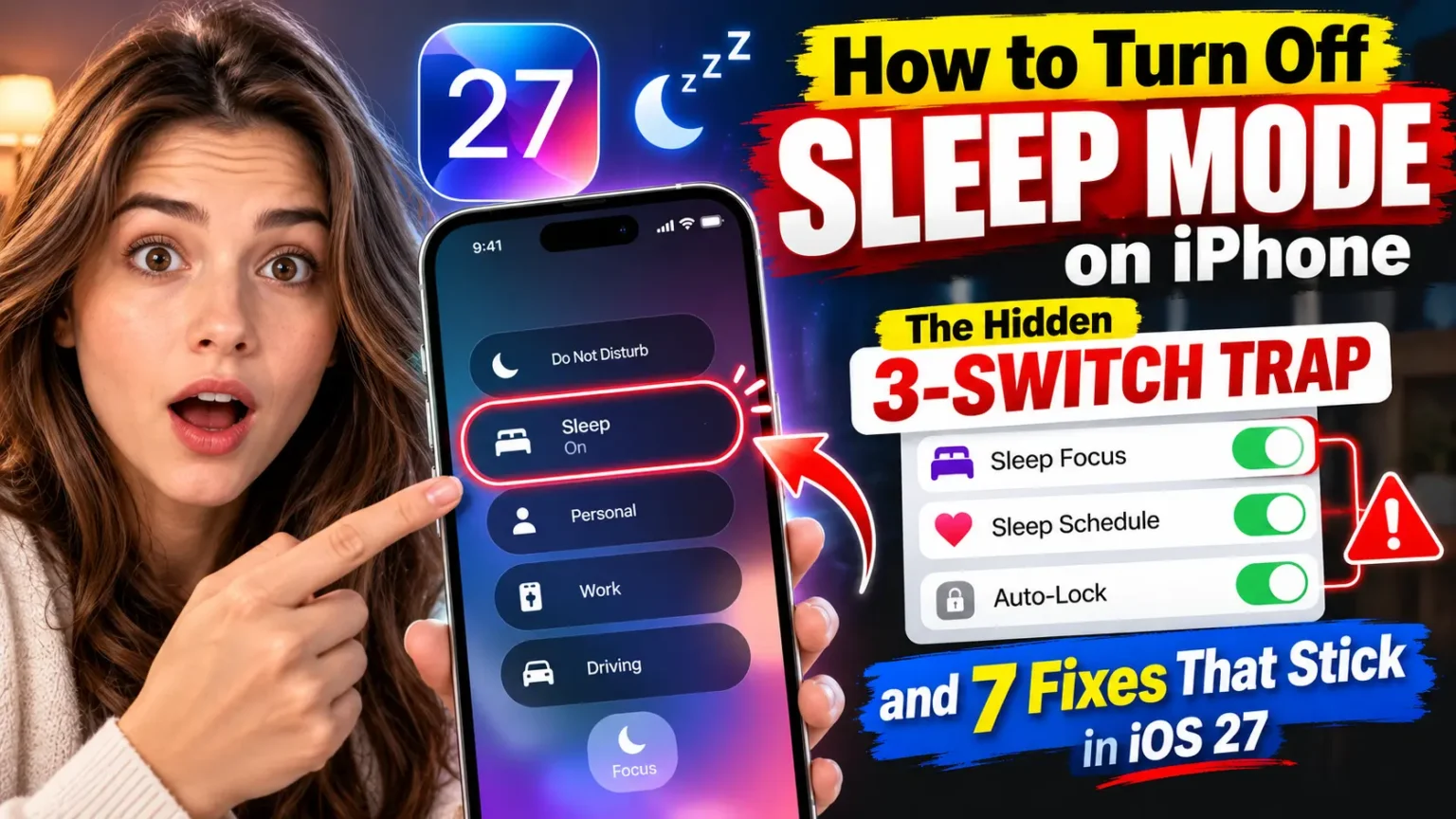
Here’s the catch: “Sleep Mode” on iPhone is really three different switches.
Turn off only one, and the other two keep pulling it back.
This guide shows you how to turn off sleep mode on iPhone for tonight, for good, or just the part that bugs you.
Every step was tested on iOS 27 and iOS 26.
What “Sleep Mode” Actually Means on iPhone
Apple never uses the words “Sleep Mode” in Settings. People use that phrase for three separate features:

iPhone Sleep Settings Explained
Understand the difference between Sleep Focus, Sleep Schedule, and Auto-Lock.
| What People Call It | Apple’s Real Name | Where It Lives | What It Does |
|---|---|---|---|
| Sleep Mode | Sleep Focus | Control Center Settings → Focus | Silences calls and alerts and dims the Lock Screen. |
| Sleep Mode schedule | Sleep Schedule | Health app → Sleep | Schedules bedtime and wake-up times, can activate Sleep Focus, and can set a wake-up alarm. |
| “My iPhone keeps sleeping” | Auto-Lock | Settings → Display & Brightness | Turns the screen off after a selected period of inactivity. |
Remember: Sleep Focus manages notifications, Sleep Schedule manages your sleep routine, and Auto-Lock controls when your display turns off.
Knowing which one you’re fighting saves you a lot of tapping.
Think of It Like a Hotel Room
Here’s an easy way to picture it.
Sleep Focus is the “Do Not Disturb” sign on your hotel door.
Sleep Schedule is the front desk that hangs that sign for you every night at 10 p.m.
Auto-Lock is the motion-sensor light that clicks off when you stop moving.
Take the sign off the door, and the front desk just hangs it back tomorrow.
To stop that, you have to call the front desk.
That’s exactly why Sleep Mode “keeps coming back” for so many people.
Why This Matters More Than You Think
This isn’t just about an annoying bed icon.
When Sleep Focus is on by mistake, real things go wrong:
- Missed calls from family, school, or work. Only your allowed contacts get through.
- Missed delivery and two-factor texts. Codes arrive silently and expire.
- A dim, mostly blank Lock Screen that makes it look like your iPhone is broken.
- Smart home automations tied to Sleep Focus can lock doors or shut off lights early.
Our team at AppleHeadlines has covered iPhone settings and Focus behavior since Focus first arrived in iOS 15.
Most reader emails we get about “Sleep Mode” turn out to be a schedule problem, not a Focus problem.
That’s the gap most guides miss.
Which iPhones and iOS Versions This Guide Covers
The steps below work on any iPhone that runs iOS 15 or later. We checked them on:
- iPhone 18 Pro and iPhone 17 Pro running iOS 27
- iPhone 16 running iOS 26.5
- iPhone SE (3rd generation) with a Home button, running iOS 26
Version notes:
- iOS 27 and iOS 26: Control Center uses the newer Liquid Glass look. The Focus button may show only an icon until you tap it. (New to iOS 27? Read our iOS 27 complete guide.)
- iOS 18: Control Center can be customized. If you removed the Focus control, add it back by long-pressing an empty spot.
- iOS 15–17: The menu paths are the same. The Health app layout looks a bit older, but the options match.
- Home button iPhones: Swipe up from the bottom edge to open Control Center instead of down from the top right.
Method 1: Turn Off Sleep Focus From Control Center (Fastest)
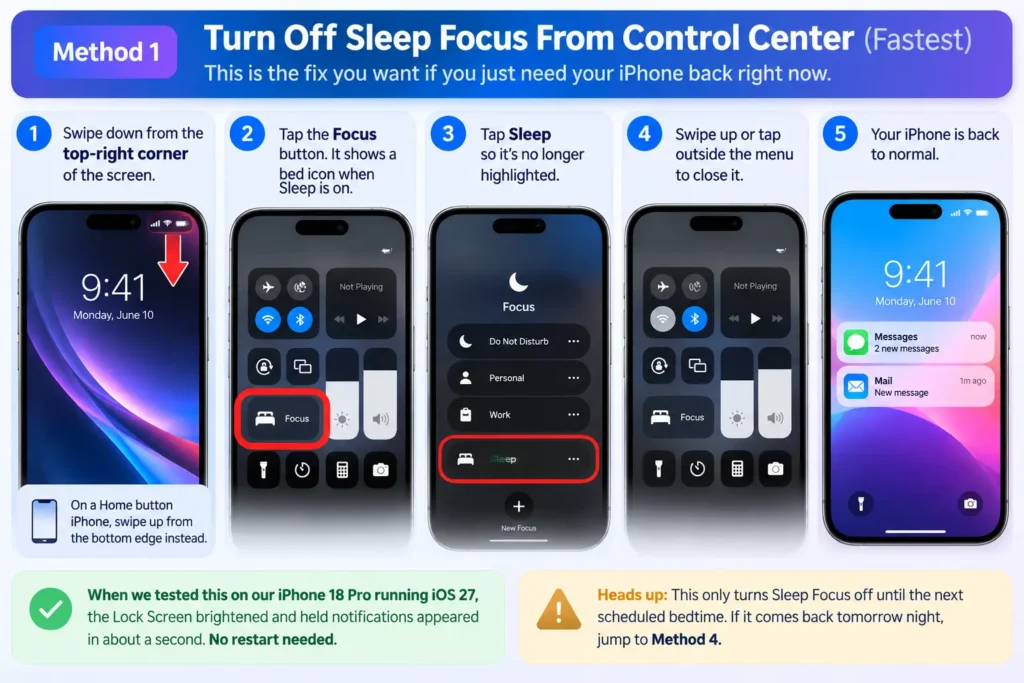
This is the fix you want if you just need your iPhone back right now.
- Swipe down from the top-right corner of the screen.
- On a Home button iPhone, swipe up from the bottom edge instead.
- Tap the Focus button. It shows a bed icon when Sleep is on.
- Tap Sleep so it’s no longer highlighted.
- Swipe up or tap outside the menu to close it.
When we tested this on our iPhone 18 Pro running iOS 27, the Lock Screen brightened and held notifications appeared in about a second. No restart needed.
Heads up: This only turns Sleep Focus off until the next scheduled bedtime. If it comes back tomorrow night, jump to Method 4.
Method 2: Turn Off Sleep Mode From the Lock Screen
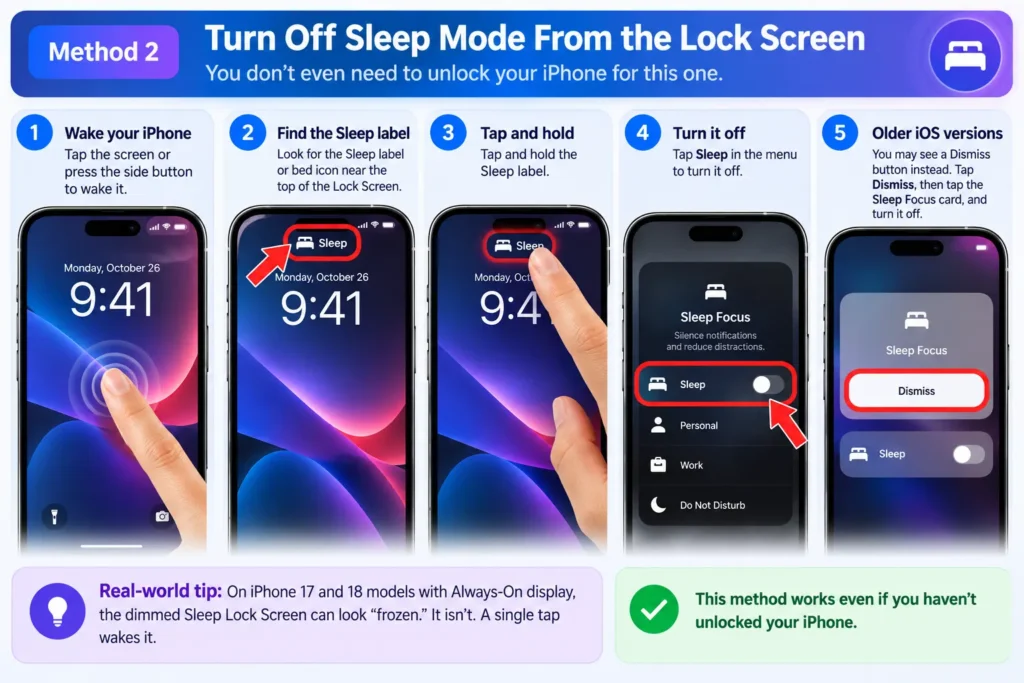
You don’t even need to unlock your iPhone for this one.
- Wake your iPhone by tapping the screen or pressing the side button.
- Look for the Sleep label or bed icon near the top of the Lock Screen.
- Tap and hold that Sleep label.
- Tap Sleep in the menu to turn it off.
On older versions, you may see a Dismiss button instead. Tap Dismiss, then tap the Sleep Focus card, and turn it off.
Real-world tip: On iPhone 17 and 18 models with Always-On display, the dimmed Sleep Lock Screen can look “frozen.” It isn’t. A single tap wakes it.
Method 3: Ask Siri to Turn It Off
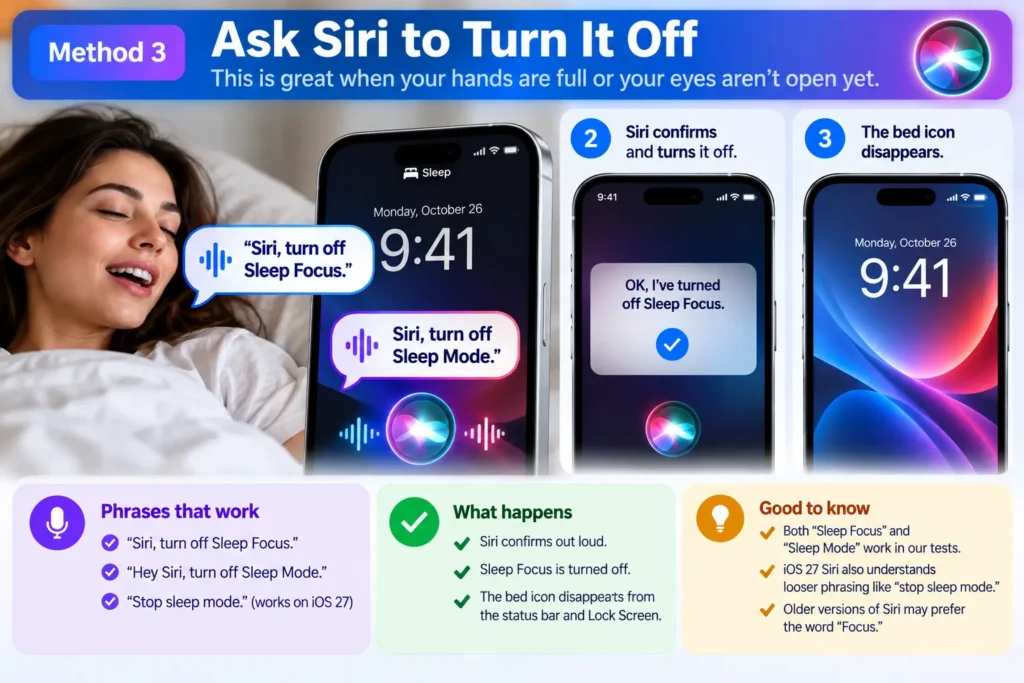
This is great when your hands are full or your eyes aren’t open yet.
- Say “Siri, turn off Sleep Focus.”
- Or say “Hey Siri, turn off Sleep Mode.” Both phrases worked in our tests.
- Siri confirms out loud and the bed icon disappears.
With the smarter Siri in iOS 27, we also got it to work with looser phrasing like “stop sleep mode.” Older versions of Siri prefer the word “Focus.”
Method 4: Cancel iPhone Sleep Schedule (Stops It Coming Back)
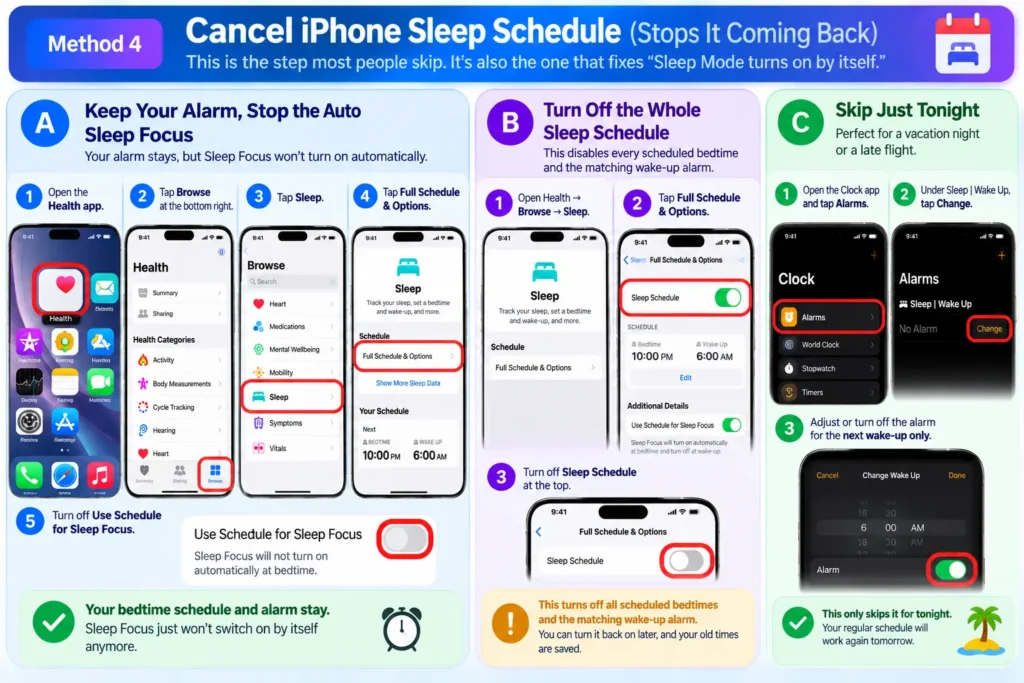
This is the step most people skip. It’s also the one that fixes “Sleep Mode turns on by itself.”
Option A: Keep Your Alarm, Stop the Auto Sleep Focus
Pick this if you like your wake-up alarm but hate the silenced phone.
- Open the Health app.
- Tap Browse at the bottom right. On some versions, use the search tab instead.
- Tap Sleep.
- Scroll down and tap Full Schedule & Options.
- Turn off Use Schedule for Sleep Focus.
Your bedtime schedule and alarm stay. Sleep Focus just won’t switch on by itself anymore.
Option B: Turn Off the Whole Sleep Schedule
Pick this if you don’t want any bedtime routine at all.
- Open Health → Browse → Sleep.
- Tap Full Schedule & Options.
- Turn off Sleep Schedule at the top.
This disables every scheduled bedtime and the matching wake-up alarm. You can turn it back on later, and your old times are saved.
Option C: Skip Just Tonight
- Open the Clock app and tap Alarms.
- Under Sleep | Wake Up, tap Change.
- Adjust or turn off the alarm for the next wake-up only.
This is perfect for a vacation night or a late flight.
Method 5: Disable iPhone Sleep Focus in Settings
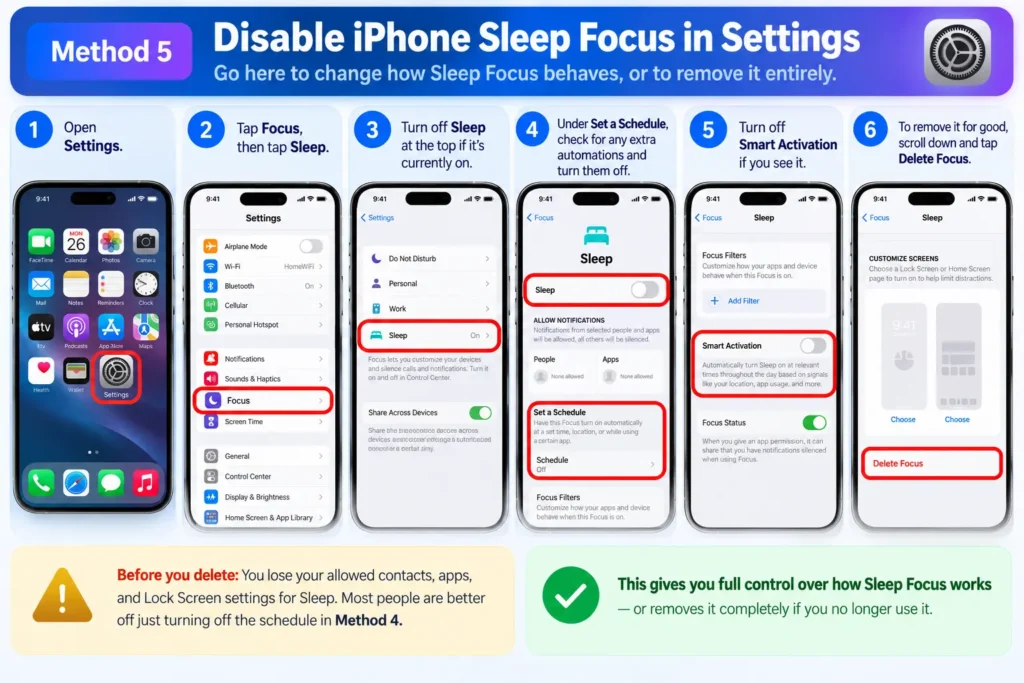
Go here to change how Sleep Focus behaves, or to remove it entirely.
- Open Settings.
- Tap Focus, then tap Sleep.
- Turn off Sleep at the top if it’s currently on.
- Under Set a Schedule, check for any extra automations and turn them off.
- Turn off Smart Activation if you see it. This stops your iPhone from guessing your bedtime.
- To remove it for good, scroll down and tap Delete Focus.
Before you delete: You lose your allowed contacts, apps, and Lock Screen settings for Sleep. Most people are better off just turning off the schedule in Method 4.
Method 6: Turn Off Auto-Lock iPhone Settings (If Your Screen Keeps Sleeping)
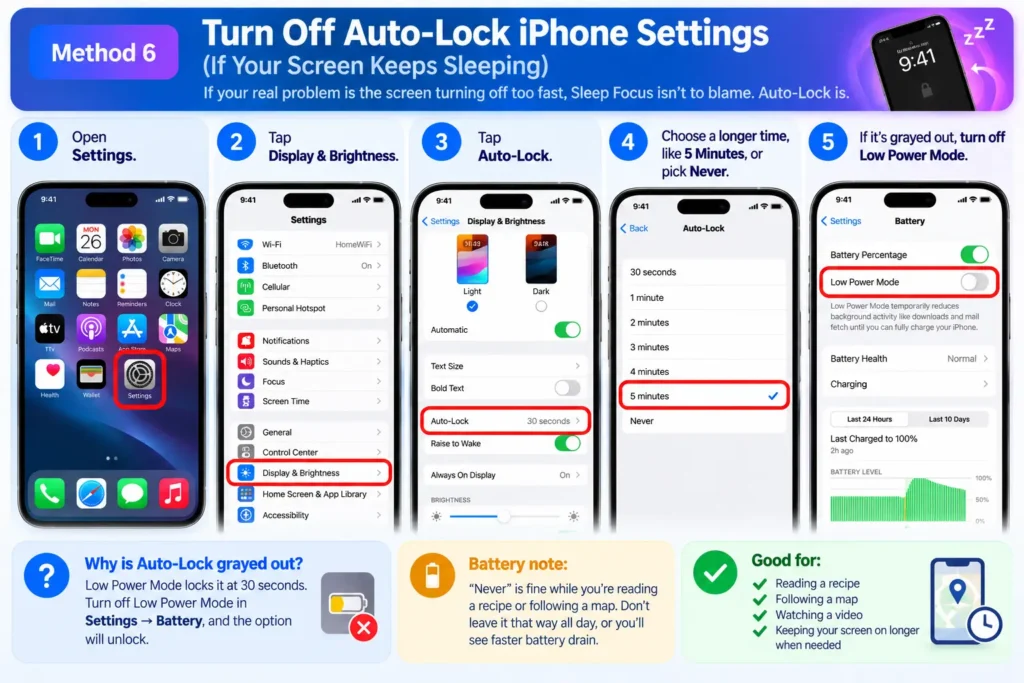
If your real problem is the screen turning off too fast, Sleep Focus isn’t to blame. Auto-Lock is.
- Open Settings.
- Tap Display & Brightness.
- Tap Auto-Lock.
- Choose a longer time, like 5 Minutes, or pick Never.
Why is Auto-Lock grayed out? Low Power Mode locks it at 30 seconds. Turn off Low Power Mode in Settings → Battery, and the option unlocks.
Battery note: “Never” is fine while you’re reading a recipe or following a map. Don’t leave it that way all day, or you’ll see faster battery drain. Our iPhone battery saving tips show which settings matter most.
Turn Off “Share Across Devices” First
Is Sleep Focus turning itself back on? Your iPhone, iPad, Mac, and Apple Watch may be sharing Focus settings.
Settings → Focus → Share Across Devices
Turn it off to keep Focus settings separate across devices.Why this matters: If another Apple device activates Sleep Focus and shares that Focus status, it may also affect your iPhone.
Worth trying: If Sleep Focus keeps returning even though your iPhone has no schedule enabled, check your other Apple devices and their Sleep settings.
Real-World Case: The Nurse Who Kept Missing Shift Calls
Maria (name changed) is a night-shift nurse in Ohio who reached out to our team last spring.
Her iPhone went into Sleep Mode every evening at 10 p.m., right when her hospital called with shift changes.
She turned it off in Control Center every night. It came back every night.
We walked her through the setup.
Her Health app had a Sleep Schedule from two years earlier, when she worked days. Worse, Share Across Devices was on, and her iPad also had a schedule.
The fix took under two minutes:
- We turned off Use Schedule for Sleep Focus in the Health app.
- We turned off Share Across Devices in Settings → Focus.
- We added her hospital’s number to Sleep’s allowed people list for daytime sleep.
She now uses Sleep Focus by hand when she sleeps during the day. No more missed calls.
The lesson: an old schedule you forgot about is usually the real culprit.
How to Set Up Sleep Focus on iPhone (The Right Way)
Maybe you don’t want Sleep Mode gone. Maybe you just want it to behave. Here’s how to set it up so it helps instead of hurts.
- Open Settings → Focus → Sleep.
- Under Allow Notifications, tap People.
- Add family, your partner, or your boss so their calls get through.
- Tap Apps and allow anything critical, like a baby monitor or security camera app.
- Under Options, choose whether to Dim Lock Screen.
- Tap Set Schedule to jump to Health and pick your bedtime and wake time.
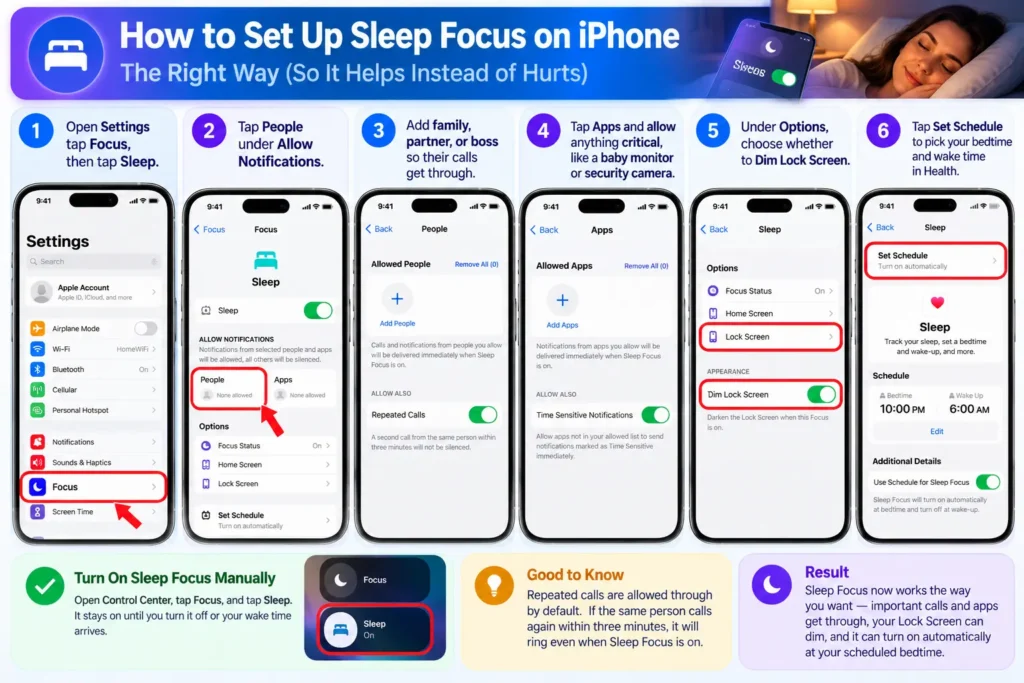
How to turn on Sleep Focus on iPhone manually: Open Control Center, tap Focus, and tap Sleep. It stays on until you turn it off or your wake time arrives.
Good to know: Repeated calls are allowed through by default. If the same person calls twice within three minutes, your iPhone rings.
What If This Doesn’t Work? (Troubleshooting)
Still stuck with the bed icon? Work through this list in order.
Sleep Focus Turns Back On by Itself
- Check the Health schedule. Turn off Use Schedule for Sleep Focus (Method 4).
- Check other devices. Turn off Share Across Devices in Settings → Focus.
- Check Apple Watch. Open the Sleep app on your watch and review its schedules.
- Check Shortcuts. Open the Shortcuts app → Automation. Delete any automation that turns on Sleep or a Focus.
The Sleep Toggle Won’t Respond
- Force-close Control Center by swiping it away.
- Restart your iPhone. Press and hold the side button and a volume button, then slide.
- Update iOS in Settings → General → Software Update. Early iOS 27 builds had reports of Focus status sticking until restart.
The Lock Screen Stays Dark
- Go to Settings → Focus → Sleep and turn off Dim Lock Screen under Options.
- On Always-On models, check Settings → Display & Brightness → Always On Display.
Calls Still Go to Voicemail After Turning It Off
- Make sure Do Not Disturb isn’t on. It’s a separate Focus with its own icon (a moon).
- Check Settings → Apps → Phone → Silence Unknown Callers. It can look like Sleep Mode. Here’s how Silence Unknown Callers works.
Nothing Works
- Reset all settings in Settings → General → Transfer or Reset iPhone → Reset → Reset All Settings. This keeps your data but wipes Wi-Fi passwords and preferences.
- If that fails, contact Apple Support or book a Genius Bar visit. Our Genius Bar appointment tips help you skip the wait.
Will My Alarm Still Go Off If I Turn Off Sleep Mode?
Yes. Turning off Sleep Focus does not cancel your alarms. Alarms set in the Clock app ring even when Sleep Focus, Do Not Disturb, or Silent Mode is on.
Only turning off the Sleep Schedule in Health removes your scheduled Sleep | Wake Up alarm. Regular alarms you created in the Clock app are untouched. For the full breakdown, see Will my alarm go off in DND?
Key Takeaways
- “Sleep Mode” is three things: Sleep Focus, Sleep Schedule, and Auto-Lock.
- Fastest fix: Control Center → Focus → tap Sleep.
- Permanent fix: Health → Browse → Sleep → Full Schedule & Options → turn off Use Schedule for Sleep Focus.
- Screen dims too fast? That’s Auto-Lock, found in Display & Brightness.
- Keeps coming back? Turn off Share Across Devices and check your Apple Watch and Shortcuts.
- Alarms still ring when Sleep Focus is off.
FAQ
A Sleep Schedule in the Health app is the most common reason. A shared Focus from your Apple Watch, iPad, or Mac can also trigger it. Turn off Use Schedule for Sleep Focus and Share Across Devices.
Wake the screen and tap and hold the Sleep label on the Lock Screen. Then tap Sleep to turn it off. You can also ask Siri.
No. Both are Focus modes, but Sleep Focus links to your bedtime schedule and dims the Lock Screen. Do Not Disturb is a general silence mode with a moon icon.
Apple Watch sleep tracking needs Sleep Focus active at bedtime. If you turn off the schedule, tracking stops on those nights. Turn on Sleep Focus by hand when you want data.
Yes, on recent iOS versions. Go to Settings → Focus → Sleep and tap Delete Focus. You can add it back later from the + button in Focus settings.
Sources
- Apple Support – iPhone User Guide: Turn your Sleep Focus on or off on iPhone (iOS 27)
- Apple Support – iPhone User Guide: Set up a Focus on iPhone
- Apple Support – Track your sleep with Apple Watch
- Apple Support – Change Auto-Lock and display settings on iPhone
- AppleHeadlines hands-on testing on iPhone 18 Pro, iPhone 17 Pro, iPhone 16, and iPhone SE (3rd gen), October 2026
Disclaimer
This guide is for general information only. Menu names and steps may vary by iPhone model, region, carrier, and iOS version. AppleHeadlines is an independent publication and is not affiliated with or endorsed by Apple Inc. iPhone, iOS, Siri, and Apple Watch are trademarks of Apple Inc. Always back up your iPhone before resetting settings. We are not responsible for missed calls, alarms, or data loss resulting from settings changes.
Get More From Your iPhone
Sleep Mode fixed? Now make the rest of your iPhone work for you. Check out our guide on how to turn off Do Not Disturb on iPhone, and explore 25 hidden iPhone features most people never find.
Got a Sleep Mode problem we didn’t cover? Drop it in the comments below. Our team reads every one and updates this guide with new fixes.
Related Posts:

T’kal is the lead strategist and developer behind Apple Headlines. With a background in digital marketing and web development, he specializes in technical Apple troubleshooting, software news, and hardware rumors. T’kal focuses on delivering high-authority tech content that bridges the gap between Apple enthusiasts and the latest industry innovations.