

Updated October 10, 2026 for iOS 27, iPadOS 27 and macOS Golden Gate
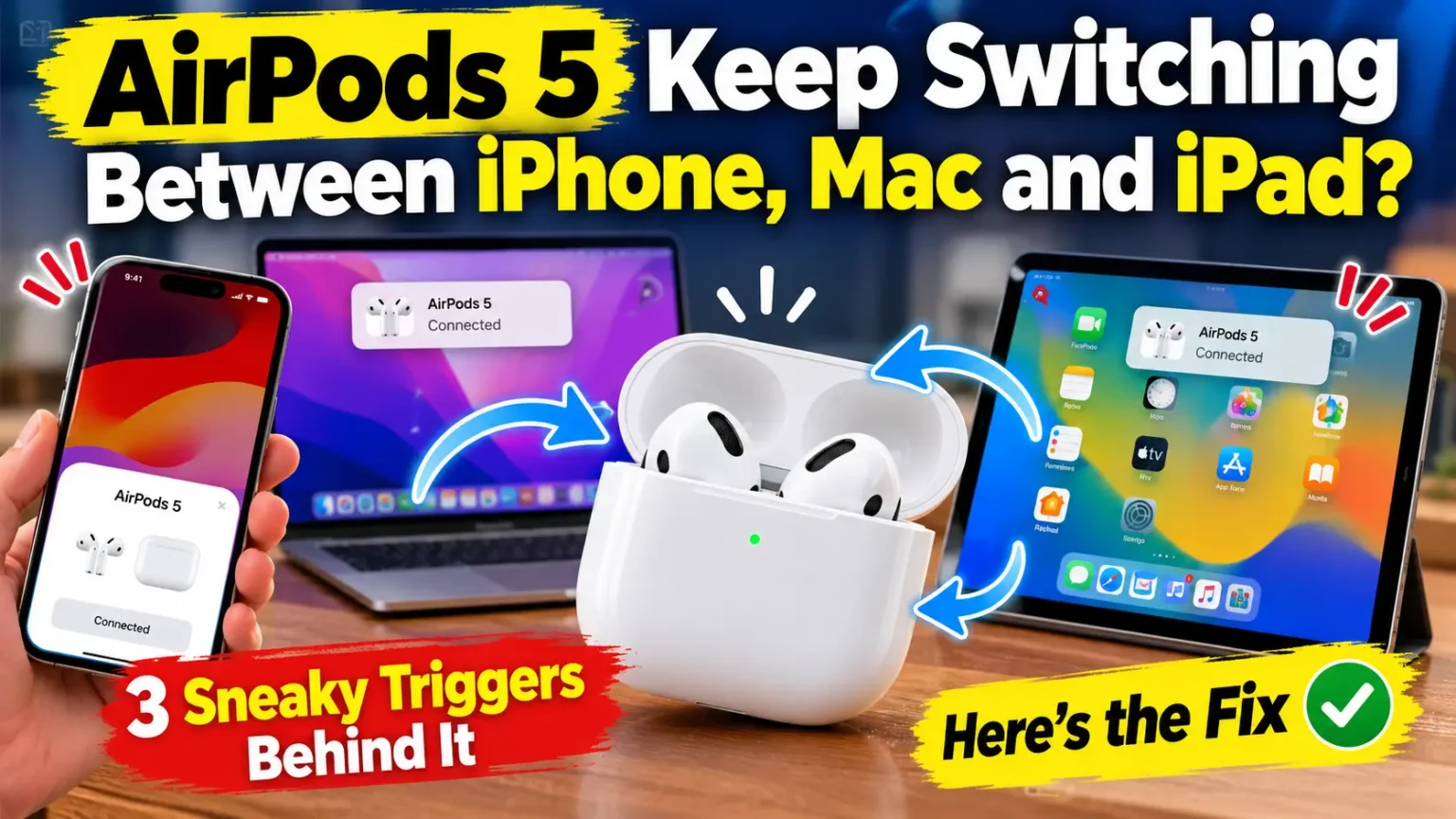
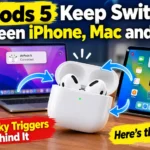
Quick Answer: Your AirPods 5 jump between devices because of Automatic Switching, not the Handoff toggle many guides blame. On each device, open Bluetooth settings, tap the ⓘ next to your AirPods, and change Connect to This [Device] from Automatically to When Last Connected. Update every device first. If the jumping continues, reset the AirPods.
You’re mid-call on your Mac.
Your iPhone rings, and your AirPods 5 abandon the meeting without asking.
Or your iPad grabs the audio while you’re just watching a video.
It’s maddening, and you’re not alone.
Owners are posting the same complaint on MacRumors Forums and Reddit just weeks after Apple’s September launch.
The good news: this is usually a settings problem, not a dead pair.
Here’s the cause, the fix, and what to do if it’s hardware.

Why This Problem Matters More Than It Looks
Apple unveiled AirPods 5 on September 9, 2026, starting at $129. iOS 27 followed on September 14.
So many people are now pairing brand-new earbuds with several Apple devices at once.
A glitch here is not minor.
It cuts off sales calls, drops lectures, and can push a private phone call to the wrong device.
Our AirPods coverage shows the same pattern again and again: the hardware is rarely the culprit, and software settings usually are.
Handoff vs. Automatic Switching: The Mix-Up Behind Most Bad Advice
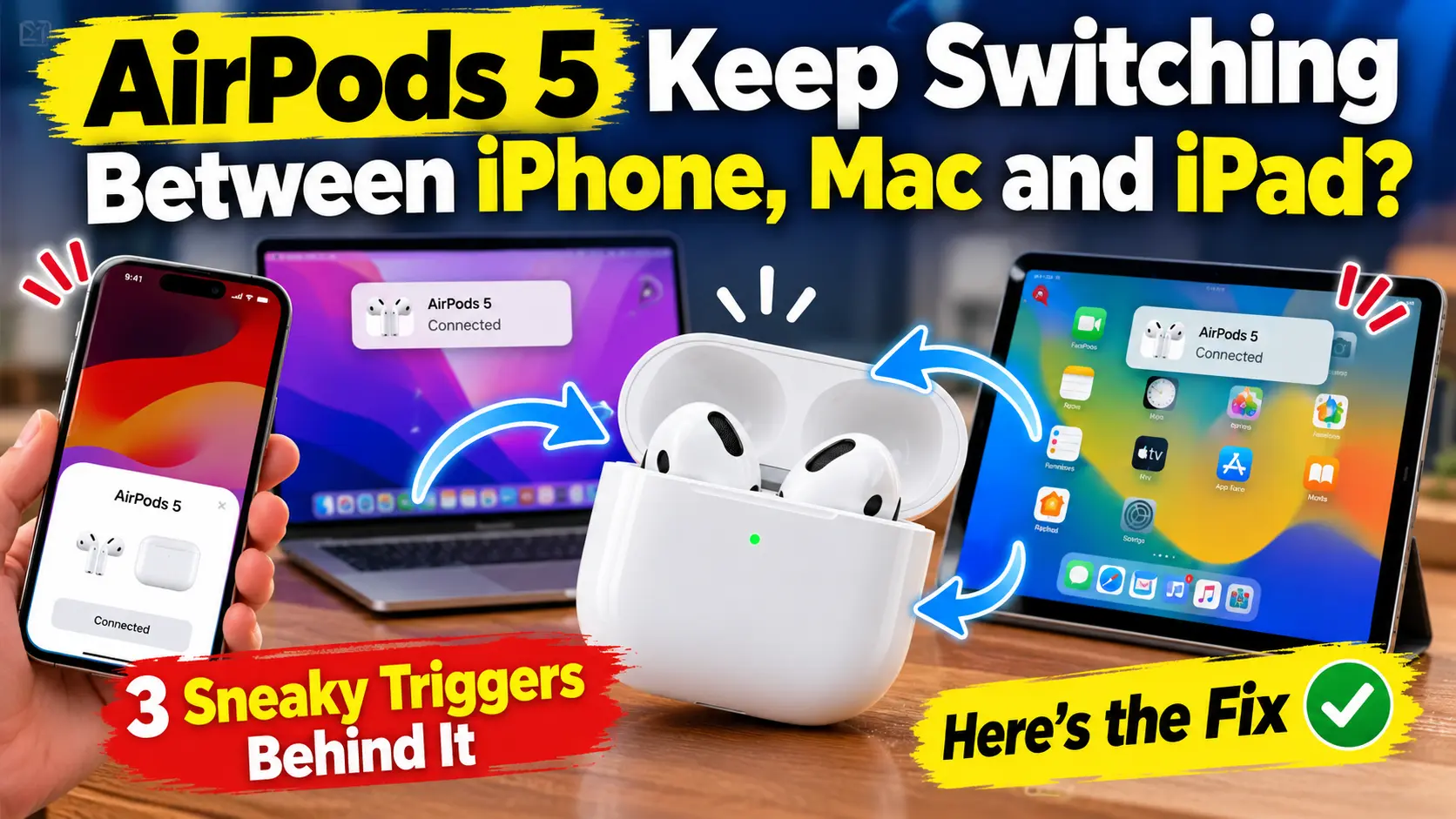
People type “Handoff,” but they usually mean something else.
Handoff lets you start an email on your iPhone and finish it on your Mac.
Automatic Switching is the AirPods feature that moves audio between devices.
Apple’s AirPods guide says your earbuds follow whichever device you play audio on.
They also move to your iPhone when you make a call.
That’s why the popular tip to toggle Handoff off and on rarely helps.
It controls app continuity, not audio routing.
The real control lives in the Bluetooth menu, under Connect to This iPhone.
An Easy Way to Picture It
Picture one office phone shared by three coworkers.
Each person can grab it the moment they have something to say.
Nobody is broken.
There’s just no rule about who goes first.
When Last Connected is that rule.
It tells each device to wait its turn instead of snatching the AirPods.
The 3 Sneaky Triggers
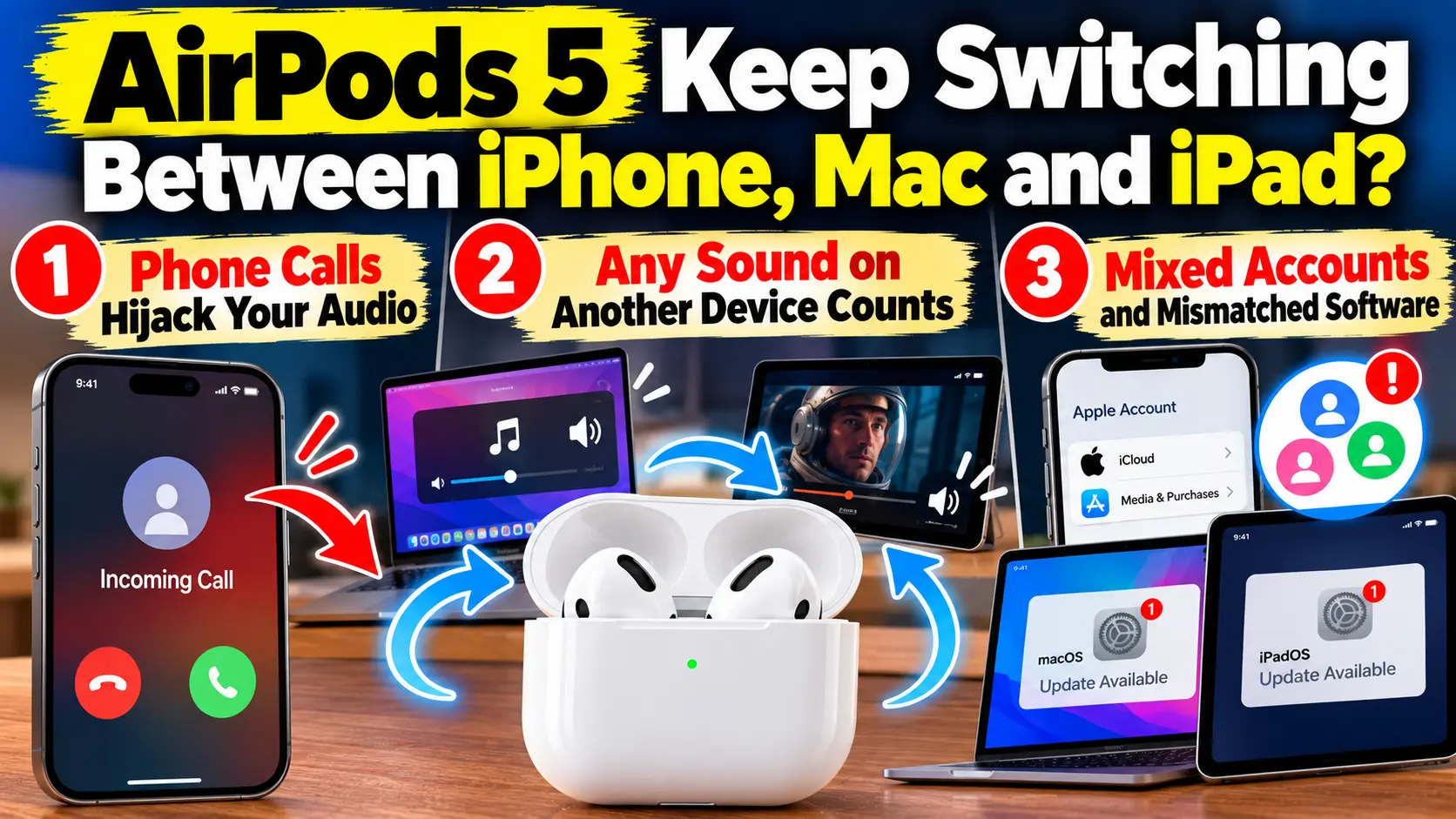
1. Phone Calls Hijack Your Audio
Apple says AirPods switch to your iPhone when you make a call.
One MacRumors Forums owner reported that a ringing iPhone pulled audio away from a Zoom call on a Mac.
They never answered the call.
2. Any Sound on Another Device Counts
A video, a notification, or a game can grab your AirPods.
Another forum poster said plugging in an iPad as a second display moved audio to the iPad, even though nothing was playing.
Apple also lists Apple Watch, Apple TV and Apple Vision Pro as devices that can take part in switching.
3. Mixed Accounts and Mismatched Software
Apple requires the same Apple Account on every device, plus up-to-date software.
A spare iPad on an old account or an old iPadOS version is easy to forget. It can quietly join the tug-of-war.
How to Stop AirPods 5 From Jumping Between Devices
When we set this up on an iPhone 18 Pro running iOS 27.0.1, with a MacBook and an iPad, the menu paths matched Apple’s guide. Work through these steps in order.
- Update every device. On iPhone and iPad, open Settings > General > Software Update.
- Check that every device uses the same Apple Account. Sign out of old accounts on spare devices.
- Put your AirPods 5 in your ears. Make sure they’re connected to your iPhone.
- Open Settings > Bluetooth. Tap the ⓘ next to your AirPods.
- Tap Connect to This iPhone. Choose When Last Connected to This iPhone.
- Repeat on your iPad. On your Mac, open System Settings > Bluetooth and choose When Last Connected to This Mac.
Use an Apple TV?
Open Settings > Remotes and Devices > Bluetooth and make the same change. Then play audio on each device to confirm the AirPods stay put.
Pro Tip: Don’t lock down everything. Set your Mac and iPad to When Last Connected, but leave your iPhone on Automatically. Calls still reach your AirPods, and your quiet devices stop stealing audio. The trade-off: to listen on your Mac, you click your AirPods in its menu bar. This is our suggested setup, so try it for a day before changing the rest.
Reader Scenario: The Zoom Call That Kept Dying
This is an illustrative scenario based on owner reports, not a named customer.
Picture Dana, a remote account manager in Austin.
She works on a MacBook with an iPad parked beside it as a second screen.
Twice a week, her AirPods 5 jumped to the iPad in the middle of a call.
She blamed the earbuds and almost returned them.
Instead, she set the iPad and Mac to When Last Connected and left her iPhone on Automatically.
The jumping stopped, and phone calls still reached her ears.
The earbuds were fine. Three devices were fighting over them.
Cutting Out, Dropping, or Toggling Noise Cancellation? Match Your Symptom
Not every glitch is a switching problem. Use this table to match what you hear to the likely cause.
| What you notice | Likely cause | What to try |
|---|---|---|
| Cuts out when fully charged | Wireless interference, not battery | Move away from busy Wi-Fi, microwaves and speakers |
| Disconnects and reconnects on iPhone | Another device grabbing audio | Set other devices to When Last Connected |
| Cuts out when you move | Body or walls blocking the signal | Keep your iPhone close, with no walls between |
| Drifts in and out of noise cancellation | Automatic noise control mode | Pick Noise Cancellation in AirPods settings |
| Cuts out while playing music | Streaming dropouts | Test with a downloaded song |
Apple’s support page says headphones lose connection more often with streamed audio than with stored audio.
So play a downloaded song first. If it stays smooth, the problem is your signal, not your AirPods.
The noise cancellation drift has a simple explanation.
AirPods 5 can shift between noise cancellation and Transparency on their own.
iOS 27 also added a slider for Adaptive mode.
Lock in one mode in your AirPods settings if the changes bother you.
For “fully charged” dropouts, rule out a weak case first.
Our guide to checking AirPods battery on iPhone takes about a minute.
For a broader checklist, see Why Do My AirPods Keep Disconnecting From My iPhone?
What If This Doesn’t Work?
Try these in order. Each step goes deeper than the last.
- Forget the AirPods. Open Settings > Bluetooth, tap ⓘ, then tap Forget This Device.
- Restart your iPhone. Pair the AirPods again.
- Turn off Bluetooth on your other devices. Test with just one device at a time.
- Hold the case’s setup button about 15 seconds until the light flashes amber, then white. Our AirPods reset guide covers every model.
- Check firmware under ⓘ > About. Updates install on their own while the AirPods charge near your iPhone.
Not on iOS 27 yet? Our iOS 27 guide explains what changed.
Still dropping? One earbud that keeps cutting out, or a mic that works in only one pod, points to hardware. The MacRumors Forums poster described that mic issue. Our guides on AirPods mic problems and one AirPod not working can help you confirm it.
If it is hardware, book a Genius Bar visit. iFixit’s teardown found no repair path from Apple for AirPods 5, so replacement is the realistic route.
We found no Apple statement acknowledging a specific AirPods 5 switching bug as of October 10, 2026. Check back after the next iOS 27 update.
Key Takeaways
- The culprit is Automatic Switching, not the Handoff toggle.
- Set Connect to This [Device] to When Last Connected on each device you want to quiet.
- Keep your iPhone on Automatically if you want calls to reach your AirPods.
- Update every device and use one Apple Account everywhere.
- Test with a downloaded song to separate signal problems from switching problems.
- Persistent one-earbud problems usually mean hardware.
FAQ
It’s mostly normal behavior. Apple designed AirPods to follow your audio and calls. The problem is that the default setting lets every device grab them.
Yes. The setting is per device. Change Connect to This [Device] only where you want AirPods to stop jumping.
Rarely. A reset helps with pairing glitches and dropouts. It won’t change your switching settings, so fix those first.
Yes. Apple’s switching guide and the Bluetooth menu apply across supported AirPods models.
Sources
- Apple Support: Switch AirPods between Apple devices
- Apple Support: If the sound from your wireless headphones cuts out or is distorted (published March 30, 2026)
- MacRumors Forums: AirPods 5 Handoff Problems (September 24, 2026)
- TechCrunch: Apple shows off AirPods 5 (September 9, 2026)
- Notebookcheck: Apple unveils AirPods 5
- MacRumors: Apple releases new AirPods firmware with iOS 27 features (September 14, 2026)
- iFixit: AirPods 5 Are the Least Unrepairable AirPods Yet
Disclaimer
This article is for informational purposes only. Menu names and steps can vary by device, model and software version. Apple may change AirPods behavior in future updates. Back up your devices before making major changes, and contact Apple Support for hardware faults or warranty questions. Apple Headlines is not affiliated with Apple Inc.
Still stuck? Tell us your AirPods model, iOS version and Mac in the comments, and we’ll help you track it down. Then browse our AirPods fixes for your next problem.
Related Posts:

T’kal is the lead strategist and developer behind Apple Headlines. With a background in digital marketing and web development, he specializes in technical Apple troubleshooting, software news, and hardware rumors. T’kal focuses on delivering high-authority tech content that bridges the gap between Apple enthusiasts and the latest industry innovations.