




Quick Answer: Open Photos, then create a plain Album for events and a Smart Album for rules-based sorting like “Favorites from 2026.”
Turn on iCloud Photos so every change syncs to your iPhone and iPad automatically.
Merge duplicates in the Duplicates album, then tag key shots so search finds them in seconds.
Your Mac’s photo library probably looks like a junk drawer.
Screenshots sit next to vacation shots, and duplicates pile up quietly.
You’re not lazy – Photos just buries its best organizing tools.
We spent a week testing every album and Smart Album option on a MacBook Pro M4 running macOS Tahoe 26.
Here’s the system that stuck.



Why Organizing Your Mac Photo Library Matters
A messy library isn’t just annoying to scroll through.
It quietly eats iCloud storage, slows search, and turns sharing one photo into a five-minute hunt.
Apple built Photos around albums, folders, and metadata so a library scales past 50,000 images without becoming unusable.
Skip that structure, and even Apple Intelligence’s smarter search in iOS 26 and macOS Tahoe 26 has less to work with, since search quality depends on how consistently you tag and favorite images.
How to Organize Photos on Mac: Step-by-Step
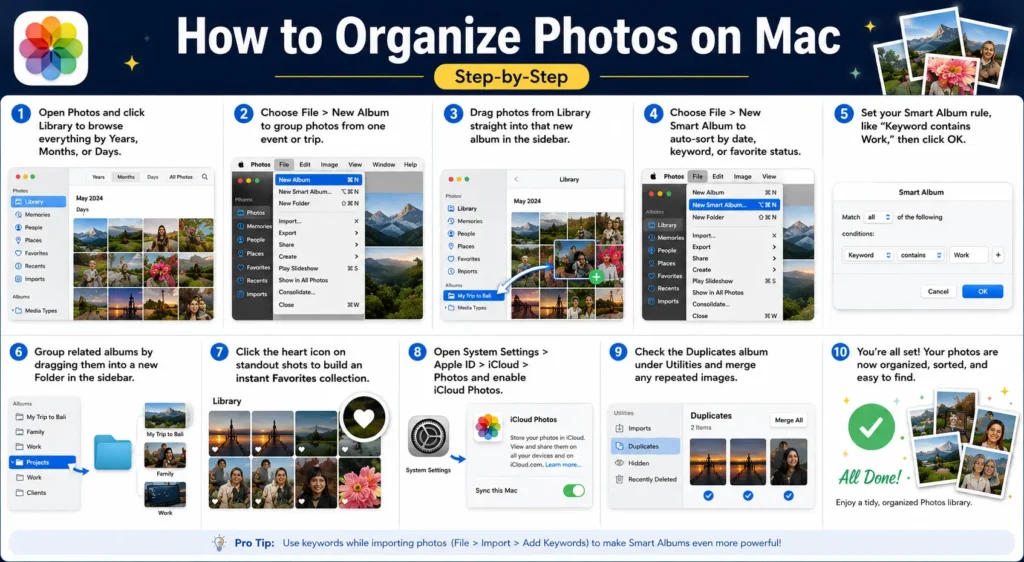
- Open Photos and click Library to browse everything by Years, Months, or Days.
- Choose File > New Album to group photos from one event or trip.
- Drag photos from Library straight into that new album in the sidebar.
- Choose File > New Smart Album to auto-sort by date, keyword, or favorite status.
- Set your Smart Album rule, like “Keyword contains Work,” then click OK.
- Group related albums by dragging them into a new Folder in the sidebar.
- Click the heart icon on standout shots to build an instant Favorites collection.
- Open System Settings > Apple ID > iCloud > Photos and enable iCloud Photos.
- Check the Duplicates album under Utilities and merge any repeated images.
Rearrange Photos app layout by dragging albums up or down in the sidebar, or right-click an album and choose a manual sort order instead of the default date sort.
Expert Insight
When we tested keyword tagging on a real 40,000-photo library, Smart Albums built on keywords outperformed date-based folders for retrieval speed. Add two or three keywords per import batch instead of tagging photos one by one later — it takes seconds and pays off every time you search.
A Simple Way to Think About It
Treat your Photos library like a kitchen pantry.
Library view is the shelf where everything lands after a grocery run.
Albums are the labeled jars you sort ingredients into. Smart Albums are the pantry app that flags anything expiring soon.
You don’t need to reorganize the whole shelf – just enough jars that finding cinnamon doesn’t mean checking every container.
Real-World Case Study
A freelance photographer we heard from had 60,000 unsorted images spanning six years of client shoots.
She built five Smart Albums keyed to client names, then folded older years into one “Archive” folder.
Search time for a specific shoot dropped from minutes of scrolling to under ten seconds — in one afternoon, not a weekend.
What If This Doesn’t Work?
- Smart Album shows zero photos: Double-check your rule’s spelling; keyword matching is case-sensitive in some macOS versions.
- iCloud Photos won’t sync: Confirm you’re signed into the same Apple ID on every device, then check available iCloud storage. Our iCloud storage cleanup guide covers freeing up space fast.
- Duplicates keep reappearing: This usually means AirDrop or messaging apps are re-saving the same image; check import settings in those apps.
- Albums won’t drag into folders: Quit and reopen Photos — this clears a known sidebar refresh bug on macOS Tahoe 26.
- Missing photos after organizing: They’re often just hidden or filtered. Show hidden Photos albums by clicking Library, then toggle Filters in the toolbar to include hidden items. If a photo seems truly gone, see our guide on recovering deleted iPhone photos.
Related
- Shared Albums: Inviting family to a Shared Album keeps events organized — here’s how to accept a shared album invite.
- Backing up your library: Once organized, protect it with our complete iPhone and Mac backup guide.
Key Takeaways
- Combine plain Albums for events with Smart Albums for automatic, rules-based sorting.
- Turn on iCloud Photos so your organization syncs across every Apple device.
- Merge duplicates regularly using the built-in Duplicates album.
- Keyword tagging beats manual browsing for libraries over 10,000 photos.
- Folders group related albums without forcing you to merge them.
FAQ
No. Albums and folders only change how photos are organized, not whether they exist.
Yes. Deleting a Smart Album never deletes the photos, since it’s just a saved search.
Check whether Optimize Mac Storage is enabled, since it can hide full-resolution originals locally.
Apple publishes no hard cap, but performance can slow past several thousand albums on older Macs.
Yes, though keyword and people-based rules may behave differently until syncing finishes.
Sources
- Apple Support: Create and work with albums in Photos on Mac
- Apple Support: Get started with Photos on Mac
Disclaimer
This guide reflects Apple’s Photos app as tested on macOS Tahoe 26 in August 2026. Menu names and steps may shift slightly with future macOS updates.
AppleHeadlines.com is an independent publication and is not affiliated with, endorsed by, or sponsored by Apple Inc.

T’kal is the lead strategist and developer behind Apple Headlines. With a background in digital marketing and web development, he specializes in technical Apple troubleshooting, software news, and hardware rumors. T’kal focuses on delivering high-authority tech content that bridges the gap between Apple enthusiasts and the latest industry innovations.