




How Do You Check for Malware on a Mac?
The fastest approach uses macOS security features plus an on-demand malware scanner.
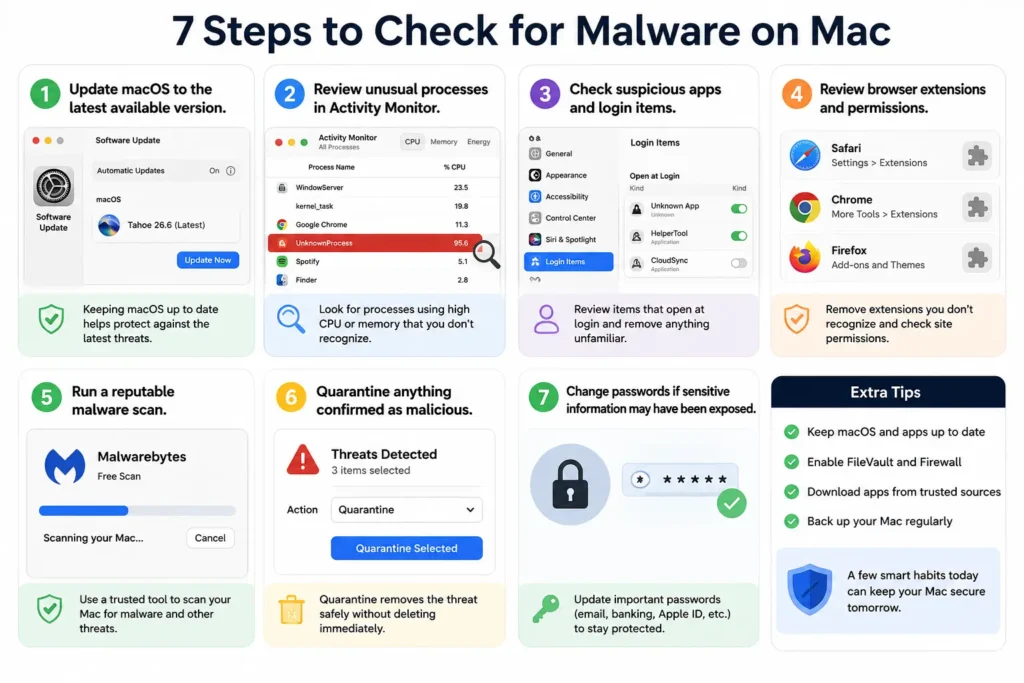
Start with these checks:
- Update macOS to the latest available version.
- Review unusual processes in Activity Monitor.
- Check suspicious apps and login items.
- Review browser extensions and permissions.
- Run a reputable malware scan.
- Quarantine anything confirmed as malicious.
- Change passwords if sensitive information may have been exposed.
Apple’s built-in defenses include Gatekeeper, Notarization, and XProtect. XProtect can detect and remove known malware automatically.
As of August 2026, macOS Tahoe 26.6 is the latest public macOS release. Apple released it on July 27, 2026.
Can a Mac Actually Get Malware?
Yes. Macs are not immune to malware.
Modern macOS has several strong security layers. However, attackers can still exploit unsafe downloads, scams, browser extensions, and outdated software.
Apple’s security model works like a building with several locked doors.
Gatekeeper checks applications before they run. Notarization helps verify downloaded software. XProtect detects known malware.



That means you should not rely on one security feature.
A Mac running older software also deserves extra attention. Apple continues releasing security fixes for supported macOS versions.
7 Ways to Check for Malware on Your Mac
1. Check Activity Monitor for Suspicious Processes
Activity Monitor is useful for spotting unusual background activity.
High CPU usage alone does not prove malware exists.
A legitimate application can also consume significant resources.
Use Activity Monitor as a clue, not a malware detector.
- Press Command + Space.
- Search for Activity Monitor.
- Open the application.
- Click the CPU tab.
- Sort processes by % CPU.
- Look for unfamiliar processes using excessive resources.
- Select a suspicious process and click the Info button.
- Search the exact process name before terminating it.
Do not delete random system processes.
If an unfamiliar process belongs to legitimate software, leave it alone.
Our Mac force quit guide can help when an application becomes unresponsive.
How to Force Quit on Mac
2. Review Your Login Items
Some malware survives by launching whenever you start your Mac.
Login Items can reveal applications that automatically open.
- Open Apple menu → System Settings.
- Select General.
- Click Login Items & Extensions.
- Review Open at Login.
- Check Allow in the Background.
- Disable anything unfamiliar.
- Remove items you know you don’t need.
Be careful with business software and device utilities.
Some legitimate apps need background access for notifications or syncing.
3. Check Full Disk Access
Full Disk Access is a powerful macOS permission.
It allows an application to access sensitive files and information.
A suspicious application with this permission deserves attention.
- Open System Settings.
- Select Privacy & Security.
- Open Full Disk Access.
- Review every listed application.
- Disable access for unfamiliar software.
- Research the application before deleting it.
Do not remove permissions from Apple system components without understanding them.
Pro Tip: Permissions Can Be More Important Than CPU Usage
Malware does not always make your Mac slow.
Some threats operate quietly while targeting passwords, files, or browser data.
That makes permissions an important part of your investigation.
Check Full Disk Access, Accessibility, Automation, and other sensitive permissions.
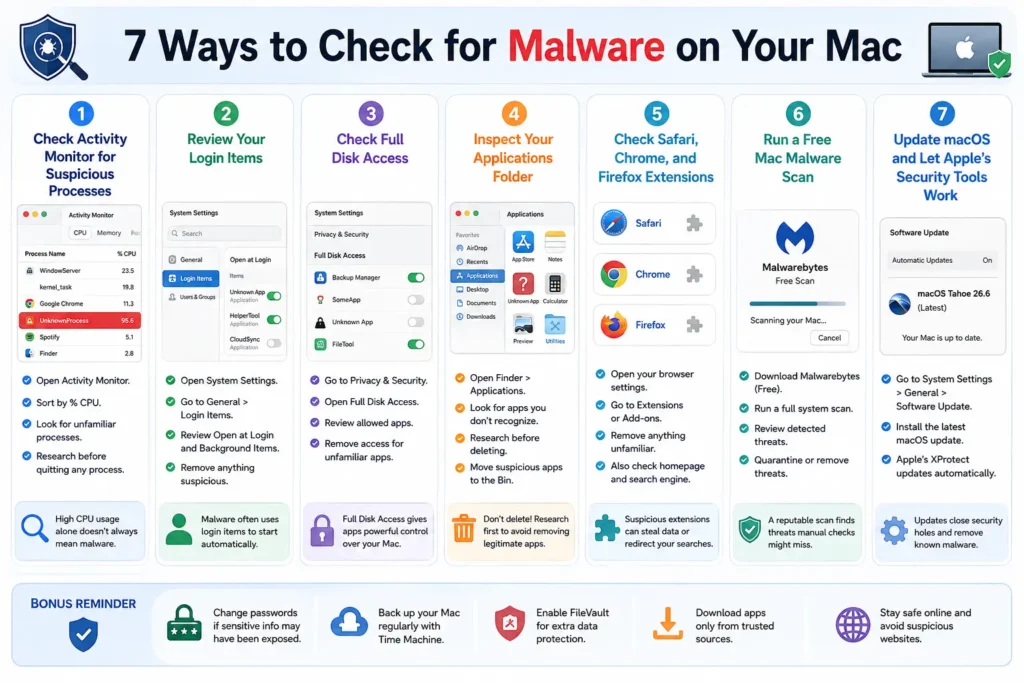
4. Inspect Your Applications Folder
Unexpected applications are another useful warning sign.
Open Finder → Applications and review the entire list.
Look for software you never installed.
Also check applications installed recently.
- Open Finder.
- Select Applications.
- Sort applications by name or date when useful.
- Identify unfamiliar programs.
- Right-click suspicious software.
- Choose Get Info.
- Research the developer and application name.
- Move confirmed unwanted software to the Bin.
- Empty the Bin afterward.
Don’t delete an application simply because you don’t recognize its name.
Some legitimate system helpers use technical names.
5. Check Safari, Chrome, and Firefox Extensions
Browser extensions can cause redirects, pop-ups, and unwanted searches.
They can also change browser behavior without obvious malware symptoms.
For Safari:
- Open Safari.
- Choose Safari → Settings.
- Click Extensions.
- Remove extensions you don’t recognize.
For Chrome, open the Extensions page and remove suspicious extensions.
Firefox, open Add-ons and Themes and review installed extensions.
Also check your default search engine and homepage.
Unexpected changes can indicate unwanted software.
If Safari behavior seems strange, our Safari history recovery guide provides useful browser troubleshooting context. How to Recover Deleted Safari History
6. Run a Free Mac Malware Scan
Manual checks cannot identify every threat.
A reputable scanner provides another layer of verification.
For a mac malware scan free option, Malwarebytes currently offers free manual scanning on Mac.
Its current Mac software supports macOS Tahoe 26 and several older releases.
To scan:
- Download Malwarebytes from its official website.
- Install the Mac application.
- Open Malwarebytes.
- Select Scan.
- Review detected threats.
- Quarantine confirmed detections.
- Restart your Mac if requested.
Malwarebytes says its free Mac version supports manual scans. Real-time protection requires its paid plan.
For most users, this is a practical mac malware scan free starting point.
Another advanced option is Objective-See’s KnockKnock.
It examines software that persists across restarts and logins.
KnockKnock is more technical, though.
A detection does not automatically mean something is malicious.
7. Update macOS and Let Apple’s Security Tools Work
Updating macOS is one of the most important malware defenses.
Apple continually patches security vulnerabilities.
macOS Tahoe 26.6 includes security fixes and other improvements.
Go to:
Apple menu → System Settings → General → Software Update
Install available updates.
Apple also automatically updates XProtect security data.
Apple says XProtect updates are delivered independently from regular macOS updates.
Short Case Study: When a Slow Mac Isn’t Malware
Imagine your Mac suddenly becomes hot during normal browsing.
Activity Monitor shows one process using 90% CPU.
That looks suspicious at first.
You search the process and discover it belongs to a legitimate browser component.
The actual problem turns out to be a runaway browser tab.
This is why one symptom should never be treated as proof of malware.
Good troubleshooting confirms multiple warning signs before deleting anything.
What If This Doesn’t Work?
If you still suspect malware after these checks, take stronger steps.
Disconnect the Mac Temporarily
Disconnect Wi-Fi or Ethernet if you suspect active data theft.
This limits the malware’s ability to communicate externally.
Restart in Safe Mode
Safe Mode can help isolate software that loads during normal startup.
Apple Silicon and Intel Macs use different startup procedures.
Use Apple’s current Safe Mode instructions for your Mac model.
Run a Second Opinion Scan
A second reputable scanner can provide additional confirmation.
Avoid installing several antivirus applications simultaneously.
They can conflict with each other.
Change Important Passwords
Change passwords if you suspect credentials were exposed.
Start with your email, banking, Apple Account, and password manager.
Use a separate trusted device when possible.
Consider Reinstalling macOS
A macOS reinstall is the final troubleshooting option.
Use it when persistent malware remains after careful cleanup.
Back up important files first.
If possible, maintain a clean backup created before the suspected infection.
Does My MacBook Need Antivirus?
Not every Mac owner needs a paid antivirus subscription.
macOS already provides significant built-in protection.
However, additional scanning can make sense for people who frequently download third-party software.
It can also help users who visit risky websites or handle sensitive files.
For basic checking, a free malware scanner for Mac can be enough.
For continuous protection, consider a reputable paid security product.
The best malware scanner for Mac depends on your risk level and needs.
How to Fully Remove Malware on Mac
Removing one suspicious application may not remove every component.
Persistent malware can use login items, extensions, scripts, or other startup mechanisms.
A safer cleanup sequence is:
- Disconnect from the internet if necessary.
- Update macOS.
- Run a reputable malware scan.
- Quarantine confirmed threats.
- Remove suspicious applications.
- Review login items.
- Review sensitive permissions.
- Remove suspicious browser extensions.
- Restart the Mac.
- Run another scan.
- Change important passwords if needed.
This approach is safer than randomly deleting system files.
Key Takeaways
- Macs can get malware, despite strong built-in security.
- Activity Monitor can reveal suspicious behavior.
- High CPU usage alone does not prove infection.
- Check login items and sensitive permissions.
- Review browser extensions carefully.
- Malwarebytes offers free manual scanning for Mac.
- Apple’s XProtect provides automatic malware protection.
- Keep macOS updated for the latest security fixes.
- Never delete system files without verifying them first.
- Serious infections may require Safe Mode or macOS reinstallation.
Frequently Asked Questions
Can I check my Mac for malware without antivirus?
Yes. You can inspect Activity Monitor, applications, login items, extensions, and permissions.
However, manual checks cannot replace a dedicated malware scan.
How do I find viruses on my Mac?
Run a reputable malware scanner and review its detections.
You can also investigate suspicious processes and applications manually.
What is the best malware scanner for Mac?
There is no universal winner for every user.
Malwarebytes is a practical option for on-demand scanning.
Advanced users can also investigate persistence with Objective-See’s KnockKnock.
Does my MacBook need antivirus software?
macOS includes strong built-in defenses.
Additional antivirus protection can still help higher-risk users.
Consider your download habits, browsing behavior, and security requirements.
How can I fully remove malware on Mac?
Start with a reputable scan and quarantine confirmed threats.
Then review applications, login items, permissions, and browser extensions.
Persistent infections may require Safe Mode or reinstalling macOS.
Sources
- Apple Support: Protecting against malware in macOS
- Apple Support: macOS Tahoe 26.6 security content
- Apple Support: macOS security releases
- Malwarebytes: Mac Virus Scan
- Objective-See: KnockKnock
Disclaimer
This article provides general technical information for Mac users.
Security results can vary between devices, macOS versions, and installed applications.
Do not delete system files based solely on their names.
If you suspect serious data theft, contact a qualified cybersecurity professional.
AppleHeadlines is not affiliated with Apple Inc.
Ready to Check Your Mac?
Start with Software Update, then review Activity Monitor and your installed applications.
If anything still looks suspicious, run a reputable malware scan before deleting files.

T’kal is the lead strategist and developer behind Apple Headlines. With a background in digital marketing and web development, he specializes in technical Apple troubleshooting, software news, and hardware rumors. T’kal focuses on delivering high-authority tech content that bridges the gap between Apple enthusiasts and the latest industry innovations.