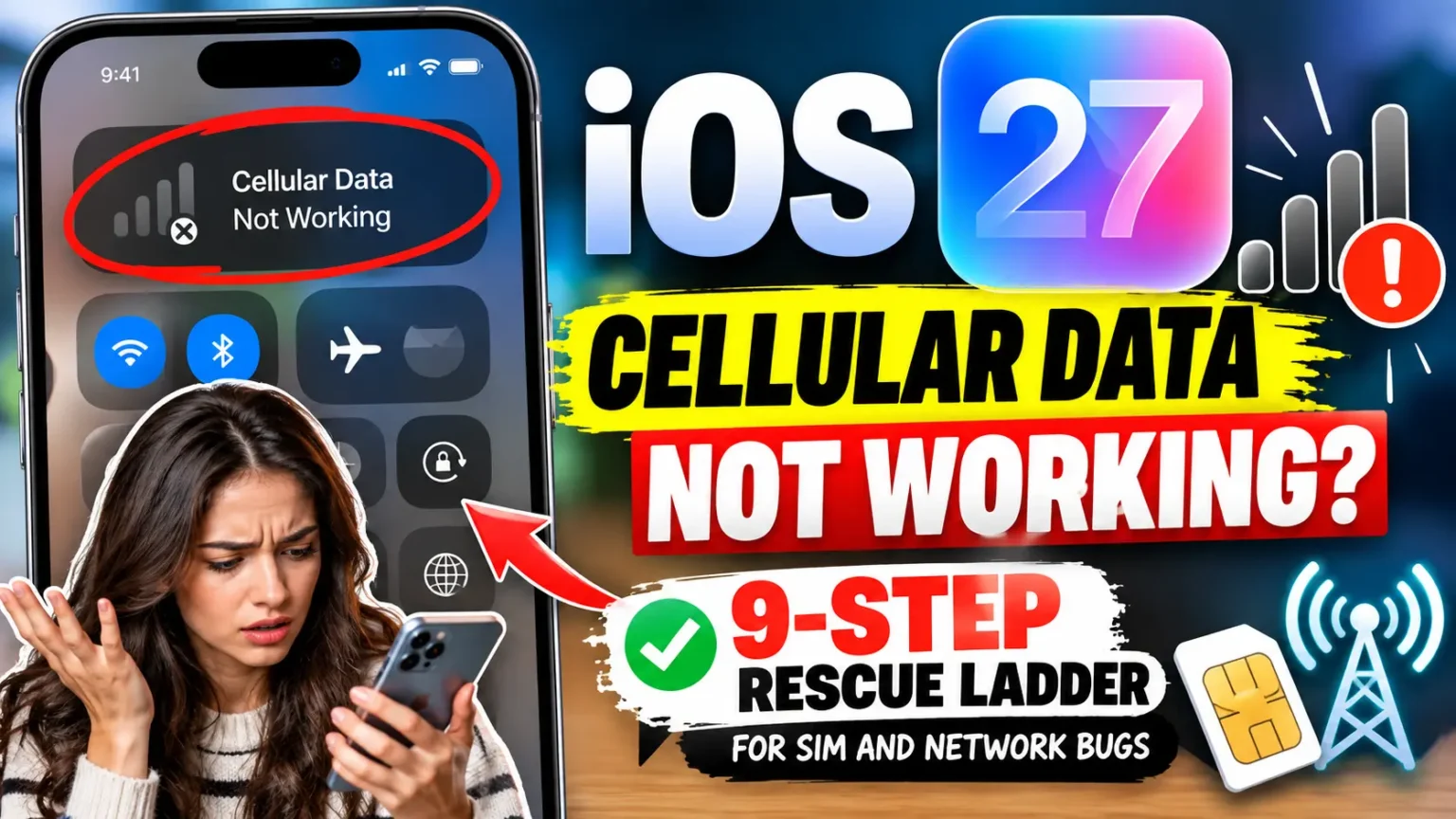
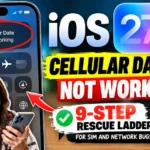

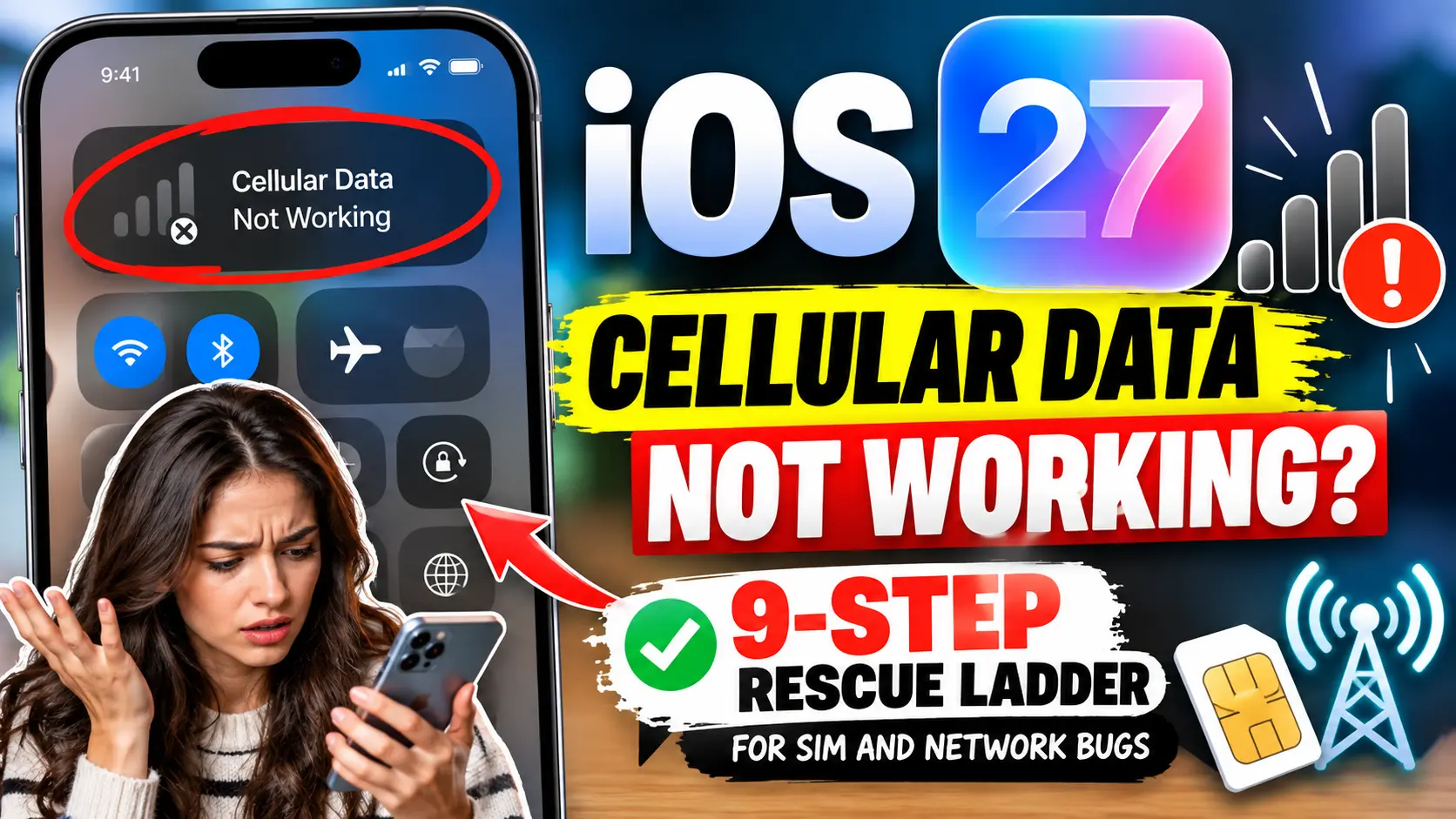
If iOS 27 cellular data is not working, start small.
Turn Airplane Mode on for 15 seconds, restart, and check for a carrier settings update.
Still stuck?
Confirm your eSIM line is on, switch Voice & Data to LTE, and install iOS 27.0.1.
Save Reset Network Settings for last.
Apple’s iOS 27.0.1 notes don’t list a cellular fix, so waiting for a patch isn’t a plan.
Why iOS 27 Cellular Data Stops Working
iOS 27 arrived on September 14, 2026, for iPhone 11 and newer.
Within days, Apple Support Community threads filled with cellular complaints.
Owners of the iPhone 14 Pro, iPhone 15 Plus, iPhone 17, and iPhone 18 Pro Max reported shaky data or failed calls.
Some named AT&T, but the reports weren’t limited to one carrier or model.
Here’s the part most guides skip.
Apple shipped iOS 27.0.1 on September 28 (build 24A446).
Its notes list three fixes: an iPhone 18 Pro Face ID restart bug, a camera color artifact, and a touchscreen freeze.

Cellular isn’t on that list. Install the update anyway, but don’t expect it to rescue you.
iOS 27 also added smoother hand-offs between Wi-Fi and cellular.
That’s a plausible suspect if data stalls near the edge of your Wi-Fi range.
Apple hasn’t said this causes the complaints, so treat it as a clue, not a diagnosis.
An analogy that helps: think of your connection as a drawbridge.
Your iPhone is the car.
The carrier’s tower is the far bank.
An update is a road crew repaving the approach.
The bridge itself is fine, but the gatekeeper still holds old paperwork.
Nothing crosses until both sides introduce themselves again.
Airplane Mode, restarts, and carrier updates are all ways to force that introduction.
Read Your Status Bar First
What your iPhone shows tells you where to start. Use this table to skip ahead.
| What you see | What it usually means | Start at |
|---|---|---|
| Carrier name and bars, but pages won’t load | A data setting or stalled data path | Step 1 |
| Searching or No Service | The phone can’t find your network | Step 2 |
| SOS Only | Not registered with your carrier; emergency calls only | Step 2 |
| Data works in some apps only | App-level limit or Low Data Mode | Step 1 |
| Data dies only near home or work | Weak Wi-Fi or VPN interference | Step 6 |
The 9-Step Rescue Ladder
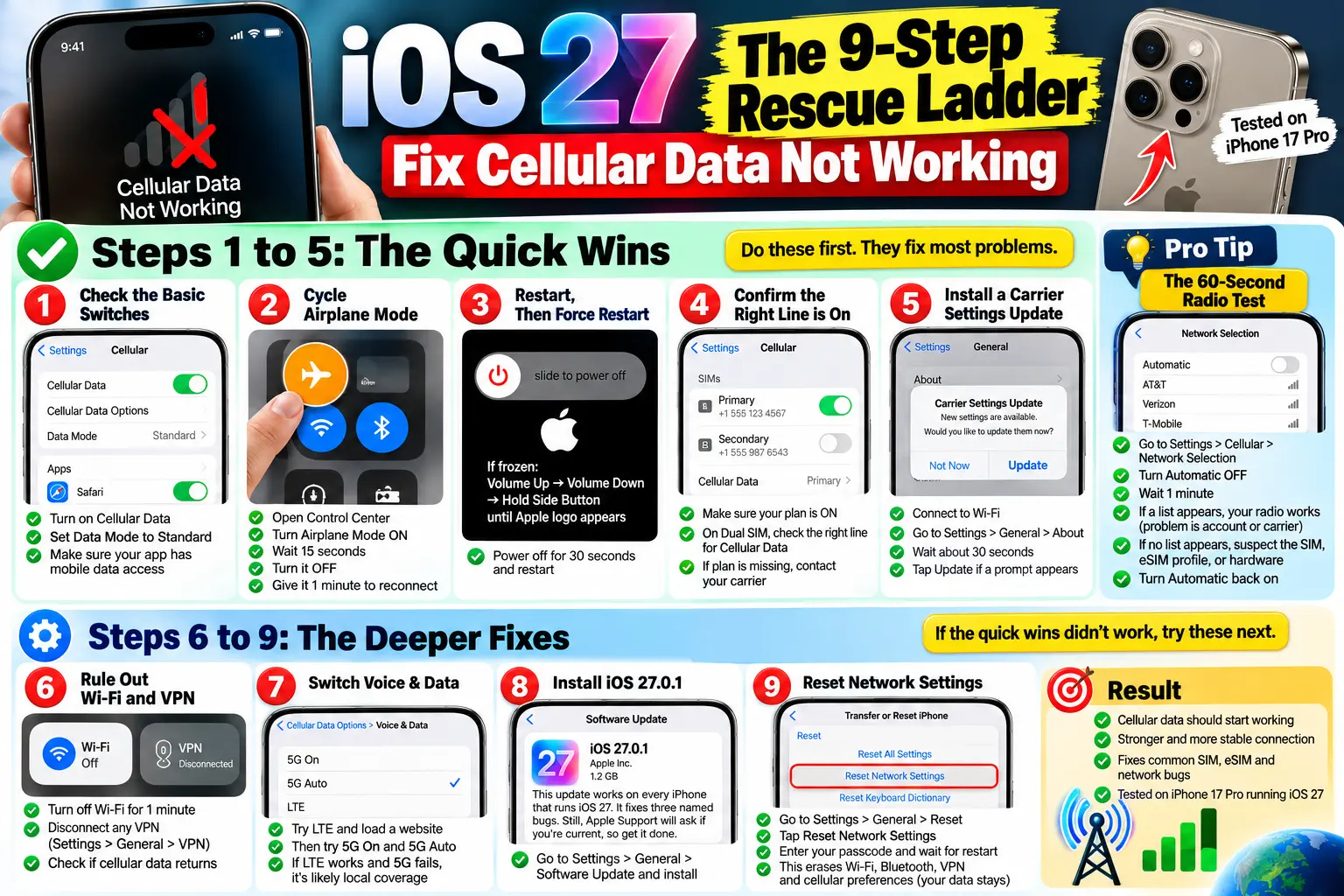
On our iPhone 17 Pro Max running iOS 27, the early steps did most of the work.
Take them in order. Don’t skip ahead unless the table above sent you there.
Steps 1 to 5: The Quick Wins
- Check the basic switches.
Open Settings > Cellular. Make sure Cellular Data is on. Tap Cellular Data Options, then Data Mode. Pick Standard, not Low Data Mode. Scroll the app list and confirm your app has data access. - Cycle Airplane Mode.
Open Control Center. Turn Airplane Mode on. Wait at least 15 seconds. Turn it off. Give the phone a full minute to reconnect. On our test phone, the carrier name returned first and the data icon lagged behind. - Restart, then force restart.
Hold the Side button and either Volume button. Slide to power off. Wait 30 seconds, then power on. If the screen is frozen, press Volume Up, then Volume Down. Hold the Side button until the Apple logo appears. - Confirm the right line is on.
Open Settings > Cellular. Tap your plan under SIMs. Make sure the line is turned on. On Dual SIM phones, check which line handles Cellular Data. If your plan is missing, contact your carrier for a new eSIM. - Install a carrier settings update.
Connect to Wi-Fi. Open Settings > General > About. Wait about 30 seconds. If a prompt appears, tap Update. No prompt means you’re current.
Pro Tip: The 60-Second Radio Test
Open Settings > Cellular > Network Selection and turn Automatic off. Wait a minute. If a list of carriers appears, your phone’s radio works. The problem is your account, plan profile, or carrier settings. If no list ever appears, suspect the SIM, the eSIM profile, or hardware. Turn Automatic back on afterward. This test splits the problem in half, and it saves you from resetting things that aren’t broken.
Steps 6 to 9: The Deeper Fixes
- Rule out Wi-Fi and VPN.
Turn off Wi-Fi for one minute. Next, open Settings > General > VPN & Device Management. Disconnect any VPN. If data returns, your phone was clinging to weak Wi-Fi. A VPN can also block traffic. - Switch Voice & Data.
Open Settings > Cellular > Cellular Data Options > Voice & Data. Try LTE and load a website. Then try 5G On and 5G Auto. If LTE works and 5G fails, the cause is likely local coverage. - Install iOS 27.0.1.
Open Settings > General > Software Update. The update works on every iPhone that runs iOS 27. It fixes three named bugs, not cellular. Still, Apple Support will ask if you’re current, so get it done. - Reset Network Settings.
Open Settings > General > Transfer or Reset iPhone > Reset > Reset Network Settings. Enter your passcode. Wait for the restart. This erases saved Wi-Fi passwords, Bluetooth pairings, VPN settings, and cellular preferences. Your photos, apps, and messages stay. Test cellular before you reconnect to Wi-Fi.
Case Study: The Data Line That Wasn’t
A reader we’ll call Dana (name changed) wrote to us two days after updating her iPhone 15. She had full bars and no data.
She’d already reset network settings twice. Nothing changed.
Step 4 exposed it.
Her main eSIM line was on, but Cellular Data was still assigned to a secondary travel line. Switching the data line took ten seconds.
No reset was needed.
The lesson: check what your phone is using before you wipe what it remembers.
What Changes by iPhone, iPad, and iOS Version
iPhone 18 Pro, 17 Pro, and other eSIM-only models.
U.S. iPhone models since the iPhone 14 have no SIM tray. You can’t reseat a card. Focus on steps 4 and 5, then lean on your carrier’s eSIM tools.
iPhone 11 to 13.
These may still use a physical SIM. Power off, eject the tray, and check for dust or a bent tray. Reinsert it firmly.
iPad cellular.
iPad Wi-Fi + Cellular models follow the same ladder. Look for Settings > Cellular Data instead of Cellular. Apple’s No Service guidance covers both iPhone and iPad.
Coming from iOS 26.
Some carrier profiles don’t refresh cleanly after a big jump. That makes steps 4 and 5 more important than usual.
Weak signal also drains your battery fast. If your phone runs hot while searching, read our guide to fixing iOS 27 battery drain.
What If This Doesn’t Work?
You’ve finished the ladder and still have no data. Now it’s a carrier or hardware question. Here’s what to do next.
- Call your carrier and ask four things. Is my account active? Is there an outage nearby? Is my line provisioned correctly? Can you reissue my eSIM?
- Don’t delete your eSIM first. Wait until the carrier confirms a replacement is ready. Deleting early can strand your plan.
- Test your SIM elsewhere. If you have a physical SIM, try it in another phone. If it fails there, the SIM is the culprit.
- Run Apple’s diagnostics. The Apple Support app can test your device from iOS 18 onward.
- Book a Genius Bar visit. If your carrier clears the line and the SIM works elsewhere, the modem or antenna may be at fault.
We’d skip IPSW restores and third-party “repair” tools. They add risk and rarely solve a carrier-side problem. Back up before any major reset.
Key Takeaways
- iOS 27.0.1 fixes Face ID, camera, and touchscreen bugs. It doesn’t list a cellular fix.
- Work the ladder in order. Airplane Mode, restart, and carrier settings solve most cases.
- Check the data line on Dual SIM and eSIM setups before resetting anything.
- The Network Selection test tells you whether the radio or the account is at fault.
- Reset Network Settings is safe for your data but wipes Wi-Fi passwords.
- Persistent No Service after every step means the carrier or Apple must step in.
FAQ
Probably not on its own. Apple’s notes name three fixes, and none involve cellular. Install it anyway to stay current.
No. Unavailable is a passcode lockout after too many wrong tries. It has nothing to do with your signal. Wait out the timer, then follow the on-screen recovery options.
No. That message comes from your alarm panel’s own communicator. Contact ADT. But if the ADT app can’t connect on your phone, run the ladder above.
Yes. The menu reads Cellular Data on iPad. Everything else matches.
No. It removes saved networks, Bluetooth pairings, and VPN settings. Your personal data stays.
Still fighting iOS 27 quirks?
Bookmark our iOS 27 Complete Guide for more iPhone problems and solutions. If this ladder worked for you, tell us which step did it in the comments.
Sources
- Apple Support, “If you see SOS, No Service, or Searching on your iPhone or iPad”
- MacRumors, “Apple Releases iOS 27.0.1 With Face ID Bug Fix” (September 28, 2026)
- Apple Support Community, “Why is my iPhone stuck on SOS Only?”
Disclaimer
This article is for general informational purposes. Menu names and steps can vary by iOS version, carrier, and device. Back up your iPhone before major resets. Apple Inc., your carrier, and ADT are not affiliated with AppleHeadlines.com. For account, billing, or hardware problems, contact your carrier or Apple Support.
Related Posts:

T’kal is the lead strategist and developer behind Apple Headlines. With a background in digital marketing and web development, he specializes in technical Apple troubleshooting, software news, and hardware rumors. T’kal focuses on delivering high-authority tech content that bridges the gap between Apple enthusiasts and the latest industry innovations.