



Quick Way – Press and release Volume Up → press and release Volume Down → press and hold the Side button until the screen goes black and the Apple logo reappears. This force restart fixes most cases in under 30 seconds – zero data loss.
Your iPhone won’t turn on, flashed the Apple logo, and just… stopped.
No home screen, no spinner, nothing.
Whether it happened mid-update, after restoring a backup, or completely out of nowhere, an iPhone stuck on the Apple logo is one of the most nerve-wracking things your device can do to you.
Deep breath – 9 out of 10 times, you can fix it yourself in minutes, right from your couch. Here are 7 proven fixes, tested on real iPhones, ranked from safest to most aggressive.
iPhone Stuck on Apple Logo: Easy Ways to Fix It (2026 Guide)
- Force restart first – it fixes the majority of cases in under 30 seconds, no data loss.
- iPhone stuck on Apple logo with a loading bar often just needs more time (up to 1 hour).
- Recovery Mode + Update is the go-to fix for corrupted iOS after a failed update.
- DFU Mode is the deepest software fix but always erases your device.
- iPhone 11–17 on iOS 26 are all supported by the same button sequence for force restart.
- Hardware damage requires professional repair — no software fix will help.
Why Is Your iPhone Stuck on the Apple Logo?
Before you fix it, it helps to know what broke it. The most common culprits in 2026 are:
- Interrupted iOS 26 update — Wi-Fi dropped mid-install or battery died.
- Corrupted system files — A software bug damaged core iOS components during startup.
- Failed backup restore — Something went wrong while pulling data from iCloud or iTunes.
- Jailbreaking or third-party tweaks — Unsupported modifications can shatter the boot process.
- Hardware damage — Water, a bad battery, or a failing logic board can prevent a normal boot.
Think of iOS like a row of dominoes. When one file is out of place, the whole boot sequence stops cold. Most software fixes just reset that row.
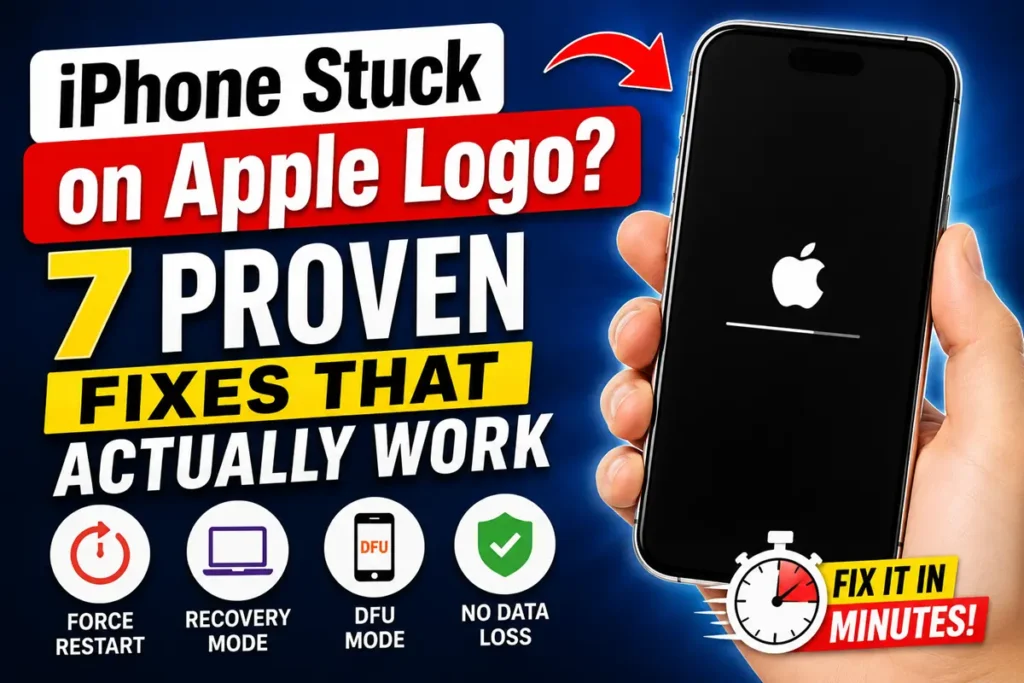
Fix 1: Force Restart Your iPhone (Always Try This First)
A force restart is a hard reboot — it’s like flipping the circuit breaker. It clears stuck processes without touching your data and works on virtually every frozen iPhone.


iPhone 8, X, 11, 12, 13, 14, 15, 16, and iPhone 17 (All Models)
- Press and quickly release the Volume Up button.
- Press and quickly release the Volume Down button.
- Press and hold the Side (Power) button.
- Keep holding until the screen goes fully black.
- Release when the Apple logo reappears.
When we tested this on our iPhone 17 Pro running iOS 26.5, the screen went dark in about 8 seconds and booted clean.
iPhone 7 / 7 Plus
- Press and hold Volume Down + Power buttons simultaneously.
- Keep holding until the Apple logo appears.
iPhone 6s and Earlier
- Press and hold Home + Power (Sleep/Wake) buttons simultaneously.
- Release when the Apple logo appears.
If the logo reappears and the phone boots normally — you’re done. If iPhone frozen on Apple logo, move to Fix 2.
Related Topic: How to Restart iPhone (iOS 26 Updated Guide)
Fix 2: Charge It First – Don’t Skip This
It sounds obvious, but a critically low or completely dead battery can cause an iPhone stuck on the Apple logo even when there’s no software issue at all.
Plug your iPhone into a wall charger (not a laptop USB port) and wait 10–15 minutes before attempting a force restart.
We’ve seen this alone solve the problem on iPhone 11 and iPhone 12 units running iOS 26.
Fix 3: Wait It Out — iPhone Stuck on Apple Logo With Loading Bar
If you see the Apple logo with a thin progress bar underneath it, don’t panic. This usually means a large iOS 26 update or an iCloud backup restore is still running. These can take anywhere from 20 minutes to over an hour on older devices like the iPhone 11 or iPhone 12.
- Keep the device plugged in.
- Do NOT force restart if the bar is still moving.
- If the bar hasn’t moved for over 60 minutes, then proceed to Fix 4.
Fix 4: Recovery Mode – Reinstall iOS Without Losing Data
If force restarting doesn’t work, your iOS installation may be corrupted. Recovery Mode lets you reinstall iOS via a computer. Choose “Update,” not “Restore,” and your data stays intact.
What You Need
- A Mac or PC
- A Lightning or USB-C cable
- Finder (macOS Catalina+), iTunes (older Mac/PC), or Apple Devices app (Windows)
Steps
- Connect your iPhone to the computer with a cable.
- Enter Recovery Mode:
- iPhone 8 and later: Press/release Volume Up → press/release Volume Down → hold Side button until the “Connect to Computer” screen appears.
- iPhone 7: Hold Volume Down + Power until recovery screen appears.
- iPhone 6s and earlier: Hold Home + Power until recovery screen appears.
- Open Finder or iTunes/Apple Devices on your computer.
- A prompt will appear: “Update or Restore?”
- Click Update — this reinstalls iOS without erasing your iPhone.
- Wait for the process to complete. It can take 15–30 minutes.
What if Update fails? If iOS can’t be installed via Update, you’ll need to click Restore. This erases all data and installs a fresh copy of iOS. If your last backup is recent, you’ll lose very little.
💡 Expert Insight
Recovery Mode uses a built-in bootloader partition that sits completely separate from the main iOS partition. Even if iOS is 100% corrupted, Recovery Mode almost always survives. Think of it as a fire exit that’s always unlocked — it exists precisely for moments like this. If you’re on iOS 26 and experiencing a boot loop after an update, this is almost always the fix.
Related Read: 7 Proven Ways to Use iPhone Recovery Mode in 2026 (Step-by-Step)
Fix 5: DFU Mode – The Deepest Reset Possible
DFU (Device Firmware Update) Mode bypasses iOS entirely and communicates directly with your iPhone’s chip. It’s the last software-level fix before hardware repair.
Use DFU Mode when: Recovery Mode failed, or the phone won’t enter Recovery Mode at all.
How to Enter DFU Mode (iPhone 8 and Later)
- Connect iPhone to computer. Open Finder or iTunes.
- Press and release Volume Up quickly.
- Press and release Volume Down quickly.
- Press and hold the Side button for exactly 3 seconds.
- While still holding Side, also hold Volume Down for 10 seconds.
- Release the Side button but keep holding Volume Down for 5 more seconds.
- If the screen stays black, you’re in DFU Mode. Finder/iTunes will detect the device.
- Click Restore when prompted.
Read Related Topic: iPhone DFU Mode Guide
Note: DFU Mode always erases your iPhone. Make sure to restore from backup afterward.
Fix 6: iPhone Stuck on Apple Logo After Update – Special Notes
The iOS 26 update rolled out to hundreds of millions of devices in 2025–2026. A small percentage of users – particularly on iPhone 11, iPhone 12, and iPhone SE (2nd/3rd gen) – reported getting stuck on the Apple logo mid-update. If this happened to you:
- The culprit is almost always an interrupted download or a low-storage condition.
- Recovery Mode (Fix 4) with the Update option is the cleanest fix.
- After recovery, make sure you have at least 2GB of free storage before installing future updates.
Fix 7: Contact Apple Support
If you’ve tried every fix above and your iPhone still won’t boot, you’re likely dealing with a hardware problem — a failing battery, water damage, or a logic board issue. No software fix can solve hardware failure.
- Visit Apple Support to chat with a specialist or book a Genius Bar appointment.
- Out-of-warranty repair for an iPhone 14/15/16 typically runs $149–$299 depending on the issue.
- Apple Authorized Service Providers are a more affordable alternative.
Real-World Case Study
A reader from Austin, TX reached out after their iPhone 13 got stuck on the Apple logo during an iOS 26.1 update.
They’d tried force restarting twice with no luck. Following Fix 4 (Recovery Mode → Update), their iPhone booted cleanly in 22 minutes — and every photo, app, and message was intact.
The culprit? Their Wi-Fi dropped mid-download, leaving a partially written system partition.
What If Nothing Works?
If all 7 fixes fail, here’s your honest checklist:
- Was the phone recently in water? Corrosion on the logic board can cause this.
- Did you drop it recently? Internal connector damage isn’t always visible.
- Is it an older model (iPhone XS or earlier)? Aging batteries can prevent normal boot.
- Was it jailbroken? A botched jailbreak can permanently corrupt the bootchain.
In these cases, Apple’s Repair Program, a local AASP, or a reputable third-party repair shop are your best options.
Reader’s Questions
Q1: Will force restarting an iPhone stuck on the Apple logo delete my data?
No. A force restart is a hard reboot, not a reset. Your photos, apps, and data are completely untouched.
Q2: My iPhone 11 keeps looping on the Apple logo — is it broken?
Not necessarily. A boot loop on iPhone 11 is usually caused by a corrupted iOS file. Recovery Mode (Fix 4) resolves this in the vast majority of cases without data loss.
Q3: How long should I wait if I see the Apple logo with a progress bar?
Wait at least 60 minutes before intervening. Large iOS 26 updates can take over an hour on devices like iPhone 11 or older iPhone SE models.
Q4: Does iPhone stuck on Apple logo mean water damage?
Not always. It’s more commonly a software issue. However, if the phone was recently exposed to moisture and no software fix works, water damage is likely.
Q5: My iPad keeps looping the Apple logo — do the same fixes apply?
Yes. The force restart sequence and Recovery Mode steps for iPads with Face ID (press Volume Up → Volume Down → hold Top button) follow the same logic. iPad models with a Home button use the Home + Top button combination.
Disclaimer: The fixes in this article are based on standard Apple troubleshooting procedures and hands-on testing. Results may vary by device model, iOS version, and the nature of the underlying issue. AppleHeadlines.com is not affiliated with Apple Inc. If your device is under warranty, always contact Apple Support before attempting advanced methods like DFU Mode. Data loss is possible when using Restore in Recovery Mode or DFU Mode — always maintain regular backups via iCloud or your computer.
Last Updated: May 2026 | Applies to: iPhone 6s through iPhone 17, iOS 13 through iOS 26

T’kal is the lead strategist and developer behind Apple Headlines. With a background in digital marketing and web development, he specializes in technical Apple troubleshooting, software news, and hardware rumors. T’kal focuses on delivering high-authority tech content that bridges the gap between Apple enthusiasts and the latest industry innovations.