


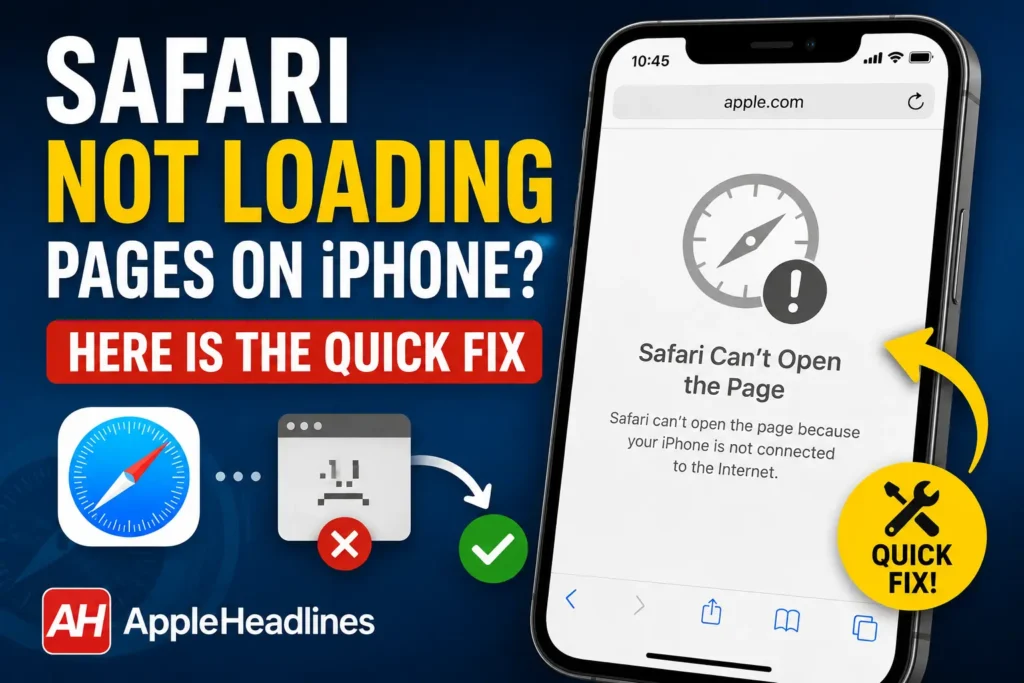
It is one of the most frustrating experiences on iOS: you open Safari, type in a web address or tap a search result, and… nothing happens.
The progress bar freezes near the beginning, the screen remains completely blank, or you get an error stating that the page cannot be loaded.
To make matters stranger, other internet-dependent apps like YouTube, Instagram, or Google Chrome work without a single issue.
If Safari has suddenly stopped loading web pages or is running painfully slow on your iPhone, you don’t need to do a full system reset.
Below is a comprehensive, step-by-step troubleshooting guide designed to resolve this exact issue quickly.
Why Is Safari Freezing or Refusing to Load Webpages?
Before diving into the fixes, it helps to understand why Safari fails while the rest of your iPhone’s internet connection works fine. The most common culprits include:
- iCloud Private Relay & “Hide IP Address” Stalls: Apple’s built-in privacy relays route Safari traffic through encrypted servers. If those servers experience temporary downtime or network handoff issues, Safari stalls entirely.
- Corrupted Browsing Data & Cache: Stored cookies, cached files, and script data build up over time. Corrupted temporary files often cause page rendering freezes.
- Conflicting Extensions or Content Blockers: Ad blockers and privacy extensions can accidentally block essential site scripts.
- VPN & Custom DNS Interference: Virtual Private Networks often conflict with iOS-level network routing.
- Safari Search Suggestions Glitches: Pre-loading search recommendations can overload the URL bar on weak connections.
Step 1: Fix the Hidden Privacy Bug (iCloud Private Relay & IP Masking)
If Chrome works fine on your iPhone but Safari refuses to load, iCloud Private Relay or “Hide IP Address” is almost always the cause.
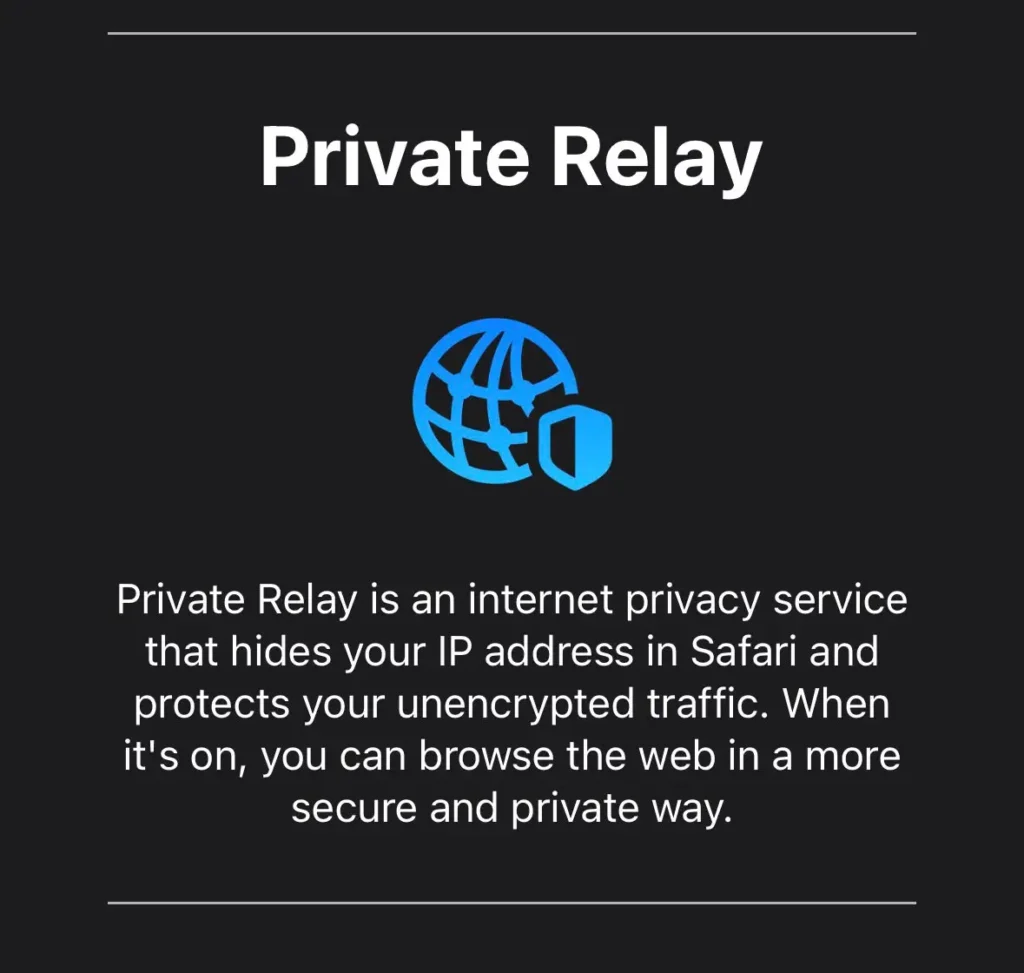
iCloud Private Relay encrypts your Safari web traffic by sending it through two separate secure relays. If an internet network or Apple server drops that relay connection, Safari cannot fetch webpage data.
How to Toggle Off iCloud Private Relay:
- Open the Settings app on your iPhone.
- Tap your Apple ID name at the top.
- Select iCloud, then tap Private Relay under iCloud+ Features.
- Toggle Private Relay off.
- Select Turn Off Until Tomorrow to test if Safari immediately resumes loading pages.
Settings ➔ [Your Name] ➔ iCloud ➔ Private Relay ➔ Toggle Off
Check “Limit IP Address Tracking” on Your Network:
Even if you don’t pay for iCloud+, iOS enables IP tracking limits per network connection.
- For Wi-Fi: Go to Settings > Wi-Fi, tap the (i) icon next to your network, and toggle off Limit IP Address Tracking.
- For Cellular Data: Go to Settings > Cellular > Cellular Data Options, and turn off Limit IP Address Tracking.
Step 2: Clear Corrupted Safari Cache & Website Data
Every website you visit downloads images, stylesheets, and scripts to your device so the page loads faster next time.
Over months of daily use, these cached files can become corrupted or balloon in size, leading to unresponsive tabs and unexpected freezes.
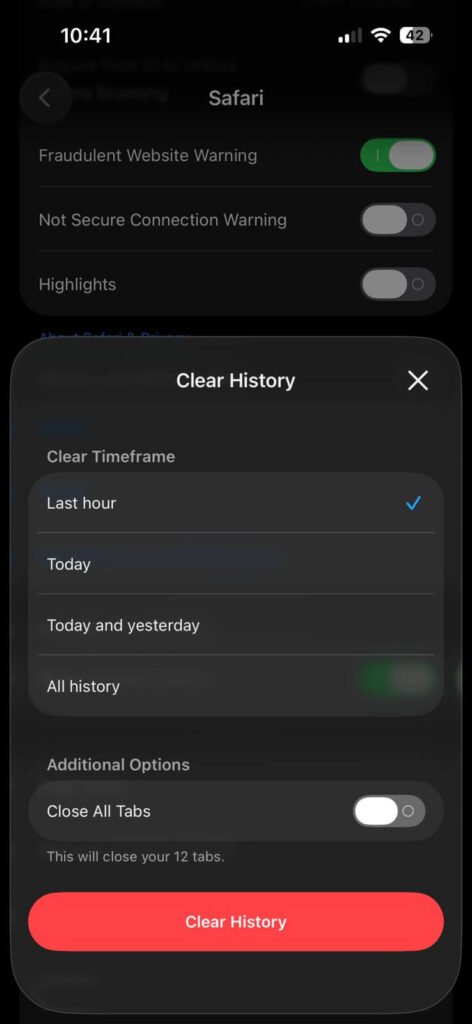
How to Clear Safari History & Data:
- Open Settings on your iPhone.
- Scroll down and tap Apps, then select Safari (on older iOS versions, tap Safari directly from the main Settings list).
- Scroll down and tap Clear History and Website Data.
- Under the time range, choose All History.
- Ensure Close All Tabs is toggled on if you want a complete fresh start.
- Tap Clear History to confirm.
Note: Clearing history will log you out of websites you currently visit in Safari, but your saved passwords in Apple Keychain will remain untouched.
Step 3: Disable Buggy Extensions & Ad Blockers
Safari extensions—especially content blockers, price trackers, and dark mode tools—interfere directly with webpage rendering scripts.
If an extension isn’t updated for your current iOS version, it can cause web pages to stay blank indefinitely.
How to Audit Safari Extensions:
- Go to Settings > Apps > Safari.
- Tap Extensions.
- Tap each installed extension listed and toggle it OFF.
- Relaunch Safari and test your webpage.
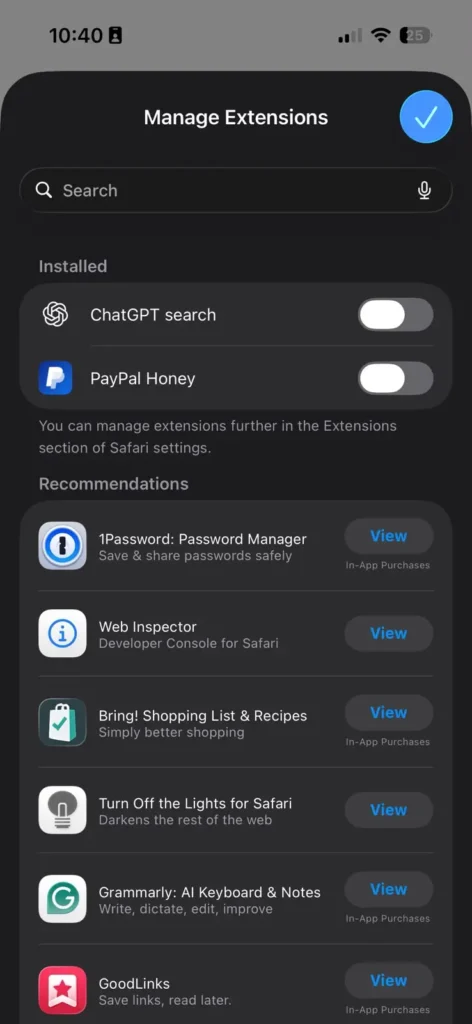
If pages load instantly after turning off extensions, turn them back on one by one to identify which extension is causing the conflict.
Step 4: Turn Off Safari Suggestions & Search Pre-loading
Whenever you type in the Safari address bar, iOS contacts Apple and search engines in real-time to generate pre-fetched recommendations and search suggestions.
On unstable connections or during server hiccups, this feature can cause the address bar to lock up before sending the actual web request.
How to Disable Suggestions:
- Open Settings and tap Safari (or Apps > Safari).
- Under the Search section, toggle OFF the following options:
- Safari Suggestions
- Search Engine Suggestions
- Preload Top Hit
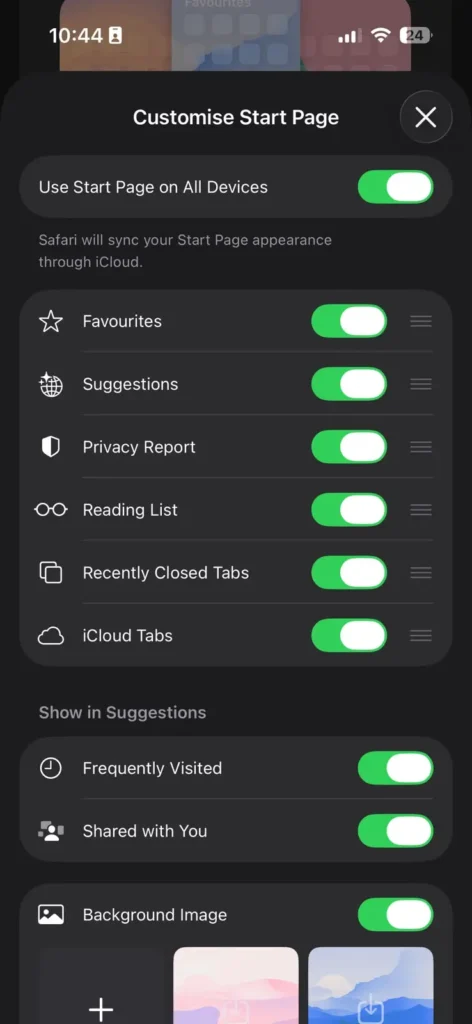
Disabling these toggles drastically reduces background data requests every time you initiate a web search.
Step 5: Temporarily Disable Third-Party VPNs
A Virtual Private Network (VPN) forces all device traffic through an encrypted tunnel.
VPN configuration profiles frequently conflict with iOS native socket controls, resulting in DNS resolution failures in Safari.
- Open Settings > General > VPN & Device Management.
- If any VPN service states Connected, tap it and toggle it OFF.
- Force quit Safari by swiping up from the bottom of your screen to open the App Switcher, swiping Safari up and off the top, then opening it again.
Step 6: Verify JavaScript Is Enabled
JavaScript is the core scripting language that powers modern interactive websites.
If JavaScript was accidentally toggled off in advanced developer settings, many sites will render as blank white screens or fail to respond to taps.
- Go to Settings > Apps > Safari.
- Scroll to the very bottom and tap Advanced.
- Ensure the toggle for JavaScript is turned ON (green).
Step 7: Reset Network Settings (The Ultimate Connection Fix)
If none of the soft fixes resolve the issue, your iPhone likely has a corrupted DNS cache or invalid IP configuration stored in its system configuration files.
Performing a Reset Network Settings flushes all Wi-Fi, cellular, and Bluetooth configurations without touching your photos, apps, or personal data.
Steps to Reset Network Settings:
- Open Settings and go to General.
- Scroll to the bottom and tap Transfer or Reset iPhone.
- Tap Reset at the bottom of the screen.
- Choose Reset Network Settings.
- Enter your passcode and confirm the prompt.
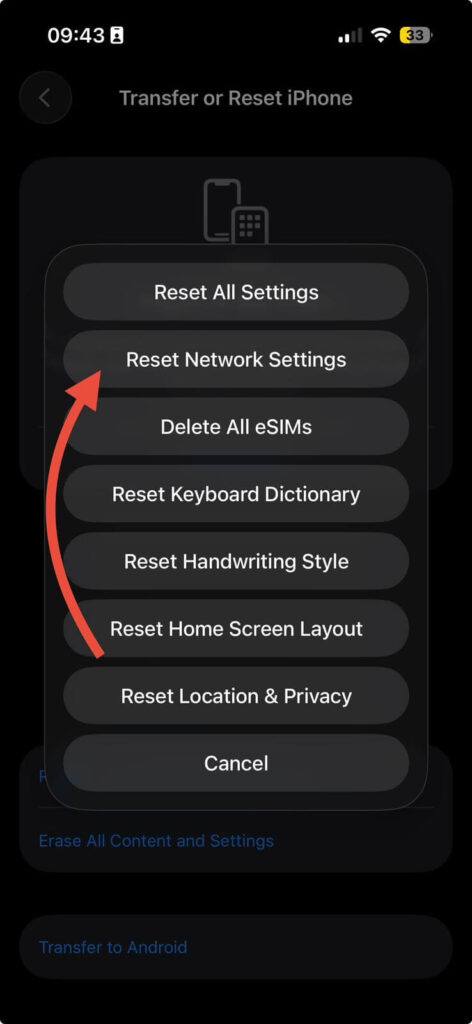
Important: Your iPhone will restart automatically. Once rebooted, reconnect to your home Wi-Fi network with your password and launch Safari.
Summary Troubleshooting Checklist
| Action Item | What It Fixes | Time Required |
|---|---|---|
| Disable Private Relay | Resolves Apple server routing hangs and blocked connections | 30 Seconds |
| Clear Safari Data | Clears corrupt browser cache, broken cookies, and heavy site logs | 1 Minute |
| Turn Off Extensions | Eliminates script conflicts from third-party ad blockers | 1 Minute |
| Turn Off VPN | Fixes DNS routing conflicts and proxy dropouts | 30 Seconds |
| Reset Network Settings | Rebuilds system-level Wi-Fi and cell data protocol stacks | 3 Minutes |
Final Thoughts
In 9 out of 10 cases, Safari page loading failures are caused by iCloud Private Relay conflicts or a corrupted browser cache. Following the steps above starting with Private Relay and working down through clearing website data will have Safari loading pages smoothly once again.
If you frequently encounter Private Relay issues, keep it turned off temporarily for your primary Wi-Fi network to avoid recurring web stalls while browsing at home.
For a quick visual walkthrough on resolving iCloud Private Relay connection issues on iOS, check out this Fix Safari Private Relay Connection Errors video. This video directly demonstrates how to toggle and troubleshoot Apple’s relay network settings when Safari stops loading pages.

T’kal is the lead strategist and developer behind Apple Headlines. With a background in digital marketing and web development, he specializes in technical Apple troubleshooting, software news, and hardware rumors. T’kal focuses on delivering high-authority tech content that bridges the gap between Apple enthusiasts and the latest industry innovations.