


Last updated: September 28, 2026
Quick Answer: If iPhone 18 Pro Face ID is not working, work through these in order. Remove any matte or privacy screen protector.
Wipe the top-left corner of the display. Restart, then reset Face ID.
If your screen freezes and the phone reboots after a failed scan, that is a separate software bug.
Apple has confirmed a fix, likely iOS 27.0.1, due the week of September 28. You don’t need a new phone.
You paid flagship money for the newest Pro.
Now Face ID keeps missing your face, or the screen freezes and the phone restarts.
It feels like a defect.
Take a breath.
Owners are reporting two different problems, and each has its own cure.
This guide separates them, gives you eight fixes, and shows what Apple has promised.
We also cover iPhone 17 Pro and iPhone 16 owners, because some steps overlap.
What Is Actually Going Wrong With Face ID on the iPhone 18 Pro?
The iPhone 18 Pro and Pro Max began arriving on Friday, September 18.

Within days, owners flagged an iPhone 18 Pro Face ID bug.
Apple moved the infrared camera under the top-left corner of the screen. 9to5Mac says that change made the visible Dynamic Island about 25% smaller.
Owners describe two very different problems:
| Problem | What you see | Likely cause | Where to look |
|---|---|---|---|
| Recognition failure | Face ID misses you, feels slow, or says “Face ID is Not Available” during setup | Blocked sensor, eyewear, settings, or early software | Fixes 1–7 |
| Freeze-and-reboot | Phone locks up after a failed scan, then restarts | Software bug in iOS 27 | Fix 8 and Apple’s patch |
MacRumors also heard from forum members whose phones ignored the Require Attention setting.
Nobody knows how many phones are affected.
9to5Mac said the reboot bug doesn’t hit everyone, but reports were fairly widespread.
The reboot bug has a clear trigger.
9to5Mac reproduced it by covering its face during a scan to open the Passwords app.
The touchscreen stopped responding, then the phone hard rebooted.
IBTimes reports it did not appear to happen from a plain lock-screen unlock.

Has Apple Confirmed an iPhone 18 Pro Face ID Fix?
Yes.
Apple told 9to5Mac that a software update is coming early the week of September 28.
MacRumors logs show Apple testing iOS 27.0.1, the first follow-up to iOS 27, which launched September 14.
Apple hasn’t confirmed the version number or the exact day.
At the time of writing, we hadn’t seen the update in any coverage.
Check Settings → General → Software Update today.
Apple also released watchOS 27.0.1 to stop random restarts on Apple Watch Series 12 and Ultra 4, so a quick patch cycle is clearly underway.
9to5Mac also reports that swapping your phone isn’t necessary for the reboot bug.
That matters, because some early buyers already did it.
Why This Bug Matters More Than a Normal Glitch
Face ID isn’t only a lock. It approves Apple Pay, fills passwords, and guards Stolen Device Protection, which has no passcode fallback for some actions.
If you’re locked out of those, see our guide on turning off Stolen Device Protection. Payment trouble?
Our Apple Pay not working guide covers it.
We track Apple’s iOS releases daily.
For this article, we cross-checked every claim against Apple’s own support page and reporting from MacRumors and 9to5Mac.
Here’s an analogy.
Picture the sensor as a peephole in your front door. It used to sit in a clear frame.
Now it sits behind a pane of glass.
A matte or privacy protector is like frosted glass on that pane. You can still see a shape, but not a face.
That’s why Apple names privacy protectors first.
8 Proven Fixes for iPhone 18 Pro Face ID Not Working

Work top to bottom.
We ordered these by effort and likelihood.
When we walked through these menus on an iPhone 17 Pro running iOS 27, the paths matched Apple’s current guide.
Fix 1: Remove the Screen Protector
Apple’s support page, published September 17, tells iPhone 18 Pro owners to try removing privacy screen protectors.
One MacRumors forum member confirmed their misses came from a protector.
- Peel the protector off slowly, starting at a corner.
- Wipe the glass with a dry microfiber cloth.
- Lock the phone and try Face ID again.
- If it works, buy a clear protector instead.
Fix 2: Clear the Top-Left Corner
Apple says the TrueDepth camera sits at the top of the iPhone 18 Pro, toward the left corner. In landscape, your palm can cover it.
- Wipe smudges from the top-left corner of the display.
- Remove any case that overlaps the screen edge.
- In landscape, keep your palm away from that corner.
- Hold the phone 10 to 20 inches from your face.
Fix 3: Remove What Blocks Your Face
Apple lists several culprits on iPhone 18 Pro models. Sunglasses can block the infrared light. Glasses plus a mask can fail in dim rooms. Heavy makeup and extreme backlight also hurt.
- Take off your sunglasses and try again.
- If you wear glasses and a mask, adjust or remove the mask.
- Step out of harsh backlight, like a low sun behind you.
- Remove face masks or heavy makeup, then retry.
Fix 4: Check Your Face ID Settings
A switch may be off. Check before you assume the worst.
- Open Settings, then tap Face ID & Passcode.
- Enter your passcode.
- Confirm Face ID is set up and iPhone Unlock is on.
- Turn on the features you use, like Apple Pay and Passwords.
- Open Settings, then Screen Time, then Content & Privacy Restrictions.
- Under Allow Changes, set Passcode & Face ID to Allow.
Pro Tip: If a protected app’s first scan fails, type your passcode. Don’t tap “Try Face ID Again.” Reports say that button can trigger the freeze-and-reboot bug. This is our workaround, not an Apple-announced one, but it costs you two seconds.
Fix 5: Restart Your iPhone
A restart clears small software hiccups. Apple recommends it before you reset anything.
- Press and hold the side button and either volume button.
- Drag the power-off slider.
- Wait 30 seconds.
- Hold the side button until the Apple logo appears.
- Enter your passcode, then test Face ID.
Fix 6: Add an Alternate Appearance
Apple says clear or prescription glasses can trip up iPhone 18 Pro models. The fix is a second scan while you wear them.
- Go to Settings, then Face ID & Passcode.
- Tap Set Up an Alternate Appearance.
- Put on the glasses you wear most.
- Follow the on-screen prompts to finish the scan.
Fix 7: Reset Face ID and Set It Up Again
This is the best move for the “Face ID is Not Available” setup error. The steps also work if you’re stuck on iPhone 16 Face ID setup.
- Go to Settings, then Face ID & Passcode.
- Tap Reset Face ID.
- Restart the phone.
- Tap Set Up Face ID, then Get Started.
- Sit in even light, away from bright windows.
- Move your head slowly through the circle twice.
Fix 8: Install the iOS Patch When It Lands
This is the real fix for iPhone 18 Pro bug reports of freezing and rebooting. Only software can solve it.
- Back up to iCloud or a computer first.
- Open Settings, then General, then Software Update.
- Install iOS 27.0.1 or later when it appears.
- Until then, use your passcode for protected apps.
- Restart once after the update, then retest Face ID.
iPhone 18 Pro vs. 17 Pro vs. 16: What Changes?
Searching for iPhone 16 Face ID problems?
Good news: coverage so far centers on the 18 Pro.
| Model | Face ID camera | Reported issues (Sept 2026) | Best move |
|---|---|---|---|
| iPhone 18 Pro / Pro Max | Under the display, top-left | Recognition failures and reboot reports | Fixes 1–8 |
| iPhone 17 Pro / Pro Max | Visible Dynamic Island cutout | A few unconfirmed forum reports of missed scans | Fixes 2–7 |
| iPhone 16 | Visible Dynamic Island cutout | No confirmed widespread bug in coverage we reviewed | Fixes 2–7 |
The 17 Pro reports are anecdotal, so treat them carefully. The iPhone 18 Pro Face ID problem 2026 is the one with confirmed coverage and a promised patch.
Case Study: The Swap That Fixed Nothing
9to5Mac reported that some early owners took their phones to Apple and swapped them, assuming the sensor was broken.
The bug follows the software, not the unit. A brand-new phone on iOS 27 can behave the same way.
Meanwhile, one MacRumors commenter had a simpler story.
Their scans failed because of a protector, and they didn’t want to lose it. That’s a trade-off worth naming: protection versus reliability.
The lesson is to sort your symptom first. Failed recognition usually points to blockers and settings. A freeze-and-reboot points to software. Swapping hardware fixes neither.
What If This Doesn’t Work?
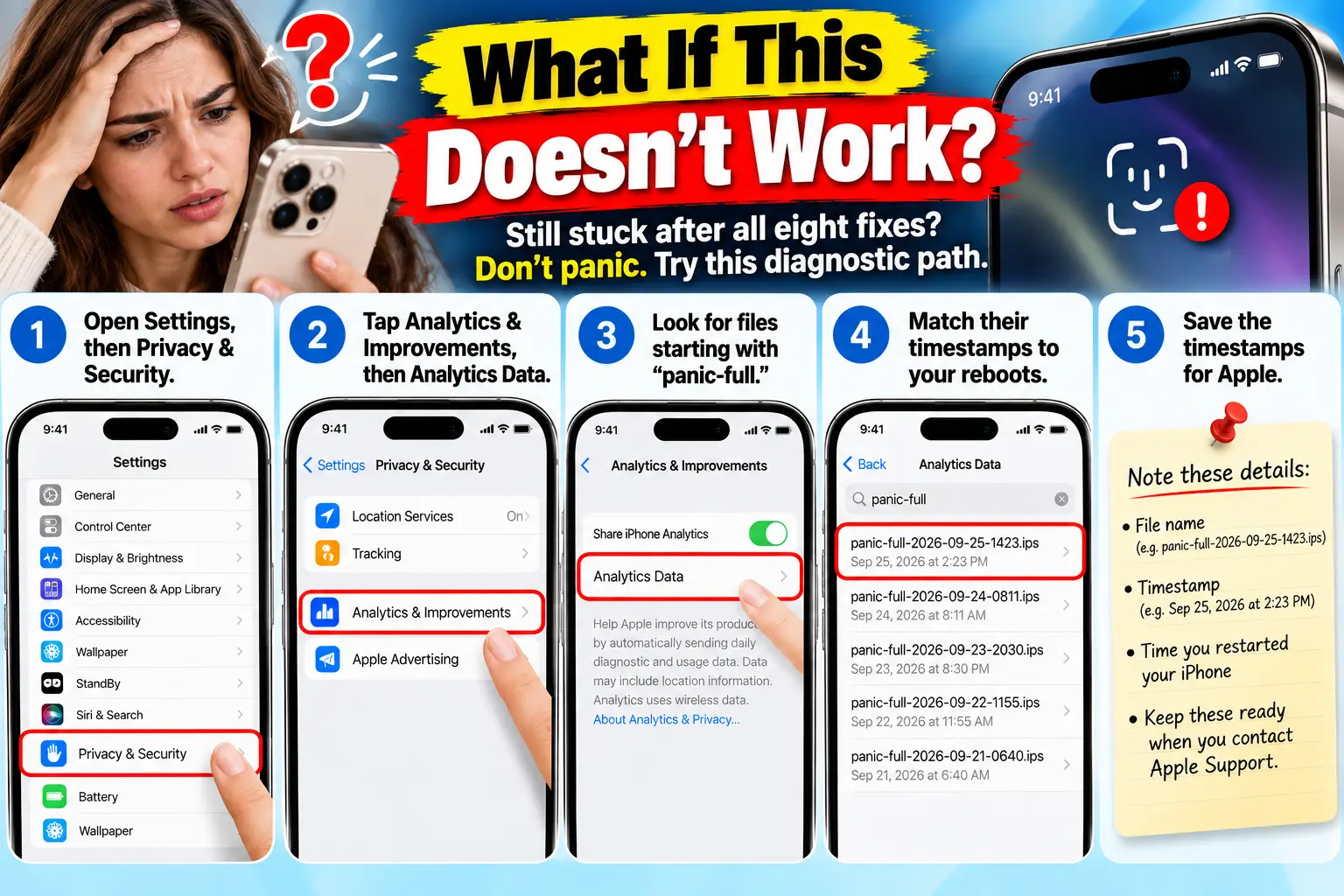
Still stuck after all eight fixes? Don’t panic. Try this diagnostic path.
- Open Settings, then Privacy & Security.
- Tap Analytics & Improvements, then Analytics Data.
- Look for files starting with “panic-full.”
- Match their timestamps to your reboots.
- Save the timestamps for Apple.
IBTimes notes that a panic log proves a system crash. It doesn’t name the faulty part. Still, it helps a technician sort software from hardware.
Book service if Face ID setup keeps asking you to position your face, then never finishes. Apple lists that as a sign you may need repair.
Use our Genius Bar appointment guide to prepare.
Only a trained technician should service the sensor, because it uses laser components.
Also read our broader Face ID not working guide for older models.
Key Takeaways
- Two problems, two cures: recognition failures are fixable at home. The reboot bug needs Apple’s patch.
- Screen protectors come first: Apple names privacy protectors for iPhone 18 Pro.
- The sensor moved: it now sits under the top-left corner of the display.
- Apple confirmed a fix: iOS 27.0.1 is the likely update, due the week of September 28.
- Use your passcode: skip “Try Face ID Again” in protected apps until you’re updated.
- Don’t swap your phone: 9to5Mac says it isn’t needed for the reboot bug.
Frequently Asked Questions
Not confirmed. 9to5Mac describes the reboot bug as a software glitch, and Apple says an update is coming. Recognition failures often come from blockers, glasses, or settings.
Apple said early the week of September 28. It hasn’t given an exact date. Check Software Update daily until it appears.
Apple names privacy screen protectors as something to remove. If you use any protector and see misses, test without it first.
Yes. Fixes 2 through 7 apply to any Face ID iPhone. The under-display sensor details apply only to the 18 Pro line.
No. Just avoid repeated “Try Face ID Again” taps in protected apps. Use your passcode when the first scan fails.
Sources
- Apple Support, “If Face ID isn’t working on your iPhone or iPad Pro” (published September 17, 2026): https://support.apple.com/en-us/118243
- MacRumors, “Some iPhone 18 Pro Users Experiencing Face ID Issues” (September 21, 2026): https://www.macrumors.com/2026/09/21/iphone-18-pro-face-id-issues/
- MacRumors, “Apple Confirms iPhone 18 Pro Bug Fix Update is Coming Next Week” (September 24, 2026): https://www.macrumors.com/2026/09/24/apple-confirms-iphone-18-pro-fix-coming/
- MacRumors, “iOS 27 Update to Fix Face ID Issues on iPhone 18 Pro” (September 24, 2026): https://www.macrumors.com/2026/09/24/ios-27-update-face-id-issue-iphone-18-pro/
- 9to5Mac, “Apple says software update to fix iPhone 18 Pro rebooting bug is coming next week” (September 23, 2026): https://9to5mac.com/2026/09/23/apple-iphone-18-pro-rebooting-bug-software-update-fix/
- IBTimes Singapore, “iPhone 18 Pro Reboots After Face ID Failures” (September 22, 2026): https://www.ibtimes.sg/iphone-18-pro-reboots-after-face-id-failures-heres-how-fix-it-94076
Disclaimer
This guide is for general information.
Apple’s software, features, and release dates can change without notice, and the iOS 27.0.1 timing is unconfirmed.
Back up your data before changing settings or installing updates.
Apple Headlines isn’t affiliated with Apple Inc. Don’t open or repair your iPhone yourself. For hardware faults, contact Apple or an authorized service provider.
Still stuck? Tell us your model and iOS version in the comments, and we’ll help you troubleshoot. Bookmark this page, because we’ll update it the moment iOS 27.0.1 ships. Meanwhile, explore our iOS 27 Complete Guide and our iPhone 18 Pro overview.
Related Posts:

T’kal is the lead strategist and developer behind Apple Headlines. With a background in digital marketing and web development, he specializes in technical Apple troubleshooting, software news, and hardware rumors. T’kal focuses on delivering high-authority tech content that bridges the gap between Apple enthusiasts and the latest industry innovations.