

Updated October 28, 2026 · Checked against Apple’s current iOS 27 support pages
⚡ Quick Answer
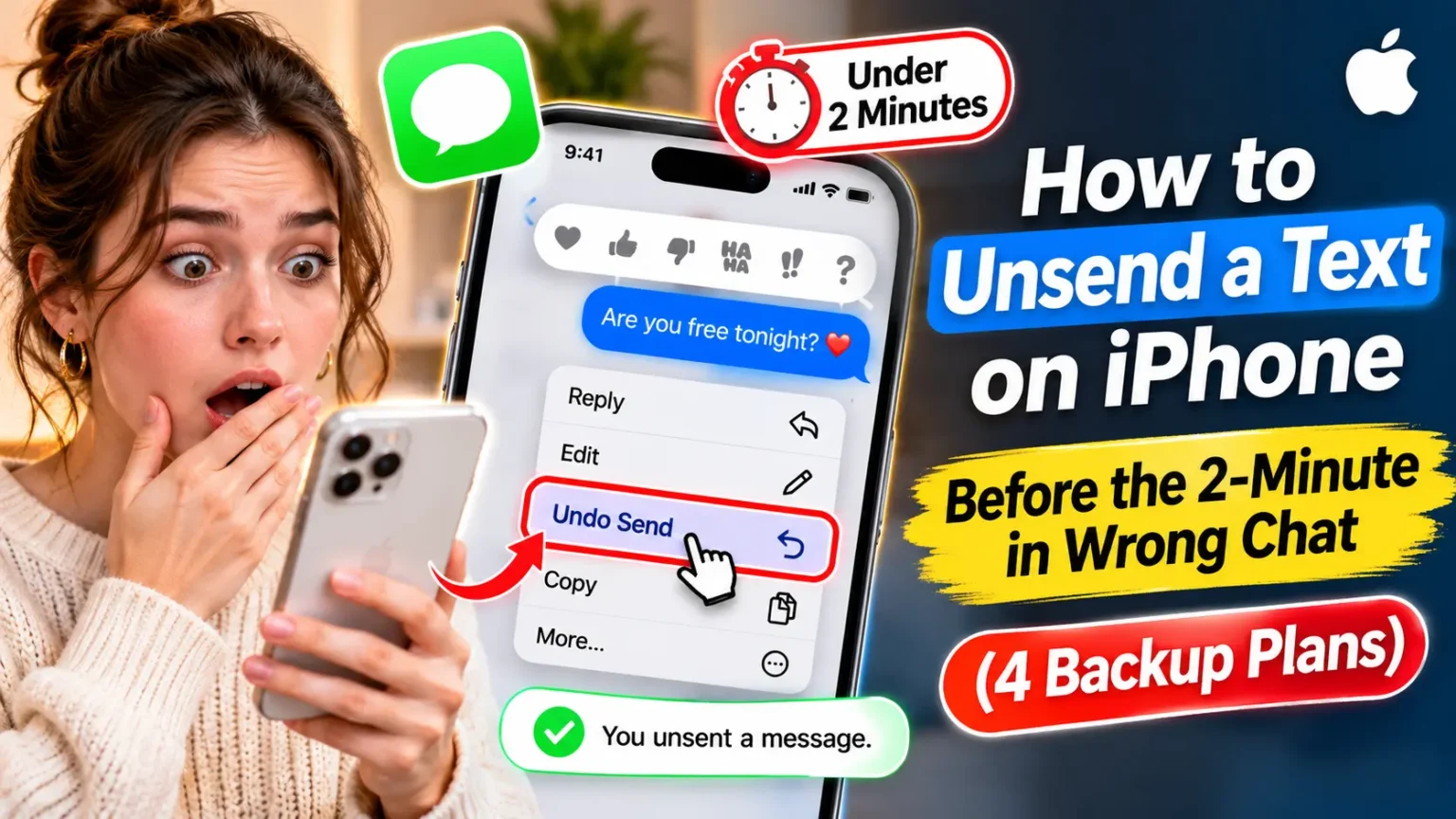
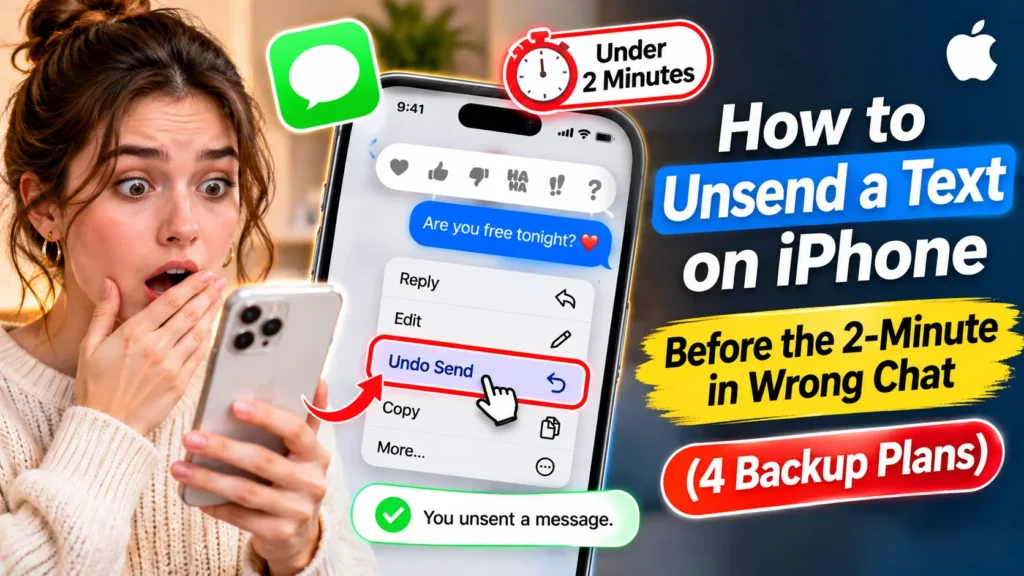
Yes, you can unsend a text on your iPhone—but only under certain conditions. Open Messages, touch and hold the blue iMessage bubble, then tap Undo Send within 2 minutes.
How to unsend a message
- Open the Messages app.
- Touch and hold the blue message bubble.
- Tap Undo Send before the 2-minute limit.
Important: Both you and the recipient need iOS 16 or later for unsending to work as intended. Green SMS and RCS messages cannot be unsent using this feature.
Made a typo? Touch and hold the message and tap Edit. You can edit it up to 5 times within 15 minutes of sending.
You hit send. Then your stomach drops. Wrong chat, wrong tone, or wrong everything.
Here is the good news.
Your iPhone has a real unsend button, and it takes about three seconds to use.
The catch is a short fuse and a few rules that most guides skip.
This guide shows the exact steps, explains why some texts refuse to unsend, and gives you four backup plans for when the clock has already run out.
Why Knowing the Rules Matters
Unsending feels like magic, but it is not an eraser.
It is a feature with limits, and those limits decide whether your message disappears or stays put.

We built this guide from Apple’s own support article on unsending messages, last published May 27, 2026.
We also checked it against the iPhone User Guide for iOS 27.
Apple gives the same two numbers in both places:
2 minutes to unsend and 15 minutes to edit.
That matters because many older blog posts still repeat the wrong time limits.
Some say 15 minutes for unsend.
Others suggest tricks that do not work.
If you act on bad advice, you lose your only window.
Here is the other thing nobody mentions.
Unsending removes the message.
It does not remove the memory.
If the other person saw a lock-screen preview, they still saw it.
That is why speed and honesty both matter, and why we cover both below.
The 10-Second Check Before You Tap
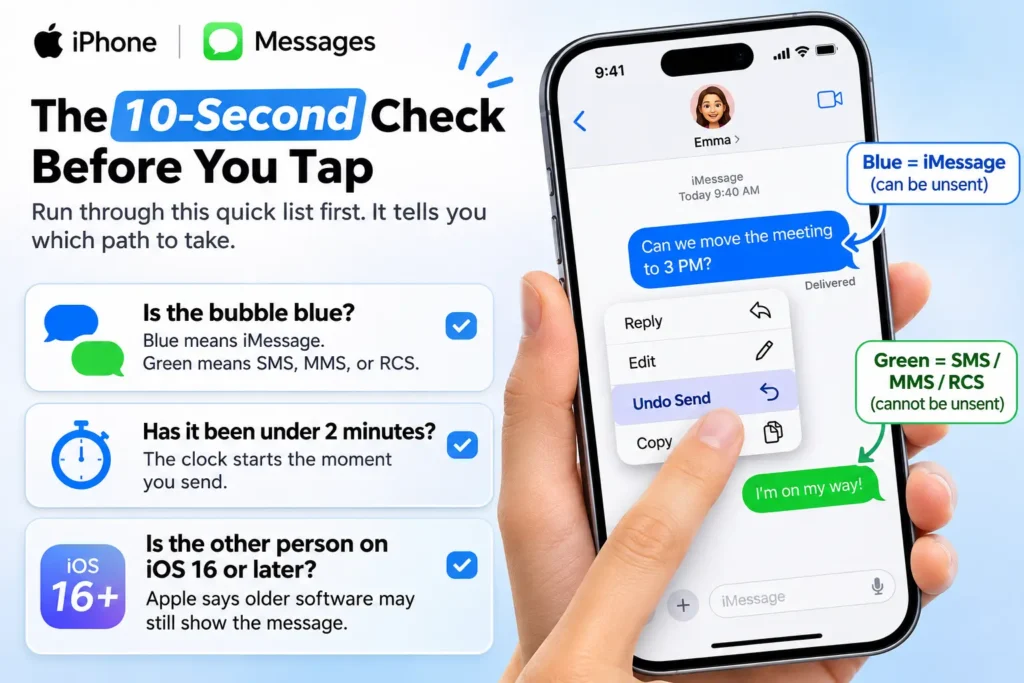
Run through this quick list first. It tells you which path to take.
- Is the bubble blue? Blue means iMessage. Green means SMS, MMS, or RCS.
- Has it been under 2 minutes? The clock starts the moment you send.
- Is the other person on iOS 16 or later? Apple says older software may still show the message.
If all three answers are yes, you are in good shape. If not, skip ahead to the backup plans.
How to Unsend a Text on iPhone (Step by Step)
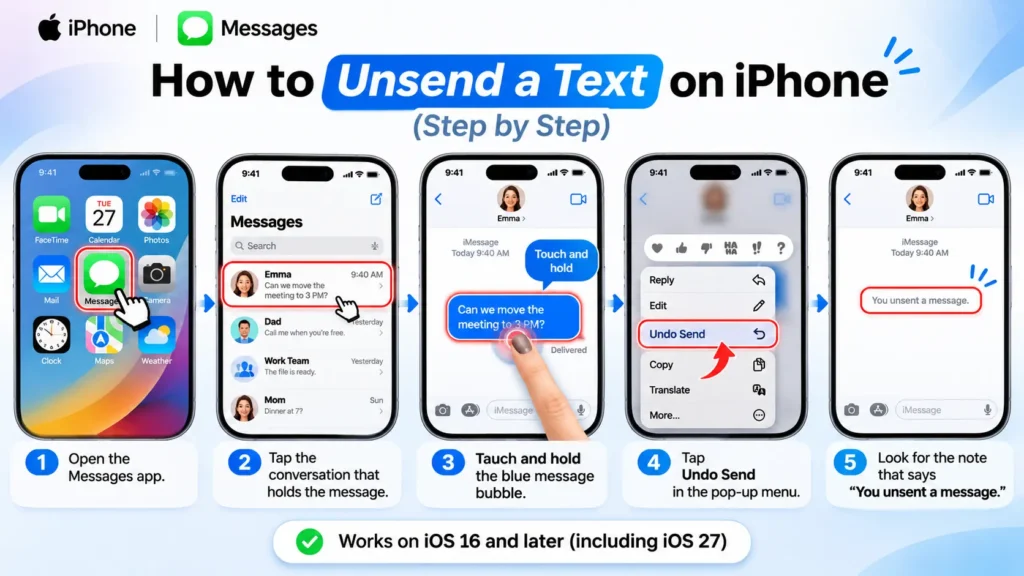
These steps match Apple’s current guide. They work on iOS 16 and every version since, including iOS 27.
- Open the Messages app.
- Tap the conversation that holds the message.
- Touch and hold the blue message bubble.
- Tap Undo Send in the pop-up menu.
- Look for the note that says “You unsent a message.”
That is the whole process.
The bubble vanishes from your screen and from the recipient’s screen.
Using a Mac or iPad?
The idea is the same.
On a Mac, Control-click or right-click the message, then choose Undo Send.
On an iPad running iPadOS 16.1 or later, touch and hold the bubble like you would on an iPhone.
Sent it from a different device?
That is fine.
You can unsend an iMessage from another Apple device, even if you sent it from your iPhone.
This is handy when you realize the mistake while sitting at your Mac.
When we walked through these steps against Apple’s iOS 27 guide, one detail stood out.
Apple’s steps cover one bubble at a time.
If you sent three regrettable texts, you repeat the steps for each one. Start with the most recent, then work backward.
What the Other Person Sees
Unsending is not invisible.
Apple adds a small gray note to the chat.
It says you unsent a message.
The recipient sees it too.
They will not see what the message said, as long as they did not read it first.
But they will know you pulled something back.
Curiosity is a powerful thing.
Two details can still give you away:
- Lock-screen previews. If their phone showed the text as a banner, they may have read it already.
- Open conversations. If they were looking at the chat when you sent it, they saw it live.
Engadget notes that read status does not block unsending.
You can still unsend a message after it shows as read, as long as you are inside the 2-minute window.
But “unsent” and “unseen” are two different things.
A Simple Way to Think About It
Picture two ways to send a letter.
An iMessage is like a sealed letter carried by Apple’s own courier.
The courier knows exactly where the letter went.
So if you call within two minutes, the courier can walk back into the mailbox and pull it out.
A green-bubble text is like a postcard dropped into a shared mail slot.
Your carrier handles it.
Apple’s courier never touched it.
Once it lands, nobody at Apple can reach in and grab it back.
That is why the bubble color matters more than anything else on the screen.
It tells you which delivery route your message took.
Your Options by Time Window
Use this table to see what you can still do.
Pro Tip: Choose the Option That Hides the Most
Many people reach for Edit because it feels gentler. But there’s an important catch: the recipient can tap the “Edited” label to view earlier versions of the message. If your original wording is the problem, editing may not be the best choice.
When you want to retract the original message, then write and send a fresh one.
For harmless corrections, such as “teh” instead of “the” or the wrong meeting time.
If the status beneath your message says “Read,” the recipient has already seen it. Consider sending a short, calm follow-up rather than trying to explain away the original.
How to Edit a Text Instead
Edit is the better choice when the message was fine but the wording was off.
Think of a wrong address or a missing “not.”
- Touch and hold the blue message bubble.
- Tap Edit.
- Fix the text in the box that opens.
- Tap the blue checkmark to save it.
Here are the rules to remember:
- You can edit within 15 minutes of sending.
- You get up to 5 edits per message.
- The bubble gets a small Edited label.
- The recipient can see the earlier versions.
Which iPhones and iOS Versions Support Unsend?
Both sides of the chat must be up to date. This is the rule that trips people up most.
When Does Undo Send Work?
Check both devices before relying on this feature.
| Your Situation | What Happens |
|---|---|
| Both use iOS 16 or later |
Supported Undo Send works for up to 2 minutes after sending an iMessage. |
| Recipient uses iOS 15 or earlier |
Limited The message may remain visible on the recipient’s device. |
| You use iOS 15 or earlier |
Unavailable The Undo Send option is not available. |
| Recipient uses Android |
Unsupported Apple’s Undo Send feature does not apply to SMS or RCS messages. |
| Conversation uses iOS 27 |
Supported The same 2-minute unsend and 15-minute edit limits apply. |
Remember: Undo Send is an iMessage feature, not a universal way to recall texts. Older software may still display a message even after you unsend it.
Which iPhones got the feature?
iOS 16 supports iPhone 8 and newer.
The iPhone 7 and older top out at iOS 15, so they never get the Undo Send option.
If your phone does not show it, check Settings > General > Software Update.
Want a deeper look at what changed recently?
Our iOS 27 complete guide covers the big Messages and Siri updates.
You can also see what landed in iOS 27.2.
What About Green Bubbles and Android?
This is the question we hear most.
Can you unsend a text to an Android phone? No.
iOS 27 did bring useful upgrades to RCS chats, including inline replies and proper Tapback reactions.
Tom’s Guide reports that the gap with iMessage is closing. But it also points out that a cross-platform unsend function still does not exist.
So when the bubble is green, change your plan.
You cannot pull the message back.
You can only manage what happens next.
Why is my bubble green when we both have iPhones?
Usually, iMessage is switched off or temporarily unavailable on one side.
Our guide to fixing iMessage “Waiting for Activation” walks through the fix.
Once iMessage is back, future texts turn blue and become unsendable.
4 Backup Plans When Unsend Isn’t Available
The clock ran out, or the bubble is green. Do not panic. Here is what actually helps, in order.
1. Edit the message (blue bubbles, under 15 minutes)
If the problem is a wrong word or a bad number, Edit still works after the 2-minute window closes. Just remember the recipient can see the edit history.
2. Send a short follow-up right away
Speed beats perfection. A quick “Oops, wrong chat, please ignore that one” works better than silence. People forgive a fast, honest correction far more easily than a long, awkward explanation.
3. Delete the message from your own phone
Touch and hold the bubble, tap More, then tap the trash can. This cleans up your screen only. The other person keeps their copy. So think of it as tidying, not damage control.
4. Use an app with a longer recall window
Some apps let you remove a message for everyone, even hours or days later. WhatsApp is the best-known example. If you text the same Android friends often, moving that chat to a recall-friendly app can save you next time.
Case Study: The Wrong Group Chat
This is an illustrative scenario, not a real reader story.
Maya meant to vent about a coworker’s slow replies to her sister. She sent it to the work group chat instead. Her heart jumped.
She did not delete it.
She did not panic-text. She remembered the two numbers: 2 and blue.
The bubble was blue, and about forty seconds had passed.
She held the bubble and tapped Undo Send.
The message vanished.
The group saw a small gray note that said she unsent a message.
Then she typed one line: “Wrong chat, sorry. Meant to send that to my sister.”
Nobody asked questions.
The note was a tiny blip, and her quick follow-up closed the loop.
The lesson is simple. Unsend first, then explain in one sentence.
Silence makes people guess. A short note ends the guessing.
What If This Doesn’t Work?
Try these fixes in order. Most problems come down to one of the first three.
- There is no Undo Send in the menu. Check the color first. A green bubble cannot be unsent. Then check the time. Past 2 minutes, the option is gone for good.
- Undo Send worked, but they still see the message. Their phone is likely on iOS 15 or earlier. Apple says older software can still show it. Send a follow-up.
- Your next texts keep going green. Go to Settings > Apps > Messages and make sure iMessage is on. Then try again.
- Your iPhone is out of date. Open Settings > General > Software Update and install the latest version.
- Messages acts strangely. Force-quit the app, then restart your iPhone. A fresh start clears most small glitches.
- Nothing helps and Messages stays broken. As a last resort, you can try Reset All Settings. It keeps your photos and messages, but it resets many system settings, so use it only after the steps above.
How to Avoid Sending Regret in the First Place
Unsend is a safety net. These habits mean you rarely need it.
- Use Send Later. In Messages, tap the plus button and choose Send Later. A scheduled message gives you time to rethink.
- Check the name first. Look at the top of the chat before you type anything sensitive.
- Watch autocorrect and dictation. Wrong words cause more awkward texts than bad judgment. If voice typing keeps adding odd words, see our fix for iPhone dictation mistakes.
- Remember Mail has its own undo. Apple Mail shows an Undo Send button for a few seconds after you send an email. You can lengthen that delay in Mail settings.
Key Takeaways
- Undo Send works for 2 minutes and only on blue iMessage bubbles.
- Edit works for 15 minutes, up to 5 times, and the recipient can see earlier versions.
- Both people need iOS 16 or later, or the message may stay visible on their side.
- Green SMS and RCS texts cannot be unsent, even in iOS 27.
- The recipient sees a note that you unsent a message.
- A lock-screen preview may already have shown your text, so a quick follow-up often helps.
- Delete for yourself only cleans your own screen.
Frequently Asked Questions
Yes, but only iMessages. You must be on iOS 16 or later, and you must act within 2 minutes. Touch and hold the blue bubble, then tap Undo Send. Green SMS and RCS texts cannot be recalled.
Yes, if you are still inside the 2-minute window. Read status does not block the feature. But the person already saw the words, so unsending only removes the record. A short follow-up usually helps.
Yes. A small gray note says you unsent a message. They cannot see the original text afterward, unless they read it before you pulled it back.
No. Texts to Android travel as SMS or RCS, which Apple’s Undo Send does not support. iOS 27 improved RCS with inline replies and Tapbacks, but it did not add unsend.
Not normally. Once you unsend it, the message is gone from the chat on both phones. Apple does not offer a “view unsent messages” screen. If you need the wording again, retype it from memory.
Sources
- Apple Support, “How to unsend messages on your iPhone” (published May 27, 2026):
- Apple iPhone User Guide, “Unsend or edit messages on iPhone”:
- The Tech Gorilla, “How To Unsend A Message On iPhone” (updated July 2026):
- Tom’s Guide, “iOS 27 finally fixed my biggest pet peeve when texting Android users”:
- Macworld, “Another iMessage feature is coming to green bubble chats in iOS 27”:
- Yahoo Tech, “How to Unsend or Edit an iMessage on iPhone, iPad, and Mac”:
Disclaimer
This article is for general information only. AppleHeadlines.com is not affiliated with Apple Inc. Features, menus, and time limits can change with software updates, so confirm details in Apple’s current support pages. Unsending a message does not guarantee the other person never saw it. They may have read a preview, taken a screenshot, or received it on a device you cannot control. Do not rely on unsending to remove messages that could matter in a legal, workplace, or safety situation. If that applies to you, speak with a qualified professional.
Got a message you wish you could take back?
Bookmark this guide, share it with a friend who texts too fast, and explore more iPhone how-tos on AppleHeadlines.com so the next oops takes two taps to fix.
Related Post:
- How to Unsend a Text on iPhone Before the 2-Minute in Wrong Chat (4 Backup Plans)
- How to Slow Down a Video on iPhone: The Hidden 30 fps Wall (and 3 Ways Past It)
- iPhone Duo Screen Issues: The Hidden Hinge Pattern Behind “Crackgate” (5 Checks Before You Fold Again)
- What Is Live Listen on iPhone? The Hidden Hearing Boost (and 5 Myths to Skip)
- iPhone Dictation Adding Random Commas? 4 Hidden Triggers Behind the Mess (iOS 27)

T’kal is the lead strategist and developer behind Apple Headlines. With a background in digital marketing and web development, he specializes in technical Apple troubleshooting, software news, and hardware rumors. T’kal focuses on delivering high-authority tech content that bridges the gap between Apple enthusiasts and the latest industry innovations.