



Updated October 27, 2026 · Checked against Apple’s current iOS 27 support pages · By the AppleHeadlines.com team
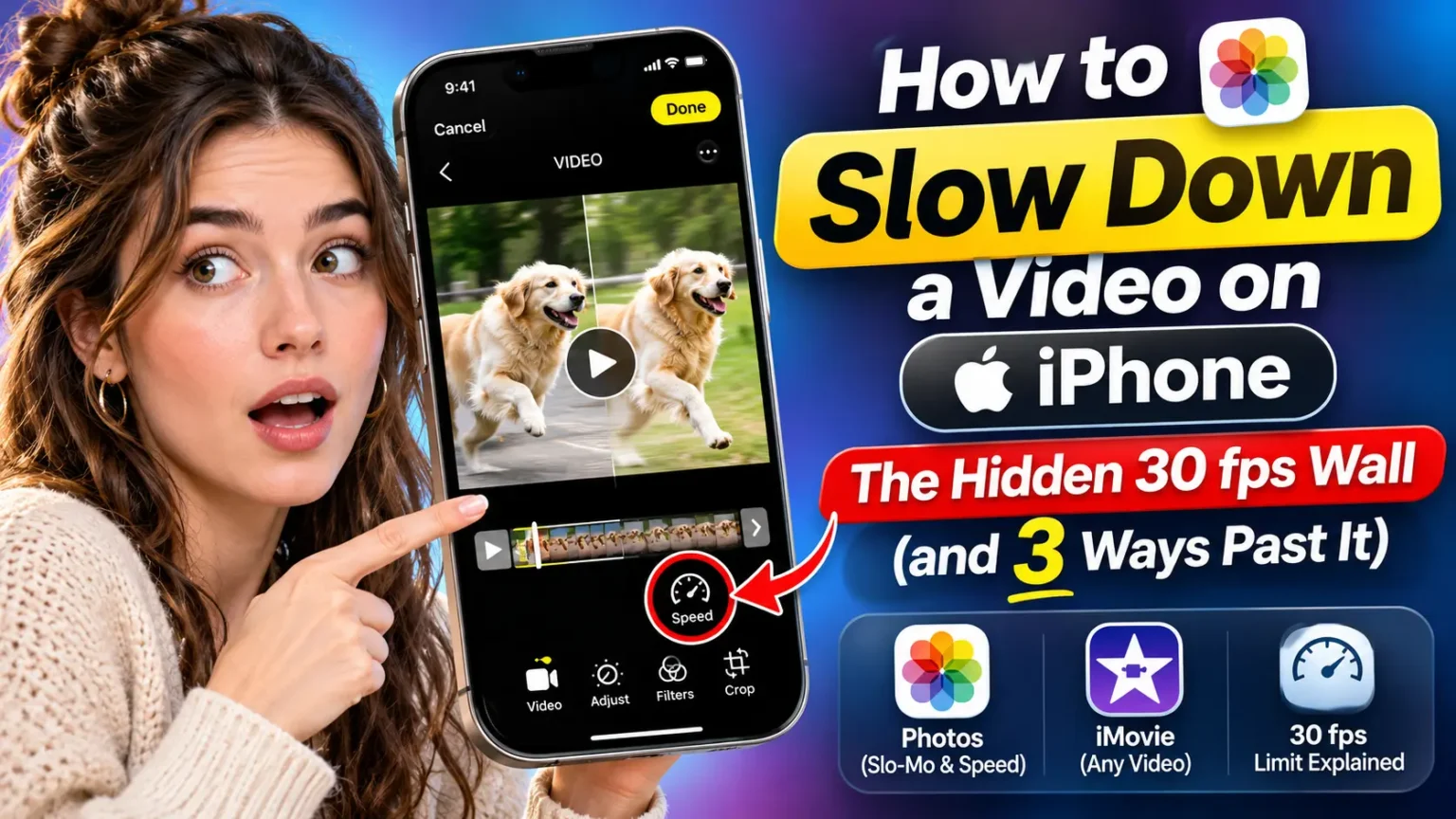
Open Photos, tap your video, tap Edit, then tap the Speed button and pick a slower speed. That button only appears on clips recorded above 30 fps, and it requires iOS 18 or later. Slo-Mo clips use the white bars on the timeline instead. Got a standard 30 fps clip? Use the free iMovie app.
You filmed the perfect moment.
A dog mid-leap.
A golf swing. A toddler’s first big splash.
Then you open the edit screen and find no slow-motion option anywhere. It feels like a missing feature, but it is not.
Your iPhone can only slow down clips that hold extra frames, and standard video does not.
This guide shows the right fix for each type of clip, plus how to trim and speed up videos too.
Which Slow-Motion Method Fits Your Video?
The best way to slow down a video on iPhone depends on how you recorded it.


Most people searching for this want a fast how-to, so start with this table.
| How You Recorded It | Best Tool | What You Need |
|---|---|---|
| Slo-Mo Camera mode (120 or 240 fps) | Photos app Use the white bars on the timeline | Any iPhone that records Slo-Mo |
| Regular video above 30 fps For example, 4K at 60 fps | Photos app Look for the Speed button | iOS 18 or later |
| Standard 30 fps video | iMovie Free video editing app | The iMovie app |
| Video saved from another app | iMovie or another editor | Depends on the app and video |
Quick tip: If you don’t see the Speed button in Photos, check the video’s frame rate. Standard 30 fps clips may need iMovie to slow down.
Not sure which one you have?
Open the clip and tap Edit.
Look for the Speed button, a small gauge with a needle.
If you see it, use Method 1.
If you see white vertical lines under the video, use Method 2.
If you see neither, jump to Method 3.
Why Your iPhone Won’t Slow Down Every Video
Think of video as a flip book. Each page is a frame.
Standard video flips 30 pages every second.
To slow it down, you flip the pages more slowly.
But now each page stays on screen longer, and the motion starts to look jumpy.
Slo-Mo and 60 fps video solve this.
They pack two, four, or even eight times more pages into the same second.
Slow them down and the motion stays smooth, because the extra pages fill the gaps.
That is why Apple limits its built-in Speed control.
Apple’s support page, published May 1, 2026, says the control works on videos captured above 30 fps in iOS 18 and later.
Apple’s iOS 27 User Guide still lists speed and slow-motion controls in Photos.
The math is simple.
A 60 fps clip played at 30 fps runs at half speed.
A 120 fps clip runs at one quarter speed. A 240 fps clip runs at one eighth speed.
When you open a 30 fps clip in Photos on iOS 27, expect no Speed button.
That is normal. It is a clue about the file, not a sign your iPhone is broken.
Any iPhone that runs iOS 18 or later can use the Speed button. That runs from the iPhone XS and XR up to the iPhone 18 Pro. The clip is what matters.
Method 1: Slow Down a 60 fps Video in Photos (iOS 18 and Later)
This is the fastest route. It works on regular videos shot above 30 fps.
Think 4K at 60 fps from an iPhone 17 Pro or iPhone 18 Pro.
On a clip like that, expect the Speed button to show up right away.
- Open the Photos app and tap your video.
- Tap Edit, the icon with three sliders.
- Tap the Speed button, the small gauge with a needle.
- Pick a slower playback speed from the options.
- Slide the vertical white lines to mark where slow motion starts and stops.
- Tap Play to preview the result.
- Tap Done to save your changes.
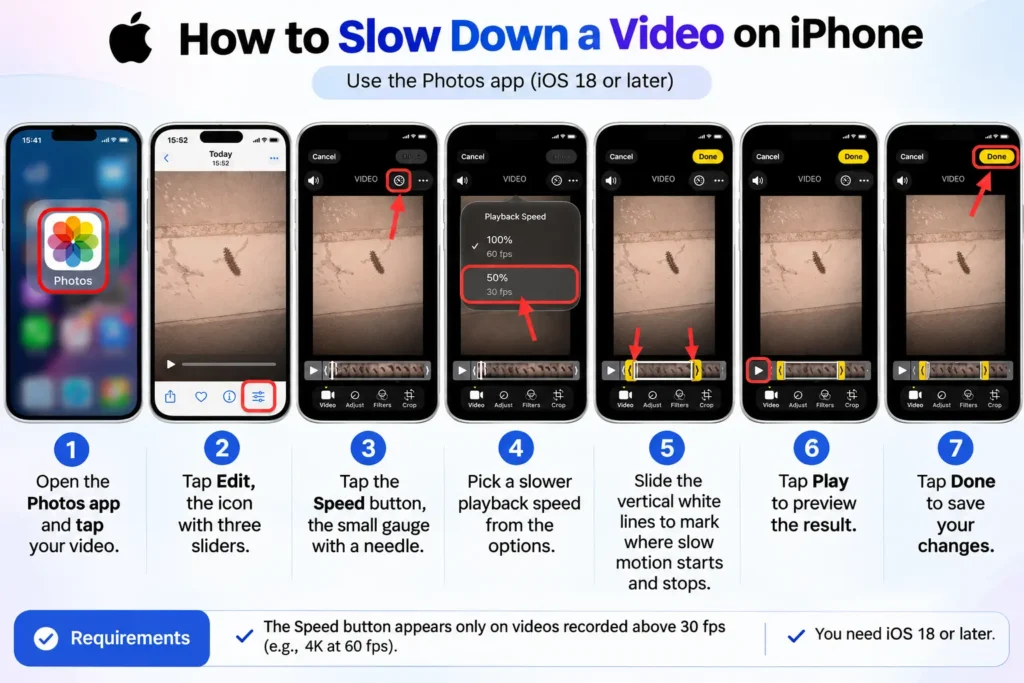
Photos keeps your original clip. If you change your mind later, open the video, tap Edit, and tap Revert.
Method 2: Adjust a Slo-Mo Video (120 or 240 fps)
If you shot the clip in Slo-Mo mode, the slow-motion effect is already baked in. You only need to choose where it plays.
- Open Photos and tap your Slo-Mo video.
- Tap Edit.
- Look at the frame viewer under the video.
- Find the vertical white lines on the timeline.
- Drag the lines to set where slow motion starts and ends.
- Tap Play to check the timing.
- Tap Done.
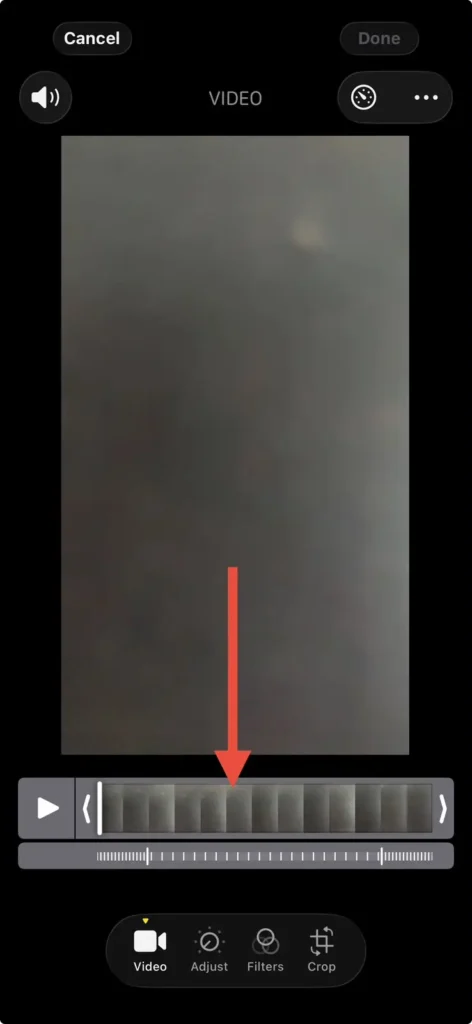
The section between the lines plays slowly. Everything outside them plays at normal speed. Widely spaced lines mark the slow part.
Want even slower footage next time? Go to Settings > Camera > Record Slo-mo. Depending on your iPhone model, you can change the frame rate and resolution there.
Apple also offers quick toggles on the Camera screen, so you can switch while you shoot.
A higher frame rate means slower playback and bigger files.
Method 3: Slow Down a Standard 30 fps Video With iMovie
No Speed button? No white bars? iMovie is your answer. It is Apple’s free editor, and it can slow down any clip, including ones that came from other apps.
- Open iMovie and start a new Movie project.
- Add your video from your camera roll.
- Tap the clip in the timeline to show the inspector.
- Tap the Speed button, which looks like a speedometer.
- Drag the slider left to slow the clip.
- Check the label under the clip. 1/2x means half speed.
- Tap outside the inspector, then tap Done.
- Tap Share, then Save Video.
Here are four iMovie tricks worth knowing:
- Slow only one moment. Drag the yellow range handles, or tap Add to create a new range. Each range gets its own speed. Apple says you can make a clip slow down, speed up, then slow down again.
- Keep voices natural. iMovie preserves audio pitch by default. If you want deeper, funnier voices, turn on Speed changes pitch in Project Settings.
- Freeze the action. Tap Freeze in the inspector to hold one frame. The frozen part has no audio.
- Watch Cinematic clips. If you change the speed of a Cinematic mode clip, you can no longer edit its Cinematic effects.
One honest warning. A 30 fps clip has no spare frames. Software has to stretch what exists. Anything much slower than half speed often looks jumpy.
Shoot at 60 fps by default if you often catch fast moments. Go to Settings Camera Record Video and pick a 60 fps option, like 1080p HD at 60 fps. This lets compatible clips use the Photos Speed button later, without switching to Slo-Mo mode.
Storage trade-off: 60 fps videos generally use more storage than comparable 30 fps videos. Check your available space before recording lots of footage.
How to Shorten a Video on iPhone
Many people who search for slow motion also need to cut a clip down. Here is Apple’s trim method.
- Open Photos and tap your video.
- Tap Edit.
- Drag the sliders on both ends of the timeline.
- Tap Play to preview the new length.
- Tap Done.
- Choose Save Video or Save Video as New Clip.
Save Video replaces the original with the trimmed version. Save Video as New Clip keeps your original and adds a second, shorter copy. Pick the second one if you are nervous.
Slowing a clip down makes it longer, not shorter. If you must hit a time limit, trim after you slow it down.
How to Speed Up a Video on iPhone
Want the opposite effect? iMovie handles it.
- Open iMovie and add your clip to a Movie project.
- Tap the clip in the timeline.
- Tap the Speed button.
- Drag the slider right to go faster.
- Check the label. 2x means twice normal speed.
- Tap Done, then Share, then Save Video.
Range handles work here too. You can speed through a boring walk and slow down for the big moment, all in one clip.
iPhone and iOS Support at a Glance
| Feature | What It Needs | Good to Know |
|---|---|---|
| Speed button in Photos | iOS 18 or later | 30 fps limitation Only available for eligible clips recorded above 30 fps. |
| Slo-Mo white bars | A clip recorded in Slo-Mo mode | Supported frame rates vary by iPhone model. |
| Trim in Photos | Any recent iOS version | Use Save Video as New Clip to keep the original. |
| iMovie Speed button | The free iMovie app | Works with standard video clips, including 30 fps footage. |
| Spatial Audio recording | iPhone 16, iPhone 17 and iPhone Air, per Apple | Lets you edit Audio Mix in Photos. |
Quick tip: If the Speed button is missing in Photos, check your video’s frame rate and iOS version. For standard 30 fps footage, try iMovie.
Running an older version? Update first. Our guide to what’s new in iOS 27.2 shows what you get, and our iOS 27 Complete Guide covers the bigger picture.
Case Study: The Soccer Goal That Looked Choppy
This is an illustrative scenario, a composite of common reader questions rather than a single named person.
A parent films a goal at a youth soccer game using default camera settings. That means 30 fps. At home, the parent opens the clip in Photos on an iPhone running iOS 27 and finds no Speed button. A restart changes nothing. The parent assumes something is broken.
It is not broken.
The clip simply has no extra frames.
So the parent opens iMovie, adds the clip, and drags the Speed slider all the way left. The whole clip crawls, and it looks jumpy.
The fix is smaller.
The parent uses the yellow range handles to slow only the three seconds around the kick, at 1/2x.
The rest stays at normal speed. The replay looks smooth and the clip stays short.
Before the next game, the parent sets Record Video to 60 fps. This time, the Speed button shows up in Photos.
The lesson: a missing button points to the file’s frame rate. Fix the cause, not the phone.
What If This Doesn’t Work?
Try these fixes in order.
- There is no Speed button in Photos. Your clip is probably 30 fps, or your iPhone runs software older than iOS 18. Go to Settings > General > Software Update. If you are already current, use Method 3 in iMovie.
- The Slo-Mo white lines are missing. The clip was not recorded in Slo-Mo mode. Videos saved from social apps, or sent through some messaging apps, are often re-encoded and may drop to 30 fps. Use Method 1 or Method 3.
- Slow motion looks choppy. Frame rates can dip in dim light. Apple Community moderators have pointed to Settings > Camera > Record Video and the Auto FPS option as one thing to check. They have also suggested restarting, removing magnetic accessories, and testing 1080p HD at 120 fps under Record Slo-mo.
- Voices sound odd. In iMovie, open Project Settings and check the Speed changes pitch switch. Turn it off to keep voices natural.
- The video will not save. Your iPhone may be low on space. Slo-Mo and 60 fps files are large. Open Settings > General > iPhone Storage and clear some room.
- A third-party app added a logo. Some free editors add watermarks or ads. Stick with Photos and iMovie when you want a clean result.
Still stuck?
Restart your iPhone and try again.
As a last software step, Reset All Settings does not delete your photos or videos.
If the Photos app itself keeps failing, book a Genius Bar appointment.
Key Takeaways
- The Speed button in Photos only appears on clips above 30 fps, and it needs iOS 18 or later.
- Slo-Mo clips use the vertical white lines on the Photos timeline.
- A standard 30 fps clip needs the free iMovie app.
- Higher frame rates give smoother slow motion. A 60 fps clip at 30 fps runs at half speed.
- Trim with Save Video as New Clip to keep your original.
- Shooting at 60 fps by default gives you more options later.
FAQ
Can I slow down a video on iPhone without an app?
Yes, in two cases. Photos can slow clips recorded above 30 fps on iOS 18 or later. It can also adjust Slo-Mo clips. For a standard 30 fps clip, you need iMovie.
Why is there no Speed button on my iPhone video?
The clip is most likely 30 fps. Apple’s Speed control needs a higher frame rate, and it needs iOS 18 or later. Update your software, or use iMovie.
How do I slow down only part of a video on iPhone?
In Photos, slide the vertical white lines on the timeline. In iMovie, drag the yellow range handles. Each range can have its own speed.
How do I shorten a video on iPhone?
Open the video in Photos, tap Edit, and drag the sliders on both ends. Tap Done, then choose Save Video or Save Video as New Clip.
How do I speed up a video on iPhone?
Use iMovie. Tap your clip, tap Speed, and drag the slider right. The label shows 2x for double speed.
Sources
- Apple Support, “How to edit videos on your iPhone, iPad, Mac, or Apple Vision Pro” (published May 1, 2026)
- Apple iPhone User Guide, “Trim video length, adjust speed, and edit audio on iPhone”
- Apple iMovie User Guide, “Adjust video speed in iMovie on iPhone”
- Apple Community, “iPhone 13 240fps slowmotion frame dropping issue”
- Apple Community, “iPhone 14 Pro 240fps Slo Mo recording incorrect fps”
- Apple Community, “Unable to record 240fps slow-motion video on iPhone” (quotes Apple’s Slo-mo steps)
- Mac Help Forums, “Easiest Ways to Speed up a Video on iPhone (or slow down)” (third-party app watermark note)
Disclaimer
This guide is for general information and reflects Apple’s public documentation as of October 27, 2026. Menu names, button icons, and frame-rate options can differ by iPhone model and iOS version. Back up important videos before you edit them. AppleHeadlines.com is not affiliated with Apple Inc. Third-party apps have their own privacy policies and terms, so review them before you install. Only edit and share videos you have the right to use.
Ready to Try It?
Open your most recent video right now, tap Edit, and look for the Speed button. That one tap tells you which method to use. Found it useful? Share this guide with a friend who films everything, and subscribe to Apple Headlines on YouTube for more iPhone tricks.
Related Posts

T’kal is the lead strategist and developer behind Apple Headlines. With a background in digital marketing and web development, he specializes in technical Apple troubleshooting, software news, and hardware rumors. T’kal focuses on delivering high-authority tech content that bridges the gap between Apple enthusiasts and the latest industry innovations.