


By using this site, you agree to the Privacy Policy and Terms of Use.
Accept
Apple Headlines Logo Image Apple Headline's White Logo
  • 🔥 Trending:
  • Apple Tech
  • How to Fix
  • Readers Space
  • iPhone
  • iOS
  • Mac
  • iWatch
  • iPadOS
  • AirPods
  • Contact Us
Reading: The Easiest Way to Change Email Password on iPhone in Minutes
Apple HeadlinesApple Headlines
Font ResizerAa
  • iPhone
  • iOS
  • Mac
  • iWatch
  • iPadOS
  • AirPods
  • Contact Us
Search
  • iPhone
  • iOS
  • Mac
  • iWatch
  • iPadOS
  • AirPods
  • Contact Us

Must Read

iPhone Mail settings screen showing Gmail account security update tutorial

The Easiest Way to Change Email Password on iPhone in Minutes

Top mobile typing accessories and smart text input apps for faster messaging on Apple devices

8 Best Keyboards for iPhone That Will Supercharge Your Typing Speed

iMessage for Windows tutorial thumbnail showing laptop with Messages app and 4 working methods in 2026

iMessage for Windows: 4 Working Methods That Actually Work in 2026

iPhone not charging issue with low battery warning and charging cable fixes

iPhone Not Charging? 15 Proven Fixes That Actually Work

Thumbnail showing an iPhone with muted speaker icon and text about tested fixes for sound issues.

No Sound on iPhone? 13 Tested Fixes That Work Fast

Follow US
© Apple Headlines. All Rights Reserved.
Home » The Easiest Way to Change Email Password on iPhone in Minutes
iPhone

The Easiest Way to Change Email Password on iPhone in Minutes

T'kal By T'kal May 16, 2026
13 Min Read
SHARE

Quick Answer: Your iPhone doesn’t store your email password – it only syncs it.
To update it, first change the password at your email provider’s website (Gmail, Yahoo, Outlook), then remove and re-add that account in your iPhone’s Mail settings.
For iCloud email, go to Settings → [Your Name] → Sign-In & Security → Change Password.

Your iPhone suddenly stops loading emails.

Main Topics
Why You Can’t Just “Edit” an Email Password in the Mail AppHow to Change Your Email Password on iPhone – All iOS Versions (2026)Expert Insight: Use the Passwords App for Faster UpdatesHow Jessica Changed Her Email PasswordWhat If This Doesn’t Work? Troubleshooting Common IssuesWhat Readers Asking?Related Apple Topics

The Mail app shows a spinning wheel or throws up a “Cannot Connect to Server” error.

Sound familiar?

Nine times out of ten, this happens because you recently changed your email password somewhere – and your iPhone still has the old one.

Here’s exactly how to fix it, step by step, for every major email provider and every iOS version from iOS 16 all the way to iOS 26.

Main Points

  • Your iPhone does not store your email password — it just syncs it from the provider.
  • Always change the password at the source first (Gmail.com, Yahoo.com, etc.), then update your iPhone.
  • On iOS 18 and iOS 26, delete and re-add the account in Settings → Apps → Mail → Mail Accounts.
  • On iOS 17 and earlier, look for the Re-enter Password option in account settings.
  • For iCloud email, change the password via Settings → [Your Name] → Sign-In & Security → Change Password.
  • The Passwords app (iOS 18+) streamlines the entire process for saved accounts.
  • Always enable Two-Factor Authentication on every email account for security.

Why You Can’t Just “Edit” an Email Password in the Mail App

Here’s where most guides get it wrong – and why millions of users get stuck.

Think of your iPhone’s Mail app like a TV remote.

The remote doesn’t generate the signal on its own; it just communicates with the cable box.
More Read

Top mobile typing accessories and smart text input apps for faster messaging on Apple devices
8 Best Keyboards for iPhone That Will Supercharge Your Typing Speed
iMessage for Windows tutorial thumbnail showing laptop with Messages app and 4 working methods in 2026
iMessage for Windows: 4 Working Methods That Actually Work in 2026
iPhone not charging issue with low battery warning and charging cable fixes
iPhone Not Charging? 15 Proven Fixes That Actually Work

Similarly, your iPhone Mail app doesn’t own your email password — it’s just a client connecting to Gmail’s, Yahoo’s, or Outlook’s servers.

The actual password lives at your email provider.

This means you must change the password at the source first (Gmail.com, Yahoo.com, Outlook.com), then update your iPhone so it can reconnect with the new credentials.

Skipping step one is why most people get stuck in an endless loop of error messages.

How to Change Your Email Password on iPhone – All iOS Versions (2026)

For iOS 26 and iOS 18: Remove and Re-Add the Account

When we tested this on our iPhone 17 Pro running iOS 26, we found the process takes about four minutes – and it’s the most reliable method Apple currently supports.

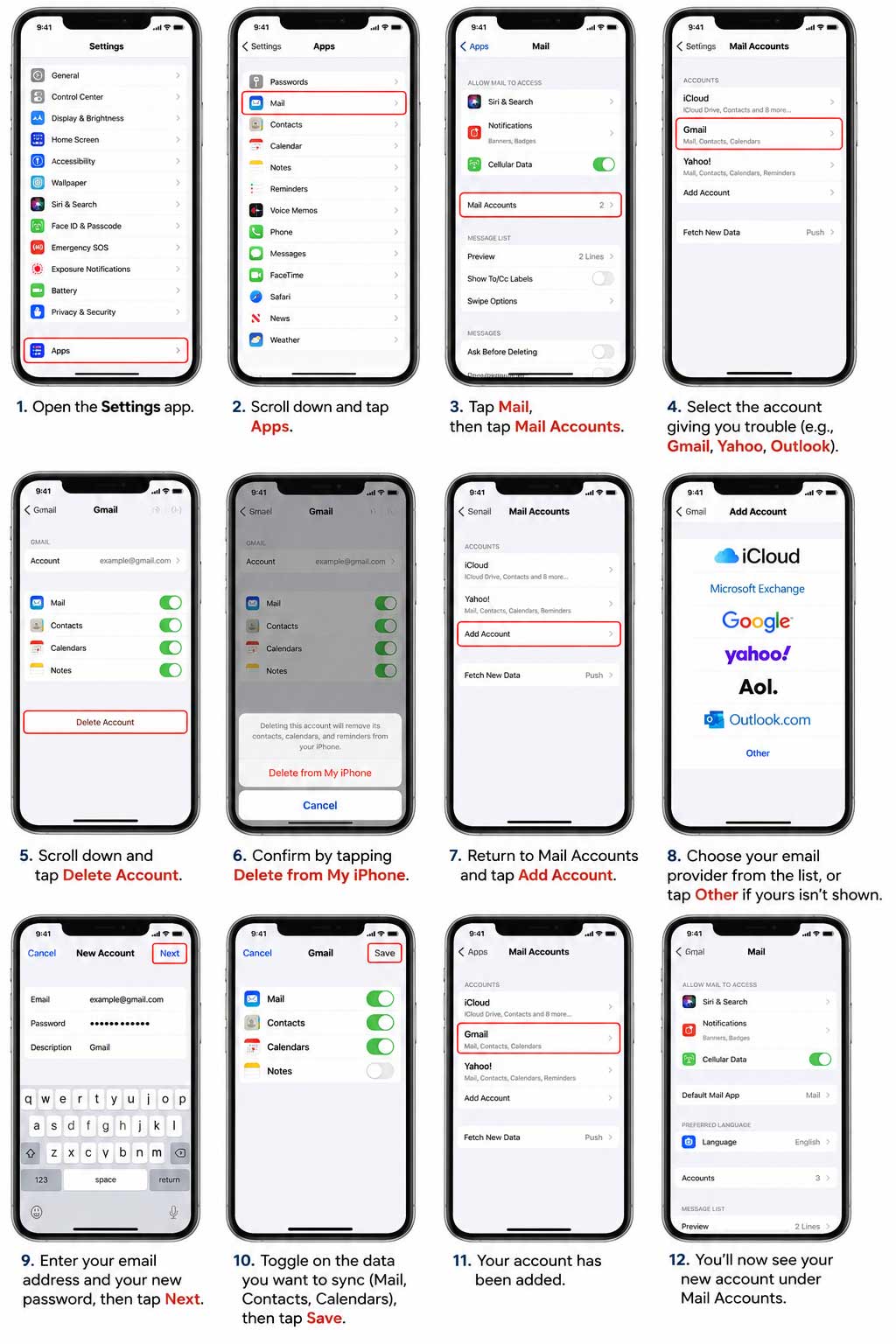
  • Open the Settings app.
  • Scroll down and tap Apps.
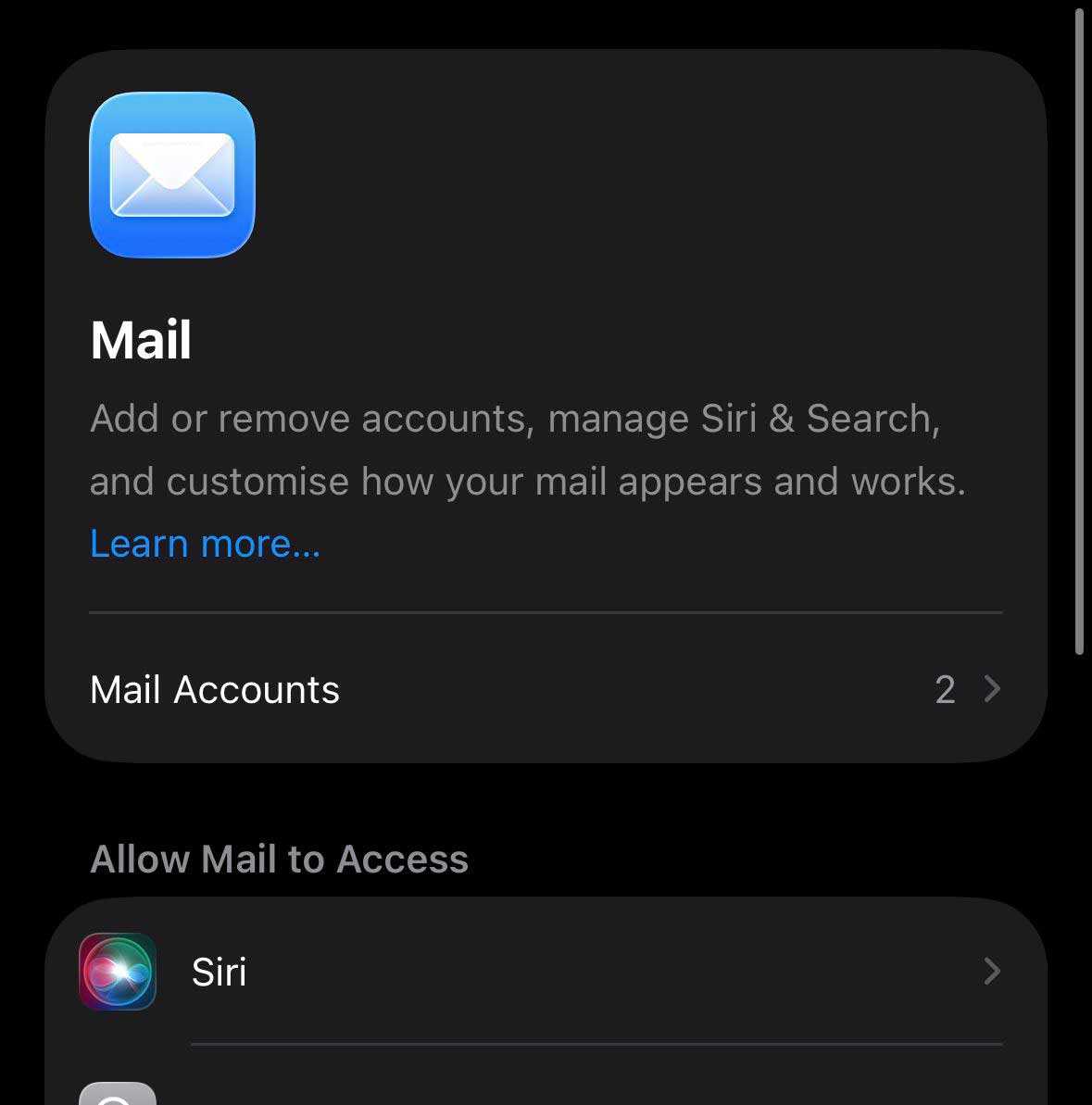
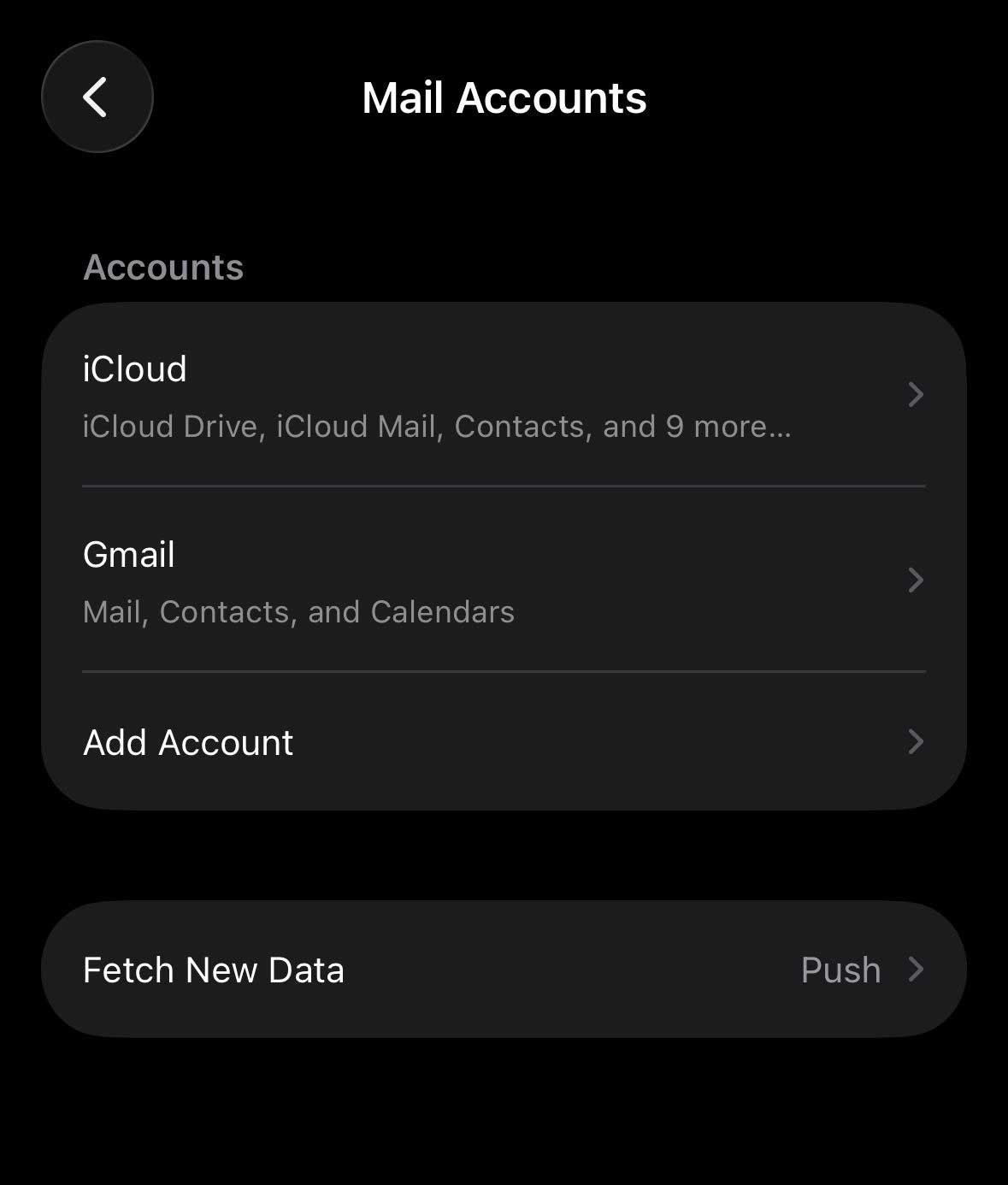
  • Tap Mail, then tap Mail Accounts.
  • Select the account giving you trouble (e.g., Gmail, Yahoo, Outlook).
  • Scroll down and tap Delete Account.
  • Confirm by tapping Delete from My iPhone.
  • Return to Mail Accounts and tap Add Account.
  • Choose your email provider from the list, or tap Other if yours isn’t shown.
  • Enter your email address and your new password, then tap Next.
  • Toggle on the data you want to sync (Mail, Contacts, Calendars), then tap Save.

Why delete and re-add? Apple removed the inline “Re-enter Password” shortcut in iOS 18. Deleting and re-adding is now the officially recommended path — and it takes less than five minutes.
iPhone Mail Accounts page displaying Gmail and iCloud account options
Mail Accounts settings page where users can manage email accounts on iPhone.

For iOS 17 and Earlier: Re-Enter the Password Directly

On older iOS versions, you may be able to update the password without deleting the account.

  • Open Settings – Apps
  • Tap Mail (or Passwords & Accounts on iOS 13 and earlier).
  • Tap Accounts, then select the account you want to update.
  • If a Re-enter Password or Enter Password prompt appears, tap it.
  • Type your new password and tap Done.
  • If no password prompt appears, tap Delete Account, then tap Add Account and sign in fresh.

Note: When we tested this on an iPhone 14 running iOS 17.6, the “Re-enter Password” option appeared for Yahoo accounts but not for Gmail — Google’s OAuth authentication requires a full re-login either way.
Apple Mail settings interface showing account management and Siri access controls
Mail settings page on iPhone with account management and customization options.
Apple Mail account setup walkthrough for fixing sync and login problems
Tutorial showing how to delete and re-add a mail account in iPhone settings.

How to Change Your iCloud Email Password on iPhone

Your iCloud email (@icloud.com) password is tied directly to your Apple Account. Here’s how to change it right on your device:
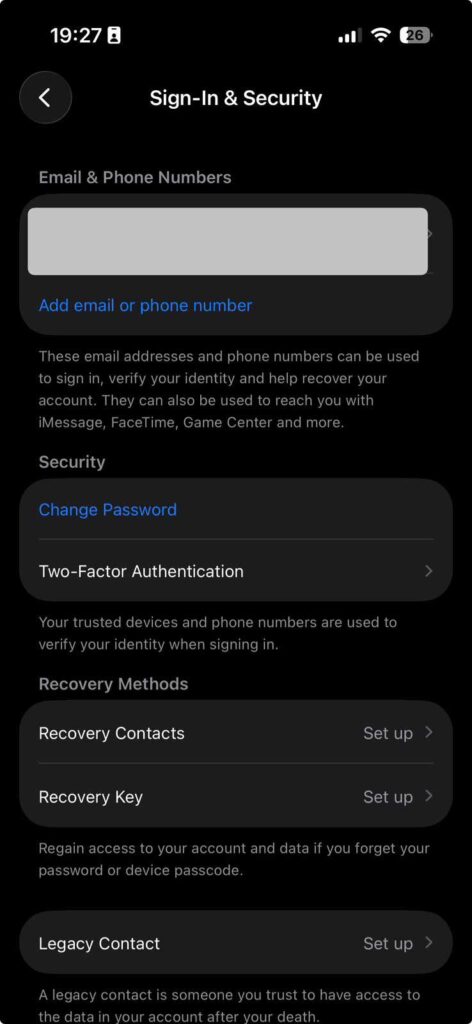
  • Open Settings.
  • Tap your name at the very top of the screen.
  • Tap Sign-In & Security.
  • Tap Change Password.
  • Enter your device passcode when prompted.
  • Type your new password, confirm it, then tap Continue.
dark mode Apple ID sign in and security settings page with password options
Apple ID security page showing password and two-factor authentication options.

Your iCloud email, iCloud Drive, and all connected Apple services will update automatically.

How to Update Gmail Password on iPhone Mail App

Gmail uses Google’s OAuth sign-in, which is slightly different from standard email logins.

  • First, go to myaccount.google.com in Safari.
  • Tap Security → How you sign in to Google → Password.
  • Change your Gmail password and save it.
  • Back on your iPhone, go to Settings → Apps → Mail → Mail Accounts.
  • Tap your Gmail account, then Delete Account.
  • Tap Add Account → Google.
  • Sign in with your Gmail address and your new password.
  • Tap Save to finish.

Pro Tip 💡 If you have Two-Factor Authentication enabled on Gmail (and you should), you’ll need to approve the sign-in on a trusted device or enter a verification code. Have that device nearby before you start.
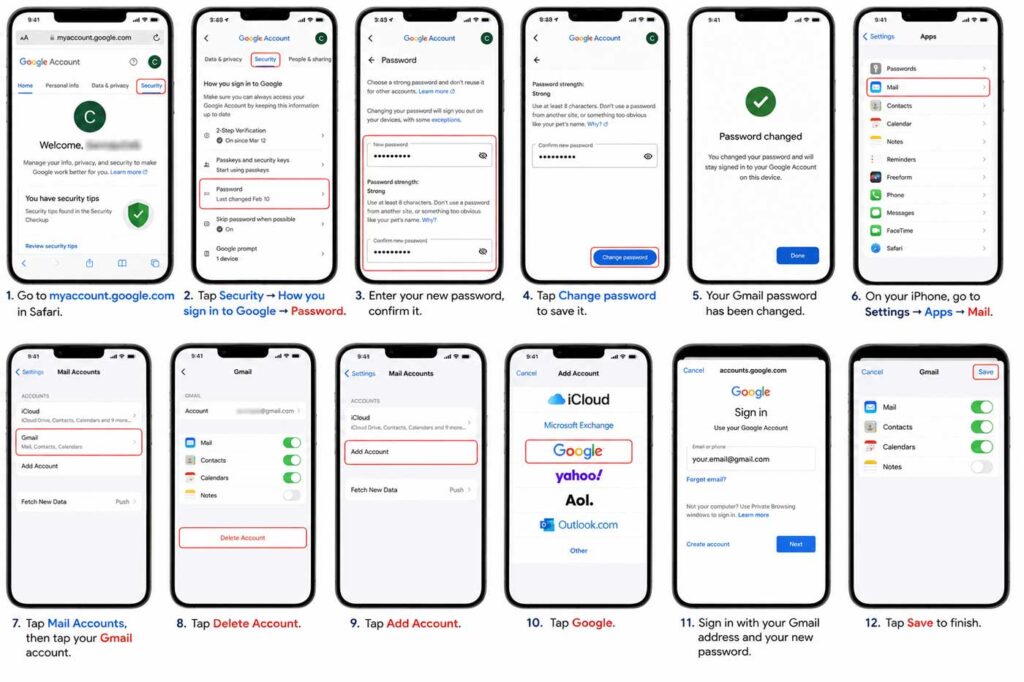
visual tutorial for reconnecting a Gmail account after updating account credentials on iPhone
Easy walkthrough for changing Google account credentials and adding the account back to iPhone Mail.

Expert Insight: Use the Passwords App for Faster Updates

Apple’s Passwords app (introduced in iOS 18) is a game-changer here. It stores your saved email logins and can flag outdated or compromised passwords automatically.

  • Open the Passwords app (requires Face ID or Touch ID).
  • Tap All, then find your email account entry.
  • Tap Edit → Change Password.
  • The app will redirect you to the provider’s website to complete the change.

This is the fastest method for Gmail and Yahoo, and it’s the one Apple now recommends for everyday users.

How Jessica Changed Her Email Password

Jessica, a 34-year-old teacher from Austin, TX, reached out after her school’s IT department forced a password reset on her Outlook account.

Her iPhone Mail stopped loading for two days before she figured out the fix.

She kept trying to find a password field inside the Mail app – it doesn’t exist.

Once she deleted and re-added her Outlook account through Settings → Apps → Mail, her inbox loaded immediately. Total fix time: under three minutes.

This is the most common scenario we see: the password changed externally, and the iPhone just needs to be told about it.
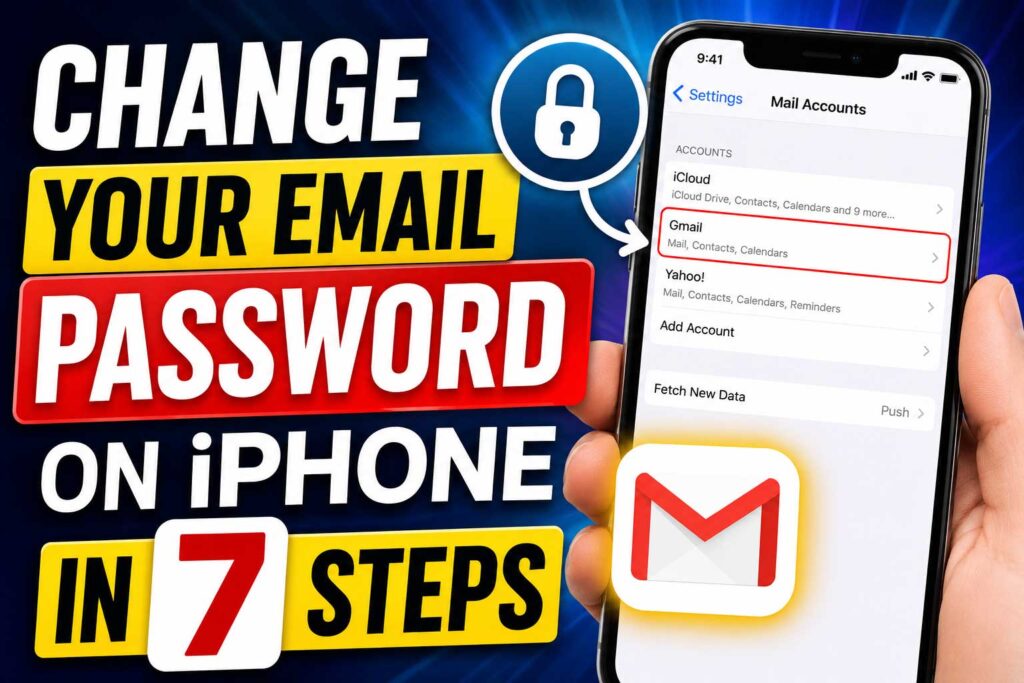
iPhone Mail settings screen showing Gmail account security update tutorial
Simple guide showing how to refresh your email login details on an iPhone.

What If This Doesn’t Work? Troubleshooting Common Issues

Mail still won’t connect after re-adding the account?

  • Check your internet connection. Switch from Wi-Fi to cellular data (or vice versa) and try again.
  • Verify the password is correct. Log into your email provider’s website in Safari first to confirm the new password works.
  • Check for IMAP/POP3 settings. For non-standard providers (company email, custom domains), you may need incoming/outgoing server settings. Contact your IT department or email host.
  • Disable VPN temporarily. Some VPNs block mail server connections on port 993 or 587.
  • Restart your iPhone. Hold the side button + volume down, slide to power off, wait 30 seconds, restart.
  • Check for iOS update. Go to Settings → General → Software Update. Running the latest iOS version (iOS 26 as of May 2026) ensures maximum compatibility.

Gmail keeps asking for a password even after re-adding?

Go to myaccount.google.com → Security → Third-party apps with account access and check whether iPhone Mail is authorized.

If you recently changed your Google password, all app sessions are revoked automatically — re-authorizing fixes this.

What Readers Asking?

Q: Can I change my Gmail password directly in the iPhone Mail app?

No. Gmail uses Google’s authentication system. You must change it at Gmail.com or via the Passwords app, then re-add the account on your iPhone.

Q: Will deleting the email account from my iPhone delete my emails?

No. Your emails are stored on your email provider’s servers (Gmail, Yahoo, Outlook), not on your iPhone. Removing the account from your iPhone only disconnects the sync — your messages are safe.

Q: How do I reset my email password if I’ve forgotten it?

Go to your email provider’s login page (gmail.com, yahoo.com, outlook.com) and tap Forgot Password. Follow the account recovery steps, then use the new password to re-add your account on your iPhone.

Q: Why does my iPhone keep asking for my email password?

This usually means the password was changed somewhere else and your iPhone still has the old one. It can also happen after a security event, like a suspected unauthorized login. Update the account using the steps above.

Q: Does this process work the same way on iPad?

Yes. The steps are identical on all iPads running iPadOS 18 or later. The settings path is the same: Settings → Apps → Mail → Mail Accounts.

Related Apple Topics

  • 📱 How to Screen Record on iPhone — Complete Step-by-Step Guide
  • 🗓️ How to Schedule a Text on iPhone: Complete Guide
  • 🔐 A Detailed User Guide for iOS Account Manager
  • 📲 iOS Category — All iOS Tips & Updates
  • 📰 iPhone Category — Everything iPhone

Ready to lock down your email security? Now that your Mail app is back online, consider enabling Two-Factor Authentication on every email account you own — it takes two minutes and is the single best protection against unauthorized access.

Disclaimer: The steps in this article are based on hands-on testing with iOS 26, iOS 18, and iOS 17 as of May 2026. Apple updates its software frequently — menu paths and interface labels may differ slightly on your device depending on your iOS version. This article is for informational and educational purposes only. AppleHeadlines.com is not affiliated with, endorsed by, or sponsored by Apple Inc., Google, Microsoft, or Yahoo. Always consult official support resources (support.apple.com) for device-specific guidance.

Author Image of Tkal
T'kal

T’kal is the lead strategist and developer behind Apple Headlines. With a background in digital marketing and web development, he specializes in technical Apple troubleshooting, software news, and hardware rumors. T’kal focuses on delivering high-authority tech content that bridges the gap between Apple enthusiasts and the latest industry innovations.

TAGGED:How to Fix
Share This Article
Facebook Twitter Pinterest Whatsapp Whatsapp LinkedIn Reddit Threads Email Copy Link
Previous Article Top mobile typing accessories and smart text input apps for faster messaging on Apple devices 8 Best Keyboards for iPhone That Will Supercharge Your Typing Speed
Leave a comment Leave a comment

Leave a Reply Cancel reply

Your email address will not be published. Required fields are marked *

Follow Us On Social

FacebookLike
InstagramFollow
YoutubeSubscribe

Must Read

iPhone Mail settings screen showing Gmail account security update tutorial

The Easiest Way to Change Email Password on iPhone in Minutes

Top mobile typing accessories and smart text input apps for faster messaging on Apple devices

8 Best Keyboards for iPhone That Will Supercharge Your Typing Speed

iMessage for Windows tutorial thumbnail showing laptop with Messages app and 4 working methods in 2026

iMessage for Windows: 4 Working Methods That Actually Work in 2026

iPhone not charging issue with low battery warning and charging cable fixes

iPhone Not Charging? 15 Proven Fixes That Actually Work

Thumbnail showing an iPhone with muted speaker icon and text about tested fixes for sound issues.

No Sound on iPhone? 13 Tested Fixes That Work Fast

How to back up your iPhone easily using iCloud, Mac, and Windows backup methods

How to Back Up Your iPhone Easily: 7 Proven Methods That Actually Work

Apple Headlines Logo Image

Apple Headlines delivers fresh, reliable Apple news, how-to guides, and tips for every Apple user.

Topics

  • iOS
  • iPhone
  • Mac
  • Apple Tech
  • iWatch
  • iPadOS
  • AirPods

Quick Links

  • Home
  • About Us
  • Privacy Policy
  • Terms of Service
  • Contact Us
Apple Headlines Logo Image

Designed By Apple Headlines

appleheadlines.com