




November 24, 2026 · Covers macOS 27 through the macOS 27.3 beta 2
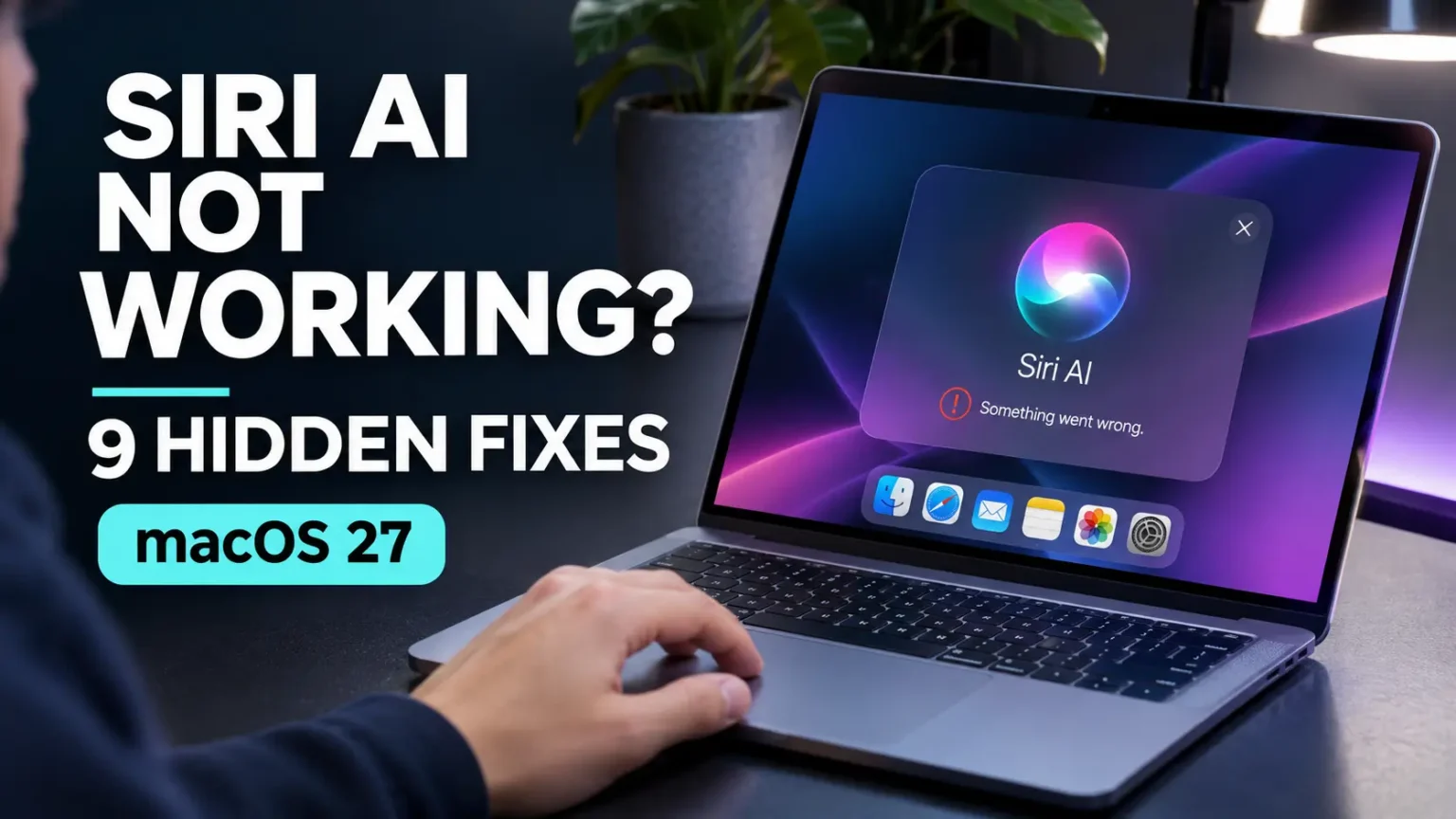
Siri AI Not Working on Mac?
Quick Answer · 60-second diagnostic
Siri AI not working on your Mac usually comes down to one of five things: you’re still on Apple’s waitlist, your Mac and Siri languages don’t match, your Mac isn’t Apple silicon, a VPN or network filter blocks Apple’s servers, or you’ve reached your daily usage limit.
Open System Settings → Siri on your Mac.
🟠 “Try Siri AI (Beta)”
You don’t have access yet. Join Apple’s waitlist if the option is available, then wait for access to be granted.
🟢 “Siri AI Is Ready”
Check that your Mac and Siri languages are supported and match. Verify your internet connection and microphone, then restart your Mac. Temporarily test without VPNs or network filters.
🔵 Neither message appears?
Check your Mac’s hardware and software compatibility. Make sure it has an Apple M1 chip or newer and runs macOS 27.
You say, “Hey Siri,” and your Mac answers in the old voice.
Or it spins, then says something went wrong.
Maybe you installed macOS 27 just for the new assistant, and the button never showed up.
Meanwhile, Siri works fine on your iPhone. It’s maddening.
The good news is that your Mac is rarely broken.
The cause is usually access, language, or connection.
Here are nine fixes for Siri AI not working on Mac, ordered to save you the most time.

We also cover macOS 27.3 and the new M6 iMac.
Why Siri AI Stumbles on Macs (and Why You Can Trust These Fixes)
Siri AI is the biggest change to the Mac assistant in years.
Apple shipped it with macOS 27 on September 14, 2026, and it still wears a Beta label. That label matters.
Access opens in stages, and Apple checks your language, region, age and device before it lets you in.
Apple lists those rules in its own guide. Most Mac owners never read them.
So this guide leans on primary sources first.
We checked Apple’s Siri AI setup page, Apple’s Mac troubleshooting steps and Apple’s macOS 27 update notes.
Then we compared them with 9to5Mac and Macworld coverage of the macOS 27.3 beta 2.
We also used a third-party Siri AI test on an M1 MacBook Pro and real reports from Apple’s Developer Forums.
We mark what Apple confirmed and what users only reported. Where nobody knows yet, we say so.
That honesty matters more than usual right now.
Beta software changes fast, and a lot of advice online is already stale.
Some guides still say Siri AI is English-only.
Apple’s current page lists six languages.
For the bigger picture, see our iOS 27 complete guide and our Apple Intelligence guide.
Think of Siri AI Like a Flight: Three Checkpoints Before Takeoff
Here is an easy way to picture it.
Getting Siri AI to answer is like boarding an international flight.
- Passport check = your Mac. You need macOS 27 and an Apple silicon chip (M1 or newer) or a MacBook Neo.
- Visa check = language, region and age. Your Mac and Siri need a supported language. Your Apple Account needs an eligible region. You must be 13 or older.
- Boarding pass = waitlist access. Apple lets people in by groups. No boarding pass, no seat, even with a perfect passport.
Even with all three, the plane still needs a runway.
That runway is your internet connection to Apple’s servers.
Most cases of Siri AI not working on Mac fail at one checkpoint.
Find the checkpoint, and you’ve found the fix.
Match Your Symptom First
Match Your Symptom First
Find what’s wrong with Siri AI on your Mac
Not sure which troubleshooting step to try? Find the problem that matches what you’re seeing and jump straight to the relevant fix.
Which Macs and macOS Versions Support Siri AI?
Mac Compatibility for Siri AI
Find your Mac model and check its Siri AI compatibility.
Eligible M3 or newer Macs with at least 12 GB of memory get the additional expressive-voice capability described above.
Apple’s current language list for Siri AI is English, French, Japanese, Korean, Portuguese and Spanish. It isn’t available in mainland China or to anyone under 13.
macOS 27 Siri AI Update Timeline
Key macOS 27 releases and what each update means for Siri AI.
9 Fixes for Siri AI Not Working on Mac
Work through these in order. Retest after each one.
Fix 1: Check Which Access State Your Mac Is In
This is the most common cause, and nothing is broken.
Apple rolls Siri AI out in batches.
Our how to get Siri AI guide covers the iPhone side of the same process.
- Open System Settings and click Siri in the sidebar.
- Scroll down if you don’t see it.
- If Siri is off, click Turn On Siri.
- Click Try Siri AI (Beta) and follow the prompts.
- Choose Join Waitlist when Apple offers it.
- Wait for Siri AI Is Ready to appear at the top of System Settings.
Apple doesn’t promise a wait time.
Once access arrives, Siri AI downloads on its own.
According to Nektony, the sign-up sheet also warns that Apple may use account and device details, including your serial number, to check eligibility.
Skip the Terminal tricks you may find online.
During the first beta cycle, testers used a hidden command to jump the line.
MacRumors reported in June that Apple closed that loophole in beta 2, and some people were sent back to the queue.
Fix 2: Confirm Your Mac Qualifies
- Click the Apple menu, then choose About This Mac.
- Find the Chip line.
- Look for an M-series chip, M1 or newer, or MacBook Neo.
- Check that macOS shows version 27 or later.
- If you see “Intel,” that Mac can’t run Siri AI.
Fix 3: Match Your Languages and Region
This one hides the button more often than you’d think.
In a September test on an M1 MacBook Pro, Nektony set Siri to English (UK) on a US English Mac.
The Try Siri AI (Beta) button disappeared.
- Open System Settings > General > Language & Region.
- Set your Mac’s top language to one Apple supports.
- Open System Settings > Siri and set Siri’s language to match.
- Confirm your region fits where your Apple Account lives.
- Restart, then wait a few minutes before you check again.
The macOS 27.3 betas add Traditional Chinese, Norwegian, Turkish and Vietnamese, according to 9to5Mac.
Those aren’t in the public release yet.
Fix 4: Check the Siri Switch and Screen Time
- Open System Settings > Siri and confirm Siri is on.
- If you can’t turn it on, open Screen Time.
- Click Content & Privacy Restrictions.
- Look for limits on Siri & Dictation or Intelligence & Siri.
- Remove the limit, or ask your Family Sharing organizer to do it.
Apple says parental controls can block Siri this way. If a child’s account is involved, our guide to the Screen Time Family Sharing trap may help.
Fix 5: Fix the Siri AI Connection Problem
Siri AI can’t run offline. A Siri AI connection problem on Mac often shows up as “Sorry, something went wrong.” The fix is to find which link in the chain fails.
- Turn off any VPN, then ask Siri again.
- Open Safari and load a website to confirm the internet works.
- Join your iPhone’s Personal Hotspot or another Wi-Fi network.
- Ask Siri a question that needs the web.
- If it works there, suspect your router, firewall or content filter.
- Restart your router, then restart your Mac.
Run the Two-Device Test
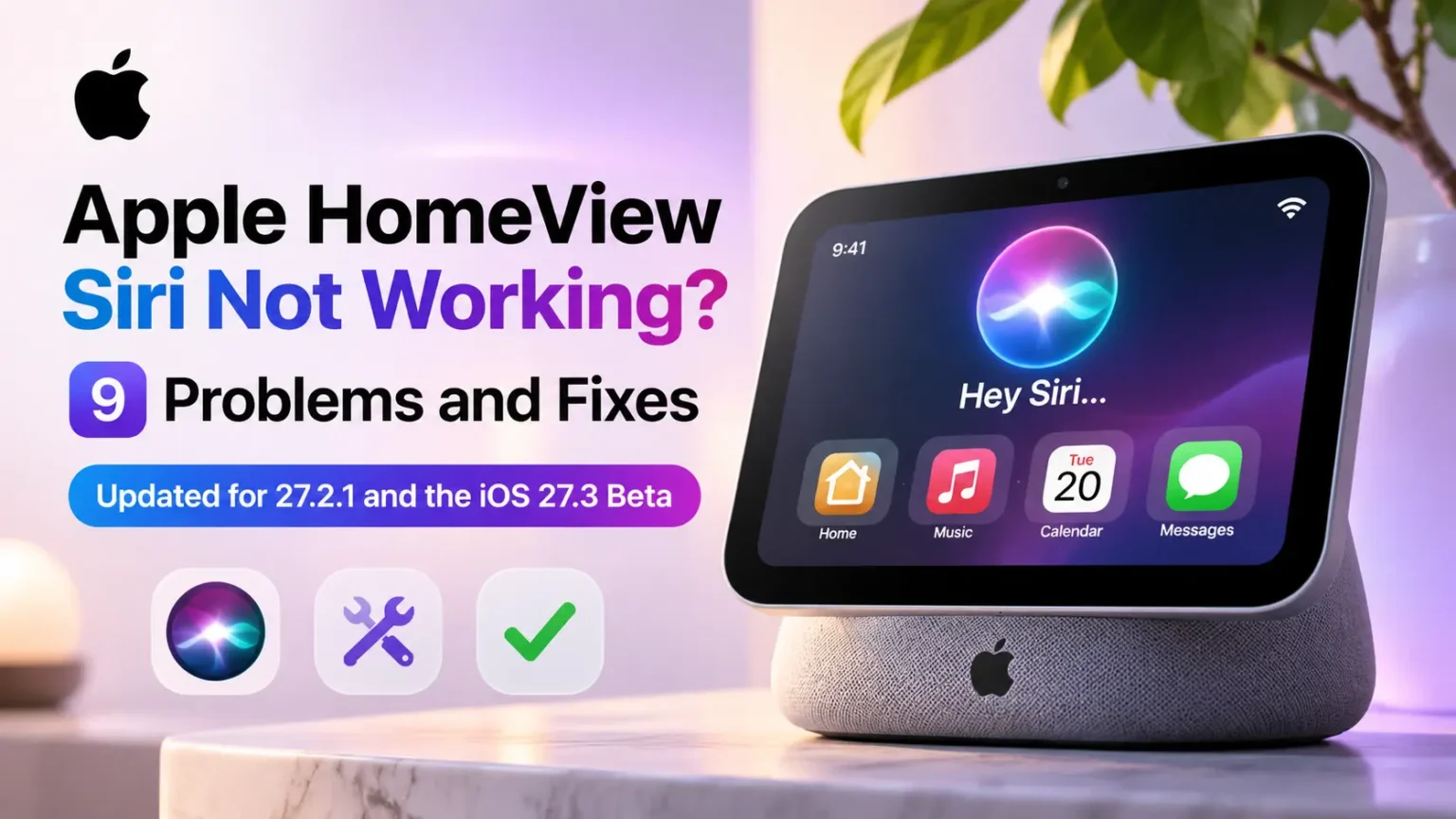
Ask Siri the same question on an iPhone that already has Siri AI working. Use the same Apple Account on both devices.
Writing Tools Gone? It May Be a Design Change
If you enabled Siri AI and Writing Tools disappeared, you may not have a bug. Nektony reports that macOS 27 replaces the traditional Writing Tools interface with Write with Siri when Siri AI is enabled.
Fix 6: Test Your Microphone
Apple’s own troubleshooting page starts with the basics, and they work.
- Open System Settings > Sound, then click Input.
- Select the microphone you actually use.
- Drag the Input volume slider up while you talk.
- Disconnect Bluetooth headsets you aren’t wearing.
- On a MacBook, keep the lid open.
If you use AirPods, they must be paired with the Mac. A Studio Display must be connected to it.
Fix 7: Free Up Storage and Let the Download Finish
Apple says Apple Intelligence needs up to 8 GB on most Macs.
It says up to 14 GB on an M3 or newer with 12 GB or more of memory.
Real-world numbers run higher. Nektony measured 18.53 GB on its M1 test Mac, and cited 20.67 GB on an M4 Pro Mac mini.
- Open System Settings > General > Storage.
- Check how much free space you have.
- Aim for about 20 GB free.
- Move big files to an external drive or iCloud.
- Keep the Mac awake and online while Siri AI downloads.
Need room fast?
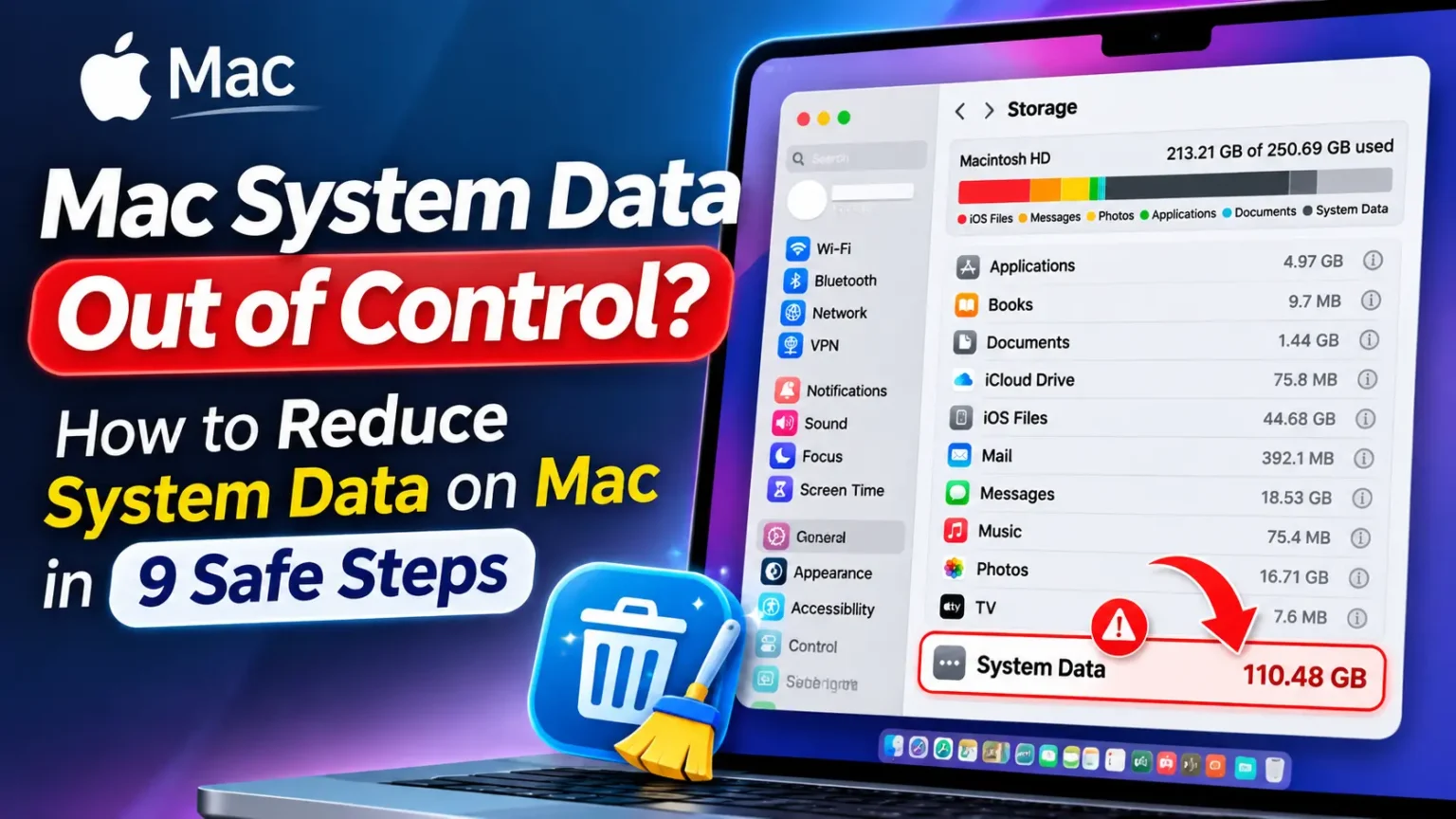
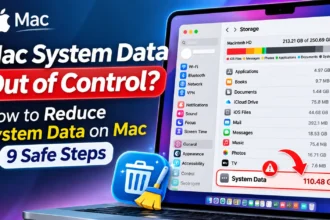
Read our guides on how to reduce System Data on Mac and what to do when your Mac startup disk is full.
Fix 8: Update, Restart and Flip the Siri Switch
- Open System Settings > General > Software Update.
- Install the newest macOS 27 update.
- Restart your Mac when it finishes.
- Open System Settings > Siri and switch Siri off.
- Wait ten seconds, then switch it back on.
- Ask Siri a simple question to test it.
As of November 24, the newest public build is macOS 27.2.1.
Apple lists “bug fixes and security updates” for it and doesn’t name any Siri fix.
Updating still clears stuck downloads for many people.
If a Siri window freezes, force quit it first.
Fix 9: Let Siri’s Search Index Catch Up
Apple says Siri uses the Spotlight index for its answers.
If Spotlight is still indexing, Siri can’t find your files, events or reminders.
Apple explains how this works in its Spotlight indexing guide.
- Leave your Mac plugged in, awake and online for an hour or two.
- Open System Settings > Spotlight and check Search Privacy.
- Make sure your startup drive isn’t on the excluded list.
- Look for Excluded Apps in Siri settings and remove apps Siri needs.
- Test with a question about your own calendar or reminders.
Siri Web Search Not Working on Mac? Check the Cloud Leg
Some Siri requests run on your Mac. Others run on Apple’s servers.
Setting a timer is local. “How far away is the moon?” is not.
That’s why Siri web search not working on Mac often looks like a half-broken assistant.
It opens apps but can’t answer questions.
- Ask Siri to open Calculator. If that works, Siri hears you.
- Ask a general-knowledge question.
- If you get an error, repeat Fix 5.
- Check that your Mac language and Siri language still match.
- If it fails only late in the day, read the usage limits section below.
Case Study: The MacBook Air That Could Set Timers but Nothing Else
A September 2026 post on Apple’s Developer Forums shows how this plays out.
An owner of an M4 MacBook Air on a macOS 27 beta turned on Siri AI.
Siri said it had a problem with most requests. Timers worked.
The same Apple Account worked fine on an iPhone and an iPad.
Turning a VPN on or off changed nothing. Writing Tools was also missing.
No Apple staff replied on the thread, and nobody posted a fix. But the post teaches three lessons:
- Timers working is a clue. Local commands ran, so the Mac heard the user. The failing leg was the cloud request or the Mac’s eligibility.
- The two-device test narrows it fast. The account was fine. The Mac was the odd one out.
- Ruling out the VPN isn’t the end. It means moving on to language, Screen Time, storage and updates. Then it’s time to file a report.
Siri Not Responding on M6 iMac? Check These 5 Things
Apple announced the M6 iMac on October 27, 2026.
It starts at $1,499 and ships with macOS 27. Deliveries began November 6.
The M6 chip is far above the M1 minimum, so hardware isn’t your problem.
New Macs do have their own traps:
- Skipped setup. Skipped Siri in Setup Assistant? Turn it on in System Settings > Siri, then tap Try Siri AI (Beta).
- Wrong microphone. Desktop Macs often pick up a webcam or Bluetooth headset. Check Sound > Input.
- Spotlight is still indexing. Moving data with Migration Assistant triggers a long index. Siri relies on it.
- Pending updates. New Macs can ship a version or two behind. Run Software Update.
- Account mismatch. Sign in with the Apple Account you use on your iPhone. Siri AI conversations sync across your devices.
Apple Intelligence not working on iMac?
Check the chip first. Intel iMacs can’t use Siri AI or Apple Intelligence on macOS 27. Any Apple silicon iMac from the 2021 M1 model forward qualifies. If yours does, go back to Fixes 3 and 7.
macOS 27.3 Siri Problems and the Siri AI Mac Beta 2 Story
People searching for “Siri AI Mac beta 2” usually mean one of two releases.
macOS 27 beta 2 (June 2026) is the one with the waitlist drama.
MacRumors reported that a Terminal workaround stopped working, and some testers who used it went back in the queue.
Apple hasn’t commented. Nobody needs that build now, since macOS 27 has been public since September 14.
macOS 27.3 beta 2 (November 16, 2026, build 26C5047e) is the one in the news.
9to5Mac says it lets Siri AI take more actions in Messages, Music, Calendar, Photos and Reminders, and manage files and folders.
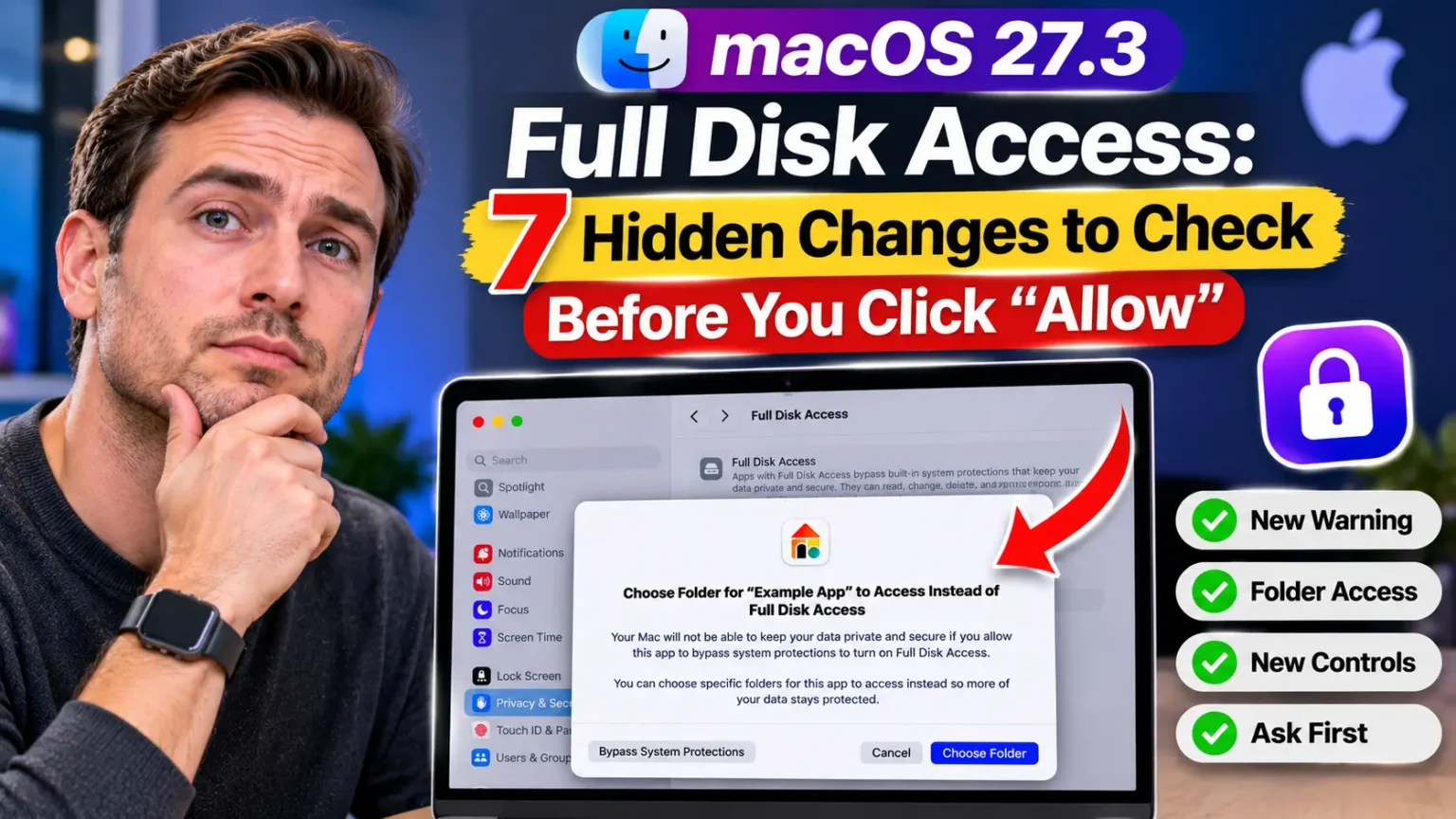
It also adds new privacy controls for Full Disk Access and automation. Coverage of the beta lists features, not Siri bug fixes.
Those new permission controls are where macOS 27.3 Siri problems may start.
If a Siri action inside another app fails, a missing permission could be the reason.
Open System Settings > Privacy & Security and check Automation and Full Disk Access for that app. Apple says existing approvals stay in place.
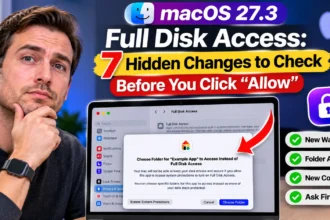
Our macOS 27.3 Full Disk Access guide walks through each change.
Final release is expected in December, but Apple hasn’t named a date.
Beta builds can break things. Skip them on any Mac you need for work.
Broken, or Just Capped? Siri AI Usage Limits Explained
Apple’s Siri AI page says usage limits may apply. Server-based features, including Siri AI, have daily limits.
They vary by feature, request size and demand. Apple says expanded access will cost money later. It hasn’t published numbers.
Macworld’s look at the iOS 27.3 beta 2 found that limits appear to scale with your iCloud+ plan.
A warning shows up before you hit the cap. Macworld didn’t confirm whether the Mac follows the same rules, and Apple hasn’t said.
Treat these details as beta behavior that may change.
Our iOS 27.3 beta 2 guide tracks the iCloud+ tiers.
You may have hit a cap if Siri worked all morning and fails by afternoon.
Simple local commands, like timers, usually keep working.
The fix is to wait for the daily reset or switch to local commands.
On heavy days, keep a backup AI productivity software tool open for drafting and summaries.
That way, a Siri AI limit never stalls your work.
What If This Doesn’t Work?
Still stuck after all nine fixes? Try these, in order.
- Check for Siri AI Is Ready again. If you’re still waitlisted, nothing is broken.
- Wait 24 hours, then repeat Fixes 3, 5 and 8.
- Back up with Time Machine before you try anything advanced.
- Rebuild the Spotlight index with the command below.
- Contact Apple Support, or a Mac technical support service you trust.
- On a beta, send a report through Feedback Assistant.
For step 4, open Terminal and run this command. It asks for your admin password, then re-indexes your drive. Expect fans and slow searches for a few hours. Nektony suggests this step too.
sudo mdutil -E /Don’t reinstall macOS as a first move. It rarely fixes waitlist, language or region problems. And if you’d rather pause the whole thing, here’s how to turn off Apple Intelligence.
Managed Macs and Business Fleets: Where IT Teams Should Look
If your Mac belongs to a company or school, the cause may sit outside your settings. Three things block Siri AI more often than people expect.
- Device management rules. Admins can restrict Apple Intelligence and Siri features through management profiles. Ask what yours allows. Our guides to Apple Business Manager and MDM integration explain the setup.
- Security tools and filters. Mac endpoint security software, VPN clients and web filters can intercept the traffic Siri AI needs. Apple publishes a guide to using Apple products on enterprise networks. Send it to your network team and ask them to review allow lists.
- Beta policies. Many companies block pre-release builds. If you’re on one, expect Siri AI to lag behind.
Running more than a few Macs? Apple business support or a Mac technical support service can save hours of trial and error.
Mac remote support helps distributed teams, because a technician can check settings, storage and network tests without shipping the machine.
If a Mac acts strangely beyond Siri, start with our guide on how to check for malware on Mac.
Key Takeaways
- Open System Settings > Siri first. The button you see tells you your access state.
- Waitlist and language cause most failures. Broken hardware is rare.
- Requirements are strict: macOS 27 or later, an M1 or newer chip (or MacBook Neo), a supported language, age 13+, and not mainland China.
- Test the connection with the VPN off and a phone hotspot.
- Use the two-device test to learn whether the Mac or the account is at fault.
- Keep about 20 GB free, update to the latest macOS 27 release, and flip the Siri switch.
- Skip beta builds like macOS 27.3 beta 2 on work Macs. They add features and new permission prompts.
- Daily limits exist, and Apple hasn’t published the numbers.
- On managed Macs, ask IT about filters, profiles and security software.
Recently Asked Questions
Why can’t I see “Try Siri AI (Beta)” on my Mac?
Apple shows the button only when your Mac qualifies. You need macOS 27 or later, an M1 or newer chip, and matching Mac and Siri languages. A mismatch is the most common reason it disappears. Fix your languages first (Fix 3), then restart.
Does Siri AI work on Intel Macs?
No. Siri AI needs a Mac with an M1 chip or newer, or a MacBook Neo. Intel Macs can’t run macOS 27, so they stay on classic Siri. Intel iMac owners can still use the troubleshooting steps for classic Siri on Apple’s support page.
How long is the Siri AI waitlist on Mac?
Apple hasn’t published a wait time, and reports vary. Once access arrives, Siri AI Is Ready shows in System Settings and the download starts on its own. You can’t speed it up with settings or Terminal commands.
Why does Siri AI work on my iPhone but not my Mac?
Each device has its own checks: language, storage, network and access state. Region rules can differ too. Apple’s page says Siri AI isn’t available on iPhone in the EU at launch, but Macs in the EU can use it in English, according to third-party reports. Run the two-device test to see which side is at fault.
Should I install the macOS 27.3 beta to fix Siri AI?
No. Beta 2 adds features and permission changes, but coverage doesn’t list Siri bug fixes. Final release is expected in December, with no date from Apple. Wait for the public release unless you’re a developer.
Sources
- Apple Support: Get started with Siri AI on Mac
- Apple Support: If Siri on Mac doesn’t work as expected
- Apple Support: What’s new in the updates for macOS 27 Golden Gate
- Apple Support: Use Apple products on enterprise networks
- Apple Support: About Spotlight indexing and search results
- Apple Newsroom: Apple unveils new iMac with M6 (October 27, 2026)
- MacRumors: Apple Seemingly Killed Siri AI Waitlist Workaround in macOS 27 Beta 2 (June 24, 2026)
- 9to5Mac: macOS 27.3 beta 2 now available (November 16, 2026)
- Macworld: How much you’ll need to pay to use Siri AI after Apple’s new limits kick in (November 17, 2026)
- Nektony: How to fix Apple Intelligence not working
- Apple Developer Forums: Siri beta (thread 845211)
Disclaimer
This article is for general information only. It isn’t professional IT, legal or financial advice. AppleHeadlines isn’t affiliated with Apple Inc. Siri, macOS, Apple Intelligence, iMac and MacBook are trademarks of Apple Inc. Siri AI is beta software, so features, languages, usage limits and availability may change without notice. Details drawn from third-party reporting or user forums are unconfirmed by Apple. Back up your Mac before you change system settings or run Terminal commands, and use them at your own risk. For problems with your device or account, contact Apple Support or a qualified technician.
Still Stuck? Tell Us What Siri Says
Drop your Mac model, your macOS build number and the exact message Siri shows in the comments.
We read every one and update this guide as macOS 27.3 moves toward release. Want more fixes like these? Subscribe to AppleHeadlines, and read our guide to Siri AI problems on iPhone next.
Related Post:

T’kal is the lead strategist and developer behind Apple Headlines. With a background in digital marketing and web development, he specializes in technical Apple troubleshooting, software news, and hardware rumors. T’kal focuses on delivering high-authority tech content that bridges the gap between Apple enthusiasts and the latest industry innovations.