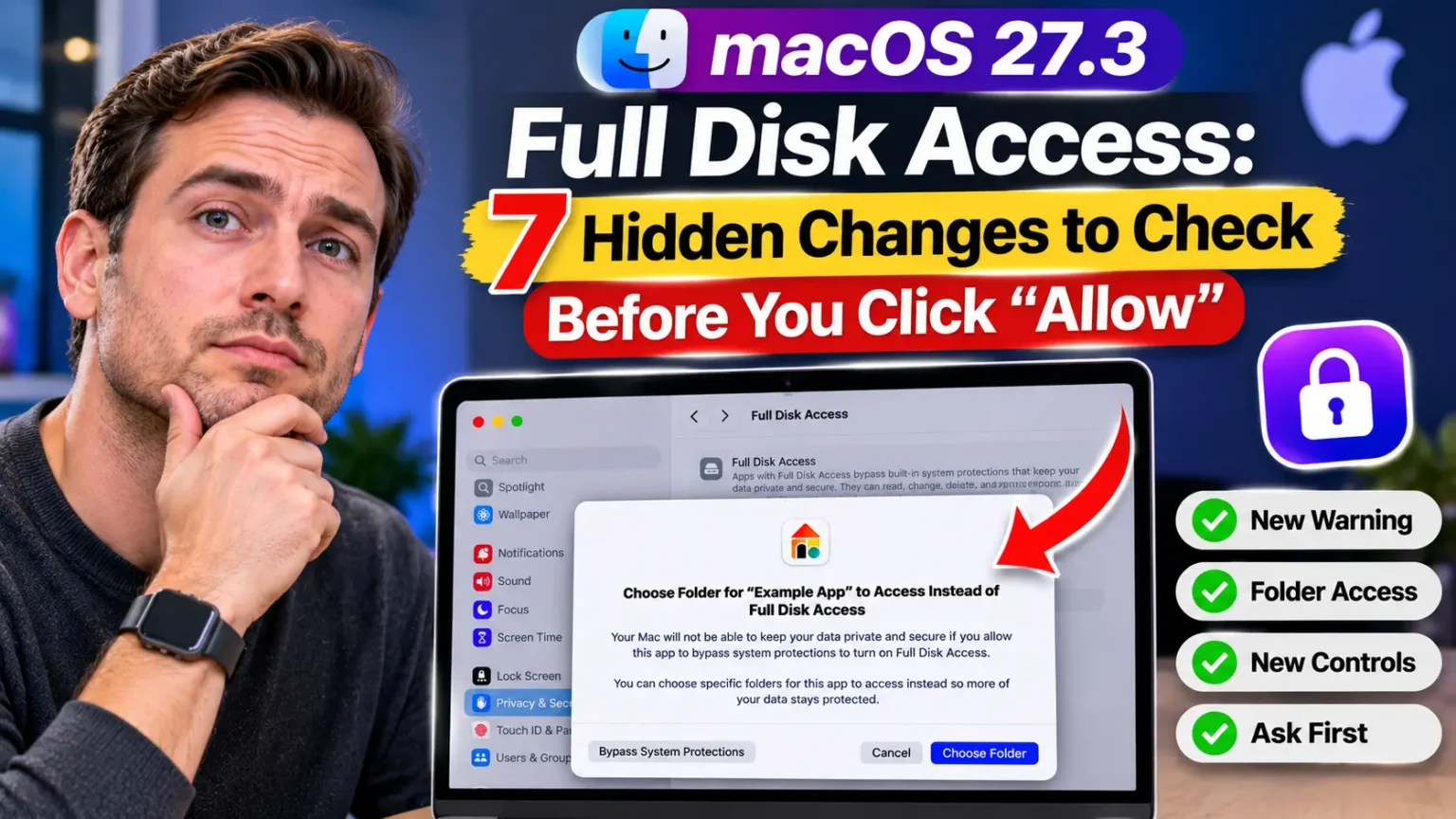






macOS 27.3 changes how apps request access to your Mac. Instead of relying only on broad permissions, users can grant access to specific folders. Existing approved apps keep their permissions.
You install an app, and your Mac suddenly warns you about “bypassing system protections.” Or an app you trust stops finding your files after an update.
It feels like Apple moved the furniture overnight.
The good news is that the change is deliberate, and it gives you more control, not less.
This guide explains what changed, how to approve apps safely, and what to try when something breaks.
Why macOS 27.3 Full Disk Access Matters Right Now
Full Disk Access is the most powerful permission on a Mac.
Apple’s support document says an app with it can read, change, delete, and export your files.
That includes messages, email, photos, videos, and data from other user accounts.
That is a lot of trust for one toggle.



For years, many apps made that toggle easy. Some even added themselves to the list, so you only had to flip a switch.
Then AI agents arrived.
In October, Apple warned that some developers use Full Disk Access in ways that could expose everything on a user’s Mac.
It promised that approvals would take more deliberate action.
Those changes went live in macOS 27.3 beta 2 on November 16, 2026.
Apple published a support document and a developer notice the same day.
We built this guide from those two primary sources.
Then we cross-checked the details against reporting from 9to5Mac, Macworld, MacRumors, and MacStories.
Here is where things stand today:
- Developer beta 2 arrived November 16.
- Public beta 2 followed on November 19.
- Final release is expected in December, but Apple hasn’t named a date.
Beta software can change before launch.
We’ll update this page when macOS 27.3 ships.
macOS 27.2 vs. macOS 27.3
See how Apple’s latest beta changes Mac app permissions and privacy controls.
| Feature | macOS 27.2 | macOS 27.3 beta NEW |
|---|---|---|
| Permission names | One “Device Control and Data Access” setting | Two separate controls Accessibility and System & App Protection Override |
| Scope of access | Effectively all or nothing | More granular control Choose specific folders or apps |
| Warning text | Short permission description | Detailed explanation of what an app can read, change, delete, and export |
| Ask each time | — | Ask First option for automation apps |
| Menu bar alert | — | Indicator appears when one app controls another |
| Existing approvals | Previously granted permissions | Stay in effect Existing approvals are retained |
What this means: macOS 27.3 beta focuses on giving users more visibility and control over how apps access their Mac. It does not remove Full Disk Access.
7 Hidden Changes in macOS 27.3 Full Disk Access
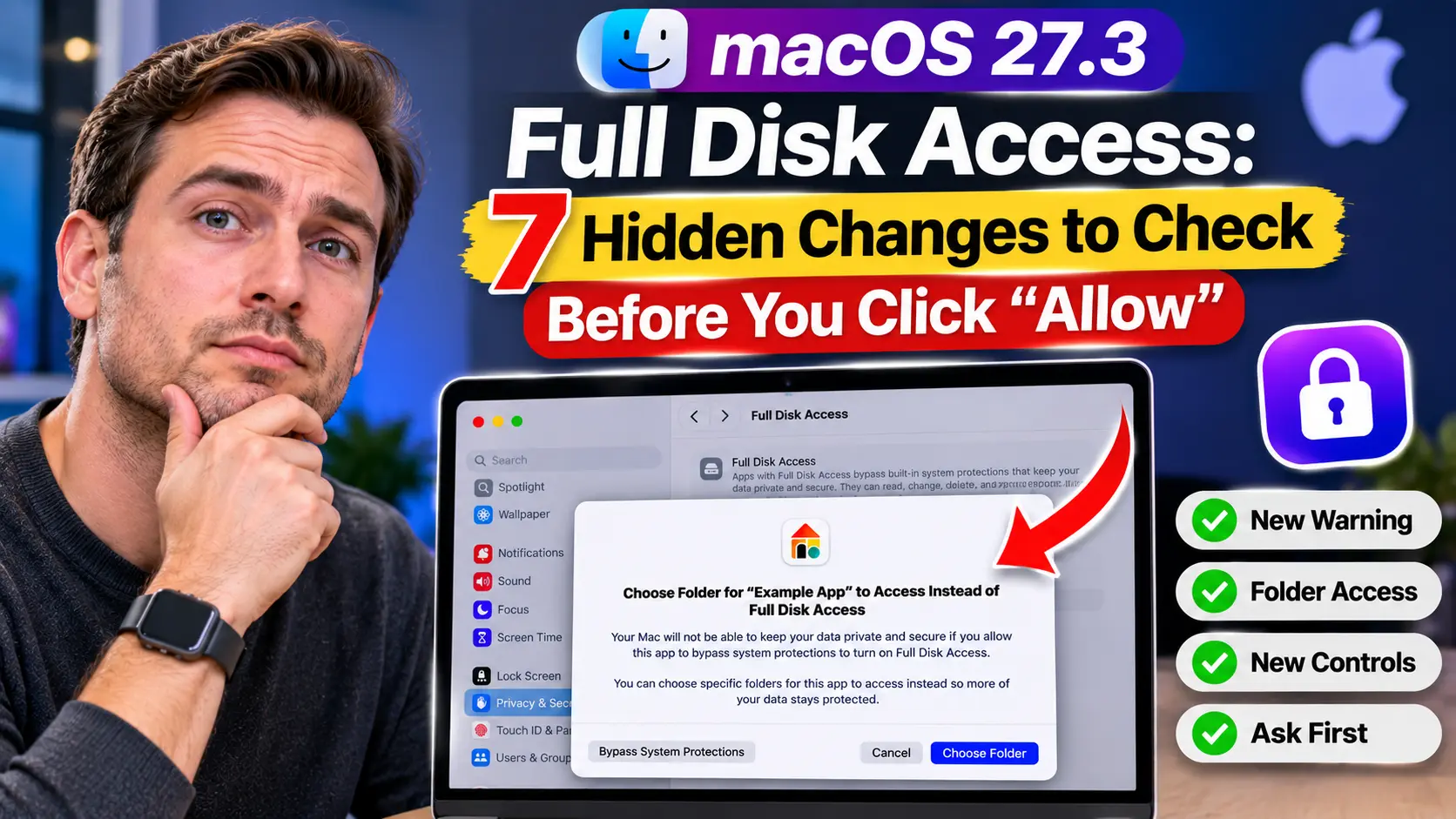
1. You can choose folders instead of your whole Mac
This is the biggest win.
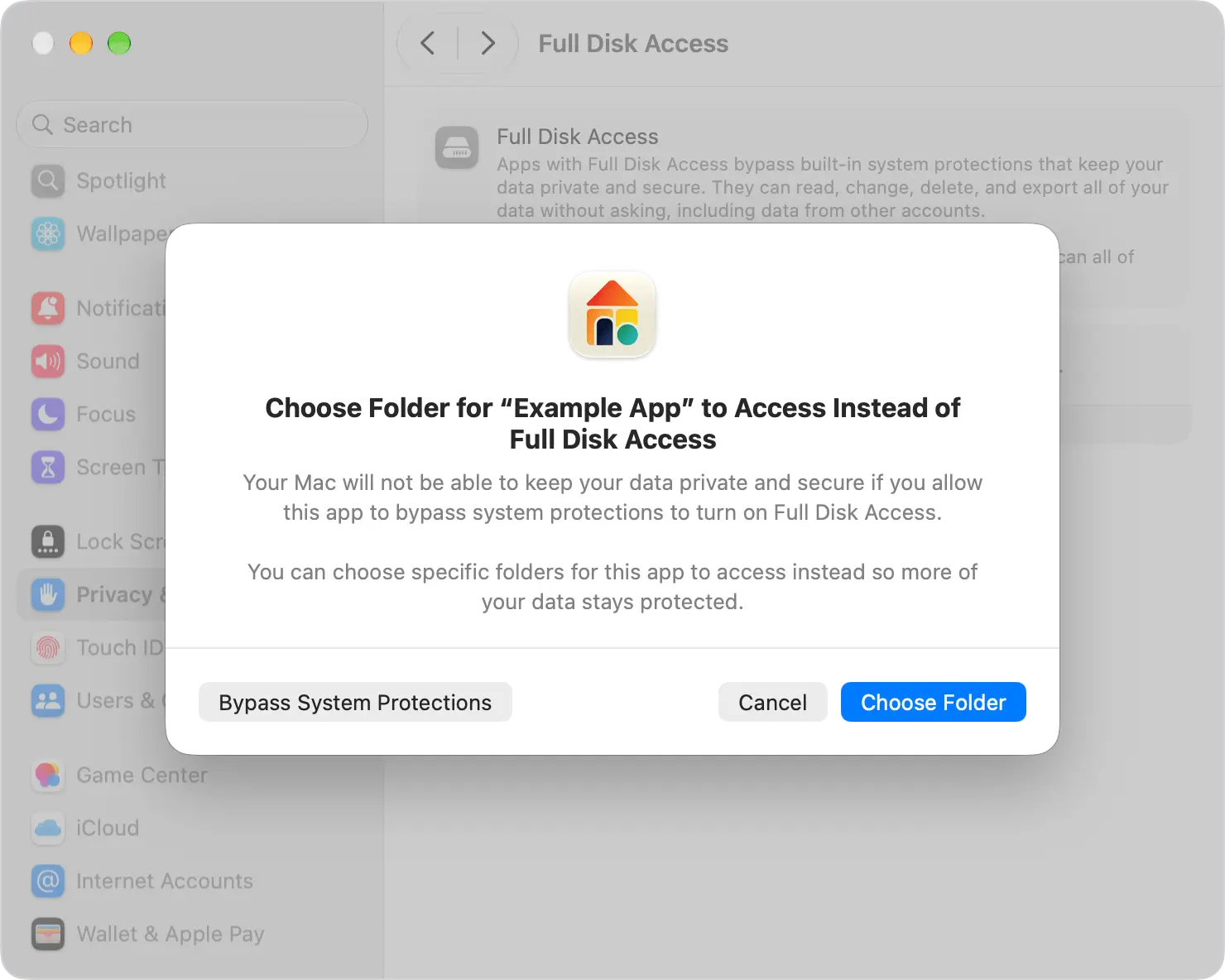
When an app asks for Full Disk Access, many Macs now show Choose Folder or Choose Apps first.
An editing app that only needs your Projects folder gets only that folder.
Not every app gets this choice.
Apple says backup apps asking for Full Disk Access just get a simple allow-or-deny prompt. Screen readers and voice control tools get the same for Accessibility.
2. The warning is much more detailed
The new prompt spells out what you are handing over.
For Full Disk Access, it lists reading, changing, deleting, and exporting all your data.
It also covers viewing hidden and recently deleted photos and browsing the web as you. Macworld pointed to an AI chat app as an example of what the prompt shows.
The scary button is labeled Bypass System Protections. That wording is intentional. Apple wants you to pause.
3. “Device Control and Data Access” is now two settings
Apple split the old setting in two:
- Accessibility is for assistive tools, such as screen readers. Developers get it through an entitlement process.
- System & App Protection Override is for apps that control other apps, like automation tools.
If you’ve searched for “Mac app permissions changed,” this split is the main reason.
4. You can make apps “ask first”
For System & App Protection Override, you can set each app to Ask First or At Any Time. Ask First means the app must request permission before it controls another app. Think of it as a doorbell instead of a spare key.
5. A menu bar indicator shows when one app controls another
When an app uses System & App Protection Override to control something else, macOS shows an indicator in the menu bar.
It’s there so background automation can’t run silently.
MacStories also shared screenshots suggesting a menu bar list of apps with Full Disk Access.
Treat that one as unconfirmed until the final release.
6. Apps can’t sneak onto the list as easily
Before, an app could poke a protected file, get denied, and quietly appear in your Full Disk Access list.
Macworld reports that you now add the app yourself.
Early beta code suggested this change, and 9to5Mac noted that details were still in flux.
7. Your old approvals stay put
Apple says all permissions you granted before macOS 27.3 remain in effect. Apple also says known backup and assistive apps keep their normal experience.
That’s the official line. A few developers on MacRumors forums said some familiar apps still triggered warnings in the beta.
The Hotel Key Analogy
Picture a hotel. Before, a guest could ask the front desk for the master key.
It opens every room, the office, and the supply closet. Now the desk offers a room key first.
The master key still exists.
You just have to sign a form, show ID, and read a warning that says what the key can open.
Full Disk Access is the master key. Choosing specific folders is the room key. Most apps only need a room.
How to Give an App Access the Safe Way
Follow these steps on a Mac running the macOS 27.3 beta:
- Click the Apple menu and choose System Settings.
- Click Privacy & Security in the sidebar.
- Open Full Disk Access or System & App Protection Override.
- Click the Add (+) button and select the app.
- If your Mac prompts you, click Choose Folder or Choose Apps.
- Pick only what the app needs. Check the developer’s setup guide first.
- For automation apps, set Ask First or At Any Time for each app.
- If asked, enter your password and click Modify Settings.
If you’re unsure which folders an app needs, Apple advises contacting the developer. Wait until you know before granting anything.
How to Review or Remove Access Later
- Open System Settings, then Privacy & Security.
- Click Files & Folders, Full Disk Access, or System & App Protection Override.
- Select an app and click Remove (−) to take away its access.
- Enter your password if asked, then click Modify Settings.
- To change an app’s scope, click the Info (i) button next to it.
- To shrink an app that already has Full Disk Access, remove it. Then add it again and choose folders.
Apple warns that removing access can make an app stop working properly. Expect that, and re-add only what’s needed.
Start Narrow, Then Widen
Give a new app one folder first, then open the app and test its main job. If it complains, add the next folder it names. This beats approving everything and hoping for the best.
If a non-assistive app asks for Accessibility, pause before approving it. That category is meant for assistive tools. Utilities that once relied on Accessibility-style control will more likely show System & App Protection Override instead.
Which Prompt Are You Seeing?
Real-World Example: The Cleanup App That Didn’t Need Everything
This is an illustrative scenario, not a specific reader’s story.
Dana is a freelance video editor with a new M6 MacBook Pro running the macOS 27.3 beta. She installs a cleanup utility and sees the red warning.
Her first thought: “Is my Mac broken?”
Instead of clicking Bypass System Protections, she clicks Choose Folder.
She picks her Downloads folder, since that’s where the clutter lives.
The app works fine. Her editing projects, mail, and messages stay protected.
The lesson: match the permission to the job.
A cleanup tool for one folder doesn’t need your whole Mac.
If you’re clearing space by hand instead, our guide to freeing up a full Mac startup disk covers what’s safe to delete.
Which Macs and Versions Are Affected?
macOS version. Apple describes this as starting in macOS 27.3.
Nothing in its notes suggests older releases get it. Macs on macOS Tahoe 26.x or Sequoia 15.x should keep today’s behavior.
Mac models. Apple’s documents don’t tie the change to a chip. In practice, any Mac that can run macOS 27.3 sees it.
That includes new machines like the touchscreen M6 MacBook Pro.
iPhone and iPad. iOS 27.3 beta 2 and iPadOS 27.3 are rolling out too. But Full Disk Access is a Mac permission, so these changes don’t apply there.
Developers. Apple says the underlying APIs aren’t changing.
Apps just need to handle limited access gracefully.
Backup and assistive-tech developers can request entitlements to keep the old experience for new installs. Apple says entitlement details are coming soon.
What If This Doesn’t Work?
An app can’t see your files after the update
If Mac apps cannot access files after update, work through this list:
- Confirm the app is listed under Privacy & Security.
- Remove it, then add it back with the Add (+) button.
- Choose the exact folder holding your files.
- Force quit the app and open it again.
- Check for an app update, since developers are adjusting to the change.
- Restart your Mac.
The app isn’t in the list
Apps may no longer add themselves. Use the Add (+) button and pick the app by hand. If it won’t appear, update the app first.
A backup app is complaining
Apple says known backup apps keep their experience, but the rules are still settling. Contact the developer and ask whether they’ve requested the entitlement.
The menu bar indicator won’t go away
That’s expected while an app is controlling another app. Review the app under System & App Protection Override. If you don’t recognize it, remove it.
You don’t trust the app
Remove its access right away. Then scan your Mac for malware. If problems continue, book a Genius Bar appointment.
Key Takeaways
- Full Disk Access isn’t going away. It’s just harder to hand out by accident.
- Choose Folder is the safest default for most apps.
- Device Control and Data Access is now Accessibility plus System & App Protection Override.
- Ask First keeps automation apps on a short leash.
- Old approvals remain. New requests get the new prompts.
- It’s still a beta. Details may shift before the December release.
FAQ
Frequently Asked Questions
Everything you need to know about Full Disk Access and the new Mac privacy controls.
01 Is Full Disk Access being removed in macOS 27.3?
No. Apple still allows users to grant Full Disk Access. The approval screen has been redesigned to explain the privacy risks more clearly and offer specific folder access as an alternative.
02 Will my existing apps stop working after macOS 27.3?
Apple says permissions you already granted will stay in effect. However, some apps may need updates to handle limited access. If an app stops working, check System Settings → Privacy & Security and review its permissions.
03 What is System & App Protection Override?
It’s a setting for apps that control other apps or perform automation tasks. You can limit an app’s access to specific apps and require Ask First before it takes action.
04 When will macOS 27.3 be released?
Apple hasn’t announced an official release date. Macworld expects a December release. Developer beta 2 arrived on November 16, and public beta 2 followed on November 19.
05 Should I give AI apps Full Disk Access?
Not by default. Apple warns that Full Disk Access can expose all your data to an app. Start by granting access to specific folders. You can still grant full access to trusted apps when their functionality genuinely requires it.
Privacy tip: Review app permissions before granting access to your Mac’s personal data.
Sources
- Apple Support: If an app asks for Full Disk Access or System & App Protection Override on your Mac (Nov 16, 2026)
- Apple Developer News: Updates to Device Control and Data Access, and Full Disk Access in macOS (Nov 16, 2026)
- 9to5Mac: macOS 27.3 includes new privacy controls for Full Disk Access and more (Nov 16, 2026)
- 9to5Mac: macOS 27.3 could change how you grant AI agents Full Disk Access (Nov 8, 2026)
- Macworld: macOS 27.3 increases security with changes to Full Disk Access (Nov 9, 2026)
- Macworld: macOS 27.3’s new Full Disk Access prompt protects your data from apps that want it (Nov 17, 2026)
- MacRumors: macOS 27.3 Warns Against Giving AI Apps Full Mac Control (Nov 16, 2026)
- MacStories: macOS 27.3’s Full Disk Access Changes Are Better Than I Feared (Nov 17, 2026)
- MacTech: Apple posts second public betas of iOS 27.3, macOS 27.3, and more (Nov 19, 2026)
Disclaimer
This article is for general information. It is based on beta software, and Apple may change menus, prompts, and behavior before the public release. Always read an app’s permission prompt and the developer’s guidance before granting access. Apple Headlines is not affiliated with Apple Inc. and can’t guarantee how third-party apps behave. If you suspect malware or data exposure, consult Apple Support or a qualified security professional.
Stay Ahead of the Next Mac Permission Change
Bookmark this page, because we’ll update it the day macOS 27.3 ships. Want more Mac fixes in plain English? Browse the Apple Headlines Mac hub.
Related Posts:

Virginia J. Alfonso is a seasoned technology writer with a passion for all things digital. With over a decade of experience covering the latest in tech innovation, gadgets, and software, Virginia brings a unique blend of technical expertise and accessible writing to her work. Her articles focus on making complex tech topics easy to understand for readers of all levels.