


Answer In Short:
When messages go missing on your iPhone, they may be hidden in a filter or recently deleted rather than permanently erased. Check these three places first.
Check Recently Deleted and Unknown Senders
Open Messages, tap Filters (or Edit on iOS 18), and check Recently Deleted and Unknown Senders for missing conversations.
Messages → Filters → Recently DeletedCheck Your Message Retention Setting
Open Settings and check Keep Messages. If it’s set to 30 Days or 1 Year, older conversations may have been automatically deleted.
Settings → Apps → Messages → Keep MessagesVerify Messages in iCloud
Make sure Messages in iCloud is enabled and every Apple device uses the same Apple Account. Check that syncing has completed.
Settings → Your Name → iCloud → MessagesApple generally keeps deleted messages in Recently Deleted for 30 to 40 days. Recover anything important before the recovery period expires.
You open Messages and a whole thread is blank.
Or last month’s texts are simply gone.
Your stomach drops, and you wonder what you tapped.
Take a breath.
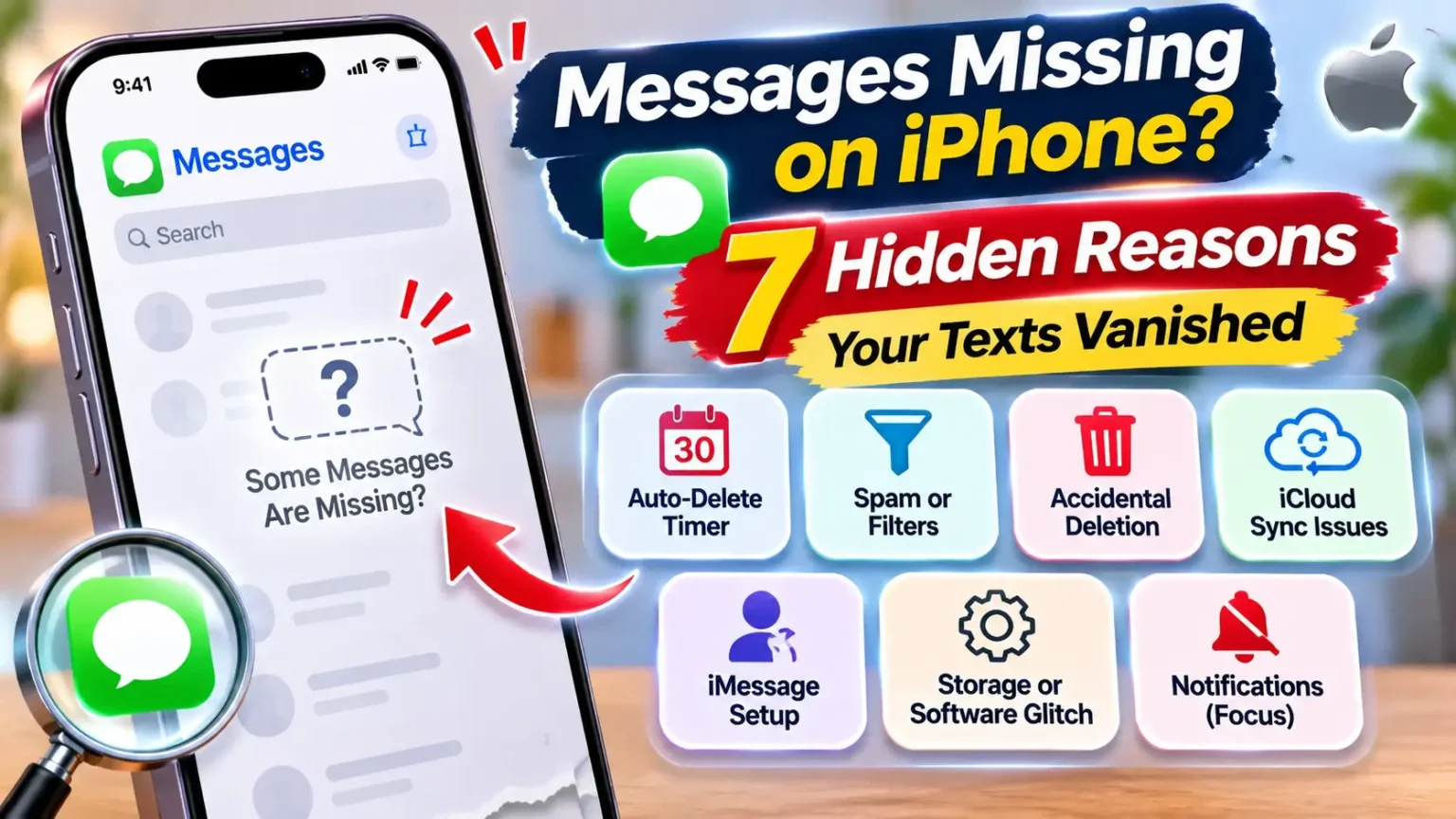
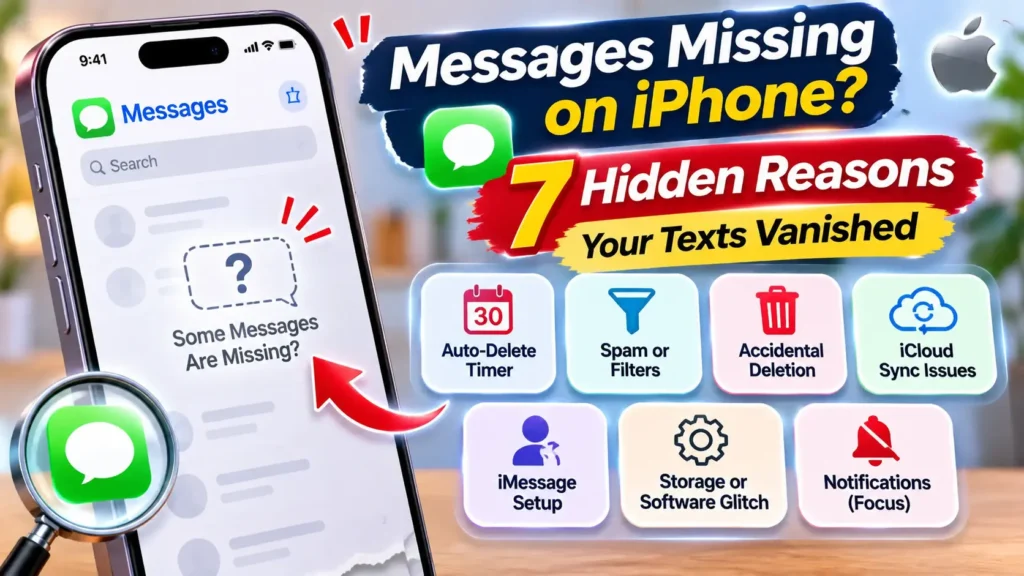
In most cases, messages missing on iPhone are hidden, filtered, or synced away.
They are rarely destroyed.
This guide covers the seven places texts usually hide, how to check each one in minutes, and what to do if they are truly gone.
It is updated for iOS 27.2.
Why Missing Messages Are Worth Fixing Fast
Messages is more than chat.
It holds bank codes, delivery details, appointment reminders, and years of family history.
When text messages disappear from your iPhone, a clock starts.
Apple says you can recover deleted texts for only 30 to 40 days, and only on iOS 16 or later.
This guide leans on Apple’s own support pages, including its recovery page updated on September 14, 2026.
It also uses Apple’s iOS 26 guide to unknown senders.
We read reader reports on Apple Community and MacRumors Forums, and we studied the top-ranking fix guides.
Those guides mostly target older iOS versions and push paid recovery tools.
We kept what holds up and added what they skipped:
- the iOS 26 and iOS 27 message filters,
- the Messages in iCloud trap,
- and a realistic look at your recovery odds.
You are not alone here. One Apple Community thread, started June 30, 2026, has 88 “me too” votes.
People were still adding reports in late October.
Find Your Symptom First (60-Second Triage)
Match what you see to the likely cause. Then jump to that section.
Why Are Your iPhone Messages Missing?
Match what you’re experiencing with the most likely cause and jump to the right fix.
| What You See | Most Likely Cause | Jump To |
|---|---|---|
| Old texts gone, new ones fine | Keep Messages timer | Reason 1 |
| Codes or new-number texts never show | Unknown Senders or Spam filter | Reason 2 |
| A whole thread vanished after a swipe | Deleted by accident | Reason 3 |
| Texts missing on one device only | Messages in iCloud or account mismatch | Reason 4 |
| Conversation split or under a new name | iMessage number or email setup | Reason 5 |
| Blank threads, odd dates, slow app | Storage, glitch, or update bug | Reason 6 |
| Texts arrive but you get no alert | Focus or notification settings | Reason 7 |
Which iPhone and iOS do you have?
The menu names shift a little by version.
This table keeps you oriented.
Apple says iOS 27.2 puts the iPhone Duo and other iPhones on the same version, so the paths above apply to all of them.
If you are not sure you are current, see our iOS 27.2 features guide.
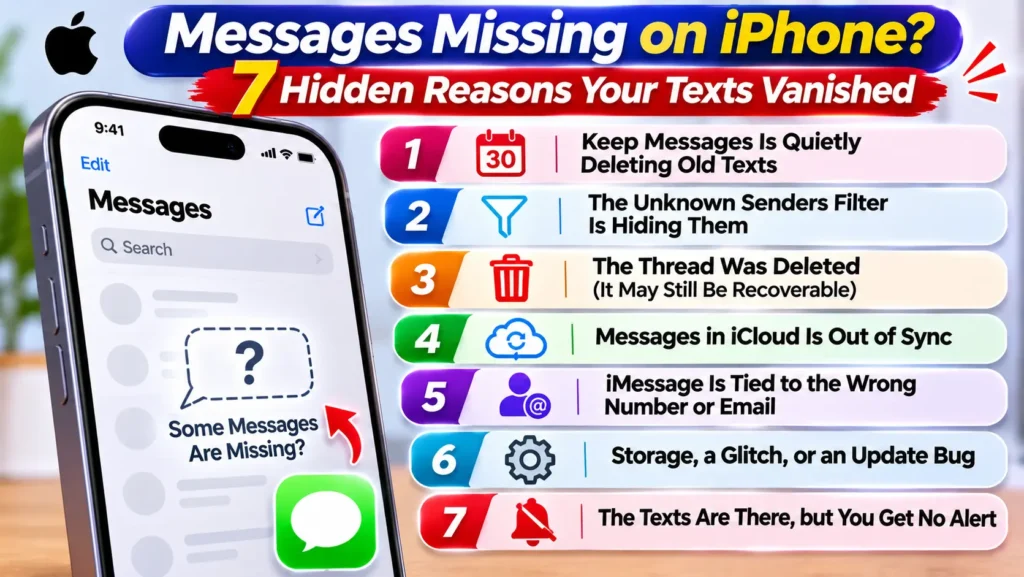
Reason 1: Keep Messages Is Quietly Deleting Old Texts
Best match: old text messages disappeared on iPhone, but new ones look normal.
Your iPhone can delete texts on a timer.
If Keep Messages says 30 Days or 1 Year, anything older is erased without a warning.
Every guide we studied lists this as a top cause. It explains most cases of vanishing text messages on iPhone.
Here is the hard part. Switching to Forever protects future texts.
It does not bring back the expired ones.
Apple’s recovery page covers messages you delete yourself.
We found no Apple page saying the timer sends texts to Recently Deleted. Don’t count on it.
One more quirk: voice notes have their own Expire setting under Audio Messages.
A voice message can vanish on its own even when your text stays put.
Reason 2: The Unknown Senders Filter Is Hiding Them
Best match: bank codes, delivery alerts, or new-number texts never show up.
This one catches people after an update. In iOS 26, Apple added Screen Unknown Senders.
It sends texts from numbers you have never talked to into a separate list.
Apple says the setting is off by default in iOS 26. But if you used Filter Unknown Senders in iOS 18, it switches on when you upgrade.
Your iPhone then shows a badge, and the text sits in the Unknown Senders filter. It will not appear in your main list.
Doctors, couriers, and banks often text from numbers that are not in your Contacts.
They are the usual victims.
If you need a code from Apple, see our guide on verification codes you did not request.
How to find them:
- Open Messages.
- Tap Filters.
- Tap Unknown Senders, then check Spam too.
- Open the thread you want.
- Tap Mark as Known to move it to your main list.
To turn the filter off, go to Settings > Apps > Messages.
Scroll to Unknown Senders and switch off Screen Unknown Senders.
Two Apple details help here.
Messages from unknown senders can still show a banner for eight hours. After that, they move to the filter.
And filtering does not apply to anyone you have replied to three times or more.
Reason 3: The Thread Was Deleted (It May Still Be Recoverable)
Best match: a text message thread disappeared on iPhone after a swipe or “Delete All.”
One quick swipe can remove a whole conversation.
The Undo banner vanishes in seconds, so many people notice hours later.
The good news is that iOS keeps deleted texts for a short time.
Apple’s rules are strict. You need iOS 16 or later.
You can recover only texts deleted in the last 30 to 40 days.
Anything you deleted before updating to iOS 16 is gone for good.
If Messages in iCloud is on, recovery syncs too.
Apple says a delete or recover on your iPhone also happens on your other devices.
It changes only your own copy. The other person still has theirs.
Reason 4: Messages in iCloud Is Out of Sync
Best match: texts missing on one device only, or on every device at once.
Here is an analogy.
With Messages in iCloud on, your iPhone is a window, not a filing cabinet.
The real house of messages lives in iCloud.
If someone removes a room from the house, every window shows the gap.
Nothing is “saved” on your phone to fall back on.
That design has two big side effects.
First, a delete on one device spreads to all of them.
Second, Apple Community guidance says texts stored this way are not included in an iCloud Backup.
Gbyte makes the same point.
So there may be no backup copy to restore.
☁️ Check Your Messages in iCloud Sync
Make sure your iPhone and other Apple devices are syncing the same conversations.
Open Settings and tap your name at the top.
Tap iCloud, then select Show All under Saved to iCloud, if shown.
Find and tap Messages in the iCloud app list.
Check that Sync this iPhone is switched on.
On your iPad or Mac, confirm you’re signed in with the same Apple Account.
Check your iCloud storage and make sure you have enough available space.
Messages sync should be enabled on your iPhone, and your other devices should use the same Apple Account. Allow time for syncing after correcting any settings.
Don’t turn Messages in iCloud off and on repeatedly. First check your account, internet connection, and available storage. Syncing can take time, especially when you have a large message history.
If the toggle looks stuck, you can switch it off and on again.
Stay on Wi-Fi and plug in your phone while it syncs.
Be careful, though.
Some Apple Community users say the “Disable and Download Messages” prompt did not pull their texts back.
Back up first.
Did a deleted conversation disappear across your Apple devices? Check whether an older iPad or Mac is still offline. If it hasn’t synced the deletion, it may still contain a copy of the conversation.
Look for an Unsynced Device
An iPad or Mac that was switched off or disconnected before the deletion may still have the older Messages data.
This is a long shot. Messages in iCloud can synchronize deletions across devices, and Apple does not guarantee that an offline device will retain a recoverable copy. Avoid reconnecting until you have checked and saved anything useful.
Reason 5: iMessage Is Tied to the Wrong Number or Email
Best match: a conversation looks split, or a contact now shows under an email address.
Messages can route through your phone number, your Apple Account email, or both.
If you swapped a SIM, switched to an eSIM, or changed numbers, the mapping can break.
A thread may then show under a different address.
It looks like the old chat vanished when it just moved.
If you are sending photos or group texts, also check that cellular data is on.
Our guide on delayed texts and missed calls covers carrier-side causes.
Reason 6: Storage, a Glitch, or an Update Bug
Best match: blank threads, strange dates, or a sluggish Messages app.
Software can hide data that is still there.
A nearly full iPhone may fail to load old threads or attachments.
One Apple Community poster reported blank conversations plus a few texts dated the year 2000.
Neither is normal, and a restart or update often clears them.
Try these in order:
- Restart your iPhone fully.
- Go to Settings > General > iPhone Storage and free up a few gigabytes.
- Go to Settings > General > Software Update and install iOS 27.2.
- Reopen Messages and wait a few minutes on Wi-Fi.
- Still blank? Try Reset All Settings. It does not erase your data.
Is iOS 27 to blame?
Apple said iOS 27 would make Messages sync across devices more reliably.
We found no Apple notice of a widespread message-loss bug.
A MacRumors Forums user did report missing pieces of group iMessage threads on September 15, 2026.
Treat that as a single report, not a confirmed bug.
Reason 7: The Texts Are There, but You Get No Alert
Best match: iPhone not showing text notifications.
Sometimes nothing is missing except the banner.
You then open Messages hours later and think the texts “just appeared.” Check these three spots:
- Open Settings > Notifications > Messages. Make sure Allow Notifications is on.
- Open Control Center. Look for an active Focus, such as Sleep or Work.
- In Messages, look for a crossed-out bell beside a thread. That thread has Hide Alerts on.
Screen Unknown Senders can also mute banners for unknown numbers.
See Reason 2.
For a deeper Focus walkthrough, read our guide to turning off Do Not Disturb.
Case Study: The Thread That Wasn’t Deleted
An Apple Community poster described this on June 30, 2026.
Threads with certain contacts showed a blank screen.
A few texts carried the year 2000. The problem hit both an iPhone and an iPad, which hints at a sync issue.
Volunteers suggested the usual list.
They said to check Keep Messages, review iCloud sync, open Recently Deleted, and restart.
Another reader later pointed to the Unknown Senders list.
The poster tried most of it and still missed some texts.
Their own guess was that the missing ones were about 30 days old.
That fits the Keep Messages timer.
The lesson: do the date math. Write down the oldest text you can still see.
If everything older than that is gone, suspect the timer first.
If the gap is random, suspect filters or sync.
Not every story ends well.
In late October, another poster wrote that random messages kept disappearing.
Two hours with Apple Support did not fix it. That is why the backup advice below matters.
When Messages Are Really Gone: Your Recovery Options
Be honest with yourself about the odds.
This table ranks your options from safest to riskiest.
Best Ways to Recover Deleted iPhone Messages
Compare your recovery options before choosing a method that could affect existing data.
| Situation | Best Option | Main Risk |
|---|---|---|
| Deleted in the last 30 to 40 days | Recently Deleted | ✓ No overwrite risk when recovering directly |
| Texts still visible on another device | Screenshot or read offline | ⚠ Sync may propagate the deletion after reconnecting |
| The other person kept the conversation | Ask for screenshots | ⚠ Only works for messages the other person retained |
| Finder or iTunes backup from before deletion | Restore that backup | ! Can replace current device data with older backup data |
| Messages in iCloud was off, with an iCloud backup | Erase and restore backup | ! Erasing removes current data; backup may not contain the messages |
| Nothing else works | Third-party recovery software | ⚠ Results vary, with privacy and security trade-offs |
A few cautions on that last row.
Two of the top-ranking guides sell recovery apps.
Their claims are marketing.
Success depends on whether the old data was overwritten.
Use a tool that previews results for free.
Never pay before you see your actual texts.
And remember you are giving the tool access to private messages.
Before any restore, make a fresh backup.
A restore swaps your current data for the older copy.
Anything you wrote since that backup will be lost.
What If This Doesn’t Work?
Still stuck after all seven? Work through this list.
- Ask a friend to text you something new. Does it arrive?
- Back up your iPhone now, using an encrypted Finder or iTunes backup.
- Write down your iOS version, your Keep Messages setting, and whether Messages in iCloud is on.
- Note when you last saw the missing texts.
- Contact Apple Support, or book a Genius Bar visit.
- If only green-bubble texts are missing or late, call your carrier.
Do not erase your iPhone until the backup finishes.
Erasing first is the one move you cannot undo.
If the problem is arriving texts rather than old ones, our late texts and missed calls guide is the better next stop.
How to Stop Texts From Disappearing Again
- Set Keep Messages to Forever.
- Make an encrypted Finder or iTunes backup every month.
- Keep iCloud storage free if you use Messages in iCloud.
- Remember that Messages in iCloud is a sync tool, not a backup.
- Peek at Unknown Senders once a week.
- Keep iOS updated.
- Screenshot or save threads you could never replace.
Key Takeaways
- Messages missing on iPhone are usually hidden, filtered, or expired, not erased.
- Check Recently Deleted first. Apple keeps deleted texts for 30 to 40 days.
- Unknown Senders can hide codes and alerts, especially after an iOS 26 or 27 upgrade.
- Keep Messages set to 30 Days or 1 Year deletes old texts silently, and Forever does not undo it.
- Messages in iCloud syncs deletes to every device and is not part of your iCloud Backup.
- Make a fresh backup before you restore anything.
- Free recovery tools have limits, so treat paid ones with care.
Sources
- Apple Support, “Recover deleted text messages on your iPhone or iPad” (published September 14, 2026)
- Apple Support, “View conversations from unknown senders in Messages on your iPhone”
- Apple Community, “Text messages disappearing on iPhone and iPad” (posted June 30, 2026)
- Apple Community, “How to back up iPad messages when Messages in iCloud is off?”
- Gbyte, “iPhone Messages Disappeared? Top 5 Reasons and Easy Fixes” (December 20, 2025)
- AppGeeker, “iMessages disappeared on iPhone. Why and How to Fix”
- AppGeeker, “Text Messages Disappeared from iPhone, What to Do?”
- MacRumors Forums, “iMessage issue – missing texts” (September 15, 2026)
- The Mac Observer, “iOS 27 Fixes Failed Texts, Stuck Photos, and Syncing Bugs in Messages”
Disclaimer
Apple Headlines is not affiliated with Apple Inc. Menu names and paths can differ by iOS version, iPhone model, and region. Data recovery is never guaranteed, and restoring from a backup or erasing your iPhone replaces current data. Back up first. This article is general information, not professional data-recovery or legal advice. If your messages are needed for legal, medical, or financial reasons, contact Apple Support or a qualified professional.
Still hunting for a thread?
Open Recently Deleted and Unknown Senders right now, then set Keep Messages to Forever.
Share this guide with someone who just lost a conversation, and browse more fixes in our iPhone troubleshooting section.
More Reading:

T’kal is the lead strategist and developer behind Apple Headlines. With a background in digital marketing and web development, he specializes in technical Apple troubleshooting, software news, and hardware rumors. T’kal focuses on delivering high-authority tech content that bridges the gap between Apple enthusiasts and the latest industry innovations.