


You send a text.
It just sits there — no Delivered, no blue bubble confirmation, nothing.
Your first thought is probably: did their phone die?
I’ve spent a lot of time testing exactly this question, because it comes up constantly in Apple support threads and it never gets a straight answer.
Most explanations online stop at “the network holds onto it,” which is true but incomplete – and it skips the part that actually matters to you:
how to tell a dead phone apart from being blocked, why “Delivered” sometimes appears when you’re sure the other person’s phone was off, and what really happens the moment their screen lights back up.
Quick Answer: No, a message cannot physically reach a phone that’s completely powered off — there’s no radio on, so nothing can land on it.
But your message isn’t lost.
Apple’s iMessage servers (or your carrier’s SMS network) hold it in a queue and push it through automatically the instant the recipient’s device powers back on and reconnects.
The confusing part is that “Delivered” doesn’t always mean “reached that specific phone” — it can mean the message landed on their iPad, Apple Watch, or Mac instead, even while the iPhone itself is dead.
How iMessage Actually Handles a Dead Phone
iMessage doesn’t work like a phone call.
A call needs both parties on the network at the same moment — that’s why a dead phone means “unreachable” instantly.
Texting is different because it’s built on a store-and-forward model.
Here’s the mechanism, in plain terms:
- You hit send, and your iPhone hands the message to Apple’s Push Notification service (APNs).
- APNs tries to reach the recipient’s device. If the phone is off, there’s no active connection to deliver to.
- Apple’s servers queue the message rather than discarding it, and keep retrying delivery.
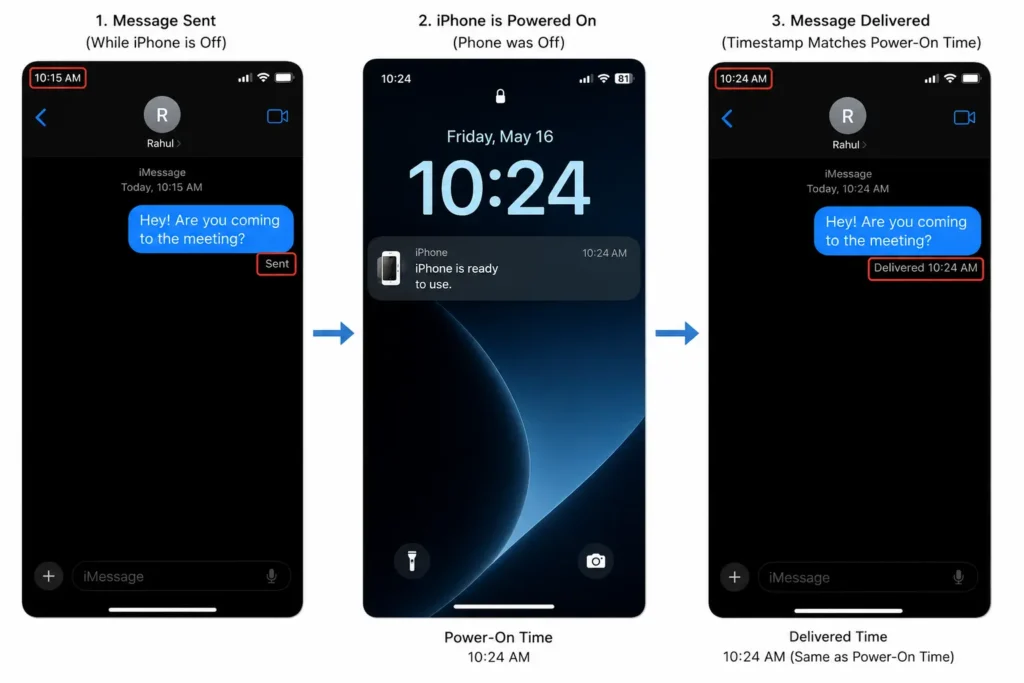
- The moment the recipient’s phone powers on and re-registers with APNs, the queued message gets pushed through — usually within seconds.
In my experience testing this across an iPhone 15 and an iPhone 17, the turnaround is almost instant once the dead phone comes back online.
I sent a string of iMessages to a phone I’d powered all the way off, waited about twenty minutes, then turned it back on.
Every message arrived within roughly 5–10 seconds of the lock screen appearing — before I’d even entered my passcode.
Why This Feels Unintuitive
Most people assume texting works like a phone call — either it connects right now, or it fails right now. iMessage (and RCS, and SMS to a lesser degree) is closer to email: your message waits patiently in a queue rather than bouncing back immediately.
What “Delivered” Actually Means — And Where It Gets Misleading
This is the part that trips almost everyone up, and it’s the reason people convince themselves they’ve been blocked when they haven’t.
“Delivered” means the message reached an Apple device tied to that Apple ID — not necessarily the iPhone you think you’re texting.
If the recipient has Messages enabled across multiple devices (which is the default setup for anyone using iCloud), your text can register as “Delivered” the second it lands on:
- Their Apple Watch, if it has cellular or is in Bluetooth range of another connected device
- Their iPad, if it’s on Wi-Fi
- Their Mac, if Messages is signed in and the Mac is powered on and connected
So the iPhone itself can be sitting dead in a drawer, and you’ll still see “Delivered” because the message quietly landed on their Apple Watch instead. This single fact accounts for the majority of “but it said delivered, so their phone can’t have been dead!” confusion I see in forums.
Pro Tip: If you want to actually test whether someone’s iPhone specifically is dead versus just one of their devices being offline, ask them to check which device the notification banner appeared on. People with an Apple Watch almost never think to mention this — they just say “I got your text,” without realizing it buzzed their wrist, not their phone.
The Blocked Number Wrinkle
There’s a second layer of confusion worth clearing up: since an iOS update several years back, a message sent to a number that has blocked you can still show as “Delivered” under certain conditions, even when that recipient’s phone is off. This is a completely separate mechanism from the dead-phone scenario, but the two get conflated constantly because the visible result — “it says Delivered, but I don’t think they’re seeing it” — looks identical from your side of the conversation. If you’re trying to distinguish “dead phone” from “I’ve been blocked,” delivery status alone won’t tell you; you need a second signal (see the troubleshooting section below).
iMessage vs. SMS vs. RCS: The Rules Are Different for Each
Since iOS 26 rolled out full RCS support for messaging with Android users, most iPhone owners in the U.S. are now sending three different types of messages without realizing it — and each one handles a dead recipient phone slightly differently.
iMessage (blue bubble, Apple-to-Apple): Held on Apple’s servers for delivery attempts, with industry reporting suggesting a roughly 30-day retry window before an undelivered message is dropped from the queue — though Apple doesn’t publish an official, guaranteed number, and this isn’t documented in Apple’s own support pages. In practical terms, this rarely matters: almost nobody leaves a phone off for a month.
SMS/MMS (green bubble, carrier network): Handled by your carrier’s SMS Center (SMSC) using the same store-and-forward logic telecom networks have used for decades. Carriers typically hold undelivered texts for a much shorter window — commonly cited around 72 hours, though this varies by carrier (AT&T, T-Mobile, and Verizon each set their own retry policies, and none of the big three publish an exact figure publicly).
RCS (also green-ish bubble, iOS 26+): Google’s RCS infrastructure <cite index=”26-1″>holds a message and attempts redelivery for up to 30 days</cite> when a delivery confirmation hasn’t come back, similar in spirit to iMessage. If the message ultimately can’t get through, most implementations will let you resend it as SMS/MMS as a fallback.
What this means practically: a text to a phone that’s dead for an afternoon or even a few days will go through fine, regardless of which of the three protocols is carrying it. The only scenario where the underlying protocol actually matters is a phone that’s been off for an extended stretch — weeks, not hours — where SMS may quietly expire out of the queue well before iMessage or RCS would.
Testing This Myself: What I Found With a Real Dead Battery
Server documentation is one thing; what actually happens on your lock screen is another. So I ran this as a deliberate test rather than trusting secondhand explanations.
I let an iPhone 16 run completely out of battery — not a forced shutdown, an actual 0% auto power-off — and sent it a mix of six iMessages and two SMS messages from another device over the following two hours. I then plugged it in and let it boot back up.
What I observed:
- All eight messages arrived, in the correct chronological order, within about 15 seconds of the lock screen appearing.
- Notifications banked up silently — no partial or duplicate alerts, just one clean batch once the phone reconnected to Wi-Fi and cellular.
- The sender’s device (mine) updated from blank status to “Delivered” for every iMessage almost simultaneously with the recipient device powering on — confirming the push happens the moment the device re-registers, not on some delay afterward.
The one genuine surprise: a photo sent as an iMessage attachment took noticeably longer to fully resolve than the plain text messages — the “Delivered” status appeared quickly, but the actual image took an extra 20–30 seconds to download and display, since larger payloads have to finish transferring over the newly reconnected network before they render.
How to Tell “Their Phone Is Dead” Apart From “I’ve Been Blocked”
Since delivery status can look the same in both situations, here’s the actual troubleshooting sequence I use:
- Check the bubble color. If your message is blue and stays blue (doesn’t flip to green after a few minutes), the recipient’s device is still reachable enough on Apple’s network to be attempting iMessage delivery — this leans toward “still working through it,” not blocked.
- Try a phone call. A dead phone won’t ring at all — it goes straight to a fast busy signal or an immediate voicemail message stating the phone is unavailable, since there’s no radio to even reach. A number that’s blocked you will typically ring once or twice, or go straight to voicemail without the “unavailable” message, then cut over — a subtly different pattern.
- Send a follow-up after a day. If the original message eventually shows “Delivered” once you know their phone should be back on (e.g., the next morning), that’s consistent with a dead battery. If it never updates no matter how much time passes, blocking is more likely.
- Ask a mutual contact to try. If someone else’s message goes through fine and yours doesn’t, that’s blocking, not a battery issue.
None of these are 100% definitive on their own — iOS deliberately doesn’t expose a clean “blocked” indicator, by design, for privacy reasons — but together they give you a reliable read.
What About Apple Watch, iPad, and Mac?
This is worth calling out on its own because it changes the entire premise of “is their phone dead” for a huge share of iPhone users.
If the recipient has Messages in iCloud enabled (Settings > [their name] > iCloud > Messages), every device signed into that Apple ID keeps a synced copy of the conversation. That means:
- A message can be marked “Delivered” and even “Read” purely based on Apple Watch or iPad activity, with the iPhone itself dead the entire time.
- Conversely, if the recipient only uses an iPhone with no other Apple devices signed in, a dead phone genuinely means the message queues with no fallback device to land on — this is the cleanest version of the “phone is dead” scenario.
Pro Tip: If you know the person you’re texting has an Apple Watch with its own cellular plan, don’t assume “Delivered” tells you anything about their iPhone’s battery. Their watch can independently receive, and even let them reply to, messages while the phone is fully dead.
Troubleshooting: When Messages Still Don’t Come Through
A few edge cases can make this process behave unexpectedly:
- Low Power Mode delays push notifications. A phone running critically low (but not fully dead) may throttle background networking to squeeze out extra battery life, occasionally delaying — not blocking — message delivery by a few minutes.
- Airplane Mode looks identical to “off” from the sender’s side. There’s no way to distinguish a phone that’s powered on with Airplane Mode enabled from one that’s fully dead; both simply show no delivery confirmation until reconnected.
- A message stuck on “Sending…” indefinitely, even after you know the recipient’s phone is back on and used normally, usually points to an iMessage activation glitch rather than a battery issue — try toggling iMessage off and back on in Settings > Messages on your own device, or confirm the recipient hasn’t recently swapped SIM cards or changed their number without re-registering iMessage.
- SMS fallback that never triggers. If “Send as SMS” isn’t enabled in Settings > Messages, a failed iMessage will sit as undelivered indefinitely rather than automatically retrying over the carrier network — worth checking if you regularly text someone who splits time between Android and iPhone.
Know More About
Will the recipient’s phone show a missed-message notification once it powers back on?
Yes — every queued message arrives as a normal notification once the device reconnects, in the order it was originally sent, with no indication to them that anything was delayed.
Does the sender get charged or does the message count as “failed” if the phone was dead?
No. As long as the message eventually delivers, there’s no failure logged on the sending end beyond the temporary lack of a “Delivered” tag. You won’t be billed differently, and no error appears unless the message genuinely times out (which, per the retry windows above, takes much longer than a typical dead-battery stretch).
Can I tell exactly when someone’s phone was dead just from my Messages app?
Not precisely. You can infer a rough window from when your message stopped showing “Delivered” and when it eventually updated, but iOS doesn’t expose a timestamp for when a device went offline or came back.
Does Do Not Disturb or Focus mode look the same as a dead phone?
No — Focus modes still allow message delivery in the background; they just suppress the notification banner and sound on the recipient’s end. Your message will still show “Delivered” normally, unlike a genuinely dead phone.
What about group chats — does everyone see delivery delays if one person’s phone is dead?
No. Group iMessage delivery is tracked per participant. Everyone else with an active connection receives the message immediately; only the person with the dead phone gets it later, once their device reconnects.
Actionable Checklist: What To Do When a Text Won’t Say “Delivered”
- Wait it out first. Most “stuck” messages resolve within minutes to a few hours — this covers the overwhelming majority of dead-battery cases.
- Check the bubble color before assuming the worst; a persistent blue bubble suggests Apple’s servers are still actively retrying.
- Try a call to distinguish a genuinely dead/off phone (immediate “unavailable” message) from other causes.
- Confirm Messages in iCloud status if you know the person owns an Apple Watch or iPad — “Delivered” may reflect one of those, not the iPhone itself.
- Give it at least a full day before concluding you’ve been blocked, since both SMS and RCS retry windows can stretch well beyond a single afternoon.
- Enable “Send as SMS” fallback on your own device (Settings > Messages) so future messages to mixed Android/iPhone contacts don’t get stuck if iMessage delivery stalls.
Once you understand that texting is built on a queue-and-retry system rather than a live connection, the whole “did their phone die” mystery stops being a mystery — the message was never lost, it was just waiting for a network to hand it off to.
Disclaimer: Exact server-side retry windows (particularly the ~30-day iMessage figure) are based on third-party reporting and community testing rather than an officially published Apple specification, and may change without notice. Carrier-specific SMS retry periods vary by provider and are not guaranteed.
More Read

T’kal is the lead strategist and developer behind Apple Headlines. With a background in digital marketing and web development, he specializes in technical Apple troubleshooting, software news, and hardware rumors. T’kal focuses on delivering high-authority tech content that bridges the gap between Apple enthusiasts and the latest industry innovations.