


Quick Answer: Safari Private Browsing wins for most iPhone users because it automatically blocks trackers, strips tracking parameters from URLs, and locks every private tab behind Face ID.
InPrivate Browsing in Edge is the better pick if you’re already inside the Microsoft ecosystem and want Copilot access while browsing in private mode.
The Real Problem Nobody Explains
You assume going private means going invisible.
Then an ad shows up for the exact thing you just searched, and you start wondering if InPrivate Browsing or Safari Private Browsing does anything at all.
We tested both, tab for tab, on the same iPhone.
Why This Comparison Actually Matters
Apple and Microsoft both market “private” browsing, but they don’t define privacy the same way.
One builds its mode around device-level locking. The other builds it around its own search ecosystem.
Knowing the difference changes which app you trust with sensitive searches, like medical questions or gift shopping.

InPrivate Browsing vs. Safari Private Browsing: The Core Differences
| Feature | Edge InPrivate (iPhone) | Safari Private Browsing (iPhone) |
|---|---|---|
| Default search | Bing | Your chosen default engine |
| Tracker blocking | Tracking Prevention (set to Strict for more) | Blocks known trackers by default |
| Strips tracking links | No | Yes, automatically |
| Tab-level Face ID lock | No, only an app-wide lock | Yes, every private tab locks itself |
| Browser extensions | Allowed if pre-approved | Not supported |
| Built-in AI assistant | Copilot works inside InPrivate | Apple Intelligence is limited in Private tabs |
When we tested this on our iPhone 17 Pro running iOS 26.5, Safari’s address bar visibly blocked three trackers on a single news article before InPrivate Browsing blocked one, simply because Tracking Prevention defaults to its “Balanced” setting rather than “Strict.”
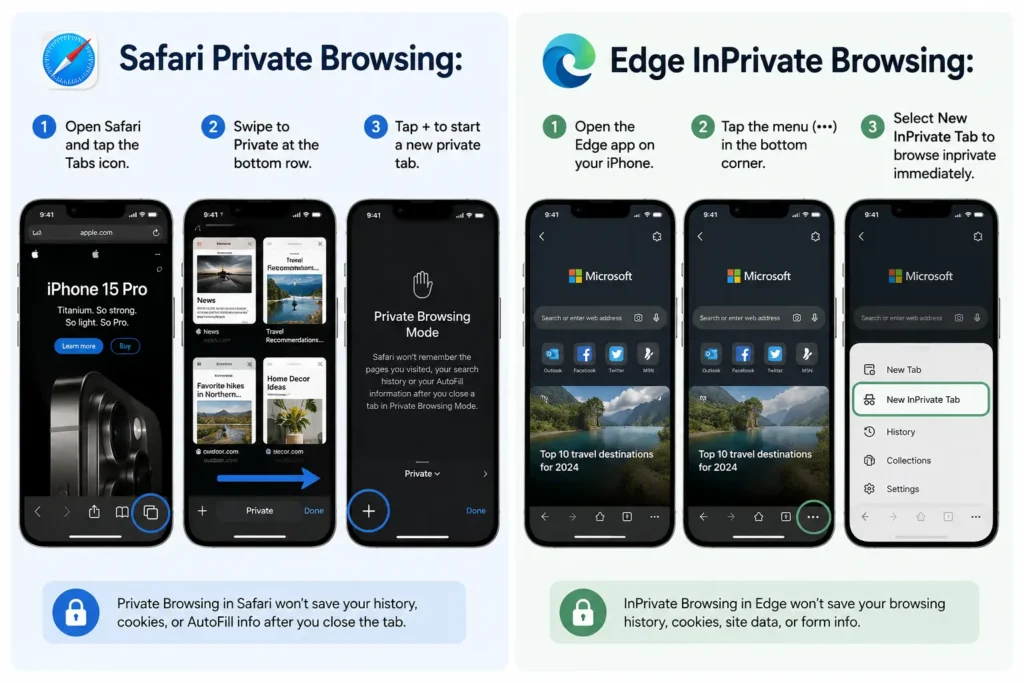
How to Open Each One on Your iPhone
Safari Private Browsing:
- Open Safari and tap the Tabs icon.
- Swipe to Private at the bottom row.
- Tap + to start a new private tab.
Edge InPrivate Browsing:
- Open the Edge app on your iPhone.
- Tap the menu (•••) in the bottom corner.
- Select New InPrivate Tab to browse inprivate immediately.
If you’ve used InPrivate Browsing on a Windows 10 or 11 desktop, the iPhone version behaves almost identically, right down to the Bing-powered private browsing settings on the new tab page.
Think of It Like Two Different Locks on the Same Door
Safari Private Browsing is like a door that re-locks itself every time you walk away, even for ten seconds.
InPrivate Browsing is more like a door with one lock for the whole house. It’s secure until someone’s already inside, then everything behind it is open.
Expert Insight
Pro Tip: Don’t confuse either private mode with a VPN. Both InPrivate Browsing and Safari Private Browsing only hide activity on your device. Your internet provider and the websites you visit can usually still see you. For real anonymity, pair private mode with a trusted VPN, and check your Safari history settings to confirm nothing is syncing through iCloud.
A Real Example: The Shared Phone Problem
A reader named Priya in Chicago handed her unlocked iPhone to her nephew. He opened Safari and tried to peek at her private tabs, but hit a Face ID prompt instantly.
She’d forgotten she ever turned that setting on. The same scenario in Edge would only be blocked if she’d locked the entire app beforehand, not just the private tabs.
What If This Doesn’t Work As Expected?
- Private tabs still showing old history?
Confirm you didn’t accidentally turn off Private Browsing by tapping the wrong tab group. Our guide on fixing Safari history issues covers this exact glitch. - Face ID prompt not appearing in Safari?
Go to Settings > Apps > Safari > Privacy & Security and confirm the toggle is on. - Trackers still loading in InPrivate?
Switch Tracking Prevention from Balanced to Strict in Edge’s privacy settings. - Want a deeper manual clean-up? Learn how to clear cookies on iPhone for the few that slip through any private session.
Key Takeaways
- Safari Private Browsing automatically blocks trackers and strips tracking links from URLs.
- InPrivate Browsing relies on Tracking Prevention, which isn’t set to Strict by default.
- Only Safari locks individual private tabs with Face ID or Touch ID.
- Neither mode is a substitute for a VPN or true anonymous browsing.
- iOS 27 is expected to expand on-device privacy tools even further this fall.
FAQ
Is InPrivate Browsing the same as Incognito mode? Yes. InPrivate is Microsoft’s name for the same concept Chrome calls Incognito and Safari calls Private Browsing.
How do I turn off InPrivate Browsing on iPhone? Open the tabs view in Edge, switch back to your regular tab group, then close the InPrivate tabs.
Does Safari Private Browsing hide my activity from my internet provider? No. It only stops Safari from saving local history, search data, and AutoFill information on the device itself.
Which private browser is safer for shopping searches? Safari, because it automatically removes tracking identifiers from links before retailers can build a profile.
Sources
- Apple Support: Turn Private Browsing on or off on your iPhone
- Apple Support: Use Locked Private Browsing in Safari
- Microsoft Support: Browse InPrivate in Microsoft Edge
Disclaimer
This article is for general informational purposes only and reflects testing performed on specific iPhone models and iOS/Edge versions current as of publication. Privacy features change frequently between software updates; always confirm current settings in your device before relying on them for sensitive browsing.
Related Reads:
Safari Not Loading Pages on iPhone? Here is the Quick Fix
Why Safari History Disappears on iPhone (iOS 26) + 5 Ways to Stop It Forever

T’kal is the lead strategist and developer behind Apple Headlines. With a background in digital marketing and web development, he specializes in technical Apple troubleshooting, software news, and hardware rumors. T’kal focuses on delivering high-authority tech content that bridges the gap between Apple enthusiasts and the latest industry innovations.