That sounds helpful — and often it is. But here’s the problem: those sticky notes pile up. Over months and years, they slow your browser down, create privacy vulnerabilities, and can even cause websites to load incorrectly because an old cookie conflicts with a new page layout.
There are three main types of cookies on your iPhone:
Session cookies — Temporary. They disappear the moment you close a browser tab.
Persistent cookies — These stick around for weeks, months, or even years.
Third-party cookies — Set by advertisers, not the site you’re actually visiting. These are the privacy concern most people hear about.
Apple’s Safari browser handles all three.
So does Chrome, Firefox, and every other browser you might have installed on your iPhone.
Learn 7 proven ways to clear cookies on iPhone fast using Safari settings and website data options (2026 guide).
Does Clearing Cookies Actually Help? (The Real-World Answer)
Yes — but with nuance.
Here’s what actually happens when you clear cookies from your iPhone:
Websites load fresh data instead of pulling from a stale cache.
Login sessions end, which can actually improve security on shared devices.
Tracking resets, reducing how much ad networks know about your recent behavior.
Corrupted site data gets wiped, which often fixes pages that weren’t loading right.
Quick stat: According to web performance research, browsers storing thousands of site cookies can add measurable latency to page loads — especially on older iPhone models running resource-intensive browser sessions.
What doesn’t happen: Your saved passwords (stored in iCloud Keychain), your AutoFill data, and your bookmarks are completely untouched. Removing cookies from your iPhone is safer than most people assume.
Method 1: How to Clear Cookies on iPhone in Safari (The Fast Way)
Safari is the default iPhone browser, and this is the method most people need. Updated for iOS 26.
Clear All Safari History, Cookies, and Cache
Open the Settings app on your iPhone.
Tap Apps, then select Safari. (On older iOS versions, tap Safari directly from the Settings list.)
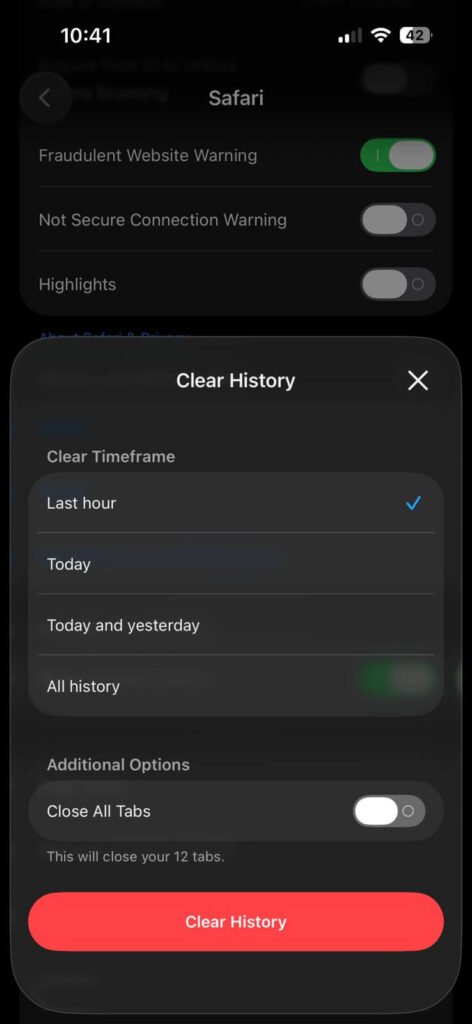
Choose your timeframe: Last Hour, Today, Yesterday and Today, or All History.
Tap Clear History to confirm.
Choose a timeframe to clear browsing history and cache in Safari on iPhone.
That’s it. You’ve just finished clearing cookies on your iPhone. Your browsing history is gone, your cache is wiped, and all cookies have been removed.
Important: If the “Clear History and Website Data” button appears grayed out, one of two things is happening: there’s no data to clear, or a Screen Time restriction is blocking you. Go to Settings > Screen Time > Content & Privacy Restrictions > Web Content to check.
Clear Cookies Without Deleting Your Browsing History
Don’t want to lose your history? Apple gives you a way to remove cookies and cache while keeping your visited-page history intact.
Open Settings and tap Apps > Safari.
Scroll to the bottom and tap Advanced.
Tap Website Data.
Tap Remove All Website Data — then confirm with Remove Now.
This clears data used for tracking and stored login information, but leaves your browsing history completely untouched.
Delete Cookies for One Specific Website in Safari
This is the method almost no one talks about — and it’s incredibly useful.
Go to Settings > Apps > Safari > Advanced > Website Data.
Use the search bar at the top to find a specific site (e.g., “facebook” or “google”).
Swipe left on that site’s entry.
Tap Delete.
Only that site’s cookie gets removed. Everything else stays. This is perfect when one website is misbehaving but you don’t want to reset cookies on your iPhone entirely.
The “Digital Expired Milk” Problem
Here’s an analogy that makes this click: Cookies work like cartons of milk in your fridge. Fresh milk (a new cookie) works perfectly.
But if you never clean out your fridge, six-month-old expired cartons start taking up space and making everything smell strange.
Your iPhone’s browser is that fridge. Old, expired, corrupted cookies from sites you visited years ago are still sitting there — taking up storage, occasionally causing “website not loading” errors, and leaking behavioral data to trackers.
Clearing cookies is just taking out the old milk.
Method 2: How to Clear Cookies from Chrome on iPhone
Google Chrome handles cookie deletion differently than Safari.
Here’s the current process for the Chrome iOS app in 2026:
Open the Chrome app on your iPhone.
Tap the three-dot menu (⋯) in the bottom-right corner.
Tap History, then tap Delete Browsing Data.
Make sure Cookies and Site Data is checked.
Set your time range — choose All Time for a full reset.
Tap Delete Browsing Data to confirm.
Pro Tip: If you’re signed into a Google account in Chrome, clearing cookies on this iPhone won’t affect cookies on your other synced devices (like your laptop). Chrome cookies are device-specific, not account-synced.
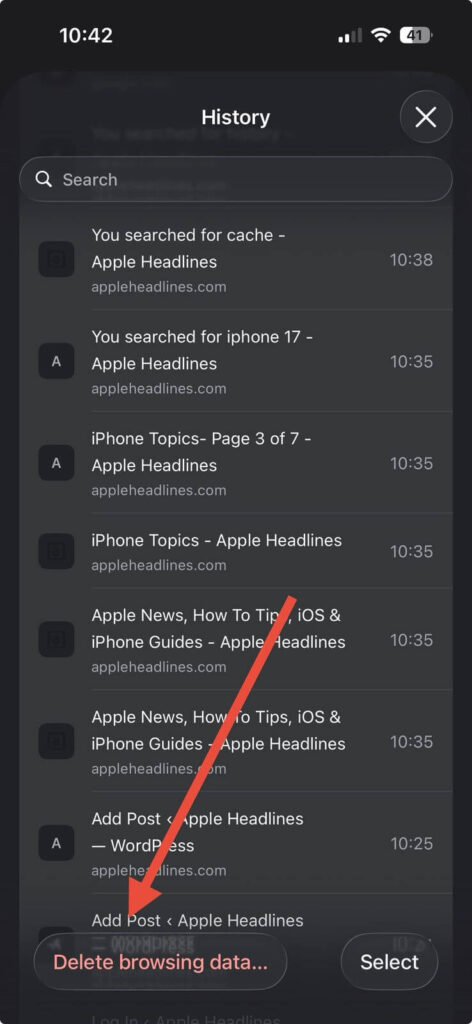
Quickly delete browsing history and cache directly from Chrome history screen on iPhone.
Method 3: How to Erase Cookies in Firefox on iPhone
Removing cookies from Firefox on iPhone takes just a few taps:
Open the Firefox app.
Tap the hamburger menu (three horizontal lines) in the bottom-right.
Tap Settings.
Scroll to Privacy and tap Data Management.
Toggle on Cookies (and any other data you want to clear).
Tap Clear Private Data and confirm.
Method 4: Clear Cookies in Other iPhone Browsers
Microsoft Edge
Go to Settings (three dots) > Privacy & Security > Clear Browsing Data. Check Cookies and Site Data, then tap Clear Now.
Opera
Open Settings > Privacy > Clear Browsing Data. Select Cookies and Site Data and confirm.
Brave Browser
Tap Settings > Brave Shields & Privacy > Clear Private Data. Toggle on Cookies and tap Clear.
Short Story: The Login Loop That Cost 30 Minutes
Marcus, a freelance designer in Austin, spent 30 minutes troubleshooting why his project management app kept logging him out the moment he logged in. He reset his password twice. He emailed support. He reinstalled the app.
The fix took 45 seconds: he went to Settings > Apps > Safari > Advanced > Website Data, searched for the app’s domain, and deleted just that one cookie entry. The corrupted session cookie was the culprit the whole time.
He said afterward: “I had no idea I could delete cookies for just one site. I thought it was all-or-nothing.”
It’s not. And now you know that too.
How to Block Cookies Entirely on iPhone (And Why You Probably Shouldn’t)
Apple lets you block all cookies from ever being set in Safari. Here’s how:
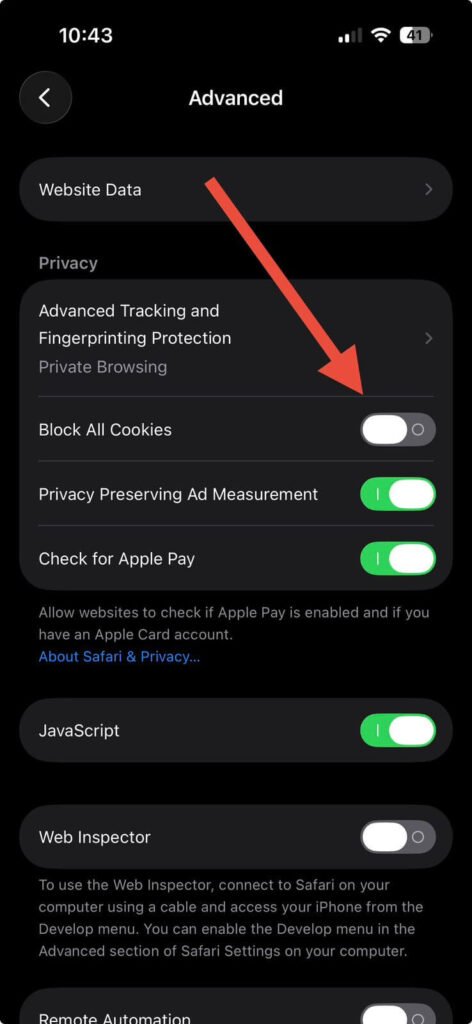
Go to Settings > Apps > Safari > Advanced.
Toggle on Block All Cookies.
Tap Block All to confirm. Safari will restart and reload your tabs.
Disable or enable “Block All Cookies” in Safari settings on iPhone to manage website tracking and privacy.
Here’s the honest warning:
this will break a lot of websites. You won’t be able to stay logged into most services. Shopping carts will empty between visits. Some sites will refuse to load at all. Blocking all cookies is a nuclear option — useful on a device you’re about to hand to someone else, but not practical for daily browsing.
A better approach for privacy?
Use Safari’s Private Browsing mode for sensitive sessions. Cookies set in Private mode are automatically deleted when you close the tab.
How Often Should You Clear Cookies on iPhone?
There’s no universal rule, but here’s a practical framework:
Situation
Recommended Action
Experiencing website errors
Clear immediately (try site-specific first)
Monthly maintenance
Clear Safari history and data
After using public Wi-Fi
Clear all cookies from browser, iPhone immediately
Before selling your iPhone
Full clear + Factory Reset
Privacy-conscious routine
Monthly reset cookies on iPhone
Sharing device temporarily
Clear before and after
Troubleshooting: What If Clearing Cookies Doesn’t Fix the Problem?
You’ve gone through the steps for deleting cookies on your iPhone, and the problem persists. Here are the next-level fixes:
The Website Still Won’t Load Properly
Force-quit Safari by swiping up from the bottom of the screen, finding Safari in the app switcher, and swiping it up to close. Reopen and try again.
Check your internet connection. Some “website broken” errors are actually Wi-Fi or cellular issues.
Try the site in a different browser (e.g., open Chrome if you normally use Safari).
The “Clear History and Website Data” Button Is Still Grayed Out
This is almost always a Screen Time issue. Go to Settings > Screen Time > Content & Privacy Restrictions and either turn off restrictions temporarily or have whoever manages your Screen Time passcode adjust the web content settings.
Safari Is Still Running Slowly After Clearing Cookies
Go to Settings > Apps > Safari and toggle JavaScript off and back on. (Yes, it sounds weird — it forces a settings refresh.)
Check if any Safari extensions might be slowing things down. Go to Settings > Apps > Safari > Extensions and disable them one by one.
Restart your iPhone entirely. Hold the side button + volume button, then slide to power off.
Chrome or Firefox Cookies Won’t Clear
Make sure you’re running the latest version of the app. Old app versions sometimes have bugs in the data-clearing flow.
Uninstall and reinstall the browser as a last resort. This clears all stored data automatically.
iOS 26 Updates: What Changed for Cookie Management in 2026
Apple’s iOS 26 (released in 2026) made one important navigation change worth knowing: Safari settings moved under Apps. In older iOS versions, you’d go directly to Settings > Safari. In iOS 26, the path is Settings > Apps > Safari.
The actual cookie-clearing steps remain the same — Apple didn’t change the underlying functionality. But if you’ve been following an older guide and can’t find the right menu, that’s why.
Additionally, iOS 26 updated the Clear History screen to let you choose a specific timeframe (Last Hour, Today, Yesterday and Today, or All History) — giving you more control than the previous all-or-nothing clear.
Frequently Asked Questions
Q: Will clearing cookies delete my saved passwords on iPhone?
No. Saved passwords live in iCloud Keychain (or your password manager), which is completely separate from browser cookies. Clearing cookies on your iPhone will not touch your passwords.
Q: Does clearing Safari cookies affect other Apple devices?
If you use iCloud Safari syncing, clearing history and cookies on your iPhone can affect synced devices. Clearing only Website Data (via Advanced > Website Data) is more contained. Chrome cookies are never synced between devices, only bookmarks and open tabs are.
Q: How do I clear cookies on iPhone without clearing history?
Go to Settings > Apps > Safari > Advanced > Website Data > Remove All Website Data. This removes cookies and cache while keeping your browsing history exactly as-is.
Q: Why do cookies come back so fast after I clear them?
Every site you visit sets new cookies immediately. If you clear your cookies and then visit your 10 most-used websites, you’ll have 10 new sets of cookies within minutes. That’s normal. For more persistent protection, use Private Browsing for sensitive sessions.
Q; Is it safe to clear cookies on my iPhone?
Yes — with one caveat. You’ll be logged out of every website where you were previously signed in. Make sure you remember your passwords (or have them saved in a password manager) before clearing cookies on your iPhone.
Ready to Take Control of Your iPhone’s Privacy?
Clearing cookies is one of the fastest, easiest maintenance habits you can build. It takes under 60 seconds, it costs nothing, and it can genuinely fix real problems — from sluggish browsers to misbehaving websites to privacy concerns you didn’t even know you had.
Do it now: Open Settings > Apps > Safari > Clear History and Website Data, pick your timeframe, and tap Clear History. Your browser will thank you.
Have a question this guide didn’t answer? Drop it in the comments — we read every one.
Disclaimer: Steps and screenshots described in this article reflect iOS 26 as of April 2026. Apple updates its software regularly, and menu paths may shift in future iOS releases. This article is for informational purposes only. Clearing cookies may log you out of services and affect website functionality. AppleHeadlines.com is an independent publication and is not affiliated with, endorsed by, or sponsored by Apple Inc. Always back up important data before making changes to your device settings.
Ruth writes in-depth guides about Apple products, focusing on practical solutions for everyday users. Her articles cover device setup, hidden features, troubleshooting, and the latest updates for iOS, watchOS, and other Apple platforms.
He regularly researches Apple updates and tests features on devices like the iPhone and Apple Watch to ensure readers receive accurate and helpful information.