


By using this site, you agree to the Privacy Policy and Terms of Use.
Accept
Apple Headlines Logo Image Apple Headline's White Logo
  • 🔥 Trending:
  • Apple Tech
  • How to Fix
  • Readers Space
  • iPhone
  • iOS
  • Mac
  • Apple Watch
  • iPadOS
  • AirPods
  • Contact Us
Reading: Safari History Not Showing on iOS 26? 7 Quick Fixes to Restore It Now
Apple HeadlinesApple Headlines
Font ResizerAa
  • iPhone
  • iOS
  • Mac
  • Apple Watch
  • iPadOS
  • AirPods
  • Contact Us
Search
  • iPhone
  • iOS
  • Mac
  • Apple Watch
  • iPadOS
  • AirPods
  • Contact Us

Must Read

How to check for malware on Mac using seven powerful methods to find and remove threats

How to Check for Malware on Mac: 7 Powerful Ways to Find and Remove Threats

Infographic showing the correct USB-C and Lightning cables for iPhone CarPlay

Why Use Apple Certified USB Cable for CarPlay?

Woman showing an Apple Genius Bar appointment on an iPhone with tips to skip the waitq

Apple Genius Bar Appointment: Insider Secrets to Skip the Wait

MacBook Pro showing a dark shadow along the bottom of the screen with five possible causes highlighted

MacBook Pro Shadows at the Bottom of the Screen: 5 Real Causes, Ranked by Severity

13-inch MacBook Pro display backlight service program ending in 2026 with repair options

13-Inch MacBook Pro Display Backlight Service Program: It’s Over in 2026 – Here Are Your 4 Best Options

Follow US
© Apple Headlines. All Rights Reserved.
Apple Headlines > Apple News > Safari History Not Showing on iOS 26? 7 Quick Fixes to Restore It Now
Apple NewsiOSiPhone

Safari History Not Showing on iOS 26? 7 Quick Fixes to Restore It Now

Virginia J. Alfonso By Virginia J. Alfonso Last updated: February 13, 2026
4 Min Read
SHARE

Safari history not showing on iOS 26 can derail your workflow, whether you’re retracing research tabs or revisiting a forgotten link.

Many iPhone users report this glitch after updates, but it’s often a simple setting or sync hiccup.

In this guide, we’ll pinpoint common causes and walk you through step-by-step fixes to restore your history instantly.

Common Causes of Missing Safari History on iOS 26

Several factors can hide your Safari history:

Main Topics
Common Causes of Missing Safari History on iOS 26Step-by-Step Fixes to Restore Safari HistoryWhy This Happens on iOS 26 and Prevention
  • Private Browsing Mode Enabled: This mode doesn’t save history at all, wiping records in real-time.
  • iCloud Sync Disabled: If sync is off, history stays local and might not load properly across sessions.
  • Safari Restrictions in Screen Time: Parental controls or downtime limits can block history visibility.
  • Other Culprits: Outdated iOS, low storage, or cache buildup can also play a role.
Safari history not showing on iPhone with bold text and woman on black background explaining 7 quick fixes.
Safari history not showing on iPhone? Try these 7 quick fixes to restore your browsing history instantly.

Step-by-Step Fixes to Restore Safari History

Start with the basics and escalate as needed. These work on iPhone 16, 15 series, and older models running iOS 26.

Turn Off Private Browsing Mode
Open Safari.
Tap the tabs icon (two squares) in the bottom-right.
If you see “Private” highlighted, tap it to switch to normal tabs.
History should reappear immediately.
Pro tip: Lock private mode with Face ID via Settings > Safari > Private Browsing Lock for future safety.
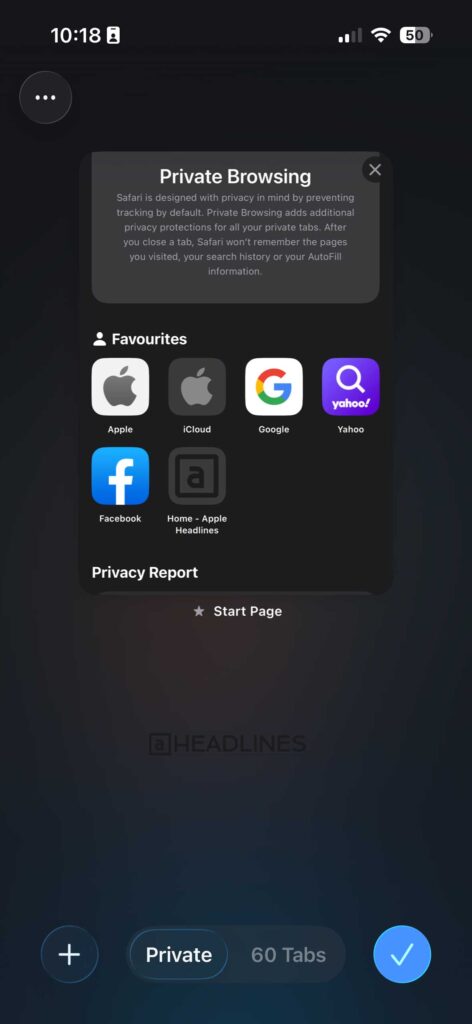
Safari Private Browsing mode enabled on iPhone showing private tab screen and favourites section.
Safari Private Browsing on iPhone prevents history, search data, and AutoFill information from being saved.

Enable Safari in iCloud Settings
Go to Settings > [Your Name] > iCloud > Show All > Safari, then toggle it on.
This syncs history across devices. Wait 1-2 minutes for refresh—check by opening a new tab and visiting a site.
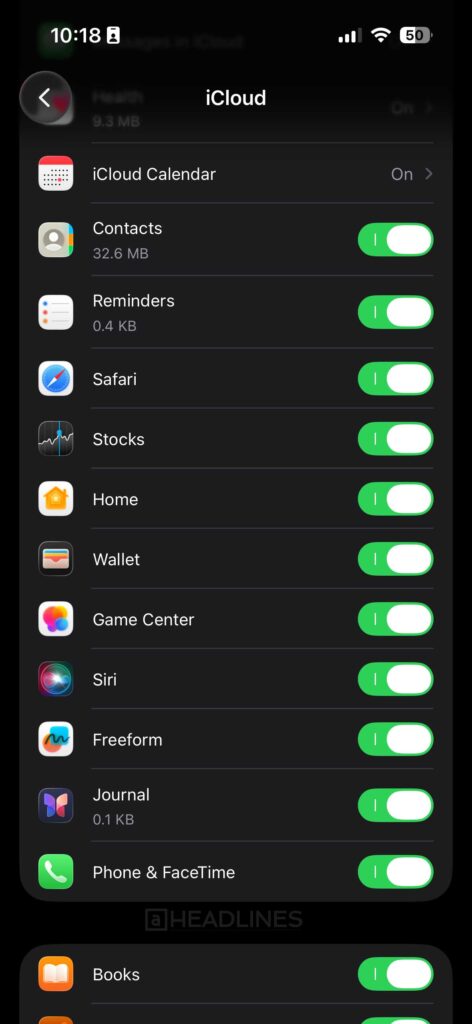
iPhone iCloud settings screen showing Safari toggle enabled along with Contacts, Reminders, and other apps.
Turn on Safari in iCloud settings to sync browsing data across your Apple devices.

Check and Disable Screen Time Restrictions
Head to Settings > Screen Time > Content & Privacy Restrictions.
If enabled, enter your passcode, tap Safari, and ensure “Web Content” is set to Unrestricted.
Also, disable “Limit Adult Websites” if it’s blocking history.

More Read

Infographic showing the correct USB-C and Lightning cables for iPhone CarPlay
Why Use Apple Certified USB Cable for CarPlay?
Woman showing an Apple Genius Bar appointment on an iPhone with tips to skip the waitq
Apple Genius Bar Appointment: Insider Secrets to Skip the Wait
13-inch MacBook Pro display backlight service program ending in 2026 with repair options
13-Inch MacBook Pro Display Backlight Service Program: It’s Over in 2026 – Here Are Your 4 Best Options

Restart Your iPhone and Update iOS
Force restart: For iPhone 16/15, quickly press/release volume up, then volume down, hold side button until Apple logo.
Update via Settings > General > Software Update – iOS 26.1 patches many history bugs.

Clear Safari Cache (Extra Tip)
If history still won’t load, go to Settings > Safari > Clear History and Website Data.
This refreshes without deleting everything.
For stubborn cases, toggle Advanced > Website Data off/on.

(Read more > How to Clear Cache on iPhones)

Reset Safari Settings
Settings > Safari > Clear History and Website Data, then reset via Settings > General > Transfer or Reset iPhone > Reset > Reset Location & Privacy (won’t erase data).
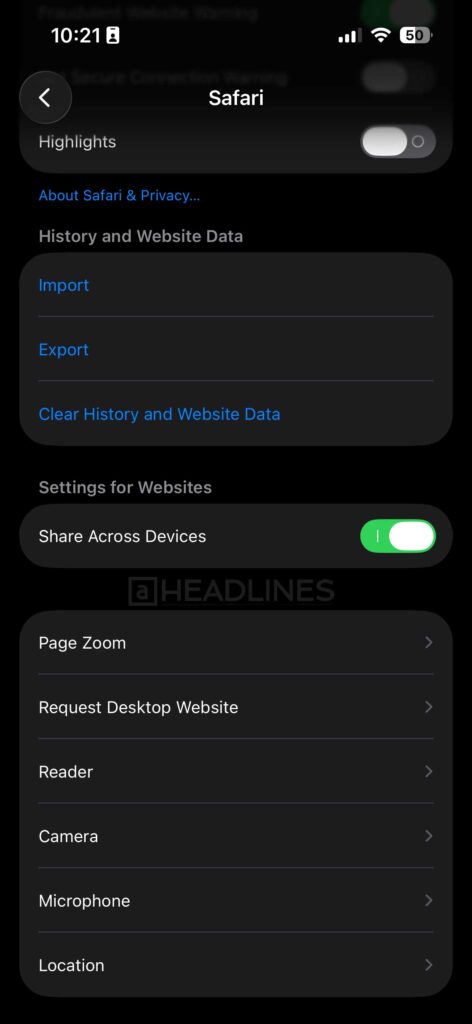
Safari settings screen on iPhone showing Clear History and Website Data option.
Use the Clear History and Website Data option in Safari settings to remove browsing history and cookies.

Free Up Storage
Settings > General > iPhone Storage – offload unused apps to prevent auto-pruning of history.

Why This Happens on iOS 26 and Prevention

iOS 26’s enhanced privacy features tightened history retention, but these fixes counter it. Enable iCloud backups weekly to safeguard records.

For more, check our Complete Guide to Safari History Management.

Virginia smiling face image
Virginia J. Alfonso

Virginia J. Alfonso is a seasoned technology writer with a passion for all things digital. With over a decade of experience covering the latest in tech innovation, gadgets, and software, Virginia brings a unique blend of technical expertise and accessible writing to her work. Her articles focus on making complex tech topics easy to understand for readers of all levels.


TAGGED:How to Fixios 26 find my updatesSafari
Share This Article
Facebook Twitter Pinterest Whatsapp Whatsapp LinkedIn Reddit Threads Email Copy Link
Previous Article Apple iOS 26.3 update screen showing version 26.3 with security and Android transfer improvements iOS 26.3: Apple’s Latest iPhone Update Brings Security, Simpler Android Transfers, and More
Next Article save safari history on iphone Why Safari History Disappears on iPhone (iOS 26) + 5 Ways to Stop It Forever

Follow Us On Social

FacebookLike
InstagramFollow
YoutubeSubscribe

Our Published Video

Must Read

How to check for malware on Mac using seven powerful methods to find and remove threats

How to Check for Malware on Mac: 7 Powerful Ways to Find and Remove Threats

Infographic showing the correct USB-C and Lightning cables for iPhone CarPlay

Why Use Apple Certified USB Cable for CarPlay?

Woman showing an Apple Genius Bar appointment on an iPhone with tips to skip the waitq

Apple Genius Bar Appointment: Insider Secrets to Skip the Wait

MacBook Pro showing a dark shadow along the bottom of the screen with five possible causes highlighted

MacBook Pro Shadows at the Bottom of the Screen: 5 Real Causes, Ranked by Severity

13-inch MacBook Pro display backlight service program ending in 2026 with repair options

13-Inch MacBook Pro Display Backlight Service Program: It’s Over in 2026 – Here Are Your 4 Best Options

MacBook showing the Photos app with organized images and photo organization tools

9 Mac Photo Organization Tricks That Finally Beat the Clutter

Apple Headlines Logo Image

Apple Headlines delivers fresh, reliable Apple news, how-to guides, and tips for every Apple user.

Topics

  • iOS
  • iPhone
  • Mac
  • Apple News
  • Apple Watch
  • iPadOS
  • AirPods

Quick Links

  • Home
  • About Us
  • Privacy Policy
  • Terms of Service
  • Contact Us
Apple Headlines Logo Image

Designed By Apple Headlines

appleheadlines.com